Android
This guide provides instructions for setting up the Authentication feature in Hive SDK Android.
Add features
You need to add the external libraries corresponding to the module-level build.gradle file. Only add the Authentication features you will use.
Below is an example of adding external libraries to the module-level build.gradle file.
dependencies {
   // Feature-specific settings. Add only the features you are using.
    // AuthV4 Device Management
   implementation "com.com2us.android.hive:hive-authv4-device-management"
   // AuthV4 Google In-App Update
   implementation "com.com2us.android.hive:hive-authv4-google-inappupdate"
   // AuthV4 Google reCAPTCHA
   implementation "com.com2us.android.hive:hive-authv4-google-recaptcha"
   // AuthV4 Real Name Verification (China)
   implementation "com.com2us.android.hive:hive-authv4-real-name-verification"
}
Add IdPs
Add external libraries to the module-level build.gradle file. Only add the IdP you will use.
Below is an example of adding external libraries to the module-level build.gradle file. The guest login feature can be used without adding any libraries.
dependencies {
    // IdP-specific settings. Add only the IdPs you are using.

    // Apple Login
    implementation "com.com2us.android.hive:hive-authv4-provider-apple-signin"

    // Facebook Login
    implementation "com.com2us.android.hive:hive-authv4-provider-facebook"

    // Google Play Games Login
    // `hive-authv4-provider-google-playgames` includes the `play-service-games-v2` library.
    implementation "com.com2us.android.hive:hive-authv4-provider-google-playgames"

    // Google Login
    // Google Play Games Login and Google Login are different login methods.
    implementation "com.com2us.android.hive:hive-authv4-provider-google-signin"

    // Membership Login
    implementation "com.com2us.android.hive:hive-authv4-provider-hive-membership"

    // Huawei Login
    implementation "com.com2us.android.hive:hive-authv4-provider-huawei"

    // LINE Login
    // To apply the LINE library, minSdkVersion 24 or higher is required.
    implementation "com.com2us.android.hive:hive-authv4-provider-line"

    // QQ Login
    implementation "com.com2us.android.hive:hive-authv4-provider-qq"

        // Steam Login
        implementation "com.com2us.android.hive:hive-authv4-provider-steam"

    // VK library requires targetSdkVersion 32 or higher.
    implementation "com.com2us.android.hive:hive-authv4-provider-vk"

    // WeChat Login
    implementation "com.com2us.android.hive:hive-authv4-provider-wechat"

    // Weverse Login
    implementation

        // X Login
    implementation "com.com2us.android.hive:hive-authv4-provider-x"

    // Telegram Login
    implementation "com.com2us.android.hive:hive-authv4-provider-telegram"

        // Xiaomi Login
    implementation "com.com2us.android.hive:hive-authv4-provider-xiaomi-oauth"

    // animateGO Login
    implementation "com.com2us.android.hive:hive-authv4-provider-animatego-oauth"

    // DMM Login
    implementation "com.com2us.android.hive:hive-authv4-provider-dmm"
}
Enter the key values for each IdP in hive_config.xml
Enter the key values obtained from each IdP console in hive_config.xml. For more details, refer to Authentication Prerequisites.
Additional settings by IdP
Additional configuration is required depending on the IdP.
Google Sign-in IdP configuration
Note
Starting from Hive SDK 26.4.0, you can choose between Google SignIn or Google Credential Manager method for Google login.
- hive-authv4-provider-google-signin: Handles Google login using the Play Services library.
- hive-authv4-provider-google-credential-signin: Handles Google login using the Credential Manager library.
- Gradle 8.x or higher is required
The existing Google login based on the Play Services library was deprecated as of September 2024, and was originally scheduled to be removed in 2025. However, Google currently continues to support the library.
For stable service operations, Google recommends migrating to Credential Manager instead of Play Services.
Hive SDK supports both Play Services and Credential Manager methods. When Google confirms plans to remove Play Services, we will provide guidance through Hive SDK updates.
Google Play Games sign-in IdP settings
To use Google Play Games login, set it up as follows.
AndroidManifest.xml settings
This is the configuration for Google Play Services. It is the required value for Google Play Games login setup.
<manifest>
    <application>
    <meta-data android:name="com.google.android.gms.games.APP_ID" android:value="@string/game_services_project_id"/>
    </application>
</manifest>
Facebook IdP configuration
To use Facebook login, configure AndroidManifest.xml according to the instructions below.
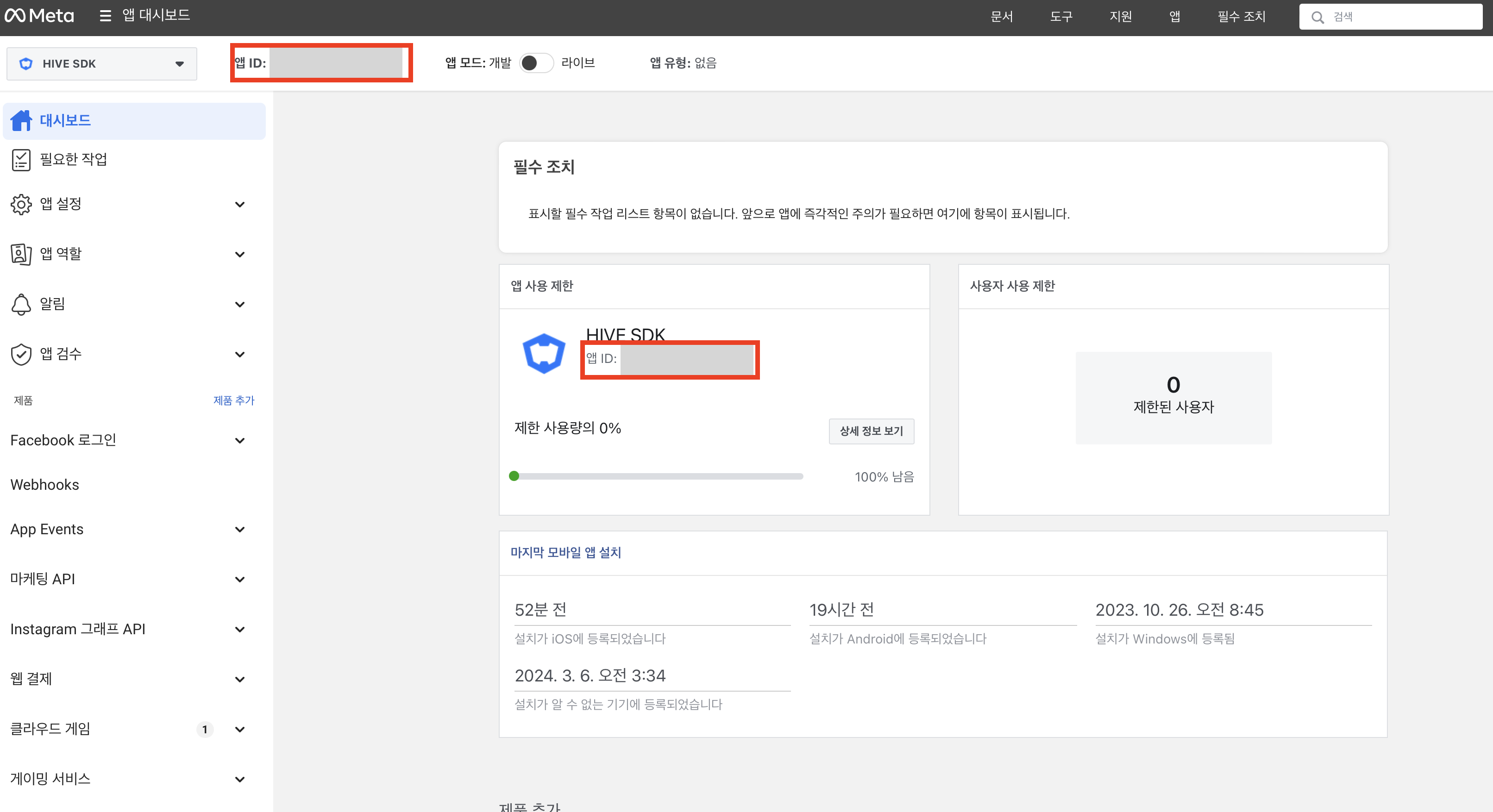
First, set up the FacebookContentProvider for sharing links, images, or videos in the game app. Enter the Facebook AppID by appending it to the com.facebook.app.FacebookContentProvider as the value of the android:authorities attribute. The Facebook AppID can be found in the app ID for the game app registered in the Facebook console.
Example: When the FacebookAppID is 123456789
<provider android:authorities="com.facebook.app.FacebookContentProvider123456789"
    android:name="com.facebook.FacebookContentProvider"
    android:exported="true"/>
Warning
To enable Facebook sharing, declaring the FacebookContentProvider permission will prevent simultaneous installation of market-specific Android builds (e.g., Google Play Store, ONE Store).
If you are not using Facebook sharing, please refer to the troubleshooting guide to remove the declaration of the FacebookContentProvider permission.
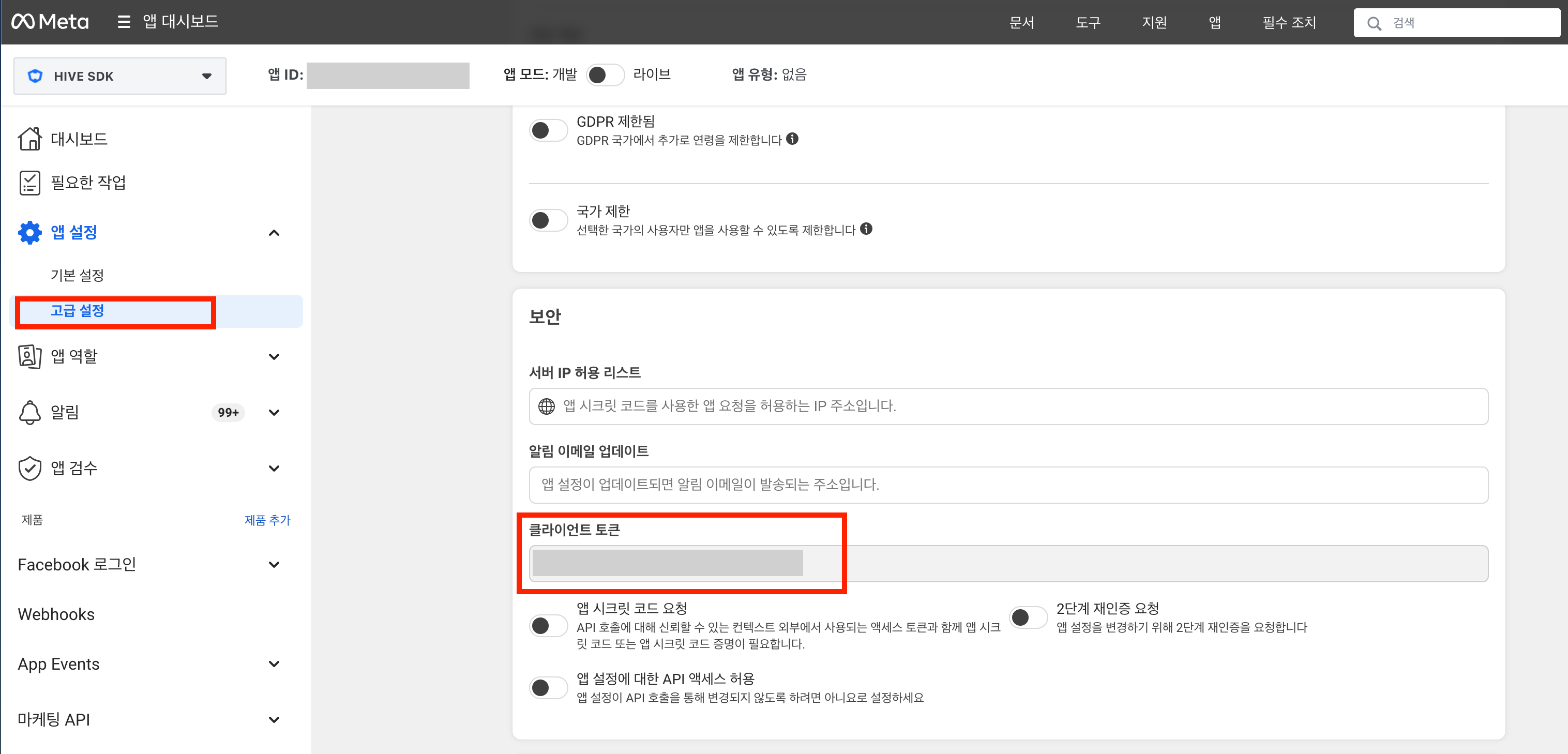
Add settings for Facebook AppId and client token configuration (required for Facebook v13 and above). For the Facebook client token, refer to App Settings > Advanced Settings in the Facebook console.
Example: When the FacebookAppID is 123456789
Example: When the Facebook Client Token is 123456789
Note
You can also set the Facebook AppId and client token in the string.xml file. In this case, the fb prefix is not required when setting android:value. For more details, check here.
QQ/WeChat IdP configuration
If you support QQ or WeChat IdP, please apply the following additional content.
Set the dependency for the libs folder in the module-level build.gradle file.
dependencies {
   implementation fileTree(include: ['*.jar'], dir: 'libs')
   implementation fileTree(include: ['*.aar'], dir: 'libs')
}
Add external libraries from the SDK distribution version in the module-level libs folder(.aar/.jar). The list of external libraries included in the distribution version is as follows.
- mid-sdk-2.10.jar (Add this file when supporting QQ IdP login)
- mta-sdk-2.0.0.jar (Add this file when supporting QQ or WeChat IdP login)
- open_sdk_3.5.4.11_r3f56456_lite.jar (Add this file when supporting QQ IdP login)
Huawei IdP configuration
- Add agconnect-services.json
- Add the agconnect-services.json file downloaded from the Huawei console to the Project folder.
- Configure the Project - build.gradle file
- Add the AppGallery Connect plugin and Maven address.
buildscript {
    repositories {
        google()
        jcenter()
        // Huawei HMS Core SDK.
        maven {url 'https://developer.huawei.com/repo/'}
    }
    dependencies {
        ...
        // Huawei AppGallery Connect plugin
        classpath 'com.huawei.agconnect:agcp:1.9.1.301'
    }
}
allprojects {
    repositories {
        google()
        jcenter()
        /// Huawei HMS Core SDK.
        maven {url 'https://developer.huawei.com/repo/'}
    }
}
- Add the AppGallery Connect plugin and Maven address.
- Configure the App - build.gradle file
- Add Huawei authentication library and plugin.
VK IdP configuration
To use VK login, set it up as follows.
androidmanifest.xml settings
Settings required for VK login redirection.
<manifest>
    <application>
        <activity
            android:name="com.hive.authv4.provider.vk.HiveProviderVkActivity"
            android:configChanges="colorMode|density|keyboard|keyboardHidden|orientation|screenLayout|uiMode|screenSize|smallestScreenSize|locale|fontScale|layoutDirection"
            android:exported="true"
            android:launchMode="singleTask">

            <intent-filter>
                <action android:name="android.intent.action.VIEW" />
                <category android:name="android.intent.category.DEFAULT" />
                <category android:name="android.intent.category.BROWSABLE" />

                <data android:scheme="vk${vkClientId}" />
                <data android:host="vk.com" />
            </intent-filter>

        </activity>
    </application>
</manifest>
Xiaomi IdP configuration
To use Xiaomi login, you need to configure the XiaomiAppId and XiaomiAppKey obtained from the Xiaomi console.
AndroidManifest.xml settings
<meta-data
    android:name="miGameAppId"
    android:value="${xiaomiAppId}" />
<meta-data
    android:name="miGameAppKey"
    android:value="${xiaomiAppKey}" />
<!-- user OAID -->
<meta-data
    android:name="miGameEnhance"
    android:value="false" />
Settings.gradle maven configuration
maven {
    url "https://repos.xiaomi.com/maven"
    credentials {
        username 'mi-gamesdk'
        password 'AKCp8mYeLuhuaGj6bK1XK7t2w4CsPuGwg6GpQdZ9cat7K59y5sD7Tx3dHjJcFrBGj3TQ4vi7g'
    }
}
Build.gradle libs configuration
dependencies {
    // hive-china-xiaomi-wrapper-xxxxxxxx.aar
    implementation fileTree(include: ['*.aar'], dir: 'libs')
}
animate Games Online IdP configuration
Note
animate Games Online login is only supported on the Android platform.
To use animate Games Online login, configure it as follows.
hive_config.xml configuration
Enter the clientId required for animate Games Online login in hive_config.xml. For the list of keys to configure, see Sign in with animate GO.
Configure Callback URL / Redirect URI
For the animate Games Online login callback to work correctly, you must register the Callback URL and Redirect URI in the animate Games Online developer dashboard. For more details, see Configure Callback URL / Redirect URI for Authentication IdP animate Games Online.
Add the AAR library
Set the dependency for the libs folder in the module-level build.gradle file.
Add the external library(.aar) included in the SDK distribution version to the module-level libs folder. The following file is required to support animate Games Online IdP login and billing.
- sdk-XXXXXXXXXXXXXXXXXXXXXXX.aar
- Example: sdk-bf62685719935e68ec4100c0d51aa469.aar
AndroidManifest.xml configuration
To receive the animate Games Online login callback in the app, add the hosts hive and game to the intent-filter of the Activity that handles the login callback.
<intent-filter>
    <action android:name="android.intent.action.VIEW" />
    <category android:name="android.intent.category.DEFAULT" />
    <category android:name="android.intent.category.BROWSABLE" />
    <!-- Add host to prevent duplicate entries in the app selection list when receiving the animateGO login callback -->
    <data android:scheme="${applicationId}" />
    <data android:host="hive" />
    <data android:host="game" />
</intent-filter>
DMM IdP configuration
Note
DMM authentication for Android is used by registering authentication information with the DMM server through the DMM Games Store app, and is provided as an IdP provider (hive:authv4:provider:dmm) of Hive AuthV4.
Android DMM login is used the same way as other IdPs, such as Google and Apple, by calling AuthV4.signIn(ProviderType.DMM). The provider internally handles DMM SDK initialization, login, and signature verification.
Issuing DMM credentials
First register your Android app information, such as the package name and app details, in the DMM GAMES developer console, and then issue the credentials below. DMM authentication uses two types of credentials: the OpenSocial family and the AuthSDK family.
| Category | Key | Description |
|---|---|---|
| OpenSocial | appId | The OpenSocial app ID. This is also the opensocial_app_id value in makeRequest and is used for signature verification. |
| OpenSocial | consumerKey, consumerSecret | Consumer credentials for signing. Check these in the DMM console after registering the app. |
| AuthSDK | clientId, clientSecret, secretKey | OAuth2 login credentials. These are consumed by the device-side DMM AuthSDK and are not sent to the Hive server. Apply to DMM separately to have them issued. |
| AuthSDK | redirectUri | The OAuth2 callback scheme. DMM binds this to the clientId and provides it together when you apply. |
Configure the DMM block in hive_config.xml
Enter the issued credentials in hive_config.xml. For the list of keys to configure, see Log in with DMM.
Configure redirectUri (scheme)
redirect_uri is a custom scheme such as comXXX://auth, and you must submit it together when applying for clientId to receive DMM authentication approval before using it. Because this value is bound to clientId, using an unauthenticated value causes the DMM error E210019 (error_redirect_uri_unavailable) during login.
Inject the redirect scheme in build.gradle.
Configure Gradle dependencies and repository
Add the DMM Maven repository to dependencyResolutionManagement { repositories } in the root settings.gradle. Because Gradle repository declarations are not transitive, resolving the DMM SDK (link-id-sdk, AuthSDK) fails if it is not declared in the app build.
Configure client credentials in Config Editor
Specify the client credentials in Config Editor.
| Property | Required | Description |
|---|---|---|
appId | O | The production OpenSocial app ID |
consumerKey / consumerSecret | O | The production consumer signing credentials |
clientId / clientSecret / secretKey | O | The AuthSDK OAuth2 login credentials |
redirectUri | O | The OAuth2 redirect_uri. Must match the value registered with DMM. |