Advanced
Creating a notification group
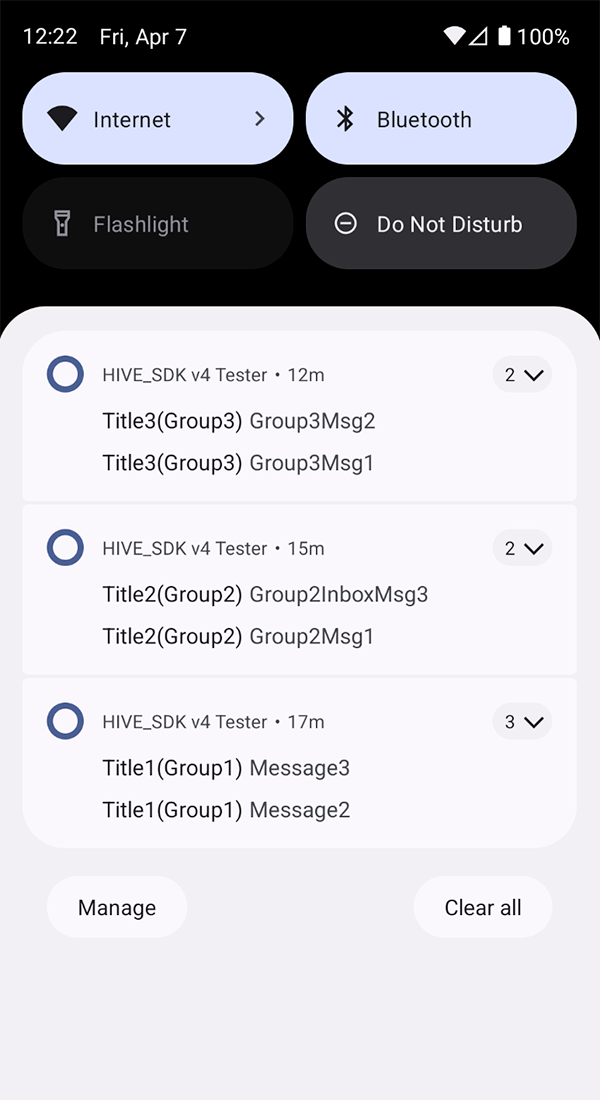
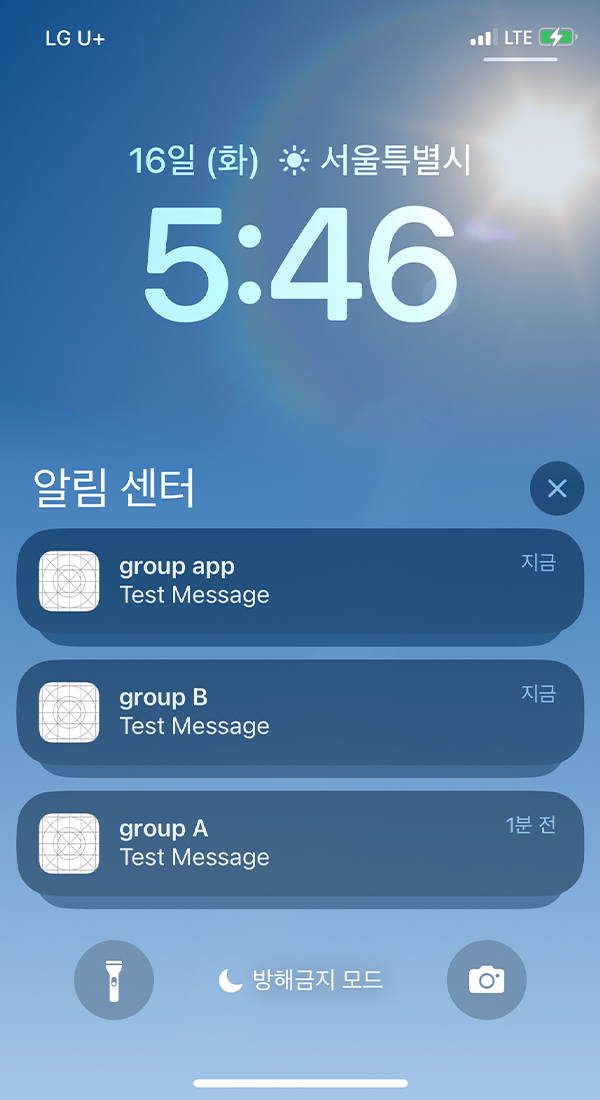
You can display notifications as a group in the notification center. Notifications for the same event can be grouped and collapsed for display. Users can expand a collapsed notification group again, and each sub-notification (each notification within the group) can be executed individually.
You can create a notification group by changing the group key to enabled and adding a key value in Hive Console > Notification > Push v4 > Register push campaign > Register campaign > Options > Group key. After creating a group in Hive Console, you can apply the notification group with groupId when sending local push and remote push. When a group is applied, notifications are collapsed and displayed by group as shown below.
| | |
 |  |
iOS media notification
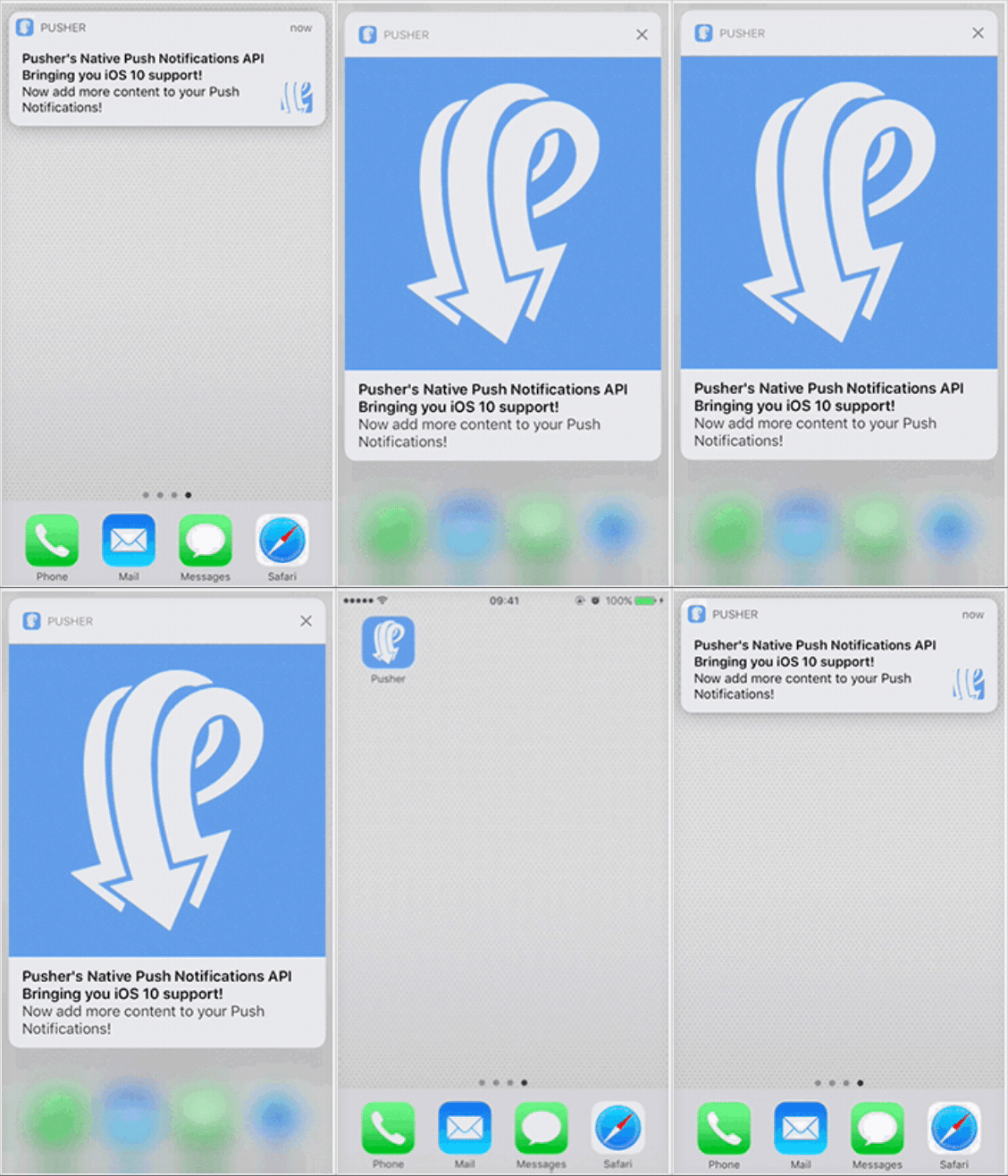
Using Apple's UserNotifications framework, you can add media files such as images and videos to a notification.
 | 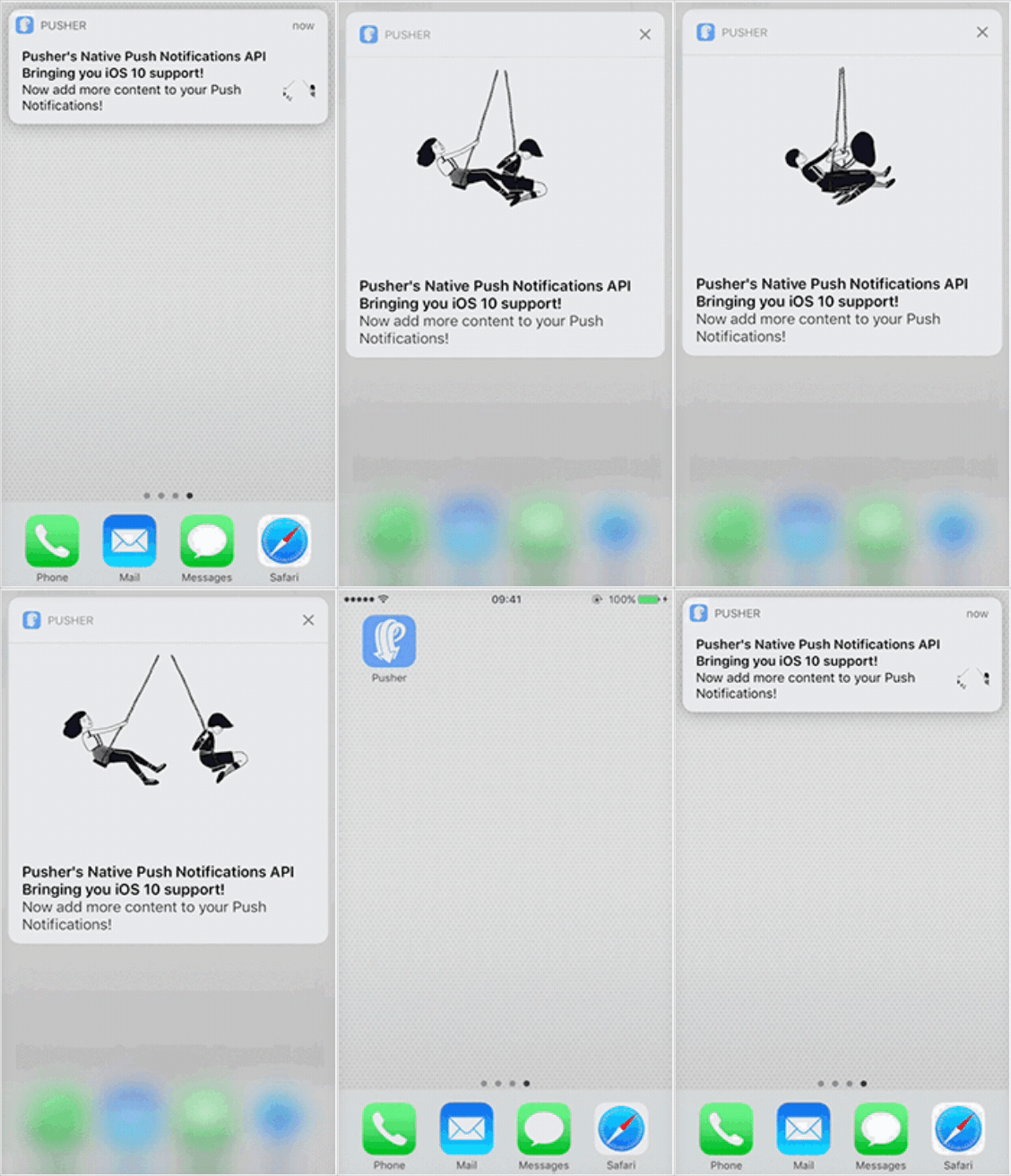 | 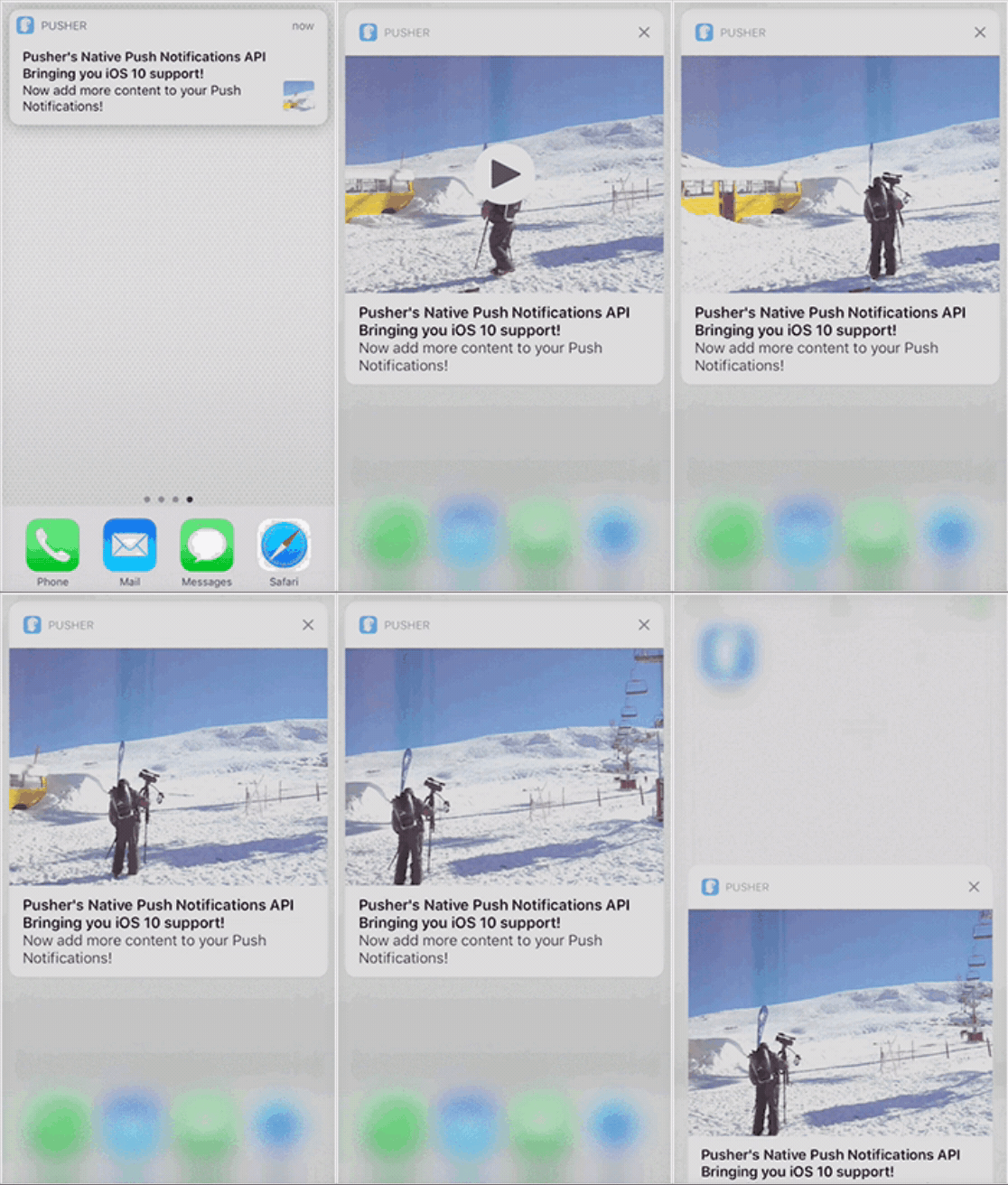 |
How it works
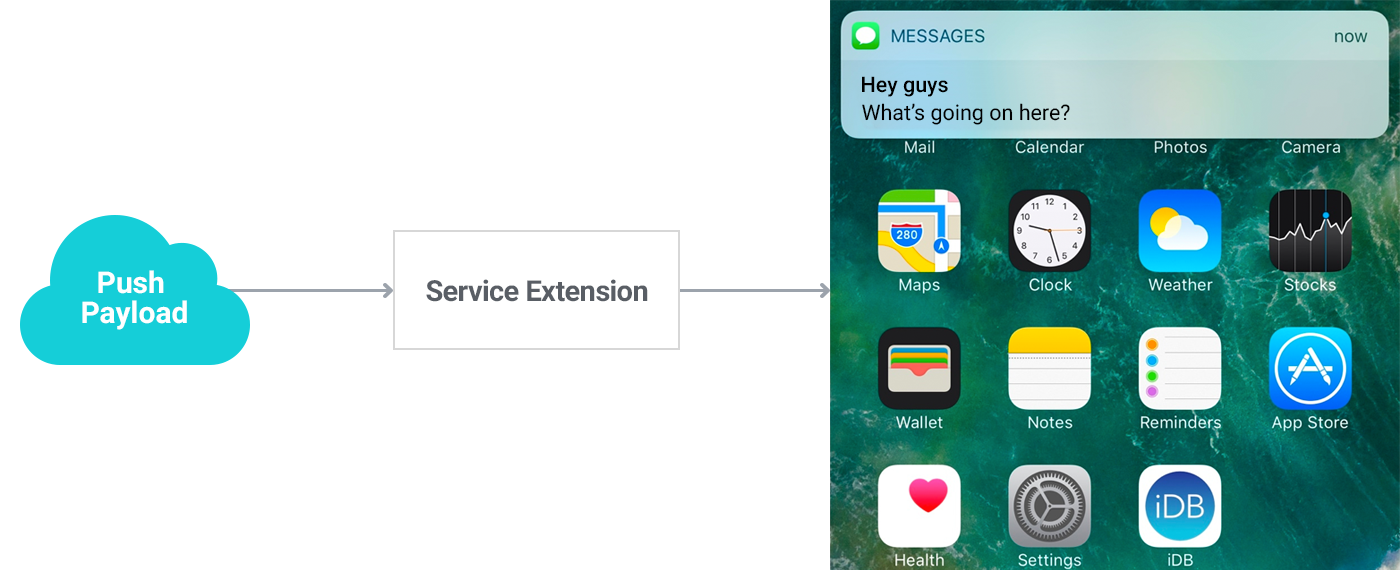
The media notification feature works using iOS's Notification Service Extension (hereafter "Extension"). A Notification Service Extension is a type of App Extension that can modify the payload before a remote notification is delivered to the user — a technology that lets you use another app's process (UI or functionality) without switching context. For more details, see here
- Remote notification delivery process after applying the Extension
File size and type restrictions
There are size limits when attaching media files. For details, see UNNotificationAttachment.
Warning
We've found that when an app using AVAudioSession — such as YouTube or various mobile games (e.g. 서머너즈 워, 별이되어라, 체인스트라이크) — is running and audio received via push is played, the home screen (Springboard) can reboot. This occurs regardless of iOS version or device type, and we've confirmed it's a conflict within the Apple system itself, unrelated to the Hive Platform. We inquired with Apple about this issue on December 20, 2018; until a fix is available, please stop using the audio-delivery feature via media push.
| Category | Type | Size limit |
|---|---|---|
| Image | JPG, JPEG, PNG, GIF | 10MB |
| Video | MP4, AVI | 50MB |
- If a timeout occurs due to poor network conditions, the user receives a regular notification without media.
- On very slow networks, downloads can take up to 10 minutes, so use media with an appropriately sized file, taking local network conditions into account.
Implementation and usage
To download media, reconstruct the notification object, and deliver it to the user, you need some configuration and additional source code.
Note
A Notification Service Extension cannot be distributed bundled inside a library or framework, so to use the Extension you must configure it based on the guide provided by the Hive Platform.
Add the Extension
To use the media notification feature, you must add a Notification Service Extension to your project. Instead of directly adding or overriding a class, you add a new target to the project.
Adding a target to the project automatically generates a template.
Adding a target in a Unity project
In the Unity editor, the Hive SDK automatically performs the whole process — adding the target, writing the Info.plist, and so on — via the PostProcess feature. You only need to check whether to use media push; no other work is required.
- In the Unity editor's top menu bar, go to Hive > Build project post process settings > iOS
- Enable Push Media Contents
Adding a target in environments other than Unity
Before you start, check the following.
- To use the push extension target, make sure the provisioning profile includes the
aps-environmententitlement. Reissue the provisioning profile and certificate if needed. - If you added the target directly via the Xcode GUI, the extension target's minimum deployment target may default to the latest OS. Make sure this value doesn't exceed the minimum deployment target of the main app target.
Here's how to add the target:
- In the Xcode project settings, click the Add Target button (the + button at the bottom left)
- Select Notification Service Extension, then click Next
(Starting with Xcode 8, you can add a Notification Service Extension as a target in your project)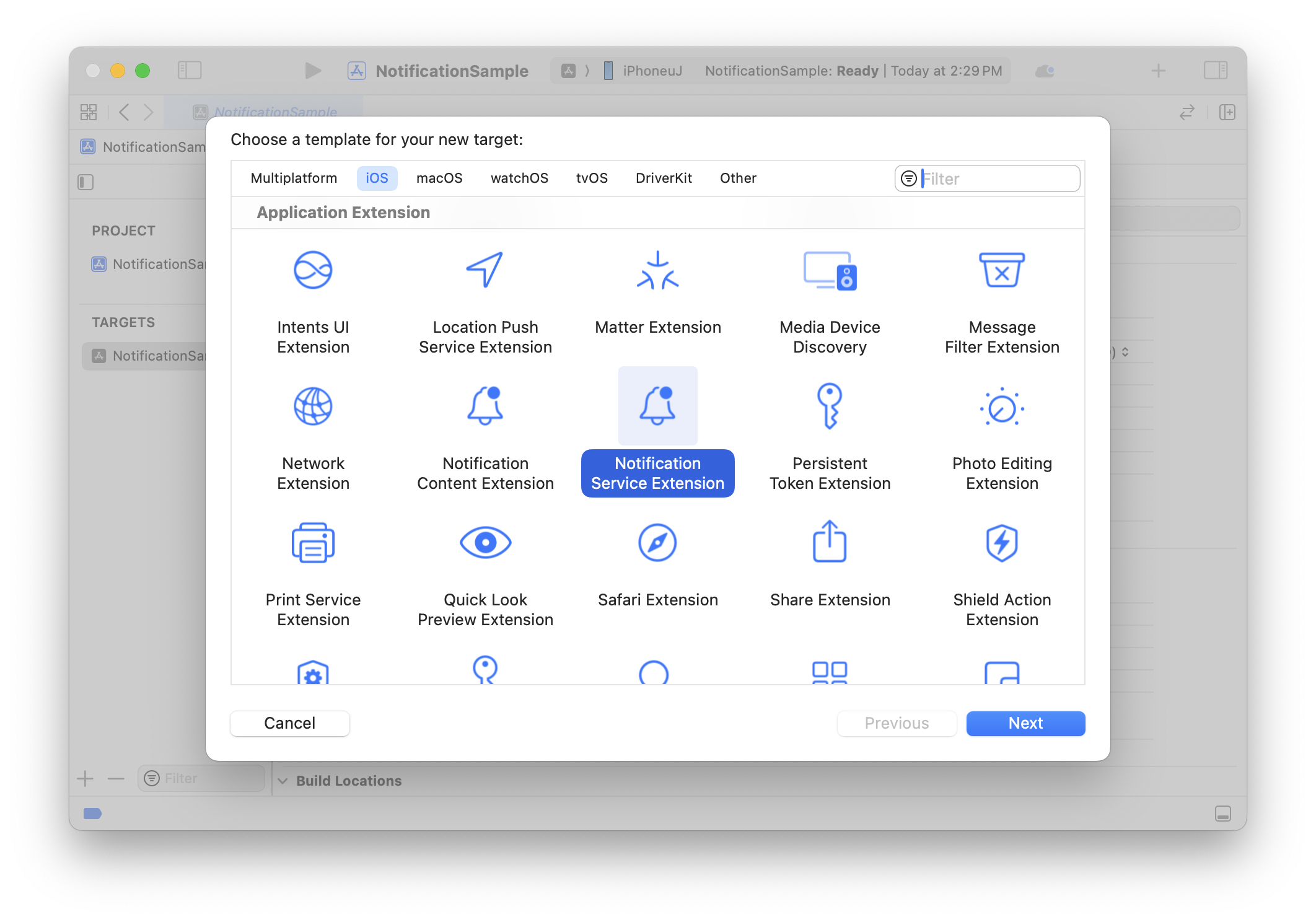
- Enter the Product Name
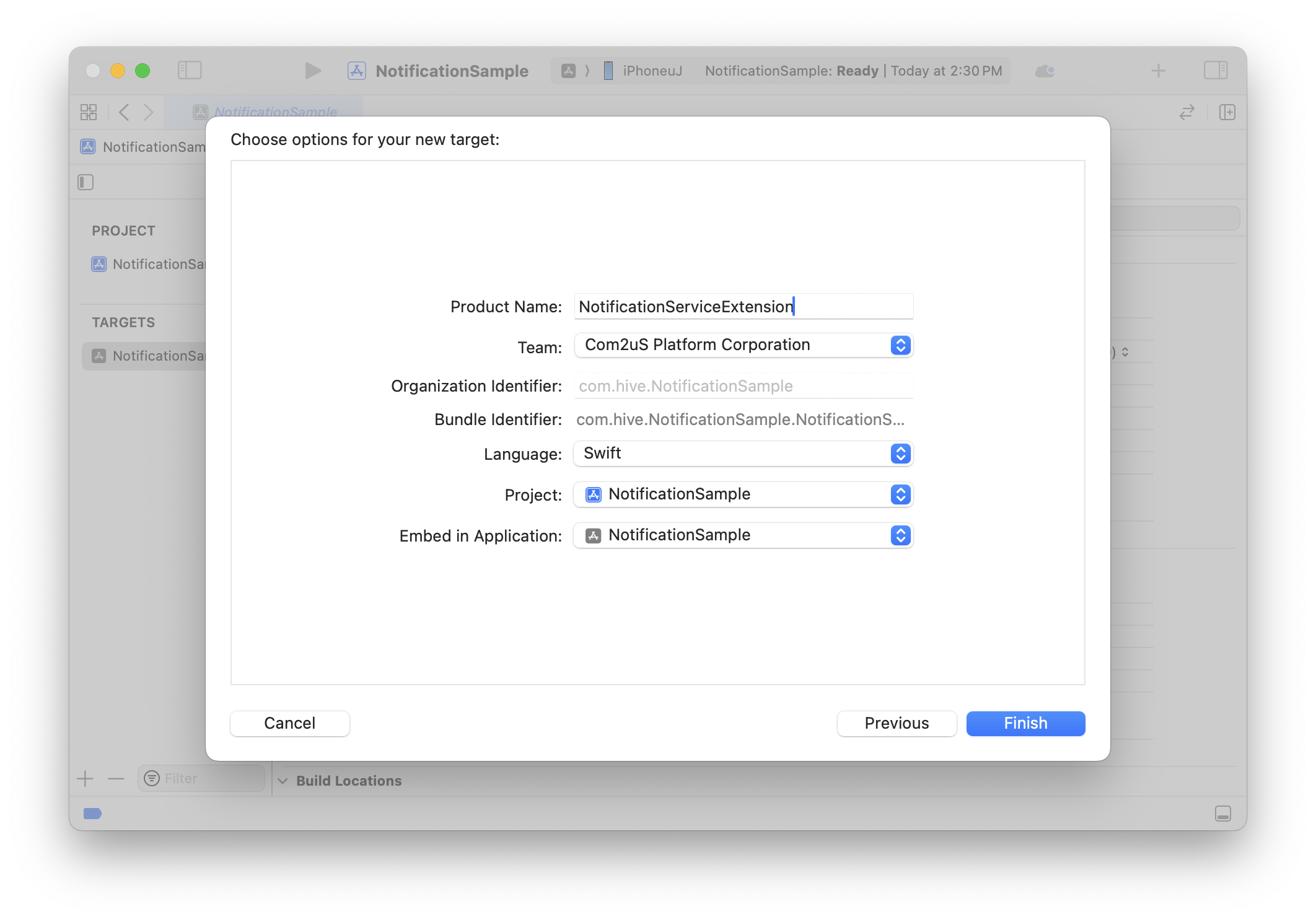
- When the popup below appears, click Activate
The Extension is automatically embedded in the current project, and a build scheme is added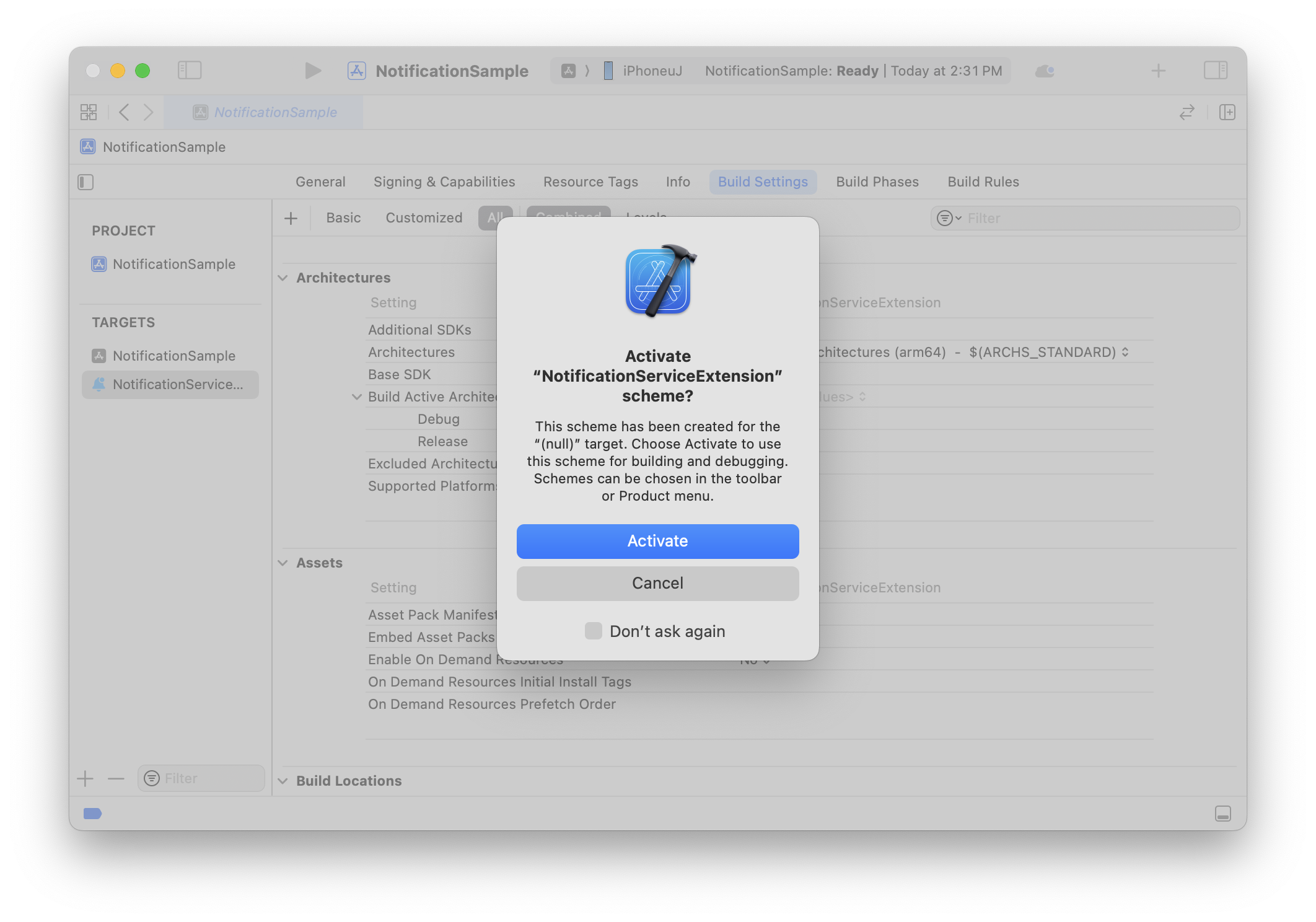
- In the General tab, confirm the Extension has been added to the project
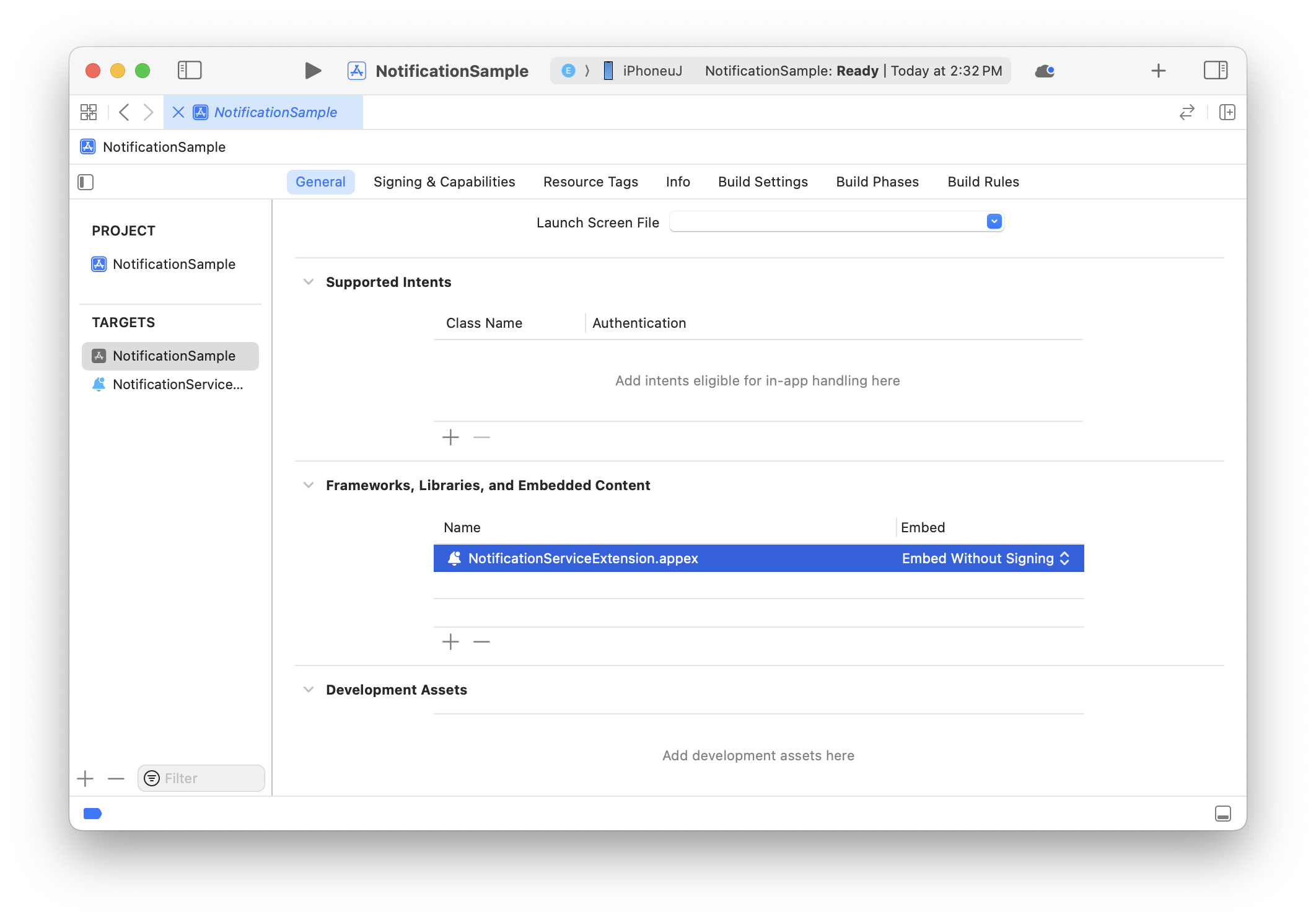
- Confirm the NotificationService template class has been added to the project
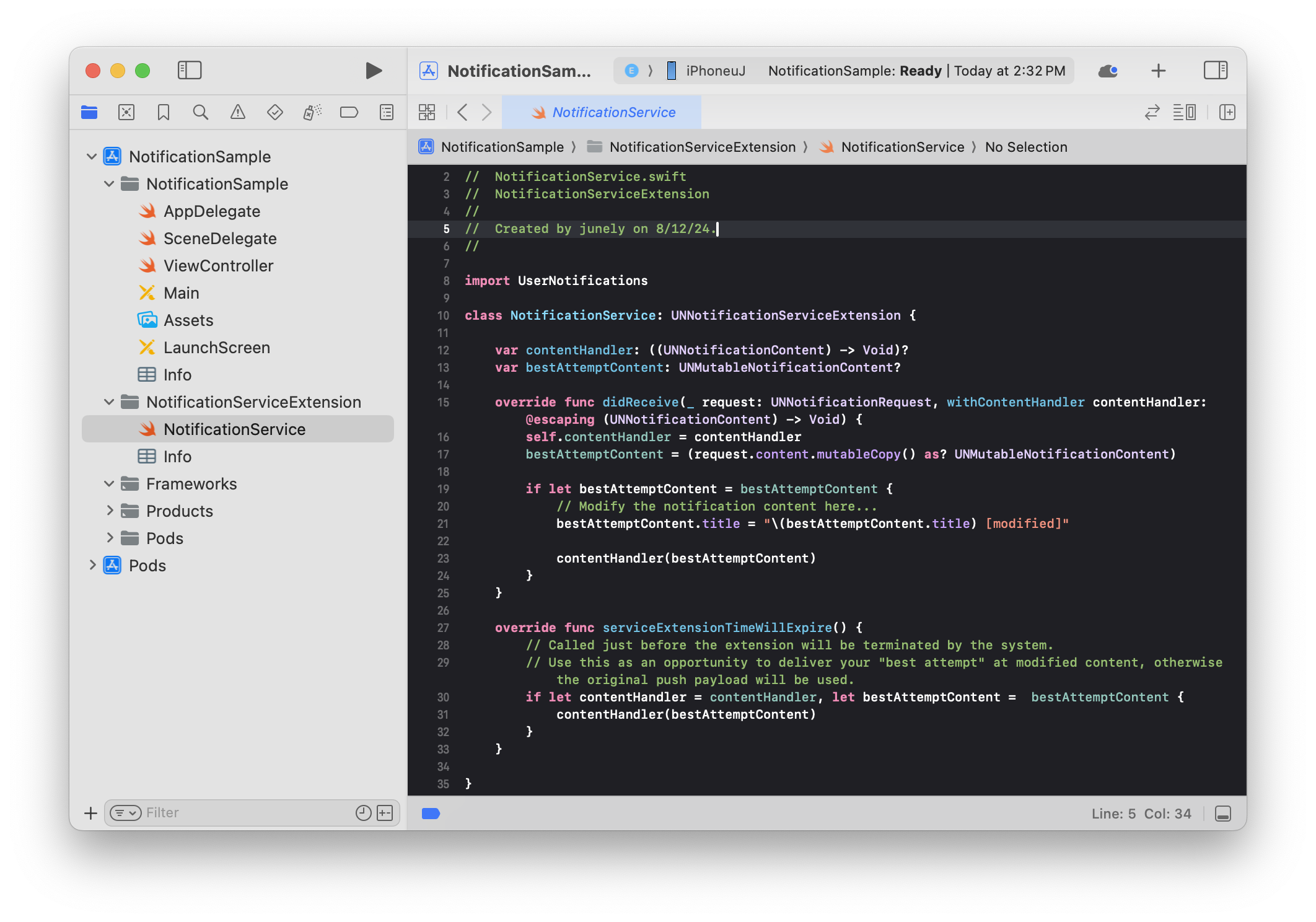
Add HIVEExtensions.framework
Using HIVEExtensions.framework, provided by the Hive Platform, you can easily download media.
Here's how to add HIVEExtensions.framework:
-
The Hive SDK supports CocoaPods. If there's no Podfile in your project path, run
pod init.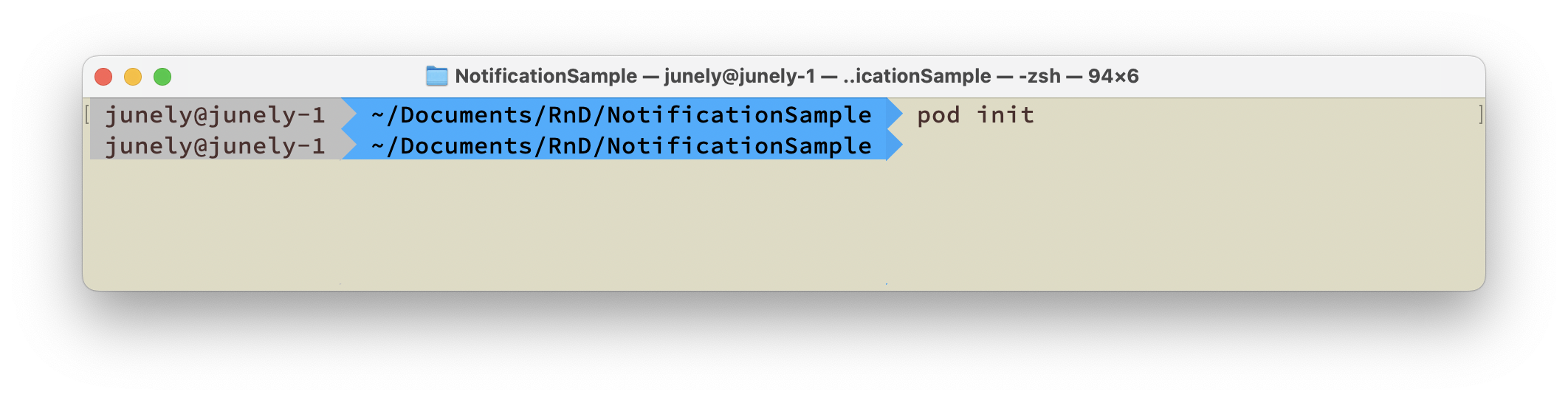

If a Podfile already exists, open it and write a
target 'NotificationServiceExtension (example target name)' do-endblock.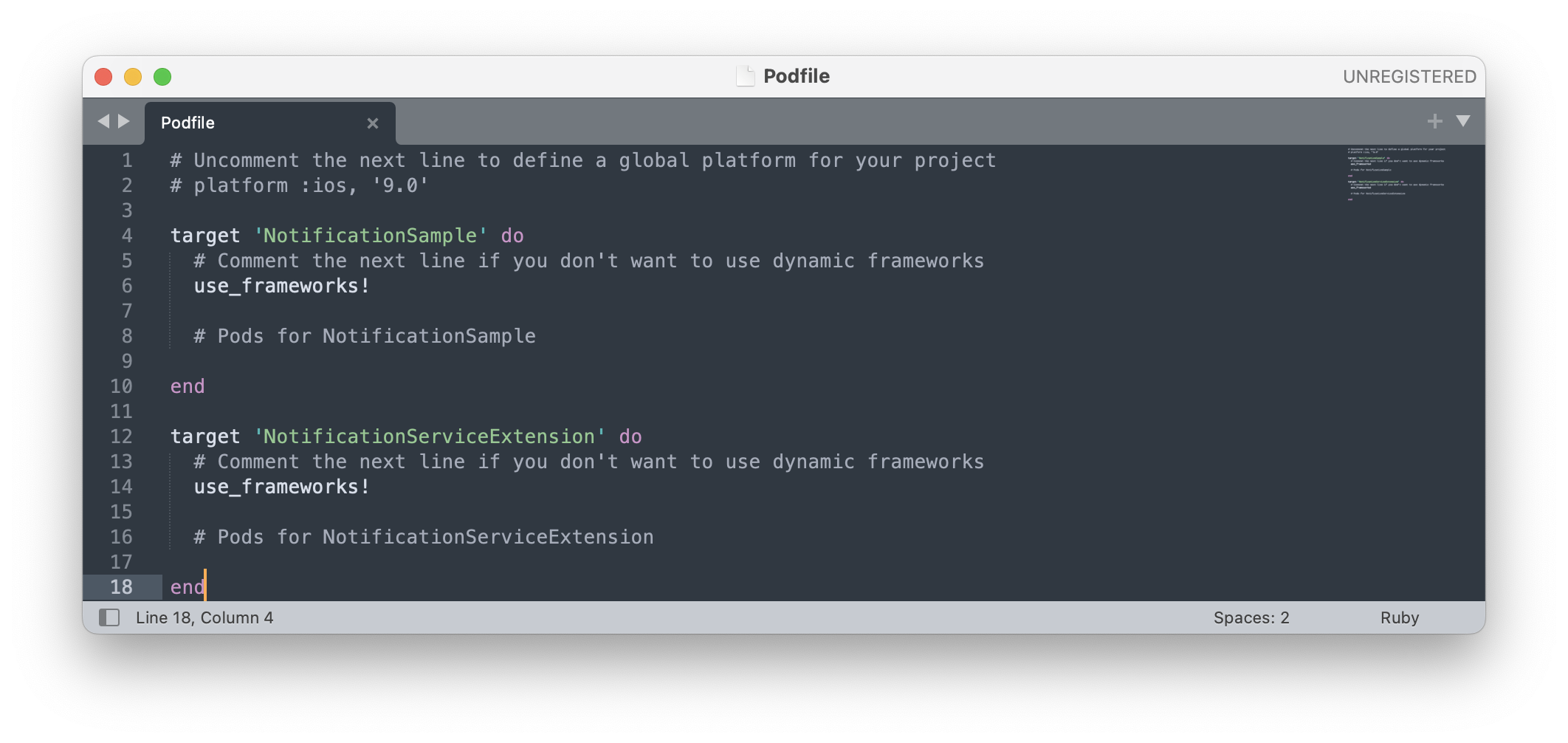
-
Referring to the screenshot, write the pod syntax.
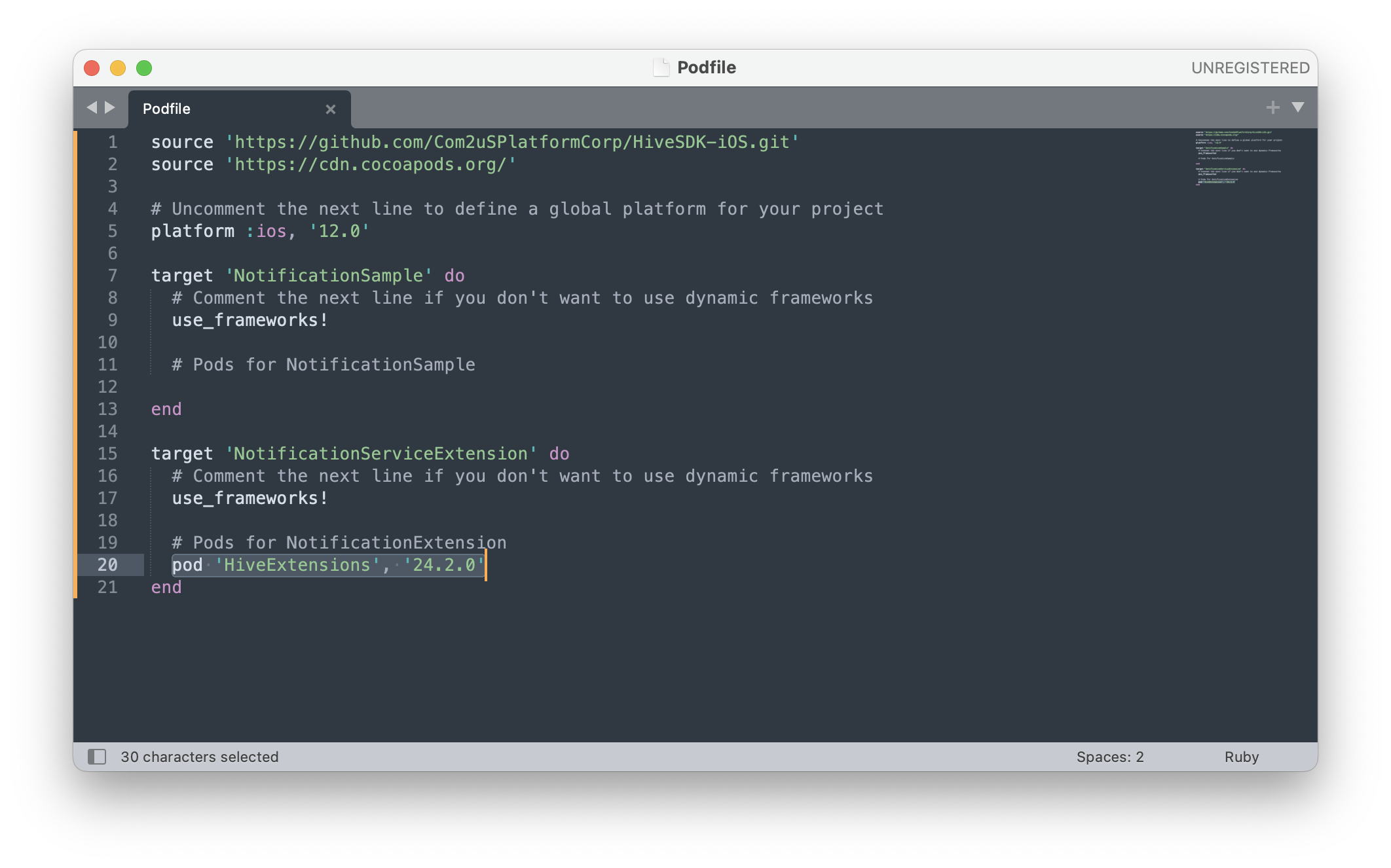
-
Close the Podfile, and run
pod installin the project path.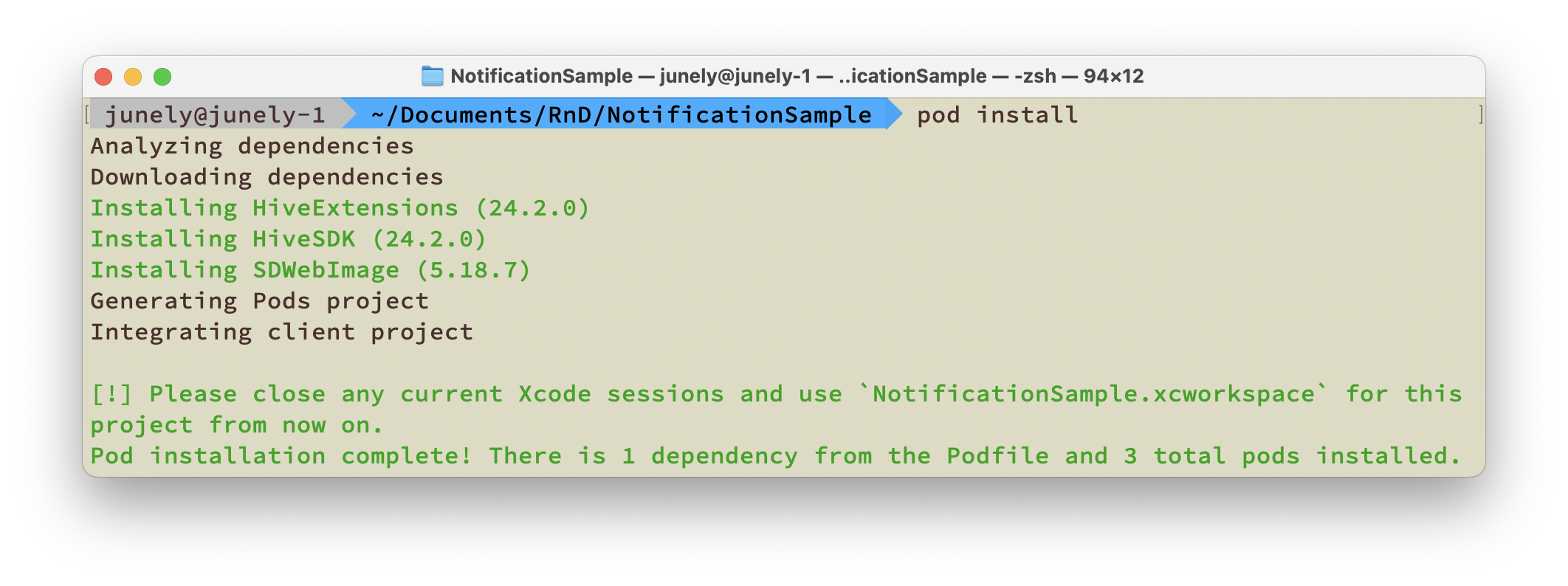
-
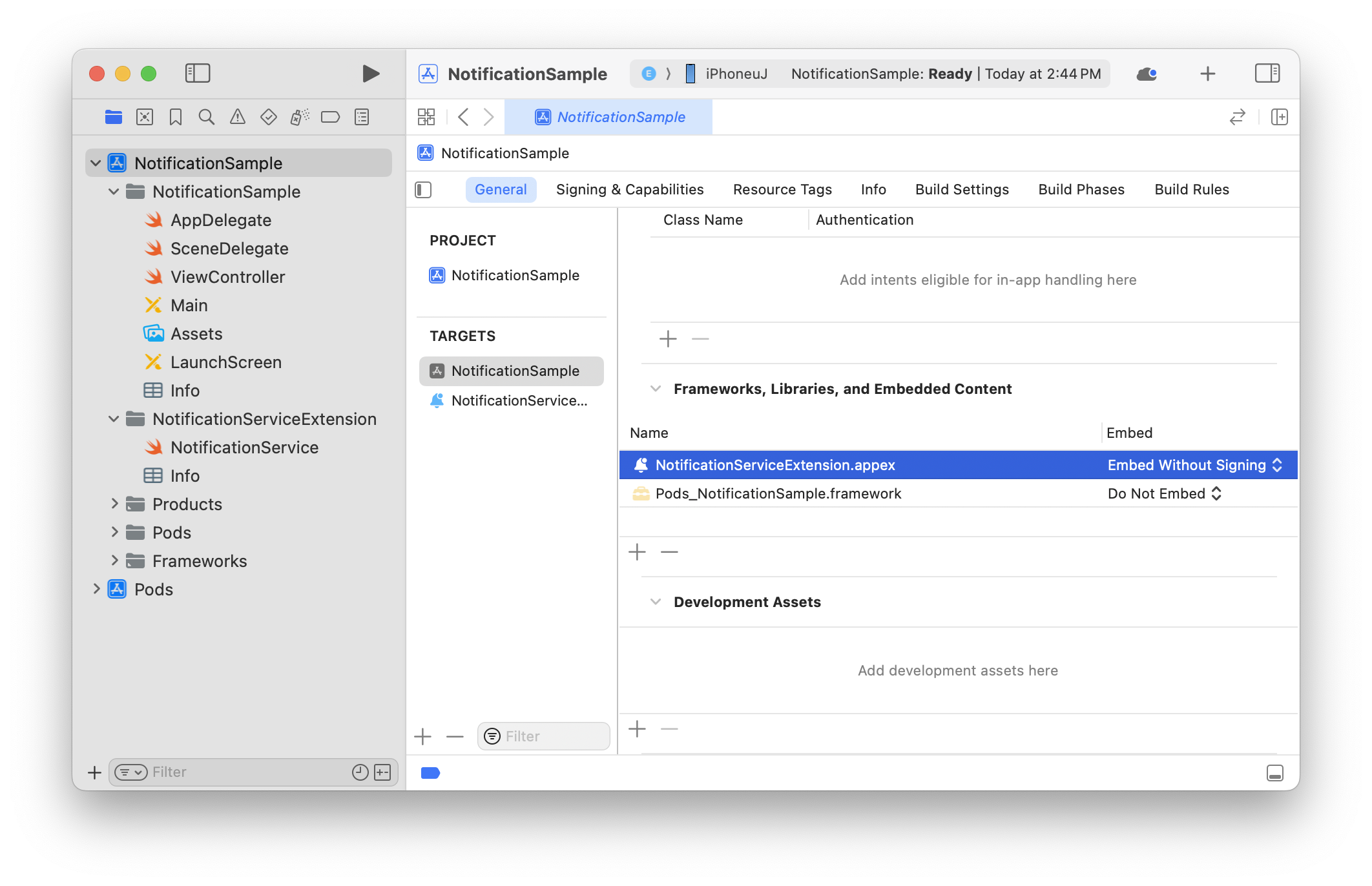
When you open NotificationSample (example project name).xcworkspace, you'll see the Pods project has been added as shown below. You can now import HIVEExtensions in the NotificationSample and NotificationServiceExtension targets.
Apply the framework
Import the framework in the NotificationService.swift file as shown in the example. Implement the template-provided methods to call the methods provided by HIVEExtensions.framework, and delete the original template code inside the methods.
import HIVEExtensions

func didReceiveNotificationRequest(request: UNNotificationRequest, with contentHandler: (UNNotificationContent) -> Void) {
    HIVENotificationService.didReceive(request) { content in
        guard let content else { return }
        contentHandler(content)
    }
}

func serviceExtensionTimeWillExpire() {
    HIVENotificationService.serviceExtensionTimeWillExpire()
}
#import <HIVEExtensions/HIVEExtensions.h>

- (void)didReceiveNotificationRequest:(UNNotificationRequest *)request withContentHandler:(void (^)(UNNotificationContent * _Nonnull))contentHandler {
[HIVENotificationService didReceiveNotificationRequest:request withContentHandler:contentHandler];
}

- (void)serviceExtensionTimeWillExpire {
[HIVENotificationService serviceExtensionTimeWillExpire];
}
Cautions when applying this
Difference between send and receive time
Because the notification is delivered to the user only after all work in the Extension has finished, there can be a difference between the send time and the receive time; the client displays the time based on when the server sent it.
For example, if a notification is sent at 15:00 and the download finishes at 15:05, the notification is shown as having arrived at 15:00.
Device storage
Media delivered via push is saved on the user's device before being shown in the push notification, and the received media is stored in the device's internal cache space, taking up storage on the user's device. If the device's internal storage runs low, the OS automatically clears data from the cache space.
User's mobile data usage
Downloading media delivered via push uses the user's mobile data. Because the download proceeds without the user's consent, data charges may occur when downloading.
When receiving an audio/video file via push, check the user's network connection status before downloading; if the user isn't connected to Wi-Fi, don't proceed with the download and show the push notification without media.
At this point, the type of media received via push is determined by the file extension at the end of the media URL, and only the extensions listed under [File size and type restrictions] are shown correctly.
| Received URL | Wi-Fi | LTE / 3G |
| http://xxx/notimovie.mp4 | Always downloads and shows media in the push | Shows the push without downloading media, since it has a video file extension (mp4) |
| http://xxx/notimovie | Always downloads and shows media in the push | Not an audio/media file extension, so downloads and shows media in the push |
| http://xxx/notisound.wav | Always downloads and shows media in the push | Shows the push without downloading media, since it has an audio file extension (wav) |
| http://xxx/notiimage.jpg | Always downloads and shows media in the push | Not an audio/media file extension, so downloads and shows media in the push |
App Transport Security settings
Apple's default policy allows only HTTPS for server communication performed by any app, and URLs delivered via notification are also subject to this policy. If you want to communicate using an HTTP domain, you need to configure an App Transport Security (hereafter "ATS") exception.
Note that even if the ATS exception is configured in the app, you must also configure the ATS exception in the Extension in order to use an HTTP domain for URLs received via push. 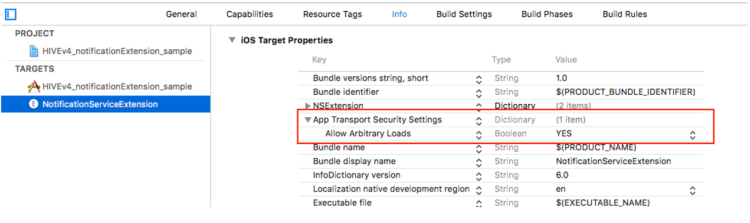
When media isn't delivered in Unity
Hub connection error Error Domain=NSCocoaErrorDomain Code=4097 "connection to service named com.com2us.hivesdk.normal.freefull.apple.global.ios.universal.NotificationServiceExtension" UserInfo={NSDebugDescription=connection to service named com.com2us.hivesdk.normal.freefull.apple.global.ios.universal.NotificationServiceExtension}
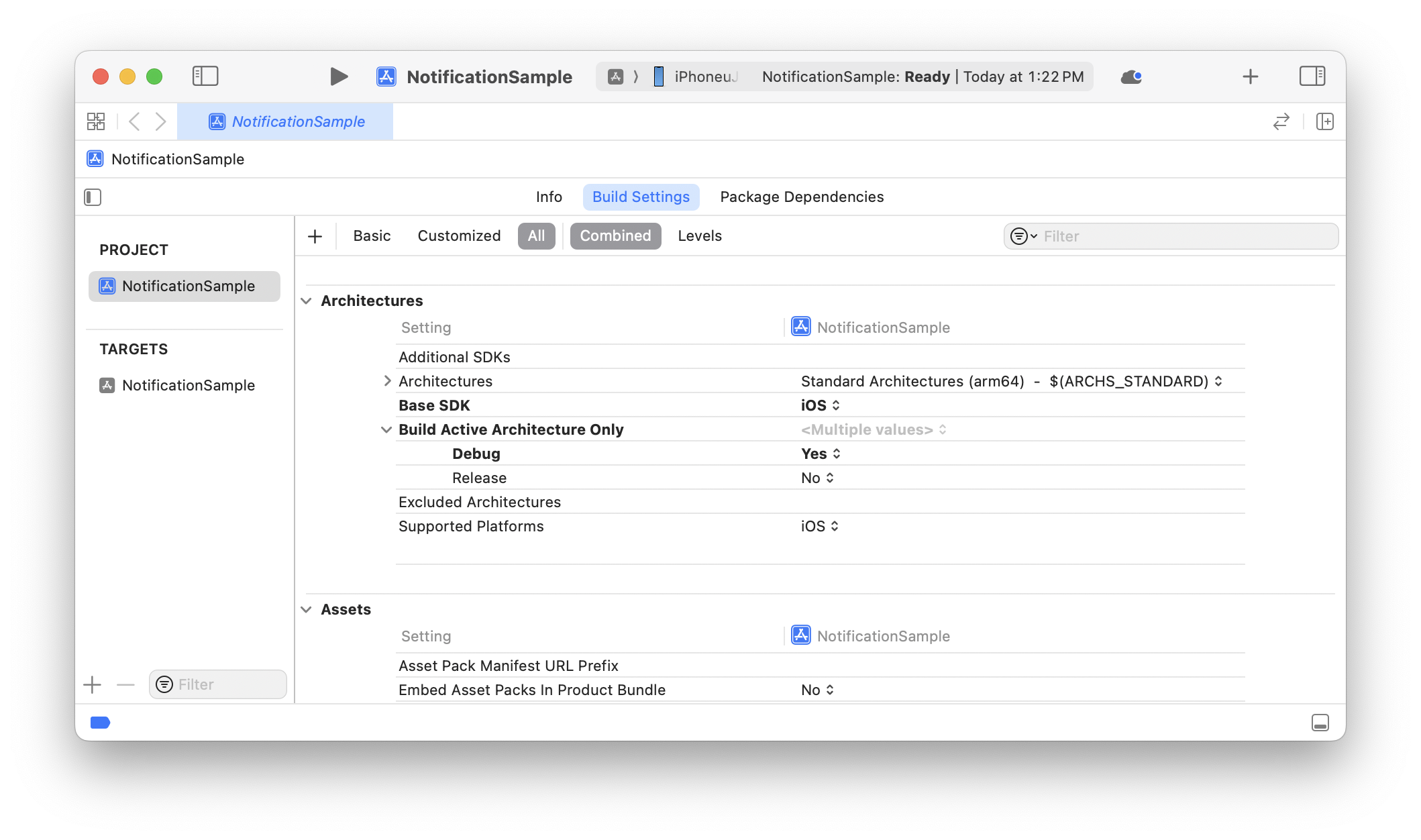
In Unity, media sometimes isn't delivered while the error log above appears. In this case, check whether both armv7 and arm64 are included in the Architectures of the generated Extension target. 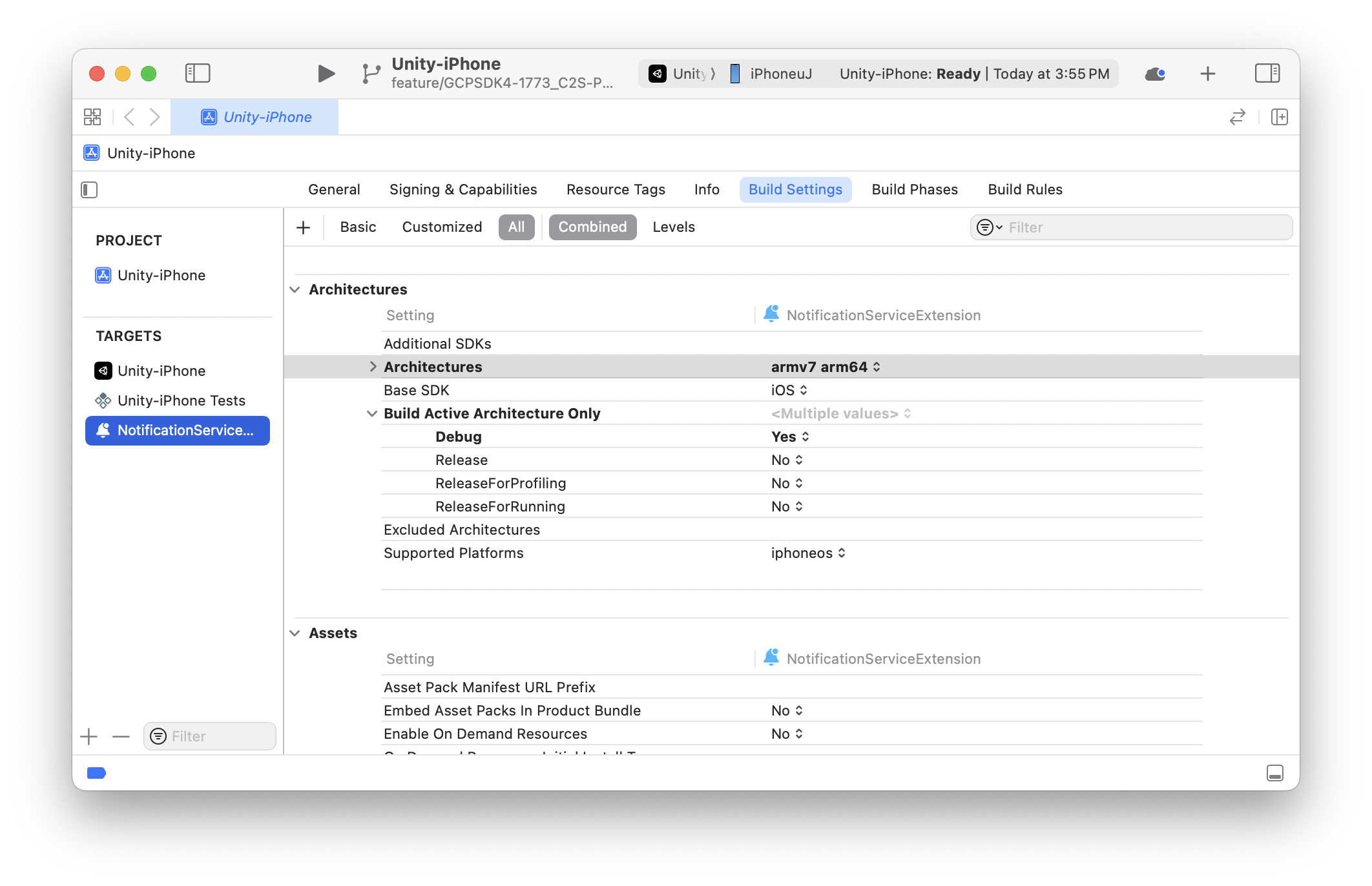
Push action buttons
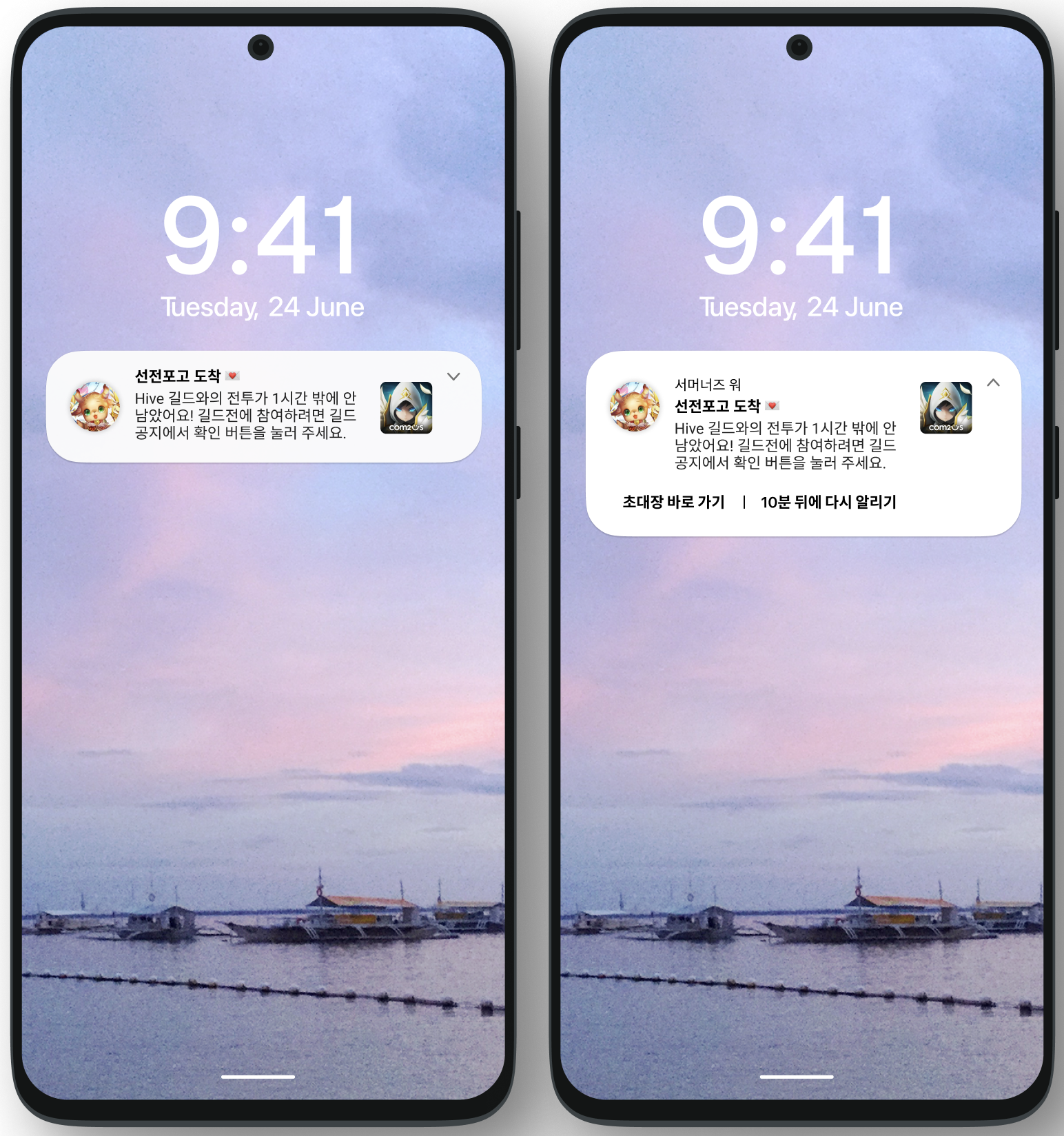
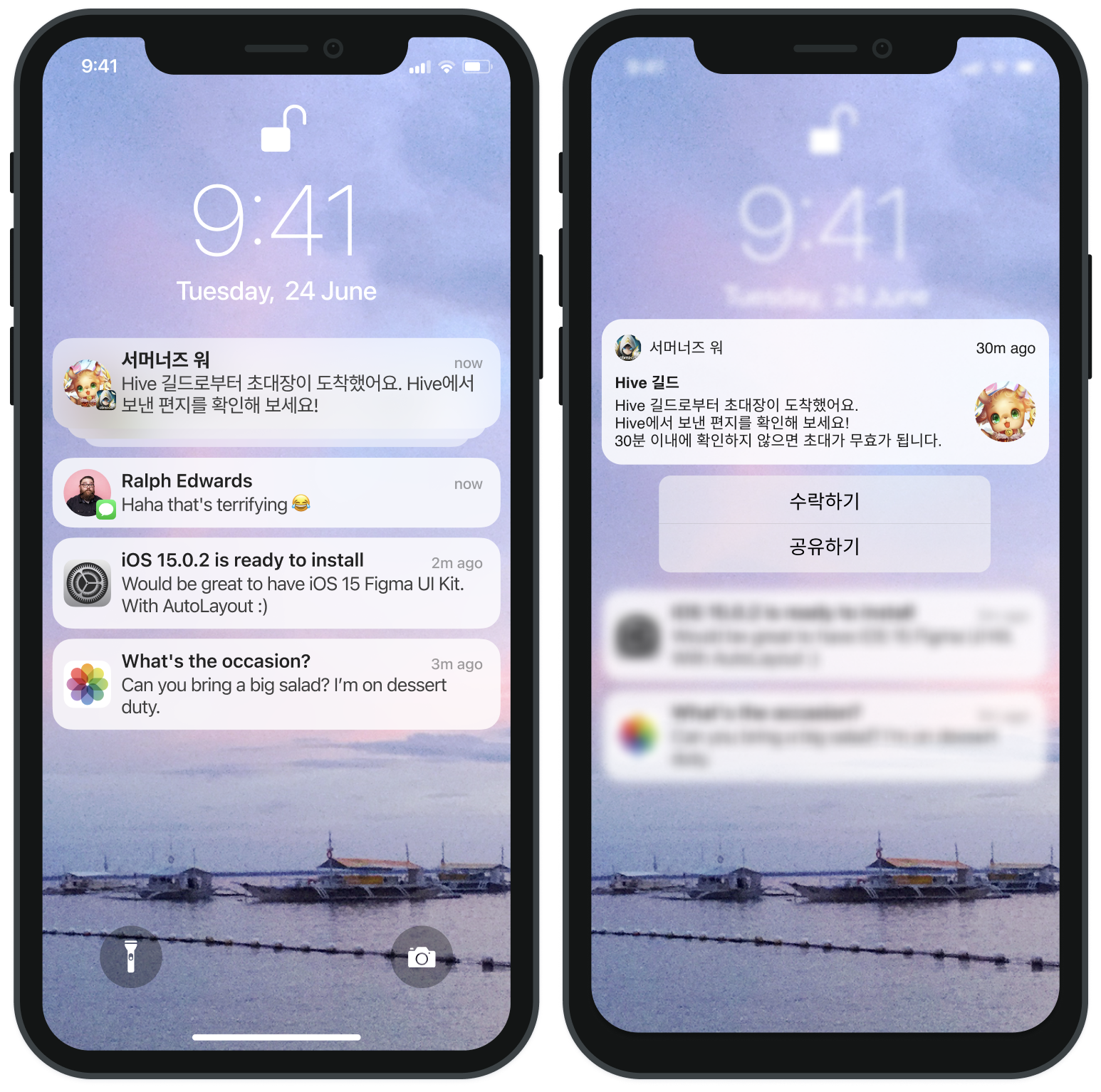
A push action button is a system button that appears when you long-press a push notification, as shown below. By showing these extra buttons on a push notification, you can encourage a user response.
With the Hive SDK, you can optionally implement push action buttons through simple configuration.
| Android | iOS |
|---|---|
 |  |
Note
Hive SDK Android requires no separate configuration for push action buttons — see the Single push API - ActionPayload guide to use the action button feature. Hive SDK iOS lets you implement push action buttons using either of two methods: the 'Basic implementation' or the 'Advanced implementation'.
Warning
If you apply push action buttons together with iOS media notification on Hive SDK iOS, the iOS media notification feature may work incompletely. When sending a push, use only one of 'media URL' or 'action push' at a time. If you use both features at once, the media is only shown as a thumbnail when the push is received, and the expanded viewer doesn't appear on long-press.
Warning
To use iOS push actions in Unreal Engine, you must build the iOS app using Modern Build, available from Unreal Engine 5.3.2 (tested on Unreal Engine 5.6.0 / Xcode 16.1 / macOS 15.5).
Basic implementation (iOS)
The Hive SDK provides default push action button sets that pattern common question/answer flows. Frequently used button combinations like 'OK' and 'Decline' are built in for quick adoption, and the SDK also offers a flexible structure for defining and extending custom action button sets as needed. The list of push action button sets provided by default is below.
- OK
- Close
- OK, Close
- Run, Cancel
- Accept All, Close
- Claim Now, Close
- Purchase, Decline
- Sell, Decline
- Accept, Decline, Hold
| Category~(Category identifier)~ | Button name~(Action identifier)~ |
|---|---|
| Confirmation(INFO_CATEGORY) | OK(CONFIRM_ID) |
| Close(CLOSE_CATEGORY) | Close(CLOSE_ID) |
| Selection confirmation(CONFIRM_CATEGORY) | OK(CONFIRM_ID), Close(CLOSE_ID) |
| Run or not(EXECUTE_CATEGORY) | Run(EXECUTE_ID), Cancel(CANCEL_ID) |
| Batch processing(ACCEPT_ALL_CATEGORY) | Accept All(ACCEPT_ALL_ID), Close(CLOSE_ID) |
| Claim immediately(ACCEPT_NOW_CATEGORY) | Claim Now(ACCEPT_NOW_ID), Close(CLOSE_ID) |
| Purchase decision(PURCHASE_CATEGORY) | Purchase(PURCHASE_ID), Decline(DECLINE_ID) |
| Sale request(SALE_CATEGORY) | Sell(SALE_ID), Decline(DECLINE_ID) |
| Decision(ACCEPT_DECISION_CATEGORY) | Accept(ACCEPT_ID), Decline(REJECT_ID), Hold(HOLDING_ID) |
To apply the push action button set above, no additional code implementation is needed, but you must add a Notification Content Extension target to your project. Refer to the 'Push action button set setup guide' for your development environment below to add the target and enable push action buttons.
Applying the push action button set in Unity
In the Unity editor, the Hive SDK's PostProcess feature automatically performs the whole process, including adding the target and writing the Info.plist. You only need to check whether to use push action buttons; no other work is required.
- In the Unity editor's top menu bar, go to Hive > Build project post process settings > iOS.
- Enable Push Action Buttons.
The list that appears when you enable the button is a preview of the categories field list in the hive_push_actions.json file used in the Advanced implementation below. If you proceed with the basic implementation without that file, it's shown as 'none'.
Applying the push action button set in environments other than Unity
Before you start, check the following.
- To use the push extension target, make sure the provisioning profile includes the
aps-environmententitlement. Reissue the provisioning profile and certificate if needed. - If you added the target directly via the Xcode GUI, the extension target's minimum deployment target may default to the latest OS. Make sure this value doesn't exceed the minimum deployment target of the main app target.
Next, generate the Xcode project (.xcodeproj), then proceed in the following order.
Step 1. Add the push extension target
Follow these steps to create a new extension target and connect it to the app target.
- In the Xcode project settings, click the + button at the bottom left to add a target.
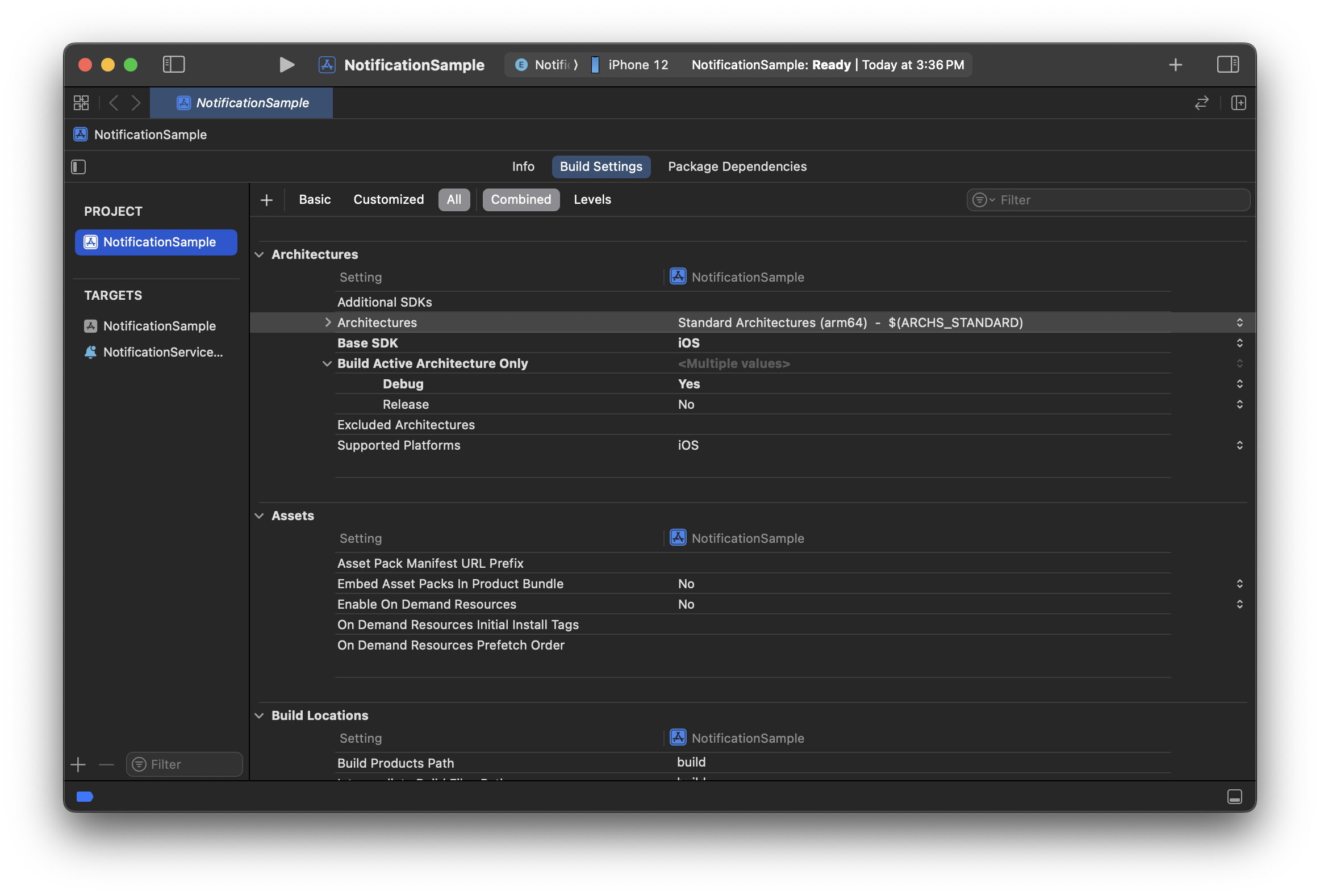
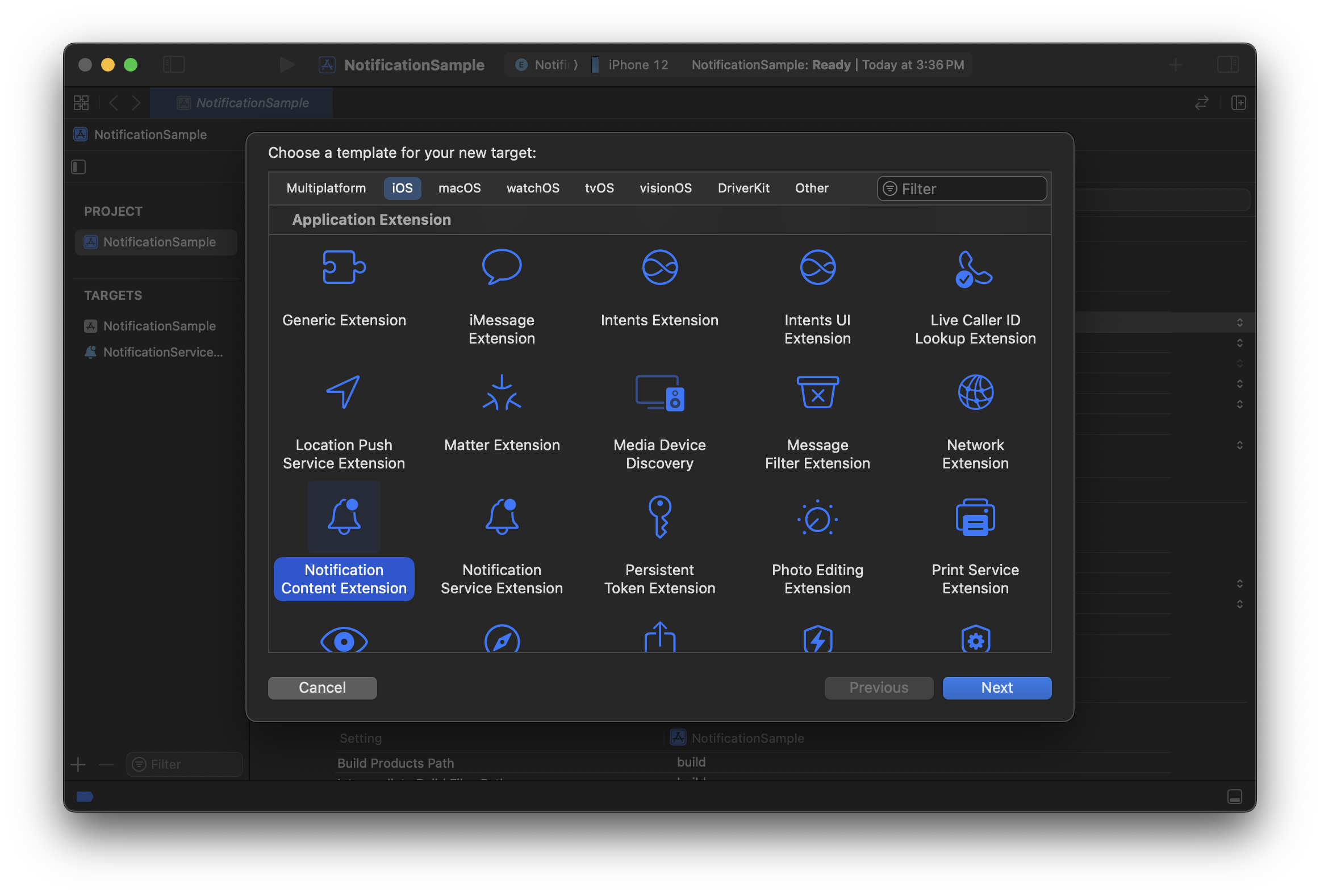
- Select Notification Content Extension, then click Next.
- Enter the Product Name, and assign the main app target to Embed in Application.
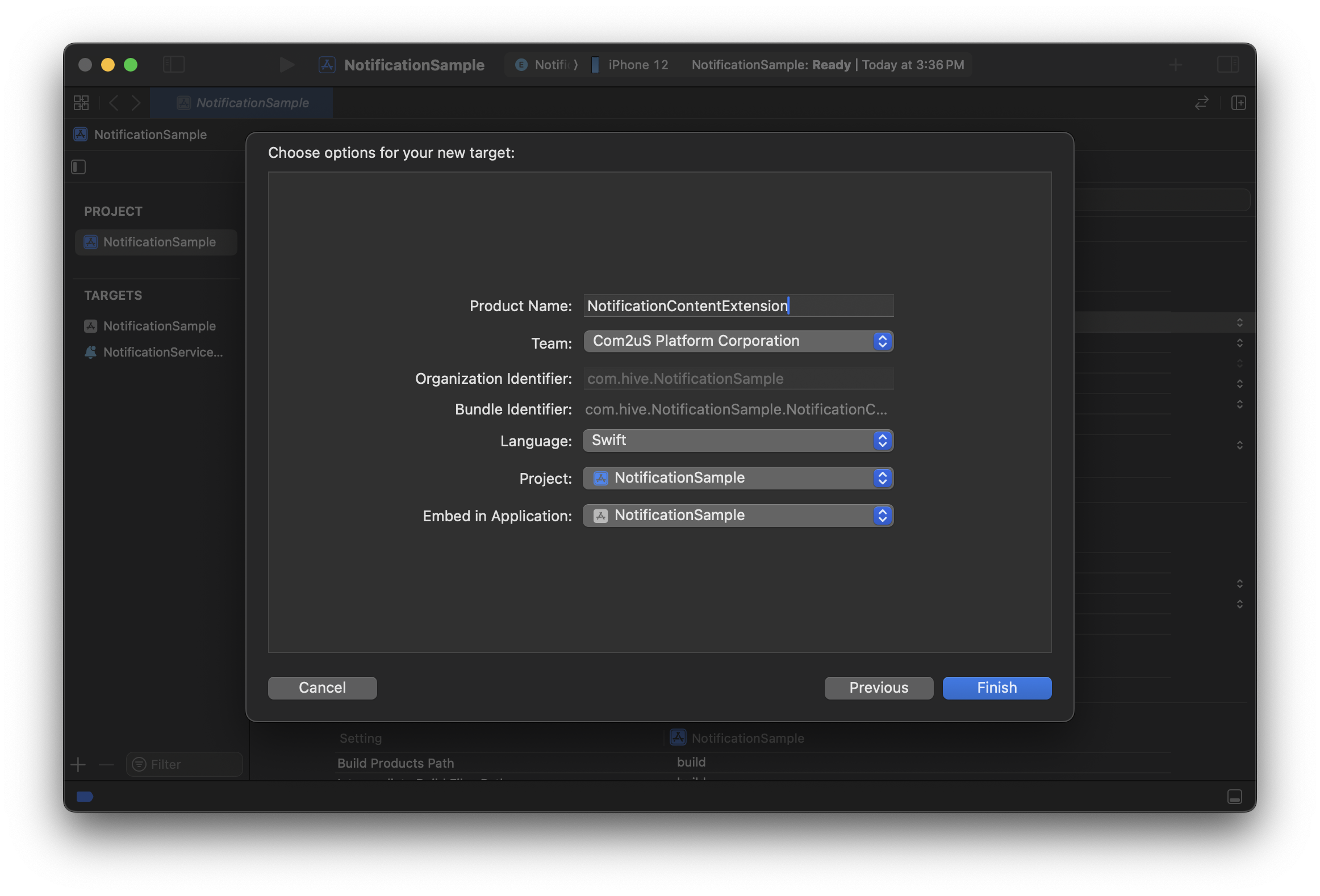
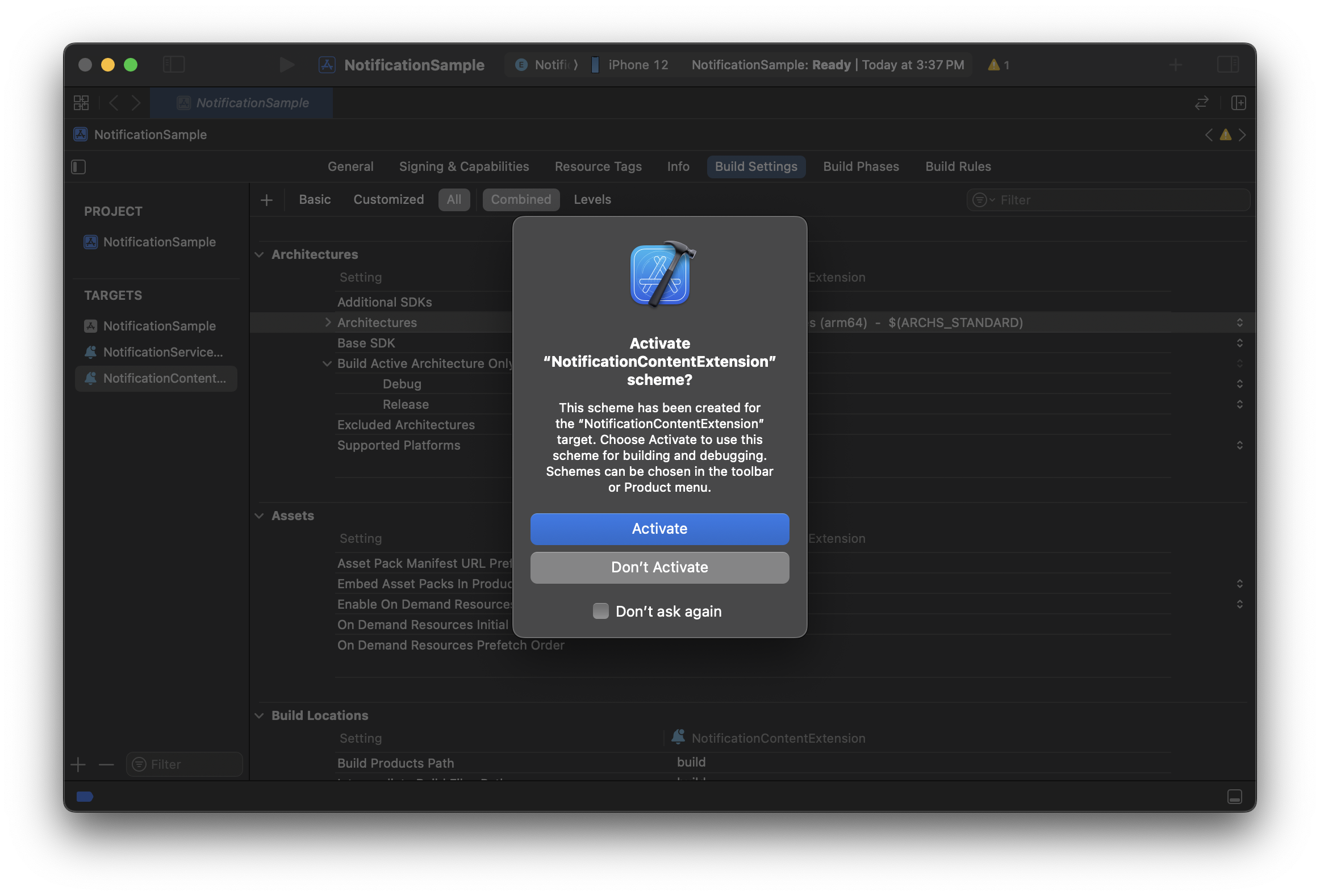
- When the popup below appears, click Activate. The Extension is automatically embedded in the current project, and a build scheme is added.
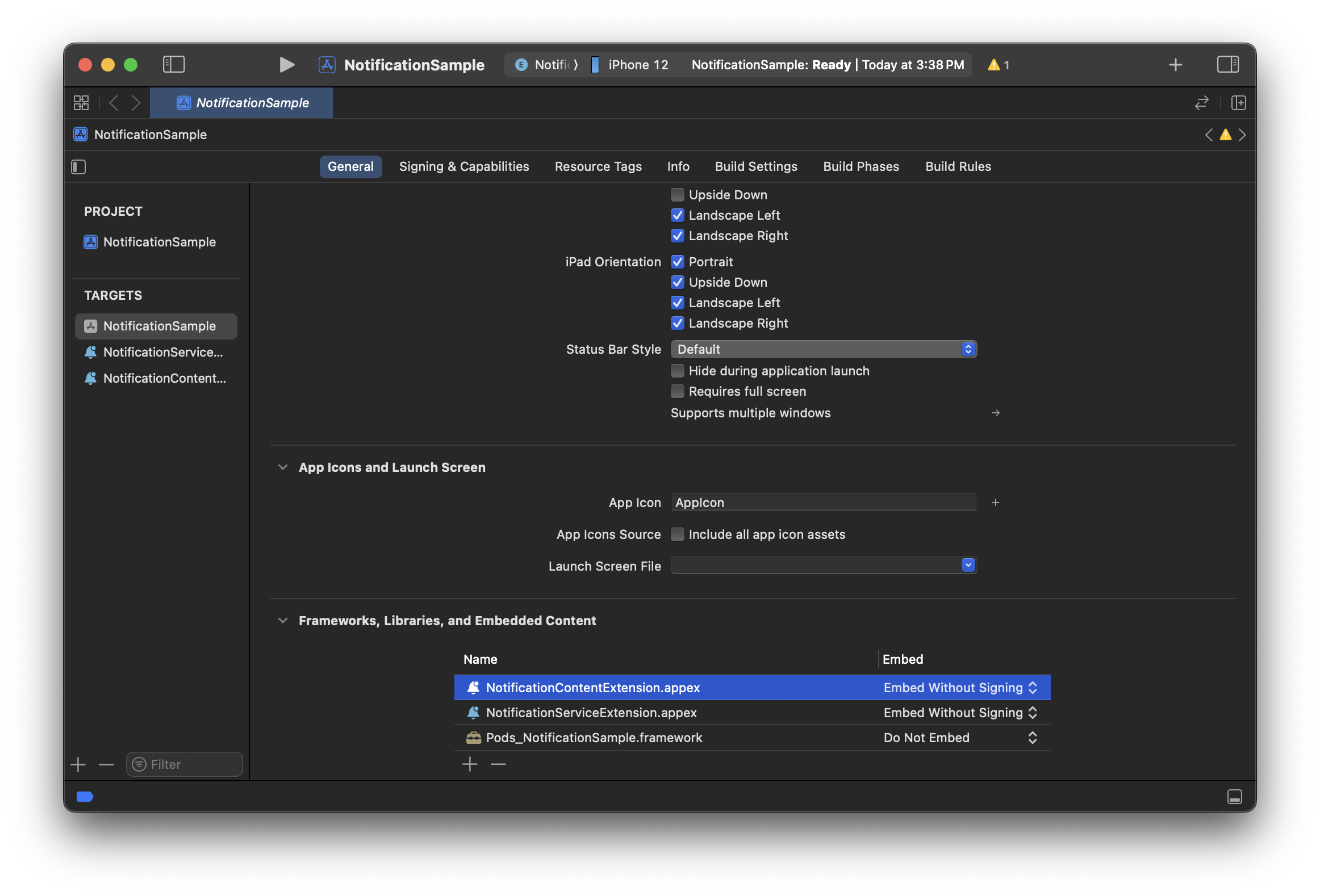
- In the main app target's General > Frameworks, Libraries, and Embedded Content, confirm that the Product Name you entered above has been added.
Step 2. Customize the auto-generated files
For each of the following 3 files auto-generated in the Product Name group, perform the steps below.
Remove MainInterface.storyboard
Remove Product Name/MainInterface.storyboard.
Edit NotificationViewController.swift
Edit Product Name/NotificationViewController.swift.
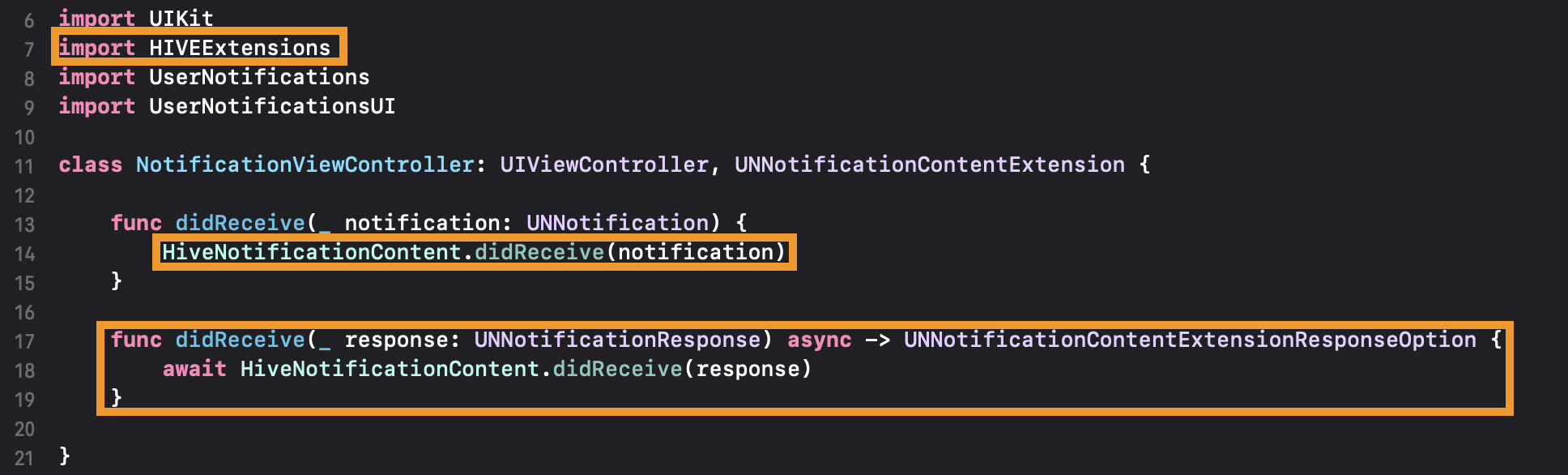
Edit the body of the auto-generated template class file shown above as follows. Copy and use the code block below, or add the lines highlighted in orange in the image.
import UIKit
import HIVEExtensions
import UserNotifications
import UserNotificationsUI

class NotificationViewController: UIViewController, UNNotificationContentExtension {

    func didReceive(_ notification: UNNotification) {
        HiveNotificationContent.didReceive(notification)
    }

    func didReceive(_ response: UNNotificationResponse) async -> UNNotificationContentExtensionResponseOption {
        await HiveNotificationContent.didReceive(response)
    }

}
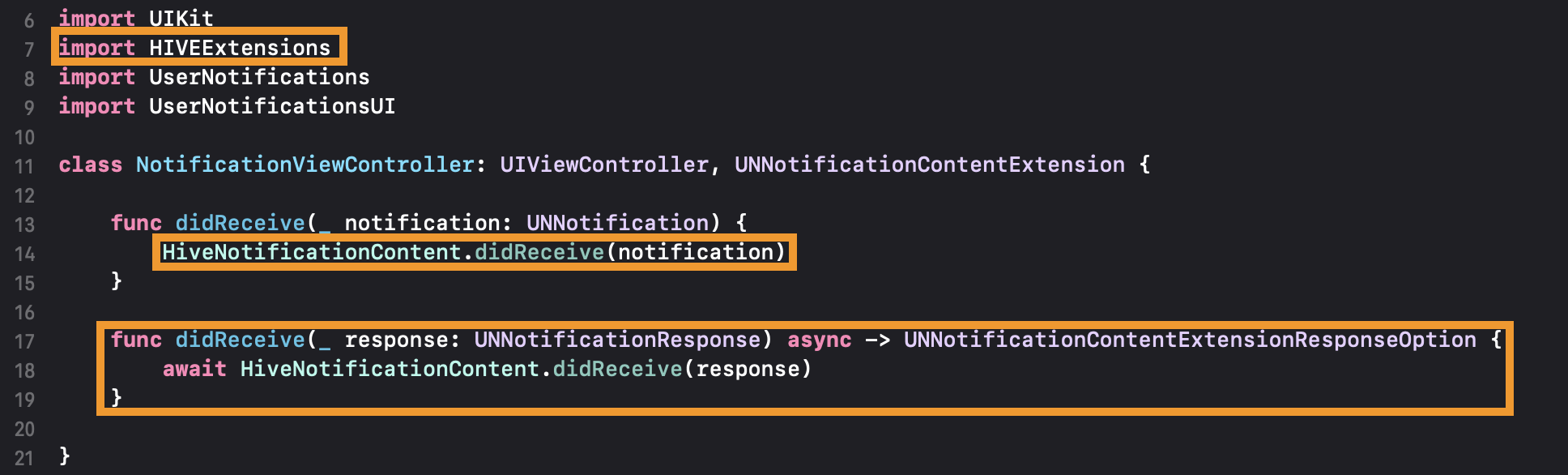
Edit Info.plist
Edit Product Name/Info.plist.
In the following order, paste the code below under the top-level Information Property List row (the root dictionary, the row highlighted in orange in the image).
- Expand the top-level
Information Property Listrow and remove its sub-item,NSExtension. - Collapse the same row, right-click it, and select Paste.
<?xml version="1.0" encoding="UTF-8"?>
<!DOCTYPE plist PUBLIC "-//Apple//DTD PLIST 1.0//EN" "http://www.apple.com/DTDs/PropertyList-1.0.dtd">
<plist version="1.0">
<dict>
    <key>NSExtension</key>
    <dict>
    <key>NSExtensionAttributes</key>
    <dict>
        <key>UNNotificationExtensionInitialContentSizeRatio</key>
        <integer>0</integer>
        <key>UNNotificationExtensionCategory</key>
        <array>
        <string>INFO_CATEGORY</string>
        <string>CLOSE_CATEGORY</string>
        <string>CONFIRM_CATEGORY</string>
        <string>EXECUTE_CATEGORY</string>
        <string>ACCEPT_ALL_CATEGORY</string>
        <string>ACCEPT_NOW_CATEGORY</string>
        <string>PURCHASE_CATEGORY</string>
        <string>SALE_CATEGORY</string>
        <string>ACCEPT_DECISION_CATEGORY</string>
        </array>
    </dict>
    <key>NSExtensionPrincipalClass</key>
    <string>$(PRODUCT_NAME).NotificationViewController</string>
    <key>NSExtensionPointIdentifier</key>
    <string>com.apple.usernotifications.content-extension</string>
    </dict>
</dict>
</plist>
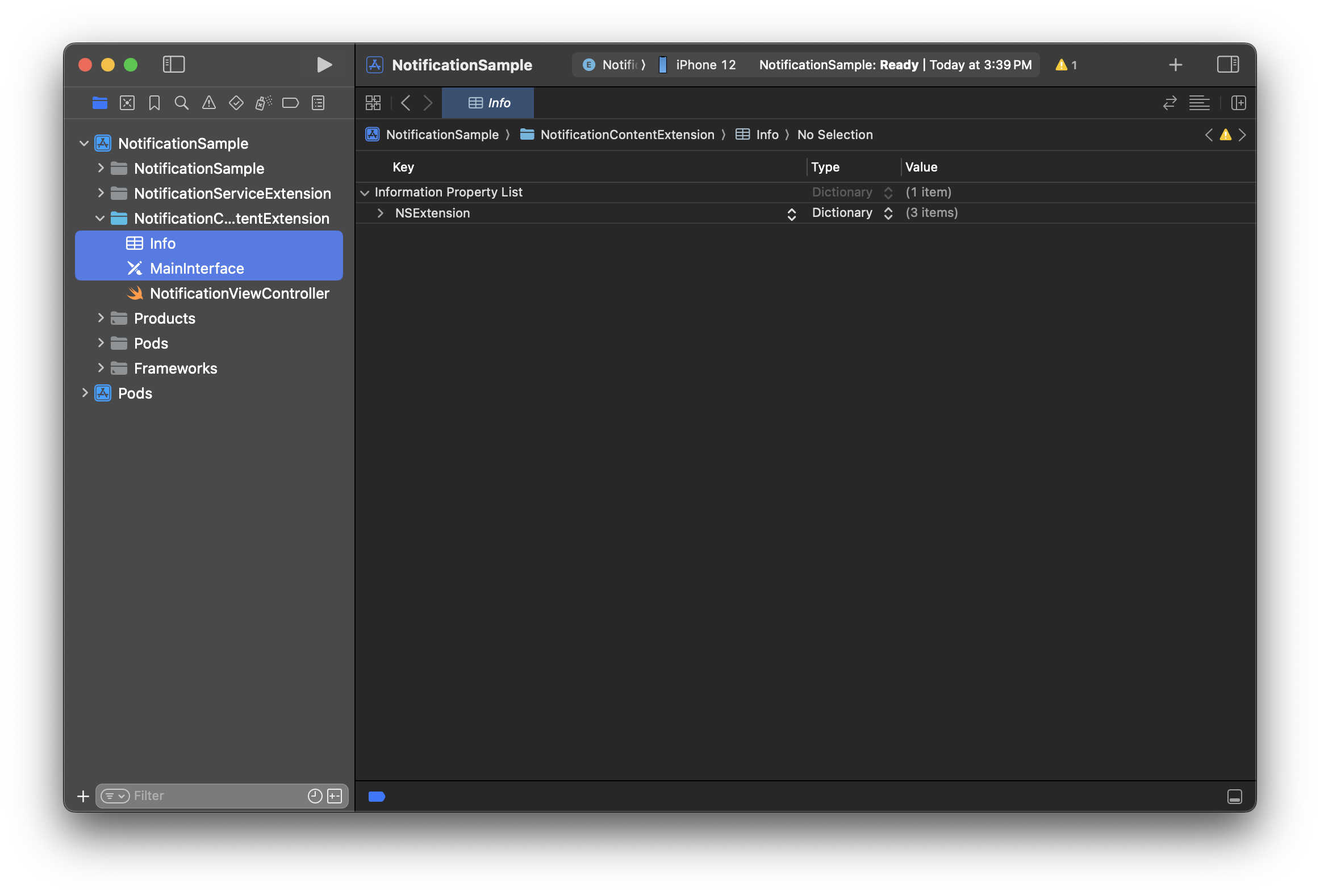
Step 3. Enter custom categories
The UNNotificationExtensionCategory values in the Info.plist you edited in the previous step are the default categories provided by the Hive SDK introduced earlier. If you have custom categories written in hive_push_actions.json following the Advanced implementation below, add those as array elements as well.
Step 4. Add dependencies
Link the dependencies required by the push extension target. You can skip this if you already added them via CocoaPods or similar right after generating the project.
- Add using a dependency management tool
- Add manually
- Add it manually via the Xcode GUI, or write a build pipeline script to link it
- For Unreal Engine, since there's no separate dependency management tool support, proceed with this method
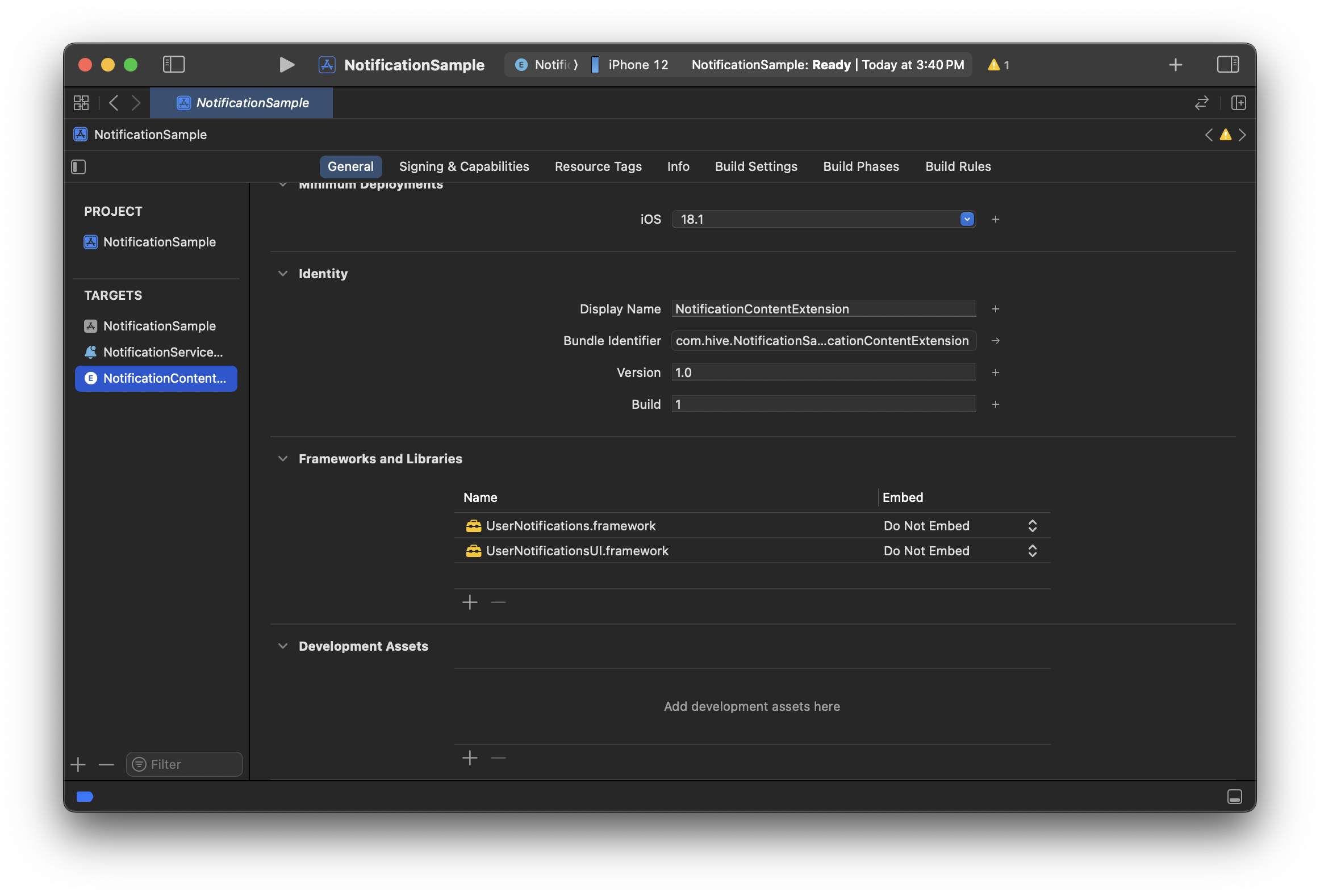
- Add
HIVEExtensions.frameworkto the extension target settings' General > Frameworks and Libraries
Once you've applied the push action button set in your development environment, also specify the action when sending a push from Hive Console.
When specifying the action, use the category and action identifiers from the push action button set list (Details) above.
For details on console configuration, see the console guide.
Advanced implementation (iOS)
Define the values for actions and categories in the hive_push_actions.json file. After defining them, include the hive_push_actions.json file in the target and build the app — when the app runs, the Hive SDK automatically parses the file's contents and registers the actions and categories with the notification center.
An example of the hive_push_actions.json file's contents is shown below.
hive_push_actions.json example
{
    "actions": {
      "ACCEPT_ALL_ID": {
        "ar": "قبول الكل",
        "de": "Alle akzeptieren",
        "en": "Accept All",
        "es": "Aceptar todo",
        "fr": "Tout accepter",
        "id": "Terima Semua",
        "it": "Accetta tutto",
        "ja": "一括承諾",
        "ko": "일괄 수락",
        "pt": "Aceitar tudo",
        "ru": "Принять все",
        "th": "ยอมรับทั้งหมด",
        "tr": "Hepsini Kabul Et",
        "vi": "Chấp Nhận Tất Cả",
        "zh-Hans": "批量接受",
        "zh-Hant": "一鍵接受",
        "tl": "Tanggapin ang Lahat"
      },
      "ACCEPT_ID": {
        "ar": "قبول",
        "de": "Akzeptieren",
        "en": "Accept",
        "es": "Aceptar",
        "fr": "Accepter",
        "id": "Terima",
        "it": "Accetta",
        "ja": "承諾",
        "ko": "수락",
        "pt": "Aceitar",
        "ru": "Принять",
        "th": "ยอมรับ",
        "tr": "İzin Ver",
        "vi": "Chấp Nhận",
        "zh-Hans": "接受",
        "zh-Hant": "接受",
        "tl": "Tanggapin"
      },
      "ACCEPT_NOW_ID": {
        "ar": "استلام الآن",
        "de": "Jetzt erhalten",
        "en": "Claim Now",
        "es": "Recibir ahora",
        "fr": "Recevoir maintenant",
        "id": "Klaim Sekarang",
        "it": "Prendi ora",
        "ja": "今すぐ受け取る",
        "ko": "지금 받기",
        "pt": "Obter agora",
        "ru": "Получить сейчас",
        "th": "รับเลย",
        "tr": "Şimdi Al",
        "vi": "Nhận Ngay",
        "zh-Hans": "立即领取",
        "zh-Hant": "立即領取",
        "tl": "Mag-claim Ngayon"
      },
      "CANCEL_ID": {
        "ar": "تنفيذ",
        "de": "Abbrechen",
        "en": "Cancel",
        "es": "Cancelar",
        "fr": "Annuler",
        "id": "Batal",
        "it": "Annulla",
        "ja": "キャンセル",
        "ko": "취소",
        "pt": "Cancelar",
        "ru": "Отменить",
        "th": "ยกเลิก",
        "tr": "İptal",
        "vi": "Hủy",
        "zh-Hans": "取消",
        "zh-Hant": "取消",
        "tl": "Kanselahin"
      },
      "CLOSE_ID": {
        "ar": "إغلاق",
        "de": "Schließen",
        "en": "Close",
        "es": "Cerrar",
        "fr": "Fermer",
        "id": "Tutup",
        "it": "Chiudi",
        "ja": "閉じる",
        "ko": "닫기",
        "pt": "Fechar",
        "ru": "Закрыть",
        "th": "ปิด",
        "tr": "Kapat",
        "vi": "Đóng",
        "zh-Hans": "关闭",
        "zh-Hant": "關閉",
        "tl": "Isara"
      },
      "CONFIRM_ID": {
        "ar": "موافق",
        "de": "OK",
        "en": "OK",
        "es": "Confirmar",
        "fr": "Voir",
        "id": "OK",
        "it": "Ok",
        "ja": "OK",
        "ko": "확인",
        "pt": "Confirmar",
        "ru": "OK",
        "th": "ตกลง",
        "tr": "TAMAM",
        "vi": "OK",
        "zh-Hans": "确认",
        "zh-Hant": "確認",
        "tl": "Sige"
      },
      "DECLINE_ID": {
        "ar": "رفض",
        "de": "Ablehnen",
        "en": "Decline",
        "es": "Rechazar",
        "fr": "Refuser",
        "id": "Tolak",
        "it": "Rifiuta",
        "ja": "拒否する",
        "ko": "거절하기",
        "pt": "Recusar",
        "ru": "Отклонить",
        "th": "ปฏิเสธ",
        "tr": "Reddet",
        "vi": "Từ Chối",
        "zh-Hans": "拒绝",
        "zh-Hant": "拒絕",
        "tl": "Tanggihan"
      },
      "EXECUTE_ID": {
        "ar": "إلغاء",
        "de": "Ausführen",
        "en": "Run",
        "es": "Ejecutar",
        "fr": "Exécuter",
        "id": "Jalankan",
        "it": "Avvia",
        "ja": "実行",
        "ko": "실행",
        "pt": "Executar",
        "ru": "Запустить",
        "th": "ดำเนินการ",
        "tr": "Devam Et",
        "vi": "Kích Hoạt",
        "zh-Hans": "执行",
        "zh-Hant": "執行",
        "tl": "Tumakbo"
      },
      "HOLDING_ID": {
        "ar": "الاختيار لاحقًا",
        "de": "Halten",
        "en": "Hold",
        "es": "Pendiente",
        "fr": "En attente",
        "id": "Tahan",
        "it": "Rimanda",
        "ja": "保留",
        "ko": "보류",
        "pt": "Manter",
        "ru": "Отложить",
        "th": "พักไว้",
        "tr": "Tut",
        "vi": "Tạm Hoãn",
        "zh-Hans": "暂缓",
        "zh-Hant": "保留",
        "tl": "Hawakan"
      },
      "PURCHASE_ID": {
        "ar": "شراء",
        "de": "Kaufen",
        "en": "Purchase",
        "es": "Comprar",
        "fr": "Acheter",
        "id": "Beli",
        "it": "Compra",
        "ja": "購入する",
        "ko": "구매하기",
        "pt": "Comprar",
        "ru": "Купить",
        "th": "ซื้อ",
        "tr": "Satın Al",
        "vi": "Mua",
        "zh-Hans": "购买",
        "zh-Hant": "購買",
        "tl": "Pagbili"
      },
      "REJECT_ID": {
        "ar": " رفض",
        "de": "Ablehnen",
        "en": "Decline",
        "es": "Rechazar",
        "fr": "Refuser",
        "id": "Tolak",
        "it": "Rifiuta",
        "ja": "拒否",
        "ko": "거절",
        "pt": "Recusar",
        "ru": "Отклонить",
        "th": "ปฏิเสธ",
        "tr": "Reddet",
        "vi": "Từ Chối",
        "zh-Hans": "拒绝",
        "zh-Hant": "拒絕",
        "tl": "Tanggihan"
      },
      "SALE_ID": {
        "ar": "بيع",
        "de": "Verkaufen",
        "en": "Sell",
        "es": "Vender",
        "fr": "Vendre",
        "id": "Jual",
        "it": "Vendi",
        "ja": "販売する",
        "ko": "판매하기",
        "pt": "Vender",
        "ru": "Продать",
        "th": "ขาย",
        "tr": "Sat",
        "vi": "Bán",
        "zh-Hans": "出售",
        "zh-Hant": "販售",
        "tl": "Ibenta"
      }
    },
    "categories": {
        "INFO_CATEGORY": [
            "CONFIRM_ID"
        ],
        "CLOSE_CATEGORY": [
            "CLOSE_ID"
        ],
        "CONFIRM_CATEGORY": [
            "CONFIRM_ID",
            "CLOSE_ID"
        ],
        "EXECUTE_CATEGORY": [
            "EXECUTE_ID",
            "CANCEL_ID"
        ],
        "ACCEPT_ALL_CATEGORY": [
            "ACCEPT_ALL_ID",
            "CLOSE_ID"
        ],
        "ACCEPT_NOW_CATEGORY": [
            "ACCEPT_NOW_ID",
            "CLOSE_ID"
        ],
        "PURCHASE_CATEGORY": [
            "PURCHASE_ID",
            "DECLINE_ID"
        ],
        "SALE_CATEGORY": [
            "SALE_ID",
            "DECLINE_ID"
        ]
    }
}
Note the following when writing the file's contents.
- The maximum number of buttons per category (set) is 3.
- The example above defines the default-provided button set. For custom action buttons, using the same identifier will prevent it from being recognized, so use a unique, identifiable string.
- Multi-language support follows the 'game language', and you can enter any of the 17 languages supported by the Hive SDK. English (
"en") is used as the default value for multi-language strings, so be sure to include it.
Note
Unity PostProcess is supported. If you add the hive_push_actions.json file to the path where the hive_config.xml file exists in your Unity project, it's automatically added to the app target when the Xcode project is built.
Warning
After writing the file's contents, add the keys of the "categories" field to UNNotificationExtensionCategory in the Notification Content Extension's Info.plist.
In the Unity environment, this is automatically added by parsing the file's contents.
FAQ
If custom action buttons don't appear even though the file is included
- Check that the file name is 'hive_push_actions.json'.
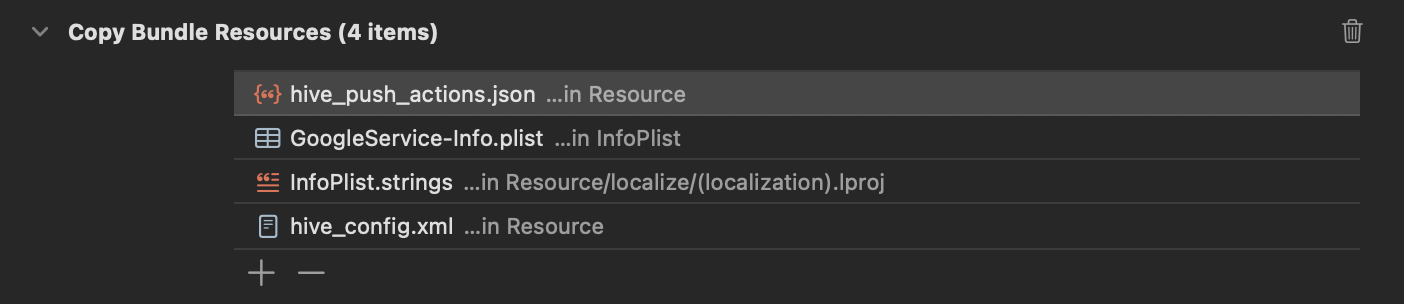
- Check that it's also included in Copy Bundle Resources.