Metric
Overview
A metric is a feature that lets you save and reuse settings for frequently used metrics in the Create > Chart menu.
If you define commonly used metrics across the company as metrics, you can display metrics from the same source with the same values. If the metric criteria change, updating a single metric automatically reflects the change in all charts and dashboards that use it.
What Can You Do?
Business/Marketing Users
- If you define team-wide KPIs such as DAU, MAU, and ARPU as metrics, everyone can share data using the same criteria.
- By classifying metrics by purpose with metric categories, you can manage your team's analytical assets systematically.
Data Analysts
- If you save complex derived metrics such as ARPPU and PU RATE(%) once as metrics, you can reuse them immediately without repeating the setup for each chart.
- If you change a metric definition, it is automatically reflected in all charts that use that metric, maintaining consistency.
Quick Start
If you are creating a metric for the first time, follow the steps below to create your first metric.
- Click Data > Metric in the left sidebar.
- Click the Register button in the top right.
- Enter the metric title and category.
- In the metric area, select the target event, value, and operation for analysis.
- Click the Save button.
Note
For detailed features such as metric registration, visibility settings, and metric categories, refer to Full Features.
Full Features
Key Concepts
| Concept | Description |
|---|---|
| Metric | A metric definition calculated from events (for example, AU = COUNT DISTINCT userId for the hive_app_login event) |
| Platform Metric | A metric provided by default by the Analytics system |
| Custom Metric | A custom metric defined directly by the Analytics user |
| Metric Category | A group used to classify metrics by type (for example, user, revenue, session, game-play analysis) |
Platform Metric Details
Metrics provided by default by the Analytics system that cannot be edited or deleted.
| Category | Metric | Description | Formula |
|---|---|---|---|
| User | AU | Number of users logged into the game with duplicates removed | hive_app_login · COUNT DISTINCT · userId |
| Concurrent Users | Number of users included in events automatically collected every 2 minutes while the game SDK runs on the client, with duplicates removed | hive_session_maintain · COUNT DISTINCT · userId | |
| Terms Agreements | Number of deviceIds with duplicates removed for first-time app launches after download | hive_terms_agree · COUNT DISTINCT · deviceId | |
| Revenue | In-app Revenue | Sum of payment amounts from the in-app store | hive_product_purchase · SUM · price_Hive |
| Purchase Quantity | Sum of quantities purchased by users in the in-app store | hive_product_price · SUM · quantity_Hive | |
| Revenue Count | Number of receipts with duplicates removed when in-app store purchases occur | hive_product_purchase · COUNT DISTINCT · transactionId_Hive | |
| PU | Number of users who paid in the in-app store, with duplicates removed | hive_product_purchase · COUNT DISTINCT · userId | |
| ARPU | In-app revenue per user | ( hive_product_purchase · SUM · price_Hive ) / ( hive_app_login · COUNT DISTINCT · userId ) | |
| ARPPU | Average in-app revenue per paying user | ( hive_product_purchase · SUM · price_Hive ) / ( hive_product_purchase · COUNT DISTINCT · userId ) | |
| PU RATE(%) | Ratio of users who paid in the in-app store to users who logged into the game (%) | ( (hive_product_purchase · COUNT DISTINCT · userId) * 100 ) / ( hive_app_login · COUNT DISTINCT · userId ) |
View Metric List
View all metrics registered in Analytics. 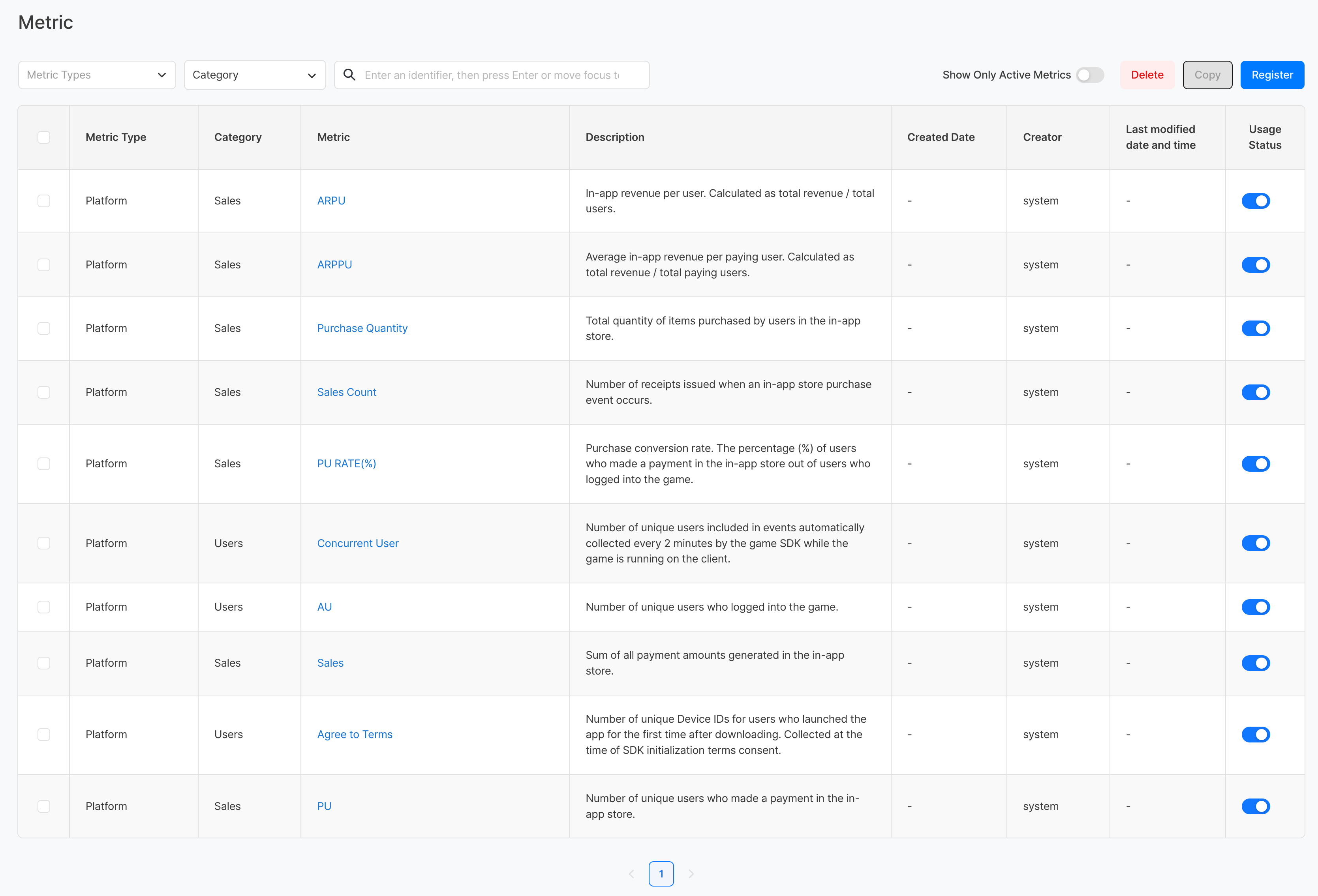
| Display Item | Description |
|---|---|
| Metric Type | Distinguishes between platform metrics and custom metrics |
| Category | The category the metric belongs to |
| Metric | Metric name (click to move to the detail page) |
| Created At | Date and time the metric was created |
| Creator | User who created the metric |
| Last Modified At | Date and time the metric was last modified |
| In Use | Toggle whether the metric is shown in charts |
Create Metric
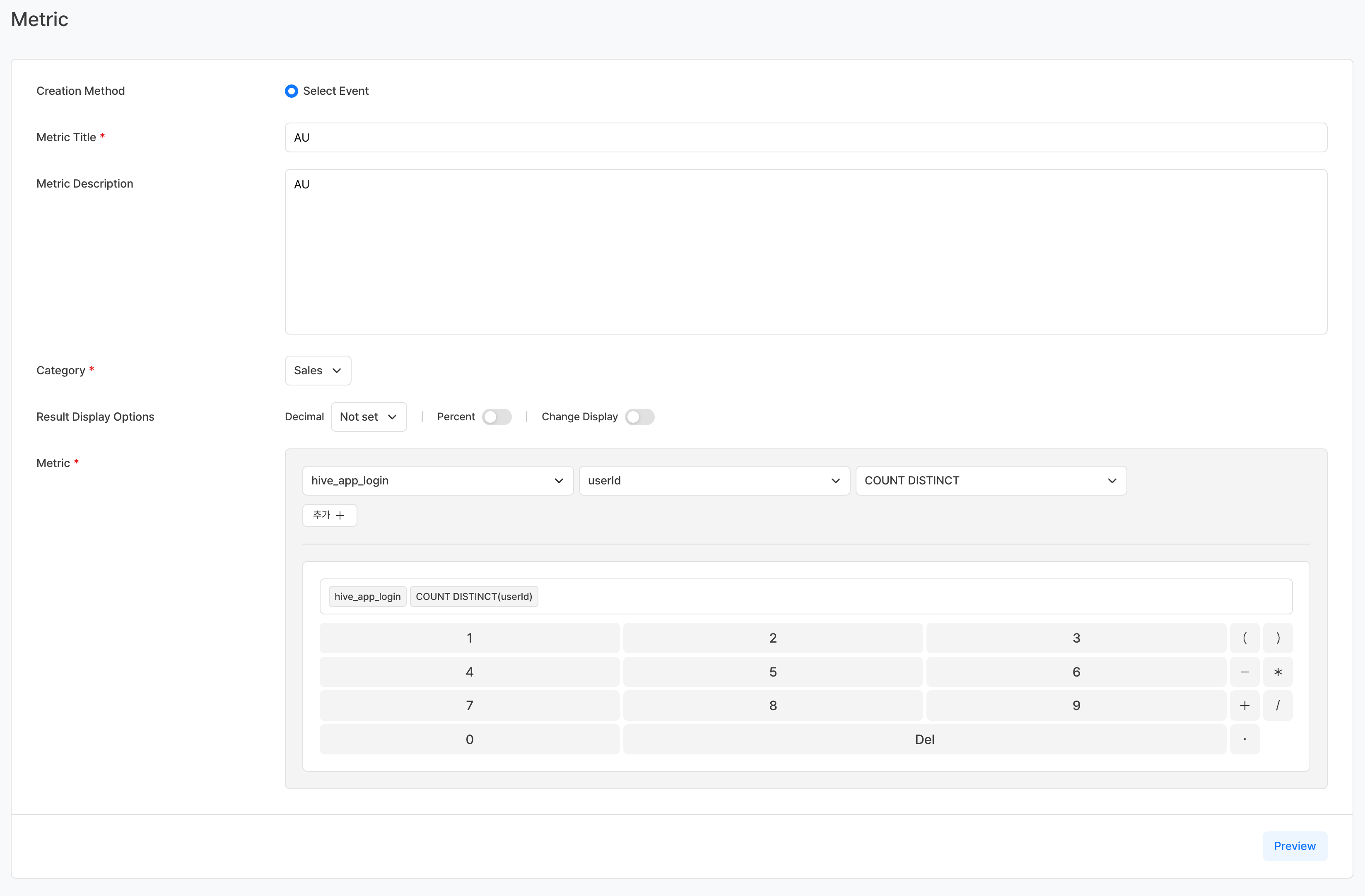
Basic Information
| Item | Required | Description |
|---|---|---|
| Metric Title | Required | Name displayed on analysis screens (up to 30 characters) |
| Metric Description | Optional | Description of how the metric is calculated and its purpose (up to 300 characters) |
| Category | Required | Select an existing metric category created within the company, or create a new one by direct input |
| Result Display Options | Optional | Set decimal places / percentage display / change indicator |
| Metric | Required | Build the formula by selecting event + value + operation. You can combine multiple items with the add button to create a compound formula |
Metric Settings
Metrics are defined as a combination of event, attribute value, and attribute aggregation method.
| Aggregation Method | Description | Main Use |
|---|---|---|
| COUNT | Total number of event occurrences | Event frequency |
| COUNT DISTINCT | Number of unique users/values excluding duplicates | Access users, paying users |
| SUM | Sum of attribute values | Total revenue, total play time |
| AVG | Average of attribute values | Average payment amount, average play time |
| MIN | Minimum attribute value | Lowest payment amount |
| MAX | Maximum attribute value | Highest achieved level |
| MAX BY | Most recent (last) attribute value | Last level |
Metric Definition Example
| Metric Title | Formula |
|---|---|
| AU | hive_app_login · COUNT DISTINCT · userId |
| In-app Revenue | hive_product_purchase · SUM · price_Hive |
| Revenue Count | hive_product_purchase · COUNT DISTINCT · transactionId_Hive |
| PU RATE(%) | ( (hive_product_purchase · COUNT DISTINCT · userId) * 100 ) / ( hive_app_login · COUNT DISTINCT · userId ) |
Compound formulas such as PU RATE(%) that combine aggregated results from two events can also be defined as a single metric.
Tip
A metric defines only "what to count", while "the unit to view it in" is determined in the chart. For example, if you want to check DAU/WAU/MAU, you only need to define AU once. After defining one AU metric, changing the period unit in the chart to daily/weekly/monthly automatically turns it into DAU, WAU, and MAU.
Manage Metric Categories
Create and manage categories to classify metrics by purpose. If the category you want does not exist, you can click 'Direct Input' and type it using the keyboard. 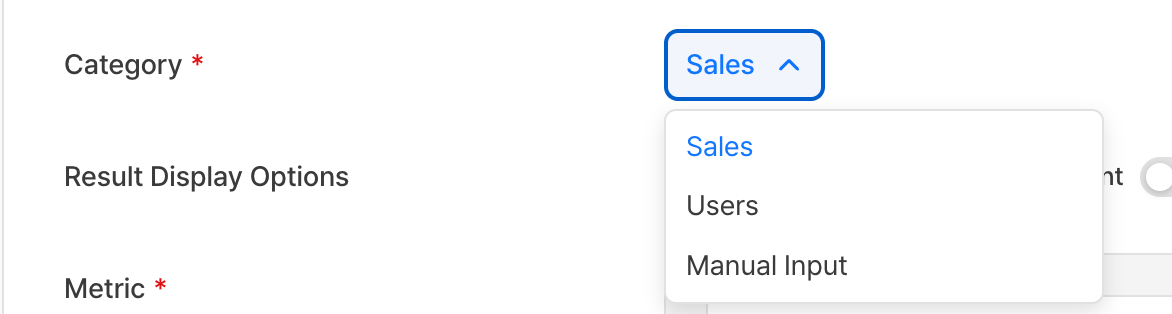
Category Examples
- User metrics (DAU, MAU, WAU)
- Revenue metrics (ARPU, ARPPU, in-app revenue)
- Session metrics (session count, play time, average sessions)
- Game-play metrics (content play count, currency acquired, currency spent)
Control Metric Display

- If the metric type is not 'Platform', you can control whether each metric is shown using the In Use toggle in the list.
- If set to OFF, that metric is hidden from the measure value selection list in Create > Chart.
Copy and Delete Metrics
- Copy: Quickly create a similar metric based on an existing metric
- Delete: Delete metrics that are no longer used
Warning
If there are charts or dashboards using a deleted metric, the data in those contents may not be displayed.
Use Metrics in Charts
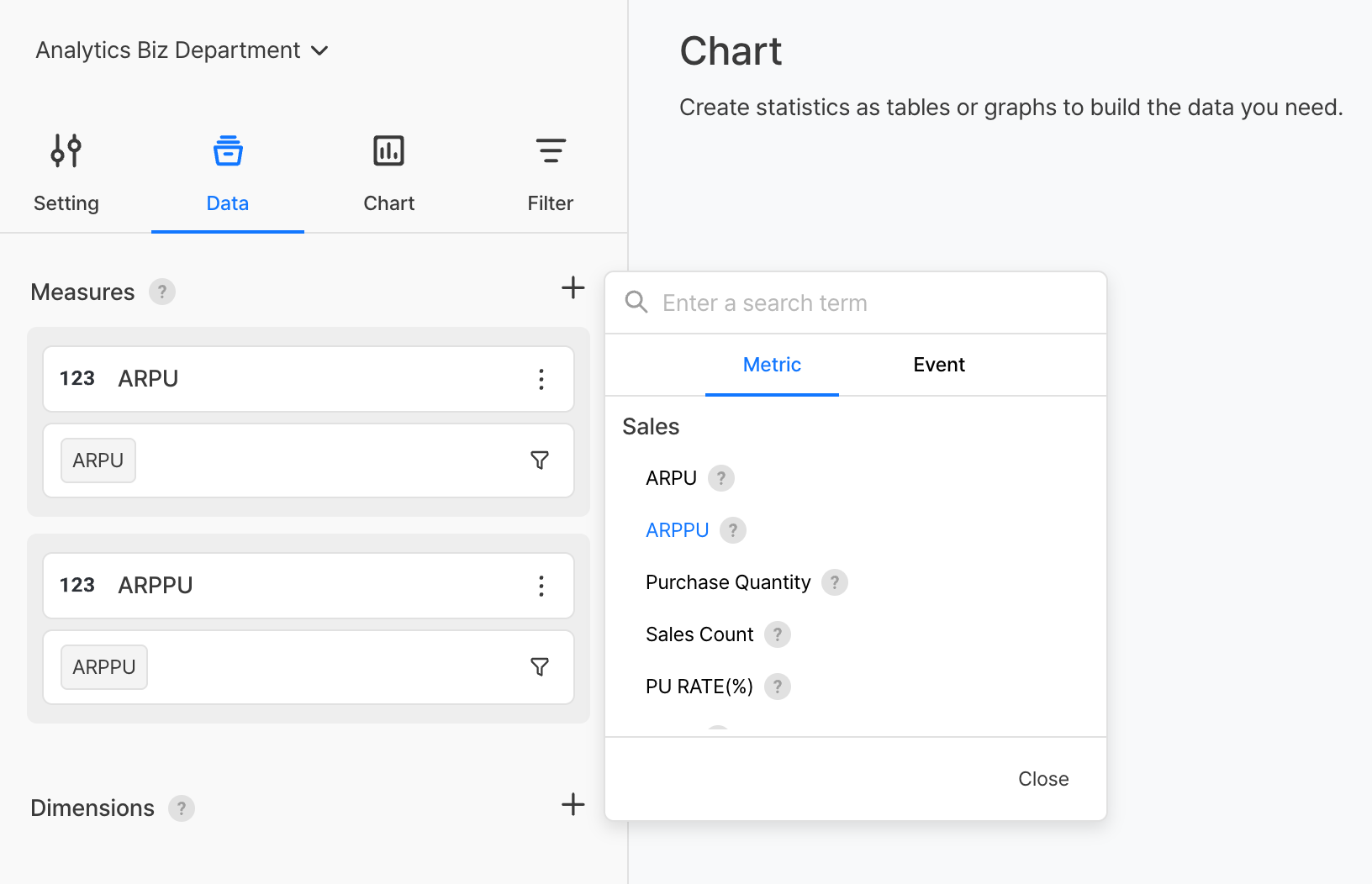
- Go to the [Data] tab on the Create > Chart screen.
- Click the
+button on the right side of the measure value area. - Search for and select the metric you created.
Notes & Tips
- Platform metrics are provided by default by the system and cannot be edited or deleted.
- Before deleting a metric, check the charts and dashboards that use it first.
- If you change a metric formula, the data in all charts that use that metric changes immediately. Modify important metrics carefully.
- For common metrics used by the whole team, write detailed descriptions so the definition and calculation method are clearly shared.
- To avoid duplicate metrics with similar names, search for existing metrics before creating a new one.