Manage App ID
App ID is the basic information used in the Hive console to identify a game app and web login environment and to manage its operational status. To register a new App ID, the project must first be registered. After registration, you can manage basic information, status, country settings, guest login reCAPTCHA, and change history on an App ID basis.
Prerequisites
- To register an App ID, the target project must be registered first.
- Check the Project Management menu for how to register and manage projects.
- After an App ID is created, the app OS and store cannot be changed, so you must determine the target operating environment before registration.
- A web login App ID must be registered after checking in advance which usage type fits its intended purpose.
Registering an App ID
App ID can be registered in the App ID tab of Project Details or in the App ID Management menu.
➡️ Console path: Project Management > Project Details > App ID tab 
App ID
How to set up:
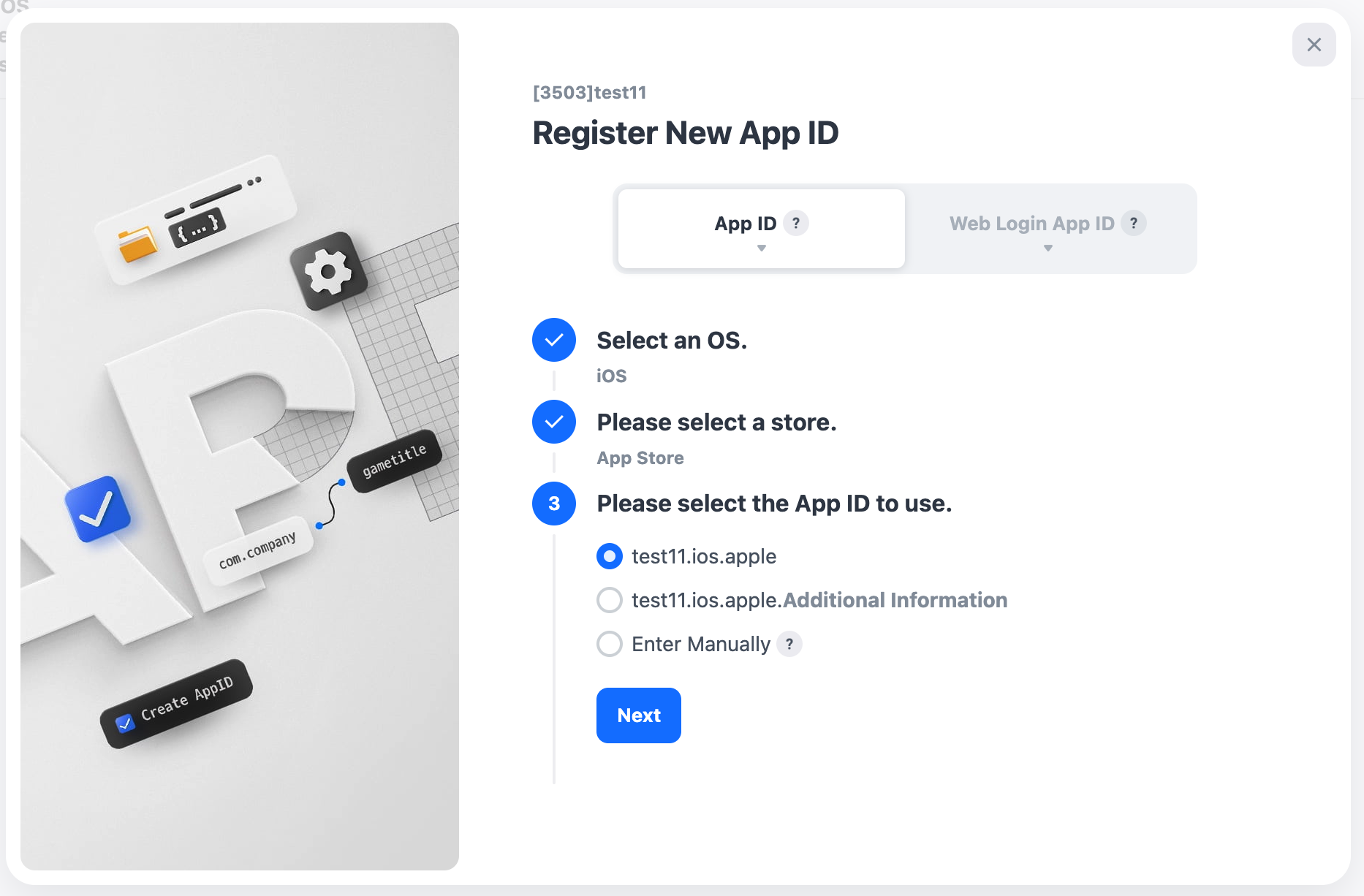
- Go to the screen where you register an App ID, then click [New App ID].
- Select the app OS.
- Select the store where the app will be registered. Because the OS and store cannot be changed after the App ID is created, choose carefully according to your operating environment.
- Select the App ID to use or enter it directly. Depending on the selected option, an App ID may be recommended automatically. If additional distinction is needed, you can enter supplementary information after the automatically generated App ID.
- If the recommended format cannot be used due to store policy, enter the App ID directly. When entering it directly, only English letters, numbers, and periods (.) can be used, and uppercase and lowercase letters are not distinguished.
- Check the entered information and complete the registration procedure. When registration is complete, a new App ID is created based on the selected OS and store.
Note
- If there is no applicable store, select 'Direct Distribution'.
Web Login App ID
A Web Login App ID is registered separately according to the purpose of the web-based service or login integration.
How to set up:
- On the App ID registration screen, select the web login usage type.
- Select the App ID to use.
- If the same App ID already exists, check whether a number has been automatically added after the App ID.
- Check the entered information and complete the registration procedure.
- When registration is complete, an App ID for web login purposes is created.
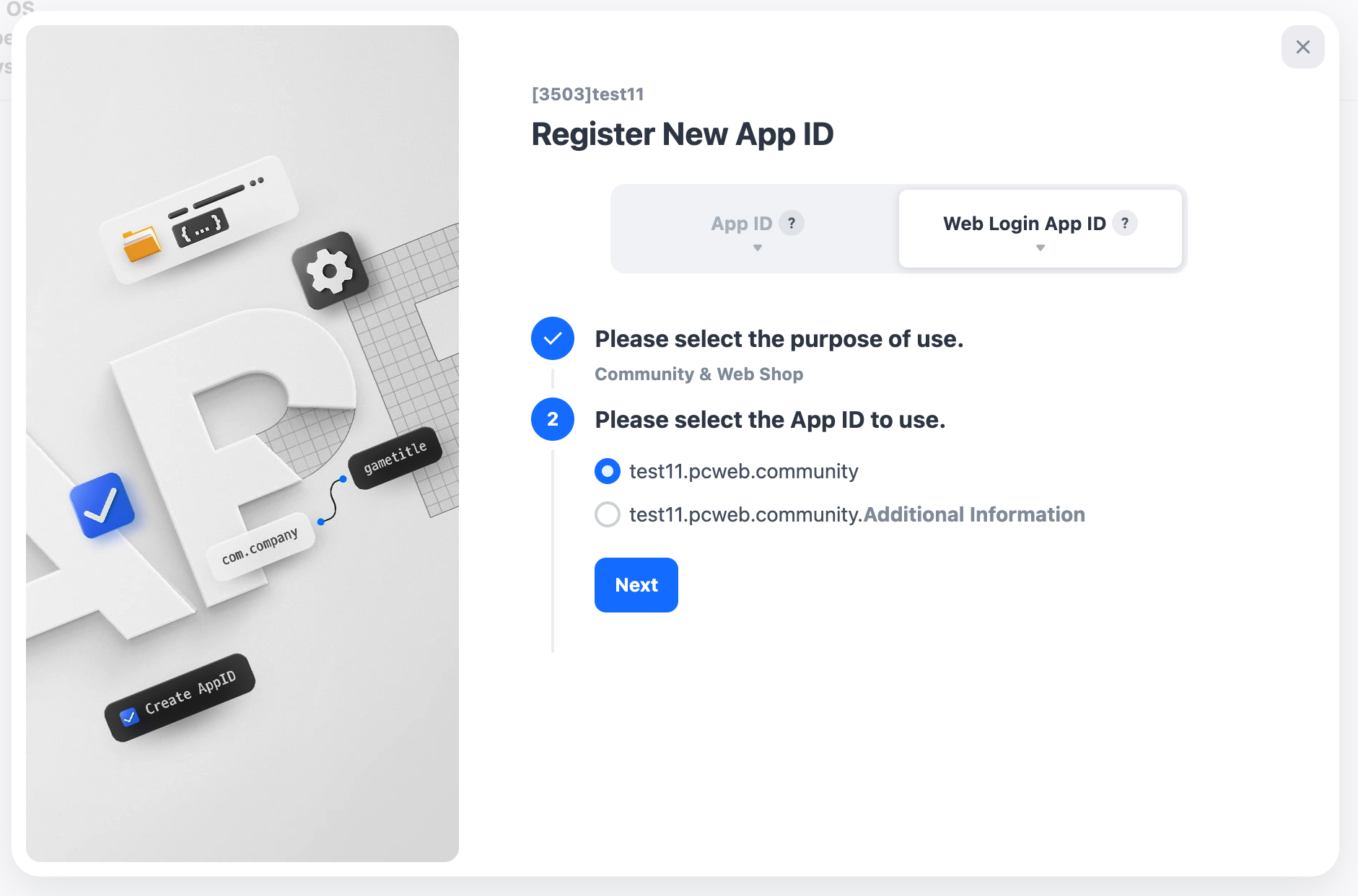
Web login usage guide
- Blockchain: Used when using the Blockchain API
- Website: Used for an independent website such as your own community, web store, or brand site
- Community & Web Store: Used when using Hive Community or Hive Web Store
- For details, see the Web Login API Guide.
Managing Registered App IDs
Registered App IDs are managed by selecting the relevant item from the list and viewing the detailed information in each tab.
Basic Information
This is the basic information for the linked app information and the registered App ID.
1. App Information

- Go to Project Management: move to the Project Details page.
2. App ID Information
You can modify the information and status of a registered App ID. Modifying the information does not change the App ID itself. When first created, the status is set to In Development, and you can change it later according to the service status.
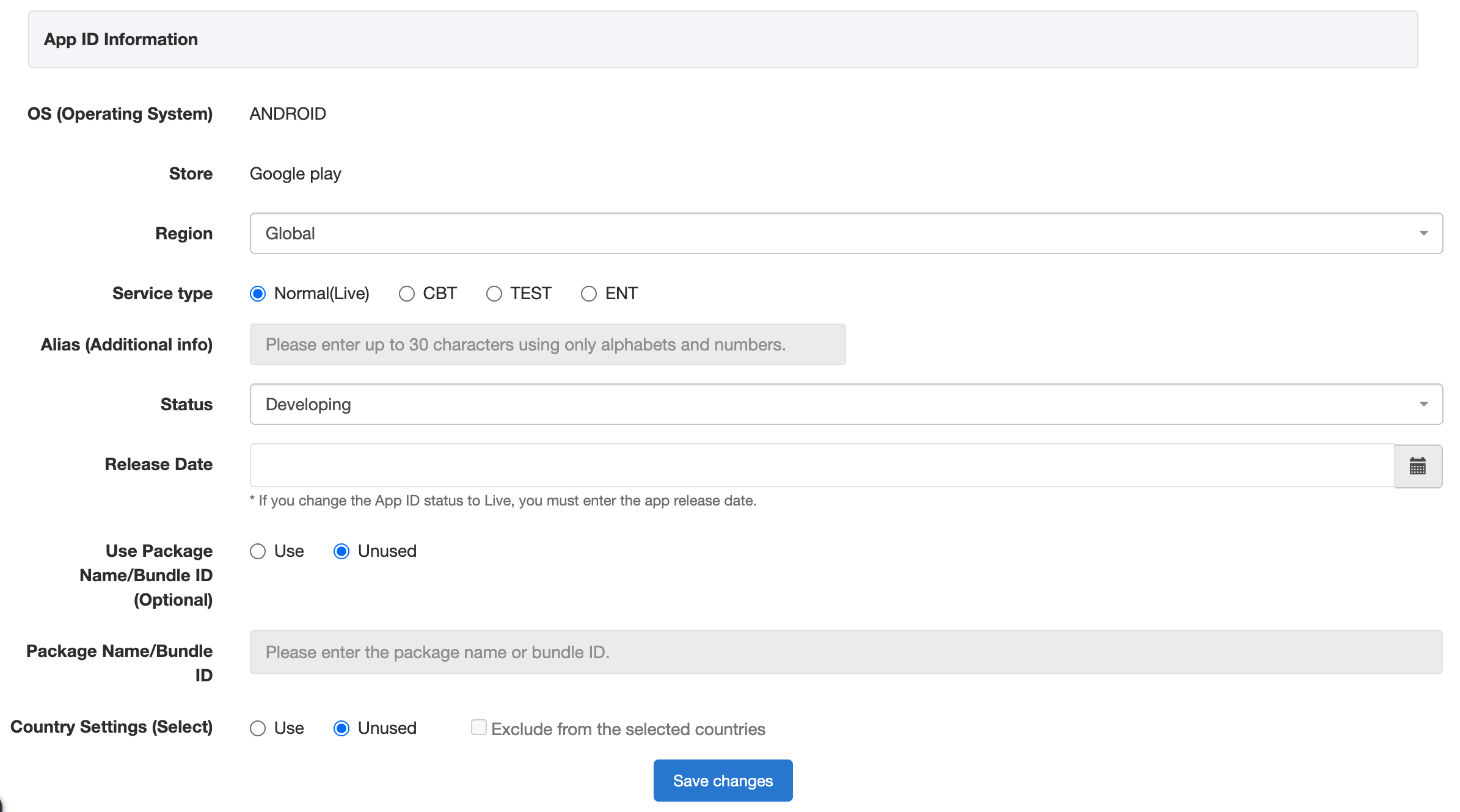
App ID Status
- You can set the App ID status.
- Live: This App ID is currently in service. If one or more App IDs are in Live status, the game status is also set to Live.
- In Development: This App ID is under development. If all App IDs are in In Development, Service Ended, or Not Used status, the game status is set to In Development. However, if at least one App ID is Live, the game status becomes Live.
- Service Ended: This App ID is no longer in service. If all App IDs are in this status, the game status is also set to Service Ended.
- Not Used: This App ID is not used. If all App IDs are in this status, the game status is also set to Not Used.
Release Date
- If the store release date has been confirmed, change the status to Live, then register the release date.
Use Package Name/Bundle ID (Optional)
- The App ID is used as the package name or bundle ID when the app is released on the store. In most cases, the App ID and the store app identifier are the same. However, if the app has already been released, the value may differ due to the identifier used previously. Hive refers to the store package name or bundle ID during authentication and payment processes. Therefore, if the App ID and store identifier are different, you must enter the corresponding value in the 'Package Name/Bundle ID' field.
App ID Country Settings (Optional)
-
This feature allows you to specify service target countries for each App ID within a single store. Different information can be displayed by country in promotions, UE(coupon deep links), and Hive Games.
- The default value is Not Used(all countries).
- When enabled, it applies only to the specified countries.
- Multiple countries can be selected.
- If the 'Exclude selected countries' option is enabled, it applies to all countries except the specified countries.
-
Example: When setting three Android store App IDs in a game
-
Android App ID1 country setting: South Korea

-
Android App ID2 country setting: Japan

-
Android App ID3 country setting: Excludes South Korea and Japan

-
Warning
- The App ID country setting is a feature used to specify the service countries in the store. It is different from the country blocking feature for notice popups in Provisioning. For more details about notice popups, see here.
Guest Login reCAPTCHA
This feature uses Google reCAPTCHA to prevent randomly generated guest accounts on mobile and block abuse. The default value is Unused. 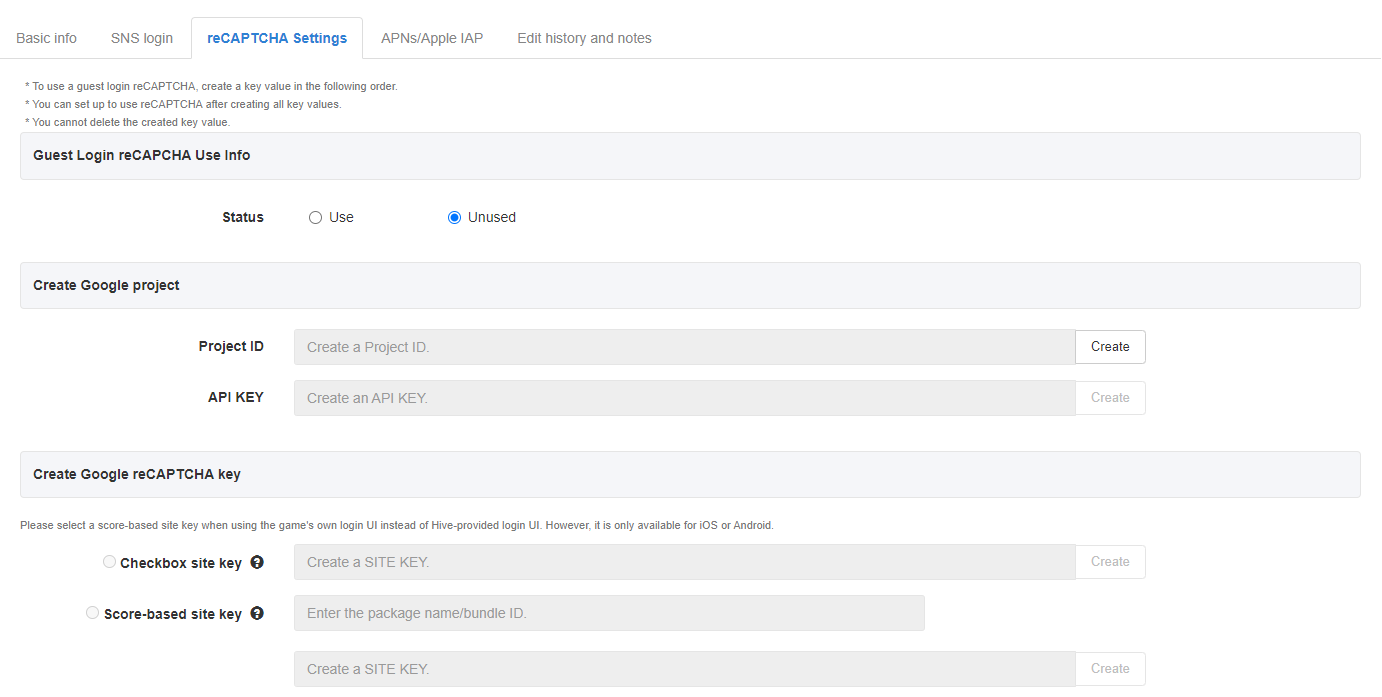
To use guest login reCAPTCHA, proceed with the following steps.
Information on Using Guest Login reCAPTCHA
- During guest login, Google reCAPTCHA determines whether the user is a robot and blocks guest account creation. Before enabling this feature, you must create Google keys in the order below.
Create a Google Project
- Before creating a site key, you must create one Project ID and one API Key for each game. If a key has already been issued for another App ID of the same game, the same key is displayed. Once created, a key is not deleted.
Create a Google reCAPTCHA Key
- Checkbox site key: shows the reCAPTCHA checkbox UI in the guest account information pop-up and determines whether the user is a robot through user interaction.
- Score-based site key: determines whether the user is a robot using the score provided by Google without user interaction.
- For details on the reCAPTCHA types provided by Google Enterprise, check here.
Note
- Guest login reCAPTCHA feature
- The checkbox site key feature is supported in SDK v4.15.4.1, SDK v4.15.8.3, and SDK v4.16.0 or later.
- The score-based site key feature is supported in SDK v4.16.0 or later.
- If you use the game's own login UI instead of the platform default login UI, use the score-based site key.
- If used in an unsupported version, guest login will not work properly.
Change History and Notes
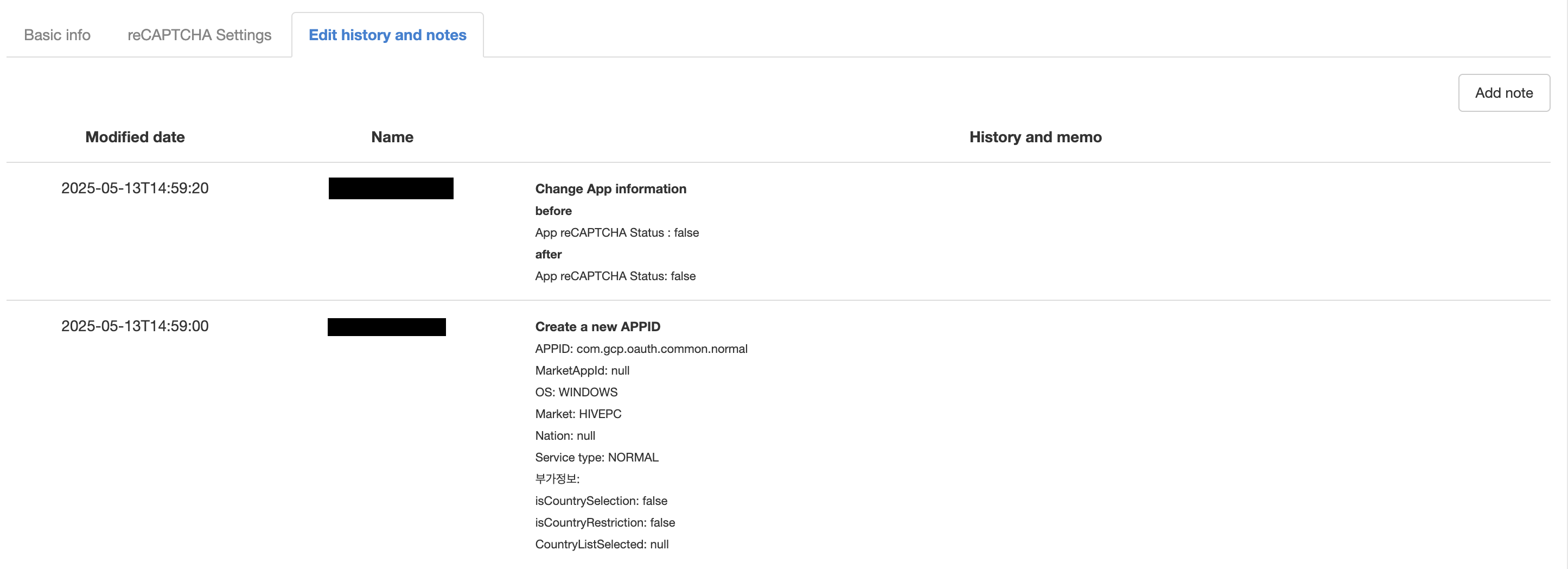
If App ID information is changed, the history is recorded automatically. You can also add notes and enter content directly. Change history and notes cannot be deleted.