Manage project
Project Management is a menu for managing basic information that applies commonly to an app regardless of OS. In this menu, you can create a Game ID and register and manage the service status and basic app information. Based on the registered project, you can also manage the detailed items required for operations, such as App ID, app metadata, app servers, and Hive product settings.
Prerequisites
To register or edit a project, you need menu access permission as well as add, edit, and delete permissions. To view detailed information, you must also have view permission for each tab. If you do not have view permission, the corresponding tab may not be displayed on the screen or you may not be able to access the page. For details, see the Console Permission Management Guide.
The main permissions are as follows.
- Add/Edit/Delete permission
- View App Center basic information
- View App Center app icons and multilingual information
- View App Center App ID
- View App Center app servers
- View App Center Hive product settings page
- View App Center SNS profile integration
- View App Center Hive Web
Register a New Project
➡️ Console path: Console > App Center > Project Management
How to set up:
-
Go to Console > App Center > Project Management and click [Register New Project].

-
On the project registration screen, enter the app information.

-
After completing the input, click [Register New Project]. The project is saved and you are moved to the list screen.
- You can edit the basic project information again even after registration is complete.
Input Items
- Game ID: Only English letters or numbers can be entered.
- Default language: Select the app's primary language. Hive products can refer to this information as the default language.
- App name: Enter the app name to be displayed in the default language.
- Service platform: Select a service platform, such as Hive, Kakao, or LINE. The default value is Hive.
- Genre: Select the genre that applies to the app. If the genre has not been finalized, you can set it to Test.
- App icon: This is optional. You can register a new project without an icon and add one later in App Metadata.
- Status: Set the operational status of the project.
- Live: Use this for projects currently in service. Changing the project status to Live does not automatically change all App IDs to Live.
- In Development: Use this when you need to check Hive features before service launch. Changing the project status to In Development does not automatically change all App IDs to In Development.
- Service Ended: Select this when the service is no longer operated. In this state, login is restricted, and all App IDs are also changed to Service Ended.
- Not in Use: Select this when the project is not in the Service Ended state but is currently not in use. When changed to this state, all App IDs are also changed to Not in Use.
Note
- If you need to operate separate builds by country, create and manage each project separately.
Manage Registered Projects
Click [App Name] in the project list to move to the detail screen. On the detail screen, you can manage Basic Information, App Metadata, App ID, App Server, Hive Product Settings, Email Collection, SNS Profile Integration, and other items by tab.
1. Basic Information
You can edit the information set when registering the project.
➡️ Console path: Console > App Center > Project Management > Project Details > Basic Information
- In the project list, click the app name you want to manage.
- In the Basic Information tab, check the currently registered information.
- If editing is needed, click the [Pencil icon] next to the app name.
-
Edit the items to change and complete the save action.

-
Hive authentication key: When you register a new project, an authentication key is automatically generated for each project. This authentication key is used to verify validity between the project and the Hive platform. By default, the Hive authentication status is displayed as N.
Warning
- To comply with Apple policy, if you use a Hive authentication key when calling the account deletion API, do not change the authentication status.
- If the project status is Service Ended, app login is restricted.
2. App Metadata
App Metadata is used when Hive products use app icon and supported language information. It is not a required input item, but it is recommended to register it if you use related features.
➡️ Console path: Console > App Center > Project Management > Project Details > App Metadata
Among Hive products, products that use app icon and supported language information can use the information registered in this item. You can use the service even if this information is not entered. 
1) Register an App Icon
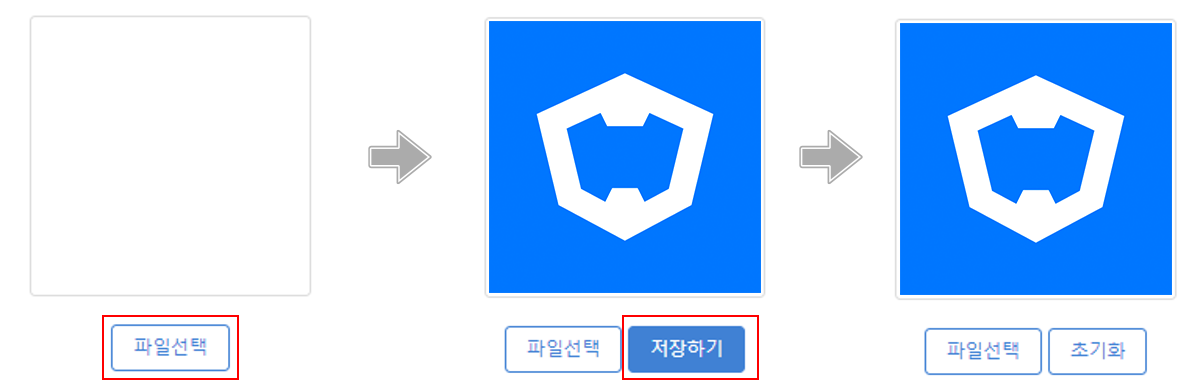
Click the [Choose File] button to upload an image, then click the [Save] button. You can replace the icon by uploading the image again, or delete the registered icon by clicking the [Reset] button.
- There is no image size limit, but 512px × 512px is recommended.
Note
- Icon images are used across Hive, such as the coupon exchange and UA guide page, so upload an image that does not contain text.
2) Add Supported Languages and App Names by Language
Click the [Add Supported Languages and App Names by Language] button as many times as the number of languages you want to add. The default language cannot be deleted. 
3) Key Image
If the app is exposed in Hive Games, register the key image, which is required content. The recommended image size is 1024px × 576px.
Note
- Key images are used in various Hive services, such as Customer Center and Remote Play, so upload an image that does not contain text.

3. App ID
➡️ Console path: Console > App Center > Project Management > Project Details > App ID
Click an App ID name to view and edit the App ID details. To add a new App ID, click the [New App ID] button to move to the registration page. To learn how to register and manage App IDs, see App ID Management.
- App Key is a value that combines the GID and App Index.

4. App Server
➡️ Console path: Console > App Center > Project Management > Project Details > App Server
Among Hive products, products that use app server information can use the information registered in this item. 
1) Bulk Register App Servers
You can register multiple app servers at once using a template. Click the [Bulk Register App Servers] button to move to the registration page. Bulk app server registration can be done either by uploading a template file or by entering the information directly.

-
File upload method: Select a project, then click the [Choose File] button to upload the template file. If you do not have a template file, download the template and fill it out. Select the time zone from the options and enter it based on UTC. For example, for Korean time, select (UTC+09:00) Asia/Seoul or (UTC+09:00) Etc/GMT-9.

-
Direct input method: Select a project, then click the + button to enter app server information.
After entering all information, click the [Bulk Register App Servers] button to save.
2) Register App Servers Individually
Click the [Register App Server Individually] button. Register app servers repeatedly according to the number of servers supported by the app. Enter the time based on UTC shown in parentheses. For example, for Korean time, select (UTC+09:00) Asia/Seoul or (UTC+09:00) Etc/GMT-9.
- Registered app servers are displayed as selectable options in Item Management, Hive notices in Social, and server settings in Promotion App Settings.
- Apps already registered in Promotion App Settings do not have their server list updated. If the server list changes, you must also change it in Promotion App Settings.

3) Edit Server Information
To check and edit registered app server information, click the pencil icon to move to the edit page.
- Server ID cannot be edited to prevent issues such as item grant errors. If you need to modify it, delete it and register it again.
- To use the real-time subscription notification feature, register the real-time subscription notification URL. For details, see here.

5. Hive Product Settings
➡️ Console path: Console > App Center > Project Management > Project Details > Hive Product Settings
Select and save the Hive version applied to the app, and configure the additional services provided by Hive. 
-
Device Management Service: This service allows app access only from devices registered by the user. The default is displayed as Disabled, and you can set the number of allowed devices each user can register for each app. The maximum number of registered devices is 10. For details on device management, see here.
-
Data Store: This NoSQL-based data storage service lets you easily store and retrieve data generated in the app in key-value format through the Hive SDK. The default is displayed as Disabled. For details on Data Store, see here.
-
Offline Mode: This feature lets users use the app while retaining login information even in an offline environment. However, while offline, features such as login, terms, maintenance popups, update popups, country restrictions, and user sanctions do not operate normally.
-
Minimize Network Communication: When Minimize Network Communication is enabled, the app does not transmit CCU (Concurrent Connected User) information in real time. Because CCU information affects analytics metrics, we recommend using this only for services that need it.
-
Google Play Games on PC: This feature configures whether to use Google Play Games for PC and is only set for versions earlier than SDK v4.21.0. This feature is not set in SDK v4.21.0 or later.
-
Crossplay Auto Login: Crossplay Auto Login supports automatic login in PC environments (Windows or macOS). The default is displayed as Enabled. If set to Disabled, only manual login can be used in Crossplay.
-
Legacy Support: In Hive, the settings for 'Sign in with Google' and 'Sign in with Google Play', which previously operated as one setting, have been separated. Legacy Support prevents changes to 'Sign in with Google' and 'Sign in with Google Play' caused by Google's introduction of the 'Next Generation Player ID' from affecting existing apps.
- Apps registered in App Center before June 7, 2023 are all set to use Legacy Support. Even if those apps are updated to SDK v4.21.0, existing functionality is maintained and PGS PlayerID is collected.
- Because the default value of Legacy Support is Disabled, apps registered after June 7, 2023 are displayed as Disabled. For details, see here.
-
Site Domain: If you register site domains, you can use the auto-login feature when accessing websites through an in-app webview or banner. Up to 10 site domains can be registered.
Note
- Offline Mode and Minimize Network Communication are supported in Hive SDK v4.23.1 or later.
6. Email Collection
➡️ Console path: Console > App Center > Project Management > Project Details > Email Collection
Email Collection is a feature that lets you configure whether to collect users' email addresses at login in the project. If this feature is enabled, email information is collected when the user logs in manually. However, email information cannot be collected during automatic login.
To use the Email Collection feature, you must obtain email collection permission in advance from the corresponding IdP (Identity Provider). Please note that login may fail if you enable email collection without permission approval.
- Sign in with Apple can collect user information only in the iOS environment, and information cannot be collected based on Apple login in PC or Android environments.
- For Facebook Login, email information collection is provided optionally. Email addresses not verified by Facebook are not delivered, and email information is not provided for users who logged in with a phone number.

Warning
- If you use the Email Collection feature in Korea, it is subject to Korean law. Under Article 20 of the Personal Information Protection Act, you must clearly notify users of the source of the collected email and similar matters, and this must be done within 30 days after collection. Notification can be carried out by sending an email to the user or by showing a popup during login in the app.
- When collecting and using email addresses, legal obligations may arise under the Personal Information Protection Act and the Act on Promotion of Information and Communications Network Utilization and Information Protection. When collecting email addresses, comply with relevant laws and regulations, such as notifying users through the privacy policy, obtaining user consent for the collection and use of personal information, and applying technical protective measures. For more details, refer to the guide on the Personal Information Protection Portal.
Note
- The legal responsibility for the collection and use of personal information lies with the customer company. Com2uS Platform does not store or use the relevant information for purposes other than transmitting information for service provision.