Image Assets Guide
All images exposed to the community and web shop must be created manually and registered in the console.
Basic Information Settings
These are the images used for basic information settings.
| Component | Resolution Size (pixel) |
|---|---|
| Footer CI | 160 * 40 |
| Favicon | 16 * 16 (ico file) |
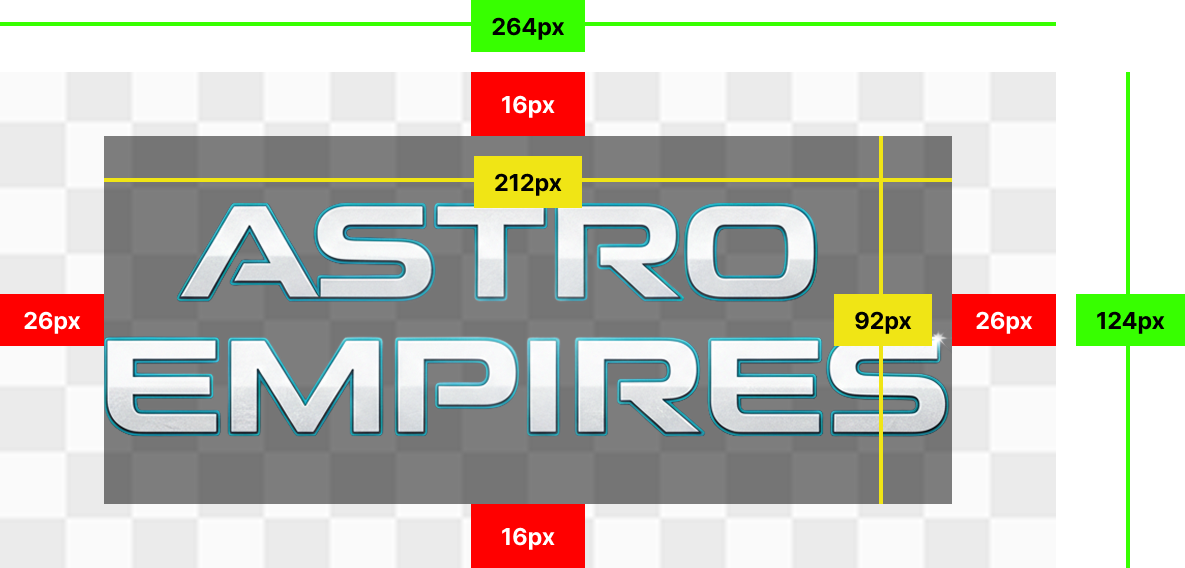
| Game BI | 264 * 124 |
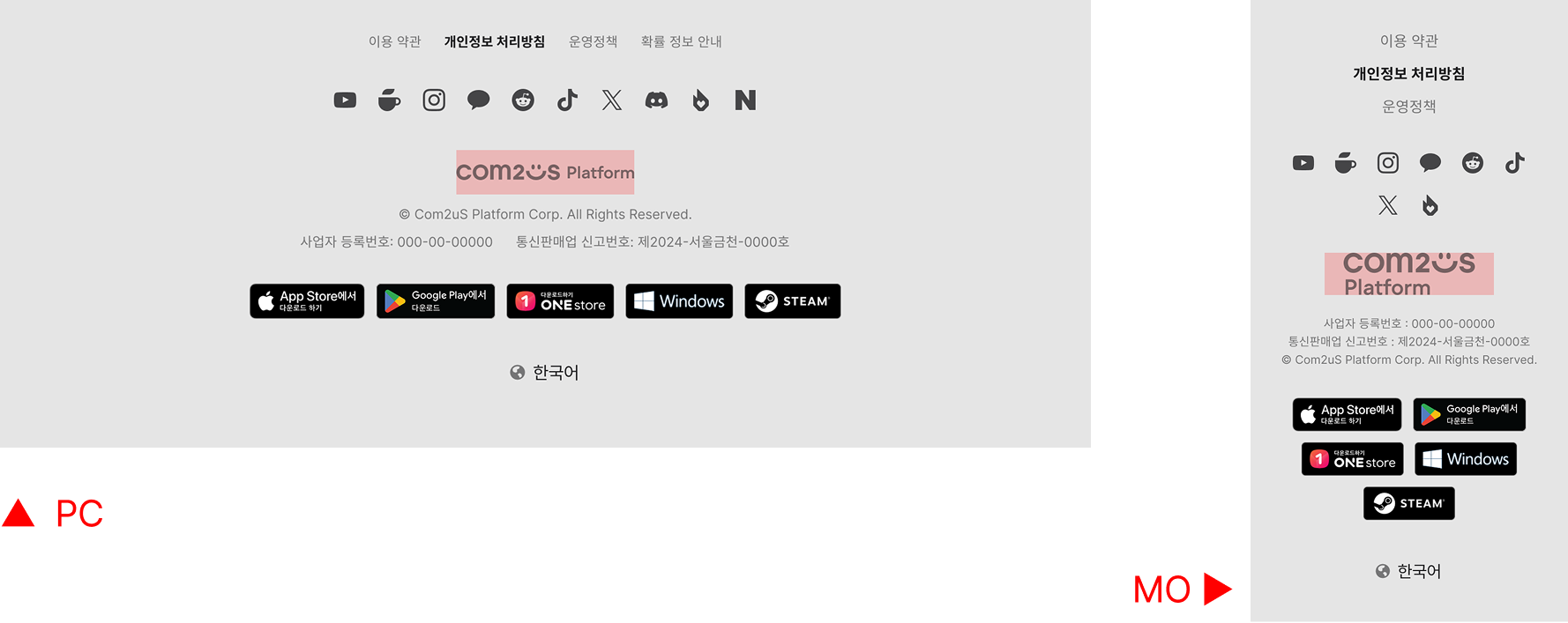
- Footer CI: The CI image exposed at the bottom of the site is created at a size of 160 x 40px, and is equally applied to the PC and mobile environments.
- Favicon: An icon exposed on the browser tab and address bar, created at a size of 16 x 16px and registered as an ico file.
- Game BI: Set the representative game image displayed at the top of the site or on the main page.
Web Shop
These are the images used for web shop settings.
| Component | Resolution Size (pixel) |
|---|---|
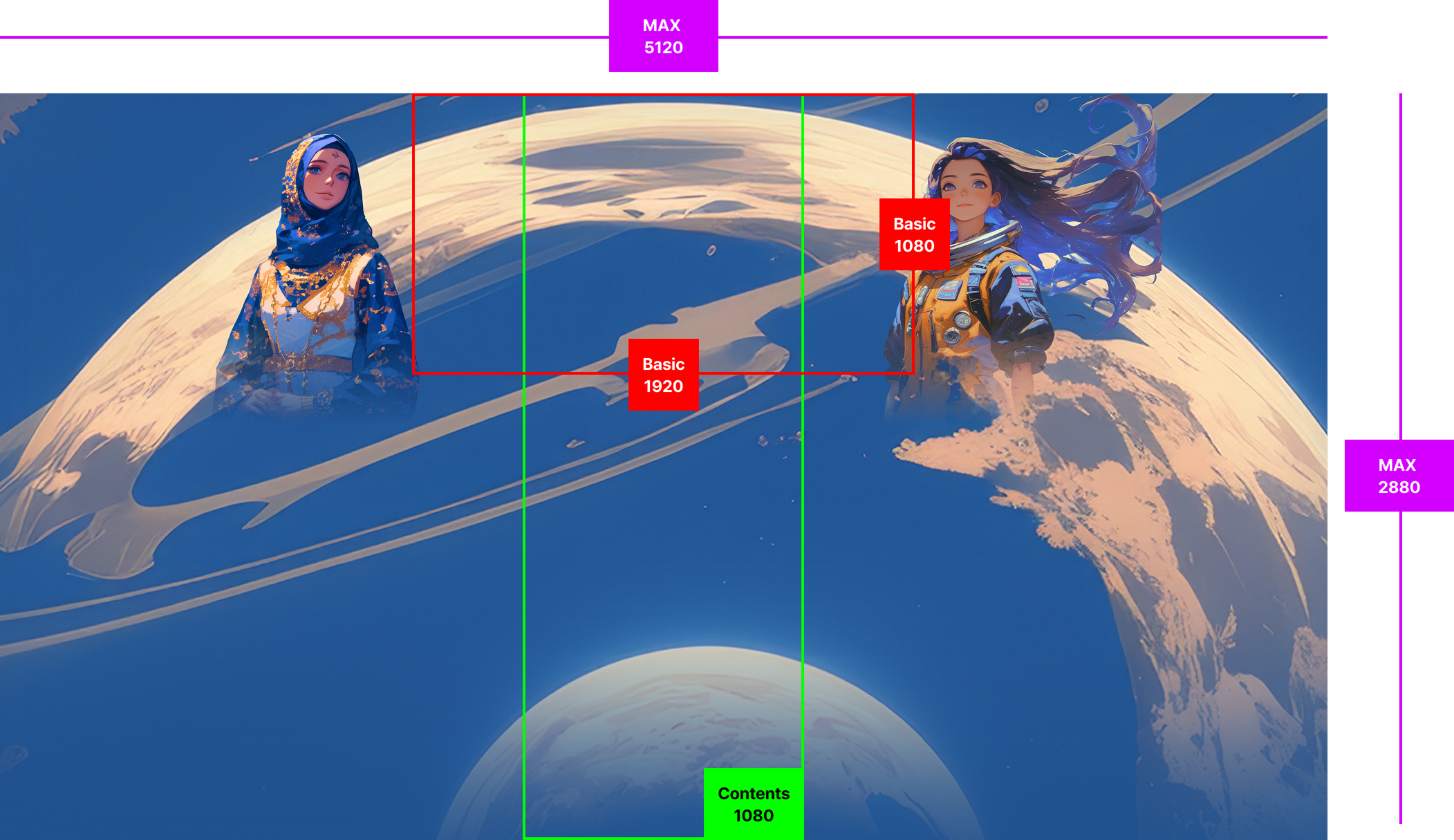
| Web Shop Skin | 5120 * 2880 |
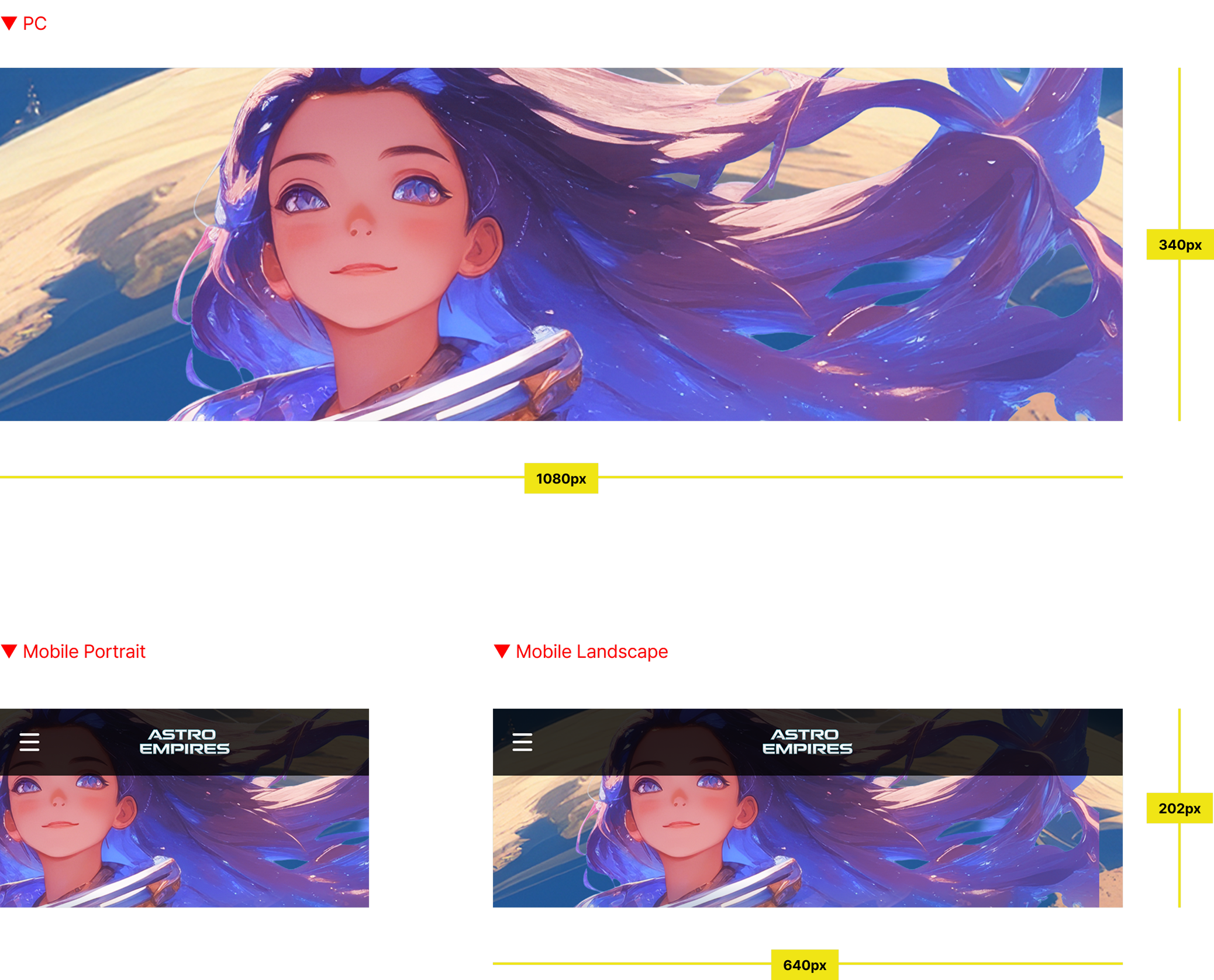
| Web Shop Main Image | 1080 * 340 |
| Web Shop Mobile Main Image | 1080 * 340 |
- Web Shop Skin:
- Set the image that forms the background of the web shop site.
- The background image is based on a minimum of 1920 x 1080px and a maximum of 5120 x 2880px.
- Web Shop Main Image:
- Set the representative image for the web shop PC site.
- The web shop main image is created at a size of 1080 x 340px.
- Web Shop Mobile Main Image:
- Set the representative image for the web shop mobile site.
- The mobile page consists of a GNB and title along with a banner. Therefore, when inserting text or a logo, it may overlap with the title, so it is recommended to compose it only with an image.
Community
These are the images used for community settings.
| Component | Resolution Size (pixel) |
|---|---|
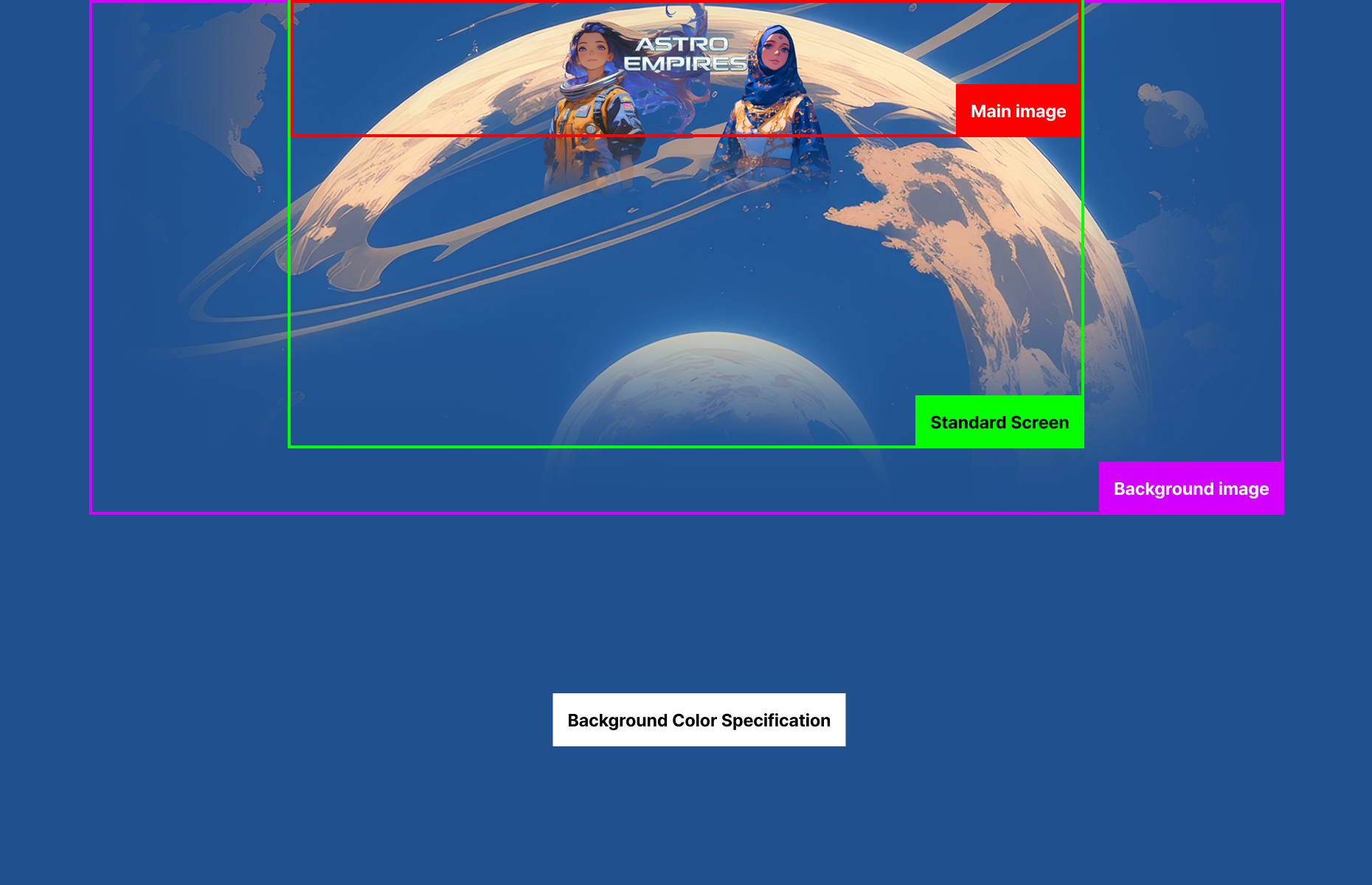
| Community Skin | 2880 * 1240 |
- Community Skin:
- Set the image that forms the background of the site.
- Create the background image based on 2880 x 1240px.
- Place the core message and representative visual of the page in the top 1920 x 330px area of the background image.
Batch Register Images
It supports uploading the same image for all languages, or registering multiple images separated by language code at once.
- Apply the same image to all languages: Register only 1 file. (Regardless of file name)
- Apply different images per language: Register multiple files according to the file naming convention.
- File naming convention: imagename_languagecode (e.g., item_ko, item_en)
- Note: When registering multiple image files, processing time will be required depending on the file size.
Language Code
| Language Code | Language | Language Code | Language |
|---|---|---|---|
| ko | Korean | es | Spanish |
| en | English | pt | Portuguese |
| zh-hans | Simplified Chinese | it | Italian |
| zh-hant | Traditional Chinese | ru | Russian |
| ja | Japanese | id | Indonesian |
| ar | Arabic | vi | Vietnamese |
| fr | French | tr | Turkish |
| de | German | th | Thai |
Next Steps
Proceed with App ID issuance and login settings required to open a community or web shop. Learn more