FAQ management
FAQ Management is used to register and manage FAQs displayed in Customer Support.
General FAQs and game-specific FAQs can be registered by language, and FAQ visibility, required-read status, display order, and FAQ copy functions can be managed.
Register New FAQ
Click the Write button in the FAQ list to register a new FAQ.

On the FAQ registration page, enter the FAQ title and content, then click the Save button.
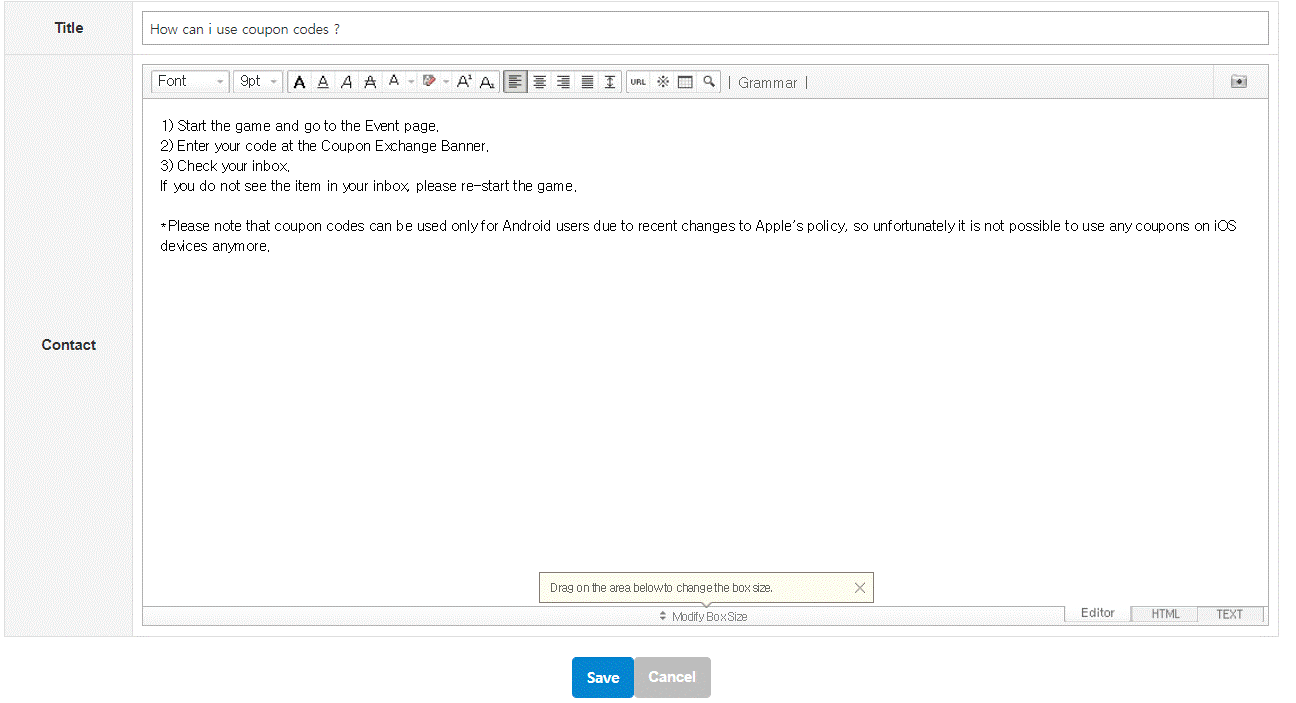
New FAQ Visibility Settings
Newly registered FAQs are saved as private by default.
To display an FAQ in Customer Support, change the Visibility setting to ON in the FAQ list.
FAQ List Management
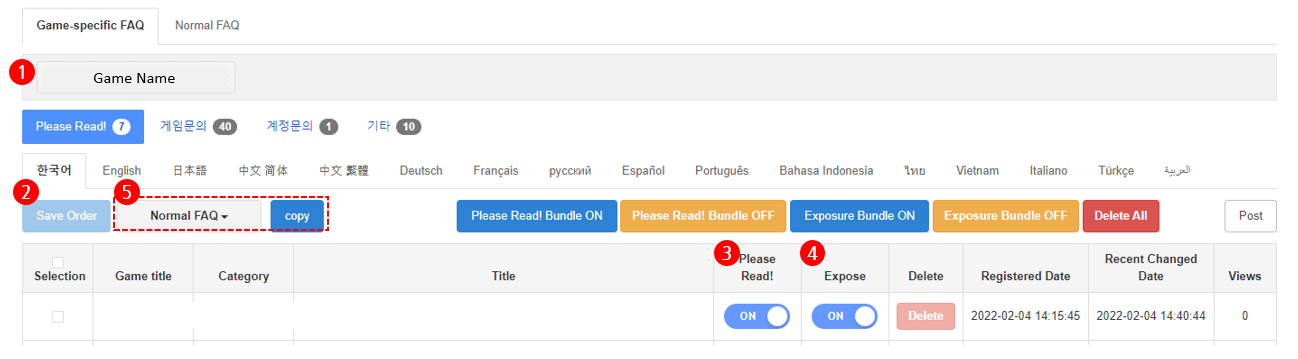
Manage the display order, required-read status, and visibility of registered FAQs.
-
Select Game
Select a game to manage game-specific FAQs.
Once a game is selected, the Save Order and FAQ Copy functions are enabled. -
Save Order
Drag and drop FAQ items to change their display order.
When the order is changed, the Save Order button is enabled. Click the button to save the updated order.- FAQs with Visibility set to OFF can also be reordered.
- However, FAQs with Visibility set to OFF are not displayed on the FAQ page shown to users.
-
Please Read!
FAQs checked as Please Read! are displayed in the Please Read! FAQ category for each item. -
Expose
Set Expose to ON to display the FAQ on the Customer Support service page.
Set it to OFF to stop displaying the FAQ. -
FAQ Copy
FAQ Copy provides both Normal FAQ Copy and Game-specific FAQ Copy functions.
Existing FAQs can be reused by copying them to another FAQ location.
Normal FAQ Copy
To copy a FAQ as a normal FAQ, select the FAQ, choose the location to copy it to, then click the Copy button.

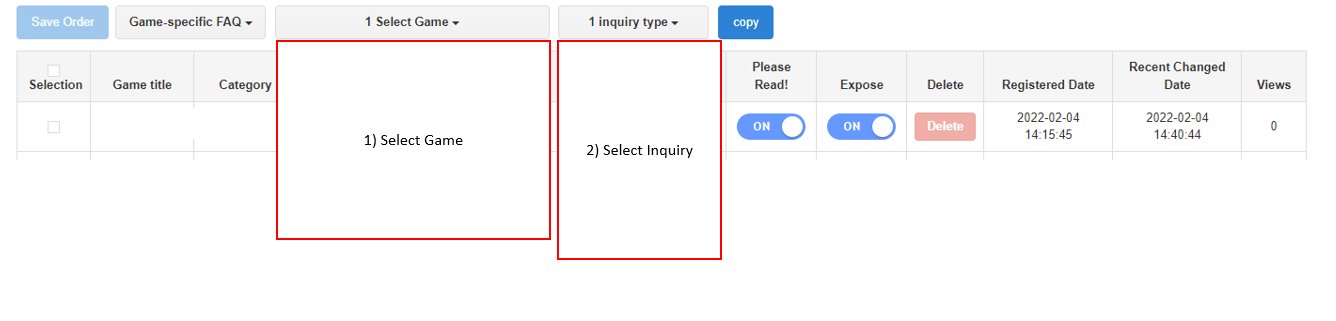
Game-specific FAQ Copy
To copy a FAQ as a game-specific FAQ, select the FAQ, then select the game and inquiry type in order. Click the Copy button to complete the copy.
Copied FAQ Visibility Settings
Copied FAQs are added to the bottom of the selected category’s FAQ list and are created with Visibility set to OFF by default.
To display the copied FAQ in Customer Support, review the FAQ content and change the Visibility setting to ON.