Basic settings
Basic information required to use the Customer Service.
➡️ Console Path: Customer Support > Inquiry > Basic Settings
Basic Settings
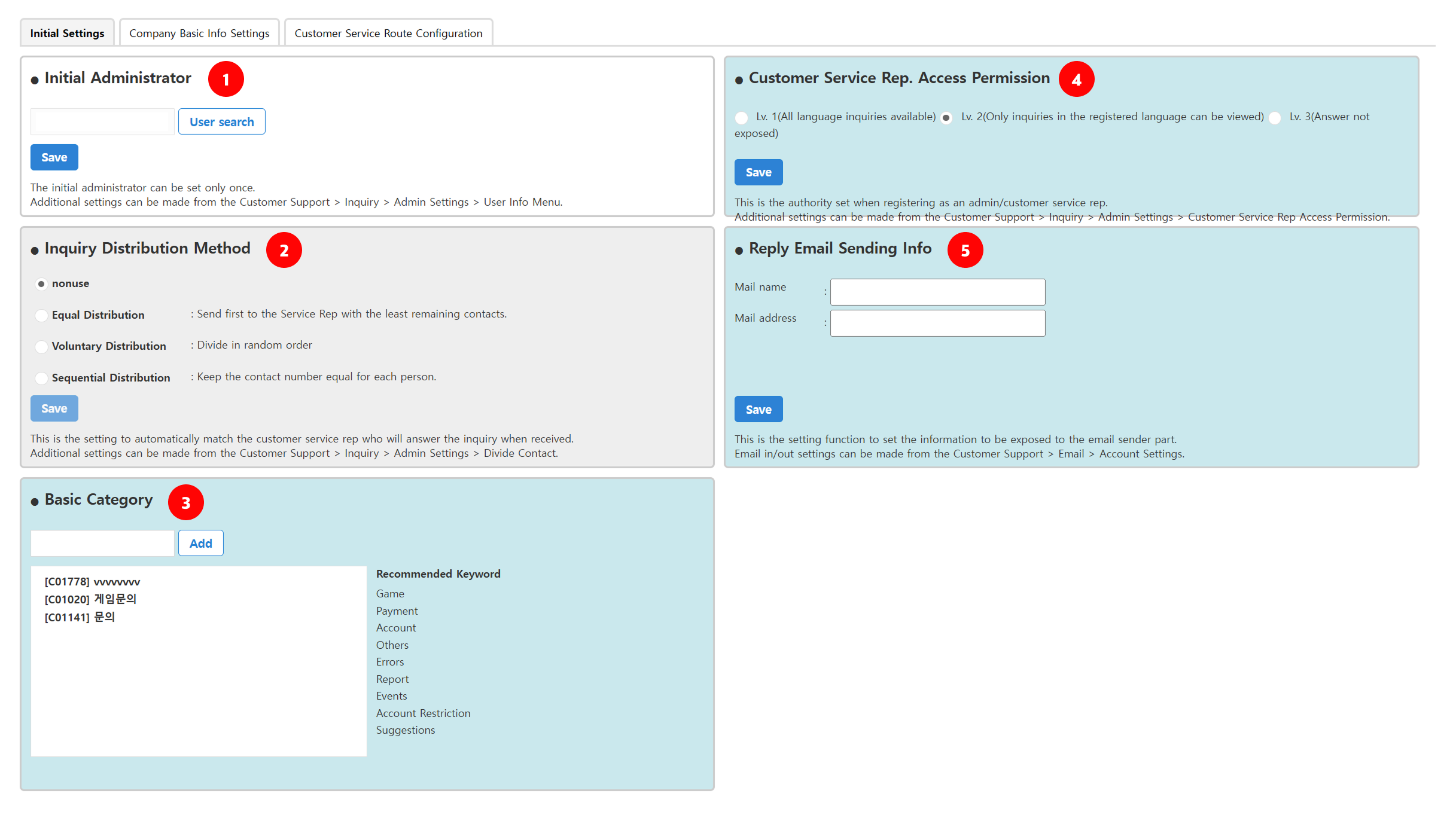
Initial Administrator
- Enter the initial administrator for distributing inquiries and managing settings.
- Administrator information cannot be changed after initial setup.
- Add administrator: Inquiry > Administrator Settings > Inquiry Management Settings > (Language) > User Information
Inquiry Distribution Method
- Set the method for distributing received inquiries to agents.
- Only the initial distribution method is configured here.
- Change distribution method after initial setup: Inquiry > Administrator Settings > Inquiry Management Settings > (Language) > Inquiry Distribution
| Distribution Method | Description |
|---|---|
| Disabled | Inquiries are not automatically distributed. |
| Equal Distribution | Inquiries are distributed equally among agents. |
| Random Distribution | Inquiries are distributed randomly. |
| Sequential Distribution | Inquiries are distributed in the order agents are registered. |
Basic Category
- Set the default inquiry types displayed when submitting an inquiry.
- Add or change categories after initial setup: Inquiry > Administrator Settings > Inquiry Management Settings > (Language) > Category
Customer Service Rep. Access Permission
- Set the default viewing permission applied when registering new agents.
- If agent permissions are modified individually, the initial settings no longer apply.
- Change agent permissions after initial setup: Inquiry > Administrator Settings > Level Settings
Reply Email Sending Info
- Set the sender name and email address used for reply emails.
- At least one email account must be registered to send reply emails.
Configuration Notes
Administrators and agents using the Customer Service for the first time must be assigned company and project permissions.
Company Basic Info Settings
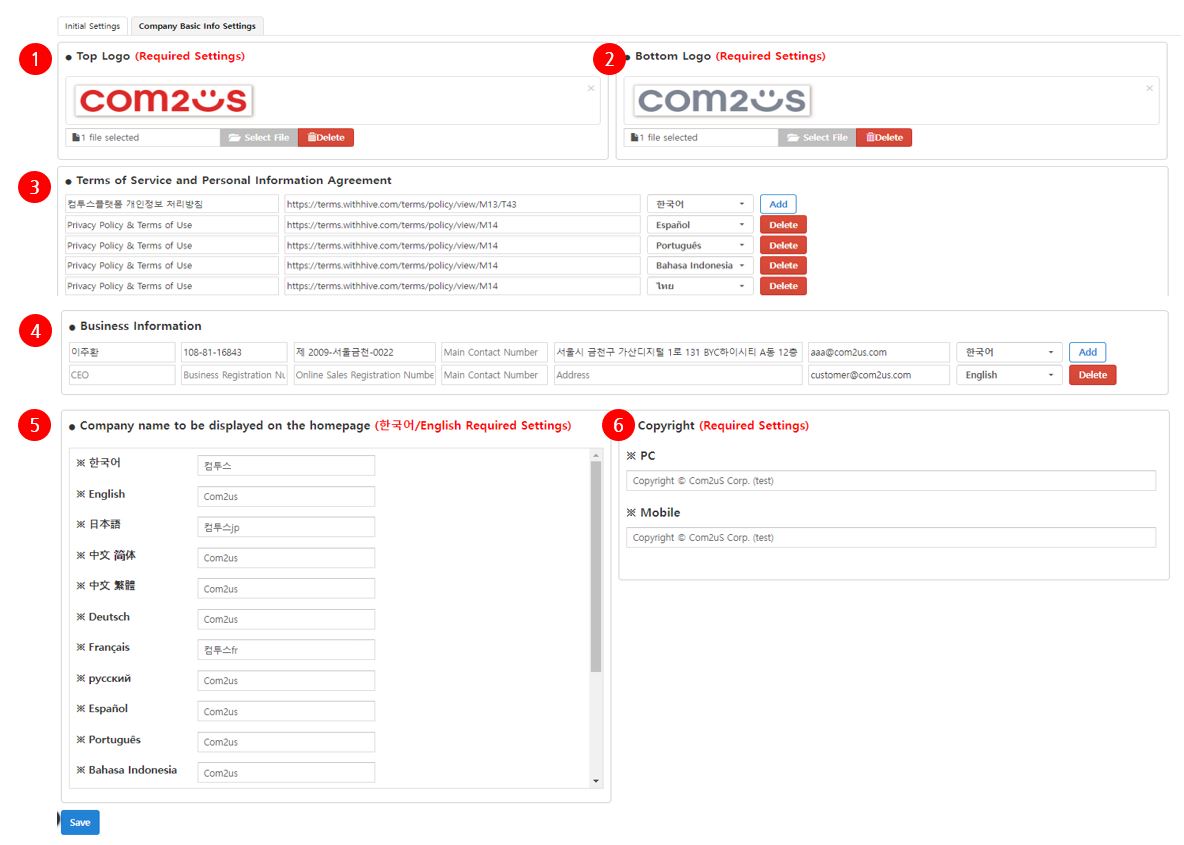
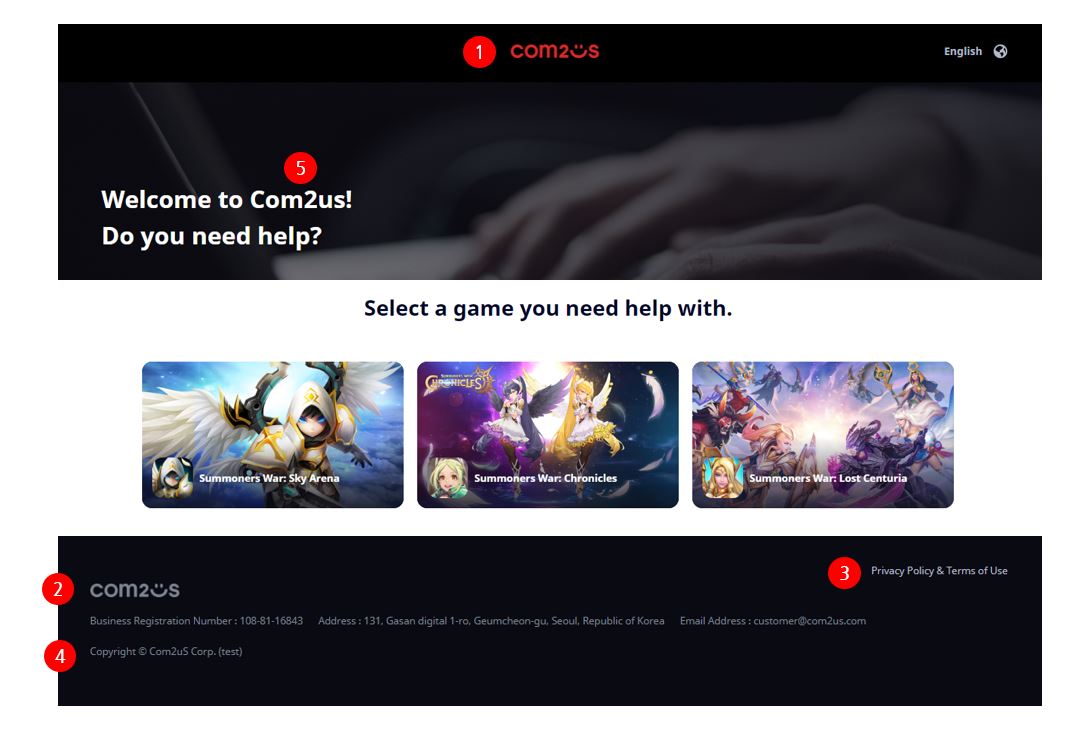
Register basic information displayed on the Customer Service website.
| No. | Category | Details |
|---|---|---|
| ① | Top logo (Required) | Company logo displayed at the top of the Customer Service. • Recommended height: 36px • Supported formats: jpg, png |
| ② | Bottom logo (Required) | Company logo displayed at the bottom of the Customer Service. • Gray tone recommended for design consistency. • Recommended height: 36px • Supported formats: jpg, png |
| ③ | Terms of Service and Privacy Policy | Supports up to 4 terms per language in the Customer Service footer. • Not required, but registering Korean terms is recommended. |
| ④ | Business information | Business information displayed in the Customer Service and email footer. • Language-specific settings supported. • Only entered information is displayed. • Not required, but registering Korean business information is recommended. |
| ⑤ | Company name (Required) | Company name displayed on the Customer Service and browser title. • Language-specific input supported. • Korean and English are required. |
| ⑥ | Copyright (Required) | Copyright text displayed at the bottom of the Customer Service. |
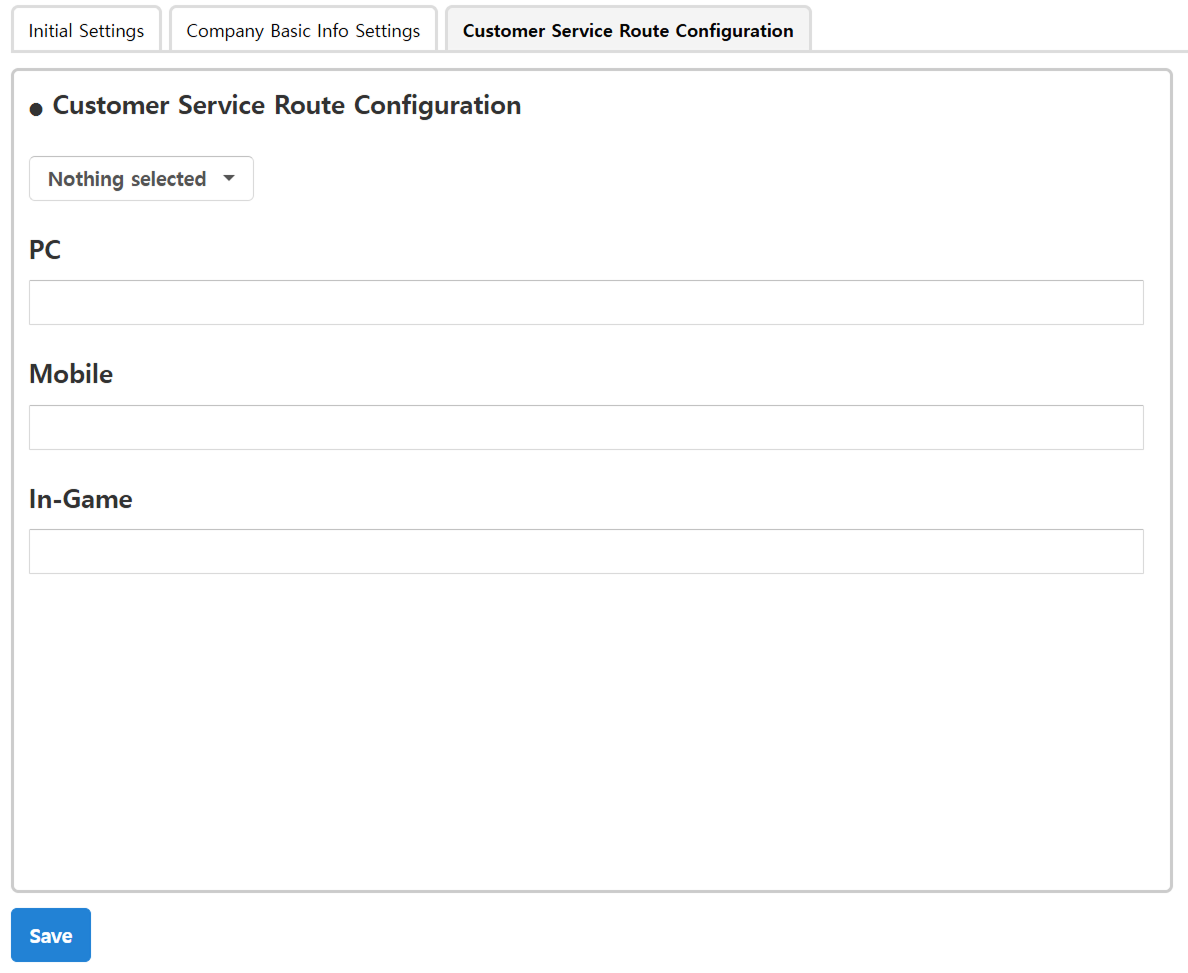
Customer Service Route Configuration
By default, the Customer Service URL is automatically generated based on company information.
Example
If you are using a different platform or a self-hosted Customer Service, you can register a custom URL.If a URL is registered, Hive integrated products will navigate to that URL.