Notice pop-up
The Notice Popup is a feature that allows you to register and manage announcements such as game server maintenance and updates from the console. This feature is available for games using Hive SDK v1 and SDK v4 or higher.
Note
Since the notice popup is displayed when users re-login, the game company must forcibly disconnect users if they want all users to see the notice immediately.
Notice Popup Settings Main Screen
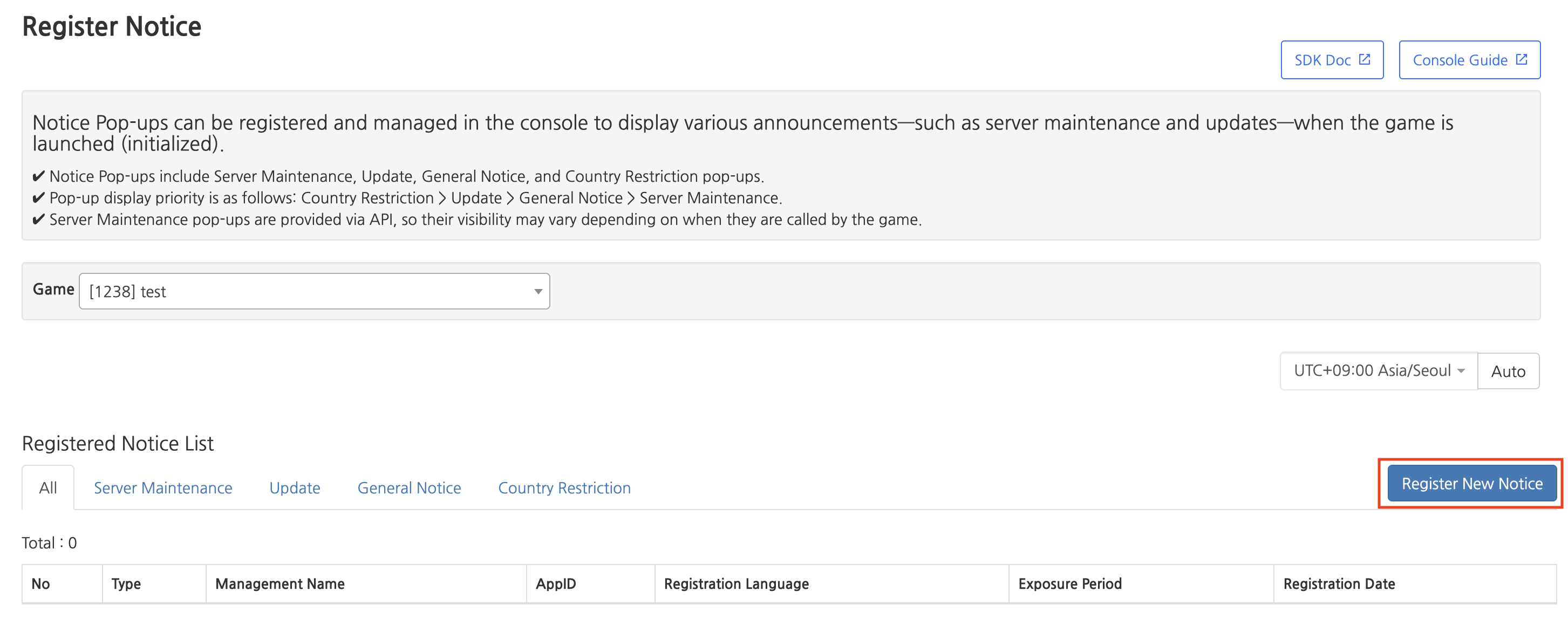
- Go to Console > Provisioning > Notice Popup > Click Register Notice to select the game for which you want to configure the popup.
- Click the New Notice Registration button and select the desired notice popup type.
Registering a Server Maintenance Popup
-
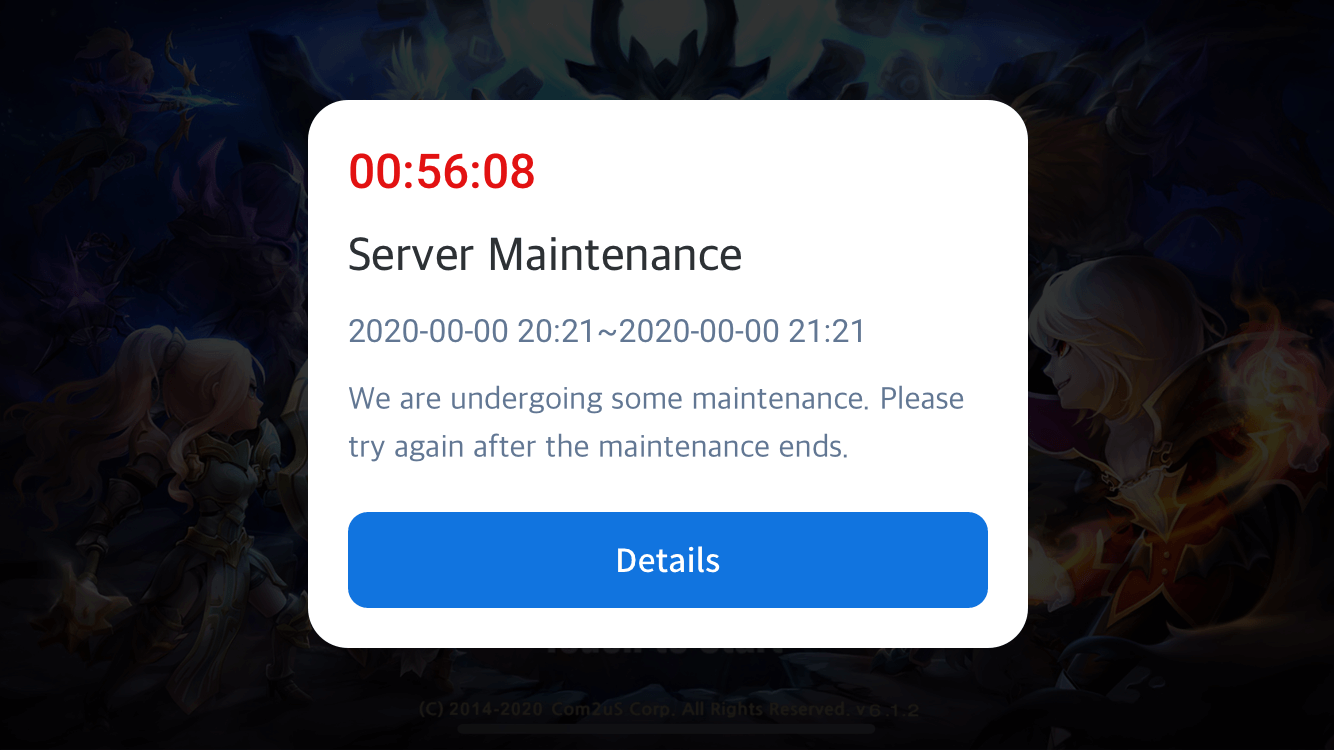
The server maintenance popup is a popup that blocks app entry during regular and emergency maintenance by selecting the App ID and server. When you register the maintenance time and notice message in the console, it displays the remaining time until the end of maintenance and the message content as a popup.
-
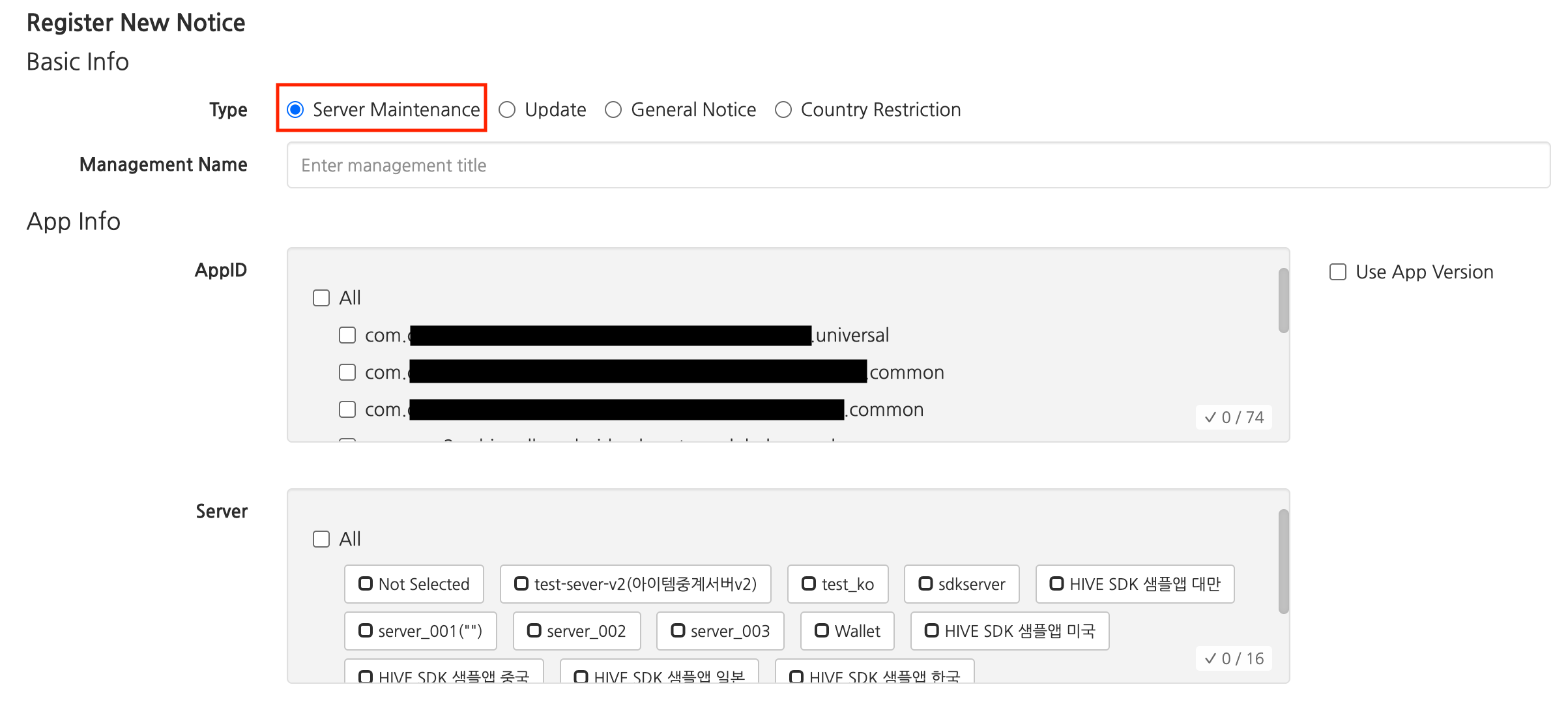
For the server maintenance popup, select Server Maintenance as the popup type, then select the App ID and server where the popup will be displayed. Checking 'Use App Version' allows you to select a specific app version and maintenance server corresponding to the App ID.
-
Enter the popup configuration information.
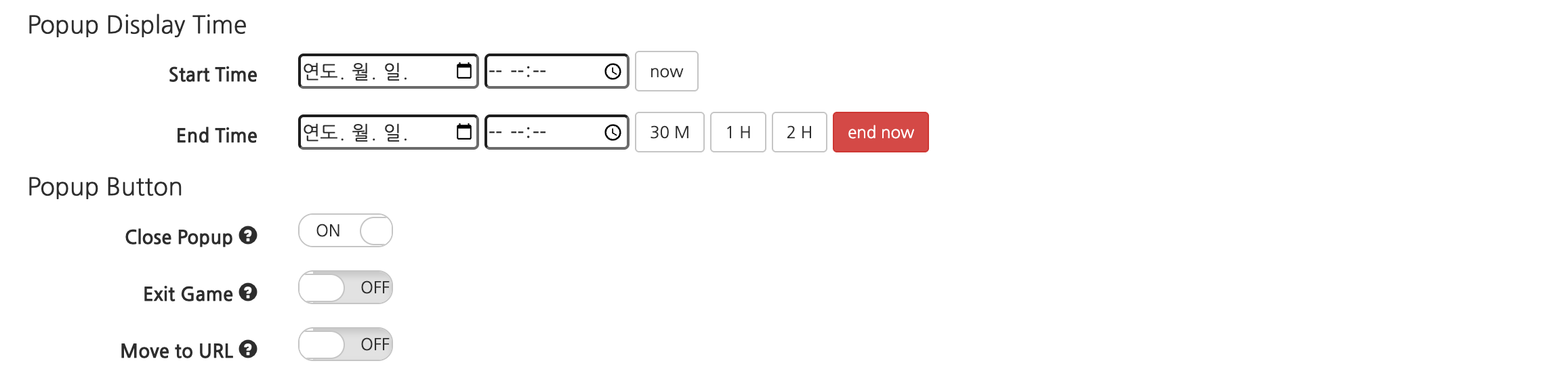
- Popup Display Time Settings
- Start Time (time when server maintenance begins): The time when popup display starts. You can click the current time button to set it to now.
- End Time (time when server maintenance ends): The time when popup display ends. You can use the 30-minute, 1-hour, 2-hour buttons to automatically fill in based on the start time.
- Server maintenance popups cannot be set for the entire period.
- End Now: A feature that immediately ends the currently displayed popup. This is described in detail in the End Popup section.
- Popup Button Settings
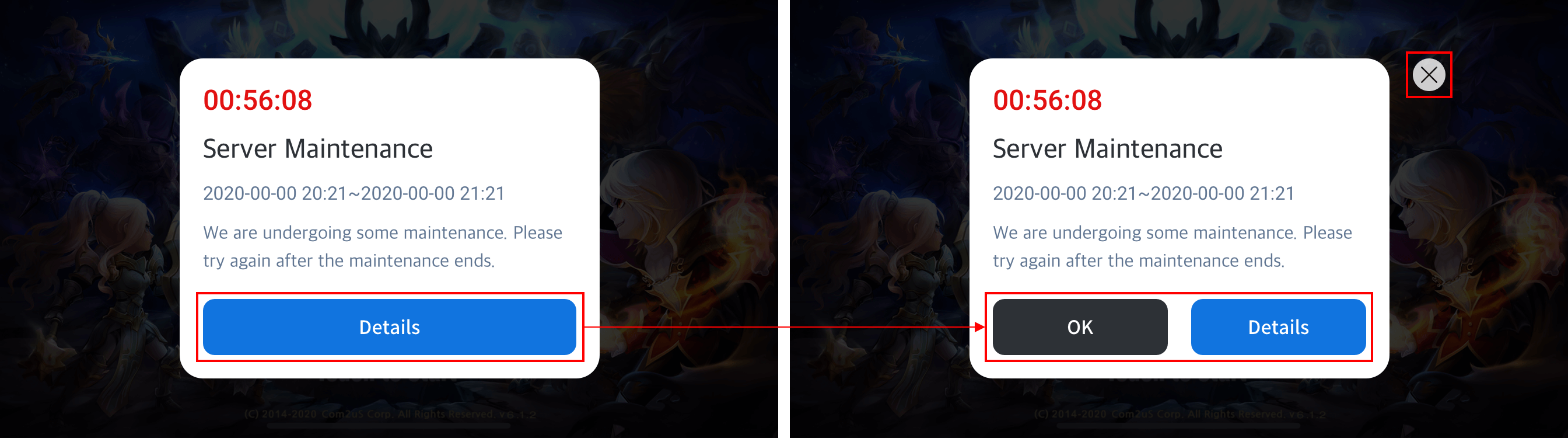
- Close popup (X button): Only the popup is closed, and the app is not terminated. In Hive SDK v4.9.0/v1.15.0 or later, you can add View Details and Close (X button) in addition to Confirm.
- Exit app (Confirm): Sends NEED_EXIT to the app to request termination.
- Go to URL (Detail View): Opens the entered URL in a web browser. You can enter a market or cafe URL.
- Language-specific URL: If you want to link to a different URL for a specific language, you can use language-specific URLs. Languages without a specified language-specific URL will connect to the default URL.

- Language-specific URL: If you want to link to a different URL for a specific language, you can use language-specific URLs. Languages without a specified language-specific URL will connect to the default URL.
- Popup Display Time Settings
-
Enter the popup content.
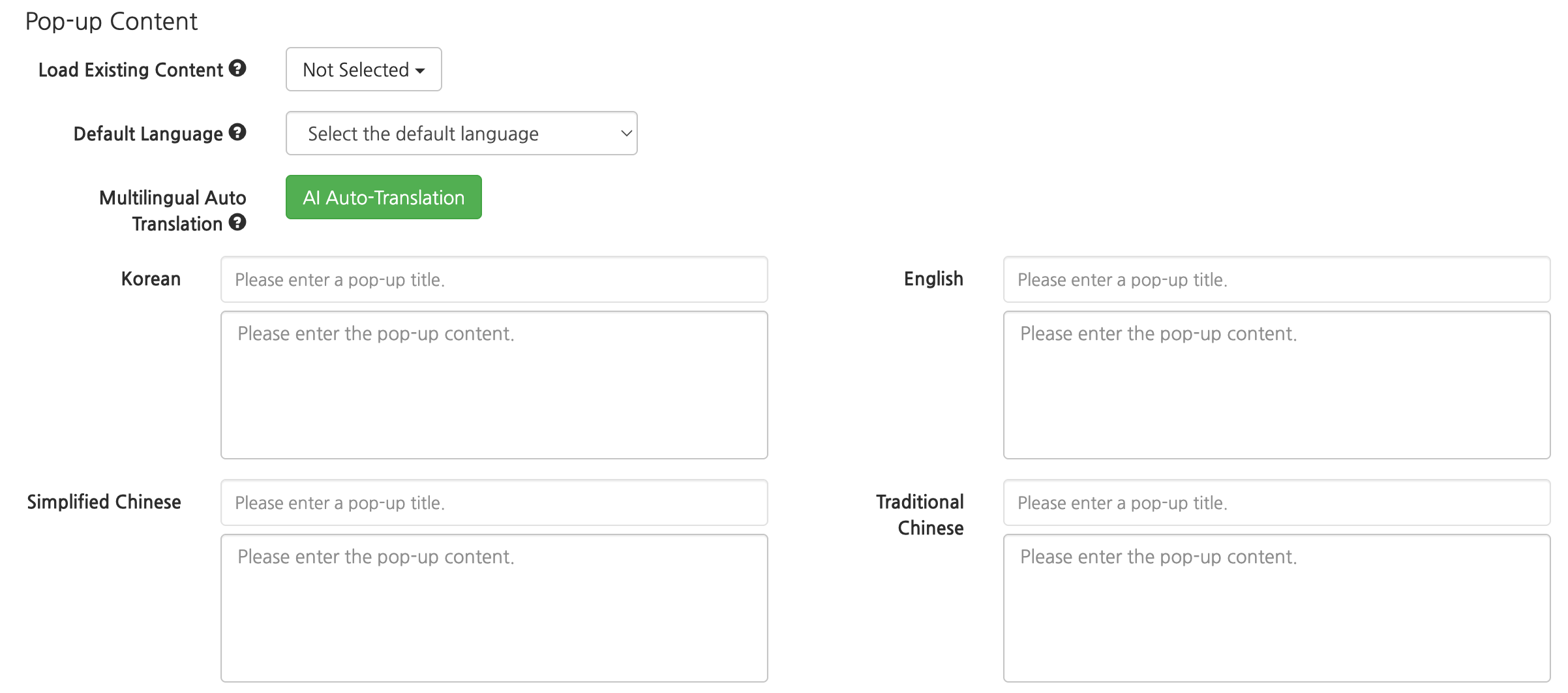
- Load Existing Content: You can load and reuse previously used notice popup text.
- Default Language: Select the popup language to be displayed for languages where no content has been entered. (Example: If the default language is set to Korean and Japanese is not entered, devices displaying in Japanese will show Korean.)
- Auto Multilingual Translation: When you click the AI auto-translate button, AI automatically translates the content entered in the selected default language. The translated content is entered into each language field.
- Enter Popup Title and Content: Enter the popup title and content for each language. The content for the language selected as the default language must be entered.
Registering an Update Popup
- The update popup is a popup that can be used when a mandatory app version update is required by selecting the App ID and its version.
-
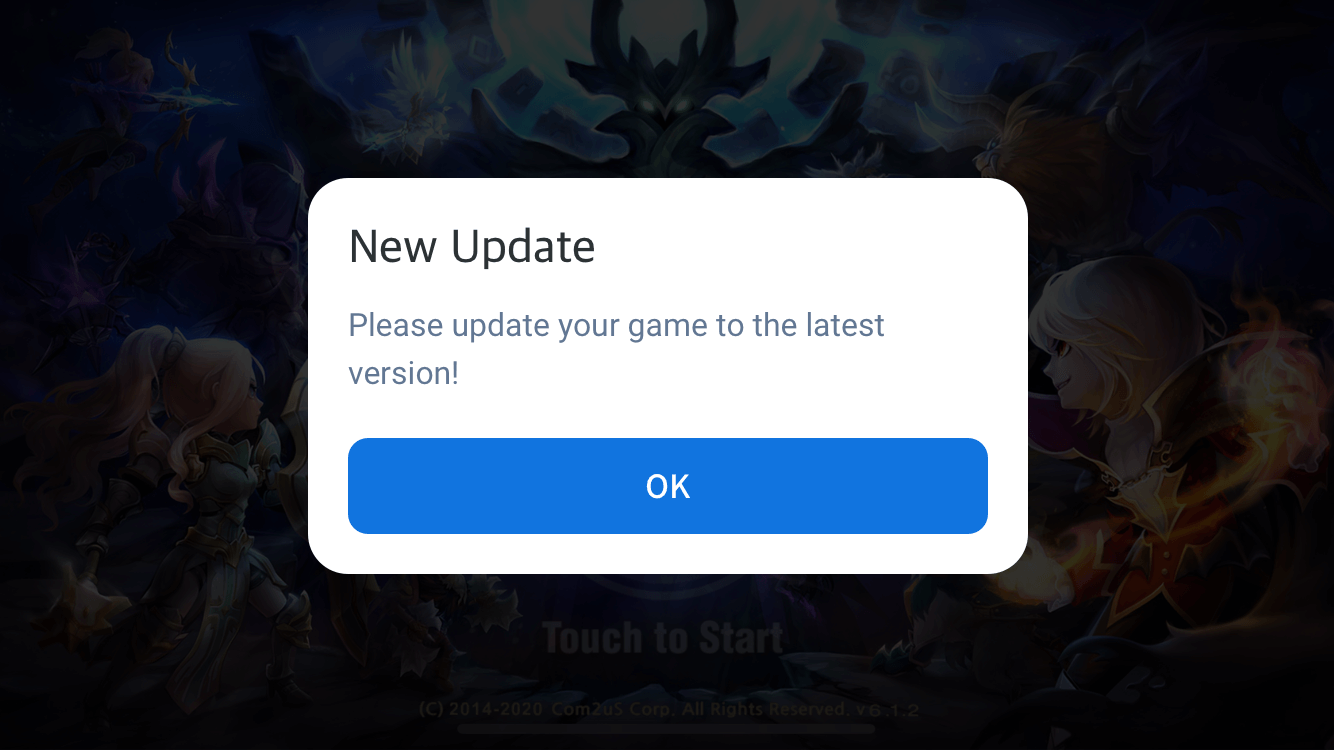
You can display popups by App ID and app version to block access from specific versions or below, and encourage users to update to the latest version. In particular, Android devices support Google in-app updates, allowing the game to continue while updating in the background without blocking app execution.
-
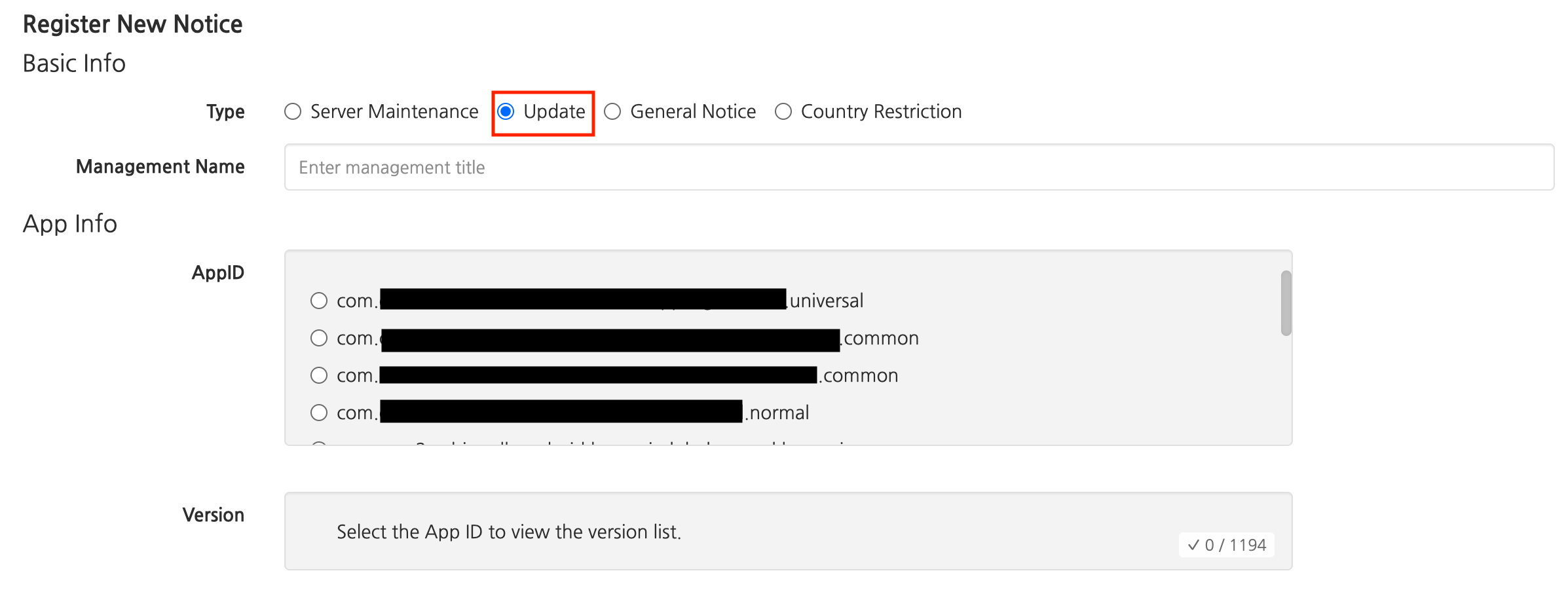
For the update popup, select Server Maintenance as the popup type, then select the App ID and version where the popup will be displayed. Only one App ID can be selected, and for versions, all or only some can be selected.
-
Enter the popup configuration information. Some settings are the same as the server maintenance popup.
- End Time
- Selecting 'Entire Period' allows you to skip entering the popup display end time. This can be used when an update popup is needed until service termination for a specific version.
- Go to URL
- For an update popup, you can choose the 'Go to URL' button from either ‘Go to Store’ or ‘View Details’.

- For an update popup, you can choose the 'Go to URL' button from either ‘Go to Store’ or ‘View Details’.
- Use Google In-App Update
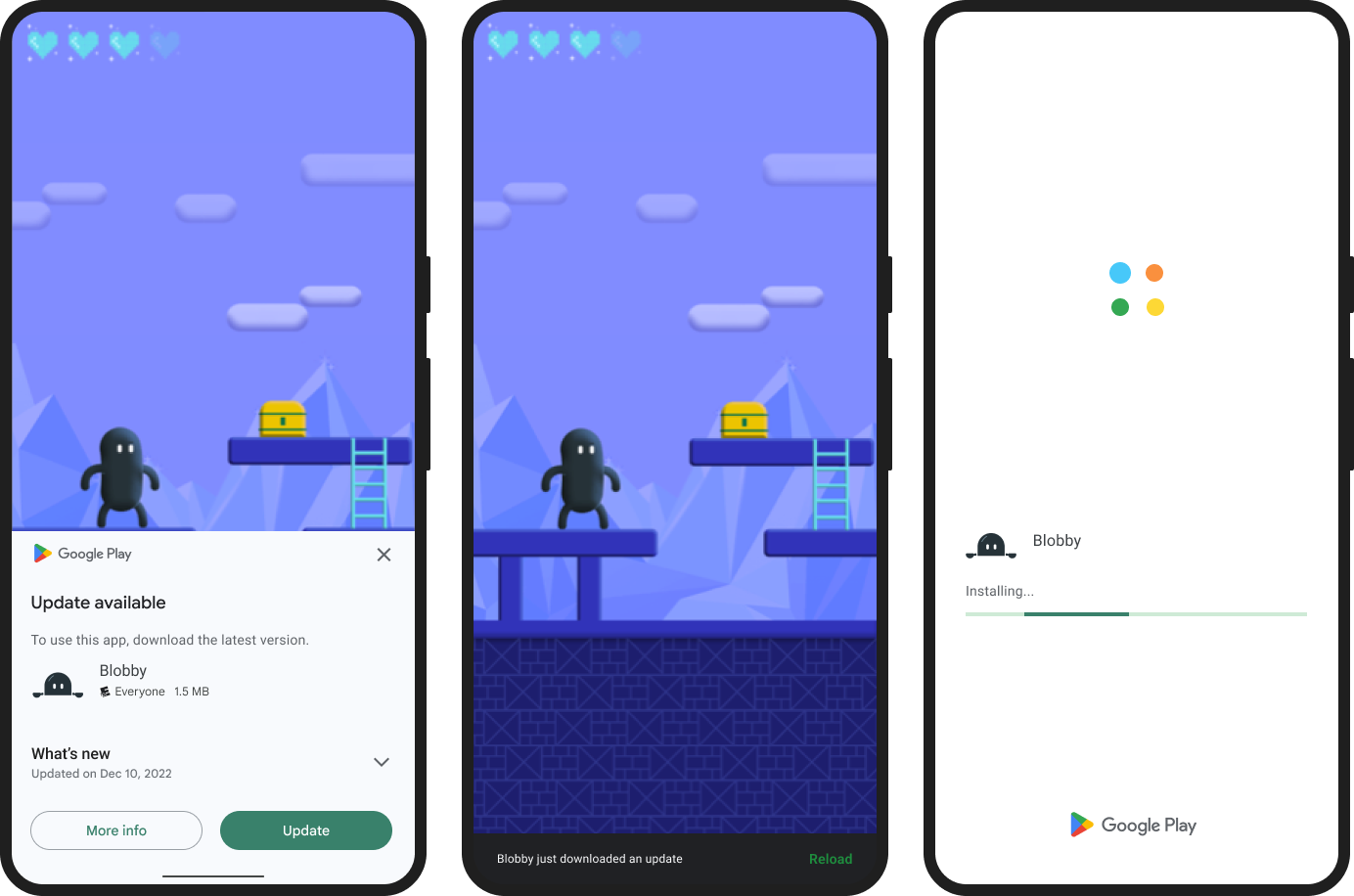
- Starting from Hive SDK v4.22.0, in-app updates are supported for Google Play Store. The type of update popup depends on the 'Close Popup' button setting.
- Close Popup Enabled
- Displayed as a Flexible update popup. Flexible updates allow users to use the app while downloading the update. When the download is complete, a signal is received via UserEngagement to immediately proceed with installation, or the app automatically installs when it restarts. For details, see the Flexible Update Popup Google Guide.
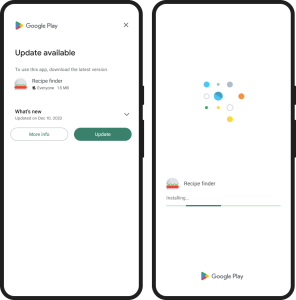
- Close Popup Disabled
- Becomes an Immediate update, which is a forced update. With Immediate updates, users must accept and install the update immediately to proceed. When the download is complete, the app automatically restarts. For details, see the Immediate Update Popup Google Guide.
- Close Popup Enabled
- If the Google Play Store update popup display conditions are not met, the existing Hive platform update popup will be displayed.
- Starting from Hive SDK v4.22.0, in-app updates are supported for Google Play Store. The type of update popup depends on the 'Close Popup' button setting.
- End Time
Registering a General Notice Popup
-
The general notice popup is a popup used to deliver announcements for various purposes at app startup by selecting the App ID.
-
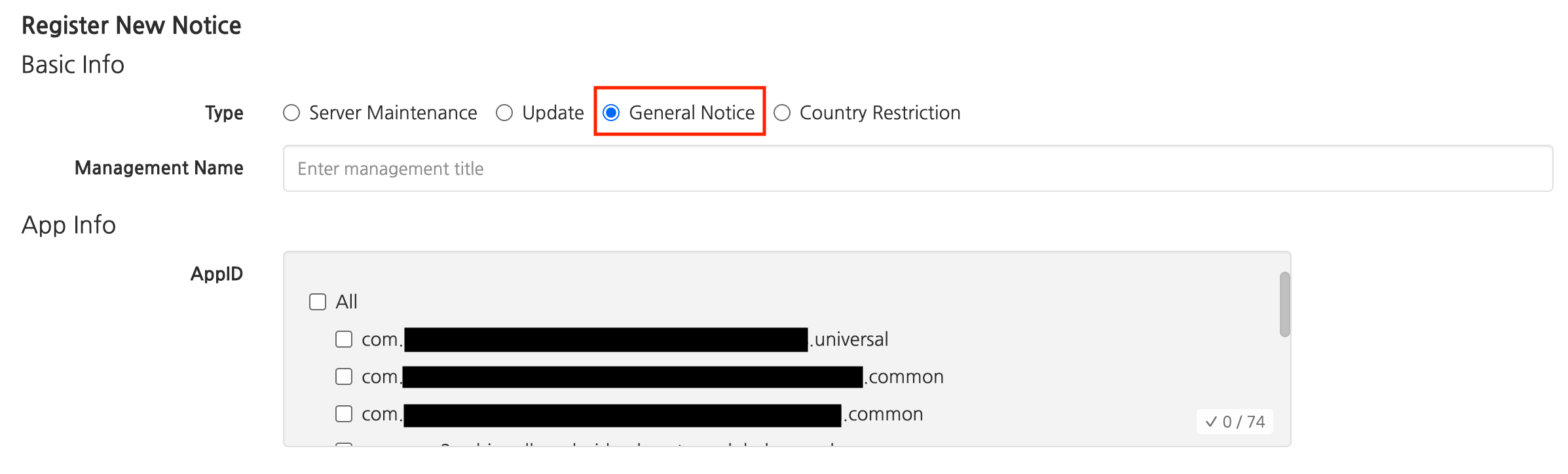
For the general notice popup, select General Notice as the popup type, then select the App ID where the popup will be displayed. Other features are the same as other types of popups.
Registering a Country Block Popup
-
The country block popup allows you to block user access from specific countries based on IP addresses by setting the App ID and blocked countries. It can be used to block access from countries outside the service launch countries, or flexibly according to operational policies. (Supported from Hive SDK v4.11.4 or higher)
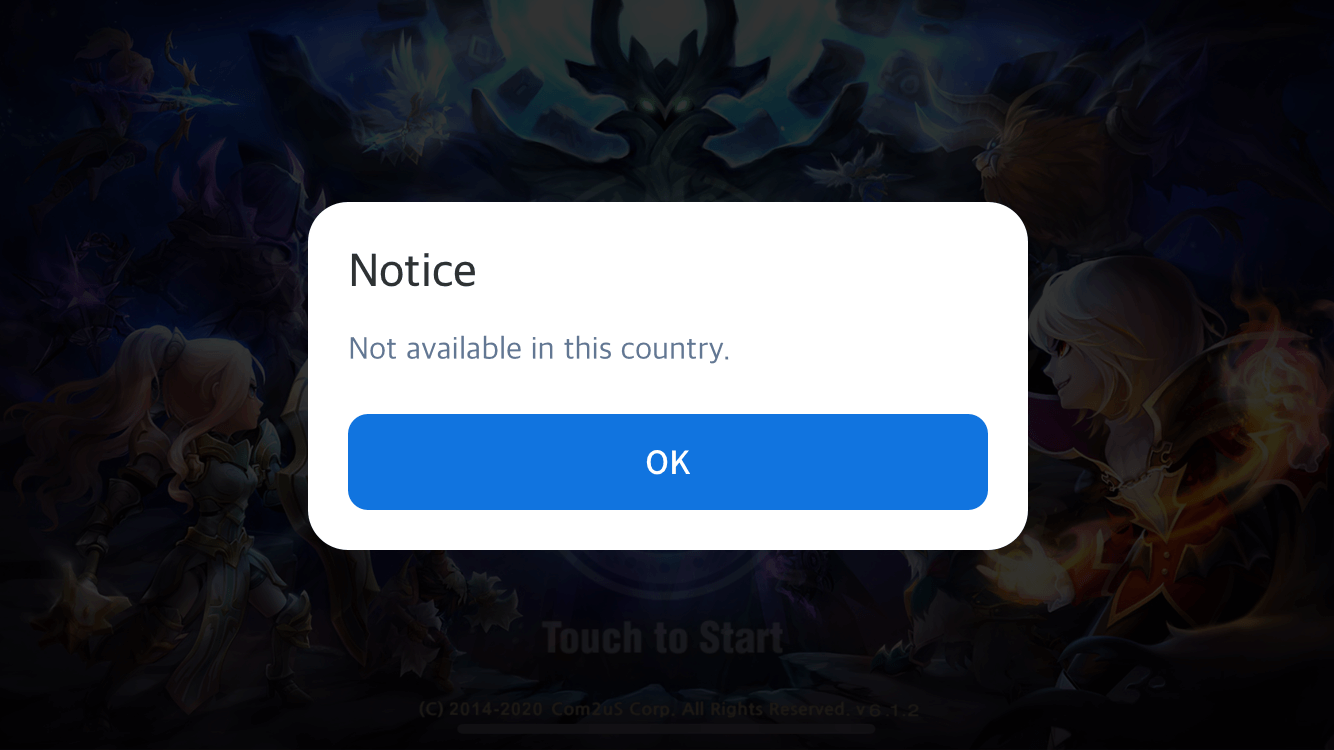
-
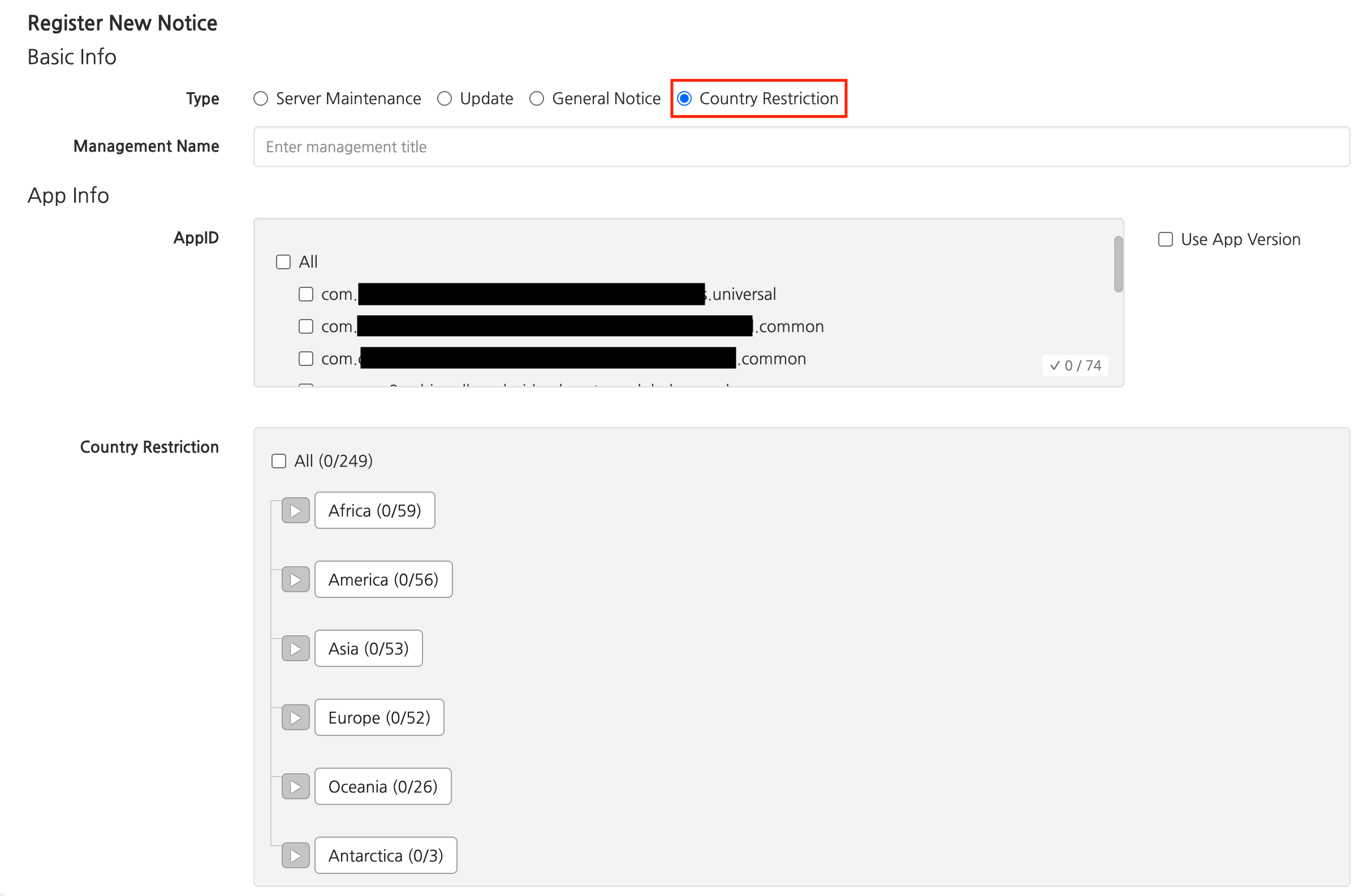
For the country block popup, select Country Block as the popup type, then select the App ID and country where the popup will be displayed. Checking 'Use App Version' allows you to select a specific app version and blocked countries corresponding to the App ID.
- Block targets can be selected at the country or continent level, and can be used according to operational policies such as blocking access from countries other than the service launch countries.
- This popup does not support a close button, and blocking may not work correctly if the IP is changed via VPN or similar.
Note
It can be used according to country-specific launch schedules or specific country access blocking policies. The country block popup is displayed before terms agreement.
Additional Features
Using Test IP and Test Device Settings for Notice Popups
- Notice popups provide test IP and test device registration features to support building a more efficient and stable game operation environment.
- Test IP and Test Device Settings
- Register a test IP in the Test IP Settings.
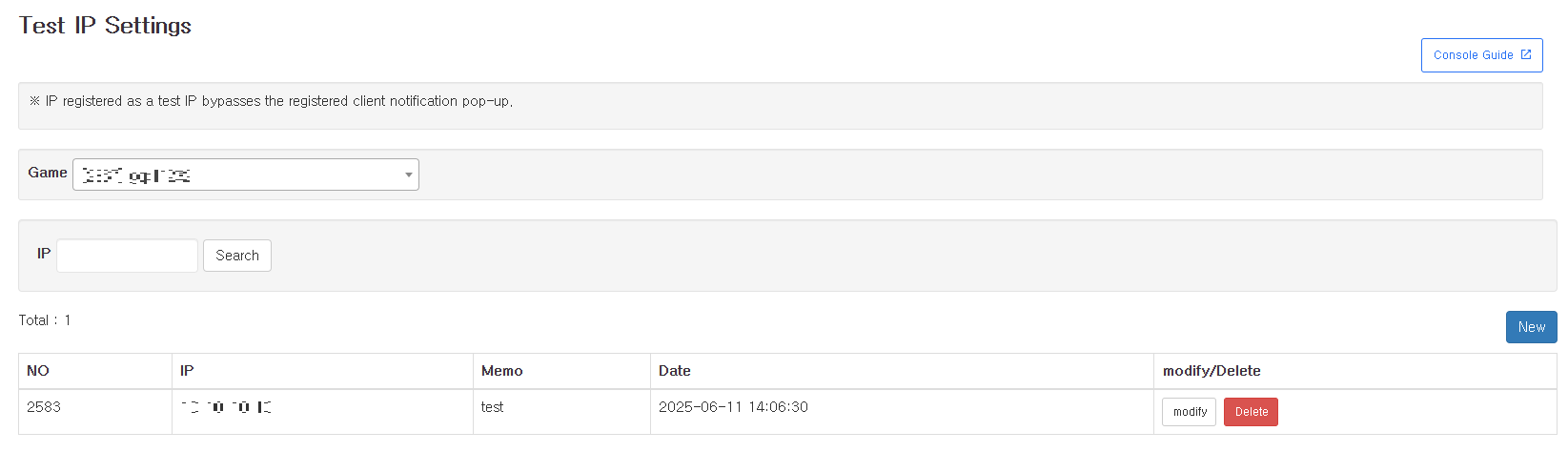
- In Test Device Settings, register test devices using the DID value. However, the country block feature of notice popups cannot be used on test devices.
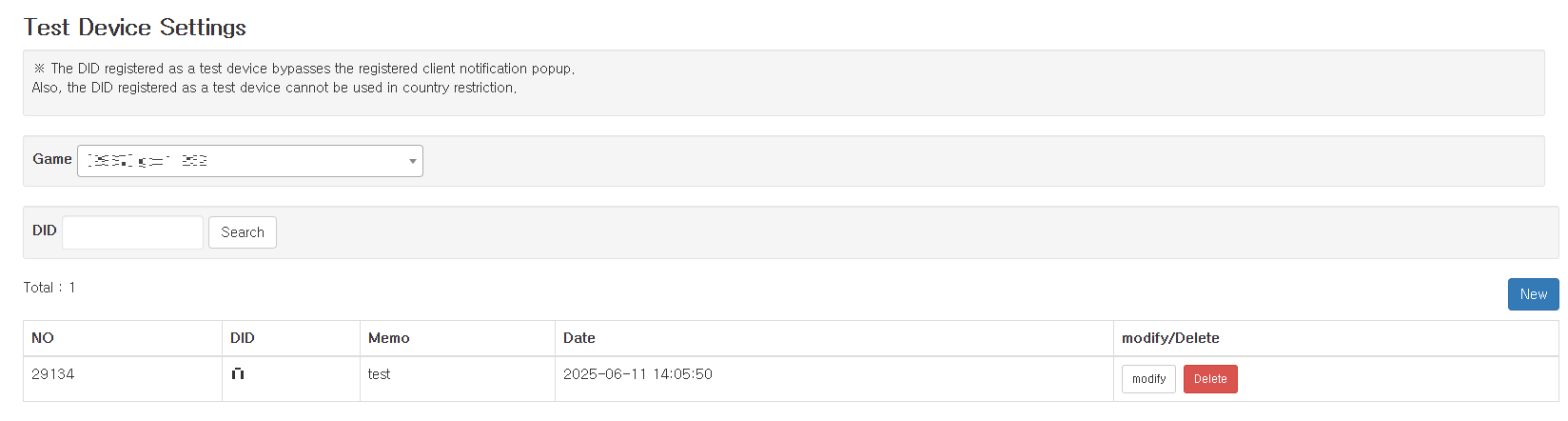
- Register a test IP in the Test IP Settings.
- Accessing the Production Environment via Test IP and Device
- General Users
- When accessing the production environment, server maintenance, update, general notice, and country block popups are displayed.
- Test IP / Test Device
- You can bypass notice popups and immediately enter the game, used for emergency maintenance and issue response in the production environment.
- However, test devices cannot bypass the country block popup; test IP must be used when testing the country block popup.
- General Users
- Using Test Notice Registration to Verify Popup Display for Registered IP and Test Devices
- After registering a test IP or device, setting up a popup in 'Test Notice Registration' will display that popup only to the registered IP and devices. This allows you to verify whether the popup is displayed and its content before distributing it to actual users.

- After registering a test IP or device, setting up a popup in 'Test Notice Registration' will display that popup only to the registered IP and devices. This allows you to verify whether the popup is displayed and its content before distributing it to actual users.
- Test IP and Test Device Settings
Note
- To check notice popups in the same way as general users in the production environment, you must delete the test IP and device registration.
Ending a Popup
-
Registered popups automatically end when the display end time passes and will no longer appear in the game. However, if you need to take down a currently displayed popup, such as when server maintenance ends earlier than planned, you can use the End Now feature.
-
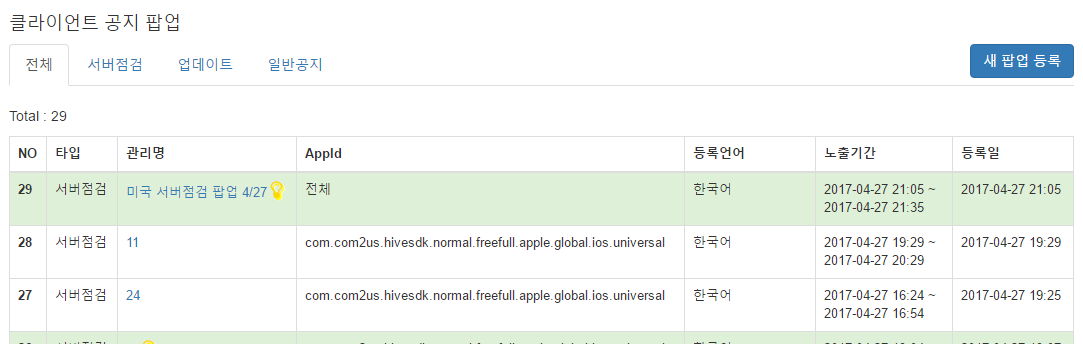
Select the currently displayed popup (light green) from the popup list.
-
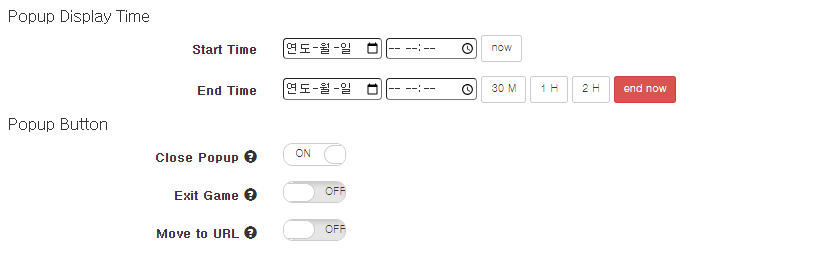
Select the "End Now" button in the popup settings.
-
When you select the End Now button, the display end time is automatically set to the current time. Save to apply the changes.
Timezone Settings
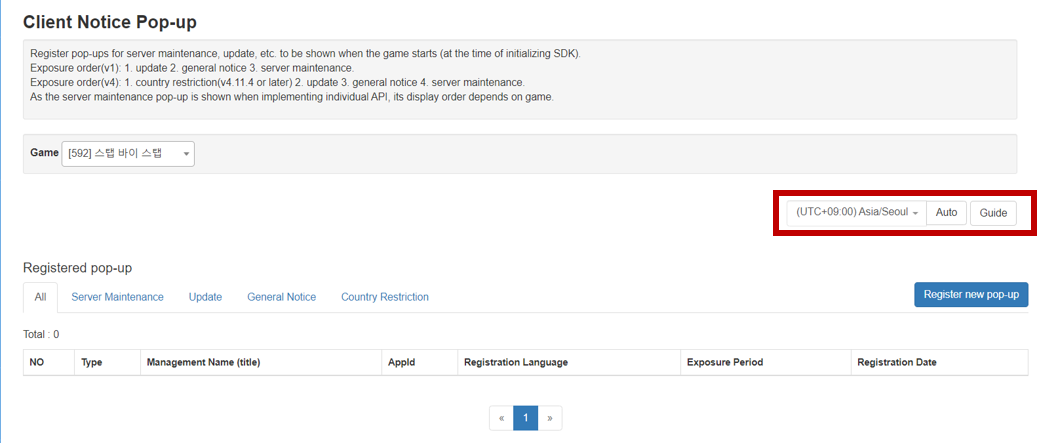
- You can change the timezone displayed in popup registration/management from the upper right corner of the screen. When you change the timezone, the time displayed in the console will be shown in the local time of that timezone. The timezone is applied to all screens you are currently viewing.
- By changing the timezone from the list, you can check the time when the popup will be displayed in that country.
- When registering a popup, you can enter the display time based on the configured timezone.
- Selecting Auto automatically sets the timezone based on the IP of the region you are accessing from. (In Korea, it is displayed as (UTC+09:00) Asia/Seoul)
Note
If you change the timezone (including Auto), the page will refresh. Be careful if you have content in progress.
COPPA Age 13 and Over Transition Notice Popup
Prerequisites
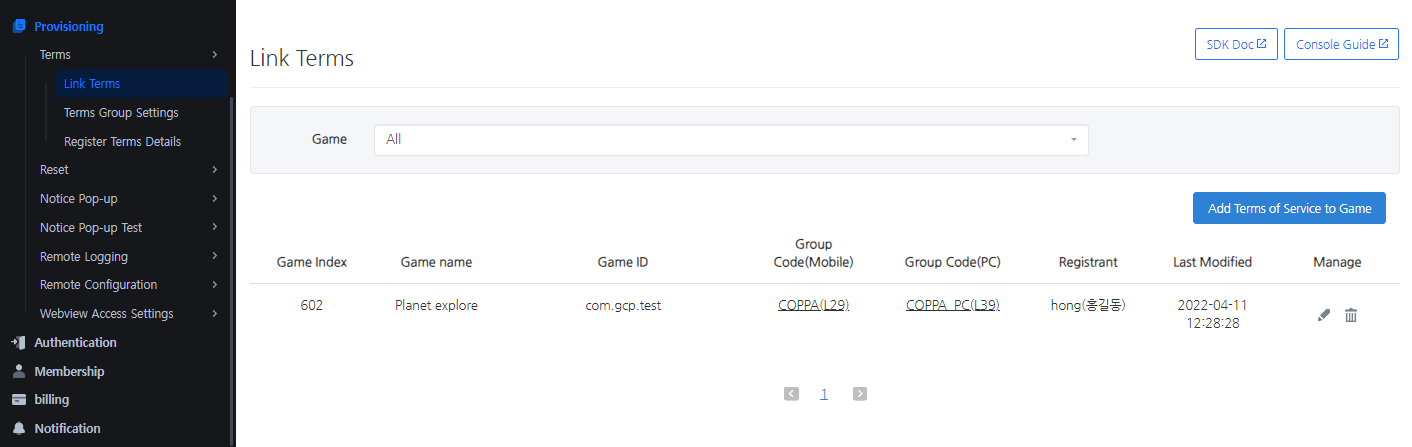 To register the popup, the COPPA terms must be registered in Console > Provisioning > Terms > Terms Connection.
Registering the COPPA Transition Notice Popup
- Go to the Popup Notice menu in the Console and click Register New Popup.
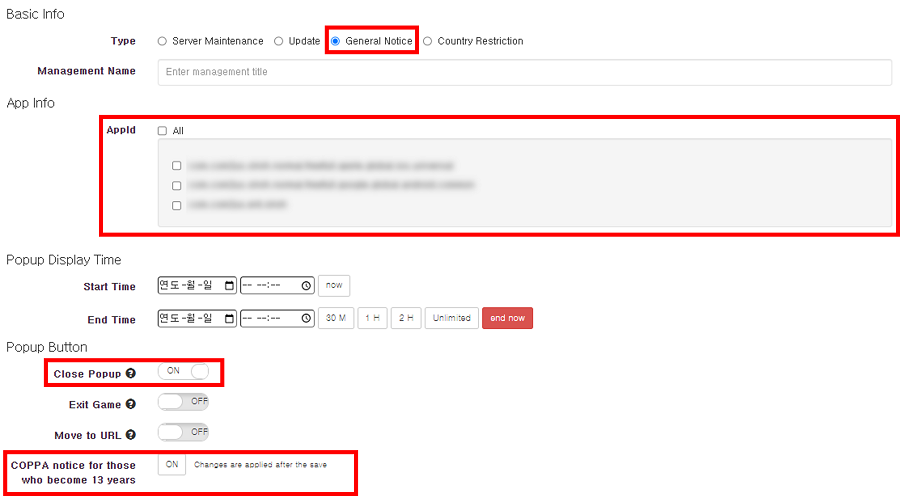
- Select 'General Notice' to reveal the COPPA transition popup registration feature in the popup settings.
- Configure the popup settings.
- Since the COPPA transition popup must be displayed at the game level, register it for all App IDs. Only one COPPA transition popup can be registered.
- If you attempt to register a duplicate, a popup containing the already registered NoticeId will be displayed.
- For the display time, select End Now. Otherwise, it may be displayed to all users.
- For the exit action, select Close.
- Click Save Notice at the bottom to apply changes normally.
Writing Popup Content
- After completing the popup configuration, write the content to be displayed at the bottom. Refer to the table below for language-specific text.
| Language | Title | Content |
|---|---|---|
| KR | 일반 게스트 유저 전환에 대한 안내 | 게임 지속 시 일반 게스트 계정으로 전환되며 개인정보 수집 및 사용 정책이 변경됩니다. |
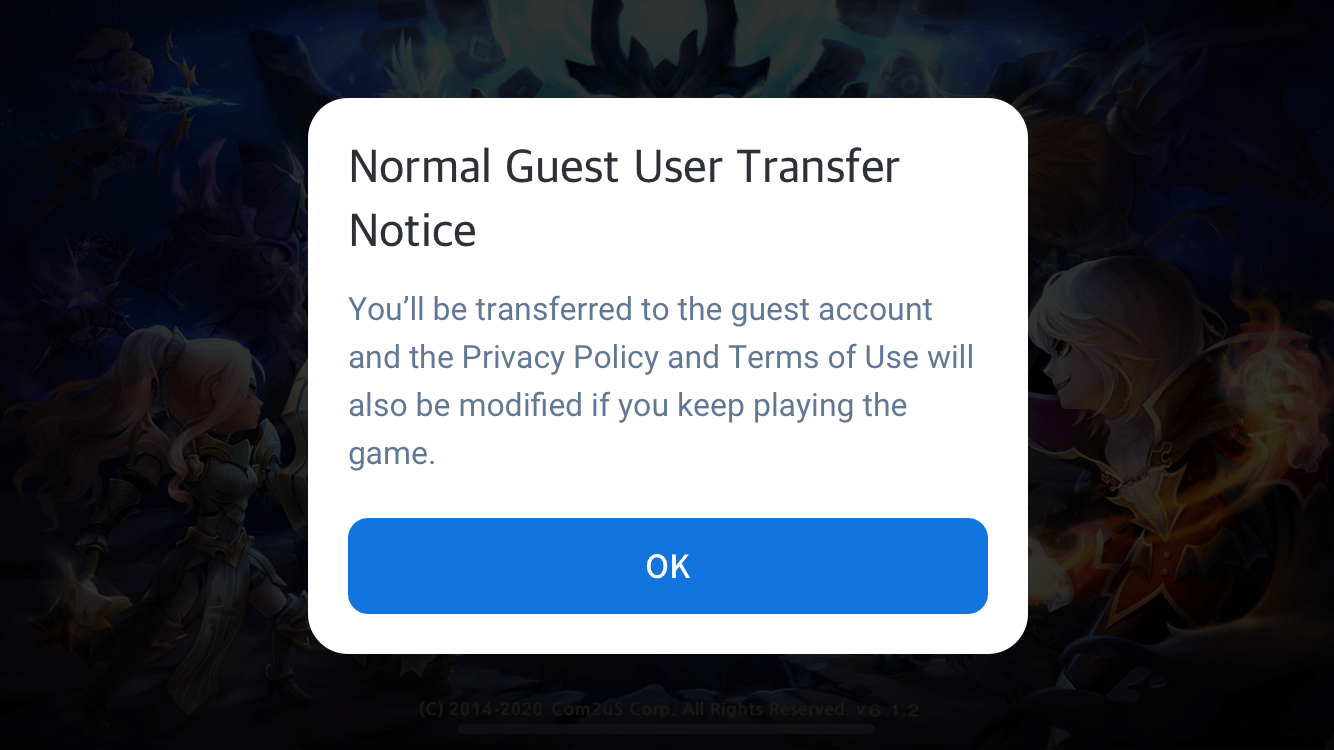
| EN | Normal Guest User Transfer Notice | You'll be transferred to the guest account and the Privacy Policy and Terms of Use will also be modified if you keep playing the game. |
| ZH-HANS | 转换为游客账号相关通知 | 继续游戏时将转换为游客账号,且变更个人信息收集及使用政策。 |
| ZH-HANT | 訪客玩家帳號轉換說明 | 持續進行遊戲時,將轉換為一般訪客帳號且變更使用者個人資料使用及蒐集條款。 |
| JA | ゲストアカウントの切り替えに関するご案内 | ゲームプレイを続けるとゲストアカウントに切り替わり、個人情報収集及びポリシーが変更されます。 |
| RU | Уведомление о переносе на гостевой аккаунт | Если Вы продолжите игру, Вы будете перенесены на гостевой аккаунт, а Политика конфиденциальности и Условия использования будут изменены. |
| FR | Notice concernant le transfert des utilisateurs invités normaux | En continuant à jouer, tu vas être transféré sur un compte invité normal et la politique de collecte et d'utilisation des données personnelles sera modifiée. |
| DE | Normaler Gastspieler Übertragungshinweis | Du wirst auf ein Gastkonto transferiert und die Datenschutzerklärung und die Nutzungsbedingungen werden ebenfalls geändert, wenn du das Spiel weiter spielst. |
| ES | Aviso de transferencia de usuario invitado normal | Serás transferido a la cuenta de invitado y la Política de privacidad y las Condiciones de uso también se modificarán si sigues jugando al juego. |
| PT | Aviso de transferência de usuário convidado normal | Você será transferido para a conta de convidado, e a Política de Privacidade e os Termos de Uso também serão modificados se você continuar jogando. |
| ID | Pengumuman Transfer Pemain Guest Normal | Kamu sudah dipindahkan ke akun guest dan Kebijakan Privasi serta Ketentuan Layanan juga akan diubah kalau kamu terus bermain game ini. |
| TH | ประกาศการโอนย้ายผู้เล่นบัญชี Guest ธรรมดา | คุณจะถูกย้ายไปยังบัญชี Guest นโยบายความเป็นส่วนตัวและเงื่อนไขการใช้งานจะเปลี่ยนไปด้วยถ้าคุณยังคงเล่นเกมต่อไป |
| VI | Thông báo về việc Chuyển đổi Tài khoản Khách | Khi duy trì tiếp tục chơi game, tài khoản của bạn sẽ được chuyển đổi sang tài khoản khách, đồng thời Chính sách Quyền riêng tư và Điều khoản Dịch vụ cũng sẽ được thay đổi. |
| IT | Avviso trasferimento utente ospite normale | Verrai rediretto/a ad un account ospite. Anche l'Informativa sulla privacy e i Termini di servizio cambieranno se continui a giocare. |
| TR | Normal Misafir Kullanıcı Transfer Duyurusu | Oyunu oynamaya devam ederseniz, misafir hesaba yönlendirilecekseniz ve Kullanım Şartları ve Gizlilk Politikası değiştirilecektir. |
| AR | إشعار نقل مستخدم ضيف عادي | سيتم تحويلك إلى حساب الضيف وسيتم أيضًا تعديل سياسة الخصوصية وشروط الاستخدام إذا استمررت في اللعب. |
Deactivation
- Click the COPPA Transition Popup Deactivation button and save to apply the changes.