Terms Combination (M)
In the Terms Combination (M) tab, create the country-specific terms required when configuring a Terms Group (L). Each Terms Combination (M) refers to one set of terms pages displayed by country when users access a specific game. This is the unit of terms displayed to users who actually play the game.
List
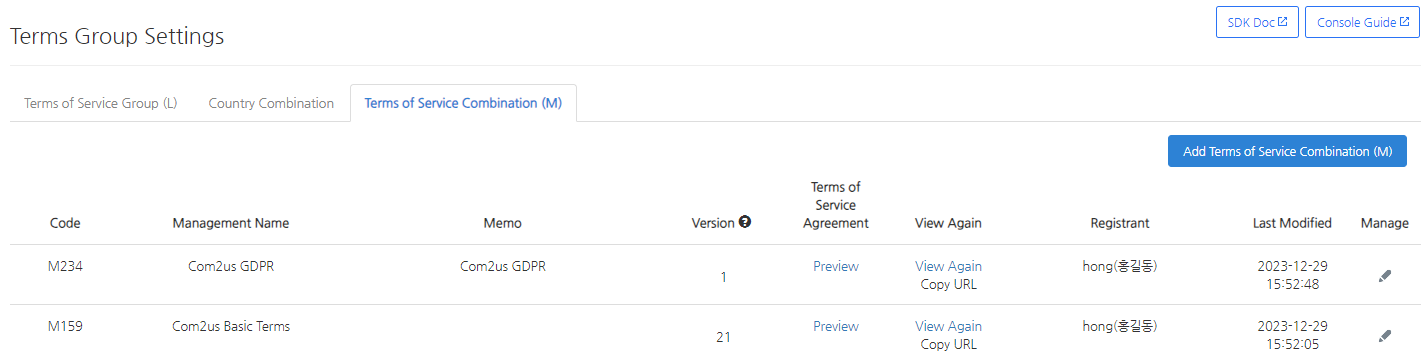
The leftmost code is the code number of the corresponding Terms Combination (M). This is called the "M code." Terms URLs are configured using this M code value, as in http://terms.withhive.com/terms/policy/view/M3.
The management name indicates the purpose for which the Terms Combination (M) was created. When configuring a Terms Group (L), you find and specify the M code using this management name, so enter a title that makes it easy to understand what the terms are for.
The memo field is where you can enter more detailed information about the Terms Combination (M). If there is additional information that is difficult to include in the management name, record it here to make management easier.
The version column displays the UI that lets you upgrade or keep the version when the types of terms included in the Terms Combination (M) change, or when the content of the included terms is revised. If you upgrade the version, users are asked to agree to the terms again when they access a game to which the terms are applied. If the revision does not require re-consent, make sure to click the Keep button so the re-consent window is not displayed to users.
Note
Conditions for Displaying the Upgrade/Keep Buttons 1. When the Terms Content (S) corresponding to the terms consent display content in a Terms Combination (M) is changed to different content. 2. When the Terms Content (S) corresponding to the terms consent display content in a Terms Combination (M) is versioned up. 3. When the order of the Terms Content (S) corresponding to the terms consent display content in a Terms Combination (M) is changed.
Warning
If you do not take any action while the Upgrade/Keep buttons are displayed, your edits are not applied. After editing content, if you do not need to display the terms re-consent window to users, make sure to click the Keep button.
The Terms Consent and View Again columns provide links to preview windows. If the terms do not use Terms Consent or View Again, the preview button is not displayed.
Add Terms Combination (M)

Click the Add Terms Combination (M) button in the upper-right corner to add a new Terms Combination (M). Enter a management name and memo, then select whether to use Terms Consent and whether to use View Again.
When Terms Consent is used, a terms consent pop-up is displayed to users when they start the game for the first time. The terms appear differently depending on the selected Terms Consent UI.
Terms Consent Types
Terms Consent types are divided into Required Consent, Optional Consent, and Notice.
-
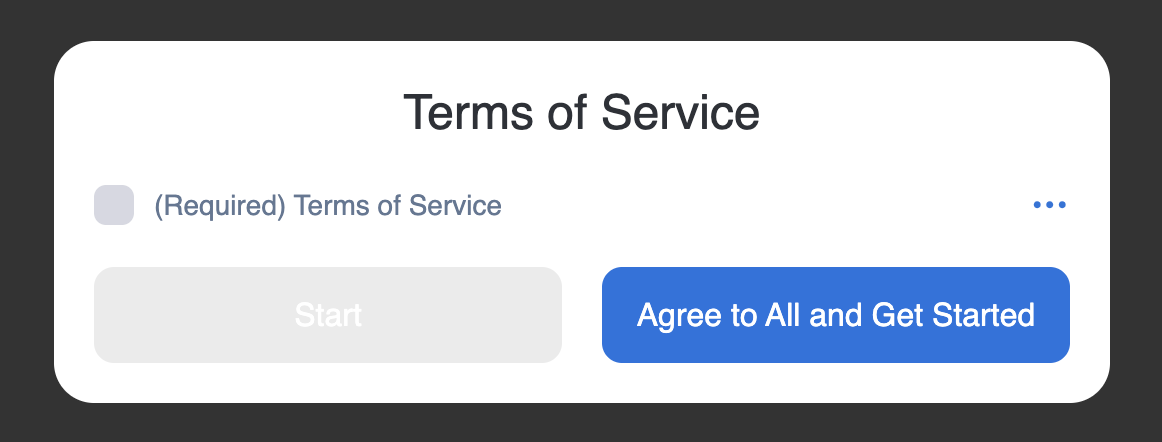
Required Consent requires users to agree to the terms before they can proceed to the next step.
-
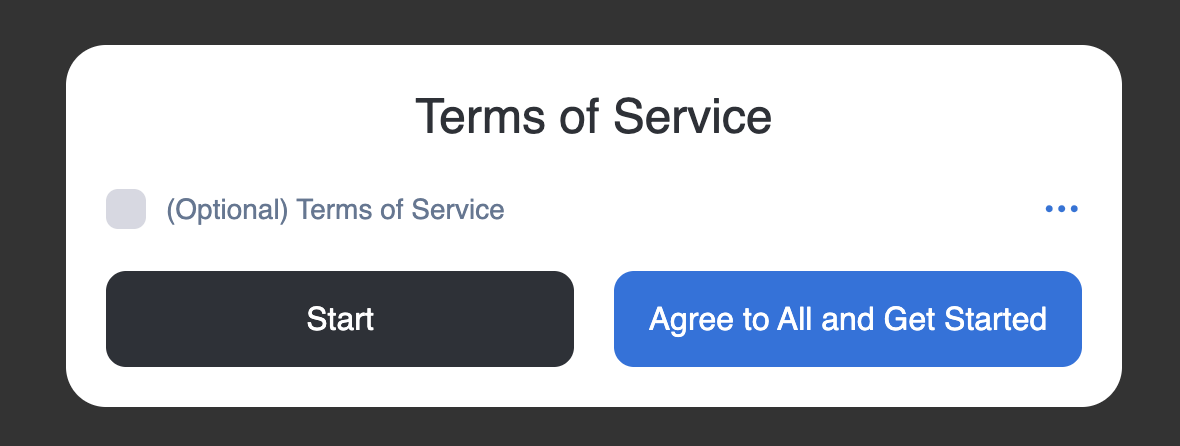
Optional Consent allows users to proceed to the next step even if they do not agree to the terms.
-
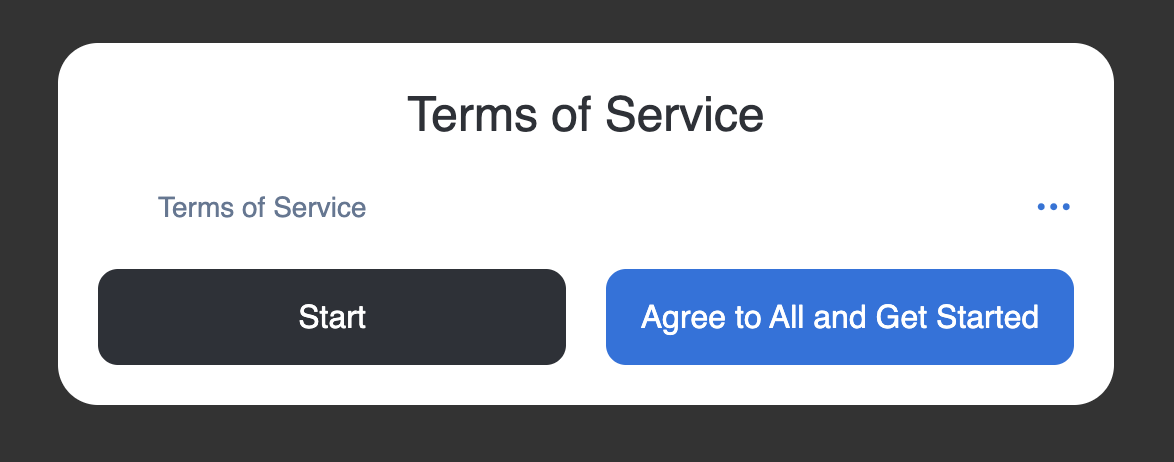
Notice lets you notify users of information without requiring their consent.
View Again Settings
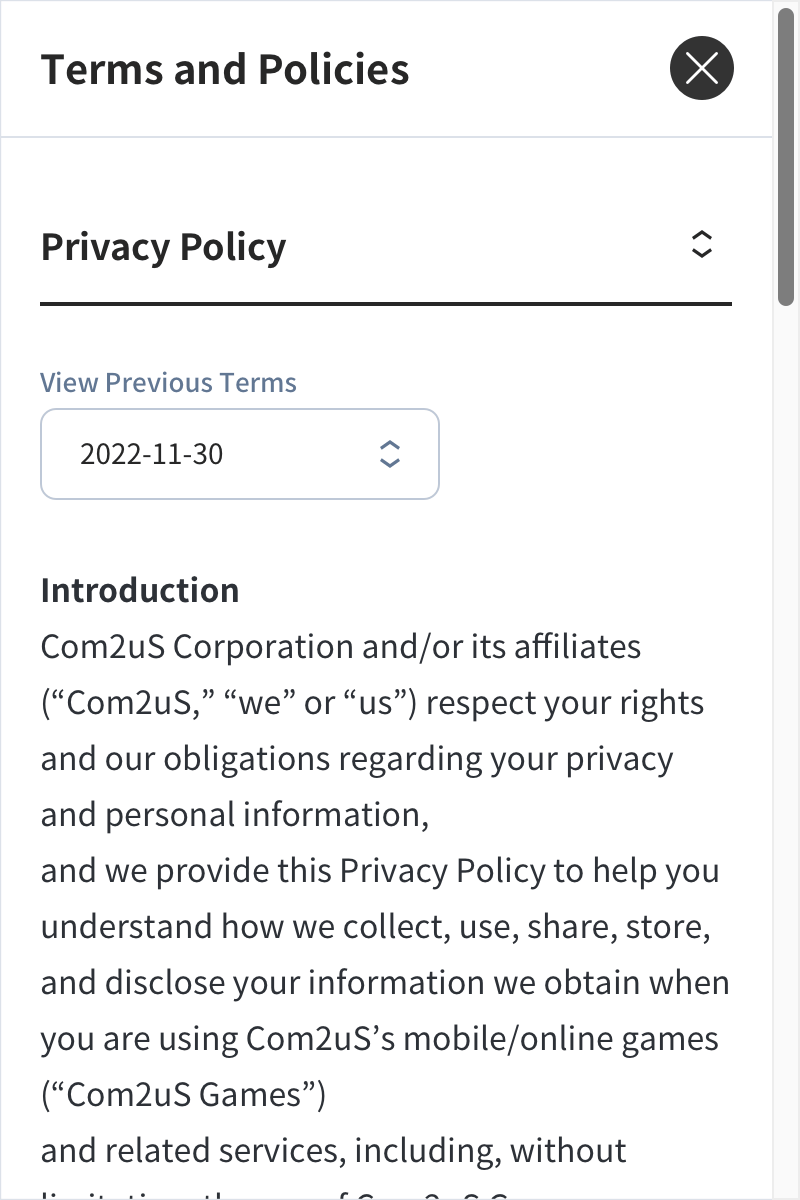
A Terms Combination (M) that uses View Again provides a terms View Again screen in the form of a web URL. This URL can be used as a terms View Again link in the app.
The terms View Again URL is configured in the following format.
For more information about how to create a terms View Again URL, see Create Terms Link.
Note
Copying the Web URL of the Terms View Again Window Because the Terms View Again window uses a web URL, you can use it on the web by extracting the address and linking to it. The web address for a specific M code is configured in the form http://terms.withhive.com/terms/policy/view/MCodeNumber. Check the M code number in the Terms Combination (M) list, then append it to the end of the address above.
Warning
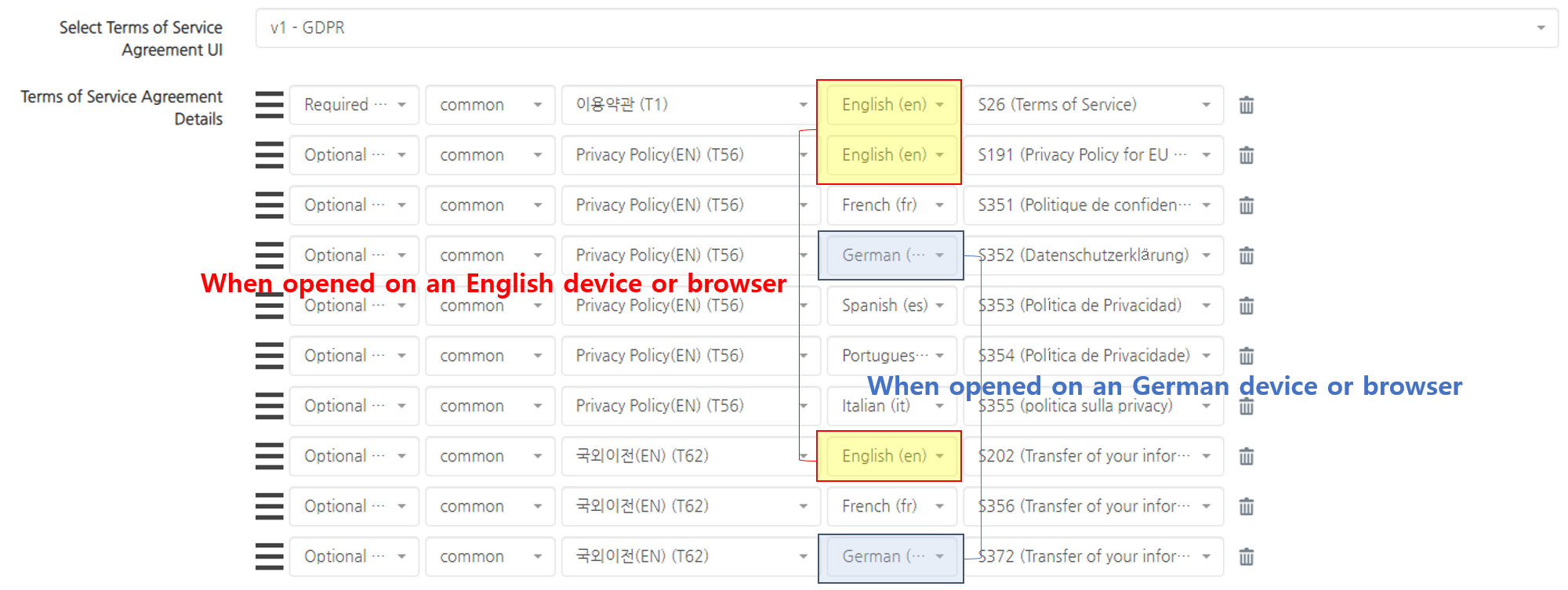 When configuring a Terms Combination (M), not all Terms Content (S) used in the combination is displayed. When Terms Content (S) is first created, a language is specified. This setting displays the Terms Content (S) only in the specified language. Therefore, if you configure a Terms Combination (M) by mixing Terms Content (S) for multiple languages, not all combined content (S) is displayed at once. As shown in the image above, if English and German content (S) are mixed in one Terms Combination (M), only the three English terms are displayed when the user's device or browser language is English. Likewise, if the user's device or browser language is German, only the two German terms are displayed.
Edit Terms Combination (M)
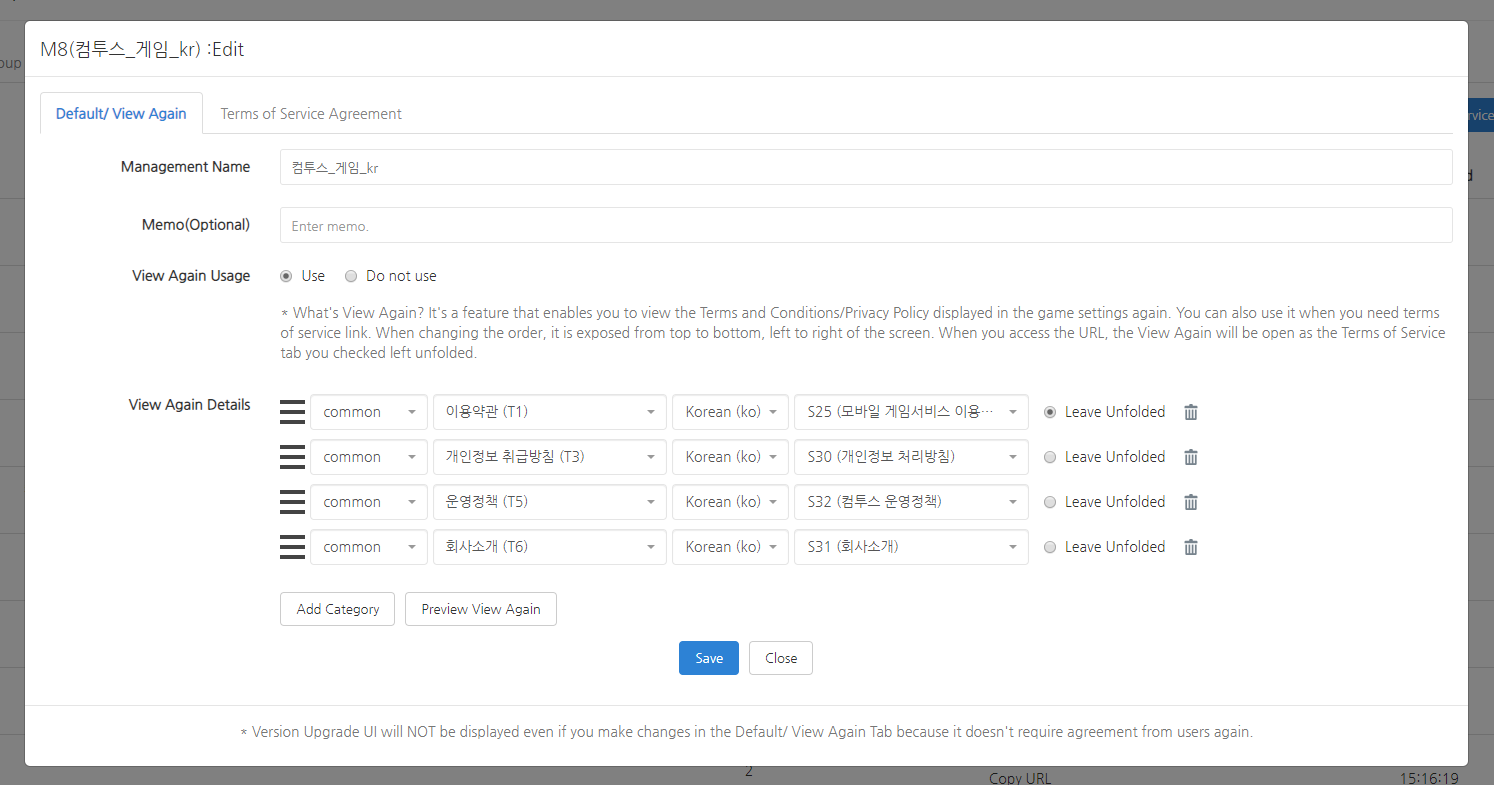
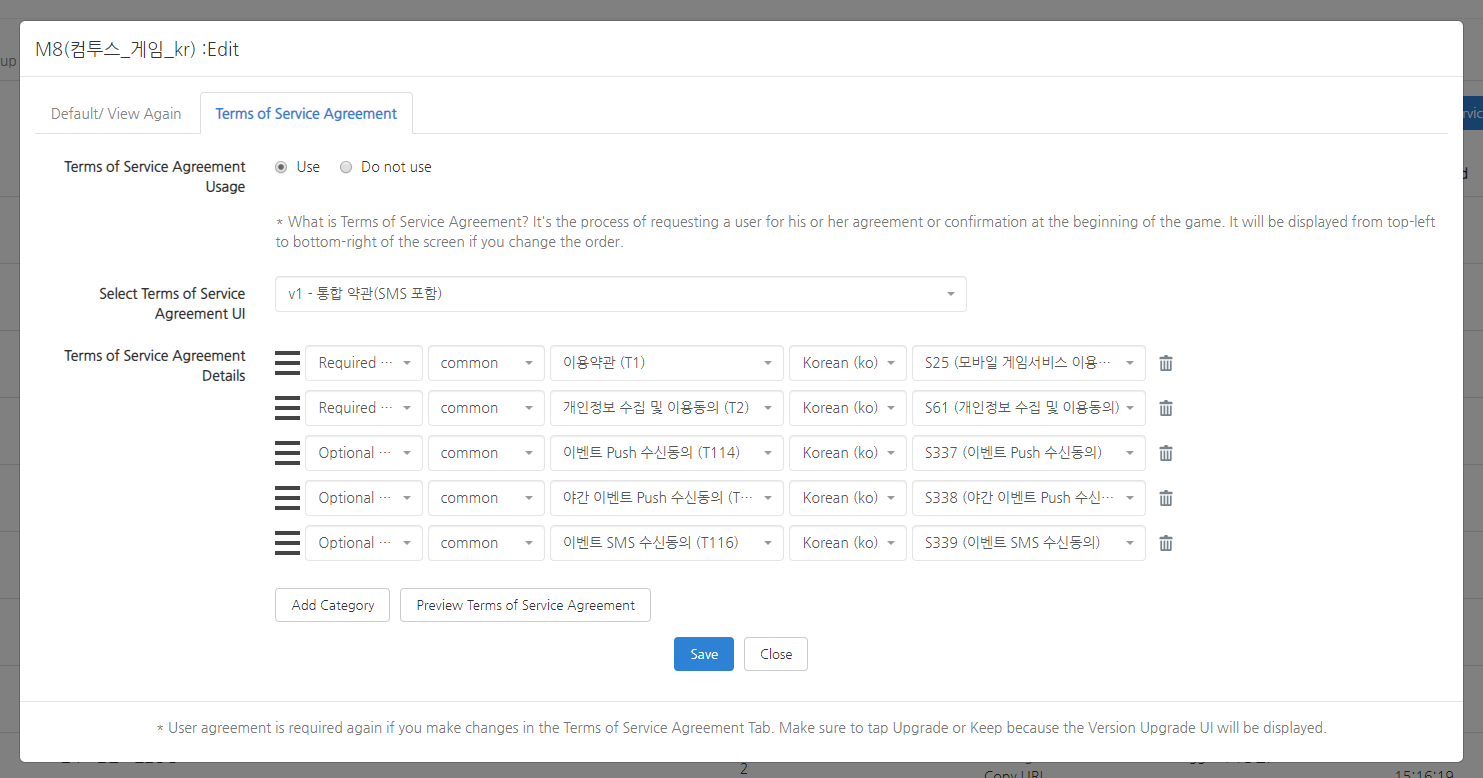
When editing a Terms Combination (M), a slightly different UI is provided than during new registration. When editing, the edit scope is separated into the Default and View Again tab and the Terms Consent tab.
Changes in the [Default and View Again] tab do not affect the version, while changes in the [Terms Consent] tab affect the version. Because editing terms can directly affect users who play the game, proceed carefully with version management.
Terms Consent Edit Screen 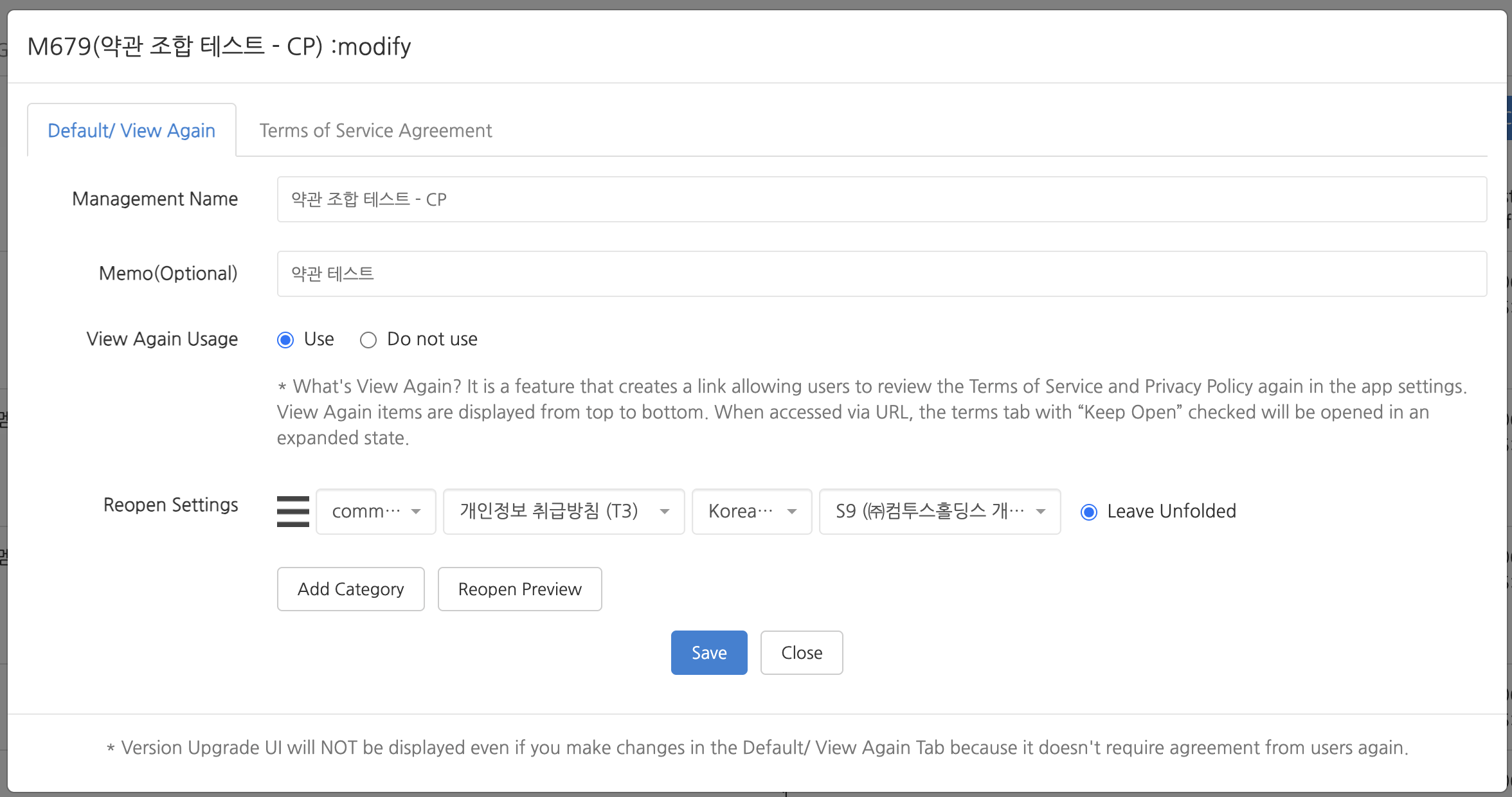
View Again Edit Screen 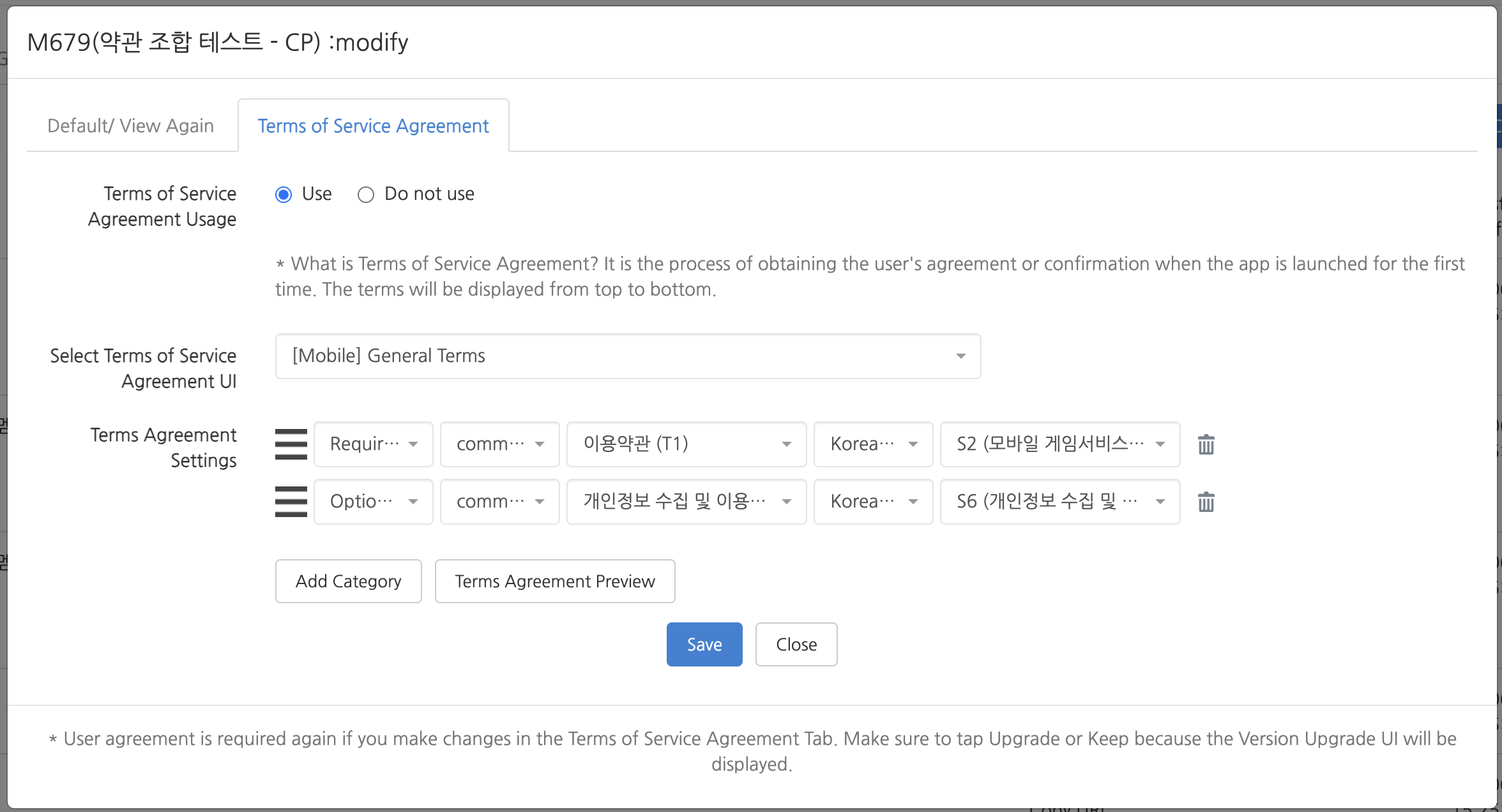
Version Management
The version of a Terms Combination (M) is related to whether users must agree to the terms again. If you upgrade the version, the terms re-consent screen appears when users access an app to which the Terms Combination (M) is applied.
The [Upgrade] or [Keep] button is displayed in the following cases:
- The Terms Content (S) corresponding to the Terms Consent settings is changed to different Terms Content (S).
- The version of the Terms Content (S) corresponding to the Terms Consent settings is changed.
- The order of the Terms Content (S) corresponding to the Terms Consent settings is changed.
If the edited content requires user re-consent, select [Upgrade]. If user re-consent is not required, select [Keep].
Warning
- If the [Upgrade] or [Keep] button is displayed and you do not take any action, your edits are not applied.
- If you edited the terms content but do not need to display the terms re-consent window to users, make sure to click [Keep].
Note
- The management name is used as the basis for finding a Terms Combination (M) in a Terms Group (L), so write it in a way that clearly identifies the purpose of the terms.
- Changes in the [Terms Consent] tab can directly affect users, so check the scope of the changes and whether re-consent is required before editing.
- Select [Upgrade] for changes that require terms re-consent, and select [Keep] for changes that do not require re-consent.
- A Terms Combination (M) that does not use View Again cannot use the terms View Again URL or preview.
- The terms displayed to users may vary depending on the language setting of Terms Content (S), so check the language-based display criteria when configuring multilingual terms.