Notices
You can register announcements for individual games or for all games.
Notices registered here are displayed in the app's What's New section through Promotion. For more information on display settings, refer to What's New Menu Settings.
Notice List
In the list of announcements, you can check the announcements for all registered games. (However, this may vary depending on the project permissions granted.)
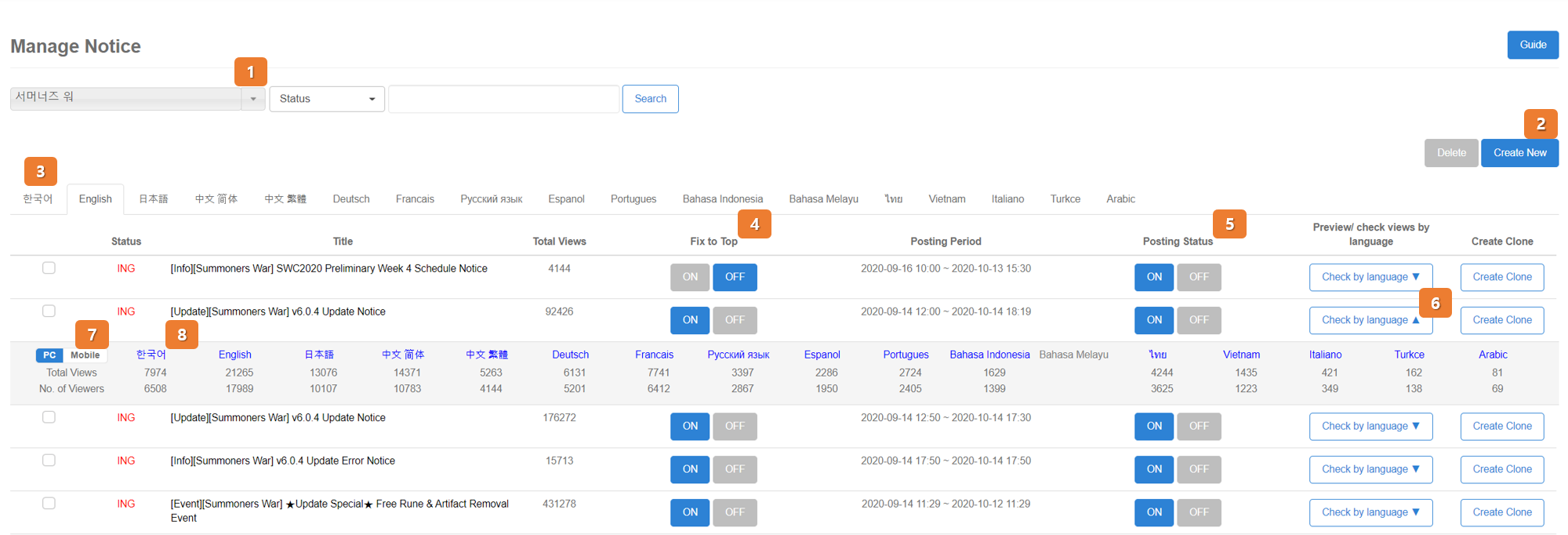
- If you want to search for a specific notice, you can search by selecting the game, exposure status, and text included in the notice.
- To delete a notice, select the checkbox of the notice you want to delete and click the 'Delete' button in the upper right corner. To register a new notice, click the 'New Write' button. If you need to modify a notice, you can click the notice title to edit it.
- Notices can be registered by language, and by clicking the language tab, you can check the list registered in that language.
- You can set whether the notice is displayed at the top using the fixed ON / OFF button. When set to ON, it will be displayed at the top of the news section for that game.
- You can set the actual exposure status of the notice using the posting status ON / OFF button.
- Note: The list of notices in the console is displayed based on the modification date.
- clicking the language-specific confirmation button, you can check the view count of registered notices by language. Click a language to preview the notice display format.
- The preview can be checked by selecting either PC or mobile web view.
- The preview is only supported for some languages. (Supported languages: Korean, English, Simplified Chinese, Traditional Chinese, Japanese, Russian, German, Vietnamese, French, Thai)
Notice Registration
-
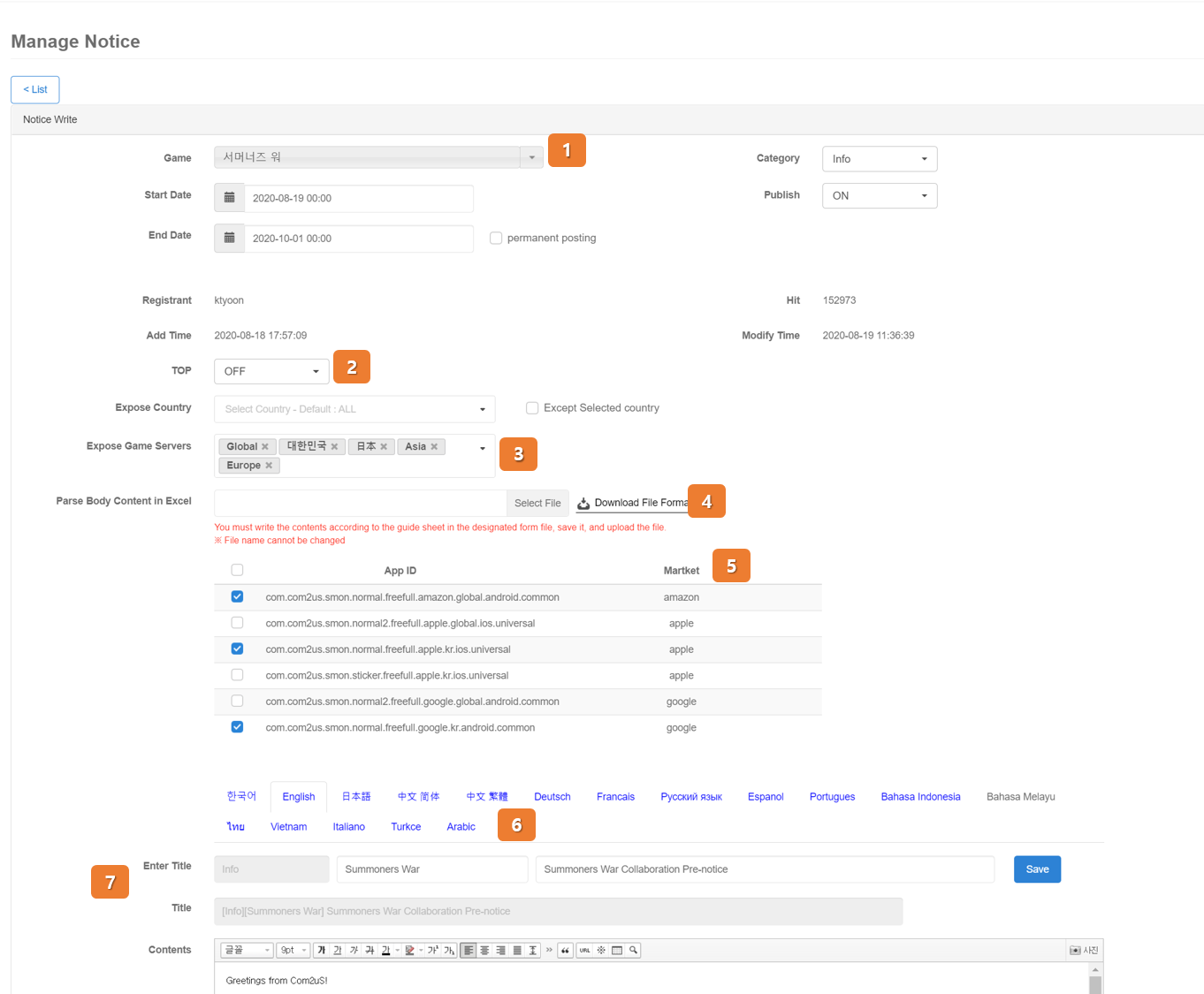
Set the basic information for registering the notice. Inactive items are automatically filled in during registration.
Game Selection
- Game Name: Displayed only for this game
- 'Company Name' All: Displayed for all games
-
When the "Pin to Top" setting is ON, it will be displayed at the top of the in-game news section, and among the notices set to be pinned, the most recently pinned notice will take priority.
- If you want the notice to be displayed only on a specific server, select the game server to display it. However, if you set the display game server, the notice cannot be viewed on the web.
-
If you have already drafted the content, you can also post the notice by clicking the file format download and uploading the notice title and content according to the downloaded Excel format.

Cautions when uploading form files
-
When uploading files, the file title and extension must be registered without changes. (File name: notices-contents-template.xlsx)
The Excel template is divided into tabs for each language, and if the title input field (cell b1) is saved as a blank value, that language tab will be considered as not written. -
You can only enter text content (paragraph breaks are allowed) in the body input field (cell b2).
Please use the editor features after attaching files for image attachments and formatting.
-
-
When selecting a specific game, a list of AppIDs included in that game will be displayed, and only specific AppIDs can be selected.
-
Notices will be registered by the supported languages of the game.
Language and Top Exposure Criteria
- Priority 1: Game Notice (Fix to Top: ON)
- Priority 2: Company-wide Notice (All) (Pin: ON)
- Priority 3: Game Notice (Fix to Top: OFF)
- Priority 4: Company-wide Notice (All) (Pin: OFF)
- Assuming the user's device language is Language A, if there is at least 1 notice registered in Language A, that notice list will be displayed. If there are no notices in Language A, the notice list registered in English (en) will be displayed. If there are no English notices either, the message "No notices registered." will be displayed.
-
The title is divided into the input area and the area that shows the actual displayed title.
Notice Title Display Format
- In-game news: [Category] [Title entered by the registrant]
Cautions for inserting images in the text
If you write the main content by copying + pasting directly from the document, please insert (attach) the image in the editor. Errors may occur if you register images by copying + pasting.
Event Post Web Exposure Settings
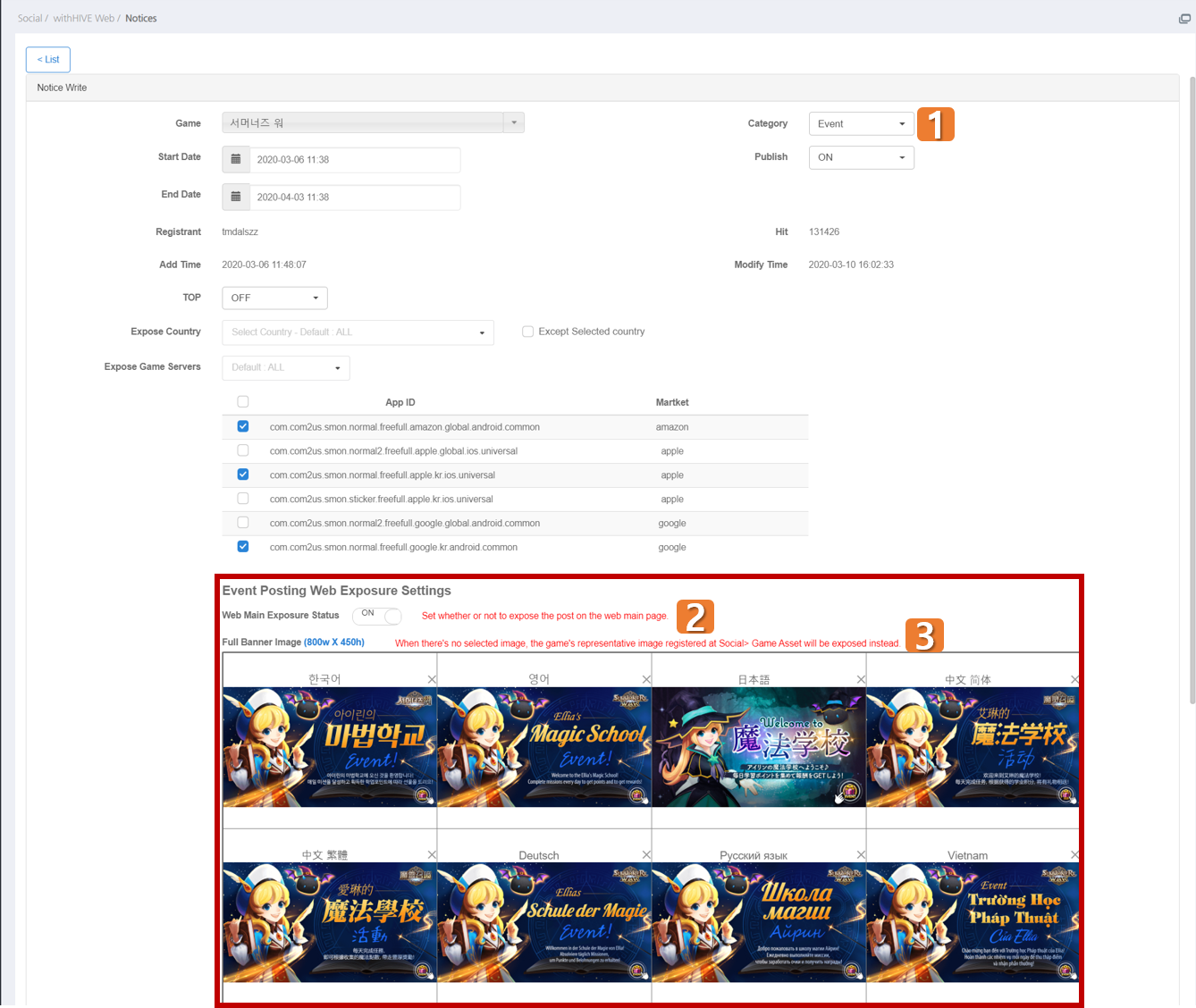
- This is the area that is activated when 'Event' is selected in the notice item, and it is related to settings for Hive Games.
- If the web main exposure is registered as 'ON', the event post will be displayed on the Hive Games main page.
- This is the area for registering the thumbnail image of the event post for Hive Games. You can use the promotional front banner image, and there is an image crop function that allows you to adjust the image position even if it is not the specified image size.