Funtap Publisher Integration Guide
This guide explains how to configure a Service Build using Hive SDK and prepare for actual service operations, targeting apps that have completed a publishing contract for the Vietnam Funtap store.
Hive SDK applies the Funtap module and configuration values depending on the build type, integrating the UI and APIs required for the login screen and user information updates. Applying this configuration produces a build that complies with Vietnam's service policies and government regulatory guidelines.
Note
Because the Vietnam store build configuration does not distinguish between a review build and a Service Build, the Appraisal Build configuration feature added in Hive SDK v4 26.2.0 Android for Vietnam publishing review is removed in 26.5.0.
How to apply Service Build
Service Build is the build used to operate the actual service after an Android or iOS app obtains a Vietnam publishing license. This build uses the service Funtap module and token configuration.
Prerequisites
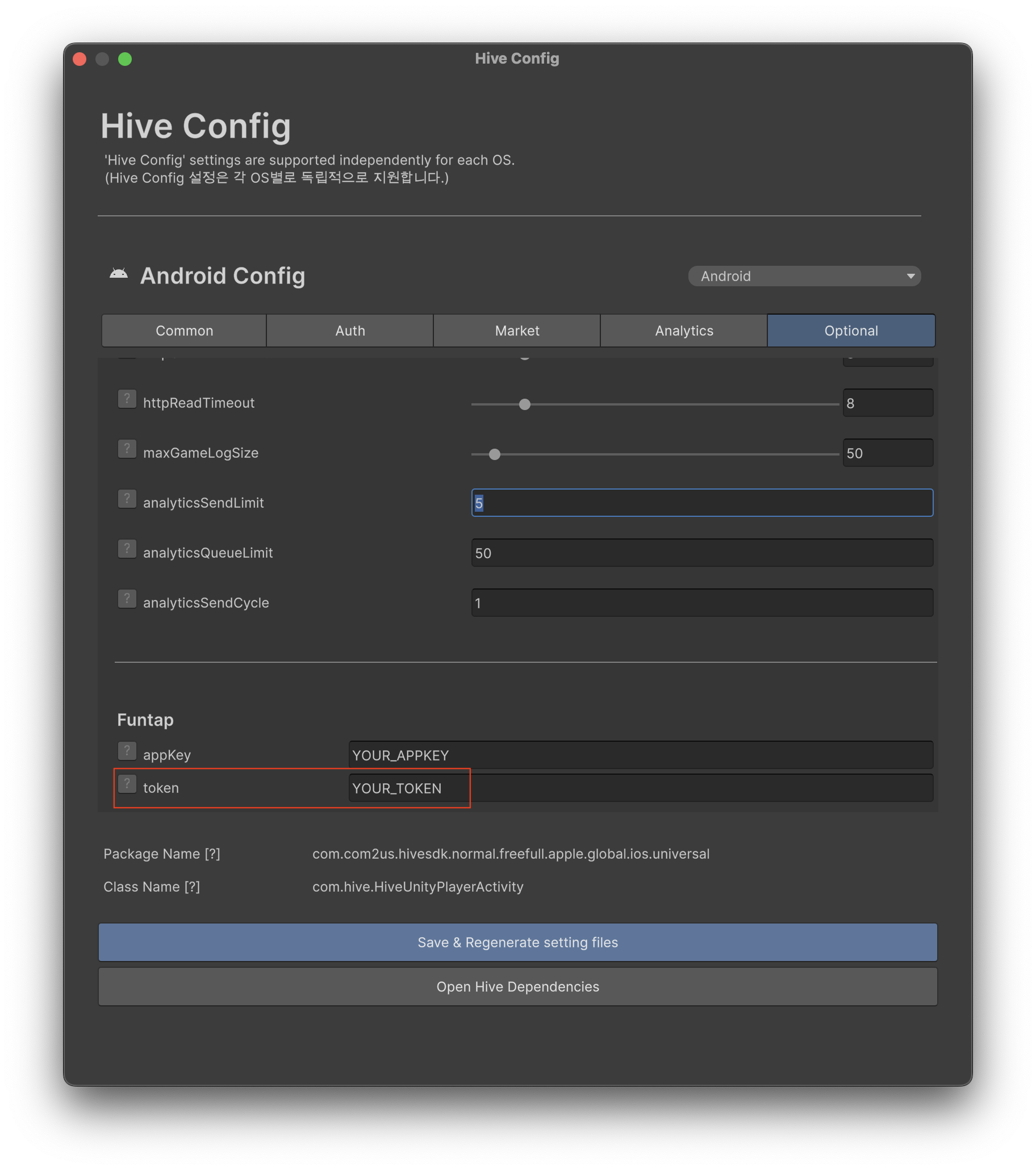
Before starting the Service Build work, you must obtain the service token from Funtap. For Native, enter this value in hive_config.xml; for Unity, enter it in the Funtap token field under [Top Toolbar > Hive > HiveConfig > Optional]. If the value is not ready, Step 2 cannot be completed.
Note
You can control whether the Funtap identity verification is displayed after login in Hive Console > Provisioning > SDK Settings.
The Service Build feature is used after the login flow already applied in the game is completed first. When login is successful, the PlayerID received as the PlayerInfo response is used as the userId for subsequent Funtap APIs.
Step 1. Configure the Funtap library
In Native, add the service dependency to the module-level build.gradle file.
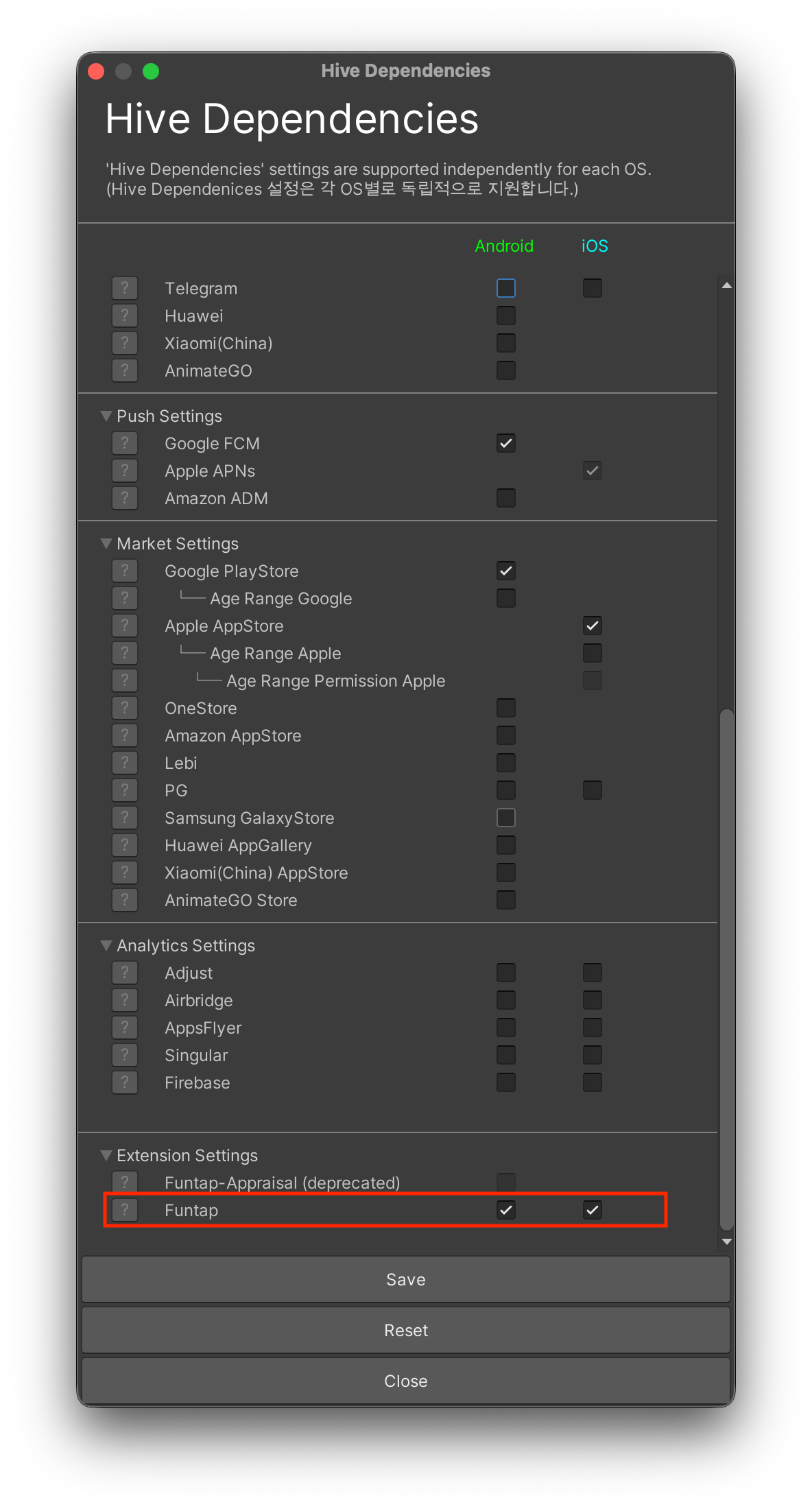
In Unity, click ExternalDependency under [Top Toolbar > Hive] and check the Funtap item.
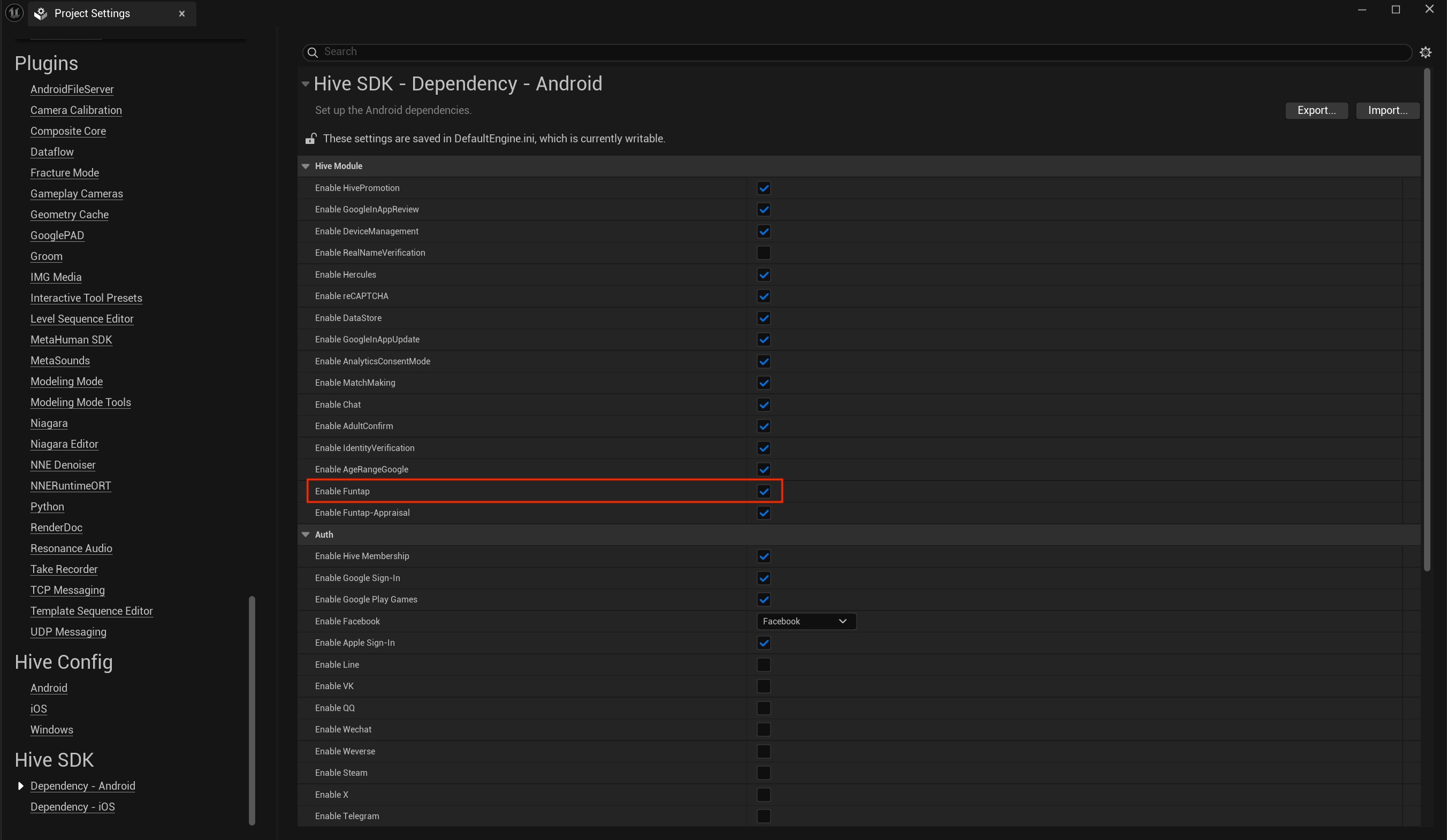
In Unreal Engine, check the Funtap item under [Edit > Project Settings > Hive SDK > Dependency - Android or Dependency - iOS].
Step 2. Apply the Funtap publisher configuration (token)
In Native, add the token received from the Funtap publisher to the hive_config.xml file.
In Unity, click Optional under [Top Toolbar > Hive > HiveConfig] and enter the issued key in the Funtap token field.
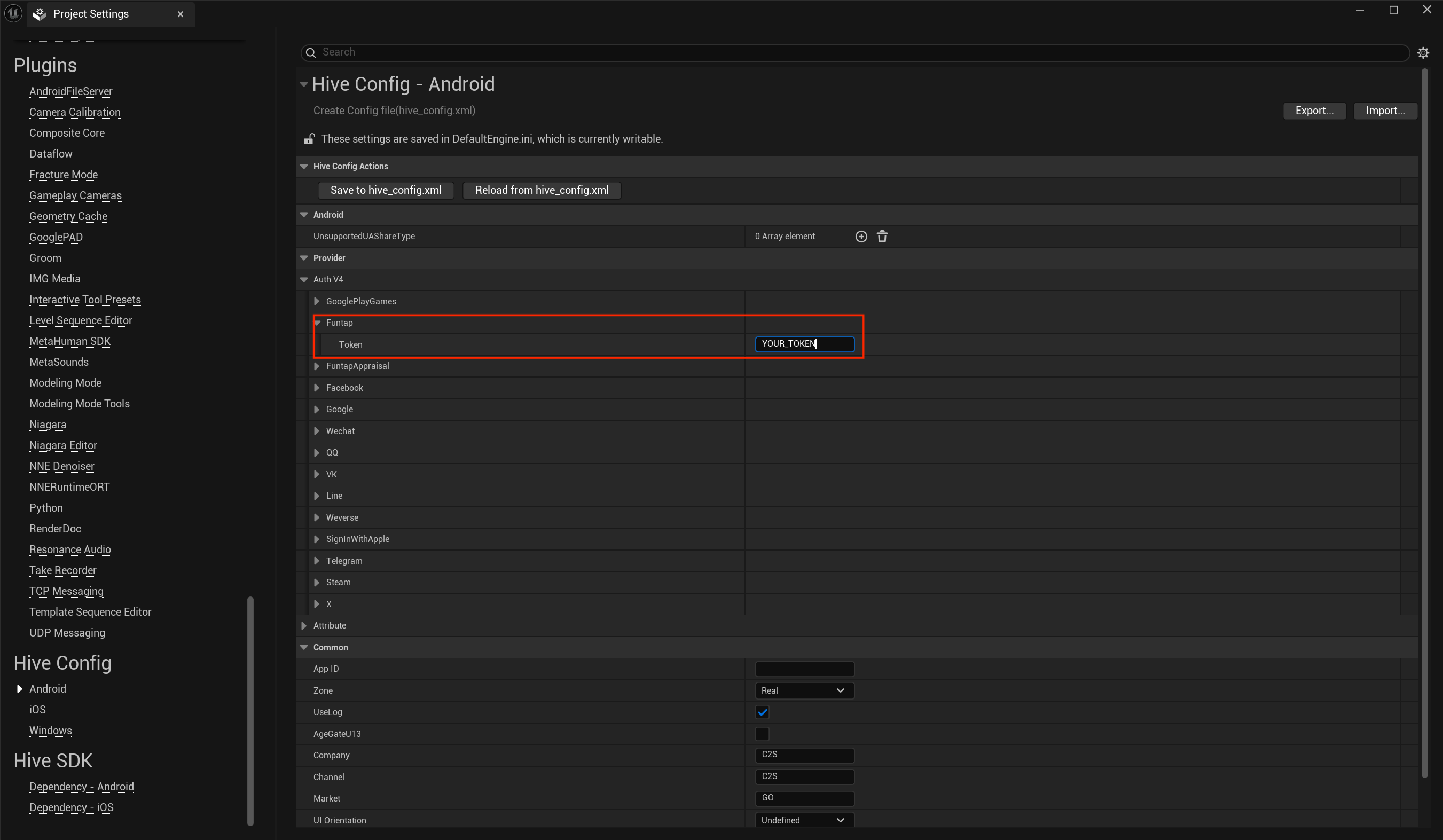
In Unreal Engine, expand the Funtap item under [Edit > Project Settings > Hive Config > Android] and enter the issued key in the token field.
Step 3. Check for government review
To determine whether to display the manual information update menu in Service Build, the user must first be logged in successfully.
After login is complete, call ProviderFuntap.isFuntapUnderGovernmentReview() when entering the character information screen or settings screen to check whether a government review is in progress. Determine whether to proceed to the next step based on the method's return value.
Step 4. Check whether user information entry is complete
Call ProviderFuntap.checkUserInfoComplete(userId) when user information needs to be entered to check whether the required information update is complete.
- For the
userIdparameter, pass thePlayer IDreceived in thePlayerInforesponse after a successful login as a string. For details on thePlayerInforesponse values, see Before you begin. - Process the callback result:
isCompleted == true: Information entry is already complete. Proceed to the next step without displaying a separate input UI.isCompleted == false: Required information is missing. Display an input UI so the user can manually register and edit the information.
#include "HiveProviderFuntap.h"

FString UserId = "USER_ID";

FHiveProviderFuntap::CheckUserInfoComplete(UserId, FHiveProviderFuntapOnCheckUserInfoCompleteDelegate::CreateLambda([this](const FHiveResultAPI& Result, bool bIsCompleted) {
    if (Result.IsSuccess()) {
        // Display the information update UI if isCompleted is false
    }
}));
Step 5. Display the information update UI
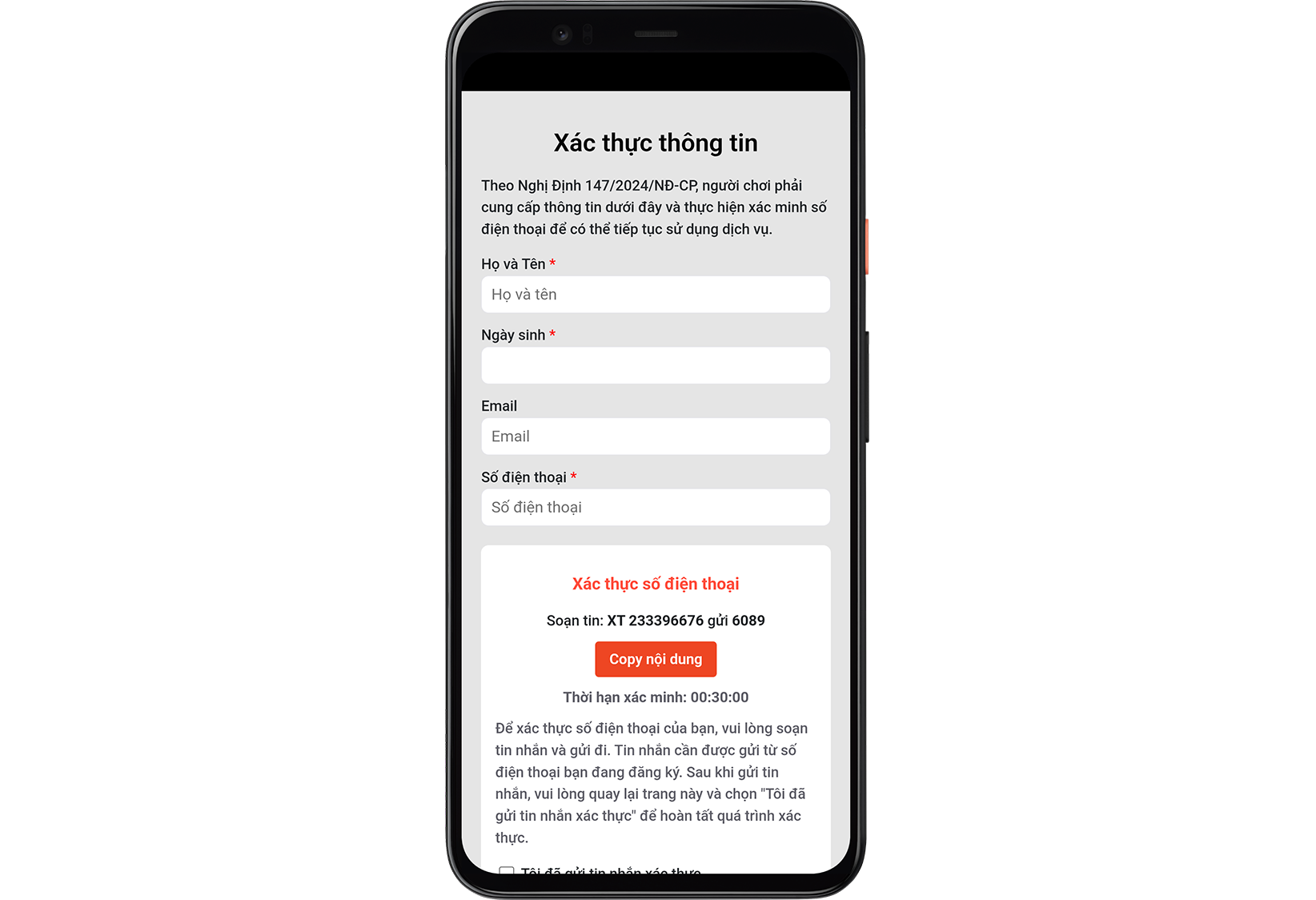
If isCompleted is false in Step 4, call ProviderFuntap.showUpdateUserInfo(userId, serverId, serverName, characterId, characterName) to display the information update WebView.
Note
If skipUpdateUserInfo in the hive_config.xml file is true, the screen is not displayed and success is returned.
Note
Provide a menu that the user can select on the character information screen or settings screen, and implement it so that the API is called when the user selects the menu.
using hive;

string userId = "USER_ID";
string serverId = "SERVER_ID";
string serverName = "SERVER_NAME";
string characterId = "CHARACTER_ID";
string characterName = "CHARACTER_NAME";

ProviderFuntap.showUpdateUserInfo(userId, serverId, serverName, characterId, characterName, (ResultAPI result) => {
    if (result.isSuccess()) {
        // API call successful
    }
});
#include "HiveProviderFuntap.h"

FString UserId = "USER_ID";
FString ServerId = "SERVER_ID";
FString ServerName = "SERVER_NAME";
FString CharacterId = "CHARACTER_ID";
FString CharacterName = "CHARACTER_NAME";

FHiveProviderFuntap::ShowUpdateUserInfo(UserId, ServerId, ServerName, CharacterId, CharacterName, FHiveProviderFuntapOnShowUpdateUserInfoDelegate::CreateLambda([this](const FHiveResultAPI& Result) {
    if (Result.IsSuccess()) {
        // API call successful
    }
}));
#include <HIVE_SDK_Plugin/HIVE_CPP.h>

std::string userId = "USER_ID";
std::string serverId = "SERVER_ID";
std::string serverName = "SERVER_NAME";
std::string characterId = "CHARACTER_ID";
std::string characterName = "CHARACTER_NAME";

ProviderFuntap::showUpdateUserInfo(userId, serverId, serverName, characterId, characterName, [=](ResultAPI const & result) {
    if (result.isSuccess()) {
        // API call successful
    }
});
import com.hive.ProviderFuntap
import com.hive.ResultAPI

val userId = "USER_ID"
val serverId = "SERVER_ID"
val serverName = "SERVER_NAME"
val characterId = "CHARACTER_ID"
val characterName = "CHARACTER_NAME"

ProviderFuntap.showUpdateUserInfo(userId, serverId, serverName, characterId, characterName) { result: ResultAPI ->
    if (result.isSuccess) {
        // API call successful
    }
}
import com.hive.ProviderFuntap;
import com.hive.ResultAPI;

String userId = "USER_ID";
String serverId = "SERVER_ID";
String serverName = "SERVER_NAME";
String characterId = "CHARACTER_ID";
String characterName = "CHARACTER_NAME";

ProviderFuntap.showUpdateUserInfo(userId, serverId, serverName, characterId, characterName, (result) -> {
    if (result.isSuccess()) {
        // API call successful
    }
});
import ProviderFuntap

let userId = "USER_ID";
let serverId = "SERVER_ID";
let serverName = "SERVER_NAME";
let characterId = "CHARACTER_ID";
let characterName = "CHARACTER_NAME";

ProviderFuntapInterface.showUpdateUserInfo(userId, serverId, serverName, characterId, characterName) { result in
    if (result.isSuccess()) {
        // API call successful
    }
};
-