Security Key Settings
Console Path
➡️ Console path: App Center > Security Key Settings
Overview
In Security Key Settings, you can configure security keys for each project to identify client applications during the OAuth 2.0 authentication process and validate requests between the server and client.
Important Notes
- Due to changes in the authentication security protocol, security key settings are required for SDK v4.25.0.0 and later.
- Users cannot log in to the app if a security key is not configured. If your app uses SDK v4.25.0.0 or later, make sure to configure a security key.
- Security keys must be configured separately for the production and sandbox environments.
View Security Keys
Search for a project on the Security Key Settings page to view its issued security keys.
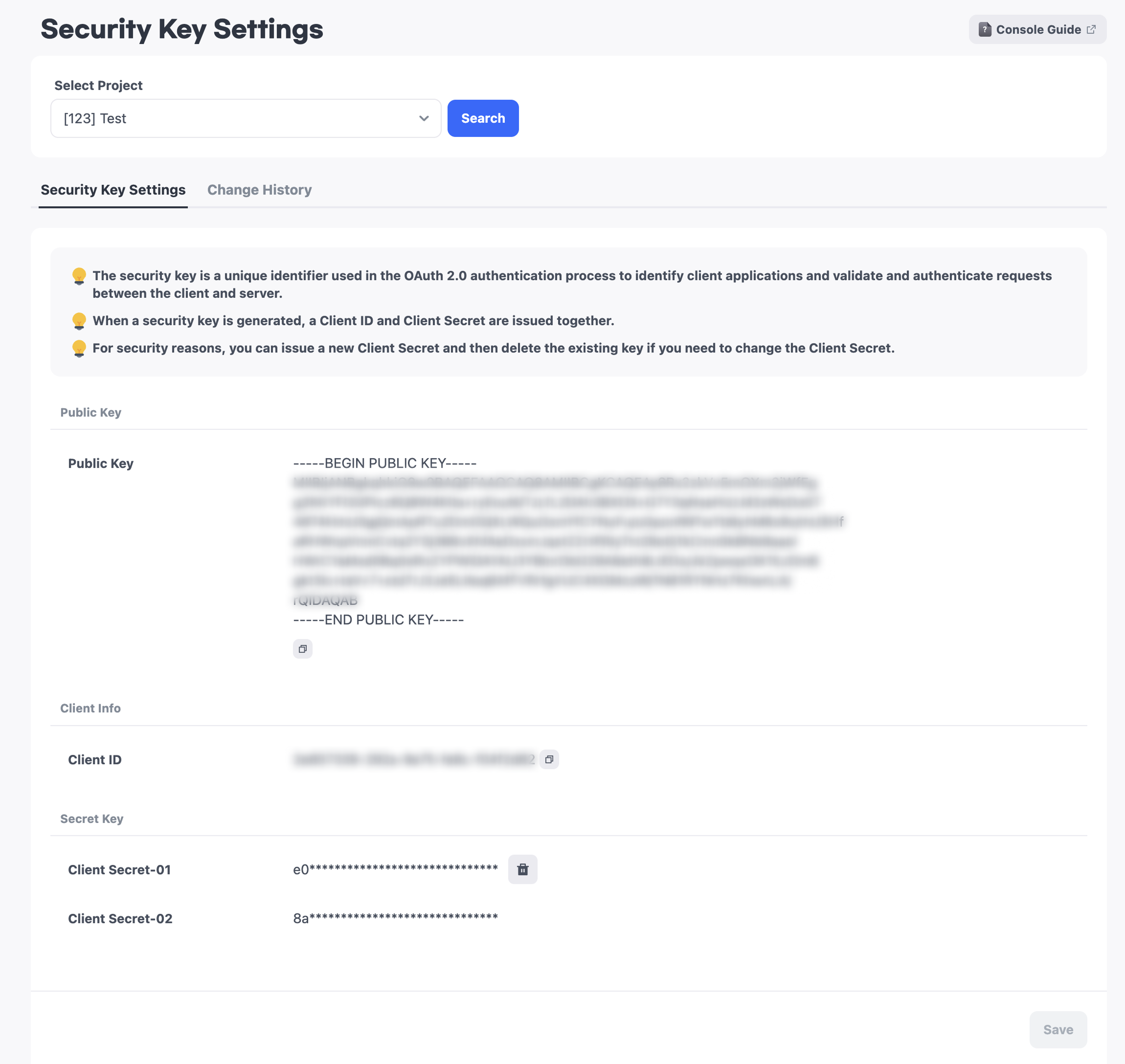
For security reasons, a Client Secret is displayed only once, when it is first generated. If you return to the page after generation, the value is masked. The Client Secret value is also not returned through API calls.
Warning
- You cannot view or copy a Client Secret again after it is generated.
- Store the Client Secret displayed immediately after generation in a secure location.
Create and Delete Security Keys
Create a Security Key
- If no security key has been configured, select
Generate. - Review the generated security keys.
- Store the Client Secret displayed upon initial generation in a secure location.
- Select
Saveto save the security keys.
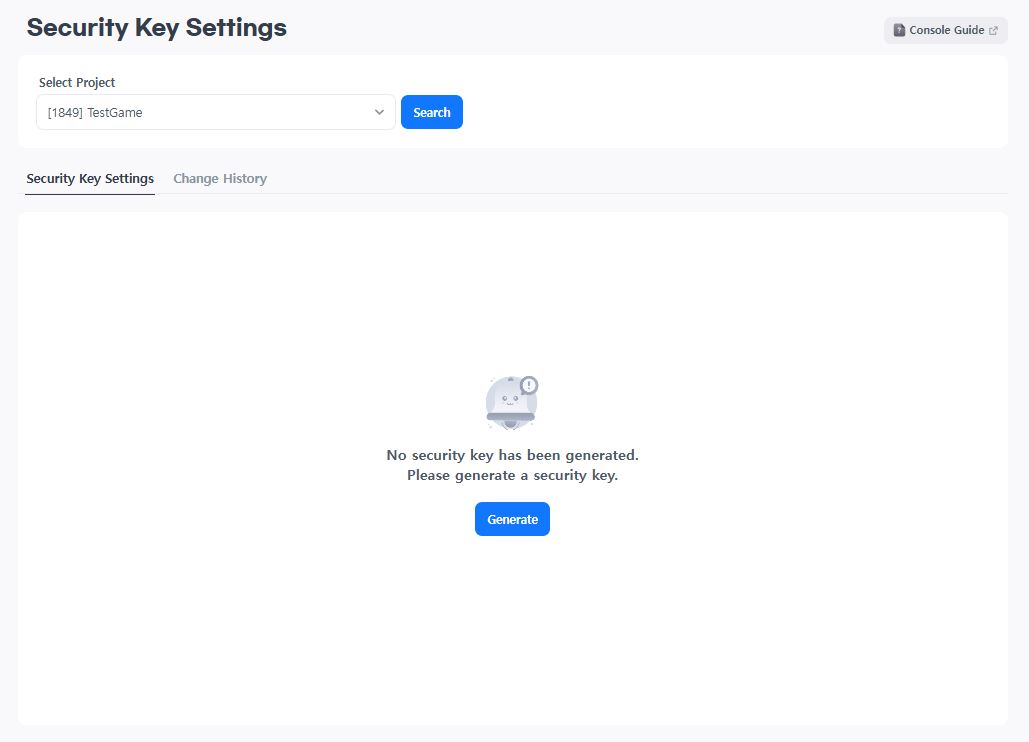
For convenience, the Client ID among the generated security keys is stored in the SDK when the SDK is initialized.
You can generate only one Public Key and one Client ID, and they cannot be changed after generation. You can issue and use up to two Client Secrets at the same time.
Rotate a Client Secret
If you can no longer access an existing Client Secret or need to replace it, follow these steps:
- Issue an additional Client Secret.
- Update the service to use the new Client Secret.
- Verify that the service has successfully switched to the new Client Secret.
- Delete the old Client Secret that is no longer in use.
Because the new and existing Client Secrets can be used at the same time, you can rotate a Client Secret without service interruption. Do not delete the existing Client Secret before switching to the new one.
Change History
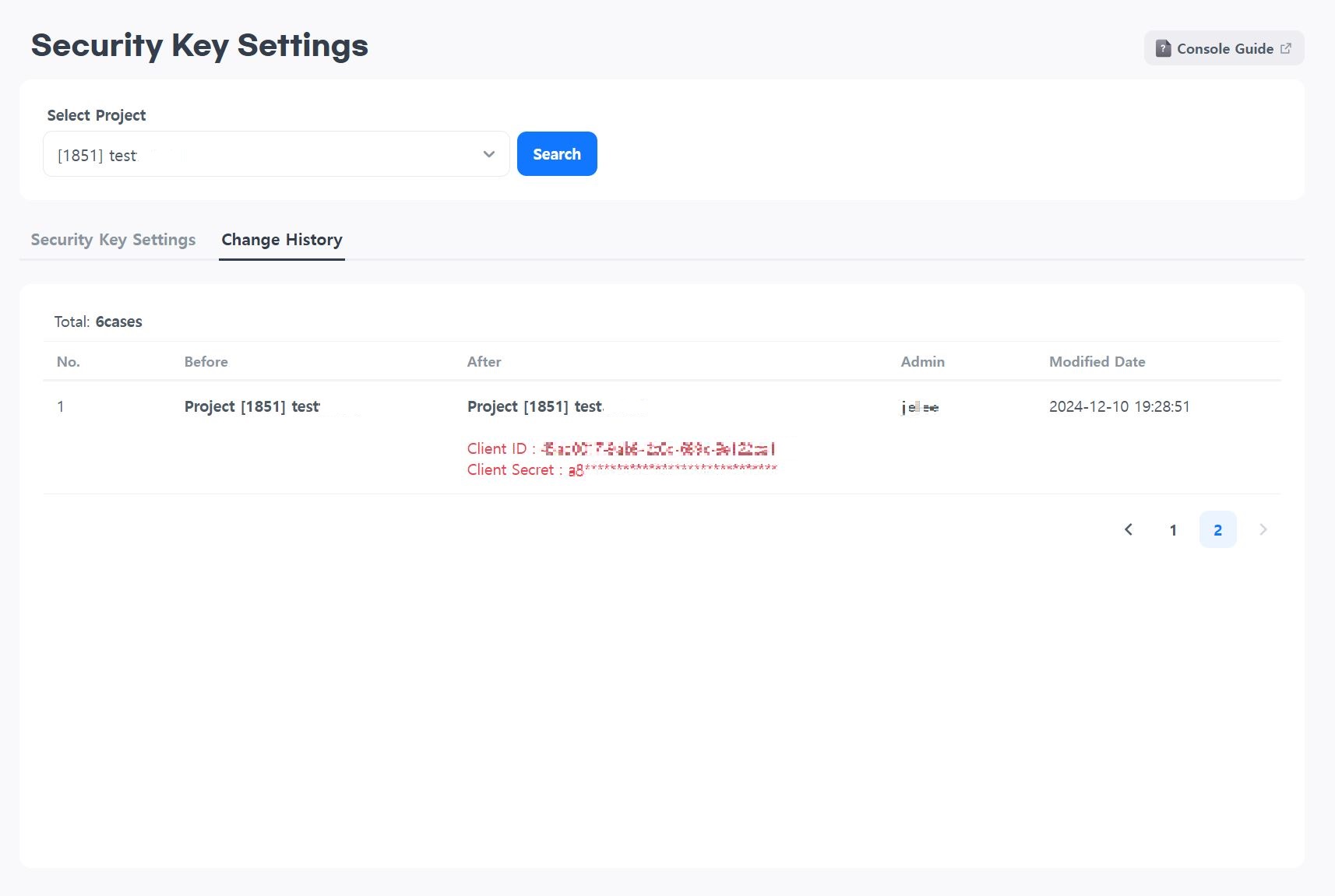
You can view the security key generation and deletion history under Change History.
Test Security Keys
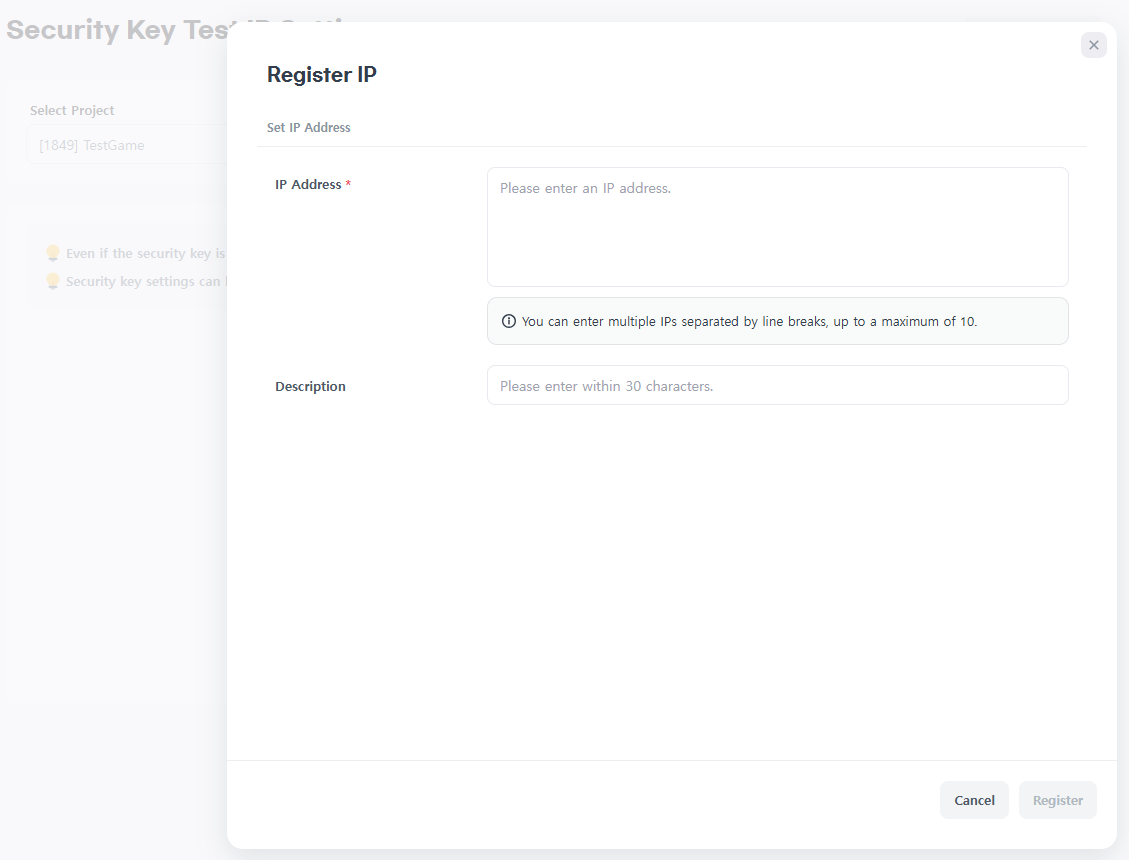
You can test generated security keys before using them. Register an IP address under App Center > Security Key Test IP Settings to allow communication using security keys from that IP address even while security keys are disabled. Registered IP addresses are managed by project.
Register IP Addresses
- IP addresses must be in IPv4 format and contain only numbers and periods (
.). The valid range is0.0.0.0to255.255.255.255. - Use line breaks to register multiple IP addresses at once.
- If the same IP address is entered more than once, only one entry is registered. An IP address that is already registered is not added again.
View and Delete IP Addresses
- Registered IP addresses appear in the
IP List. - Select
Deleteto the right of an IP address to delete it individually.