Mail Account Management
In Mail Account Management, you register email accounts to use in Customer Support and manage mail viewing permissions by account.
Emails received through registered mail accounts can be viewed in the email list.
Note
When an inquiry is received through a registered email account, you can also view the email in the inquiry list.
Registering and Editing Mail Accounts
Register or edit email accounts to use in Customer Support.
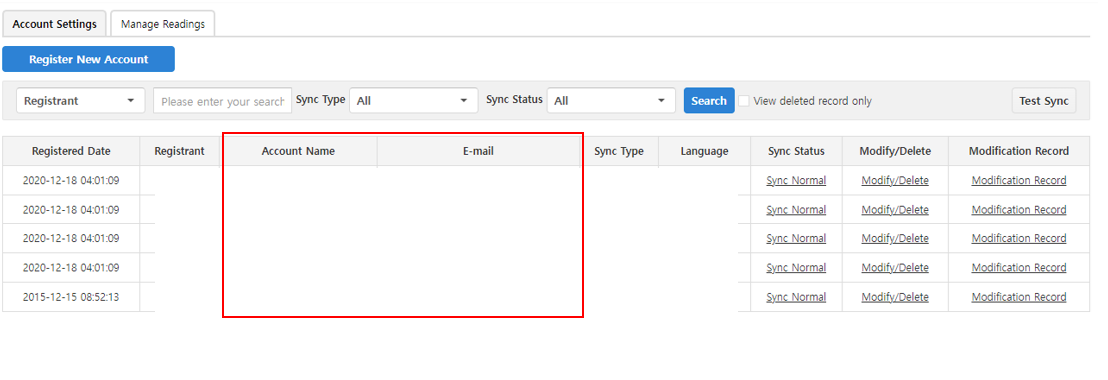
You can connect email accounts that are available for actual use, such as Gmail.
For details on registering a mail account, see Registering a New Mail Account.
Viewing Permission Management
In Viewing Permission Management, you manage users who can view emails by mail account.
Users with viewing permission can view emails received through the corresponding email account in the email list menu.
You can download user-specific viewing permissions as an Excel file.
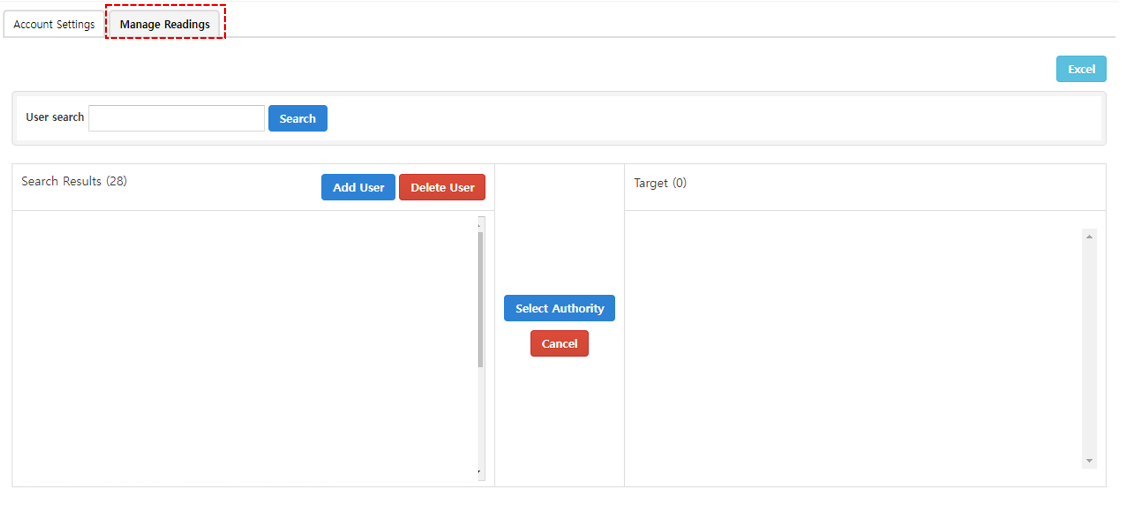
Add User
Add users who can view emails.
- Click Add User .
- Search for and select a user.
- Click Register .
Delete User
Delete users from mail viewing permission management.
Deleted users can no longer view emails received through the corresponding mail account.
- Select the user to delete.
- Click Delete User .
- Click OK in the confirmation popup.
Grant Mail Viewing Permission
Grant a user viewing permission for a specific email account.
- Move the user to grant viewing permission to the Target area.
- Move the email account the user can view to the Current Permission area.
- Click Register .
Delete Mail Viewing Permission
Delete the email account viewing permission granted to a user.
- Move the user whose viewing permission you want to delete to the Target area.
- In the Current Permission area, select the email account to delete permission for.
- Move the selected email account to the List area.
- Click Register .