Terms Management
Terms Management lets you register and deploy terms by country and language.
Console Path
Console path: Provisioning > Terms (Template Type) > Terms Management
Before You Start
- Only projects in the [In Development] and [Live] statuses are displayed in the project list. If a project does not appear in the list, check your project access permissions.
- To add a country that is not in the list, first register a country combination in the [Provisioning > Terms (Template Type) > Additional Settings > Country Combination] tab.
- If the terms type you need to select when registering terms is not in the list, register it first in the [Provisioning > Terms (Template Type) > Additional Settings > Manage Terms Type (T)] tab.
Overview
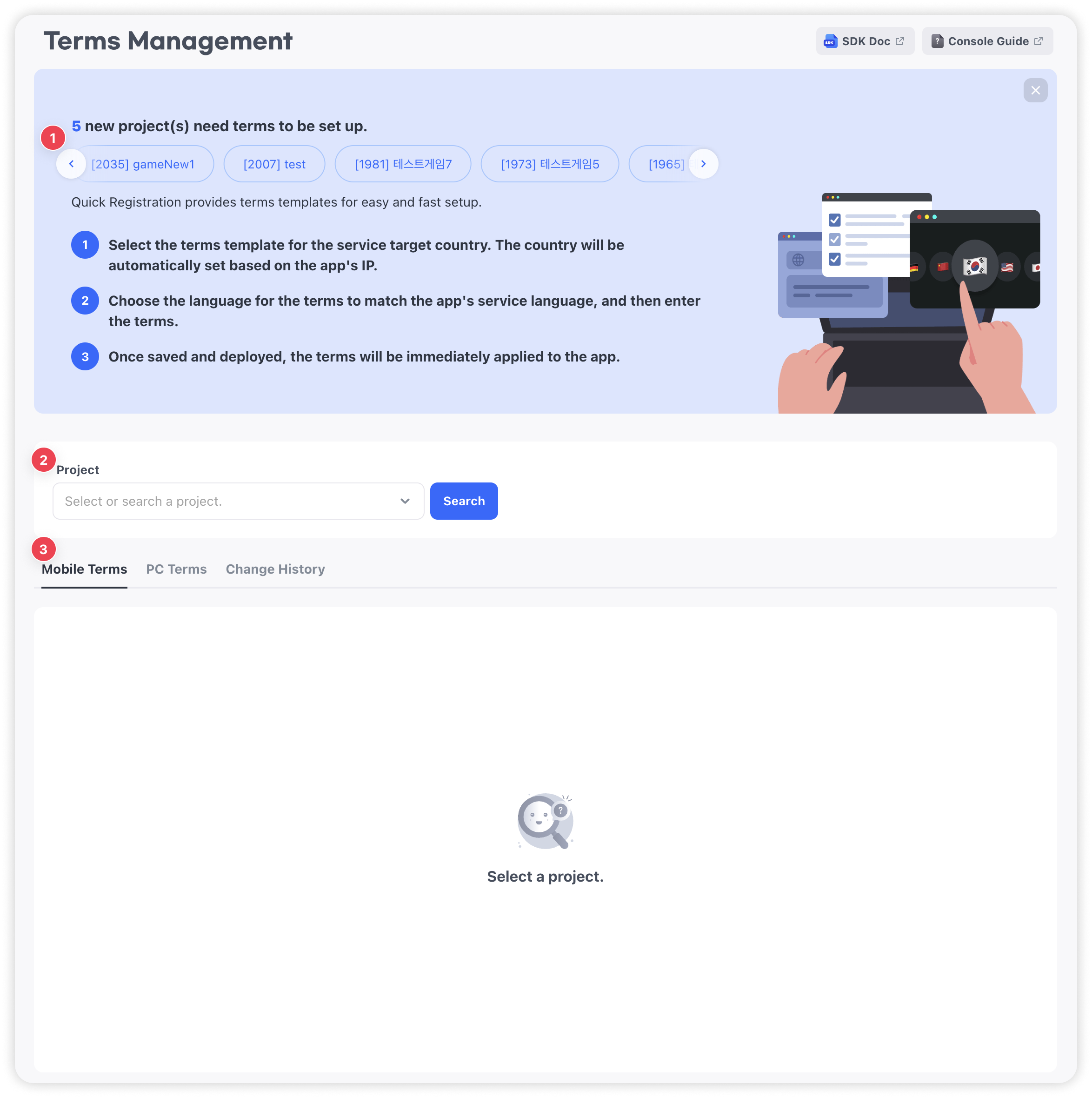
Register default terms and country-specific terms by project, then deploy the registered terms so they are displayed to actual users.
Terms Status
| Status | Description |
|---|---|
| Not Registered | Terms have not been registered. |
| Draft | Terms have been saved but have not been deployed, so they are not displayed to users. |
| In Use | Terms have been deployed and are currently displayed to users. |
Screen Layout
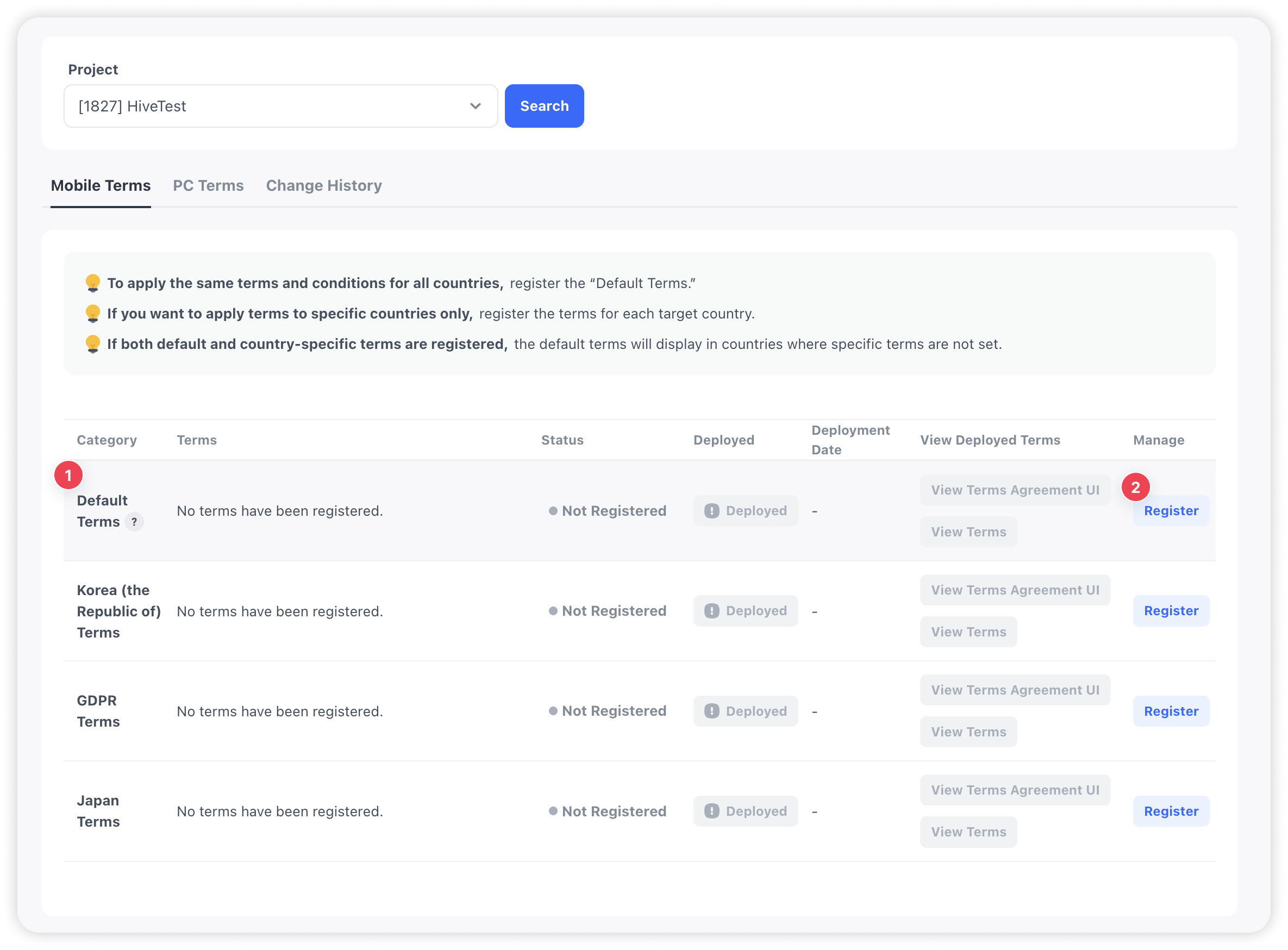
Project Selection Area
- Select the project for which you want to register terms from the project dropdown.
- Click [Search] to display the terms list for the selected project.
Device Type Tabs
- Mobile Terms: Manage terms applied to mobile devices.
- PC Terms: Manage terms applied to PCs.
Terms List
Rows for default terms and country-specific terms are displayed.
| Column | Description |
|---|---|
| Category | Default terms or country name |
| Terms | Registered terms types and content |
| Status | Not Registered, Draft, In Use |
| Deploy | The [Deploy] button is enabled when there are changed terms. |
| Deployment Date | Most recent deployment date |
| View Deployed Terms | Check the consent screen and View Again screen for deployed terms. |
| Management | [Register] or [Edit] button |
Terms Registration Process
Register Default Terms
Default terms are commonly applied to all countries for which separate country-specific terms are not configured.
- Go to [Provisioning > Terms (Template Type) > Terms Management].
- Select the target project from the project dropdown.
- Click [Search].
- Select a device type tab (Mobile Terms or PC Terms).
- In the [Default Terms] row, click [Register].
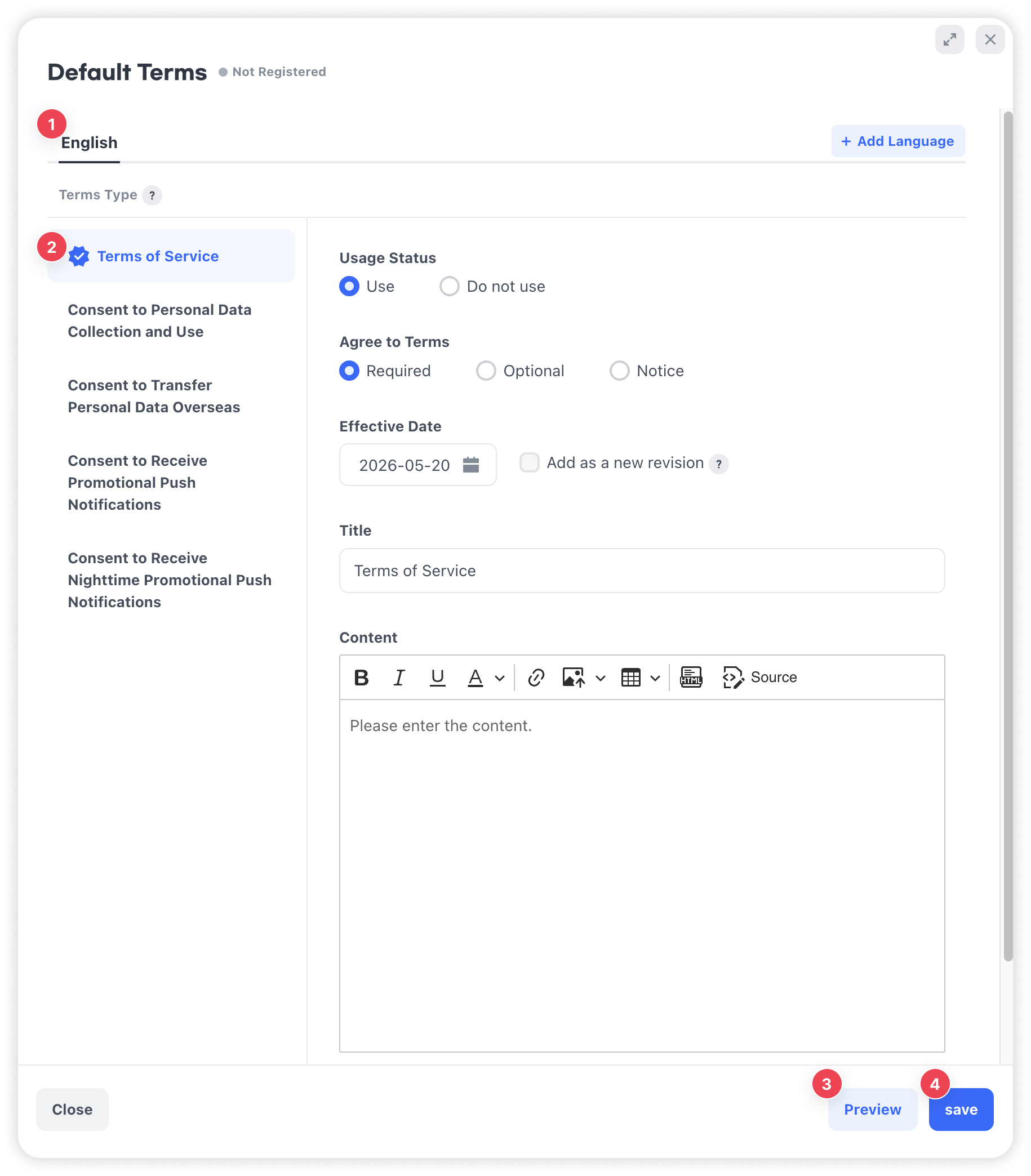
- In the terms registration pop-up, enter the required items and click [Save].
Register Country-Specific Terms
Register additional terms that apply only to a specific country.
- In the terms list, click [Register] in the row for the country you want to register.
- In the terms registration pop-up, enter the required items and click [Save].
Terms Registration Items
| Item | Required | Description | Notes |
|---|---|---|---|
| Language | Required | Select the language in which to register the terms. | Click [Add Language] to register the same terms in multiple languages. |
| Terms Type | Required | Select the type of terms to register. | Add terms types in [Provisioning > Terms (Template Type) > Additional Settings > Manage Terms Type (T)]. |
| Use | Required | Select whether to use the selected terms type. | - |
| Terms Consent | Required | Select the consent method. Select one of Required, Optional, or Notice. | If privacy-related terms are set to Notice, personal information can be collected without separate consent. |
| Effective Date | Required | Set the effective date of the terms. | Changing the effective date enables the [Add as New Revision] checkbox. |
| Add as New Revision | Optional | If selected, the existing terms are kept and a new version is added. | You can check existing content in Previous Policy. 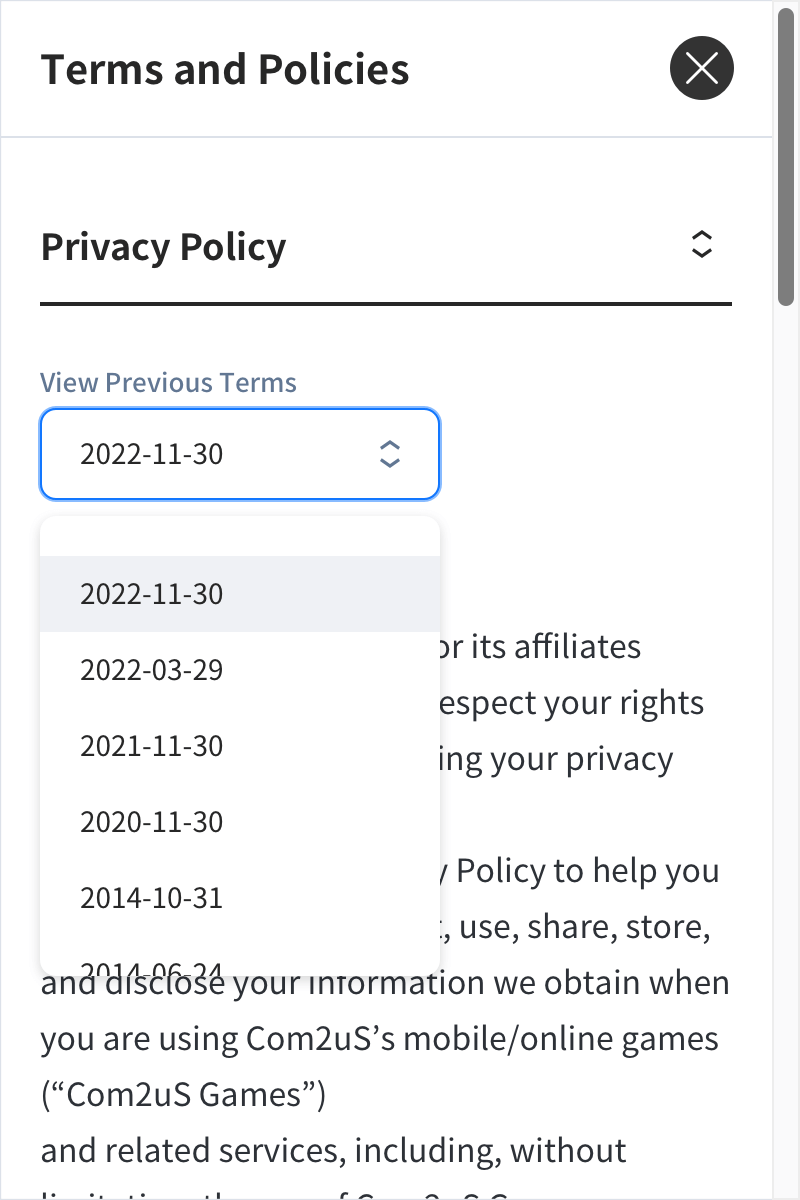 |
| Title | Required | Enter the title of the terms. | - |
| Content | Required | Enter the body content of the terms. | Click [Preview] to check the content you entered. |
Language Display Priority
Terms are displayed based on the user's device language. If that language is not registered, terms are displayed in the following order.
- Device language
- English
- Korean
- The language that was registered first among other registered languages
Terms Edit Process
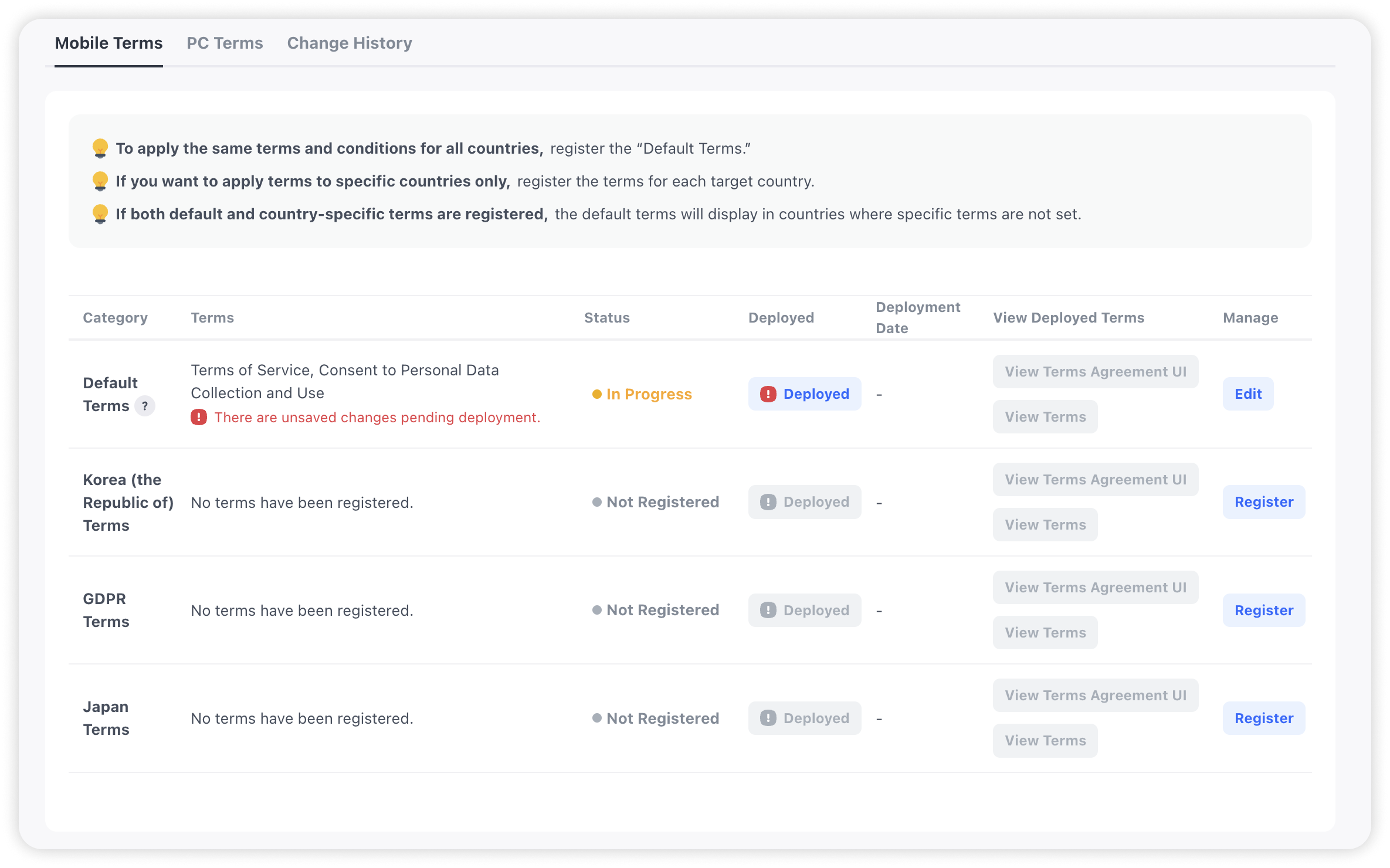
- Click [Edit] in the row for the terms you want to edit.
- Change the content in the terms registration pop-up.
- Click [Save].
Terms Deployment Process
If there are changed terms, the [Deploy] button is enabled.
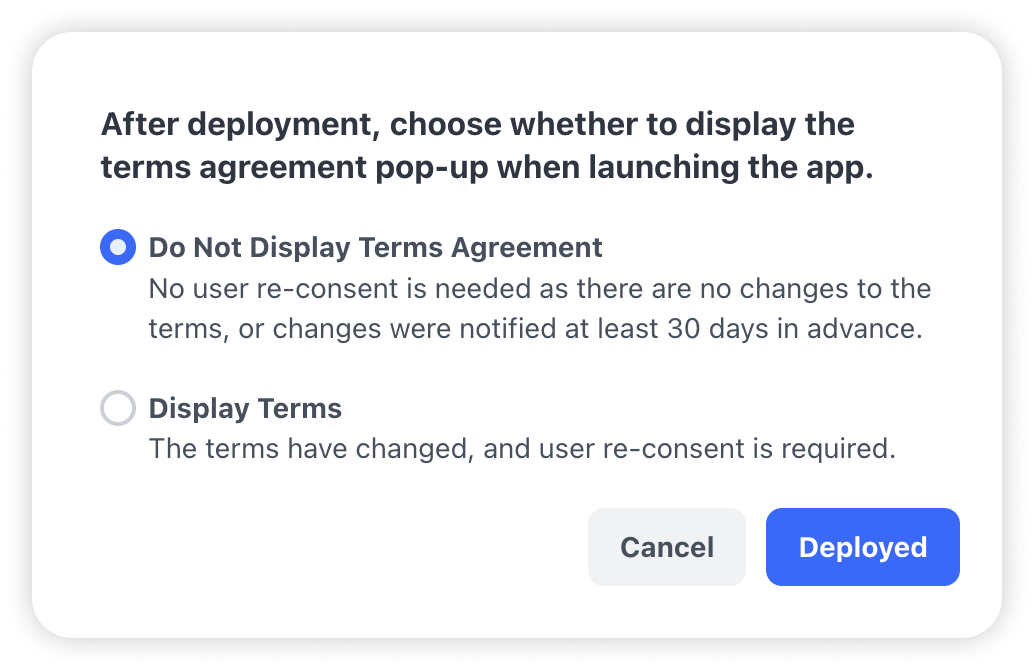
- Click [Deploy].
- In the deployment pop-up, select whether to display the terms consent screen.
- Do Not Display Terms: Select this when there are no changes to the terms or when users do not need to consent again because the changes were announced 30 days in advance.
- Display Terms: Select this when the terms content has changed and users must consent again.
- Click [Deploy]. After deployment is complete, the terms are displayed to actual users.
Save/Edit Policy
- Save: When you click [Save], the terms are saved and the status changes to Draft. The terms are not displayed to users until they are deployed.
- Edit: Edit registered terms using the [Edit] button. If you change the effective date, you can select whether to add the change as a new revision.
Notes
- If default terms are not configured, the terms consent screen is not displayed in countries without country-specific terms.
- This menu supports only general terms and the GDPR consent UI. If a consent process such as COPPA or legal representative consent is required, edit it in the [Provisioning > Terms (Template Type) > Additional Settings > Terms Combination (M)] tab.
- Consent to receive advertising PUSH notifications must be registered together with consent to collection and use of personal information.
Default Behavior by Country When Push Consent Terms Are Not Registered
| Country | Push notification consent | Nighttime push notification consent |
|---|---|---|
| South Korea | Not agreed | Not agreed |
| Europe (EU) | Not agreed | Not agreed. However, if push notification consent has been obtained, nighttime consent is also considered to have been obtained. |
| Other countries | Agreed | Agreed |