Other Features
Integrity verification
Performing integrity verification allows you to check the integrity of the currently used Hive SDK, and notifies you if there are any tampered files.
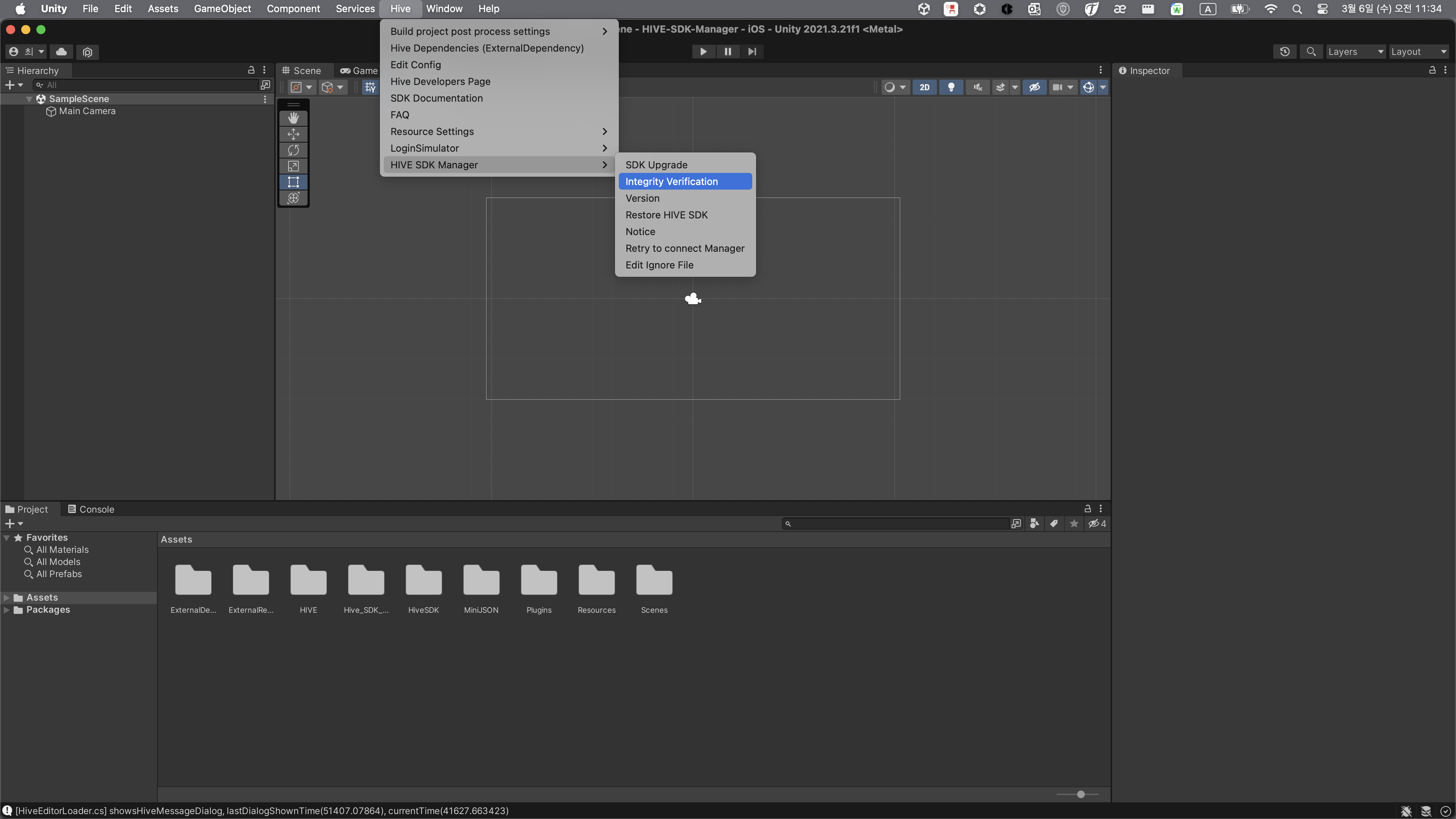
To verify the integrity of the SDK, click Hive > HIVE SDK Manager > Integrity Verification from the top menu.
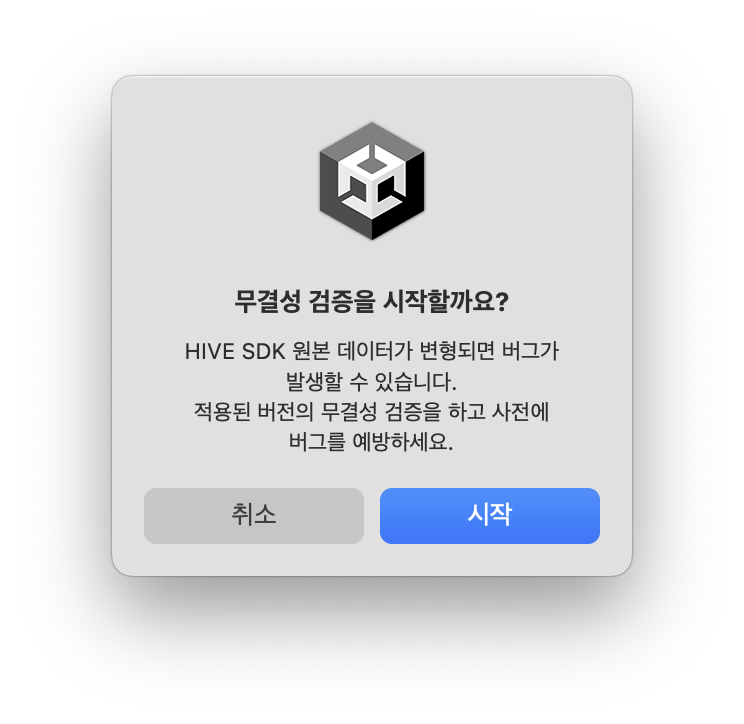
Then, click Start in the 'Start Integrity Verification' popup.
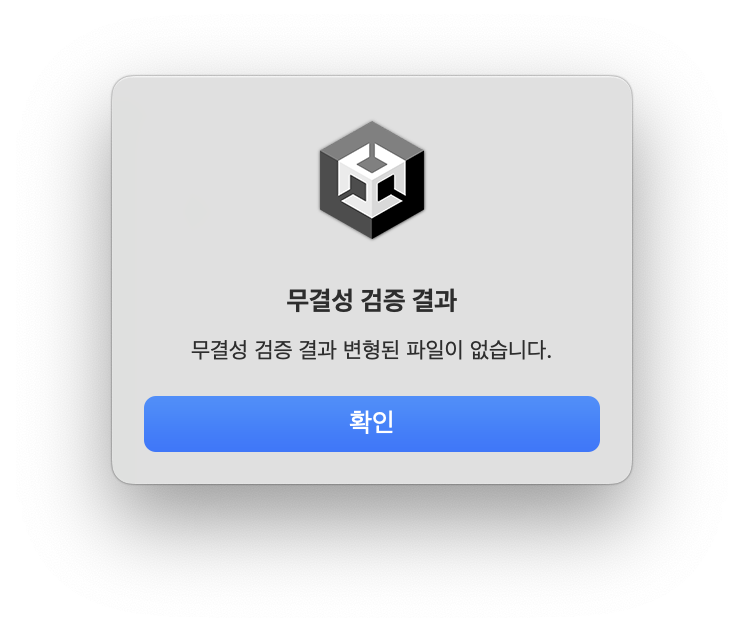
 As a result of integrity verification, if there are no tampered files, the 'Integrity Verification Success' popup appears, and if tampered files are found, the 'Integrity Verification Failure' popup appears as shown below.
As a result of integrity verification, if there are no tampered files, the 'Integrity Verification Success' popup appears, and if tampered files are found, the 'Integrity Verification Failure' popup appears as shown below.
- When SDK integrity verification succeeds:
- When SDK integrity verification fails:
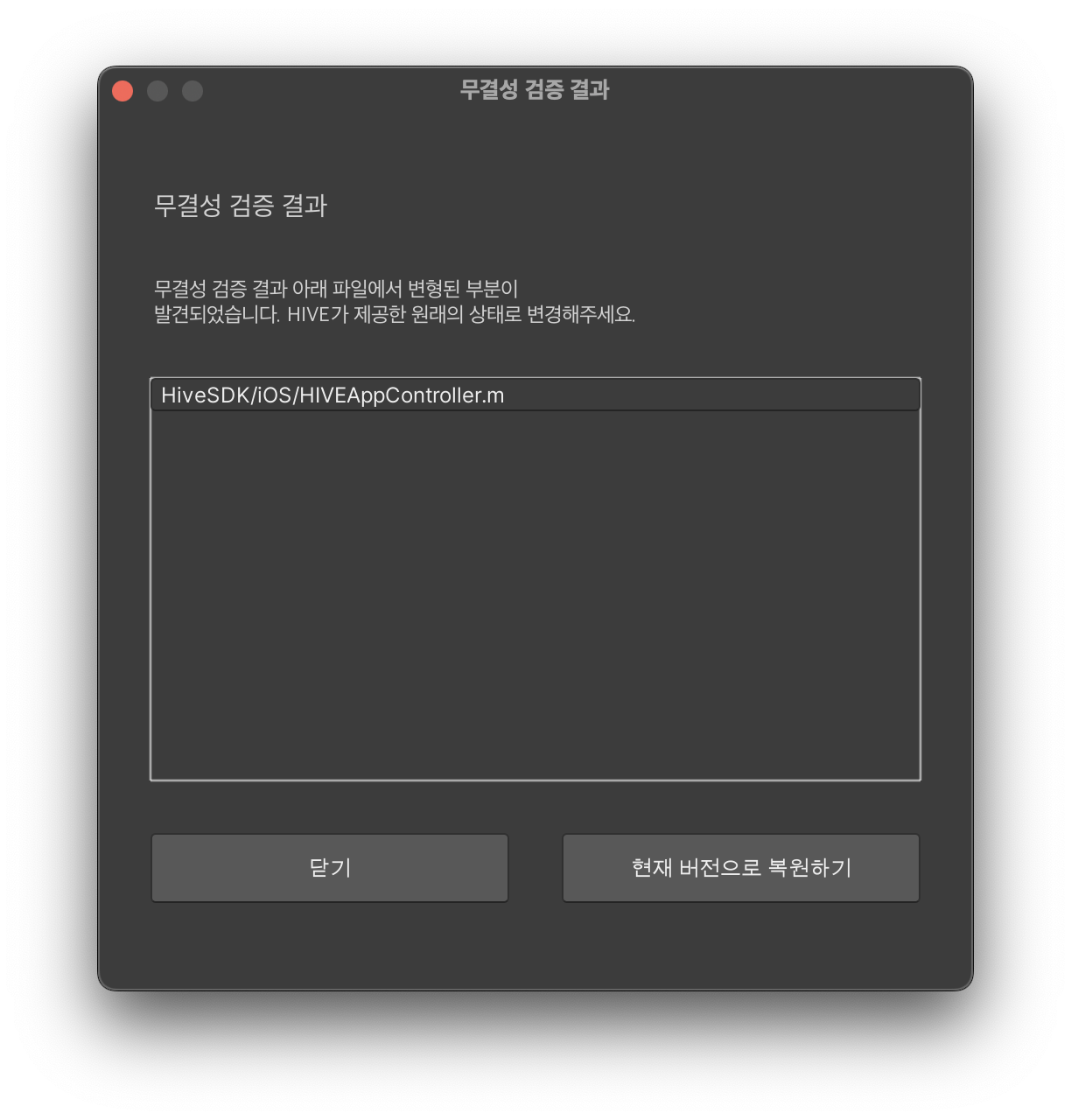
In the 'Integrity Verification Failure' popup, you can check the list of tampered files. Also, if you click Restore to Current Version, you can recover the tampered files.
Note
In the popup resulting from integrity verification failure, you can select the 'Close' or 'Restore to Current Version' options.
Notice
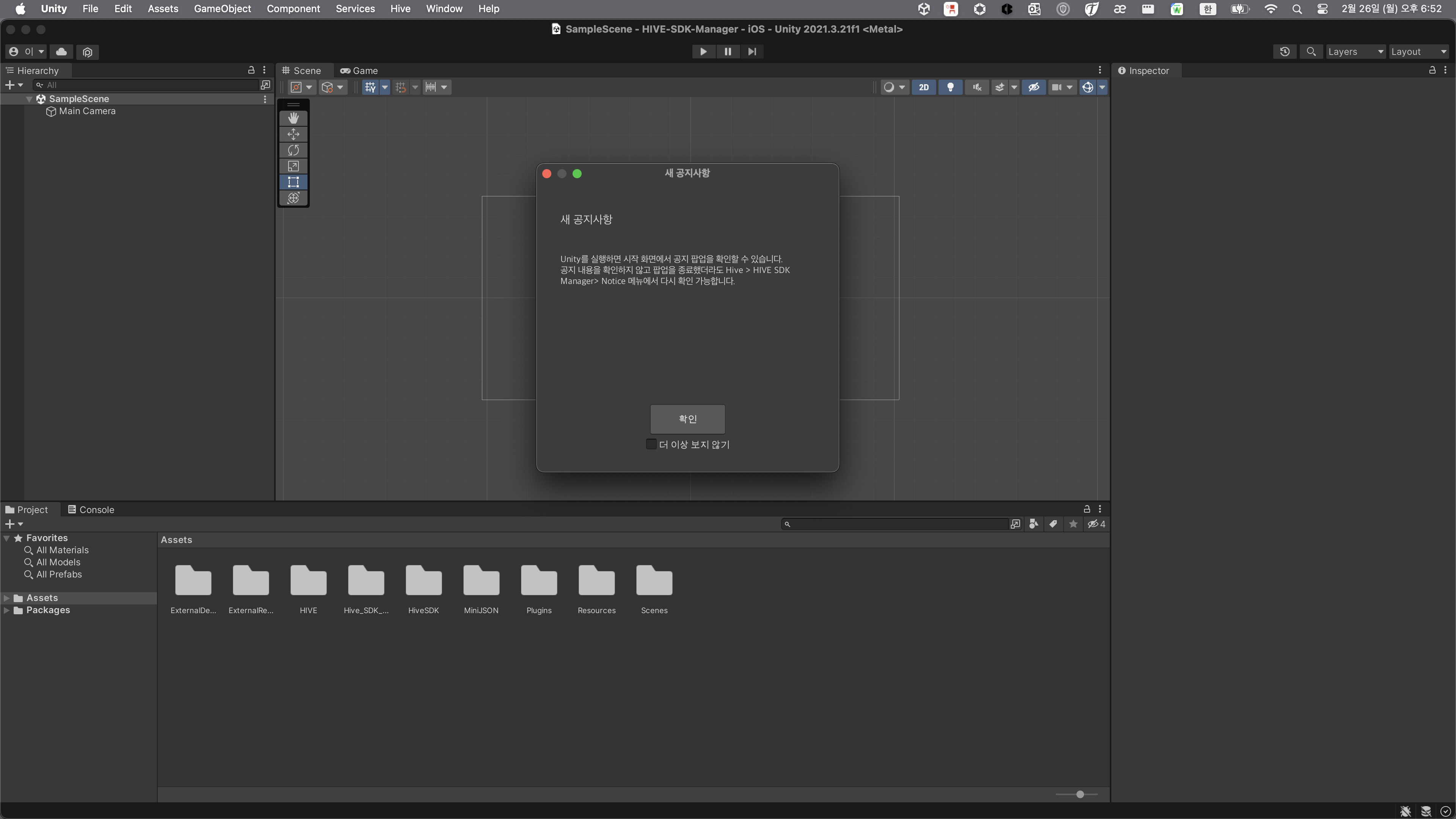
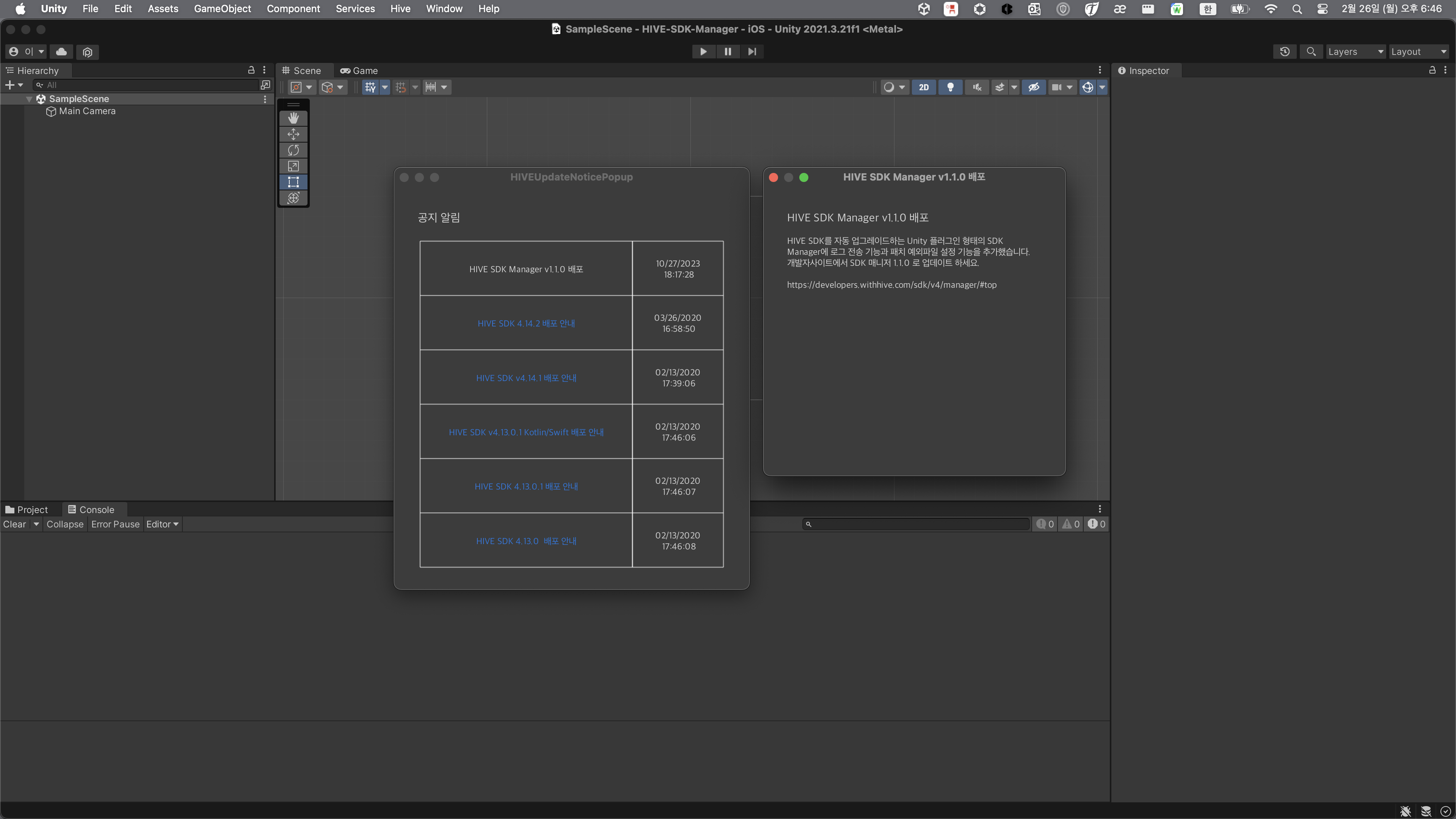
When you run Unity, you can check the notice popup on the start screen. Even if you closed the popup without checking the notice content, you can check it again in the Hive > HIVE SDK Manager > Notice menu.
Version
You can check the version of the currently applied Hive SDK. And you can check the latest version of the currently distributed Hive SDK. 
File recovery
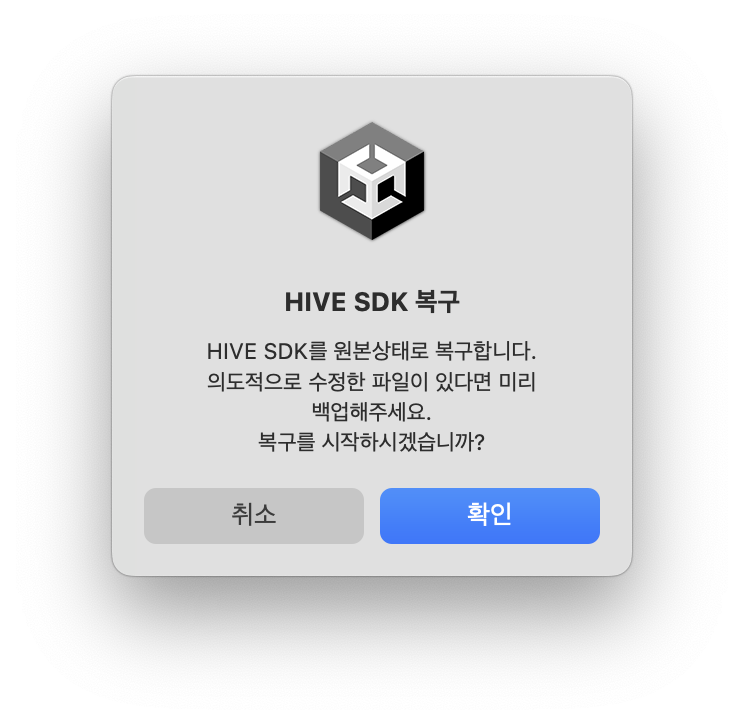
Restores tampered SDK files to original files. Use this when you need to change to original files after integrity verification.
Retry connection
If the SDK Manager menu is inactive due to poor network connection, click Hive > HIVE SDK Manager > Retry to connect HIVE Manager in the Unity top menu. It retries the connection with the Hive Manager. If the connection with the Hive Manager is successful, the internal information of the manager is updated with the server's update information.

Warning
If the popup stating that the 'Retry Connection' function failed appears continuously:
a. Please check the network connection status.
b. Please close the Unity project and run it again to check if it works normally.
c. If the issue is not resolved by methods 'a, b', please contact us.
Edit ignore file
This function is used when the user deletes or needs to arbitrarily modify unnecessary files among the files provided by the Hive SDK. Using this function, the SDK Manager ignores the specified file list.
After saving the list of files to ignore, if you execute the functions below, they will operate only on the remaining files excluding the files to ignore.
- SDK Upgrade
- Restore HIVE SDK
- Integrity Verification
How to use
- Click Hive > HIVE SDK Manager > Edit Ignore File in the menu to create an ignore list file. The file below opens automatically upon clicking the button.
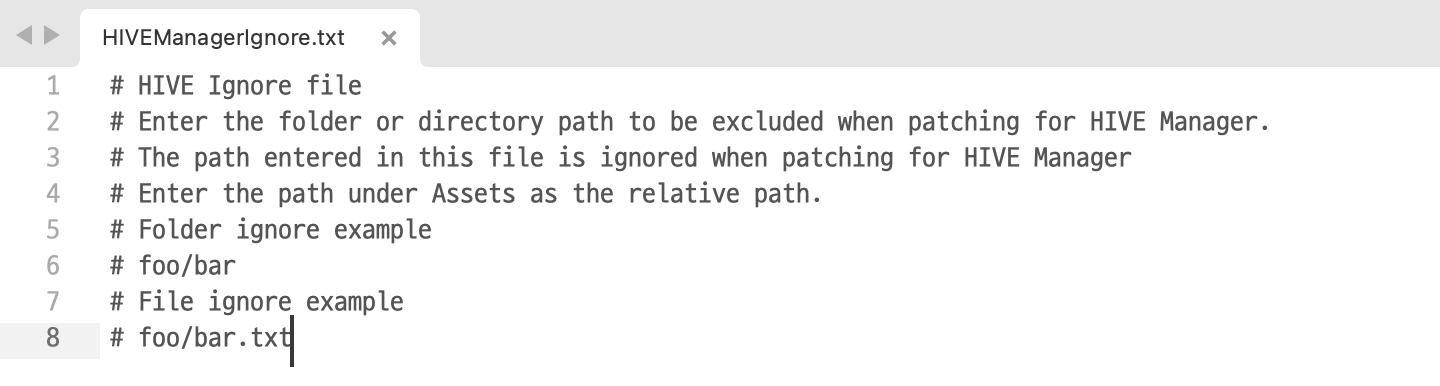
If it does not open automatically, access the Assets/HIVE/Manager/Editor/HIVEManagerIgnore.txt file manually using a text editor.
- Set the list of files or directories to ignore.
The setting conditions are as follows: * Separate paths with UNIX-style slashes (/). Do not use Window-style. * Specify the path under Assets as a relative path. Example: Hive_SDK_v4/Plugins/iOS/framework/FBSDKShareKit.framework * The files listed below cannot be registered in the ignore list. * Hive_SDK_v4/Plugins/Android/libs/HIVE_SDK.aar * Hive_SDK_v4/Plugins/Android/libs/HIVE_SDK_UnityPlugin.aar * Hive_SDK_v4/Plugins/iOS/framework/HIVE_SDK.framework * Hive_SDK_v4/Plugins/iOS/framework/HIVE_SDK_UnityPlugin.framework * Hive_SDK_v4/Plugins/iOS/framework/HIVEService.framework * Hive_SDK_v4/Plugins/iOS/framework/HIVECore.framework * Hive_SDK_v4/Plugins/iOS/framework/HIVEProtocol.framework * Hive_SDK_v4/Plugins/iOS/framework/ProviderAdapter.framework * Hive_SDK_v4/Editor/VersionHash.txt
- You can leave comments using the hash symbol (#). It is helpful to write the reason for ignoring or the history in the comments.