SDK Upgrade
Upgrade SDK with SDK Manager
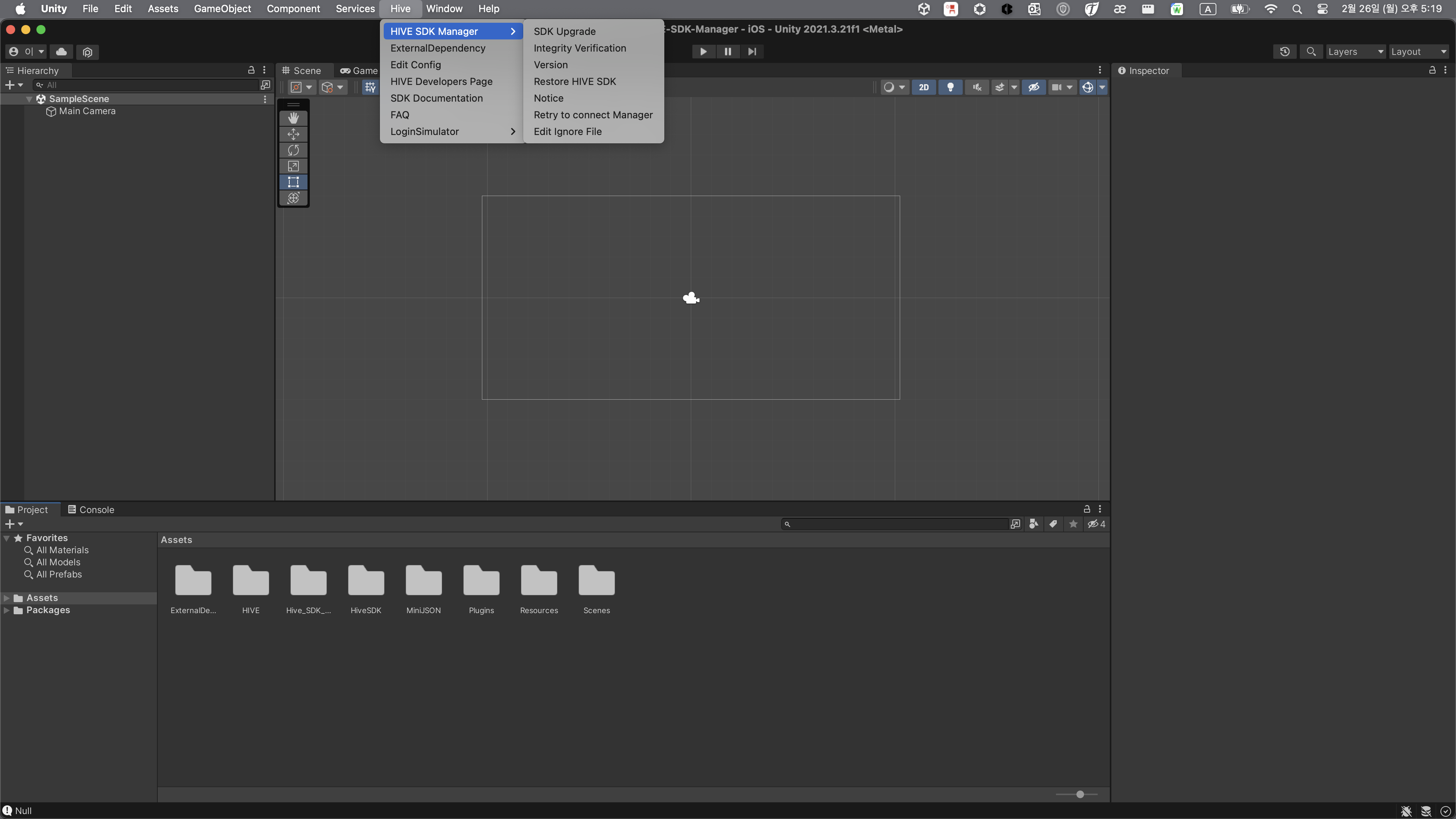
To upgrade the currently installed SDK using the Hive SDK Manager, click Hive > HIVE SDK Manager > SDK Upgrade in the top menu. After clicking, read the content below and proceed with the upgrade.

Interface Package and Platform Package
Starting from version 25.4.0, Hive SDK v4 Unity is distributed separately as an Interface package and a Platform package (Android, iOS, Windows).
- Interface package: Contains interfaces and plugins for running Hive SDK in the Unity environment.
- Example: Interface 25.4.5
- Platform package: Contains libraries, resource files, and settings for each OS (Android, iOS, Windows) supported by Hive SDK.
- Example: Platform Android 25.4.0, Platform iOS 25.4.4, Platform Windows 25.5.0
Reason for Separating Packages
The reasons for separating the packages are as follows:
- It shortens the time required to apply Hive SDK v4 Unity to a game project by installing only the necessary packages.
- If issues such as bugs are found and the build needs modification, only the problematic package can be updated and quickly deployed.
- Since only necessary packages are installed, changes can be effectively tracked when using version control systems like Git.
Package Application Rules
When each digit of the Interface version is in the form of major.minor.patch, the rules for applying the Interface package and Platform package versions are as follows:
- a. The Platform package MUST use the same
majorversion as the Interface package. - b. The Platform package can use a version with a
minorvalue equal to or lower than that of the Interface package. - c. If the Platform package meets rules a and b, any
patchversion can be applied. - d. Different versions can be applied for each target OS (Android, iOS, Windows) for the Platform package.
Example 1: Selecting a Platform Package
When applying Interface 25.4.5, the Platform package can be applied as follows:
- Select the platform to distribute the game.
- If launching only an Android game, install only Platform Android.
- If launching only an iOS game, install only Platform iOS.
- If launching both Android and iOS games, install both Platform Android and Platform iOS.
- Select the Platform package version.
- You can select one of all versions equal to or higher than 25.4.0.
- Different versions can be applied for Android and iOS.
- Example: Platform Android 25.4.0, Platform iOS 25.4.4
Example 2: Updating the Interface Package
The Interface package can be freely updated to a version higher than the current one.
However, if updating the Interface package causes the existing Platform package to not comply with the version rules, the Platform package must also be updated.
For example, after updating the Interface package as shown below, Platform iOS must be updated to a 26.0.x version.
- Current version: Interface 25.4.0, Platform iOS 25.4.4
- Update target version: Interface 26.0.0
Example 3: Compatibility between Interface Package and Platform Package
| Interface Version | Platform Android Version | Platform iOS Version | Platform Windows Version | Compatibility |
|---|---|---|---|---|
| 25.4.5 | 25.4.0 | 25.4.4 | Not installed | O |
| 25.5.3 | 25.4.1 | 25.5.5 | 25.5.0 | O |
| 26.0.0 | 25.5.5 | 26.0.1 | 25.4.0 | X (Update required to Platform Android 26.0.x or higher) (Update required to Platform Windows 26.0.x or higher) |
Upgrade Flow (Hive SDK v4 Unity 25.4.0 or higher)
1. Select Upgrade Version
(1) SDK Manager Upgrade Guide
Clicking this takes you to the SDK Manager guide page. Read the guide and proceed with the upgrade.
(2) Check Applied Version and Latest Version
You can check the currently applied Hive SDK v4 Unity version and the latest distributed version. If Hive SDK v4 Unity is not applied, the applied version is displayed as -.
(3) Release Notes
Clicking Go on the release notes to the right of the Interface package takes you to the release notes page for that version. Read the release notes for the latest version you intend to upgrade to and proceed with the upgrade.
(4) Select Interface Package Version
Select the Interface package you want to update or newly install. Clicking the folder icon selects the Interface package of that version, and a UI menu for selecting the Platform package appears. Interface packages lower than the currently applied version cannot be installed, and the status will display an Upgrade Unavailable icon.
(5) Select Platform Package Version
Select the Platform package (Android, iOS, Windows) you want to update or newly install. First, select the version for the OS. Then, check if the status icon shows Upgradable Version and click the checkbox to activate it.
(6) View Previous Interface Versions
You can view a list of versions lower than the currently installed Interface package version. Lower versions are displayed with an Upgrade Unavailable status, and downgrades are not supported.
(7) Apply
Once you have selected the Interface or Platform package to upgrade, click the Apply button to proceed to the next step.
2. Integrity Verification
After selecting the version to upgrade, you can select files to exclude from the upgrade and perform integrity verification in this step. Among the existing SDK version files, only files with verified integrity can be upgraded to the target version.

(1) Select Files to Exclude from Upgrade
Select the files to exclude from the upgrade among the files configured in the Hive SDK v4 Unity package. Clicking Edit Now brings up a memo file where you can write the list of files to exclude from the upgrade. Modify and save the memo file.
(2) Integrity Verification
Compares the files constituting the existing Hive SDK v4 Unity package version with the original files. In other words, it compares the Hive SDK v4 Unity package files installed on the local development machine with the original Hive SDK v4 Unity files existing on the SDK Manager server. If there are any modified files locally as a result of the comparison, they are displayed in the list. Clicking a file in the list allows you to check the code content in the code editor.
(3) Restore to Current Version
Restores modified files to their original state. Once restoration is complete, they are removed from the list above, and the upgrade target version content is reflected during the upgrade. If you proceed with the upgrade without restoring specific files, those files will be excluded from the upgrade.
Note
If there are no modified files in the integrity verified file list, the Restore to Current Version button is not displayed. This means that the original files of the currently applied version have not been modified locally. Therefore, if there are no modified files through integrity verification, you can proceed to the next step without the Restore to Current Version button.
(4) Upgrade
Proceeds with the upgrade to the selected Interface and Platform package versions.
Warning
Before starting the upgrade, you must check the list of files excluded from upgrade.
(5) Cancel
Returns to the Select Upgrade Version screen.

3. Proceed with Upgrade
After proceeding with the upgrade in the integrity verification step, you can check the progress results.

(1) Upgrade Applied Version
You can check the Interface and Platform package versions of Hive SDK v4 Unity that have been successfully upgraded in the local project. If the upgrade failed, you can retry the upgrade through the popup UI. If the upgrade was completed successfully, close the UI and exit the SDK Manager.
(2) List
Moves to the Select Upgrade Version screen.
Applying Versions Lower Than Hive SDK v4 Unity 25.4.0
Versions lower than Hive SDK v4 Unity 25.4.0 are not separated into Interface and Platform packages. To newly install a version lower than Hive SDK v4 Unity 25.4.0 using the Hive SDK or to update to a version lower than 25.4.0, follow the instructions below.
- For versions lower than 25.4.0, selecting the Interface version automatically selects the same Platform package (Android, iOS).
- Versions lower than 25.4.0 are always installed with the Interface and Platform packages (Android, iOS) as the same version.
Warning
Installing Hive SDK v4 Unity Windows with the SDK Manager is possible starting from Hive SDK v4 Unity Windows 25.5.0. Versions lower than 25.5.0 do not support the SDK Manager.
