Member guide
Note
Members are automatically assigned to the "Member" group when they register after receiving an invitation from a permission manager (Owner or Admin). The "Member" group displays only pages that exclude personal and sales information, and does not grant project permissions. To use the Console, members must receive "Individual" or "Group" permissions from a permission manager (Owner or Admin).
Permission managers (Owners and Admins) can manage member permissions on the Console > Permissions > Member Permission Settings page.
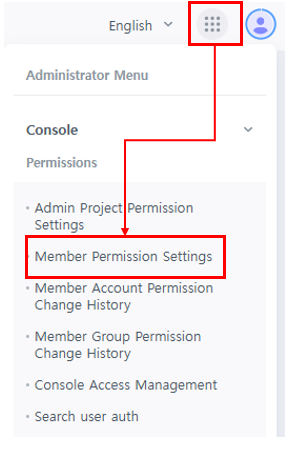
Member Permission Settings
Account
Permissions can be managed by individual accounts.
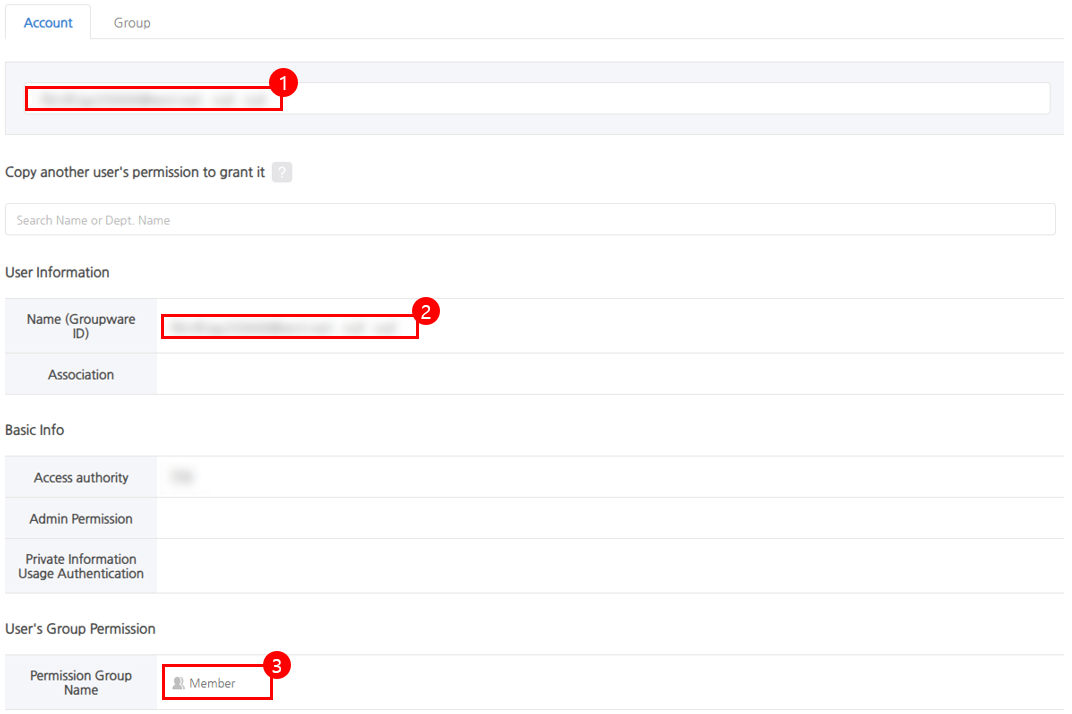
① Search for a member by name or ID to manage page access and action permissions.
② Use this to copy another member's page access and action permissions. Search for the member whose settings you want to update in ①, then search for the member to copy in ② and save. This replaces the permissions of the member in ① with the same page access and action permissions as the member in ②. Manager permissions and personal data handling permissions are not copied.
③ You can check the group permissions granted to the member searched in ①.
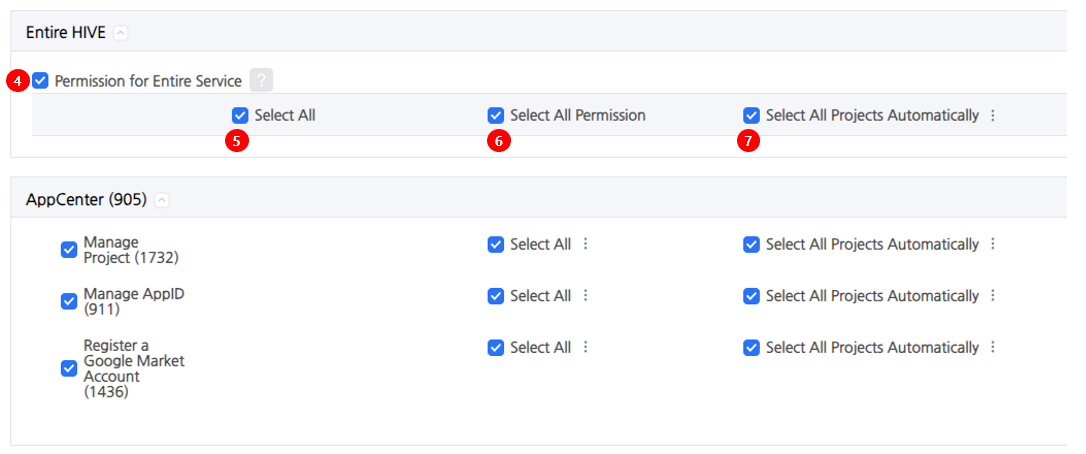
④ Select all service permissions to grant access to all Console pages, all action permissions, and view permissions for all projects at once.
⑤ Select all pages to select every page in the Console.
⑥ Select all action permissions to select the action permissions for every Console page.
⑦ When all projects are selected automatically, permission to view all projects is selected. To apply a specific project across all pages, click the kebab icon to the right of "Automatically select all projects" and select only that project. Its view permission will then apply to all Console pages.
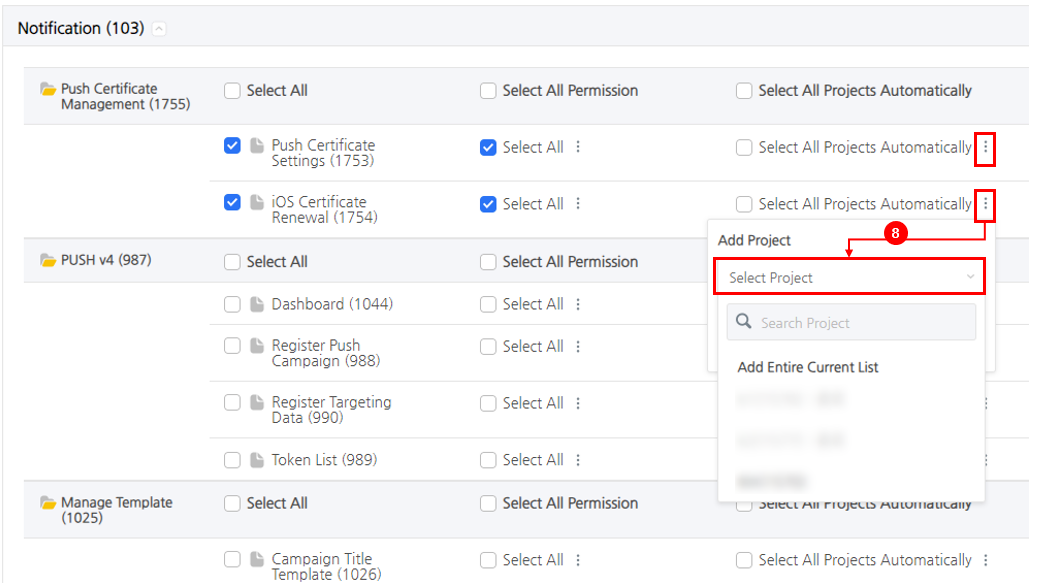
⑧ Project permissions can be granted per page. On a page, click the kebab icon to the right of "Automatically select all projects" and select the project to grant access to. Repeat this on other pages to grant different project permissions for each page.
Pages with permissions are shown as active or inactive.
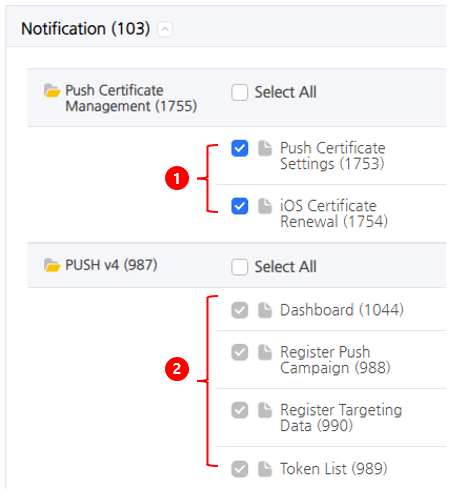
① Active: Permissions granted directly to the member can be edited on the "Grant Individual Permission" page.
② Inactive: Permissions granted through "Grant Group Permission" cannot be edited on the "Grant Individual Permission" page. You can change the permission group assigned to the member on the "Grant Group Permission" page.
Group
Page access and action permissions can be managed by group.
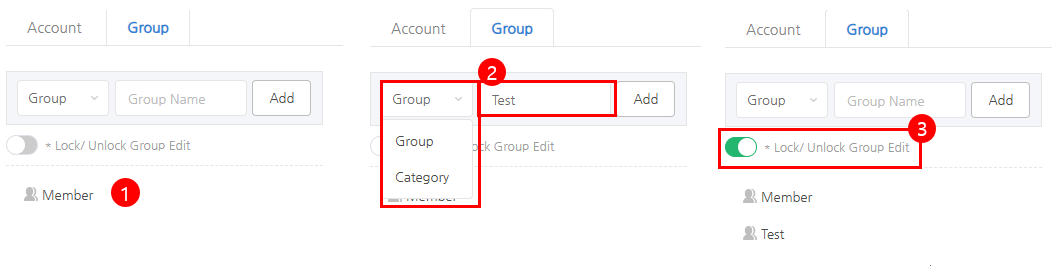
① The "Member" permission group is provided by default and is automatically assigned to members who register after receiving an invitation. Only pages that exclude personal and sales information are displayed, and project data cannot be viewed. To use the Console, members must receive permissions from a permission manager (Owner or Admin). Because this is the default permission group, it cannot be deleted or edited.
② Select a group or category, enter the group name, and click the Add Button to create a new permission group.
③ Set the "Lock/Unlock Group Edit" toggle button to On and edit the group. After editing is complete, set the toggle button to Off to save the changes.
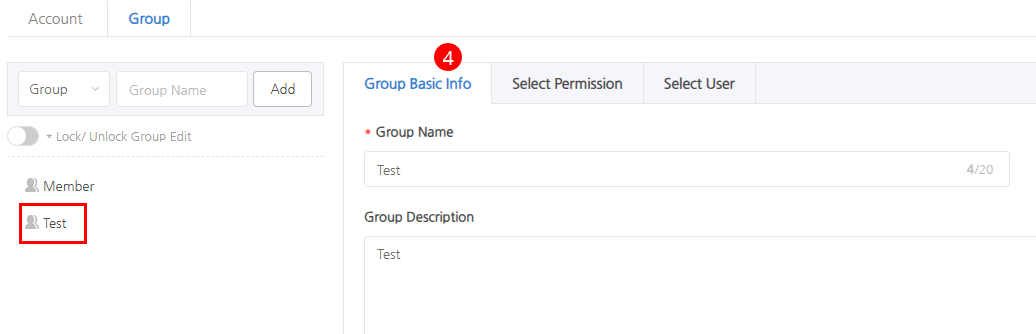
④ Group Basic Information: You can edit the basic information of the selected permission group.
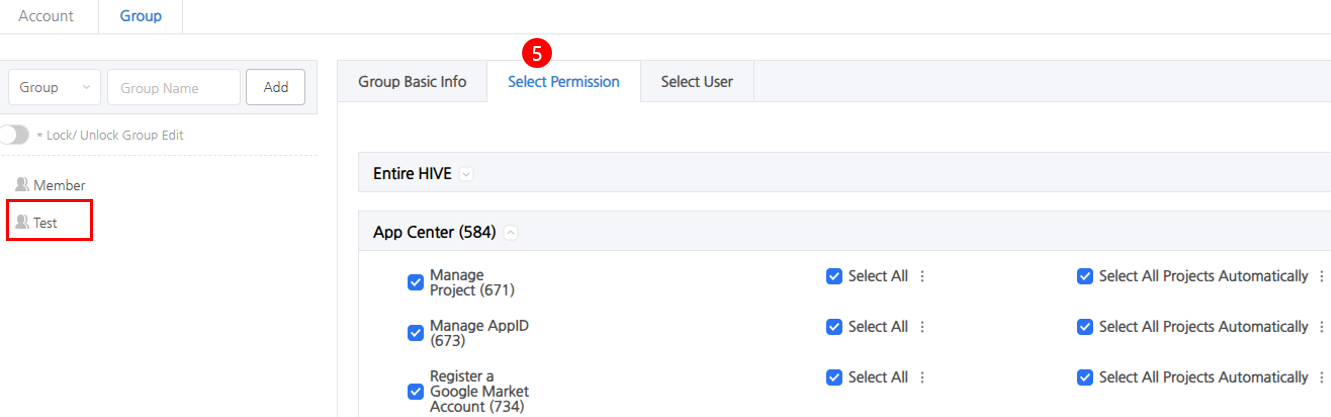
⑤ Select Permissions: Set page access and action permissions for the selected group. These permissions are granted to users in the group. The steps are the same as for "Grant Individual Permission".
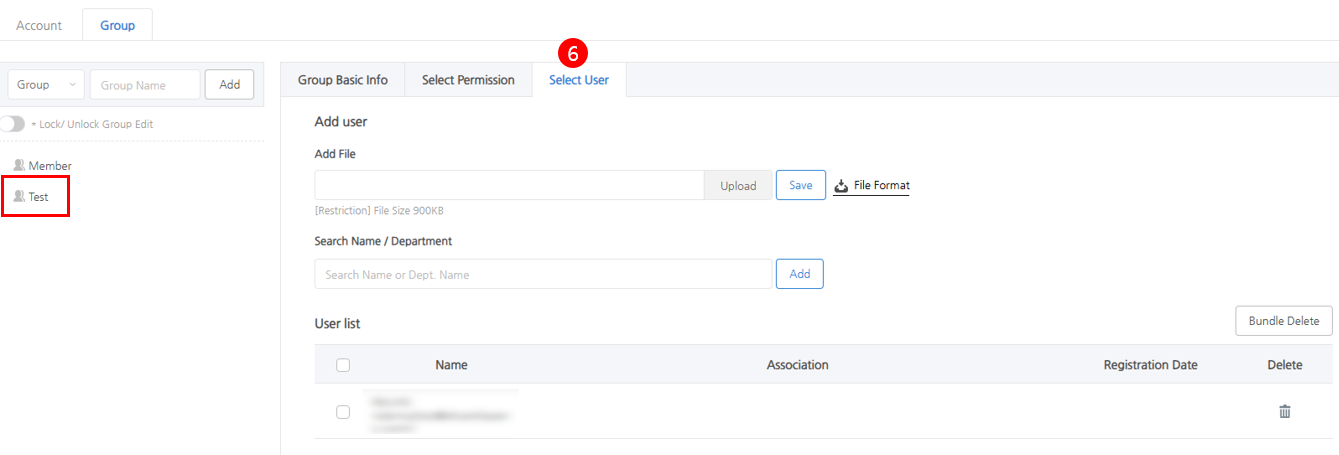
⑥ Select User: Search for the user to whom you want to grant permission within the selected group, add the user, and save to grant permission.
Member Account Permission Change History
Product
View the grant and revoke history of product page access by account.

Project
View the grant and revoke history of project access by account.

Member Group Permission Change History
View the grant and revoke history of group-based permissions.
