User Registration
User Suspension Registration allows you to register or lift suspensions in accordance with each company’s operational policy and to view suspension history.
Suspension Inquiry
Suspension Inquiry allows you to search and view suspension information by combining search conditions in each tab. Search conditions include search period, suspension target, suspension type, and suspended game.
- Suspension Search Suspension Search allows you to set a search period of up to one year prior to the current search date.
A permanent suspension search will search for all stored DB data regardless of the search period. If you want to search for permanent suspension, please click the checkbox next to the search period and enter the Suspended Use target. At this time, the Suspended Use Range/ Type/ Game are all disabled.
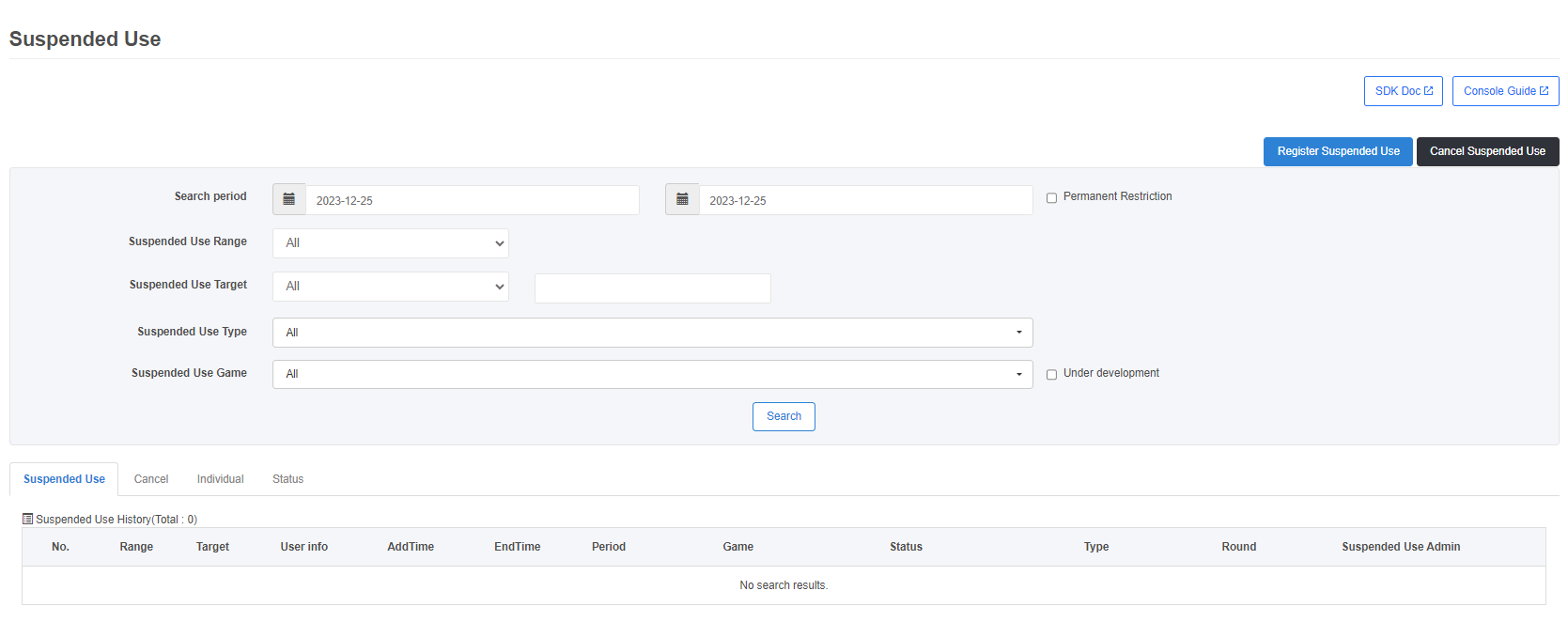
- Suspension Tab
The Suspension tab allows you to view all suspension records (including permanently suspended users). - Cancel Tab
The Cancel tab allows you to view users whose suspensions have been lifted. - Individual Tab
The Individual tab allows you to view a specific user’s suspension and release history at once. - Status Tab
The Processing Status tab allows you to check processing history when suspensions or suspension releases are performed by uploading a file.- If there’s a user who has already been registered to be suspended (previously registered user), the information will be updated to the file you uploaded and you can also download the previously registered user information to check.
- You can’t cancel suspended users (unregistered users) that aren’t registered to be suspended. You can download the no. of unregistered users and their information to check.
Register Suspension
To register a suspension, set the suspension target, suspension type, suspension period, suspended game, and suspension comment.
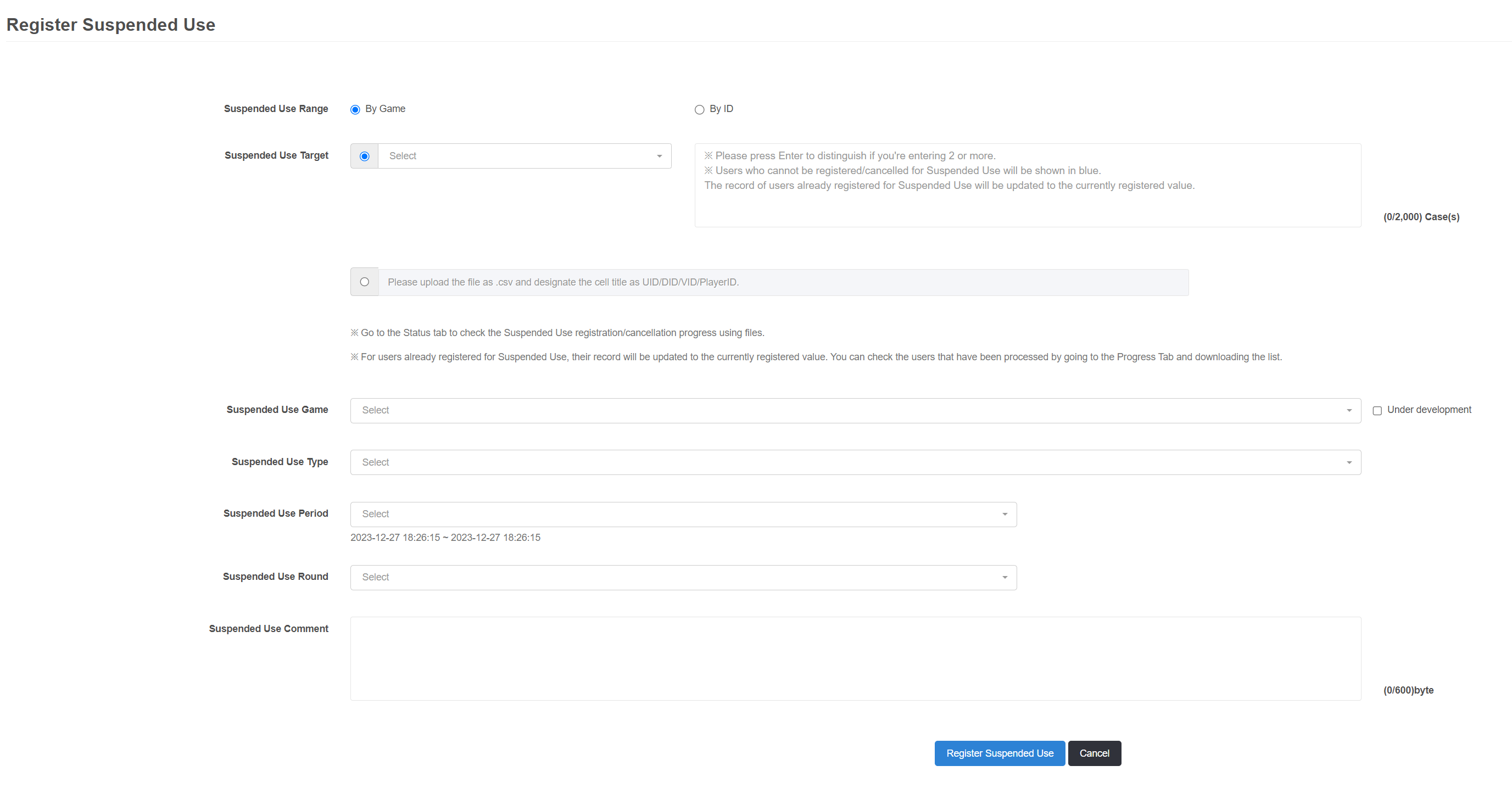
- Suspended Game
Only live games from the App Center game list are displayed as suspended game options. - Suspension Target
Suspension targets can include not only the user identifier (PlayerID) but also IP addresses. IPv4 and IPv6 formats are supported. Registration methods are divided into direct entry and file upload.- Direct Entry
- Up to 2,000 entries can be entered.
- If the suspension target is already registered, it is displayed in blue text. Clicking Confirm updates the existing suspension information.
- File Upload
- Only CSV files are supported.
- The file header must be set to Suspension Target (VID, PlayerID, IP).
- Up to 200,000 entries can be registered per upload. The actual number processed may vary depending on network conditions.
- Multiple files are not processed simultaneously. After the suspension processing of the previous file is completed, the next file is processed sequentially. The processing order and status of each file can be checked in the Processing Status tab.
- Direct Entry
- Suspension Type
Both predefined suspension types and administrator-created types can be set. The popup format differs between predefined suspension types and administrator-created types. - Suspension Period
You can set either a predefined period or enter a custom period.- If Direct Entry is selected, the suspension time can also be set manually.
- If Warning is selected, a one-time warning message is delivered to the user in accordance with the operational policy. After confirming the message, the user is redirected to the game. In the case of Prior Warning, if the user does not read the message, the record remains in the Suspension tab and cannot be modified.
- In the case of Permanent Suspension, the user is permanently restricted from use in accordance with the operational policy and can only be released by an administrator sanction release.
- Suspension Comment
Enter the reason for the suspension or other relevant details.
Edit Suspension
To edit a suspension, select the suspended user and modify the suspension conditions.
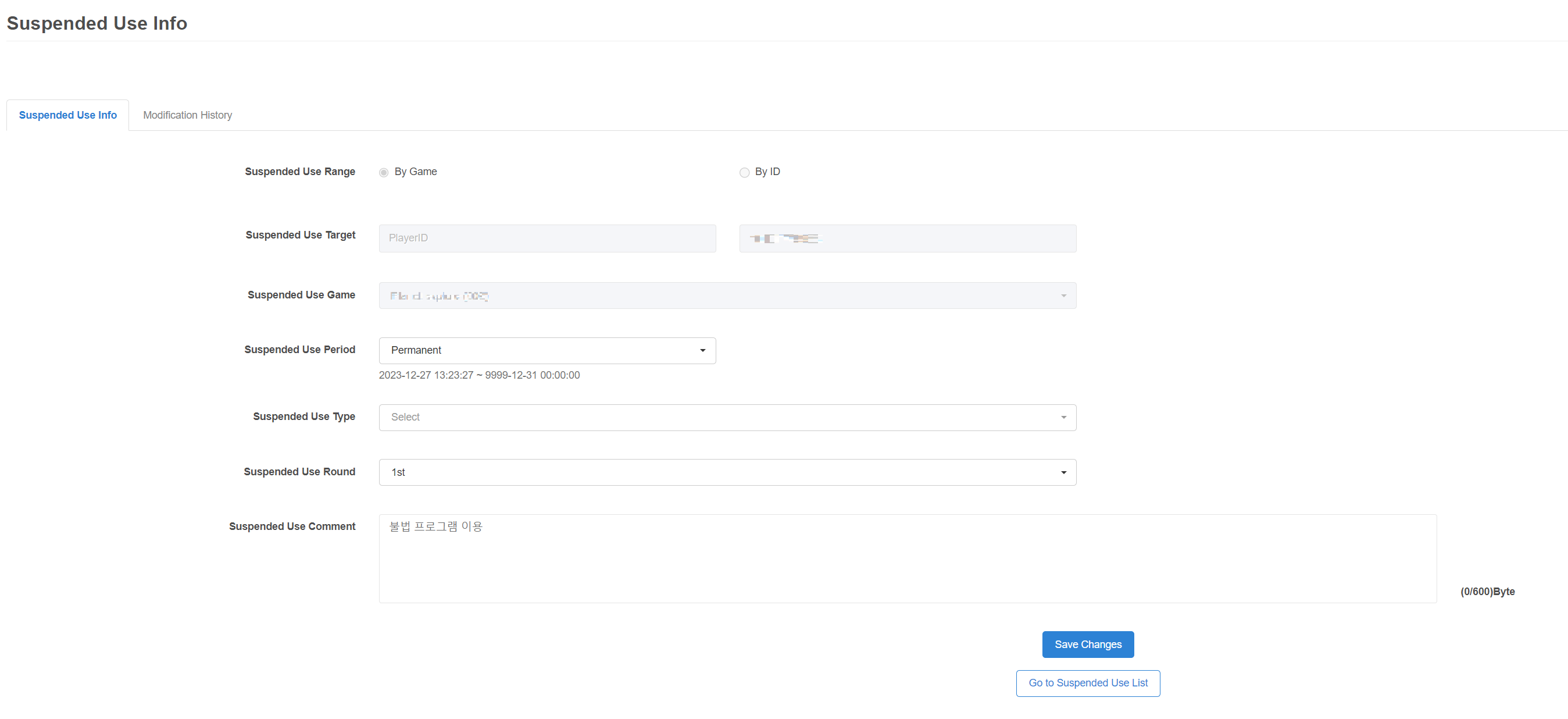
- Suspension Information Tab
The Suspension Information tab allows you to modify the suspension status.- Suspension Target and Suspended Game cannot be modified and are disabled.
- Suspension Period, Suspension Type, and Suspension Comment can be changed in accordance with the operational policy.
- Modification History Tab
The Suspension Modification History tab allows you to view the change history of a suspended user.- For previously registered suspended users, the period and type are not displayed.
Suspension Release
To release a suspension, set the suspension release target, suspension release game, and suspension release comment. Suspension release status is displayed as Expiration Release, Administrator Suspension Release, or Prior Warning. Expiration Release is processed by a batch job that runs at the top of every hour, and records are moved from the Suspension tab to the Release tab. In the case of Prior Warning, a batch job runs at 5:00 AM KST.
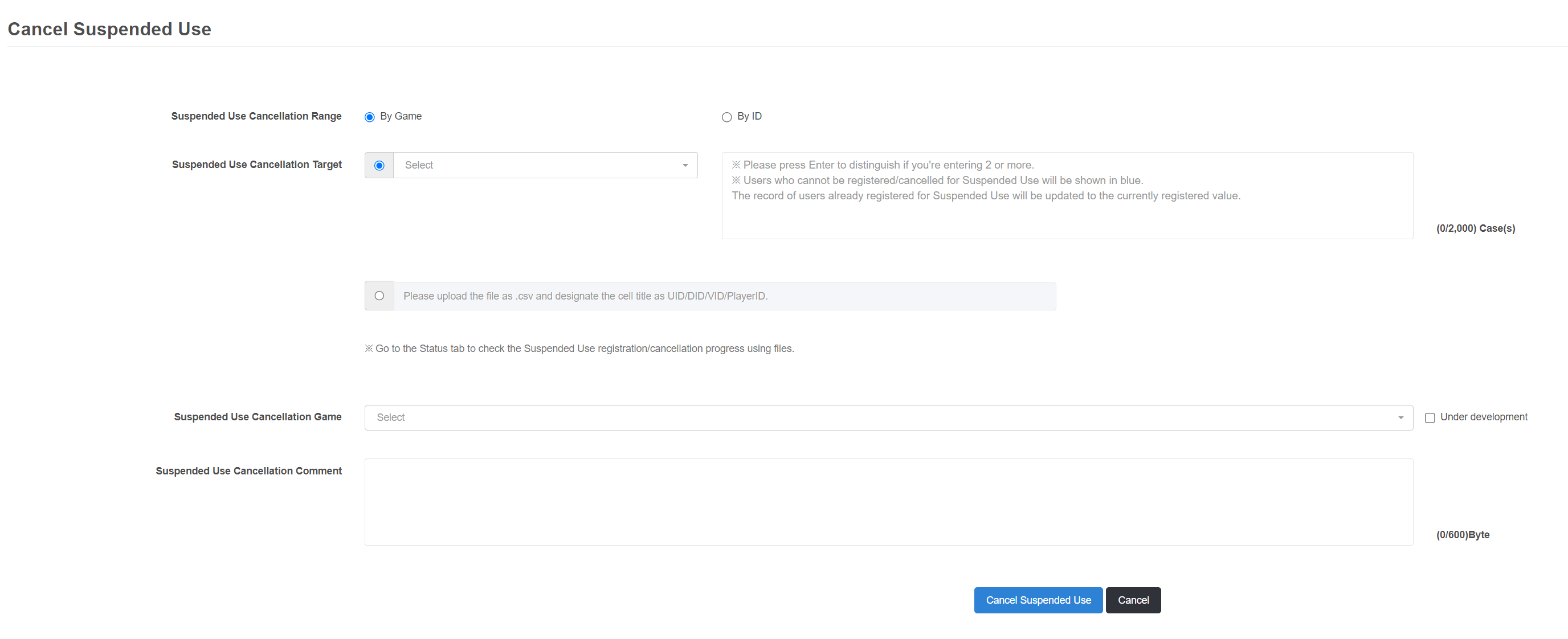
- Suspension Release Game
Only games that were previously registered for suspension can be selected. - Suspension Release Target
Suspension release targets can include not only the user identifier (PlayerID) but also IP addresses. IPv4 and IPv6 formats are supported. Registration methods are divided into direct entry and file upload.- Direct Entry
- Up to 2,000 entries can be entered.
- If the user is not registered, it is displayed in blue text.
- File Upload
- Only CSV files are supported.
- The file header must be set to Suspension Target (VID, PlayerID, IP).
- Up to 200,000 releases can be processed per upload. The actual number processed may vary depending on network conditions.
- Multiple files are not processed simultaneously. After the suspension processing of the previous file is completed, the next file is processed sequentially. The processing order and status of each file can be checked in the Processing Status tab.
- Direct Entry
- Suspension Release Comment
Enter the reason for the suspension release or other relevant details.