iOS
使用 CocoaPods 安裝
本指南說明如何使用 CocoaPods 安裝 Hive SDK iOS。
新增 Hive SDK 儲存庫
在產生的 Podfile 中將 Hive SDK 儲存庫新增為 source。
將 Hive SDK 新增至 Xcode 專案
編輯 Xcode 專案目錄中的 Podfile 以新增 Hive SDK。
source 'https://github.com/CocoaPods/Specs.git'
# 新增 SDK 儲存庫作為 source
source 'https://github.com/Com2uSPlatformCorp/HiveSDK-iOS'

$HIVE_SDK_VERSION = '26.1.0'                    # 要使用的 SDK 版本
$IOS_DEPLOYMENT_TARGET_VERSION = '13.0'         # 遊戲支援的最低 iOS 版本
$IOS_DEPLOYMENT_MINIMUM_TARGET_VERSION = '13.0' # 使用的 SDK 版本支援的最低 iOS 版本(請參考使用的 SDK 版本的發行說明)

platform :ios, $IOS_DEPLOYMENT_TARGET_VERSION
use_frameworks!
inhibit_all_warnings!

project 'HIVE_SDK_Sample_App.xcodeproj'

target 'HIVE_SDK_Sample_App' do
  # 在此處新增要使用的框架。必須至少有一個框架。
  # 範例:在身份驗證中使用 Google IdP 登入時新增以下框架
  pod 'HiveAuthV4ProviderGoogle', $HIVE_SDK_VERSION # 在身份驗證 (AuthV4) 中使用 Google IdP 登入時
end

post_install do |installer|
  installer.pods_project.targets.each do |target|
     target.build_configurations.each do |config|
     # 如果每個框架的 iOS 目標小於 15,則變更為 15
     if config.build_settings['IPHONEOS_DEPLOYMENT_TARGET'].to_f < $IOS_DEPLOYMENT_MINIMUM_TARGET_VERSION.to_f
        config.build_settings['IPHONEOS_DEPLOYMENT_TARGET'] = $IOS_DEPLOYMENT_MINIMUM_TARGET_VERSION.to_f
     end
     # 修復 Xcode 15 TOOLCHAIN_DIR 相關編譯錯誤
     xcconfig_path = config.base_configuration_reference.real_path
     xcconfig = File.read(xcconfig_path)
     xcconfig_mod = xcconfig.gsub(/DT_TOOLCHAIN_DIR/, "TOOLCHAIN_DIR")
     File.open(xcconfig_path, "w") { |file| file << xcconfig_mod }
     end
  end
end
使用 Swift Package Manager 安裝 (Beta)
本指南說明如何使用 Swift Package Manager (SPM) 安裝 Hive SDK iOS。
將 SDK 套件新增至 Unity 專案
在 Unity 環境中,SPM 使用的預設值為 true。因此,支援 SPM 的 Hive SDK 預設使用 SPM 安裝,不支援 SPM 的 Hive SDK 使用 CocoaPods 安裝。
在 Unity 環境中,您可以透過使用 Hive SDK 提供的 PostProcess 功能更便利地新增 Hive SDK iOS 套件,該功能會自動新增套件相依性。
Note
即使是支援 SPM 的 Hive SDK,如果您想使用 CocoaPods 而不是 SPM 進行安裝,請在 Unity Editor 的 Assets > External Dependency Manager > iOS Resolver > Settings 路徑下取消選取 iOS Resolver Settings > Swift Package Manager Integration。 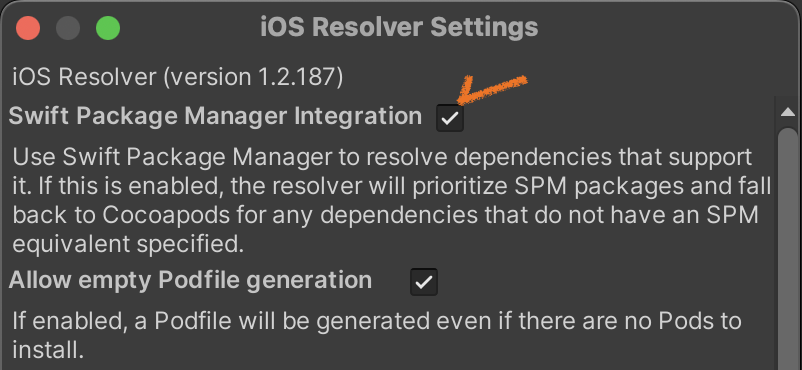
將 SDK 套件新增至非 Unity 專案
按以下順序將 Hive SDK iOS 套件新增至您的 Xcode 專案:
-
點選 File > Add Package Dependencies...

-
按以下順序註冊 Hive SDK iOS 套件:
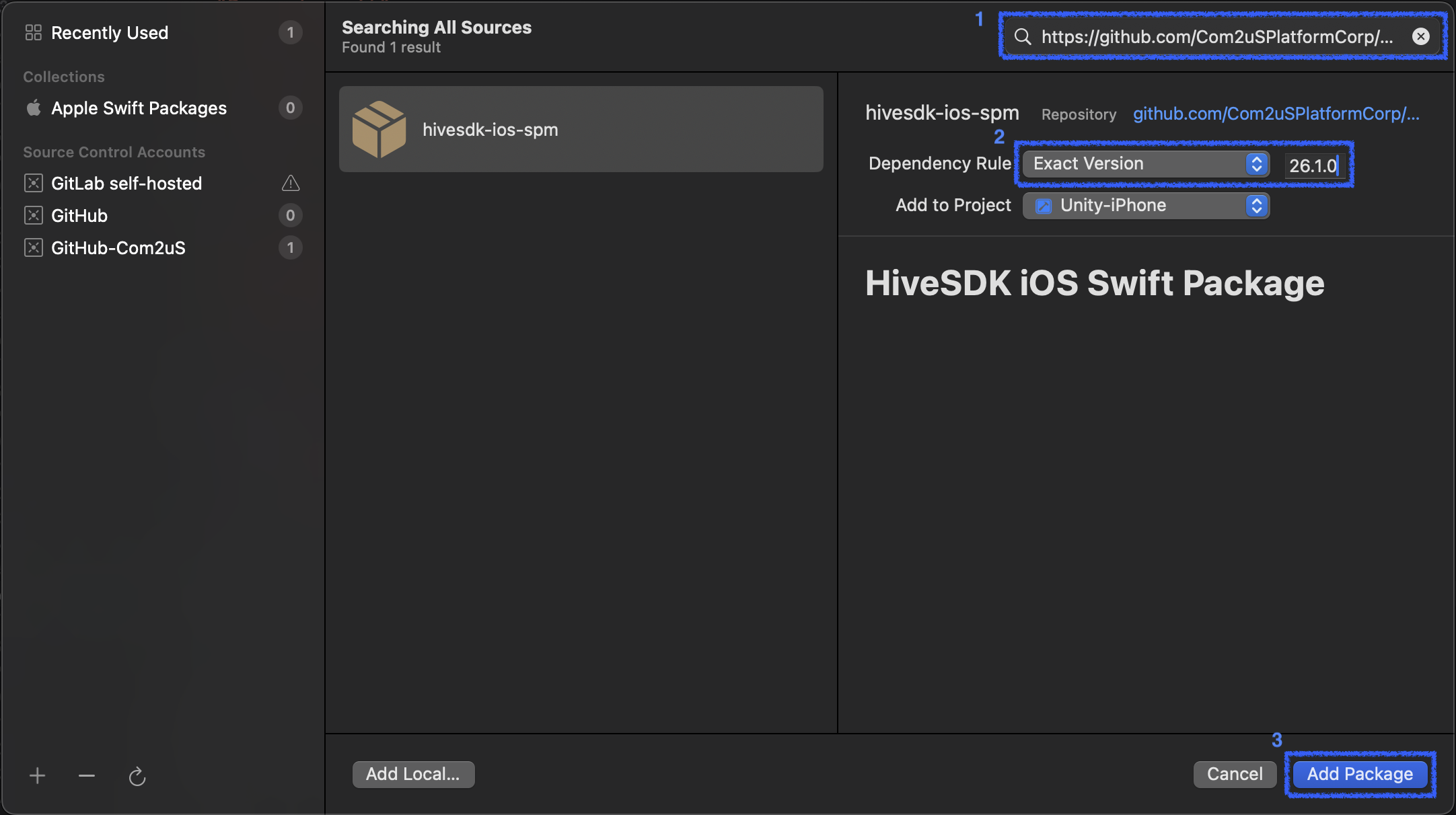
2.1. 輸入對應 Hive SDK iOS 套件儲存庫的地址,如下所示:
2.2. 在 Dependency Rule 中選取 Exact Version 並輸入您要套用的 SDK 版本。
2.3. 點選 Add Package。
-
套件載入完成後,會顯示 Hive SDK iOS 提供的功能清單(身份驗證、計費、分析等)。您可以將要套用的功能新增到應用程式目標中。
Warning
以下不支援 SPM 的 Hive SDK 功能必須使用 CocoaPods 新增:
- HerculesSwift
- HiveAuthV4ProviderQQ
- HiveAuthV4ProviderLine
- HiveAuthV4ProviderWechat
- HiveAnalyticsProviderAirbridge
在 Podfile 中使用 pod 語法 為每個功能編寫相依性,然後執行
pod install。
此外,如果需要套用更多相依性,您可以使用 CocoaPods 以同樣的方式新增。在這種情況下,請勿包含已透過 SPM 新增的 Hive SDK 功能。 -
在主應用程式目標的 Build Settings 中,按順序將以下兩個值新增到 Other Linker Flags (
OTHER_LDFLAGS) 中:-Xlinker-all_load