Username login screen
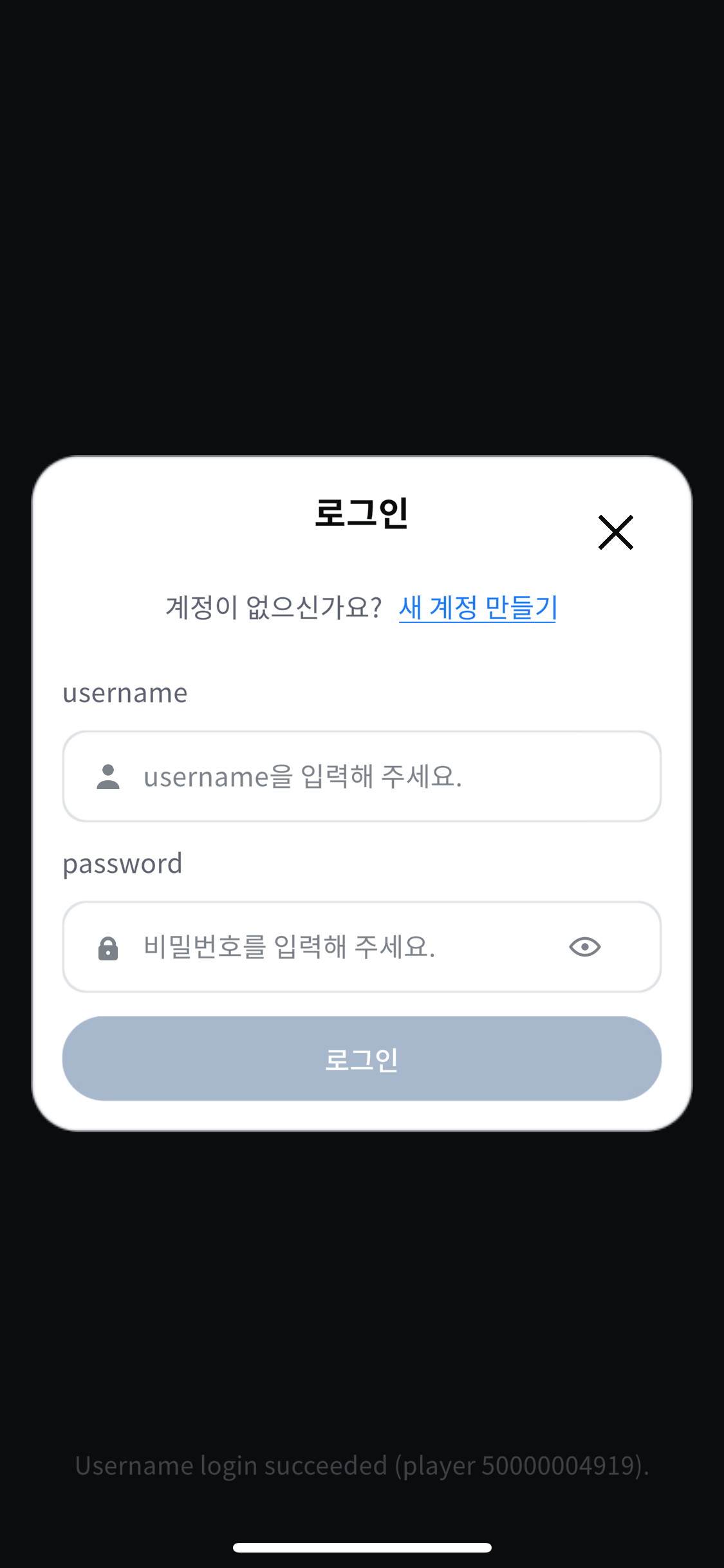
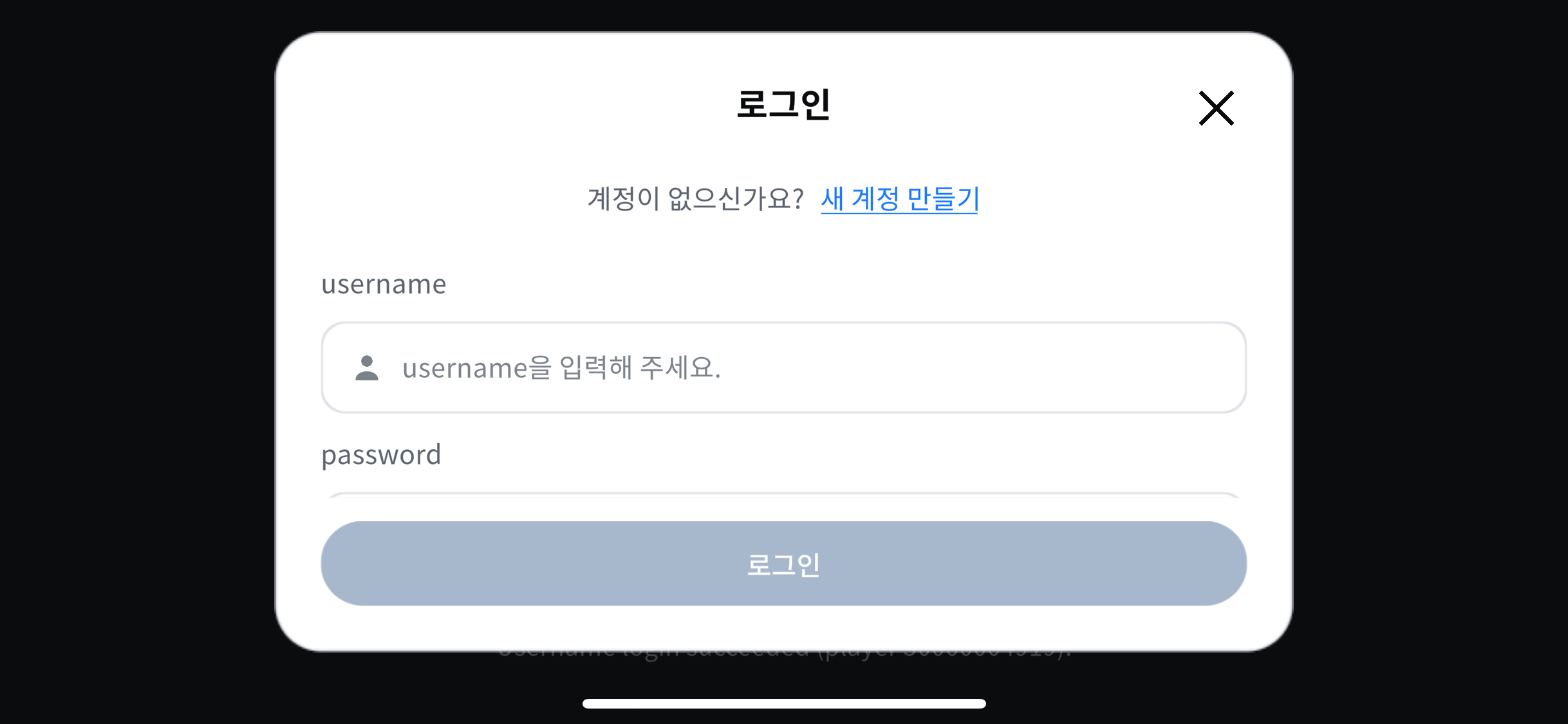
This is the screen where the user enters a username and password to log in or create a new account.
Screen examples
A single screen resource handles both portrait and landscape orientations.
Usage scenarios
Open this screen when the user chooses username as the login method on the login screen. The screen that receives the username and password is not included in the recipe, so the app must prepare it itself. This screen is an implementation example of that input screen.
The screen consists of a username input field, a password input field, and a login button. When opened as a pop-up, it also shows a close button. To the right of the password input field is a button that shows or hides the entered password, and below the title is a Create new account link for users who do not have an account yet. The app decides which screen to open when the user selects Create new account. The screen resources only forward the event that the user made the selection to the app.
Related recipes
The recipe handles the code that processes login with the entered username and password. Before you apply the screen, first check the recipe's user flow and implementation procedure.
- Username login practical guide: Implementation scope and prerequisites of the recipe that groups the Hive Axyl SDK calls needed for login and account creation into a single method
If the user enters a username that has no account yet, the recipe creates a new account with that username and then logs the user in. A new account is created even if the user mistypes the username. For how to let the user know that a new account was created, see Handle new accounts and different accounts.
Required SDK features
To log in or create an account with the username and password received from the screen, you need the following Hive Axyl SDK features and Hive Console setting.
- Log in with a username: Hive Axyl SDK feature that logs in with an existing username account
- Create a username account: Hive Axyl SDK feature that creates an account with the entered username and password
- Apply additional security: Hive Console setting that makes account creation requests also send the grant key that the app server obtained and passed on
Required APIs
These are the Hive Axyl SDK methods that the app calls to implement the features above.
- LoginUsernameAsync(): Method that logs in with an existing username account
- CreateUsernameAsync(): Method that creates a username account
Applying to Unity
Keep the username and password that the screen passes, and connect the login button so that selecting it runs login with those values. The moment the user selects the login button, the screen locks the input fields and that button by itself. If login fails and you keep showing the screen, call SetBusy(false) to release the lock. For how to close the screen, see Close a screen.
The input field with a button that shows or hides the password and the failure toast to display when login fails are shared widgets that multiple screens use, and they are in the common folder. When you copy the screen folder, also copy the common folder, the fonts folder, and the UIKit.asmdef file. For how to copy them and what to add to your app's assembly definition file after copying, see Import screen resources.
- Unity GitHub repository: The unity/UI-Kit/UsernameLogin, unity/UI-Kit/Common, and unity/UI-Kit/Fonts folders and the unity/UI-Kit/UIKit.asmdef file to copy