Login screen
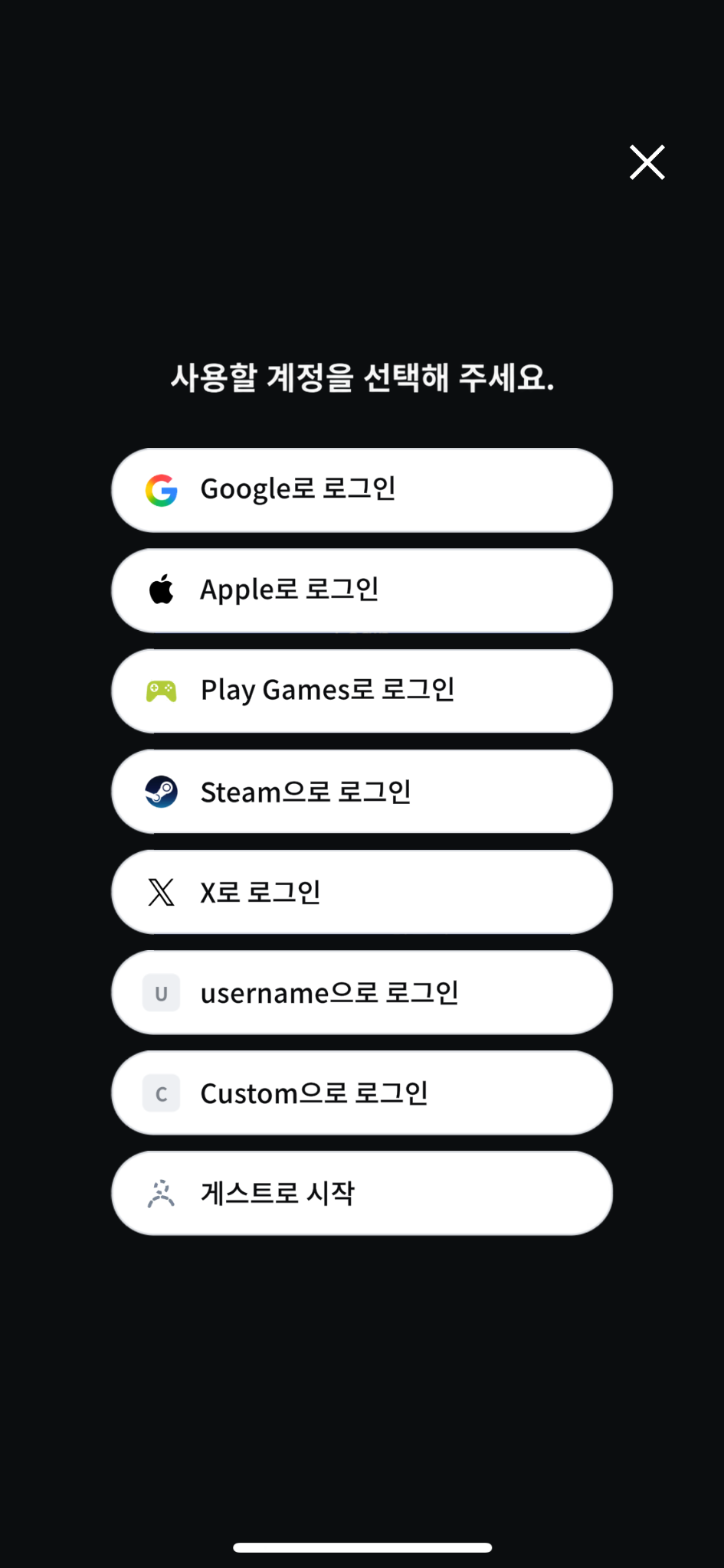
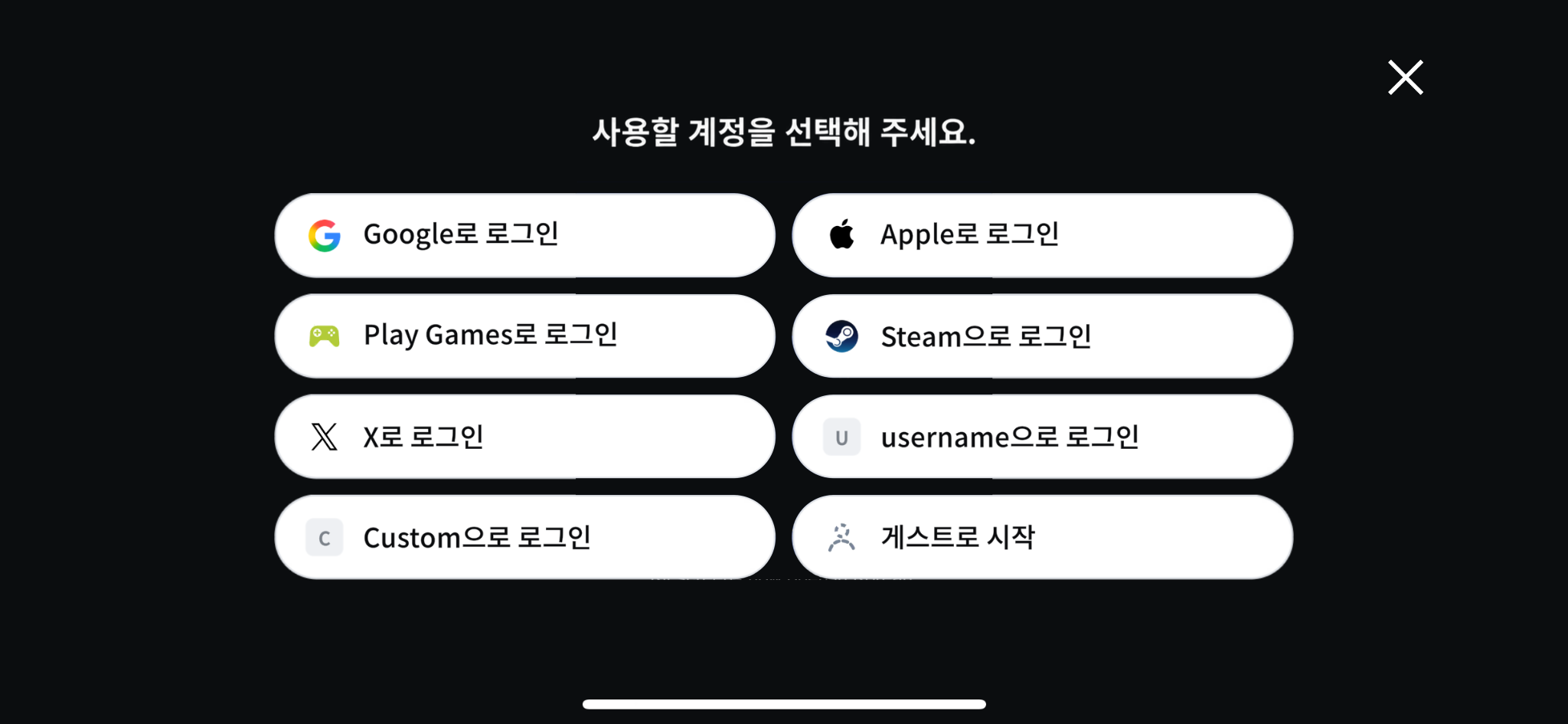
This is the screen where the user chooses the login method to use when logging in to the app.
Screen examples
A single screen resource handles both portrait and landscape orientations.
Usage scenarios
Open this screen when the user has not logged in yet, such as when the app is launched for the first time or after the user logs out.
The screen consists of a list of login method buttons and a close button. The app retrieves the login methods to show as buttons and passes them to the screen. The screen displays only the list it receives, in order, so which buttons appear and how many depend on the app's runtime environment, the store, the login settings in the Hive Console, and the country from which the user connects. The app also prepares the icon for each button except guest and passes it to the screen. For where to get the icons for each login method, see Login method icons.
Related recipes
Recipes handle the login processing after the user selects a button. Guest, username, and custom account login each have their own separate recipe. Google, Apple, Google Play Games, Steam, and X login use a common recipe combined with a recipe for each login method. For the user flow and implementation procedure, see the guides for the login methods your app offers.
- Guest login practical guide
- Username login practical guide
- Custom account login practical guide
- Google login practical guide
- Apple login practical guide
- Google Play Games login practical guide
- Steam login practical guide
- X login practical guide
Required SDK features
To fill the screen with the button list, you need the following Hive Axyl SDK feature and Hive Console setting.
- Get supported login methods: How to get the list of login methods to show on the screen, and how to handle a failed retrieval
- Login settings: Console setting that enables login methods and sets their display order
Required APIs
The following is the Hive Axyl SDK method that the app calls to implement the features above.
- GetProviderListAsync(): Method that retrieves the list of login methods available in this app
Applying to Unity
Pass the retrieved login method list and the prepared icons to the screen to build the button list, and connect the buttons so that selecting one runs login with that login method. This screen does not lock the buttons even while a request is being processed. If you need to prevent a button from being selected multiple times, handle it in the app. For how to close the screen, see Close a screen.
The failure toast to display when retrieval or login fails is a shared widget that multiple screens use, and it is in the common folder. When you copy the screen folder, also copy the common folder, the fonts folder, and the UIKit.asmdef file. For how to copy them and what to add to your app's assembly definition file after copying, see Import screen resources.
- Unity GitHub repository: The unity/UI-Kit/Login, unity/UI-Kit/Common, and unity/UI-Kit/Fonts folders and the unity/UI-Kit/UIKit.asmdef file to copy