Login settings
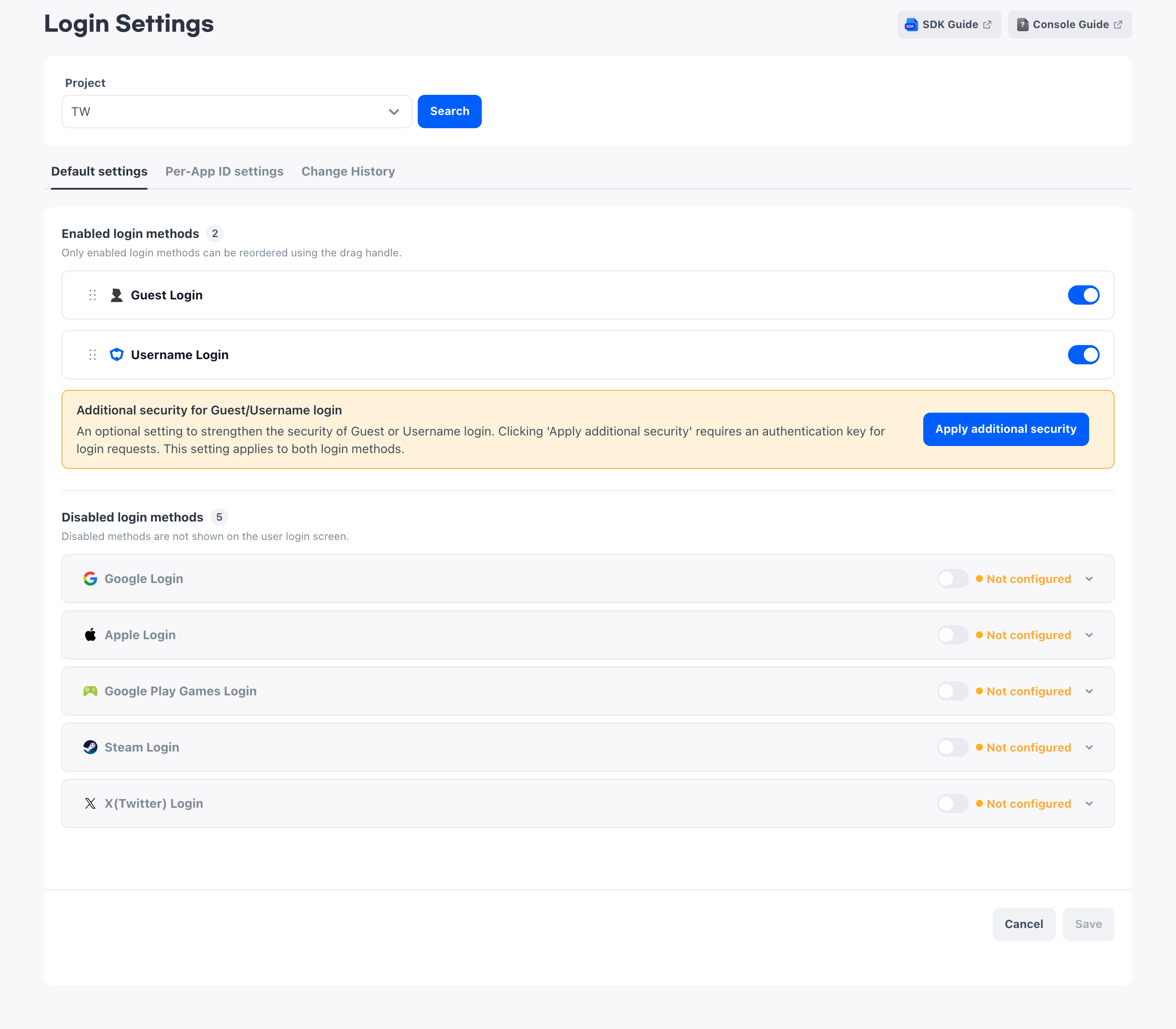
Enable the login methods to provide in your app, and register the credentials each login method requires. The app receives only the login methods enabled here and builds the login screen with them. To provide login to users, complete this setup first.
➡️ Console path: Login > Login Settings
Check before use
Register values that apply to the entire project on the Default settings tab, and values that differ for each App ID on the Per-App ID settings tab.
The values you set are passed to the app based on the App ID. If you have not created an App ID yet, create one first in Create an App ID. The app receives the login methods that the runtime environment and store of that App ID support and that are enabled in the console.
Login method types
This screen manages seven login methods. In a new project, username login and guest login are enabled, and you enable the login methods of external authentication providers yourself when you use them.
| Login method | Account the user logs in with | Default status in a new project |
|---|---|---|
| Google login | Google account | Disabled |
| Apple login | Apple account | Disabled |
| Username login | ID and password the user created in the app | Enabled |
| Guest login | Temporary user without an account | Enabled |
| Google Play Games login | Google Play Games profile | Disabled |
| Steam login | Steam account | Disabled |
| X(Twitter) login | X account | Disabled |
Hive Axyl processes guest login and username login directly, so you only need to enable them without entering credentials. The remaining five use accounts of external authentication providers, so login works only when you also register the credentials issued by the provider.
You do not enable custom account login, which uses the app server's own authentication system, or register its credentials on this screen.
Caution
Google Play Games login works only with App IDs whose runtime environment is Android and whose store is Google Play.
Credentials to register for login methods
For login methods that use external authentication providers, login works only when you register the credentials issued by the provider. This is because the Hive Axyl server uses these values to verify that the user's authentication result is valid.
| Login method | Credentials to register | Where to get them |
|---|---|---|
| Google login | Web Client ID, Web Client Secret | Google Cloud Console |
| Apple login | Service ID, Team ID, Key ID, Private Key | Apple Developer |
| Google Play Games login | Web Client ID, Web Client Secret | Google Cloud Console |
| Steam login | Steam App ID, Web API Key | Steamworks |
| X(Twitter) login | Client ID, Client Secret | X Developer Portal |
For how to get the values, see the prerequisites for each provider.
- Check the Google login credentials
- Set up the Apple App Store console
- Check the Google Play Games login credentials
- Steam login integration
- Set up the X console
Each login method is displayed as its own card, and you enter credentials in that card. Not all input fields always appear; they vary by tab and by the runtime environment of the App ID, so enter only the items that appear on the card.
After you save the Web Client Secret, Private Key, Web API Key, and Client Secret, their entire values are displayed masked. To check or edit a saved value, select Unmask.
Google login credentials
For the Web Client ID and Web Client Secret, enter the ID and secret of the OAuth 2.0 client of the Web application type that you created in Google Cloud Console.
The Web Client Secret input field appears on the Default settings tab when the project has a Windows App ID, and on the Per-App ID settings tab when the runtime environment of the selected App ID is Windows.
Apple login credentials
Of the four Apple login credentials, only the Private Key is entered differently. You get it as a .p8 file from Apple Developer and either upload the file as is or paste the key value as text.
For the Service ID, Team ID, and Key ID, enter the identifiers you checked in Apple Developer as is.
Google Play Games login credentials
For the Web Client ID and Web Client Secret, enter the ID and secret of the OAuth 2.0 client of the Web application type that you prepared for Google Play Games.
On the Per-App ID settings tab, the input fields appear only when the runtime environment of the selected App ID is Android.
Steam login credentials
Register the Steam App ID and Web API Key for Steam login directly on this screen. For the Steam App ID, enter the app identifier you checked in Steamworks, and for the Web API Key, enter the Publisher Web API Key.
On the Default settings tab, enter the Steam App ID when the project has a Windows or macOS App ID. On the Per-App ID settings tab, enter it when the runtime environment of the selected App ID is Windows or macOS.
X(Twitter) login credentials
For the Client ID and Client Secret, enter the values you checked in the X Developer Portal.
Project-wide login settings
On the Default settings tab, register the login methods and credentials that apply to the entire project. The values saved here are used by all App IDs in the project. If you do not need different values for each App ID, configure only this tab.
How to set up:
- On the Default settings tab, turn on the toggles of the login methods to use.
- Enter the credentials of the enabled login methods.
- Arrange the cards in the order to display on the login screen.
- Select Save.
The toggles, order, and credentials take effect only when you select Save.
Enable login methods
Only enabled login methods are passed to the app, so turn on the toggles of all login methods to provide in your app.
For enabled login methods, you must enter all credentials that appear on the card. In the disabled state, you can leave the same items empty.
Each card shows its input status as a badge. The badge shows only the input status, regardless of whether the method is enabled: it is Configured when all items on the card are entered, and Not configured when any item is empty. Guest login and username login have no credentials to enter, so no badge is displayed for them.
Login method display order
To change the order of enabled login methods, drag the drag icon on the left of each card. The order you set here becomes the display order of login methods, so move the login methods you want to show users first to the top.
The default order is Google, Apple, Google Play Games, Steam, X(Twitter), Username, and Guest. After you change and save the order, the saved order is used from then on.
When you newly enable a login method, its card goes into the position that matches the default order. If it is not in the position you want, rearrange it before you save.
Apply additional security
When you enable guest login or username login, Additional security for Guest/Username login appears below the cards. This feature adds a grant key verification step to the requests of these two login methods so that only requests the app server approved in advance are processed.
The grant key is a pre-authentication value that the app server gets from the Hive Axyl server and passes to the app client. To apply it, you must implement the app server and app client so that they exchange this value. For how to implement it, see Apply additional security.
To apply it, select Apply additional security. To remove it, select Additional security applied again. Select Save to apply the changed settings.
Caution
After you apply additional security, you must send the grant key with requests that require it. When you apply or remove it, align the console setting with how the app server and app client handle the grant key.
Per-App ID login settings
If you need to use different login methods or credentials for each App ID, register them individually on the Per-App ID settings tab. Examples include providing different login methods depending on the runtime environment, or using different credentials for development and production App IDs.
The App ID list also shows whether each App ID uses Default settings or Custom settings. You can tell right here which App IDs use custom settings.
Use default settings
To enter different values for each App ID, you must first turn off Use default settings. This is because every App ID is created with this item turned on, and while it is on, the values of the Default settings tab are shown as read-only.
When you turn it off, editing starts with the Default settings values at that point copied as is. Keep or change the copied values to set whether each login method is enabled, the display order, and the credentials for that App ID. The setup method is the same as on the Default settings tab, and the saved values apply only to the selected App ID.
How to set up:
- On the Per-App ID settings tab, choose the App ID to configure.
- Turn off Use default settings.
- Configure the login methods and credentials to apply to that App ID.
- Select Save.
Caution
Settings are saved one App ID at a time. If you choose another App ID in the list without saving, a dialog appears asking whether to discard the changes. Each time you finish an App ID, select Save before you move on to the next App ID.
Next steps
- Login developer guide: Implement the app's login screen and login flow
- Get supported login methods: Get the list of enabled login methods
- Apply additional security: Implement grant key verification for guest login and username login