AdKit Unity for DARO
AdKit Unity for DARO is a Unity advertising module developed with the DARO API. When used with the SDK or individual modules, logs are sent to the analytics server, eliminating the need for separate advertising analysis. It also helps Hive SDK users resolve errors and reduce trial and error when applying Unity packages provided by DARO.
This guide explains how to install AdKit Unity for DARO, configure it for each OS-specific Unity environment, and use its features.
Installation or update
If you are using AdKit for DARO for the first time, install it in the following order.
Alternatively, if you want to update an existing AdKit installation, delete the existing installed version and install the latest version of AdKit for DARO in the following order.
- Download and install the latest version of AdKit for DARO.
-
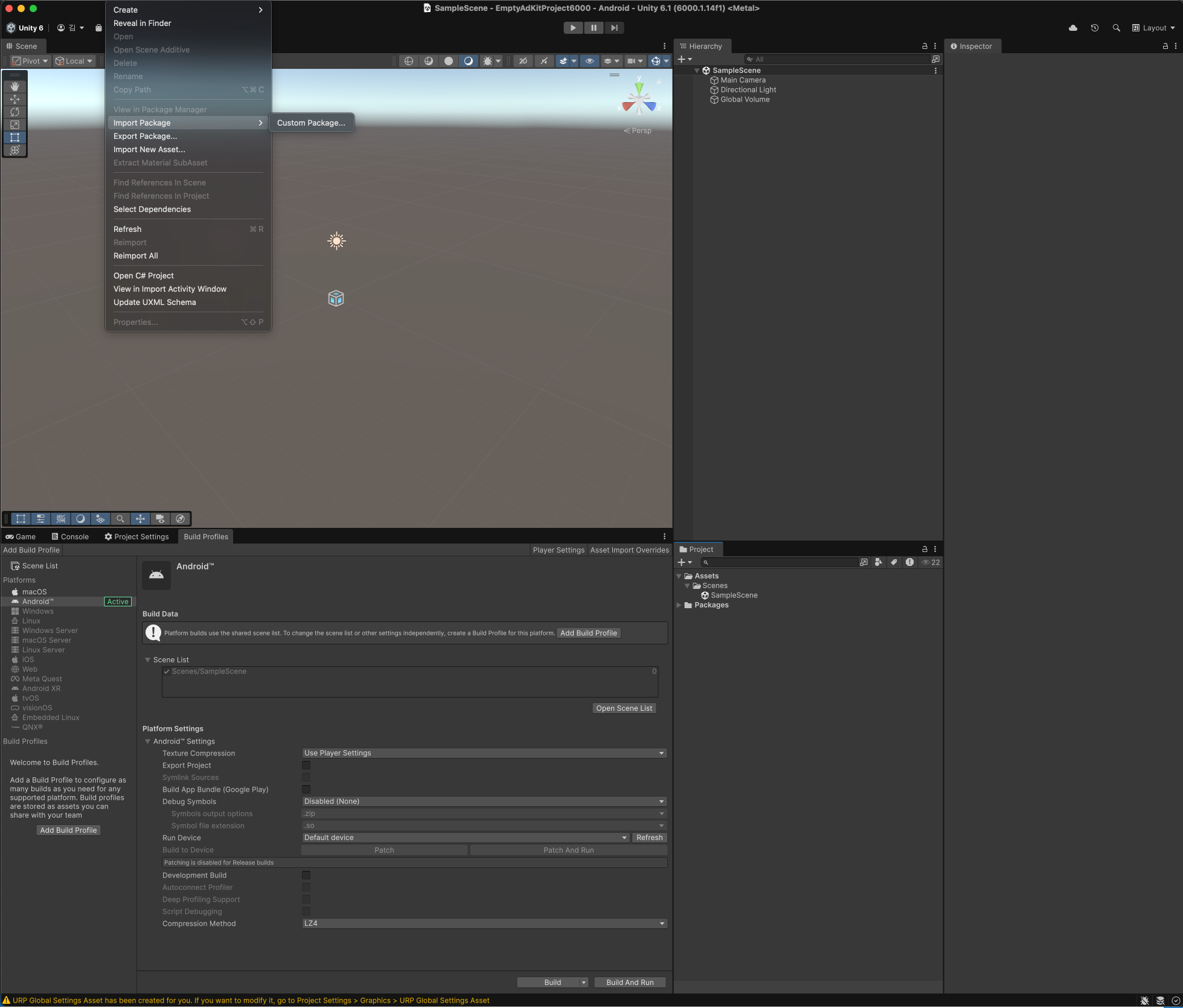
In the Unity toolbar, go to Assets > Import Package > Custom Package..., select the .unitypackage file, and click Import.
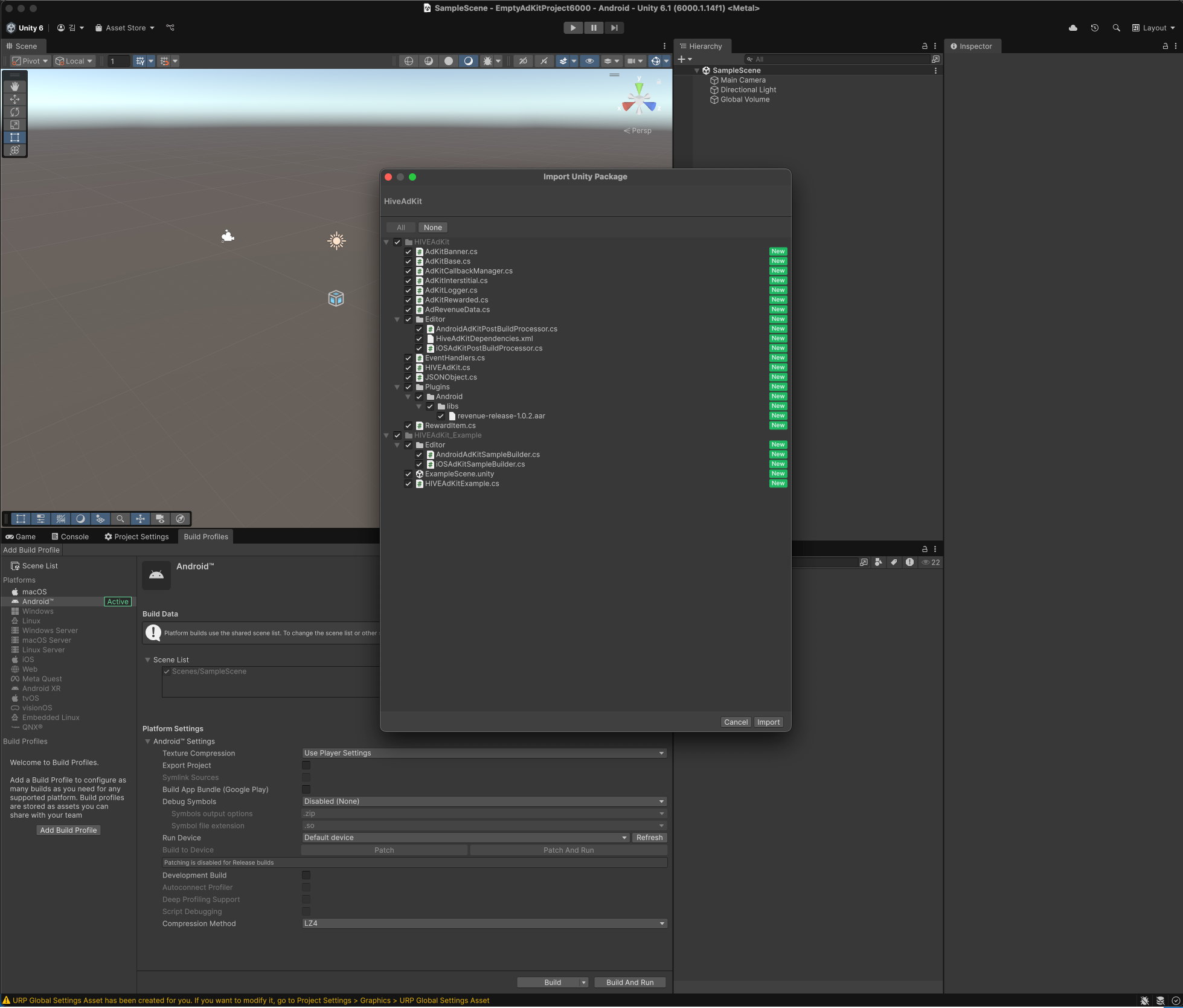
-
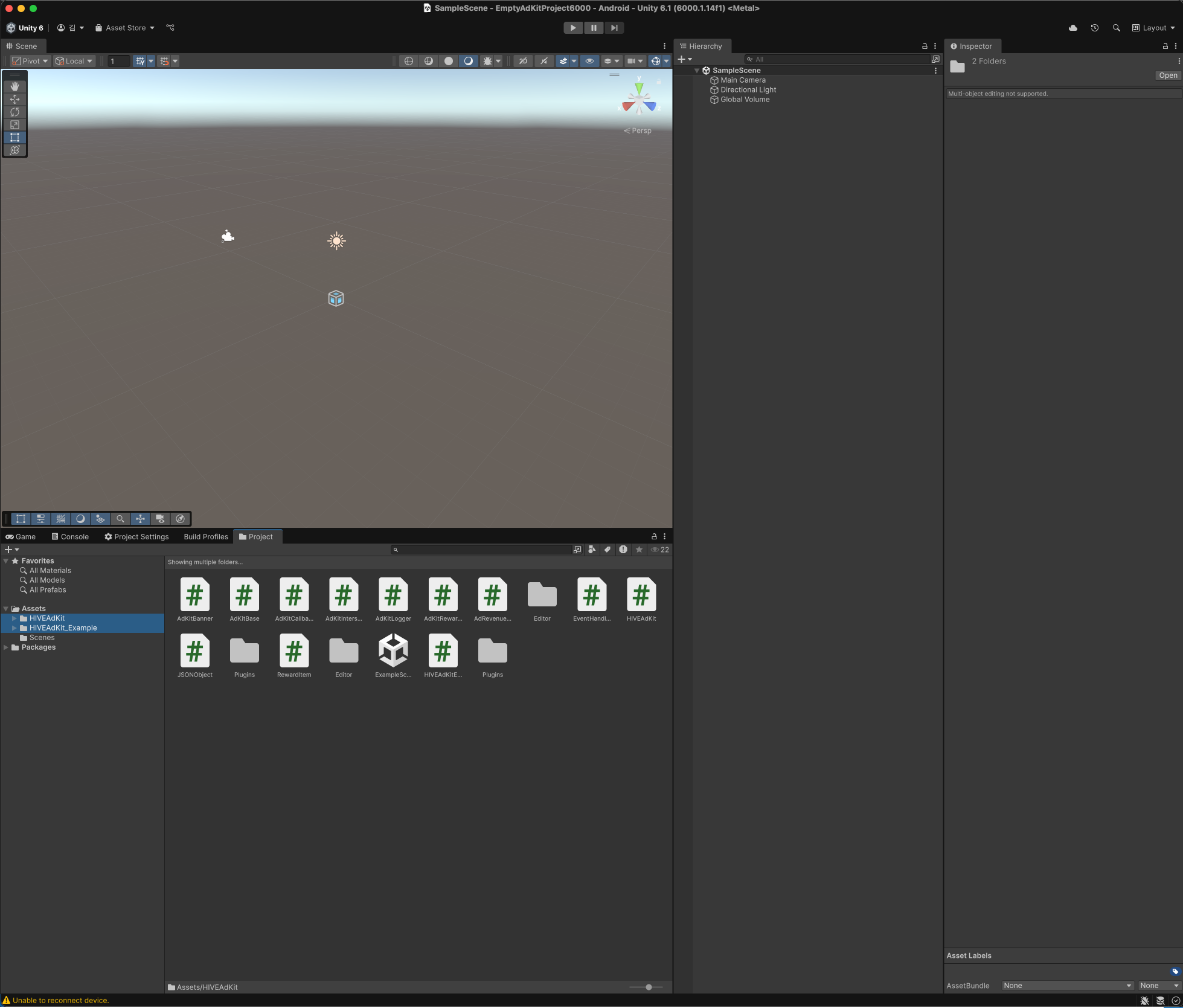
After import completion, verify that Hive AdKit and DARO-related files and folders have been created under the Assets folder.
-
Download and install the latest version of EDM4U. EDM4U is included in Hive SDK v4. If you are using Hive SDK v4, please skip this step.
Delete
To delete Hive AdKit for DARO, delete the following folders in your Unity project:
- Assets/HIVEAdKit
- Assets/HIVEAdKit_Example
Prerequisites configuration
After installing AdKit for DARO, add the DARO key values for each OS and verify the build settings.
Android
Add the key value downloaded from the DARO dashboard to your Android-based Unity project.
- Copy the downloaded android-daro-key.txt file to the HIVEAdKit/Plugins/Android folder.
- You can download android-daro-key.txt by clicking Download under 'Key File' on the DARO Dashboard - Apps page.
- Add
daroAppKeyto gradleTemplate.properties as follows.- You can find
daroAppKeyunder 'DARO App Key' on the DARO Dashboard - Apps page.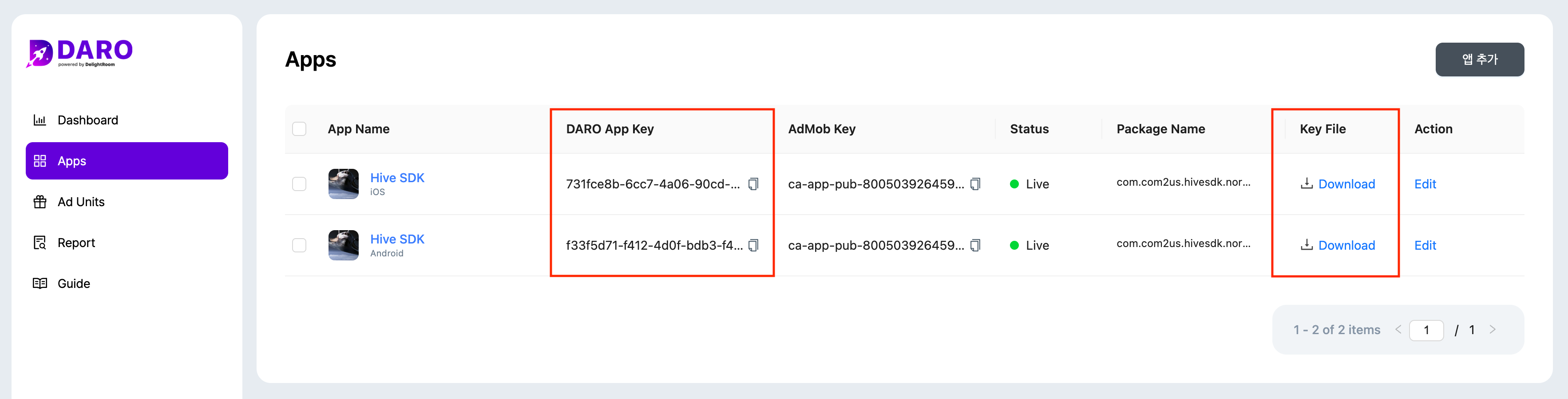
- You can find
iOS
Add the key value downloaded from the DARO dashboard to your iOS-based Unity project.
- Copy the downloaded ios-daro-key.txt file to the HIVEAdKit/Plugins/iOS folder.
- You can download ios-daro-key.txt from the DARO dashboard.
- In HIVEAdKit/Editor/iOSAdKitPostBuildProcessor.cs, uncomment
Google AdMob appIdandDaro App Keyas shown below, and enter the corresponding values.// Set GADApplicationIdentifier (Please contact Daro for your own ADMOB APPID) //rootDict.SetString("GADApplicationIdentifier", "YOUR GOOGLE ADMOB APPID"); // Set DaroAppKey (Please contact DARO for your own Daro App Key) //rootDict.SetString("DaroAppKey", "YOUR Daro App Key");- You can download
Google AdMob appIdandDaro App Keyfrom the DARO dashboard.
- You can download
Verify iOS build settings
When you build an iOS project, a UnityFramework target that operates as a Dynamic Framework is created.
-
Configure EDM4U (based on version 1.2.179). In Unity's iOS Resolver Settings (Assets > External Dependency Manager > iOS Resolver > Settings), verify that the static_framework build setting is enabled.
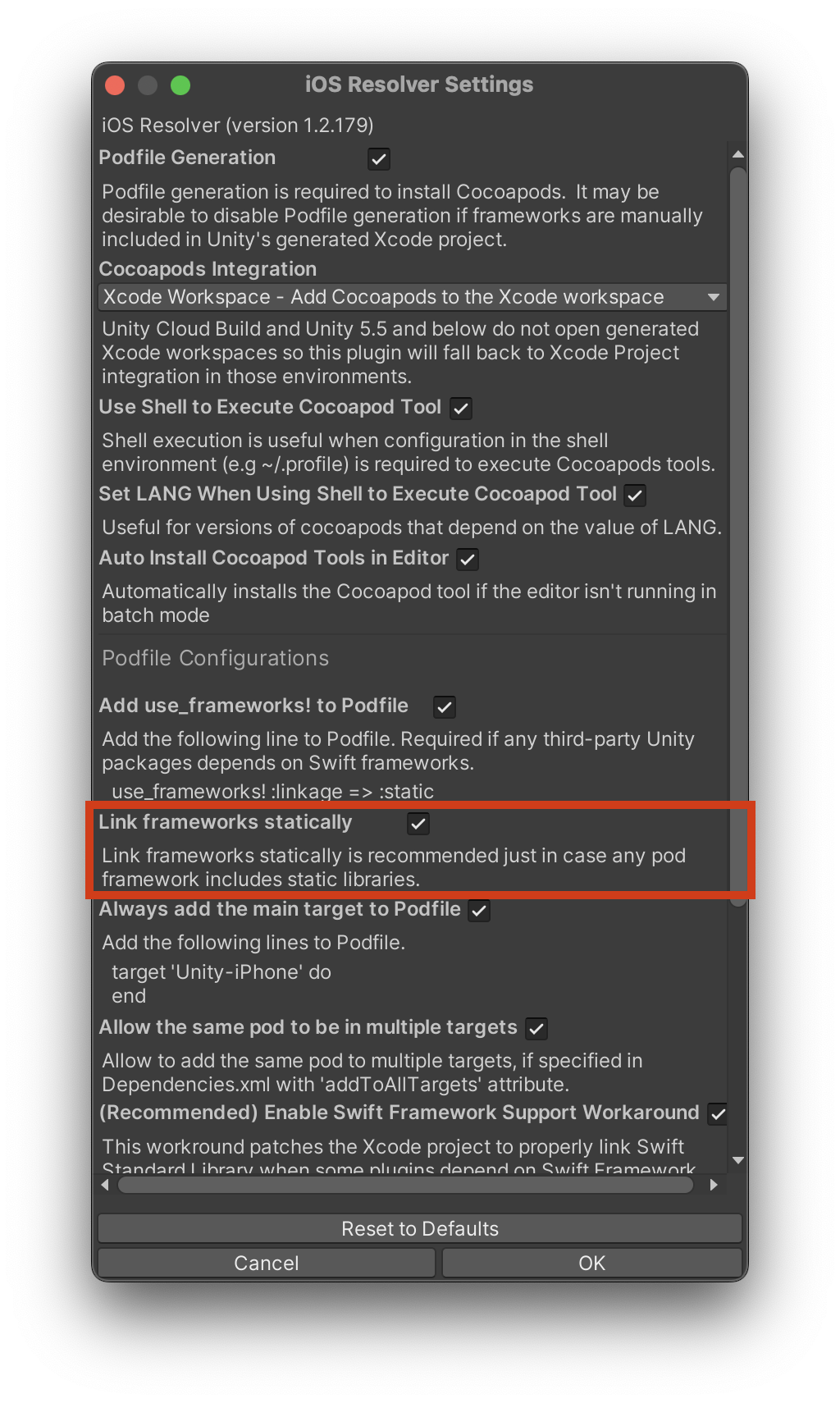
-
Build the project. After the build is complete, open Podfile in the root path of the generated project and verify its settings.
Warning
Before building a production service with AdKit Unity, delete the Assets/HIVEAdKit_Example folder. Otherwise, the HIVEAdKit Example settings may be included.
DARO Proguard configuration
Proguard rules are included in the library AAR file, so they are applied automatically without any additional configuration.
Usage guide
This section explains how to configure and call APIs for AdKit Unity for DARO features.
AdKit initialization
- If your app targets Europe and the UK (EEA & UK), initialize AdKit after calling the
ShowConsentUIAPI to display the GDPR consent popup. If your service is available only domestically, call theHIVEAdKit.InitializeAPI to initialize AdKit directly.
As shown in the example below, all APIs provided byHIVEAdKitmust be called from Unity's main thread.
using hive.adkit.daro;

// Call GDPR popup
public void ShowGDPR(string noticeId)
{
    HIVEAdKit.ShowConsentUI(noticeId, () =>
    {
        initSdk();
    });
}

// Hive AdKit initialization
public void initSdk()
{
    HIVEAdKit.Initialize(isSuccess =>
    {
        if (isSuccess)
            Debug.Log("AdKit SDK initialization successful!");
        else
            Debug.Log("AdKit SDK initialization failed!");
    });
}
Using callbacks
To use callback functions, you must call HIVEAdKit.InitPlugin to register AdKitCallbackManager as a GameObject.
Call it in the Start code block when the app starts.
using hive.adkit.daro;

void Start()
{
    HIVEAdKit.InitPlugin(); // Create game object for Hive AdKit callback registration
}
Setting additional information
You can set additional information. The implementation code is as follows:
using hive.adkit.daro;

[Serializable]
public class SendInfo
{
    public int level;
    public int gold;
}

SendInfo addtionalInfo = new SendInfo();

public void SetAdditionalInfo()
{
    addtionalInfo.level = 1;
    addtionalInfo.gold = 100;

    // Send as JSON Object format
    HIVEAdKit.SetAdditionalInfo(JsonUtility.ToJson(addtionalInfo));
}
Rewarded ad feature
This feature grants a reward after the user watches an ad for a specified amount of time. Only one ad can be loaded at a time. The implementation code is as follows:
using hive.adkit.daro;

private HIVEAdKit.RewardVideo RewardVideoAd = null;

public void InitRewardedAd()
{
    // Set Event Callback
    EventHandlers eventHandlers = new EventHandlers.Builder()
                                                    .OnAdLoaded(OnRewardVideoAdLoadedCB)
                                                    .OnAdOpening(OnRewardVideoAdOpeningCB)
                                                    .OnAdClosed(OnRewardVideoAdClosedCB)
                                                    .OnAdFailed(OnRewardVideoAdFailedCB)
                                                    .OnAdReward(OnRewardVideoAdRewardCB)
                                                    .OnAdClick(OnRewardVideoAdClickCB)
                                                    .OnAdPaidEvent(OnRewardVideoAdPaidEventCB)
                                                    .Build();

    // Create RewardVideoAd Instance
    RewardVideoAd = HIVEAdKit.RewardVideo.Initialize(rewardVideoUnitId, eventHandlers);
}

public void LoadRewardedAd()
{
    // Load RewardVideoAd
    HIVEAdKit.RewardVideo.Load(RewardVideoAd, "Unity-RewardVideo-Load-AdPlacementInfo");
}

public void ShowRewardedAd()
{
    // Show RewardVideoAd
    if( HIVEAdKit.RewardVideo.IsLoaded(RewardVideoAd) ) {
        HIVEAdKit.RewardVideo.Show(RewardVideoAd, "Unity-RewardVideo-Show-AdPlacementInfo");
    }
}

public void DestroyRewardedAd()
{
    // Destroy RewardVideoAd
    HIVEAdKit.RewardVideo.Destroy(RewardVideoAd);
    RewardVideoAd = null;
}
Interstitial advertising feature
Provides interstitial advertising features that occupy the entire screen. The implementation code is as follows:
using hive.adkit.daro;

private HIVEAdKit.Interstitial InterstitialAd = null;

public void InitRewardedAd(string unitId)
{
    // Set Event Callback
    EventHandlers eventHandlers = new EventHandlers.Builder()
                                                .OnAdLoaded(OnInterstitialAdLoadedCB)
                                                .OnAdOpening(OnInterstitialAdOpeningCB)
                                                .OnAdClosed(OnInterstitialAdClosedCB)
                                                .OnAdFailed(OnInterstitialAdFailedCB)
                                                .OnAdClick(OnInterstitialAdClickCB)
                                                .OnAdPaidEvent(OnInterstitialAdPaidEventCB)
                                                .Build();

    // Create InterstitialAd Instance
    InterstitialAd = HIVEAdKit.Interstitial.Initialize(unitId, eventHandlers);
}

public void LoadInterstitialAd()
{
    // Load InterstitialAd
    HIVEAdKit.Interstitial.Load(InterstitialAd, "Unity-Interstitial-Load-AdPlacementInfo");
}

public void ShowInterstitialAd()
{
    // Show InterstitialAd
    if( HIVEAdKit.Interstitial.IsLoaded(InterstitialAd) ) {
        HIVEAdKit.Interstitial.Show(InterstitialAd, "Unity-Interstitial-Show-AdPlacementInfo");
    }
}

public void DestroyInterstitialAd()
{
    // Destroy InterstitialAd
    HIVEAdKit.Interstitial.Destroy(InterstitialAd);
    InterstitialAd = null;
}
Banner advertising feature
Provides banner advertising features that occupy part of the screen. You can adjust the banner position to the top or bottom of the screen by entering BannerPosition.
Banner ads do not receive the OnAdClosed() callback.
using hive.adkit.daro;

private HIVEAdKit.Banner BannerAd = null;

public void InitBannerAd(string unitId)
{
    // Set Event Callback
    EventHandlers eventHandlers = new EventHandlers.Builder()
                                                .OnAdLoaded(OnBannerAdLoadedCB)
                                                .OnAdFailed(OnBannerAdFailedCB)
                                                .OnAdClick(OnBannerAdClickCB)
                                                .OnAdPaidEvent(OnBannerAdPaidEventCB)
                                                .Build();

    BannerAd = HIVEAdKit.Banner.Initialize(unitId, BannerPosition.Bottom, eventHandlers);
}

public void LoadBannerAd()
{
    // Automatic Load & Show BannerAd
    HIVEAdKit.Banner.Load(BannerAd, "Unity-Banner-Load-AdPlacementInfo");
}

public void DestroyBannerAd()
{
    // Destroy BannerAd
    HIVEAdKit.Banner.Destroy(BannerAd);
    BannerAd = null;
}
DARO example
Planet Explore uses the DARO ad module to optimize and deliver banner and interstitial ads. Download Planet Explore to see a real-world example of DARO ads in action.
Banner ad

Interstitial ad
