Automatic event tracking
The SDK automatically tracks four events — Install, Open, Update, and Purchase — and sends them to each attribution provider. These events correspond to app install, app open, app update, and in-app purchase events. Apps do not need to implement tracking code for these four events.
Adjust automatic event tracking
-
Obtain the required tokens. For instructions on how to issue them, refer to Add Adjust events.
To automatically track Purchase and Update events, register the events in the Adjust dashboard and verify the app token and event tokens. The app token is available on the dashboard main page, and event tokens are found at Dashboard > All Settings > Events.
Token issuance is not required for automatic tracking of Install and Open events.
-
Add the tokens to hive_config.xml.
Add the app token, Purchase event token, and Update event token to hive_config.xml. Refer to the example code below.
No hive_config.xml configuration is required for automatic tracking of Install and Open events.
-
The Adjust dashboard provides SDK Signature V3 to prevent app spoofing. To use SDK Signature, verify your contract with Adjust.
Note
It is recommended to automatically track all four events.
SDK Signature integration
If you previously used an older version of SDK Signature, refer to SDK Signature migration before integrating the signature library.
If you are using SDK Signature for the first time, the integration steps for Android, iOS, and Unity are described below.
Android
To use SDK Signature in an Android environment, configure the settings as follows.
- To use SDK Signature, add the Adjust attribution dependency to the module-level build.gradle file.
- Go to the Adjust dashboard and follow Add your digital certificate fingerprints to Adjust's allowlist to configure fingerprints.
For fingerprint extraction methods, refer to Set up your certificates in the Adjust suite. The extraction method varies depending on the certificate type used by each app.
iOS
To use SDK Signature in an iOS environment, add the ProviderAdjust subspec to your Podfile as shown below.
Unity
To use SDK Signature in the Unity engine, configure it from the menu.
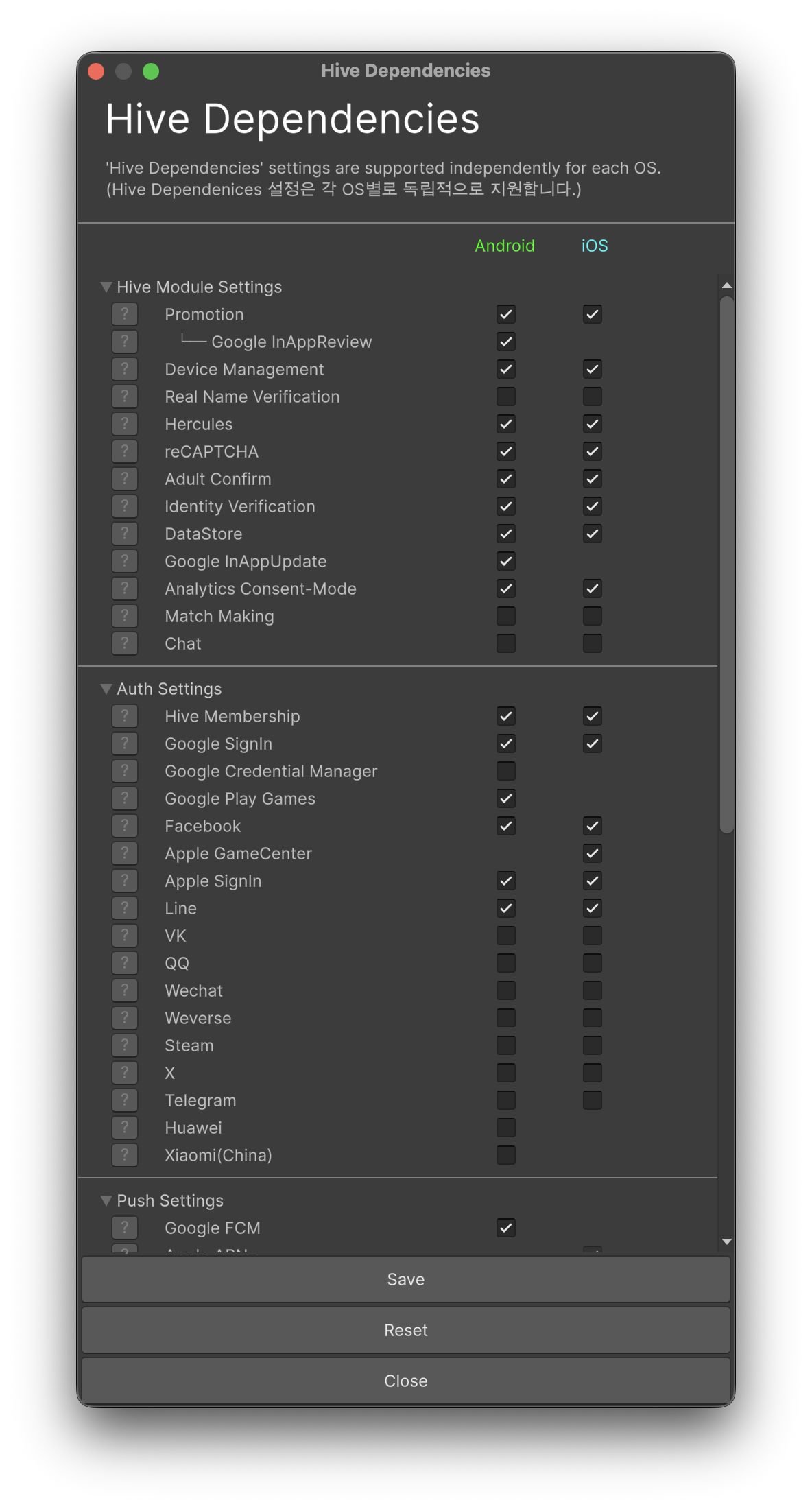
In the Unity Inspector menu, select Hive - Hive Dependencies(ExternalDependency) and check Adjust as shown below. No additional configuration is required.
Verifying SDK Signature integration status
To verify that the SDK Signature library has been successfully integrated, set zone to sandbox in SDK configuration. Then follow the steps below.
For more information, refer to Add your digital certificate fingerprints to Adjust's allowlist.
- Completely uninstall the app from the test device so that the install information is sent.
- Go to the Adjust dashboard testing console, enter the test device information, and click Forget Device to clear all data.
- Install the app on the test device, then launch the app to send the install information to Adjust.
- Enter the advertising ID or IDFA of the test device in the testing console to retrieve the install event information.
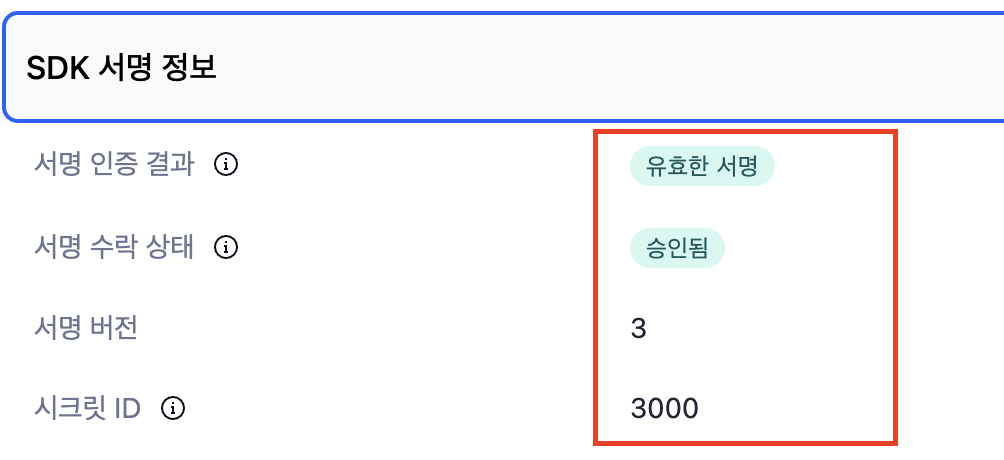
The SignatureVerificationResult field (signature verification result) should display the value Valid Signature.
The SignatureVersion field value (signature version) should be 3.
SDK Signature migration
To use the latest SDK Signature, you must remove the configuration for the previous SDK Signature version.
Android, iOS
Remove all keys and values configured for secretId, info1, info2, info3, info4 from the Adjust-related configuration in hive_config.xml.
<providers>
    <!-- (code omitted) -->

    <!-- The Adjust node id field is not configured. -->
    <!-- The Adjust node name field is a fixed value of "Adjust". -->
    <!-- The event node name field can be set freely by the app. -->

    <!-- Remove all of secretId="1" info1="5432112345" info2="334123" info3="555333" info4="111333" below -->
    <!-- <Adjust name="Adjust" id="unused" key="APP_TOKEN" secretId="1" info1="5432112345" info2="334123" info3="555333" info4="111333"> -->
    <Adjust name="Adjust" key="APP_TOKEN">
        <events>
            <event name="Purchase" value="PURCHASE_EVENT_TOKEN" />
            <event name="Update" value="UPDATE_EVENT_TOKEN" />
        </events>
    </Adjust>

    <!-- (code omitted) -->
</providers>
Unity
In the Unity development environment, there is no need to remove the configuration for the previous SDK Signature version.
Sending external_device_id for cross-play tracking
To identify and track the same user in a cross-play environment, you must send external_device_id to Adjust. The Player ID that can identify the user is sent through the external_device_id value.
To use this feature, add externalDeviceId as true to features in the Adjust node of hive_config.xml. If it is not configured or is set to false, external_device_id is not sent.
<providers>
    <!-- (code omitted) -->

    <!-- If externalDeviceId is set to enabled="true" in features, playerId is sent as external_device_id at login. -->
    <Adjust name="Adjust" key="APP_TOKEN">
        <features>
            <externalDeviceId enabled="true"/>
        </features>
        <events>
            <event name="Purchase" value="PURCHASE_EVENT_TOKEN" />
            <event name="Update" value="UPDATE_EVENT_TOKEN" />
        </events>
    </Adjust>

    <!-- (code omitted) -->
</providers>
Note
external_device_idis sent when the user logs in and the user identifier value (playerId) becomes valid.external_device_idis set only at the initial initialization, and it does not change even when the account is switched afterward.
For more information about the external_device_id feature, see External device identifiers.
Airbridge automatic event tracking
-
Obtain the required tokens. Refer to Airbridge for instructions on how to issue them.
Obtain the App SDK Token and App Name from Dashboard > Settings > Token Management.
-
For Android and iOS, add the token, app name, and Update event configuration to hive_config.xml. Refer to the hive_config.xml example code below.
-
For Windows, console configuration is required instead of hive_config.xml configuration. Refer to Windows configuration below.
-
If you are applying Windows together with Android and iOS, contact Airbridge for prerequisite configuration.
-
Airbridge provides SDK Signature to prevent app spoofing. To use this feature, first verify your contract with Airbridge.
Obtain the keys and add them as the
secretIdandsecretvalues in hive_config.xml.For SDK Signature security information, refer to Airbridge SDK Signature. This feature is supported on Android and iOS only; Windows is not supported.
SDK Signature integration
If you are using SDK Signature for the first time, configure it according to the instructions below.
hive_config.xml example code
<providers>
    <!-- (code omitted) -->
    <!-- Configure Airbridge -->
    <!--The Airbridge node name field is a fixed value of "Airbridge". -->
    <!--The Airbridge node id field is not configured. -->
    <!-- The event node name and value fields can be set freely by the app. -->

    <Airbridge name="Airbridge" key="APP_SDK_TOKEN" appName="APP_NAME" secretId="SECRET_ID" secret="SECRET">
        <events>
            <event name="Update" value="Update" />
        </events>
    </Airbridge>

    <!-- (code omitted) -->
</providers>
<providers>
    <!-- (code omitted) -->
    <!-- Configure Airbridge -->
    <!--The Airbridge node name field is a fixed value of "Airbridge". -->
    <!--The Airbridge node id field is not configured. -->
    <!-- The event node name and value fields can be set freely by the app. -->

    <Airbridge name="Airbridge" key="APP_SDK_TOKEN" appName="APP_NAME" secretId="SECRET_ID" secret="SECRET">
        <events>
            <event name="Install" value="Install"/>
            <event name="Update" value="Update" />
            <event name="Open" value="Open"/>
            <event name="PrePurchase" value="airbridge.initiateCheckout"/>
            <event name="PurchaseCancel" value="airbridge.ecommerce.order.canceled"/>
            <event name="Purchase" value="airbridge.ecommerce.order.completed"/>
        </events>
    </Airbridge>

    <!-- (code omitted) -->
</providers>
Android, iOS
Set the secretId and secret key values related to Airbridge in hive_config.xml.
Windows
-
In the console, proceed with the Marketing attribution - Airbridge configuration.
For Windows, there is no need to set the
secretIdandsecretkeys related to Airbridge in hive_config.xml. -
Configure hive_config.xml by following the instructions below. Refer to the hive_config.xml example code.
Setting the value defined by Airbridge sends the event as an Airbridge standard event. For specific event types, refer to Airbridge event types.
- Install event configuration required
- Open event configuration required
- Update event configuration required
- PrePurchase event configuration required;
valueairbridge.initiateCheckoutfor standard event sending - PurchaseCancel event configuration required;
valueairbridge.ecommerce.order.canceledfor standard event sending - Purchase event configuration required;
valueairbridge.ecommerce.order.completedfor standard event sending
-
Optional: Airbridge event sending delay
The PC SDK for Windows provides a feature to delay sending specific Airbridge events until after Sign-In. This feature is activated and managed by defining relevant attributes in hive_config.xml.
Define the relevant attributes using the
win:prefix in the<Airbridge>tag of the hive_config.xml file, as shown in the example below.
<providers>
    <!-- (code omitted) -->
    <Airbridge
        win:DeferSendUntilGate="signin"
        win:DeferScope="include"
        win:DeferEventList="Install,Update,Open"
        win:DeferSendTimeout="86400"
        win:DeferQueueMax="1000">
        <events>
            <event name="Install" value="Install"/>
            <event name="Open" value="Open"/>
        </events>
    </Airbridge>
    <!-- (code omitted) -->
</providers>
The hive_config.xml attributes used for Airbridge event sending delay are as follows.
| Attribute | Description | Options | Max value | Notes |
|---|---|---|---|---|
| win:DeferSendUntilGate | Specifies the gate (timing) for when event sending starts |
| Sets the point at which queued events start being sent to Airbridge.
| |
| win:DeferScope | Specifies the scope of events for deferred sending |
| Sets the scope of events to which the deferred sending feature applies.
| |
| win:DeferEventList | List of events to be deferred | Applies only when win:DeferScope is set to include.
| ||
| win:DeferSendTimeout | Maximum delay time (seconds) | 86400 (24 hours) |
| |
| win:DeferQueueMax | Maximum number of deferred events to store | 1000 |
|
Unity
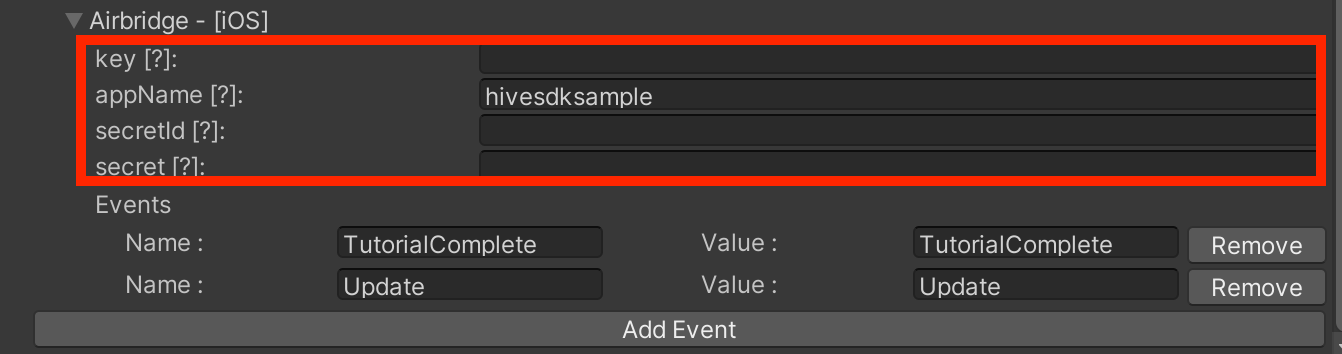
Select Hive - Edit Config from the menu, then activate the Android or iOS tab. Next, set the values received for secretId, secret under Airbridge.
Information sent when automatic events occur
When the following specific events occur, events are automatically sent to Airbridge app attribution. The information sent at that time is as follows.
| EVENT NAME | PARAMETER | Notes | |
|---|---|---|---|
| Sign-in | Sign-in |
| |
| Sign-out | Sign-out | ||
| Checkout initiation | Initiate Checkout |
|
|
| Purchase complete | Order Complete |
|
|
| Purchase cancel | Order Cancel |
|
|
| Subscription | Subscribe |
|
|
| Ad impression | Ad Impression |
|
|
| Ad click | Ad Click |
|
|
| Rating | Rate |
|
|
| Share | Share |
Singular, AppsFlyer, Firebase Analytics automatic event tracking
-
Obtain keys from each attribution dashboard. For information on how to obtain keys, refer to the dashboard instructions provided by each attribution provider.
- Singular: Obtain the SDK Key and SDK SecretKey from the dashboard.
- AppsFlyer: Obtain the Dev key from Dashboard > App Settings.
- Firebase Analytics: No key issuance is required.
-
Configure hive_config.xml by following the instructions below. Refer to the example code below.
- Open: Configuration is required only for the Firebase Analytics attribution.
-
Update: Add configuration for all of Singular, AppsFlyer, and Firebase Analytics.
-
When using the AppsFlyer attribution on the iOS SDK (Native, Unity, Unreal Engine), set the
itunseConnectAppIdvalue to configure the Apple AppID.
<providers>
    <!-- Configure Singular -->
    <!-- The Singular node name field is a fixed value of "Singular". -->
    <!-- The event node name and value fields can be set freely by the app. -->
    <Singular name="Singular" id="SDK_KEY" key="SDK_SECRET_KEY">
        <events>
            <event name="Update" value="update" />
        </events>
    </Singular>

    <!-- Configure AppsFlyer -->
    <!-- The AppsFlyer node name field is a fixed value of "AppsFlyer". -->
    <!-- The AppsFlyer node id field is not configured. -->
    <!-- The event node name and value fields can be set freely by the app. -->
    <AppsFlyer name="AppsFlyer" id="unused" key="DEV_KEY" itunseConnectAppId="909923112">
        <events>
            <event name="Update" value="Update" />
        </events>
    </AppsFlyer>

    <!-- Configure Firebase Analytics -->
    <!-- The event node name and value fields can be set freely by the app. -->
    <firebase>
        <events>
            <event name="Open" value="open"/>
            <event name="Update" value="update"/>
        </events>
    </firebase>
</providers>
Note
For smooth app operation, it is recommended to automatically track all of the Update, Open, and Purchase events.
Information sent when a purchase event occurs
When a payment is made via IAP, a purchase event is automatically sent to third-party mobile app attributions. At this time, attributions other than Adjust send the event as the standard purchase event defined by each attribution provider. The information sent is as follows.
| EVENT NAME | PARAMETER | Notes | |
|---|---|---|---|
| Adjust | Purchase |
|
|
| Airbridge | Order Complete |
|
|
| Singular | __iap__ |
|
|
| AppsFlyer | af_purchase |
|
|
| Firebase Analytics | purchase |
|
|