Unreal
This guide explains the settings required to use Notification features in Hive SDK Unreal Engine 4 and 5.
Android
This section describes the settings required for Android.
Selecting a push service
- In the Unreal Editor menu, click Edit > Project Settings. The Project Settings window appears.
-
In the left panel of the Project Settings window, click Dependency - Android under Hive SDK.
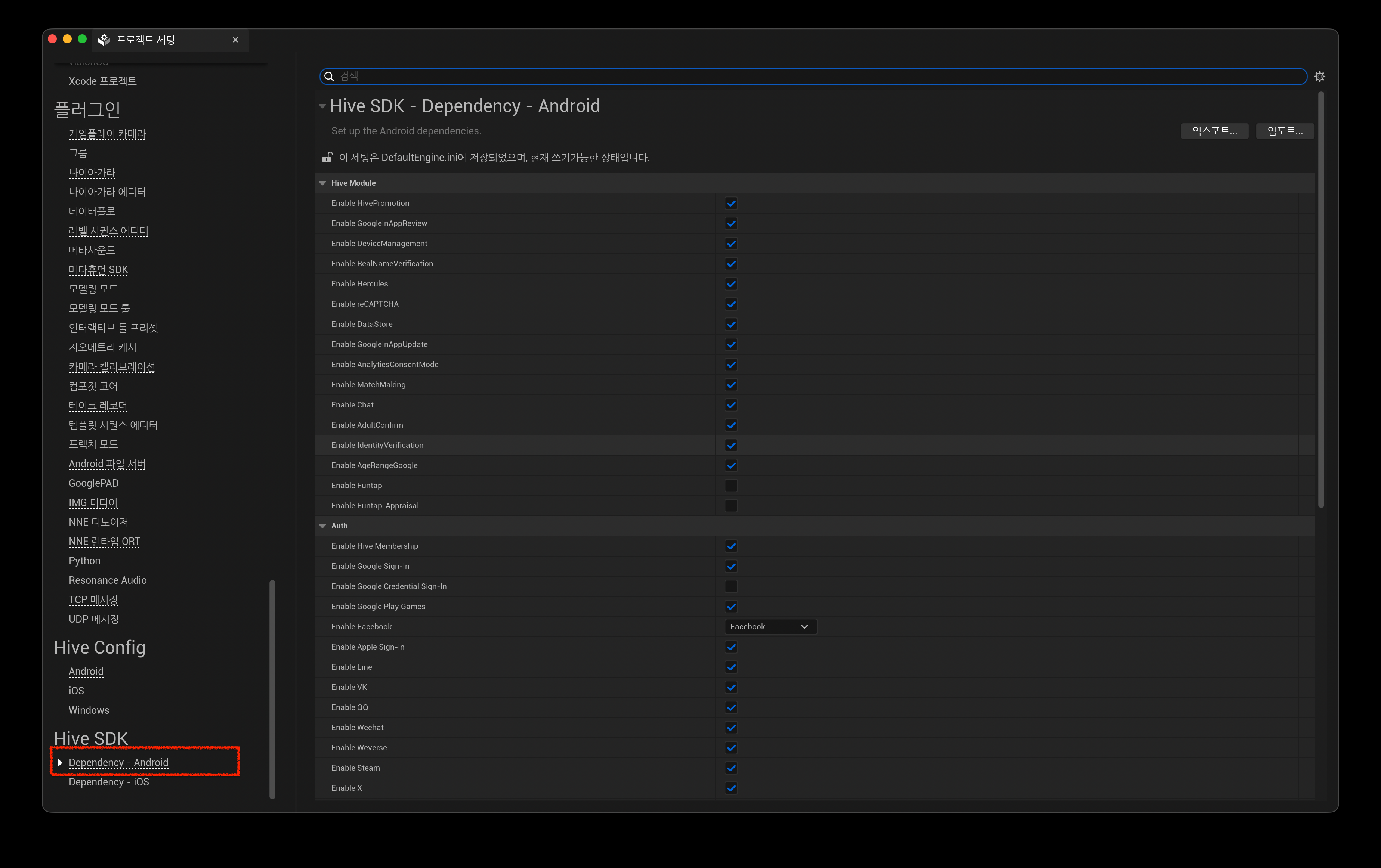
-
In the Hive SDK Dependency - Android screen on the right, select the push service to use from Push Type in the Push section. For example, select Google FCM to use Firebase Cloud Messaging.
Hive Console settings: Remote Push
To use Remote Push, obtain a push certificate from the Firebase Console or Apple Developer Portal and register it in the Hive Console.
iOS
This section describes the settings required for iOS.
Selecting a push service
Unreal iOS includes Apple Push Notification service by default.
To use remote push, the app signature must include the aps-environment entry.
Include the aps-environment entry in the entitlements file. For how to create and apply an entitlements file, see Setting entitlements (iOS).
In the Unreal Editor, check Enable Remote Notifications Support under Online in Project Settings > Platforms > iOS. The aps-environment entry is applied automatically at build time.
Handling push Deep Link when the app is not running
In Hive SDK v4 26.4.1 or later, the SDK plugin automatically handles Deep Link when the app is launched through a push notification while the app is not running. You do not need to modify Unreal Engine or add game code.
When updating from an older Hive SDK
Unreal Engine code changes (IOSAppDelegate.h, IOSAppDelegate.cpp) and in-app delegate subscriptions applied according to the previous guide are no longer used.
See Applying HIVEAppDelegate and remove the previously integrated code.
Hive Console settings: Remote Push
To use Remote Push, obtain a push certificate from the Firebase Console or Apple Developer Portal and register it in the Hive Console.