Unreal Engine 5
This guide explains the tasks to perform after installing Hive SDK.
Setting the auto-rotate screen feature
The following settings are required when the screen orientation is set to both landscape and portrait.
Android
For Android app builds, if you set the screen orientation to both landscape and portrait, the following code change is required for the auto-rotate screen feature to work properly.
- Go to /Engine/Build/Android/Java/src/com/epicgames/unreal/GameActivity.java.template.
- Add the
HiveActivity.onConfigurationChanged()API.@Override public void onConfigurationChanged(Configuration newConfig) { HiveActivity.onConfigurationChanged(this, newConfig); // Add super.onConfigurationChanged(newConfig); // forward the orientation boolean bPortrait = newConfig.orientation == Configuration.ORIENTATION_PORTRAIT; nativeOnConfigurationChanged(bPortrait); }
iOS
No separate settings are required for screen auto-rotation in Hive SDK Unreal Engine 5 iOS.
Setting entitlements (iOS)
Manage the entitlements file used for app signing directly in the app project, and specify it with Unreal Engine's PremadeIOSEntitlements setting.
For major Hive SDK features such as remote push notifications, Sign in with Apple, and universal links to work properly, the entitlements file must include the entitlement entries for those features.
-
Create an entitlements file in the app project. For example: Build/IOS/YourGame.entitlements. The following is an example configuration for Hive SDK features.
<?xml version="1.0" encoding="UTF-8"?> <!DOCTYPE plist PUBLIC "-//Apple//DTD PLIST 1.0//EN" "http://www.apple.com/DTDs/PropertyList-1.0.dtd"> <plist version="1.0"> <dict> <key>application-identifier</key> <string>{Team ID}.{Bundle ID}</string> <key>com.apple.developer.team-identifier</key> <string>{Team ID}</string> <!-- true for development builds, false for distribution builds --> <key>get-task-allow</key> <false/> <key>aps-environment</key> <string>production</string> <key>com.apple.developer.applesignin</key> <array> <string>Default</string> </array> <key>com.apple.developer.associated-domains</key> <array> <string>applinks:{domain used by your game}</string> </array> <key>com.apple.developer.game-center</key> <true/> </dict> </plist> -
The entitlement entries required for each Hive SDK feature are as follows. Include only the entries for the features used by your app, which must also be enabled as capabilities in the provisioning profile. For details about each entry, see the official Apple documentation.
Feature used Required entitlement Common (app signing) application-identifier,com.apple.developer.team-identifier- Replace{Team ID}and{Bundle ID}with the values for your gameRemote push aps-environment-developmentfor development andproductionfor distributionSign in with Apple (IdP) com.apple.developer.applesigninUniversal links (deep links/invitation links) com.apple.developer.associated-domains- For domain configuration, see Setting up universal linksGame Center login (IdP) com.apple.developer.game-centerAge declaration (AgeRange module) com.apple.developer.declared-age-range- For details, see App Store compliance -
In the Unreal Editor menu, click Edit > Project Settings, then select Platforms > Xcode Project in the left panel. In the Entitlements section, specify the entitlements file you created.
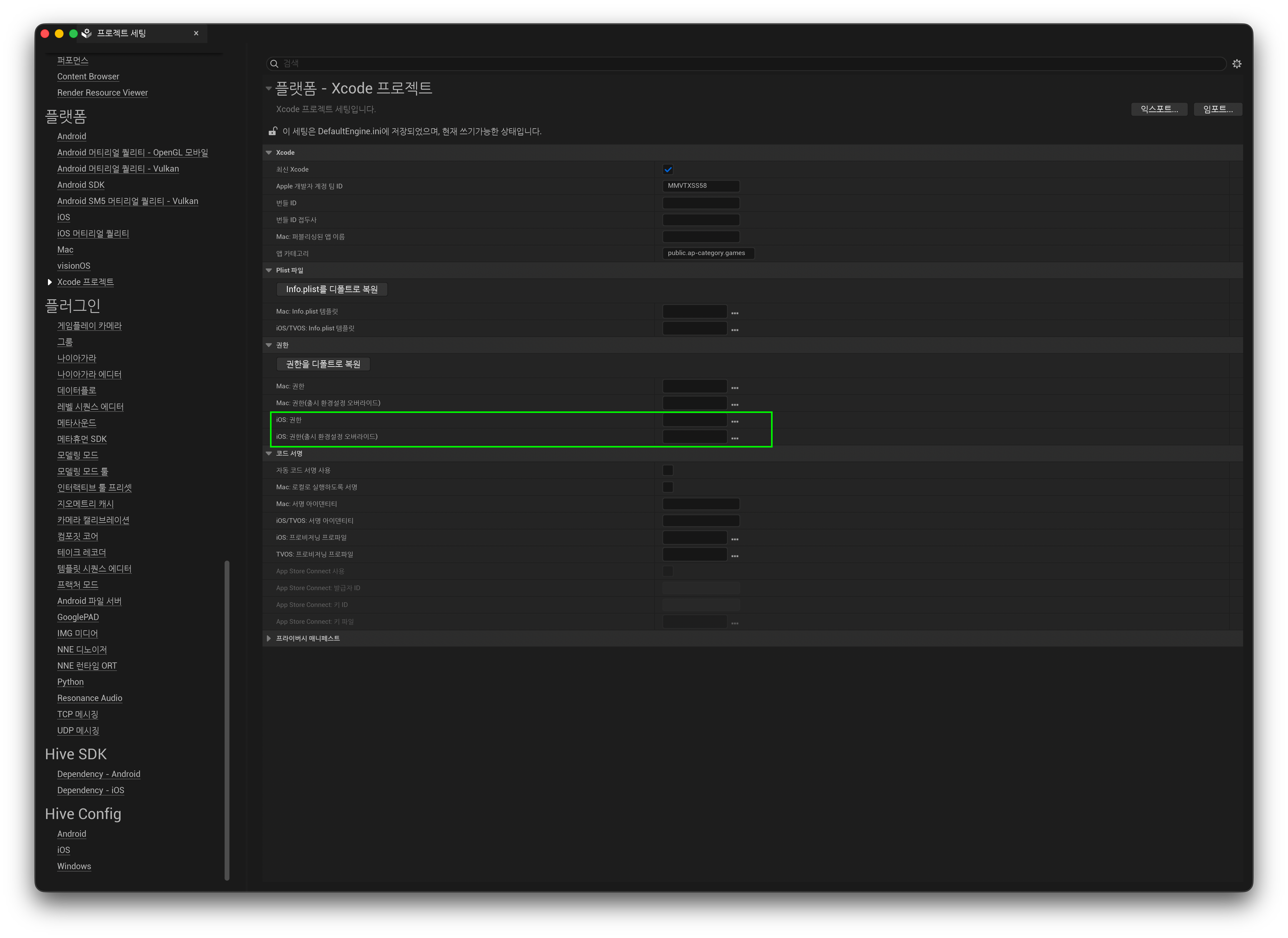
Item Description iOS: Entitlements Entitlements file to use for app signing iOS: Entitlements (override shipping configuration) Specify this if you want to use a different file for Shipping builds The settings are saved in Config/DefaultEngine.ini as follows. You can also specify the files by editing the file directly.
-
After building, verify that the entitlements are applied to the app.
Note
- If you specify a file with
PremadeIOSEntitlements, the file is applied as-is during the iOS signing step.- If required entries are missing: Related features such as push and Sign in with Apple do not work properly.
- If unsupported entries are included: If the entitlements file includes an entitlement that is not registered in the provisioning profile, app installation and code signing verification fail.
- A sample entitlements file is included for reference in Plugins/HIVESDK/Source/HiveSDKiOS/template/ in the Hive SDK plugin.
Warning
The sample entitlements file enables almost all entitlement entries for testing purposes. Do not copy it directly into your project. Select and use only the valid entries required for your game service.
Applying HIVEAppDelegate (iOS)
Starting with Hive SDK v4 26.4.1, HIVEAppDelegate swizzling is performed automatically inside the Hive SDK plugin. The plugin handles this automatically when the app launches, so no additional work is required in the app code.
Removing existing integration code for versions earlier than v4 26.4.1
If you are using a version earlier than Hive SDK v4 26.4.1, remove the previous modifications when updating.
-
Remove manual HIVEAppDelegate invocation code: Referring to the "Applying HIVEAppDelegate (iOS)" step in the previous guide, remove the following type of code block added during app initialization from the project.
#if PLATFORM_IOS UIApplication * dummyApplication = [UIApplication sharedApplication]; Class clzHIVEAppDelegate = NSClassFromString(@"HIVEAppDelegate"); SEL selApplicationDidFinishLaunchingWithOptions = NSSelectorFromString(@"application:didFinishLaunchingWithOptions:"); if( clzHIVEAppDelegate != nil && [clzHIVEAppDelegate respondsToSelector:selApplicationDidFinishLaunchingWithOptions] ) { NSMethodSignature *method = [clzHIVEAppDelegate methodSignatureForSelector:selApplicationDidFinishLaunchingWithOptions]; if (method != nil) { NSInvocation *invocation = [NSInvocation invocationWithMethodSignature:method]; [invocation setSelector:selApplicationDidFinishLaunchingWithOptions]; [invocation setTarget:clzHIVEAppDelegate]; [invocation setArgument:(void*)&dummyApplication atIndex:2]; NSDictionary *localLaunchOptions = [IOSAppDelegate GetDelegate].launchOptions; if( localLaunchOptions != nil ) { [invocation setArgument:(void*)&localLaunchOptions atIndex:3]; } [invocation invoke]; } } #endif -
Remove deep link delegate subscription code: Referring to the "Adding promotion code for deep link setup (iOS)" step in the previous guide, remove the following type of subscription and handler code added to
GameInstanceor similar classes.-
The logic inside the handler may be implemented as
Promotion::processURI(...)orFHivePromotion::ProcessURI(...), depending on the interface you use.// Subscription code (GameInstance::Init, etc.) - remove FIOSCoreDelegates::OnOpenURLwithOptions.AddUObject(this, &UMyGameInstance::ApplicationOpenURL); // Handler - remove (including the declaration in the header) void UMyGameInstance::ApplicationOpenURL(UIApplication* application, NSURL* url, NSDictionary* options) { Promotion::processURI(std::string([[url absoluteString] UTF8String])); }
-
-
Remove Blueprint bootstrap trigger calls: Remove all custom trigger functions defined in your app and called from Blueprint, such as
RemoveOpenURLDelegate(), as well as the corresponding call nodes.If the in-app delegate subscription described above has been removed correctly, existing openURL-related code changes applied directly to a custom engine (
IOSAppDelegate.h,IOSAppDelegate.cpp) do not affect engine behavior. Therefore, you can leave that code as is without removing or rolling it back.