Keyword monitoring system guide
- Register a community in the Community Settings Tab. Expand Community Registration above the list to enter the information.
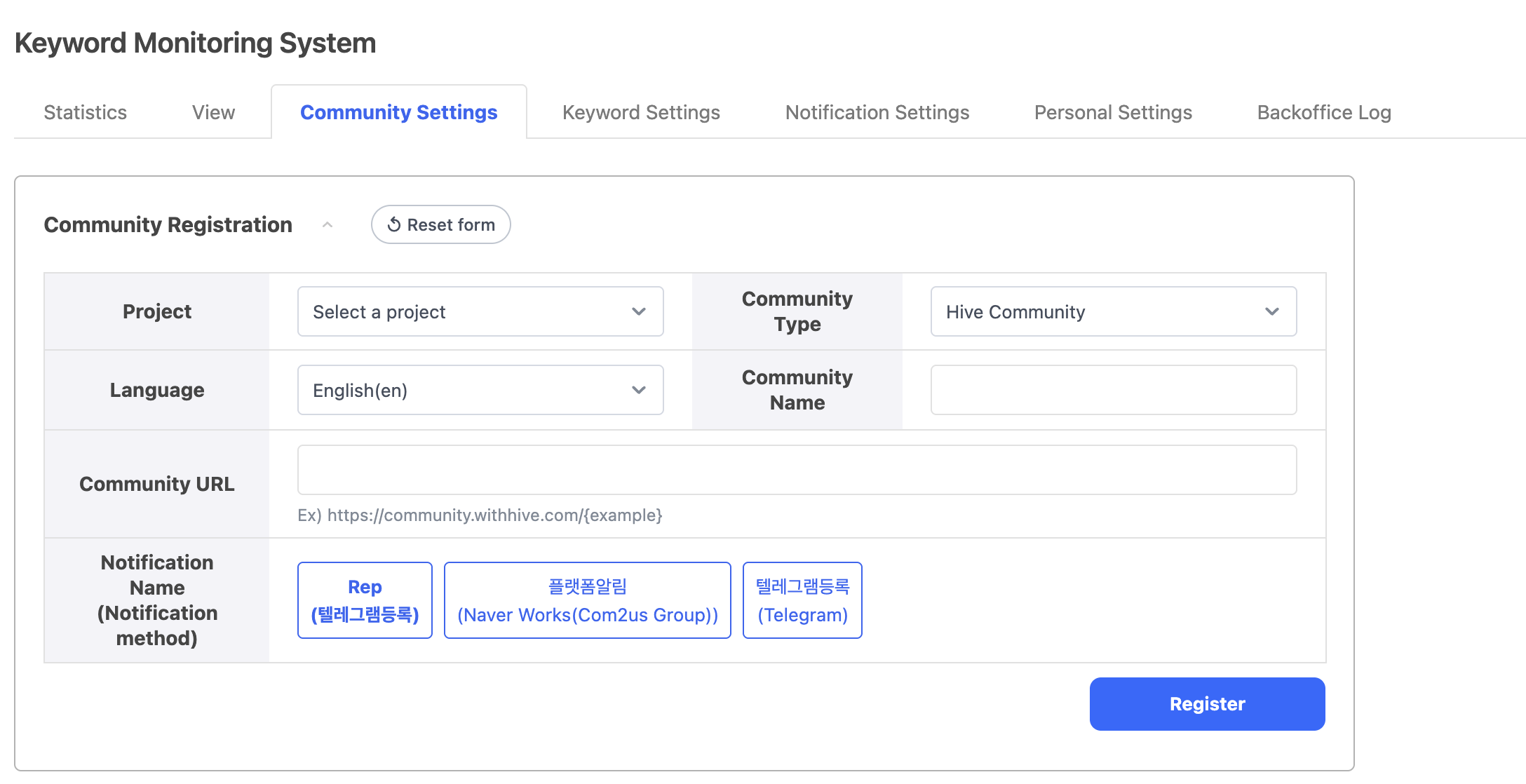
- Select a project.You can only use it if it's registered in App Center.
- Select a community type and language. There are a total of 5 community types to choose from. Only the languages supported by the selected community are listed, and the console language is selected by default (or the first language if it is not supported).
- Check the community name and edit it if necessary.
- In Community URL, enter a URL that matches the example URL format.
- If you are using a notification service, select Notifications. Please refer to number 3 for information on how to use the notification service.
- Click the Register Button to register the community you want to monitor. By default, it is activated upon registration, and can be deactivated if necessary.
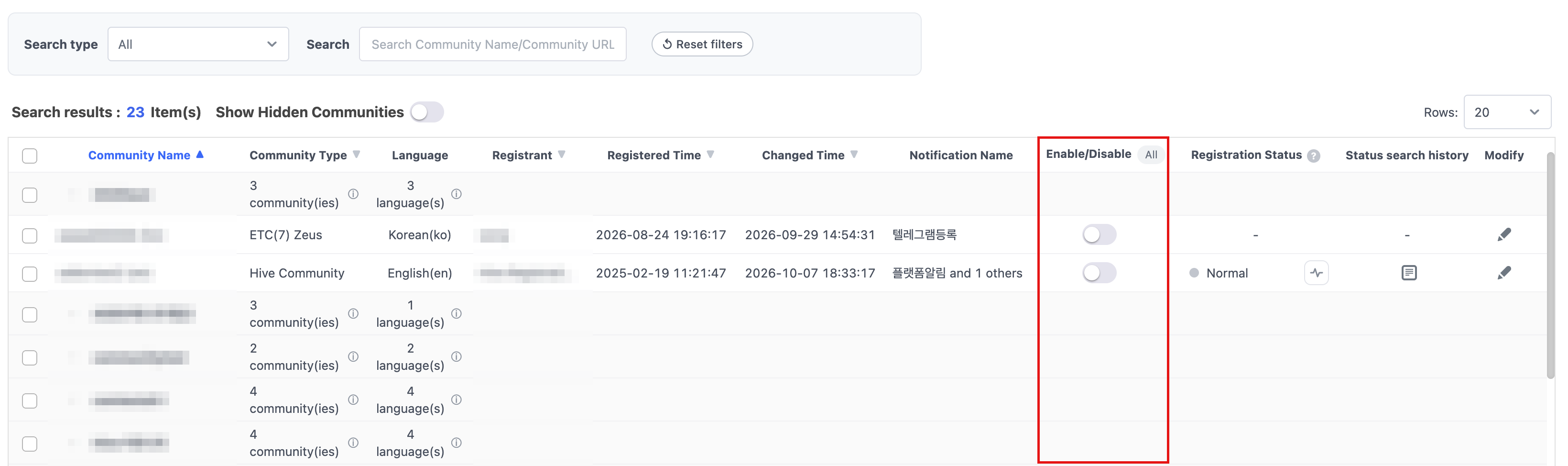
- Registered communities are grouped by project and displayed in ascending order by community name. If only one community is registered for a project, it is displayed as an individual item without a group.
- Click the expand/collapse button in the group row to view the communities included in the group.
- The group row displays the number of communities and languages. Hover over the information icon to view the detailed list of community names and supported languages.
- Selecting the group check box selects all communities in the group. You can also expand the group to select or clear individual communities.
- Registered communities are split into pages by the number of rows (20/50/100), and a group is never split across pages.
- If you want to add keywords other than those provided by default, you can add them in the Keyword Settings Tab.
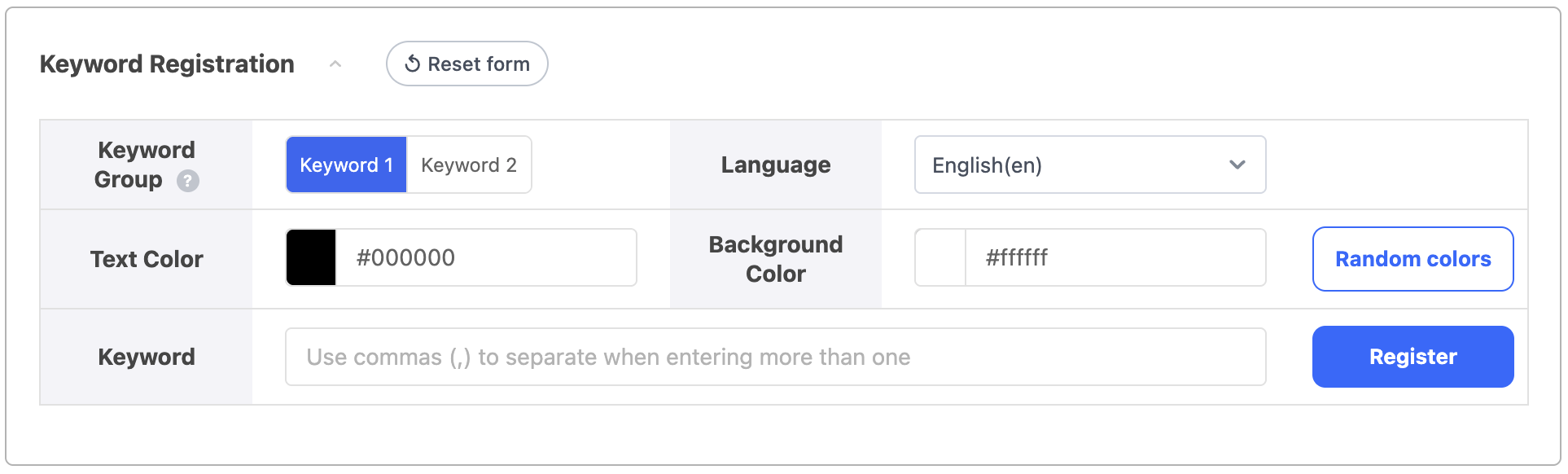
- Select the keyword group (Keyword 1, Keyword 2). The keyword group is used as follows:
- Keyword 1: Keywords related to complaints (e.g. no, not working, impossible)
- Keyword 2: Keywords for the subject of the complaint (e.g. server, Android, etc.)
- Select the language for your keywords and select text color and background color to distinguish text. Click Random colors to pick an easy-to-read color combination automatically.
- Enter keywords. Multiple keywords can be entered at the same time separated by ,. Typing a comma turns the keyword into a chip.
- Click the Register Button to add keywords.
- Select the keyword group (Keyword 1, Keyword 2). The keyword group is used as follows:
- If you want to use the notification service, you can use it after registering the notification service in the Notification Settings Tab.
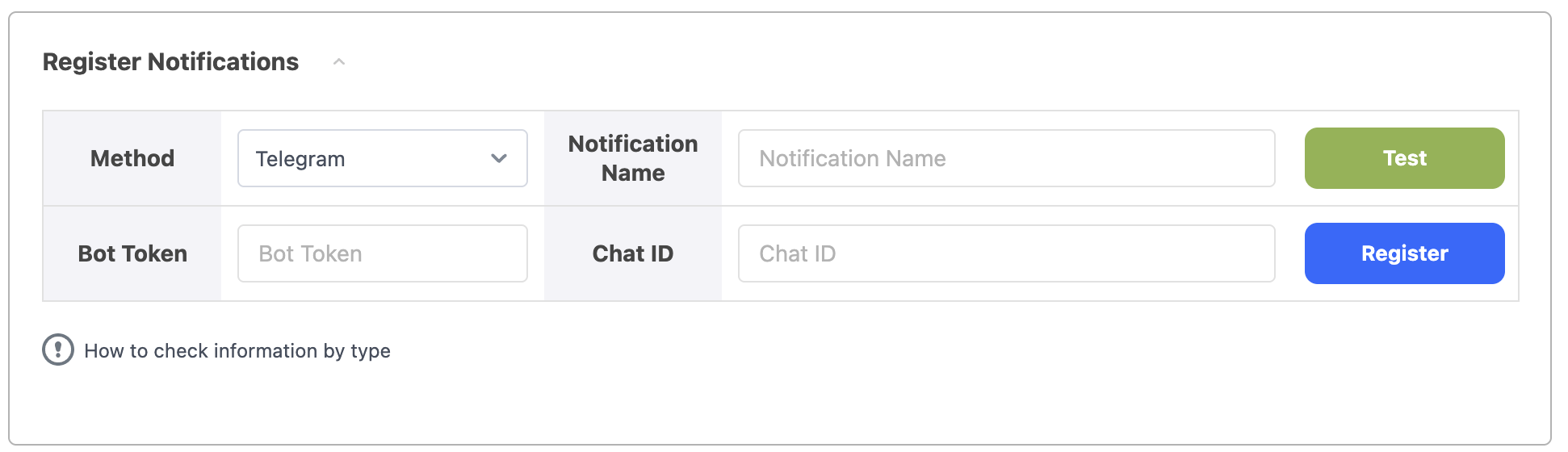
- Select a notification method. Enter a notification name to distinguish the notification.
- Check notification receive method in information check method per type.
- Enter the notification URL (bot token and chat ID for Telegram).
- Test to see if notifications work properly.
- Click the Register Button to add a notification.
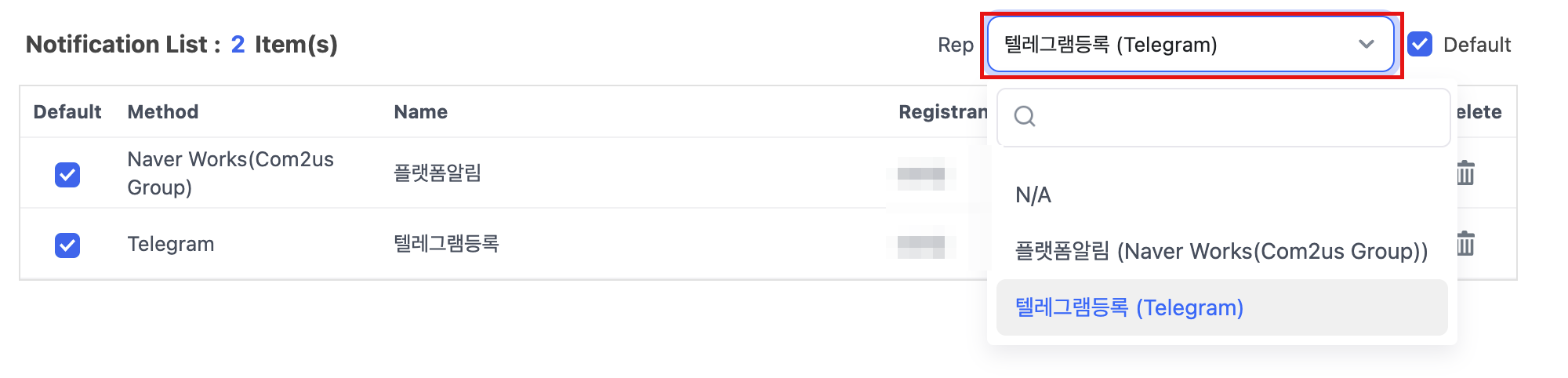
- If you want to automatically select notifications when registering a community, select Default in the table below.

- If you want to register a representative notification, select a notification in the Rep dropdown above the bottom table. The default is None, and you can select one of the registered notifications.