Adult Verification Console Guide
Set the adult verification usage status by App ID, and view and manage the history of verified users and the number of verifications by date.
Before You Start
Adult verification is processed based on project standards. If the App IDs belong to the same project, users who have completed adult verification in one app will not need to verify again in another app of the same project.
Settings
Set whether to use adult verification by App ID.
➡️ Console Path: Authentication > Adult Confirmation > Usage Settings
Configuration Inquiry
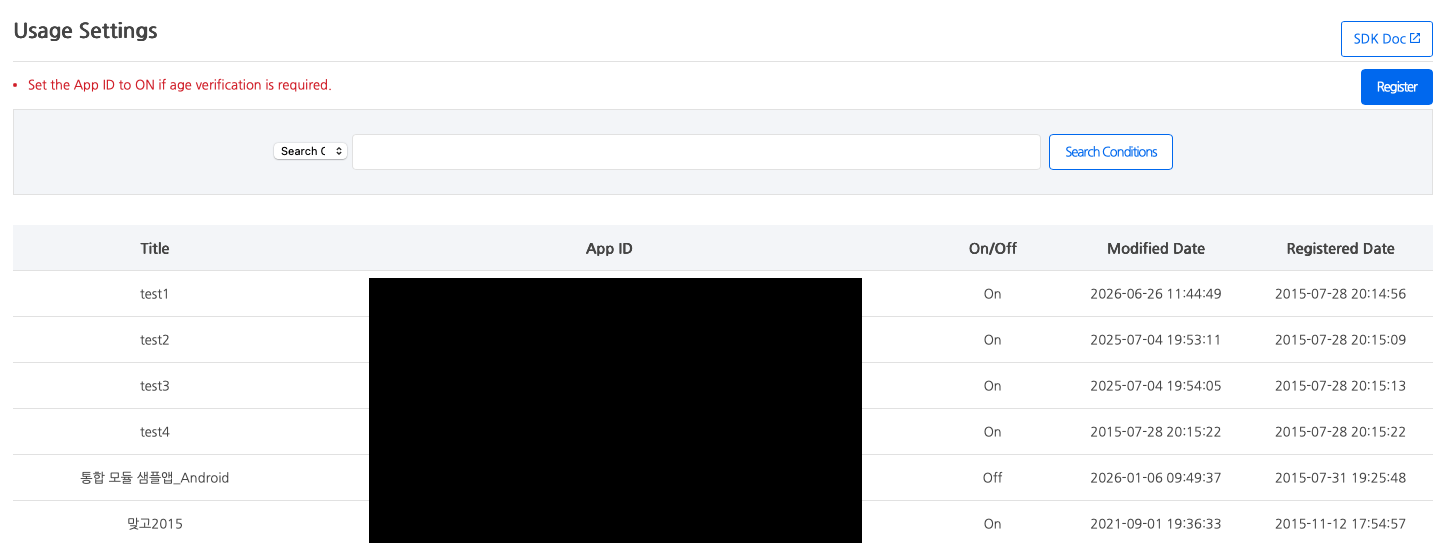
- Select the search criteria in the search area.
- Enter the search term.
- Click the [Search] button.
- Check the management name, App ID, ON/OFF status, modification date, and registration date in the list.
Register Settings
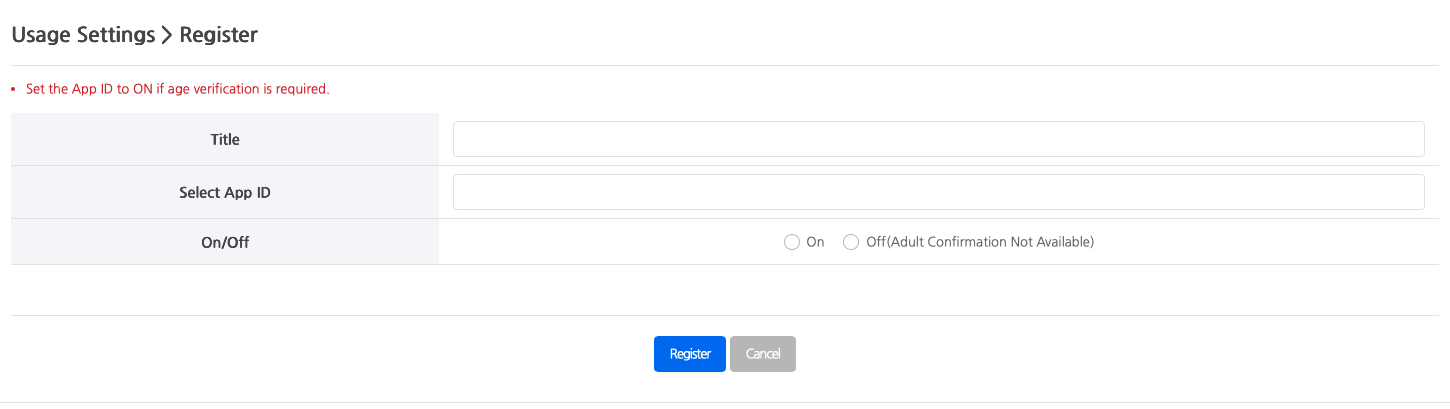
- Enter the management name.
- Select the App ID for which you want to set up adult verification.
- Choose ON or OFF to set whether to use adult verification. If the project requires adult verification, please select ON.
- Click the [Register] button.
Once the registration is complete, you will be taken to a list where you can check the settings. If the registration fails, the reason for the failure will be displayed, and the input values will be retained.
User Inquiry
Retrieves and deletes the adult verification history based on Player ID and DI. DI is a unique value issued during adult verification and is used to identify the user.
➡️ Console Path: Authentication > Adult Confirmation > User Inquiry
Authentication Record Inquiry
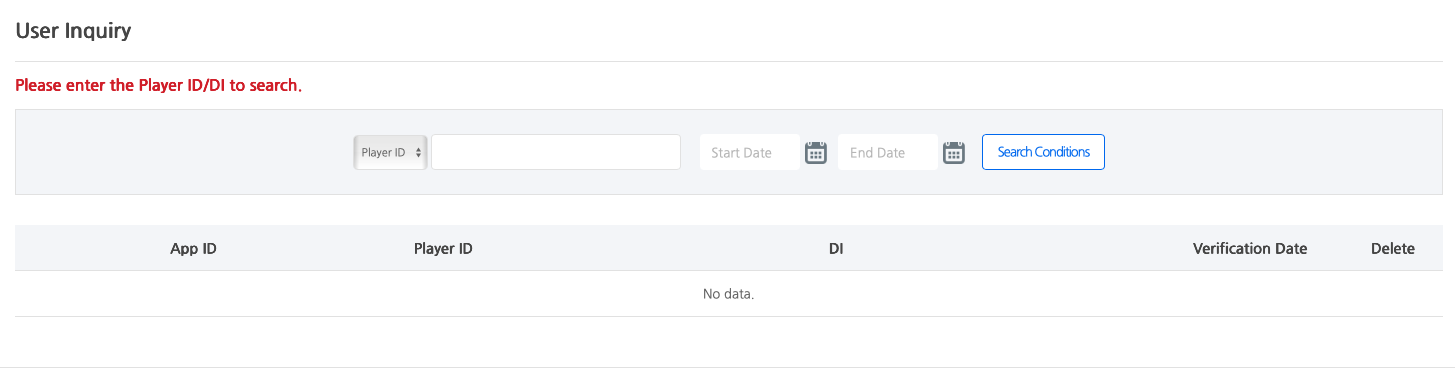
- Select either Player ID or DI from the identifier type.
- Enter the search term.
- Set the inquiry period.
- Click the [Search] button.
- Check the App ID, Player ID, DI, and authentication date in the list.
Number of Authentication Cases Inquiry
Retrieves the number of adult verification cases based on the project and duration.
➡️ Console Path: Authentication > Adult Confirmation > Authentication Record Inquiry
Search for Authentication Cases
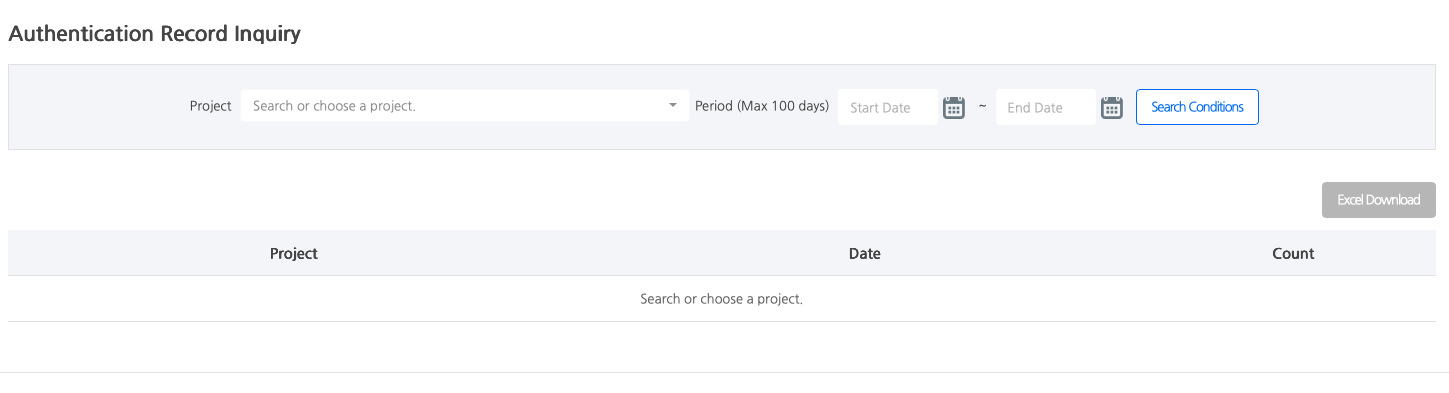
- Select or search for the project to be queried.
- Enter the start date and end date.
- Click the [Search] button.
- Check the project, date, and count in the list.