User Management
Console Path
➡️ Console Path: Authentication > User Management
Overview
In User Management, you can view Player ID authentication information or download authentication information for each project as an Excel file.
User Management consists of the following tabs.
User Authentication Lookup: View the Player ID's IdP authentication information and authentication history, disable login, or change profile information.Authentication Information Download: Specify an App ID and lookup period to generate and download an authentication information file.
User Authentication Lookup
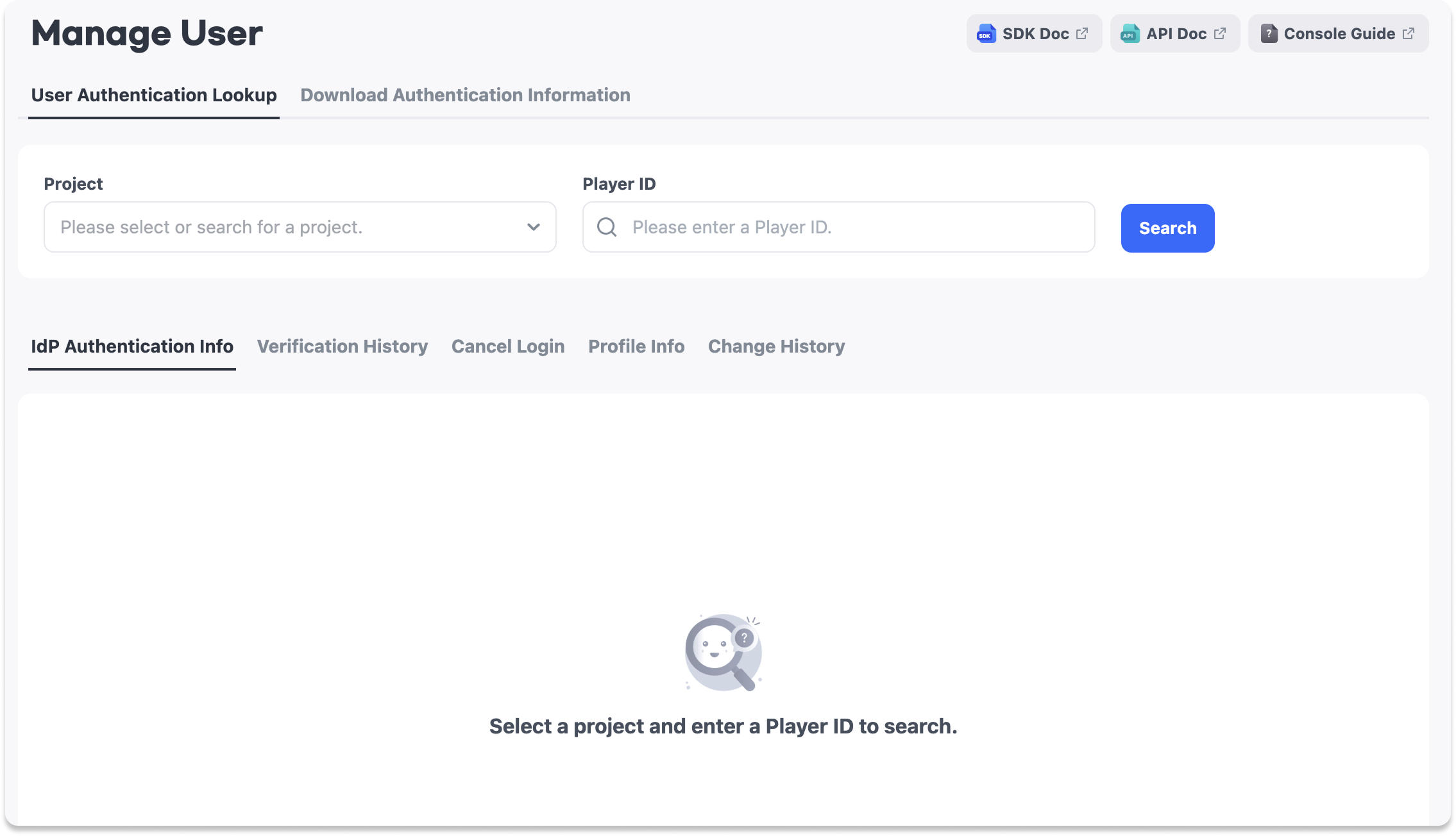
Search for a Player ID
- Select the
User Authentication Lookuptab. - Enter the
ProjectandPlayer ID, and then clickSearch.
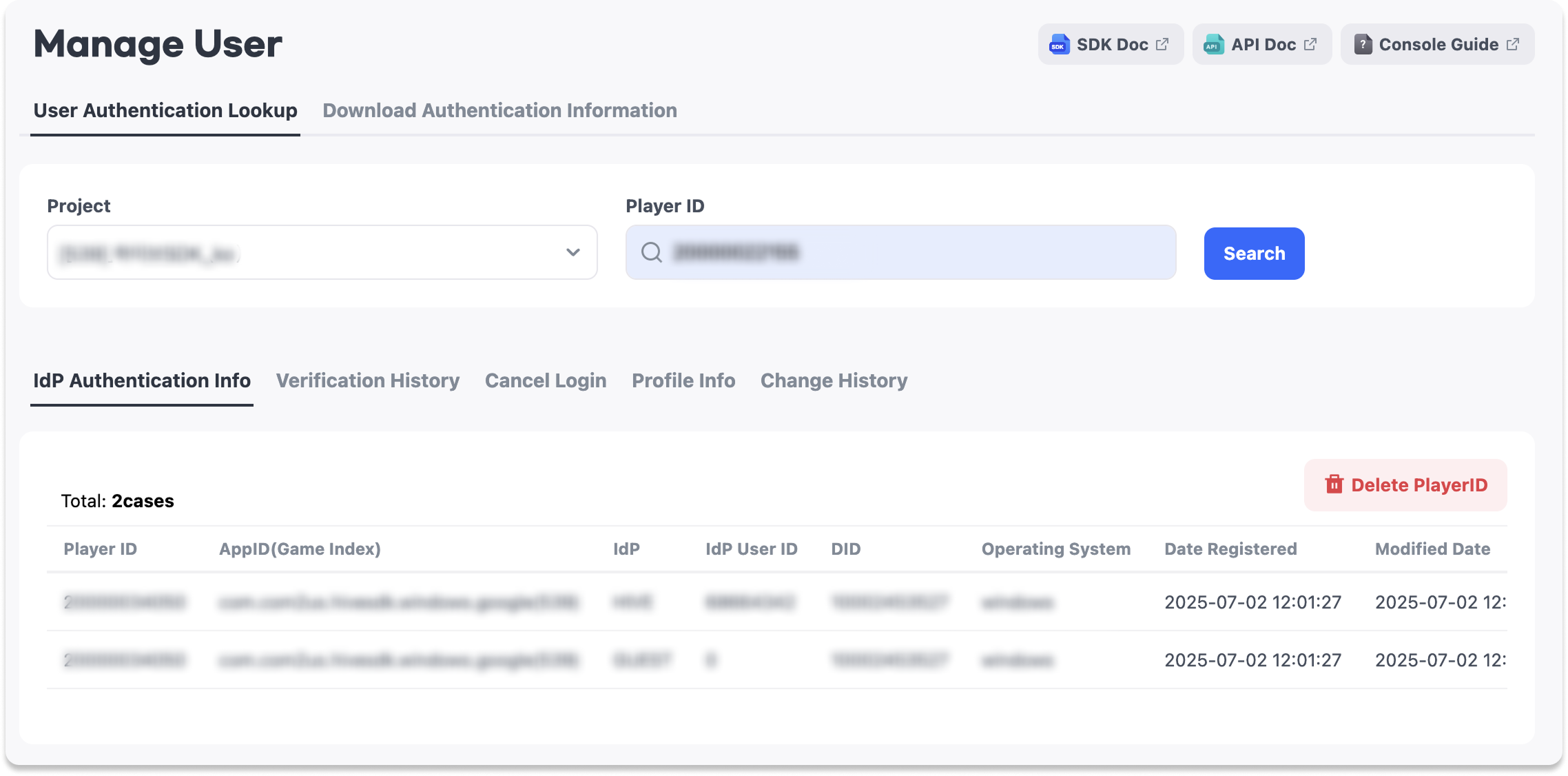
IdP Authentication Information
View the App ID, IdP, IdP User ID, Device ID, OS, and registration date linked to the Player ID.
Deleting a Player ID deletes all linked IdPs and changes the account to guest status. The authentication token is also deleted, preventing the user from logging in. Exercise caution because a deleted user account cannot be recovered.
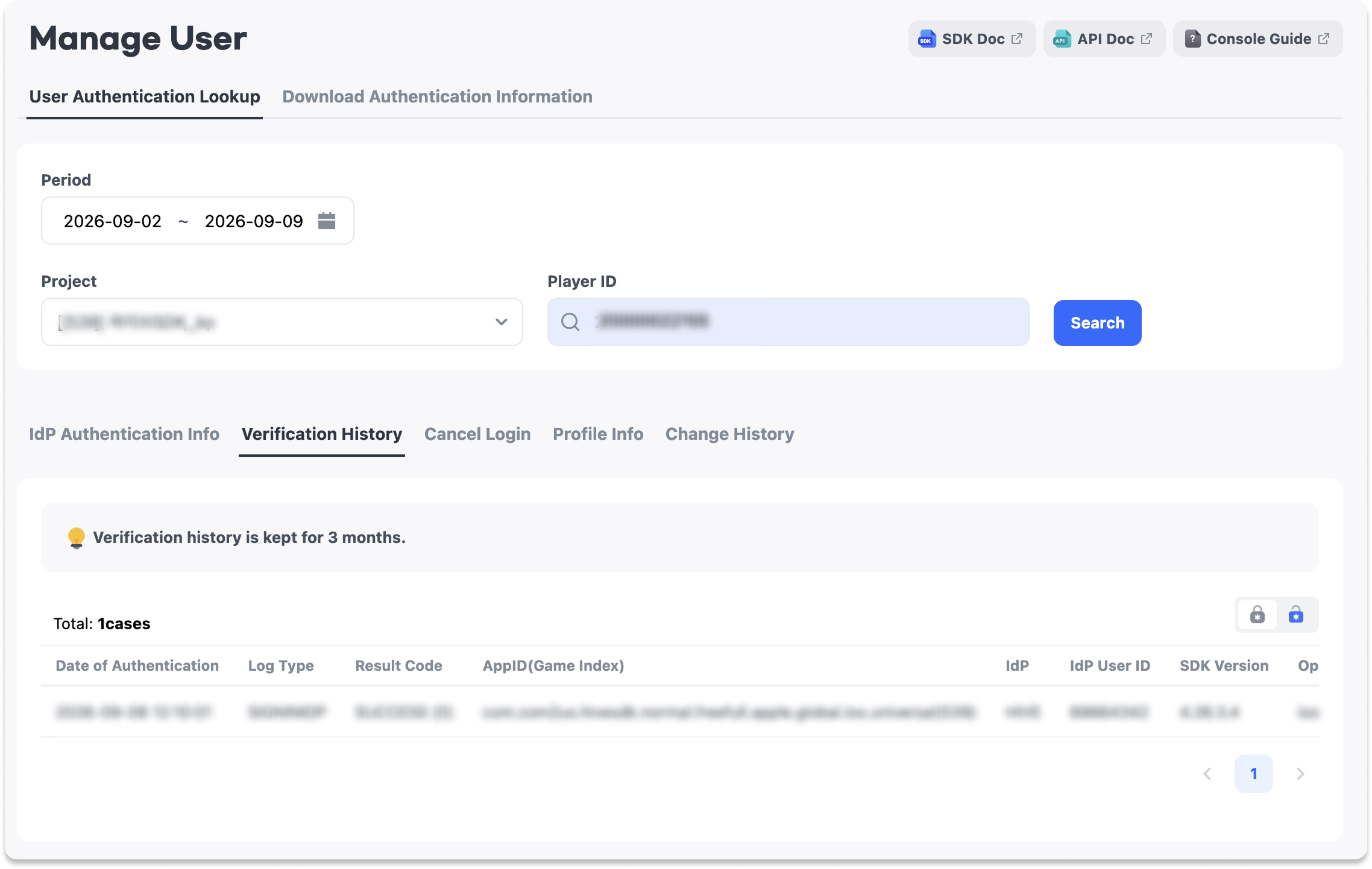
Authentication History
View the Player ID's IdP linking information and login history. The authentication date, log type, result code, and App ID are displayed.
The log types displayed in the login history are as follows.
| Log Type | Description |
|---|---|
| SIGNIN | Guest linking |
| SIGNINIDP | IdP linking |
| SIGNINPLAYER | Automatic login |
| WEBSIGNINIDP | IdP linking through web login |
| WEBLOGIN | Web login |
| CONNECT | IdP linking through the game |
| DISCONNECT | Disconnecting an IdP through the game |
| SELECTIDP | Account conflict |
| DELETEPLAYERID | Player ID deletion |
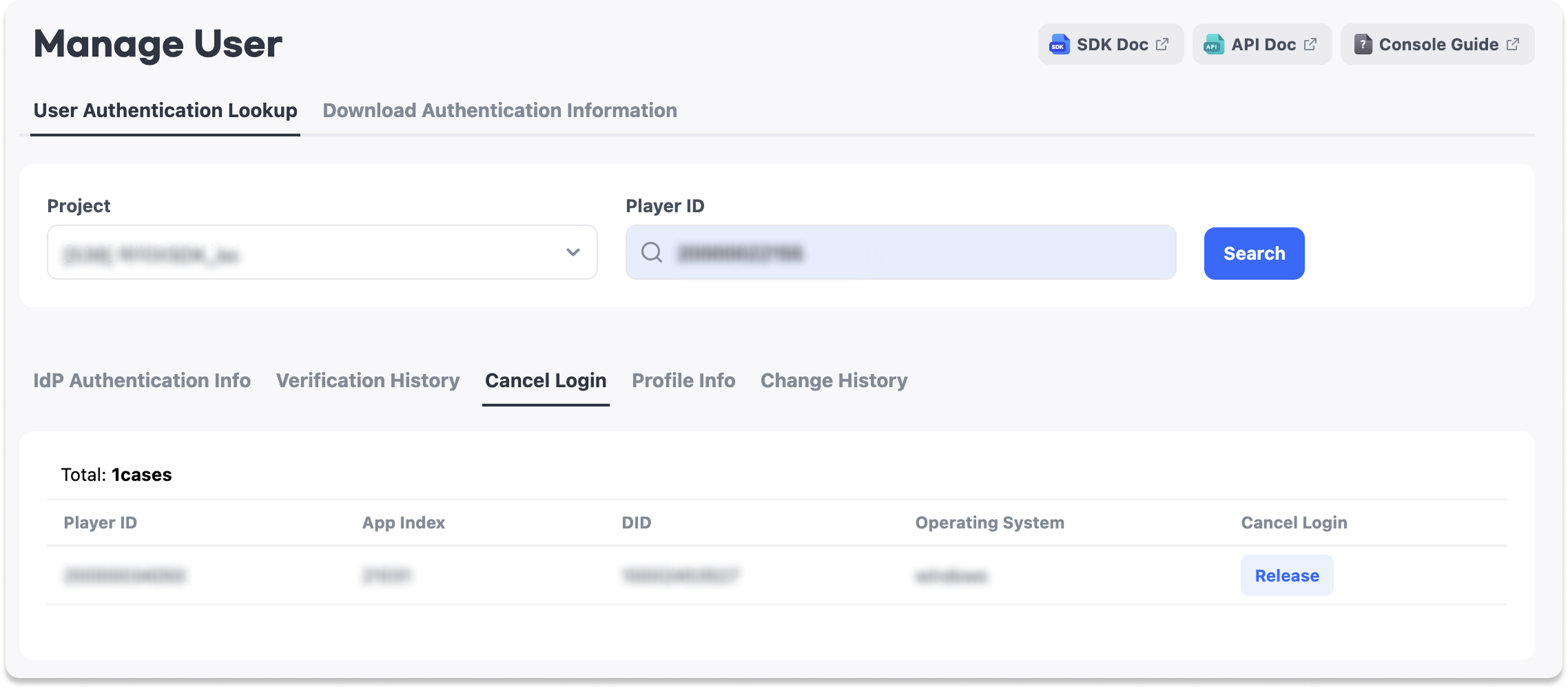
Disable Login
Disable IdP login for the Player ID. You can select and disable login for a specific Device ID only.
If you disable login for only one Device ID, automatic login remains active on other devices. Game progress is retained on the selected device. Exercise caution because disabling login deletes the selected login information.
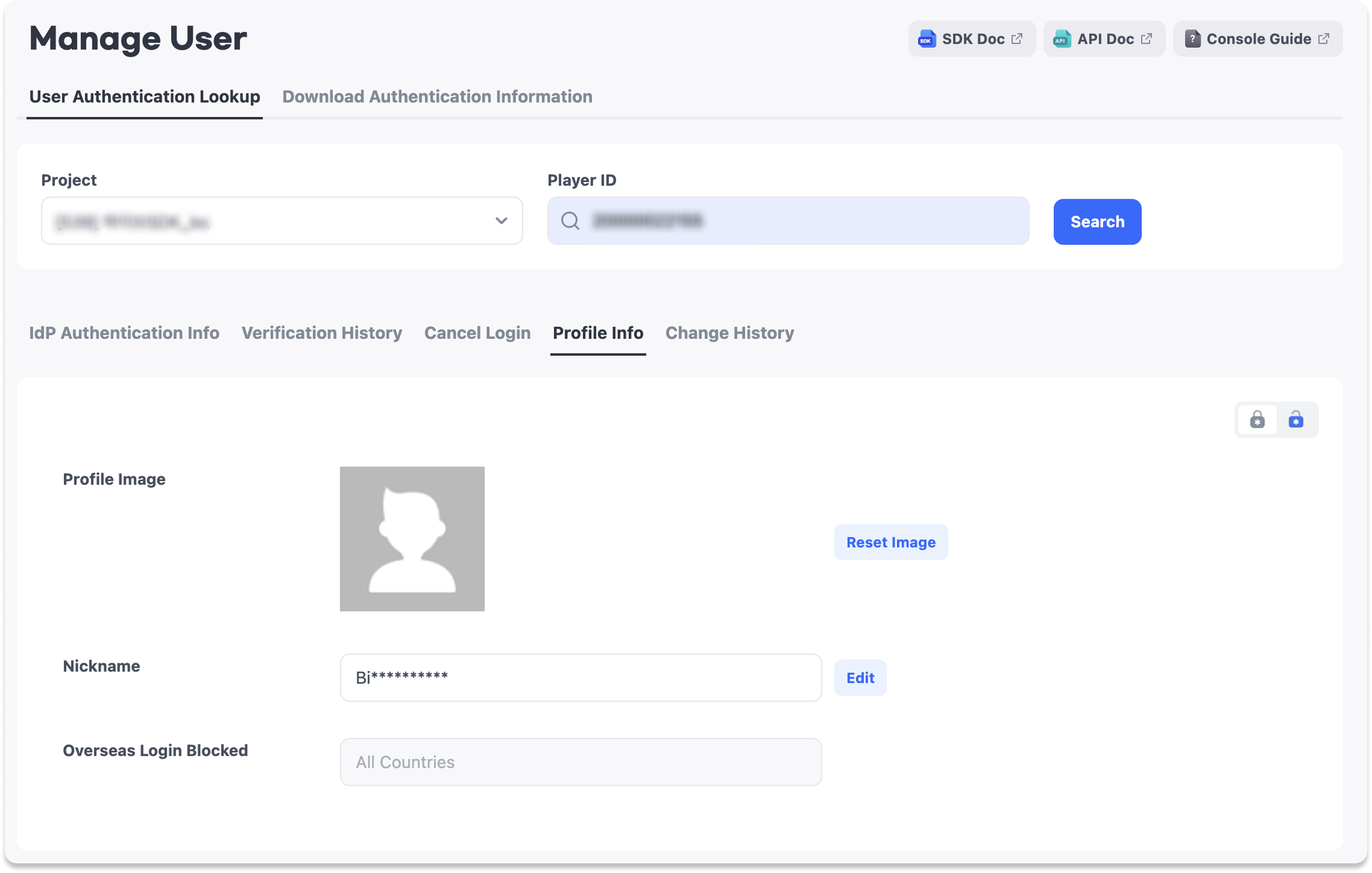
Profile Information
Reset the Player ID's profile image or change its nickname.
Authentication Information Download
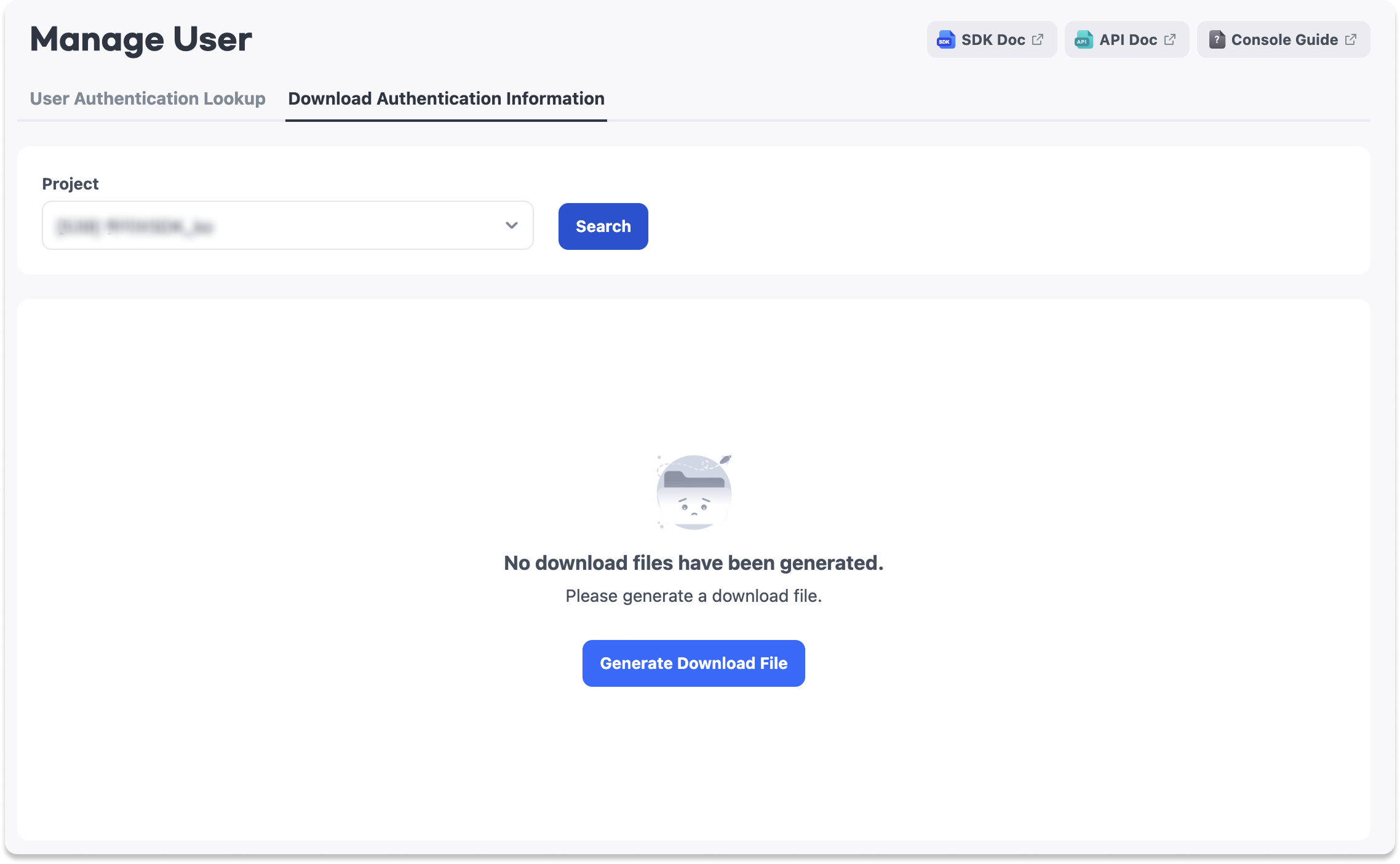
Search for a Project
- Select the
Authentication Information Downloadtab. - Select a
Project, and then clickSearch.
Project Display Criteria
- Only projects with a status of
In DevelopmentorLiveare displayed. - The projects available for selection depend on your project permissions.
Generate a Download File
- Select
Generate Download Filefrom the project search results. - In the
Generate Download Filepop-up, select anApp ID. - Select the start and end dates for the
Lookup Period. - Click
Request.
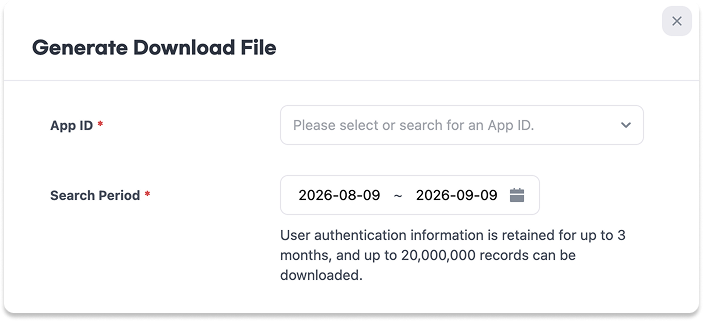
The Request button is enabled after you enter both the App ID and Lookup Period. The default Lookup Period is from one month before the current date through the current date.
You can download up to 20 million lookup results. If the number of results for the specified period exceeds 20 million, a notification appears and you cannot request file generation. In this case, shorten the lookup period and try again.
File Generation Fields
| Field | Required | Description | Notes |
|---|---|---|---|
| App ID | Required | Select or search for the App ID whose authentication information you want to download. | There is no default selection. |
| Lookup Period | Required | Select the start and end dates for the authentication information lookup. | The default period is from one month before the current date through the current date. Authentication information is retained for up to three months, and you can download up to 20 million lookup results. |
View File Generation History
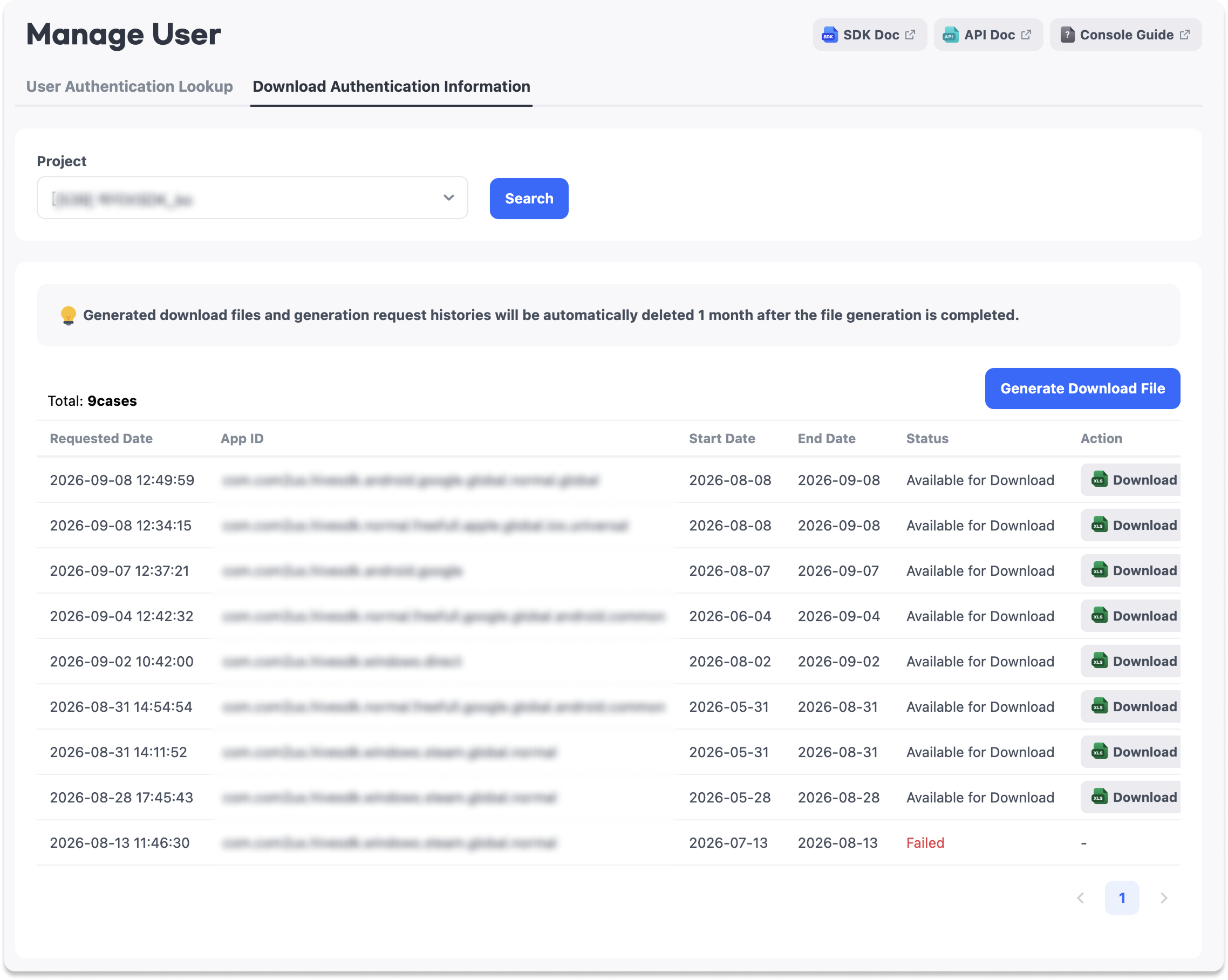
When you request file generation, the request information and processing status appear in the download file generation history for the selected project.
| Field | Description |
|---|---|
| Request Date | The date and time when file generation was requested. |
| App ID | The App ID selected when the file was generated. |
| Start Date | The start date of the lookup period. |
| End Date | The end date of the lookup period. |
| Status | The file generation status. |
| Storage Expiration Date | The expiration date for storing the generated file. |
| Action | The Cancel Generation or Download button is displayed depending on the status. |
| Administrator | Information about the administrator who requested file generation. |
File Generation Status
| Status | Description | Available Action |
|---|---|---|
| Pending Generation | The file generation request has been submitted and is waiting to begin. | Cancel Generation |
| Generating | The file is being generated. | - |
| Generation Failed | File generation failed. | - |
| Available for Download | File generation is complete. | Download |
| Expired | The file was deleted after its storage period expired. | - |
Generated download files are automatically deleted one month after the file generation date.
Download Authentication Information
- Select
Downloadfor an entry with the statusAvailable for Download. - Review the information in the
Precautions for Downloading Personal Informationpop-up. - Select a
Reason for Download. - Click
Download.
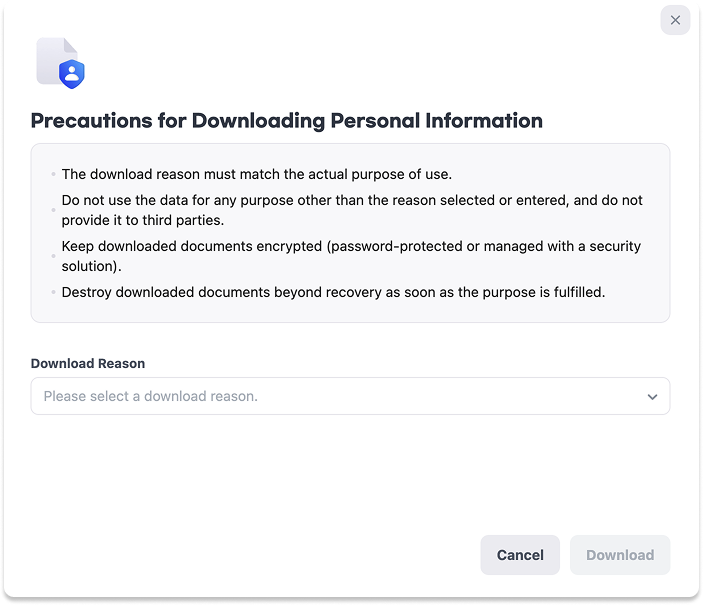
The Download button is enabled after you select a Reason for Download.
Download File
- The file name uses the format
App ID_Lookup Period. - The file is provided as an Excel workbook (
.xlsx). - If the lookup results contain 500,000 or fewer records, they are provided in a single Excel file.
- If the lookup results exceed 500,000 records, the Excel files are split by date and provided together in a ZIP file.
- If the results for a single day exceed Excel's row limit of 1,048,576 records, the file for that date is also automatically split using suffixes such as
_1and_2. - Column names in the file are displayed in English.
- The file contains the following fields.
| Column Name | Description |
|---|---|
| Log type | The type of authentication log. |
| Player ID | The user's Player ID. |
| IdP User ID | The user identifier issued by the login method. |
| IP | The IP address identified during authentication. |
| IdP | The IdP used for authentication. |
| Device ID | The device identifier generated when the app is installed. |
| Country | The country identified during authentication. |
| OS | The operating system identified during authentication. |
| date | The date and time when authentication occurred. |
Precautions
- A user account cannot be recovered after its Player ID is deleted.
- Disabling login deletes the selected login information.
- Generated download files are retained for one month from the file generation date.
- Files are automatically deleted after the retention period expires.
- Authentication information is retained for up to three months.
- You can download up to 20 million lookup results at a time. If the results exceed this limit, shorten the lookup period and try again.
- After the purpose of use has been fulfilled, securely destroy download files containing personal information so that they cannot be recovered.