Invite Campaign Registration and Management
UA (Game Invite Link) is an effective feature to attract more game users. Please check out the following process to use the feature.
Invite Link process

1. Develop UA
- Develop UI for UA
- Develop Invite Achievement Campaign and Reward
- Develop Methods to Share the UA
- Develop Game Intro Page
2. Register UA backoffice
- Register an App
- Register CPA (When using CPA)
- Register a Promotion for the Campaign and Reward Settings
3. Implement UA
- Implement the UA development
- Apply UA API
4. Run tests
- Check whether URL and QR code info for invite is normal.
- Check whether the results such as the number of invite completion times is normal.
- Check whether CPA logs are transferred properly.
- Check whether rewards have been given out properly for completing the UA campaign, etc.
Develop UA
In this stage, you’ll be able to develop content of a campagin, rewards, UA UI, etc.
| Category | Description | UA Service | Etc |
|---|---|---|---|
| Campaign | Set up a goal of the invite completion, rewards that will be given out for completing the invite goal, and the maximum number of rewards, etc. |
• CPA: Sends out a reward when completing a specific action • Reward Campaign per Case: Sends out a reward when a friend completes CPI or CPA • Goal Achievement Campaign: Sends out a reward when the number of friends who completed CPI or CPA reaches the designated number | • CPI is completed at the moment when the user gets a vid by installing and playing the game, and a reward will be sent • Designate the maximum number of times to acquire rewards (Required) • For CPI, it is necessary to set up the level of the limit to the point which does not cause any problems while any one gets the rewards up to the maximum number of times or receive the amount of money |
| Sharing Methods | You need to plan which platforms to use for the sharing feature to be used in the game. Hive, Kakaotalk, Line and Facebook are the most widely used platforms. An invite URL and/or QR code are required for users to send to their friends. SDK 4.11.2 and later supports social media sharing feature without any additional game-specific implementation. (Kakaotalk/LINE/Facebook/Facebook Messenger/WhatsApp/WeChat) You also need to decide the message to be sent when users actually share. | • Issue an individual invite URL • Issue an individual invite QR Code | • Implement a feature where users can send the QR Code via a sharing method and a feature where users can save the QR Code image on the device (Recommended) • Implement a feature where users can send an invite via api, which is a basic sharing method provided by the OS (Recommended) • Implement a feature where users can send an invite URL via external sharing methods such as social network services (Optional – Needs to be implemented by the develop team) |
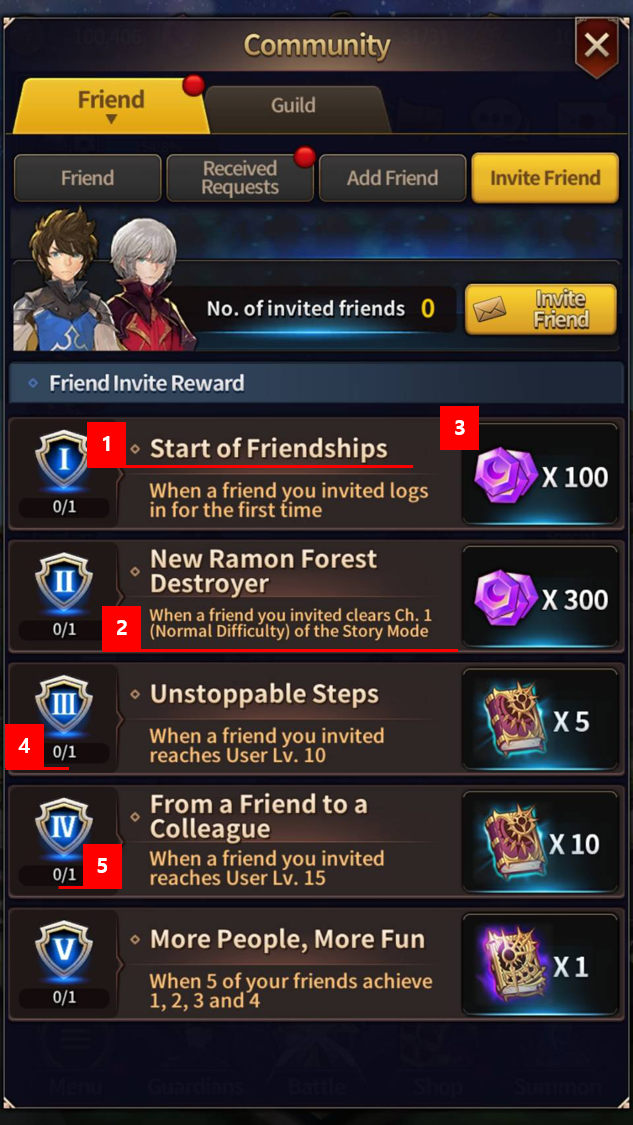
| UA UI | UA screen needs to be developed. A campaign and features that will send out invites are required. You can either compose campaign and invitations in one screen or in separate screens. | 1.Campaign Title 2.Description 3.Image 4. No. of currently completed invites 5.Max no. of invites(goal) (Refer to the campaign example below) | The campaign title, description, and image are optional and can be implemented directly in the game. |
Person in Charge: Develop team or a person in charge of business
[Campaign Image Example – Chain Strike]
Invitation type
- Invite Game Friend: You can invite friends to the game via an invitation link and receive rewards. An invitation link is issued per inviter.
- Reward Link: Rewards can be issued to users who install via the link. There is no separate inviter and a single URL is issued.
Invite Link Settings
To issue an invite link, you need to configure the following items.
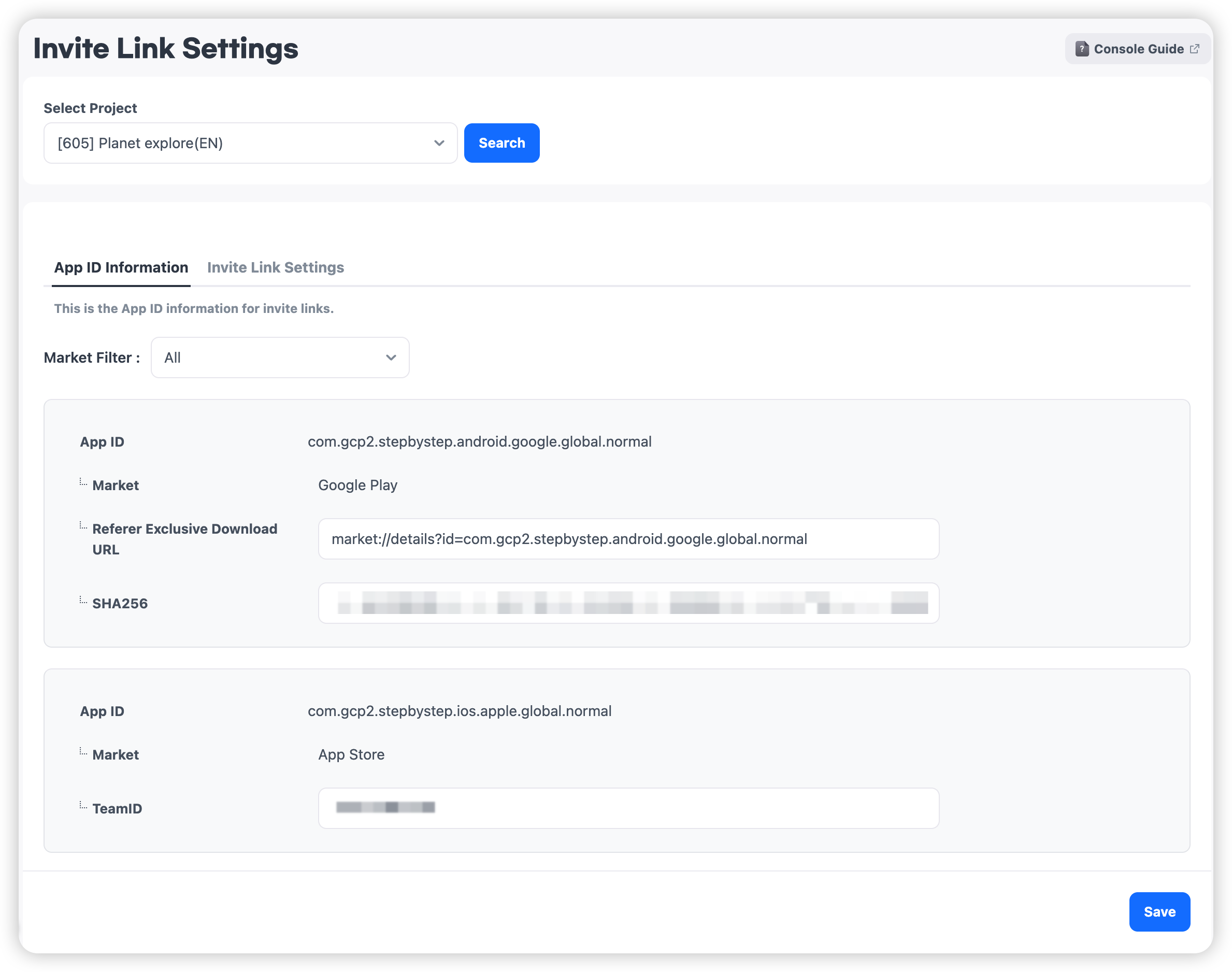
App ID Information
This is the App ID information for invite links. Registered App IDs for the game will be displayed. Through the "Invite Link," users are redirected to the market link connected to each App ID.
The Referrer URL and Deferred Deep Link are optional features that enhance invite attribution. The invite link works without these settings, but configuring them can improve the accuracy of invite attribution.
- Referrer-only download URL : Enter the referrer-only download URL (Market://details?id...). The referrer URL is a feature provided by Google that allows tracking of the user acquisition path by embedding a specific tracking code.
- SHA256 or TeamID : This value enables the platform's official link handling method when Deferred Deep Link is enabled. Enter the SHA256 value for Google Play or the Team ID for the Apple App Store. When configured, Android uses App Links and iOS uses Universal Links. App Links and Universal Links verify the association between the app and the domain before handling the link.
Warning
The App ID status must be set to 'Live' to register an invite link campaign.(Path: Promotion Settings > App ID Management > App ID List > App ID Information)
If there are two App IDs for the same market under 'Promotion Settings > Basic Settings > App ID Settings', the system must determine the actual market download URL when the invite link is clicked. Therefore, ensure the status is set to 'Live'.
Invite Link Settings
Guide Page
This feature configures the guide page displayed when a user clicks the invite link. You must display an appropriate guide page depending on whether rewards are configured. The guide page type only determines the UI type and does not control reward distribution. Therefore, ensure that the reward setting in the invite link campaign matches the guide page type.
If you are only using the invite URL generation feature without rewards, set the guide page type to No Reward.
| Guide Page without Reward | Guide Page with Reward |
|---|---|
 |  |
Deferred Deep Link Settings
When Deferred Deep Link is enabled, users who click an invite link before installing the app on iOS can still receive the invite information when they launch the app for the first time after installation, allowing the invite source to be identified. The invite source can still be identified even if Deferred Deep Link is disabled. However, the identification accuracy may be lower than when Deferred Deep Link is enabled. Note that on iOS, enabling Deferred Deep Link may display a system prompt requesting permission to access the clipboard.

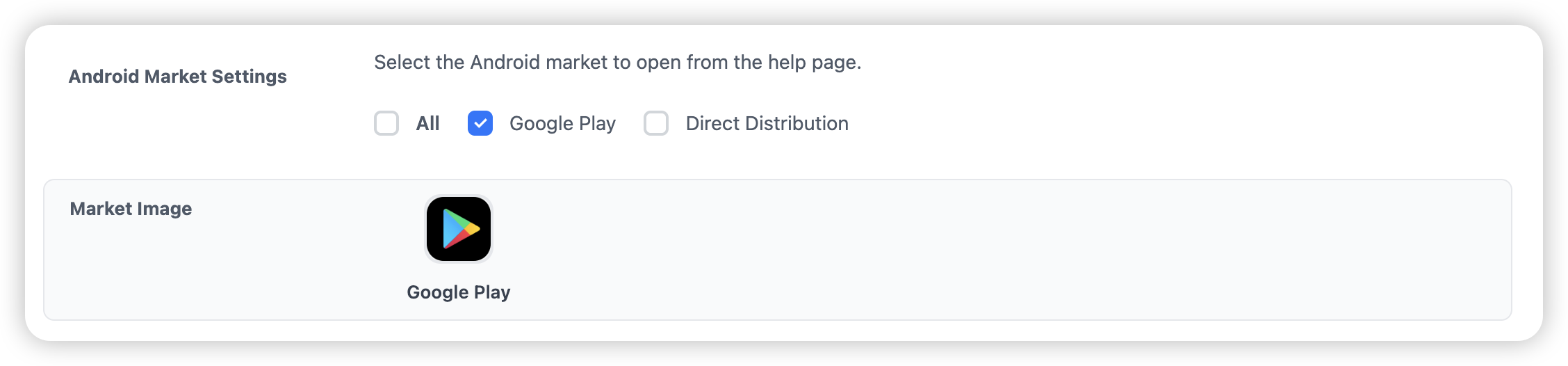
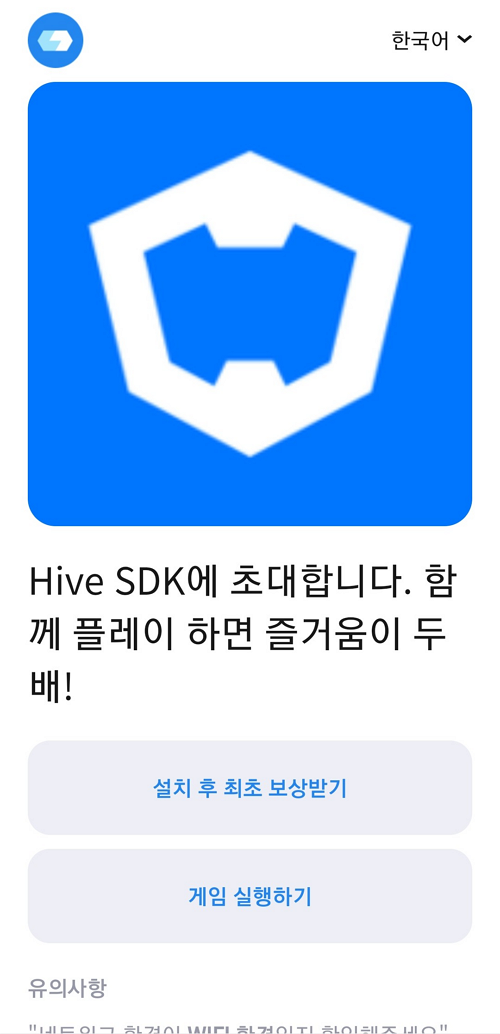
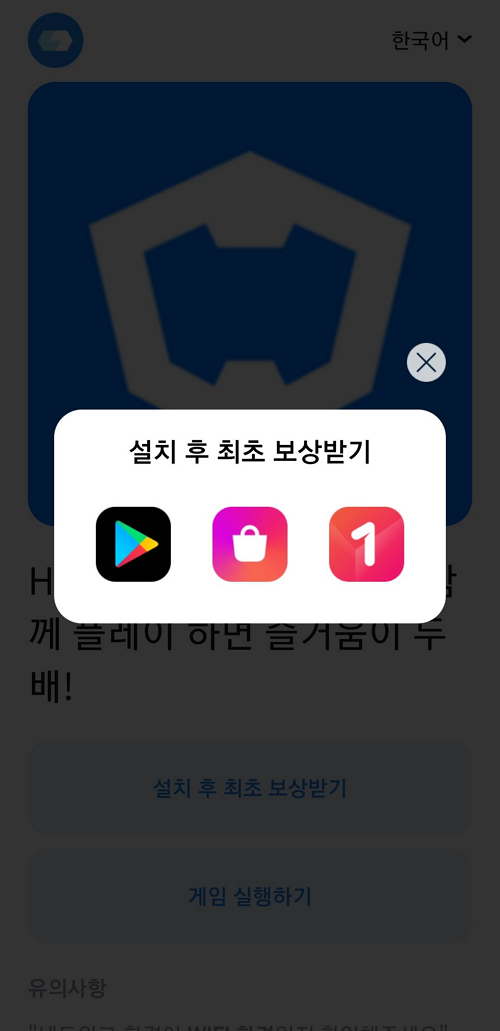
Go to Market
If your game is available in multiple markets, users can select a market on the invite link page before installation.
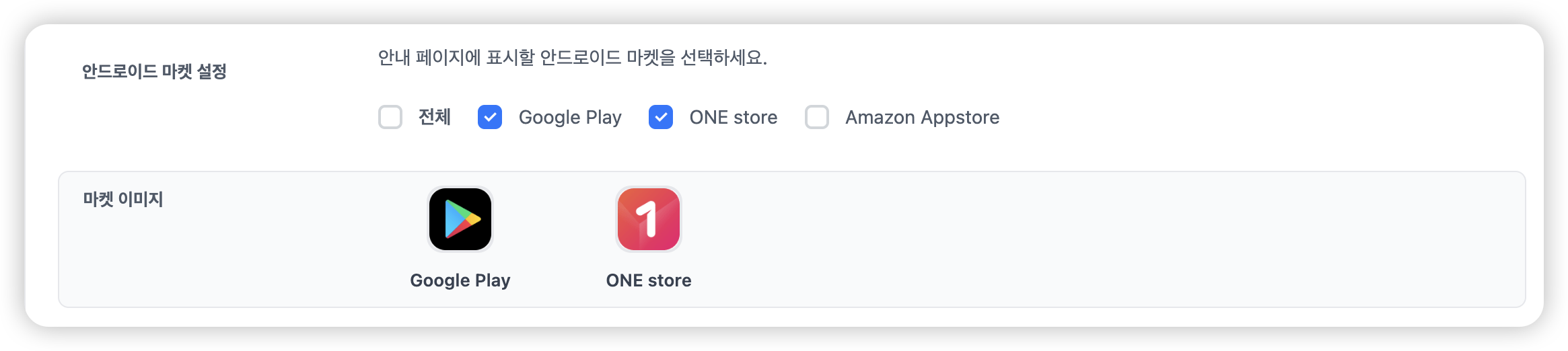
- Android Market Settings : Select the Android market to open from the help page.
- Market Image : Upload the image for the selected market. Recommended size: 108 × 108. ※ Default images are provided for Google Play, Amazon Appstore, Galaxy Store, Huawei AppGallery, and ONE Store.
| When 1 market is selected | When 2 or more markets are selected |
|---|---|
 |  |
Warning
Invite Image & Message
Register the image and message displayed when sending an invite to a friend. The registered content is also applied to the guide page.
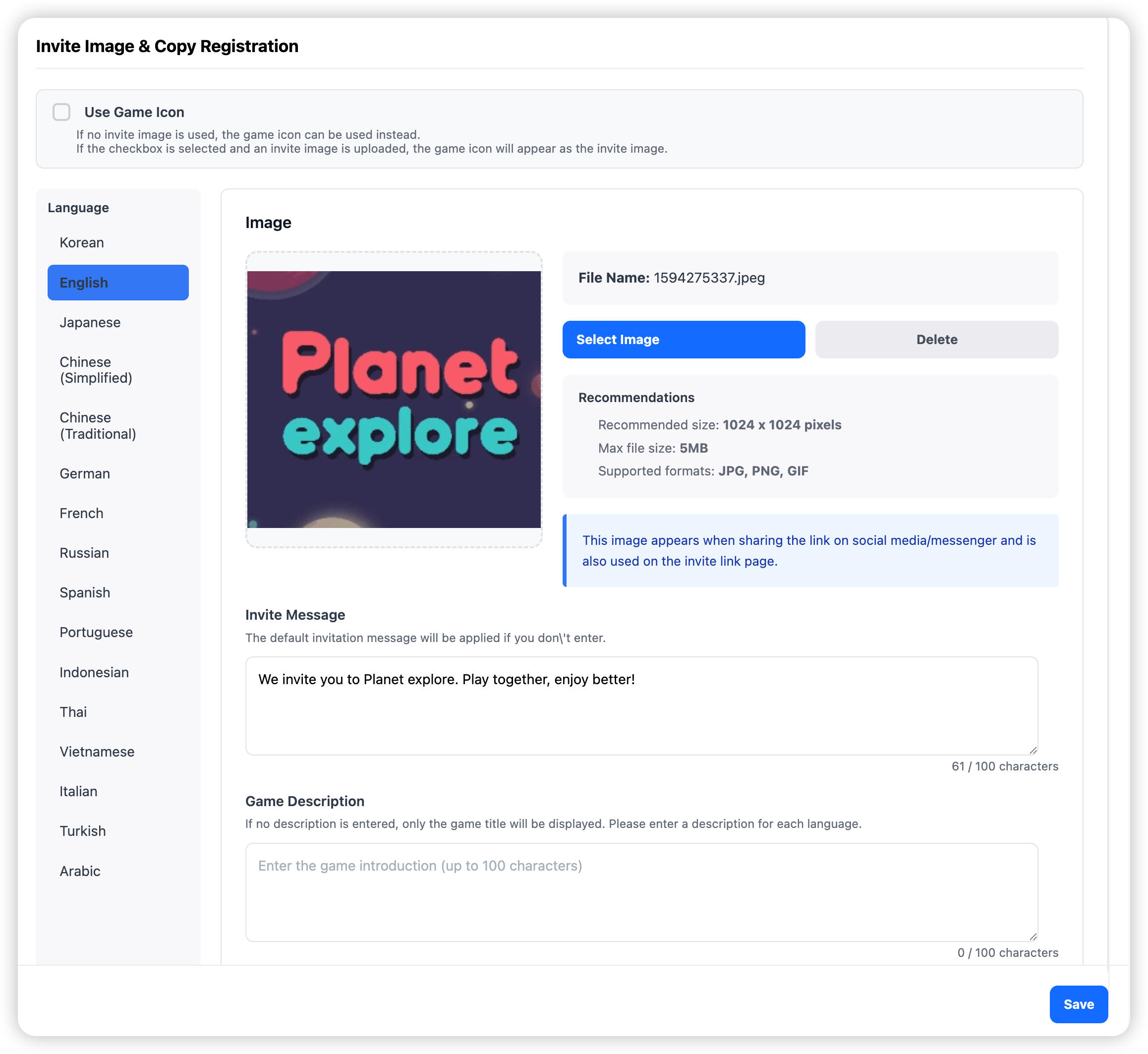
Invite Message
Enter the invite message (up to 100 characters).
This message is displayed on the guide page and also appears at the top of the message when sending an invite link to a friend.
Depending on the SNS messenger, the message may not be displayed.
If a language is not registered, the default message for that language will be used. Changes are applied immediately upon update.
Default message: %s invites you. Playing together doubles the fun!
Invite Image
This image is displayed on both the guide page and in the invite message sent to friends.
Recommended size: 1024 × 1024 pixels
If no image is registered, the game icon will be used instead.
If the "Use Game Icon" checkbox is selected, the game icon will always be displayed regardless of uploaded images.
Game Description
This text appears along with the image when sharing the link on social media or messenger.
Enter the game introduction (up to 100 characters). If not provided for a specific language, English will be used by default.
[Example of KakaoTalk invite message]

Issue invitation link
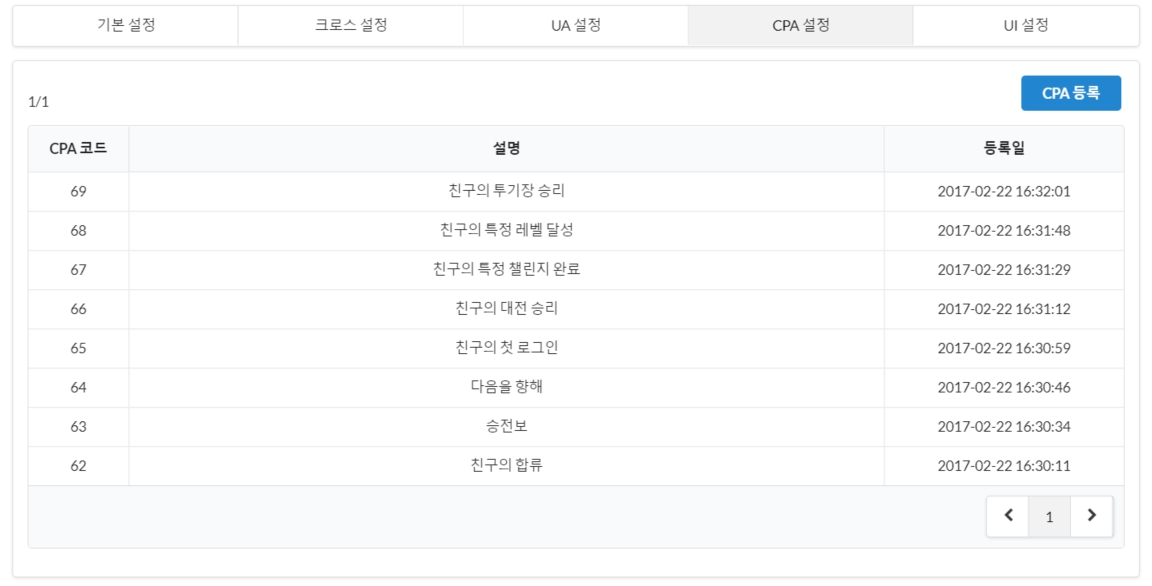
To grant rewards when a specific goal is achieved, the corresponding goal action must be registered in Promotion Settings > CPA Settings.
Register Invite Campaign
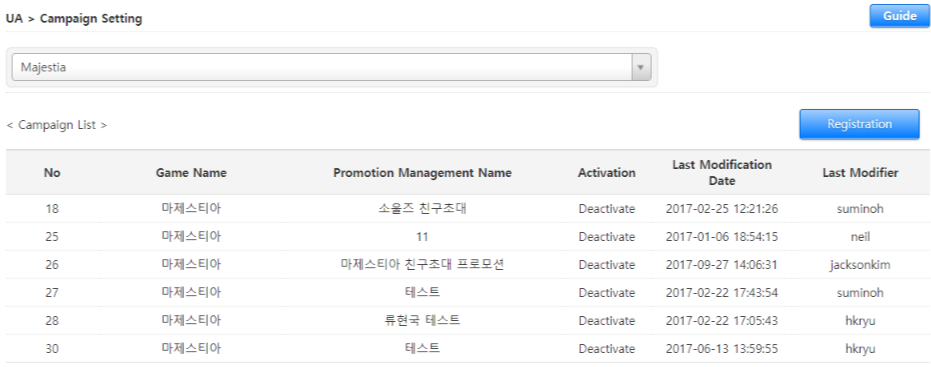
1. Campaign list
Select a game and click “Registration” Button to register a new promotion or click a Promotion Management Name to modify the existing promotion.
2. Registration and modification
Enter the details and click “Save”.

- Selecting a Type
- Invite Game Friend: It’s a promotion used for inviting friends to the game.
- Link to send rewards: It’s a promotion that gives out rewards to users who clicked on issued URL and installed the game. (Used for pre-registration, etc.)
- Exposed text Basic Language
- Select a language you’d like to expose by default when you set the exposed text for the campaign. Select “Don't Use” for the games that don’t have any text to expose.
- Individual Achievement Campaign
-
- It’s a campaign that gives out rewards each time a friend achieves a campaign. You can arrange multiple campaigns with the “Add Campaign” Button and please note that the campaign won’t work if you delete the campaign that’s used for the service.
- Select a Campaign: Compose campaigns by selecting CPI or registered CPA. CPIs must be selected even if there’s no reward since it is a method to check the gameplay after installing the game for the first time.
- You can select multiple user invite rewards. Select a reward to give and enter the amount in number in the input box. (Ex. 1 Item will be given when you enter 1.)
- You can restrict the MAX number of rewards an invite user can receive by entering a number in the reward limit. Once the maximum number of rewards is reached, no more rewards can be received by either the invited user or the inviter.
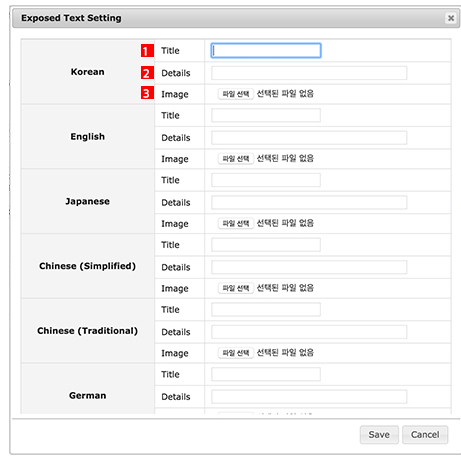
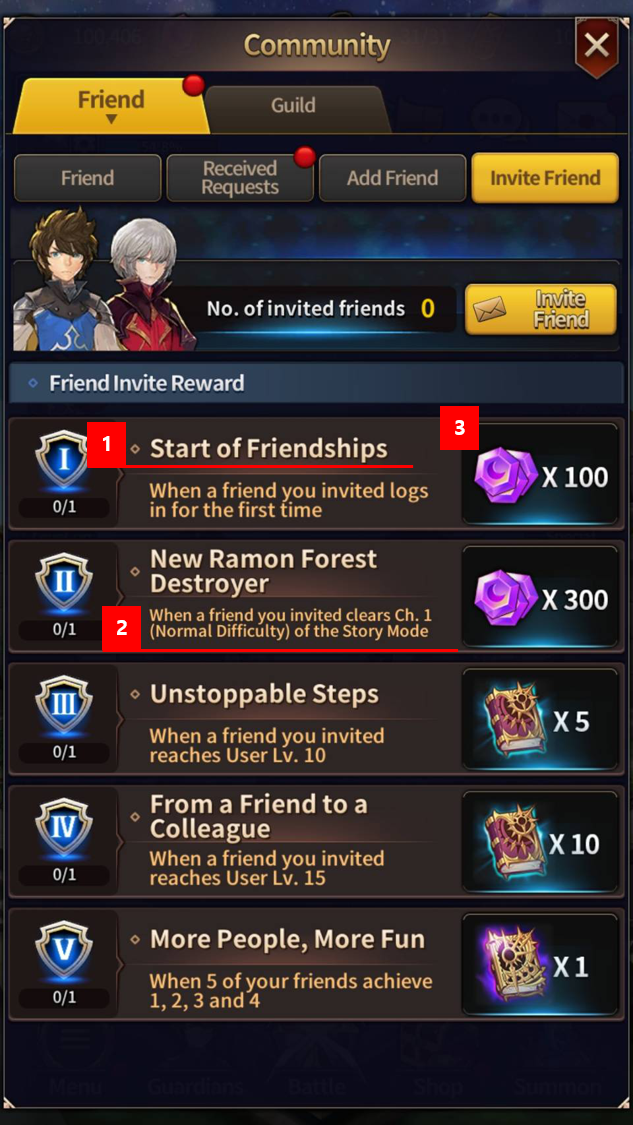
- Exposed texts aren’t required if you were to implement them in the game directly. You can choose to enter info only for the categories you want, including title, details, and image. However, you must enter one of the 3 for the language you set as a basic language.
- Reset: If you exceed the maximum number of friends you can be compensated for, no additional compensation will be given. In this case, you can use the reset function to reset the compensation count. The reset function will be applied on a campaign basis and not user basis.
For example, let's say you want to reset a campaign with 30 compensation count limit. Once the count resets, the number of target friends will become 0 for both a user who achieved 30 compensation count limit and a user who achieved 10 compensation count. Therefore, both users can re-invite friends to receive compensation. Even if you reset the compensation count, existing invitation information can be viewed through the log search menu.
-
- [Backoffice - Exposed Text Settings]
- [Exposed Text Example]
- Goal Achievement Campaign
- It’s a campaign that gives rewards when you reach the goal for the number of friends that achieved the campaign. You can compose multiple campaigns by clicking the “Add Campaign” Button.

-
- Select a Campaign: You can select multiple campaigns for Goal Achievement Campaign. Use “+/-“ Button to add or delete campaigns.
- Goal Number: Enter the number of users to accept the invite for campaign achievement.
- Reward Amount Limit: Enter the MAX number of rewards that the invite user can receive
Information page
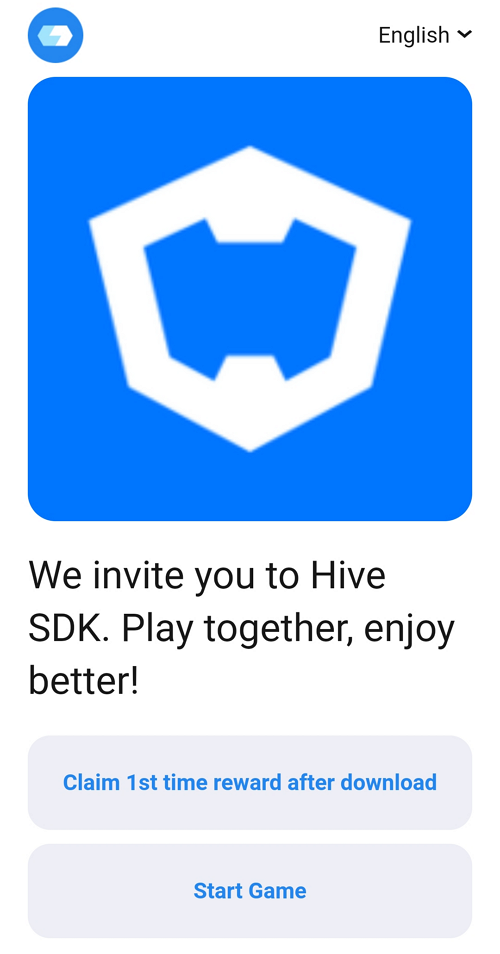
UA collects IP addresses to track users. However, users won’t be able to collect rewards if they change the network settings from IP to LTE or from LTE to IP while downloading the app or before being moved to the market after clicking the invitation link. Thus, an Information Page that informs users when they click the invitation link needs to be exposed.
The information page will be shown to Android & iOS users and you can set this function at Console>Promotion> App Settings> UA Settings Tab. Please check the Promotion Settings category for more info.
[Example of an Information Page]
CPA settings
Save the default settings and move to the CPA settings tab to issue a CPA code. The issued CPA code will be provided to the game team for development.
Precautions for using the invitation link
- You can only activate 1 promotion for each game regarding promotions that invite game friends. Please note that promotions that are inactive will not work.
- URL Promotions that distribute rewards can be used for pre-registration, etc., and rewards will be given when the user installs and runs the game via the game download URL.
- Invite URL and a QR Code will be issued when you select URL Promotions that distribute rewards and save.
- For URL Promotions that distribute rewards, you don’t have to set the rewards for users who invite, and you only have to set up the rewards for users who accept the invite. Promotion for Compensation Payment does not need to set invitation user compensation but only accept user compensation.
초대 링크 설정
초대 링크를 발급하기 위해 다음 항목을 설정해야 합니다.
앱아이디 정보
게임에 등록된 앱아이디 항목이 노출됩니다. '초대 링크'를 통해 각 앱아이디에 연결된 마켓 링크로 이동합니다. 리퍼러 URL과 디퍼드 딥링크는 필수 설정은 아니지만, 초대 링크의 추적성과 사용자 유입 경험을 개선할 수 있는 부가 기능으로 함께 설정하는 것을 권장합니다.
- 리퍼러 전용 다운로드 URL : 리퍼러 URL은 구글에서 제공하는 기능으로 특정 트래킹 코드를 심어 유저가 어떤 경로를 통해 마켓으로 유입하였는지 추적이 가능합니다.
- SHA256 or TeamID : 디퍼드 딥링크 사용을 위해 마켓이 google 인 경우 SHA256, apple 의 경우 TeamID 를 입력 받습니다. 앱이 설치되지 않은 상태에서 초대 링크를 클릭하면 마켓으로 이동하고, 설치 완료 후 디퍼드 딥링크를 통해 해당 초대 링크 정보가 전달되어 유입 경로를 확인할 수 있습니다.
Warning
초대 링크 캠페인을 등록할 게임 AppID 상태값은 반드시 '라이브' 상태여야 합니다.(설정메뉴 : 프로모션 설정 > AppID 관리 > AppID 목록 > AppID 정보에서 상태 설정)
'프로모션 설정 > 기본 설정 > 앱 아이디 설정'에 동일 마켓의 AppID가 2개일 경우, 초대 링크 클릭 시 유저가 유입하는 실 마켓 다운로드 URL을 판단해야되기 때문에 반드시 해당 상태값을 '라이브'로 변경해주세요.
기본 설정
안내페이지
이용자가 초대 링크를 클릭하였을 때, 노출되는 안내페이지를 설정하는 기능입니다. 보상 설정 유무에 따라 적합한 안내페이지를 노출해야합니다. 안내페이지 타입은 안내페이지의 유형만 설정하며 실제 보상지급 여부를 설정하는 것은 아니니, 초대 링크 캠페인에서 보상 여부과 안내페이지의 타입을 동일하게 설정해야합니다.
보상있는 안내페이지에는 보상 수령을 위한 가이드 내용이 포함되어있기때문에, 보상 기능을 사용하지 않고 초대 URL 생성 기능만 사용할 경우에는 안내페이지 타입을 보상없음으로 설정하세요.
- 보상없음으로 설정하고 UA 캠페인 설정에서 보상을 설정하면 보상은 정상 지급됨
- 보상있음으로 설정하고 UA 캠페인 설정에서 보상을 설정하지 않으면 보상은 지급되지 않음

| 보상없는 안내페이지 | 보상있는 안내페이지 |
|---|---|
| |
디퍼드 딥링크 사용 설정
초대 링크는 디퍼드 딥링크 기능을 이용하여 앱이 설치되지 않은 상태에서 초대 링크를 클릭하면 마켓으로 이동하고, 설치 완료 후 디퍼드 딥링크를 통해 해당 초대 링크 정보가 전달되어 유입 경로를 확인할 수 있습니다. 디퍼드 딥링크 기능을 사용하려면 앱아이디 설정 탭에서 SHA256 및 iOS Team ID 값을 먼저 입력해야 합니다. 사용 설정 시, iOS 환경에서는 클립보드 접근 권한 요청이 발생할 수 있습니다.

마켓 이동
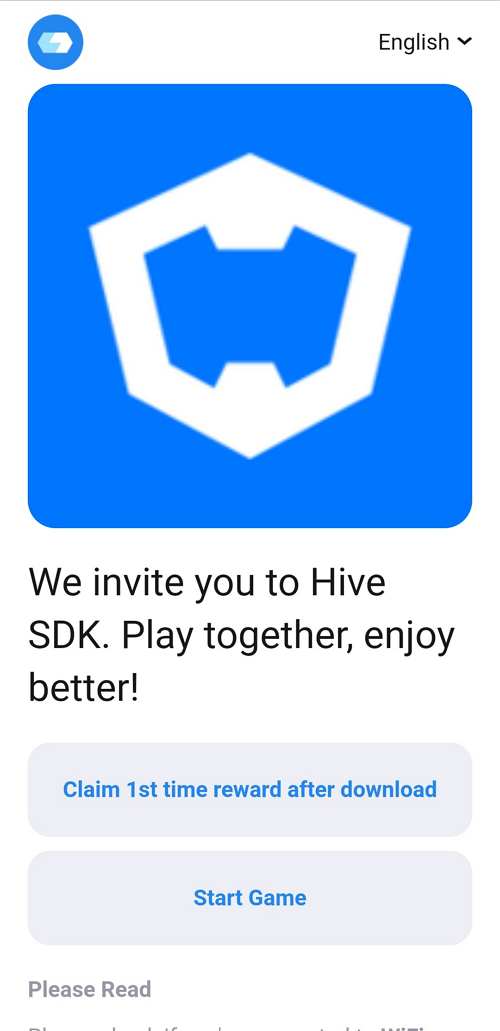
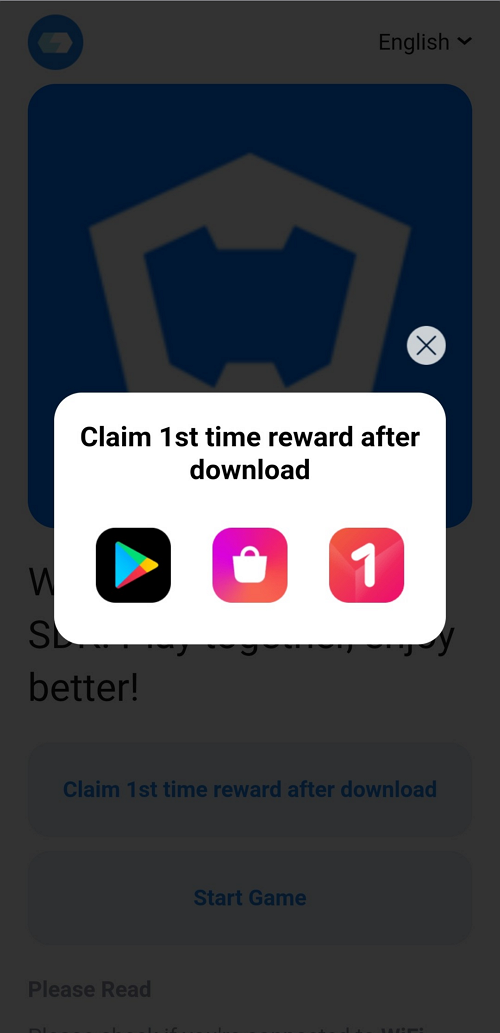
여러 마켓에서 서비스하고 있는 게임인 경우, 초대 링크 페이지에서 마켓을 선택하여 설치할 수 있습니다.
- 안드로이드 마켓 설정 : 노출할 마켓을 선택해주세요.
- 마켓 이미지 : 노출할 마켓의 이미지를 입력해주세요. 마켓 이미지 사이즈는 108*108입니다. ※플레이스토어, 아마존 앱스토어, 갤럭시 스토어, 화웨이 앱스토어, 원스토어는 기본 이미지가 설정되어 있습니다.
| 선택한 마켓이 1개일 때 | 선택한 마켓이 2개 이상일 때 |
|---|---|
 |  |
Warning
초대 이미지&문구 등록
친구에게 초대 메시지를 보냈을 때, 표시되는 이미지와 문구를 등록합니다. 등록한 이미지와 문구는 초대 페이지에도 적용됩니다.
초대문구 등록
초대 페이지에 노출되는 문구이며, 친구에게 초대 링크를 보낼 경우 메시지 상단에 노출됩니다. 최대 100자까지 등록 가능하며, SNS 메신저의 특성에 따라 초대문구가 노출되지 않을 수 있습니다. 등록하지 않은 언어의 초대 문구는 언어별 기본 문구로 노출되며, 업데이트 시 바로 반영됩니다.
기본 문구 : %s%에 초대합니다. 함께 플레이 하면 즐거움이 두 배!
초대 이미지 등록
초대 페이지, 초대 메시지에 노출되는 이미지 입니다. 초대 이미지 사이즈는 '1024 x 1024 px'로 등록하는 것을 권장합니다. 상시로 업데이트 가능하며, 업데이트 시 바로 반영됩니다. 등록하지 않을 경우 게임 아이콘 이미지로 노출되며 '게임 아이콘 이용' 체크박스를 선택 후 저장하면 초대 이미지를 등록하더라도 무조건 게임 아이콘이 노출됩니다.
게임 소개 등록
친구에게 초대 링크를 보낼 경우 초대 메시지 하단에 노출되는 게임 소개 문구입니다. 최대 100자까지 등록 가능하며, SNS 메신저의 특성에 따라 게임 소개 문구가 노출되지 않을 수 있습니다. 등록하지 않은 언어의 게임 소개 문구는 영어로 노출됩니다.
[초대 메시지를 발송한 카카오톡 예시 화면]
UA matching registration
When UA matching fails, you can directly match by entering the information of the invited user and accepted user. Click on the Promotion-> UA Matching Registration. The invitation code does not support manual matching.
1.Enter the info of the Invited User and Accepted User. VID, PlayerID and DID are required. Enter the invitation type. 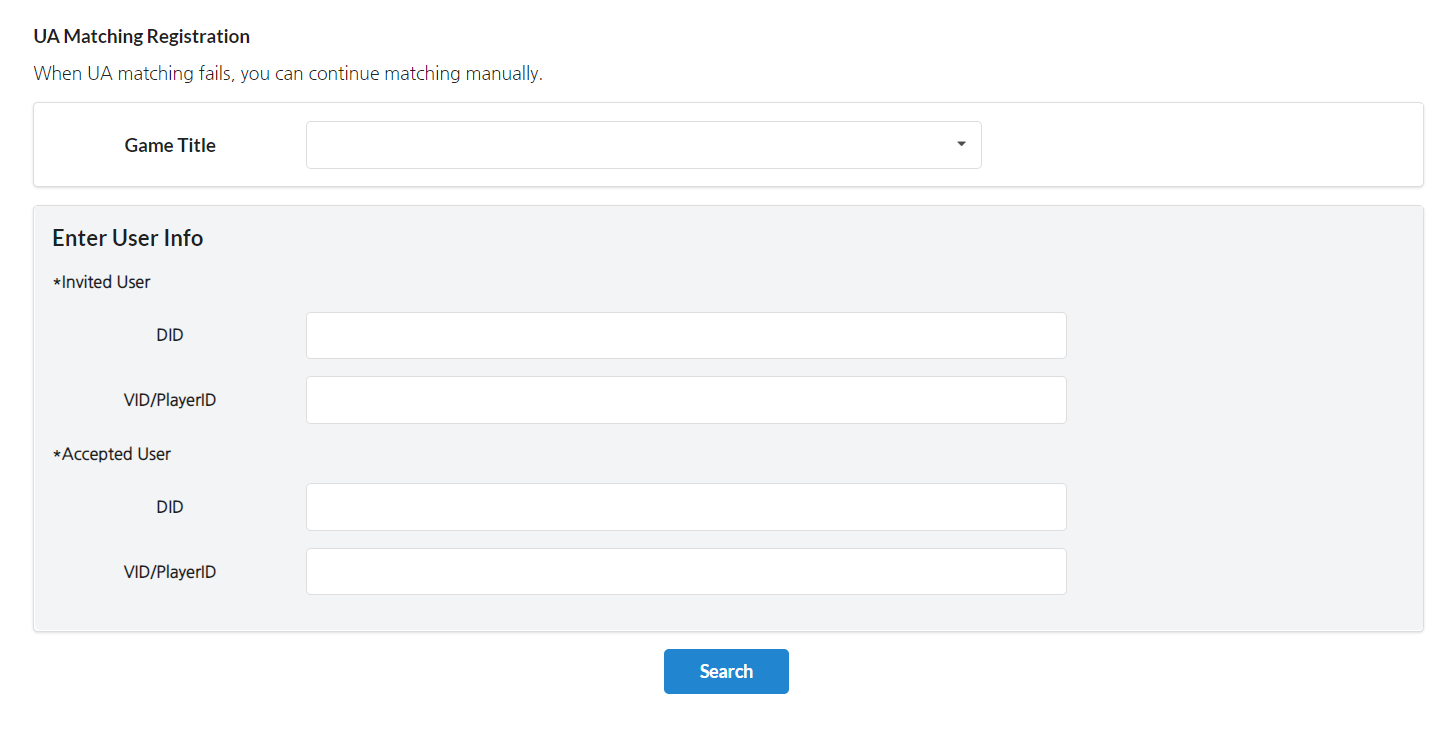 2. If you search, the log details confirmed by the device identification value (advertising ID/IMEI/IP+OS version) of the accepted user are exposed. You can check the specifics with log details related to UA matching. Ex. Check the download history installed with the same IP+OS version → Matching failed due to duplicate installation
 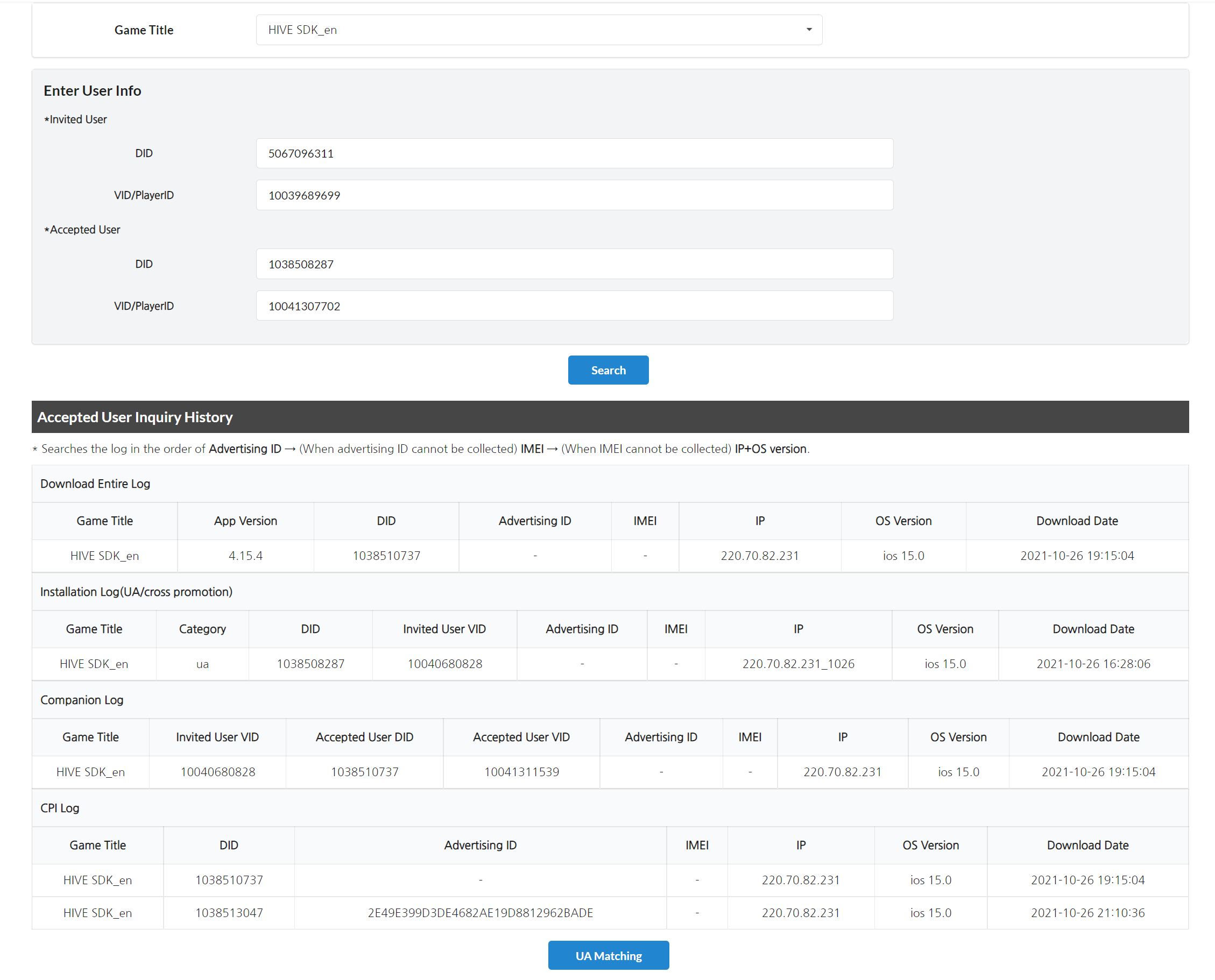 3. If you click the UA Matching Button, you can directly match the entered invited user with the accepted user.
Warning
If direct matching fails
-Unable to match if the invited user has never created a UA link.
-Unable to match if the accepted user has no game download history.
-Unable to match invited users and accepted users who have already been matched.
Search UA log
You can search details about the UA participants. Click on the Promotion-> UA Log.
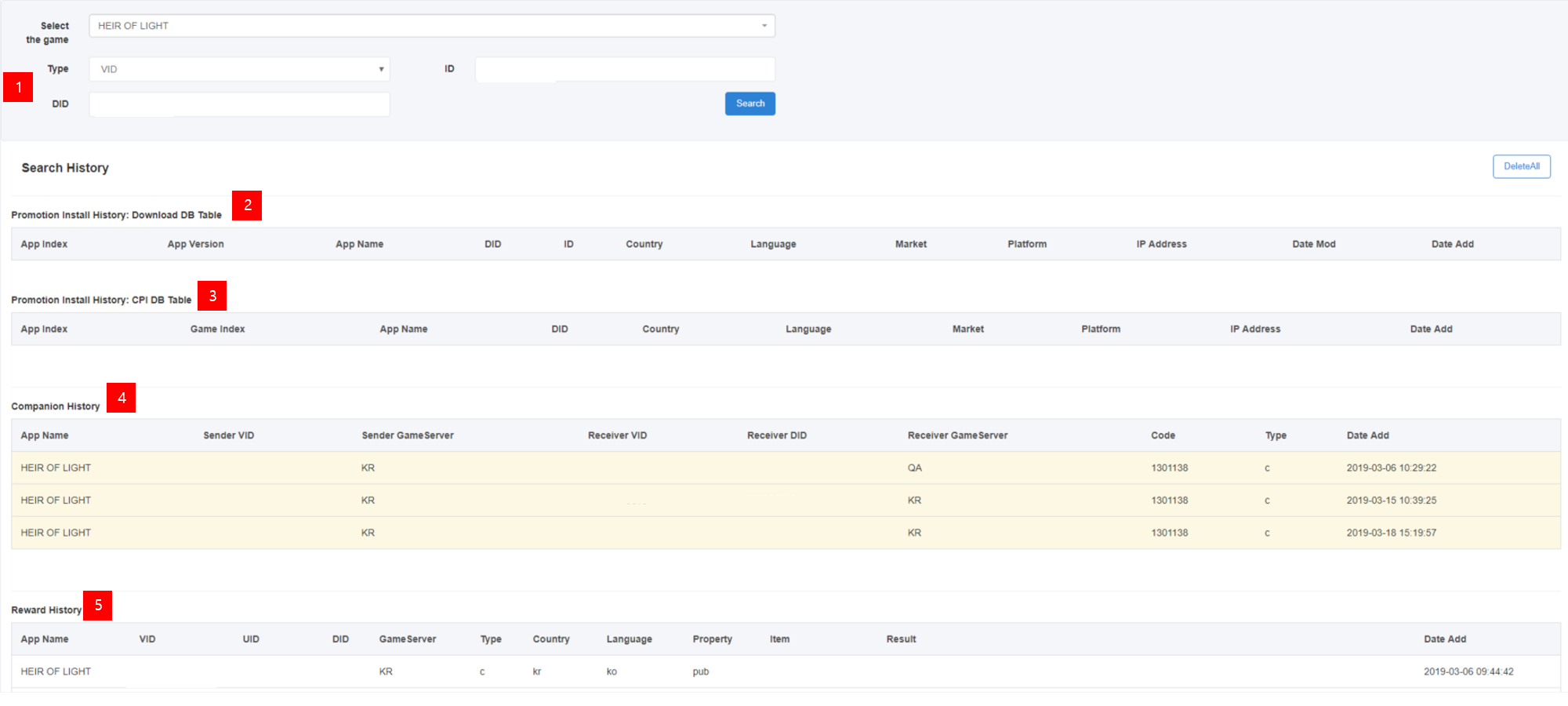 1. Enter the info of the inviter or invitee. Hive ID, VID, PlayerID and DID are required.
2. Installation history based on the DID. Results won't be searched unless you enter the DID in the search field.
3. Reward history based on the DID. Results won't be searched unless you enter the DID in the search field.
4. Match history based on the Hive ID, VID and PlayerID. You can check the info of both sides when the inviter and the invitee are properly matched.
5. Reward history based on the Hive ID, VID and PlayerID. You can check the inviter's log when the reward is given properly.
UA campaign statistics
You can check the log and statistics about the UA participants.
Note
The invitation code does not support user invitation statistics.
Daily index details
You can check the statistics about the UA Statistics. Click on the Promotion-> UA Matching Registration.

- Enter the game title, country and date.
-
You can check the detailed index of the campaign by date.
- Click: The no. of people that clicked the UA invitation link.
- Matching: The matching will be completed once the VID is created after the invitee installs and runs the game. If you filter by country, results will be shown based on the invitee.
- Reward: The no. of inviters who received rewards as the CPI or CPA is completed.
- CPI: Status where only the device matching is completed because an invitee installed and ran the game but ended the game before the VID is created.
-
You can download the searched info as excel. Once downloaded, you can check results on all countries.
Cumulative index per stage
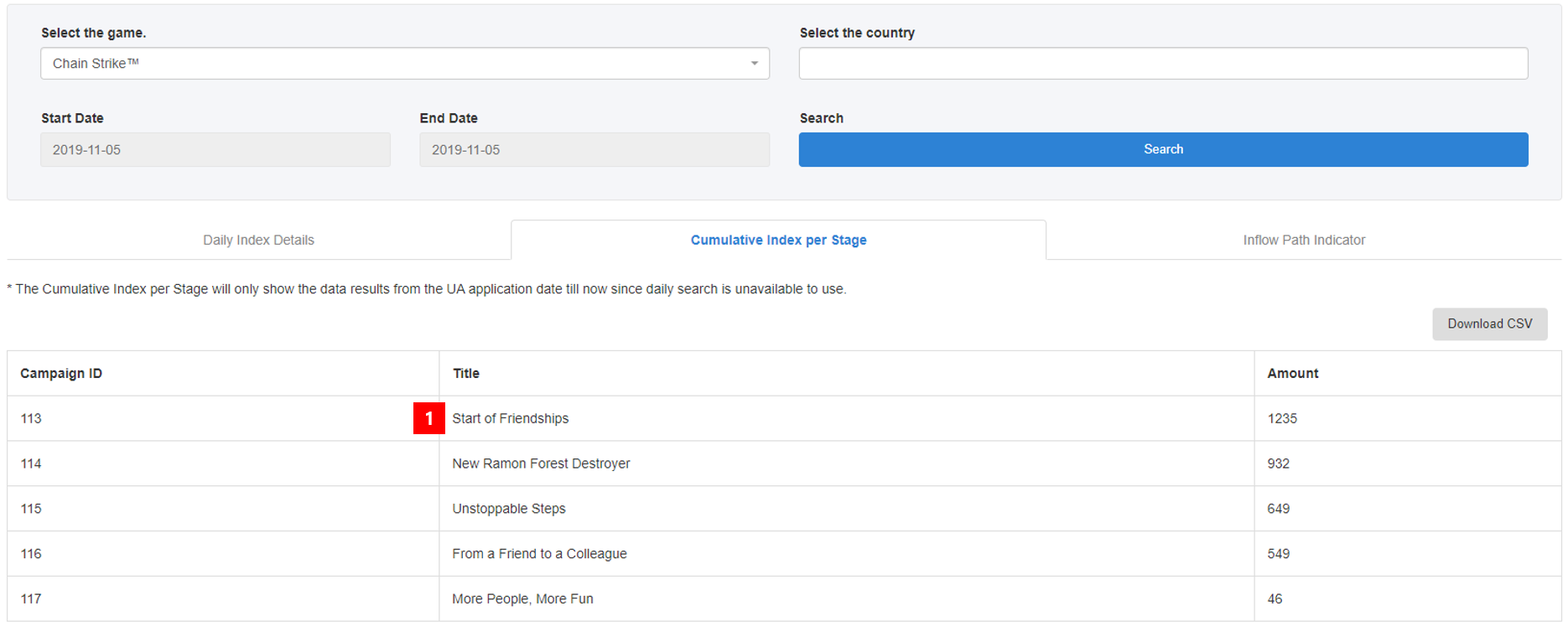
- It's a cumulative index about the entire period since the campaign creation. Cumulative data up to the day before will be searched.
Inflow path indicator
You can check the route how the invitee clicked on the UA invitation link by date. 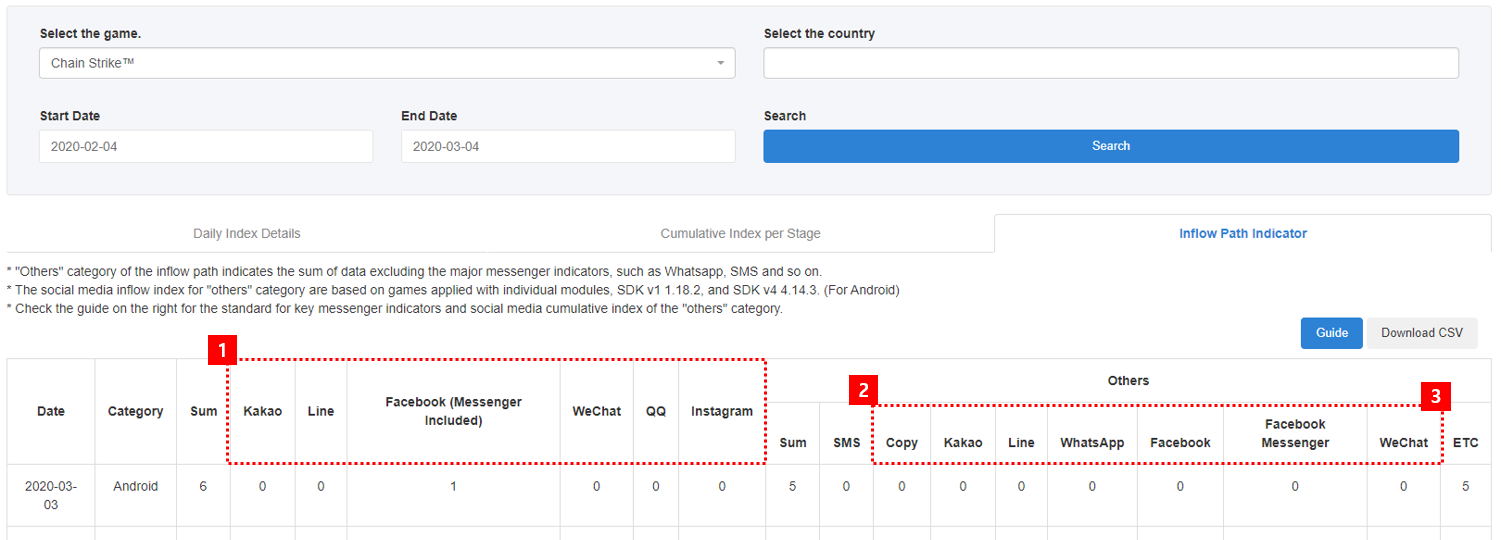 1. The route can be distinguished into Kakao, LINE, Facebook (FB Messenger included) and WeChat. Invitees accessed via other routes will be distinguished as others and you can also check the corresponding cumulative data. 2. Other messenger inflow indexes are introduced when using the UA sharing pop-up provided by Hive among games applied with individual modules, SDK v1 1.18.2 and SDK v4 4.14.3.

- The ETC index is a cumulative inflow index that cannot be identified as other messenger index.
Note
The cumulative criteria of major messenger indexes and other messenger inflow indexes are different. Major messenger indexes are indexes of the source social media where the invitee clicked on the UA invitation URL and the other messenger is the social media that the inviter chose to share the invitation URL in the Hive SDK pop-up itself.