Invite Campaign Registration
What is an Invite Campaign
An invite campaign is a feature where existing users invite friends and receive rewards based on the results of those invitations. It helps drive both new user acquisition and engagement from existing users.
For example:
- Grant rewards immediately when a friend enters an invite code (encourages simple participation)
- Grant additional rewards when a friend installs the game or achieves a goal (improves acquisition quality)
- Grant cumulative rewards when multiple friends are invited (encourages continuous invitations)
Invite Campaign Flow
An invite campaign operates in the following flow:
- Register an invite campaign in the console.
- Connect the invite code issuance/input page to a banner or UI in the game and expose it to users.
- Existing users check their invite code on the issuance page and share it with friends.
- New users enter the received invite code on the input page.
- Rewards are granted when campaign conditions (connection, new install, goal achievement, etc.) are met.
Example:
- User A issues an invite code and shares it with a friend
- User B enters the invite code after accessing the game
- User B installs the game or achieves a specific goal
- Rewards are granted to A, B, or both depending on the conditions
Invite Campaign Registration
Now, we will guide you through how to configure an invite code campaign in the console. Before setting it up, let’s first explain the structure and key concepts.
An invite campaign defines “under what conditions, to whom, and what rewards are given.”
Terms
- Inviter : A user who issues an invite code and shares it with friends.
- Invited User : A user who enters the invite code and gets connected to the inviter.
Available Reward Actions
You can configure rewards based on the following conditions:
- Match Reward
- Granted when the invited user enters the invite code and is successfully matched with the inviter.
- New Install Reward
- Granted when the invited user installs the game within 7 days after entering the invite code.
- Goal Achievement Reward
- Granted when the invited user achieves a specific goal in the game (e.g., level up, perform certain actions).
1. Create Campaign
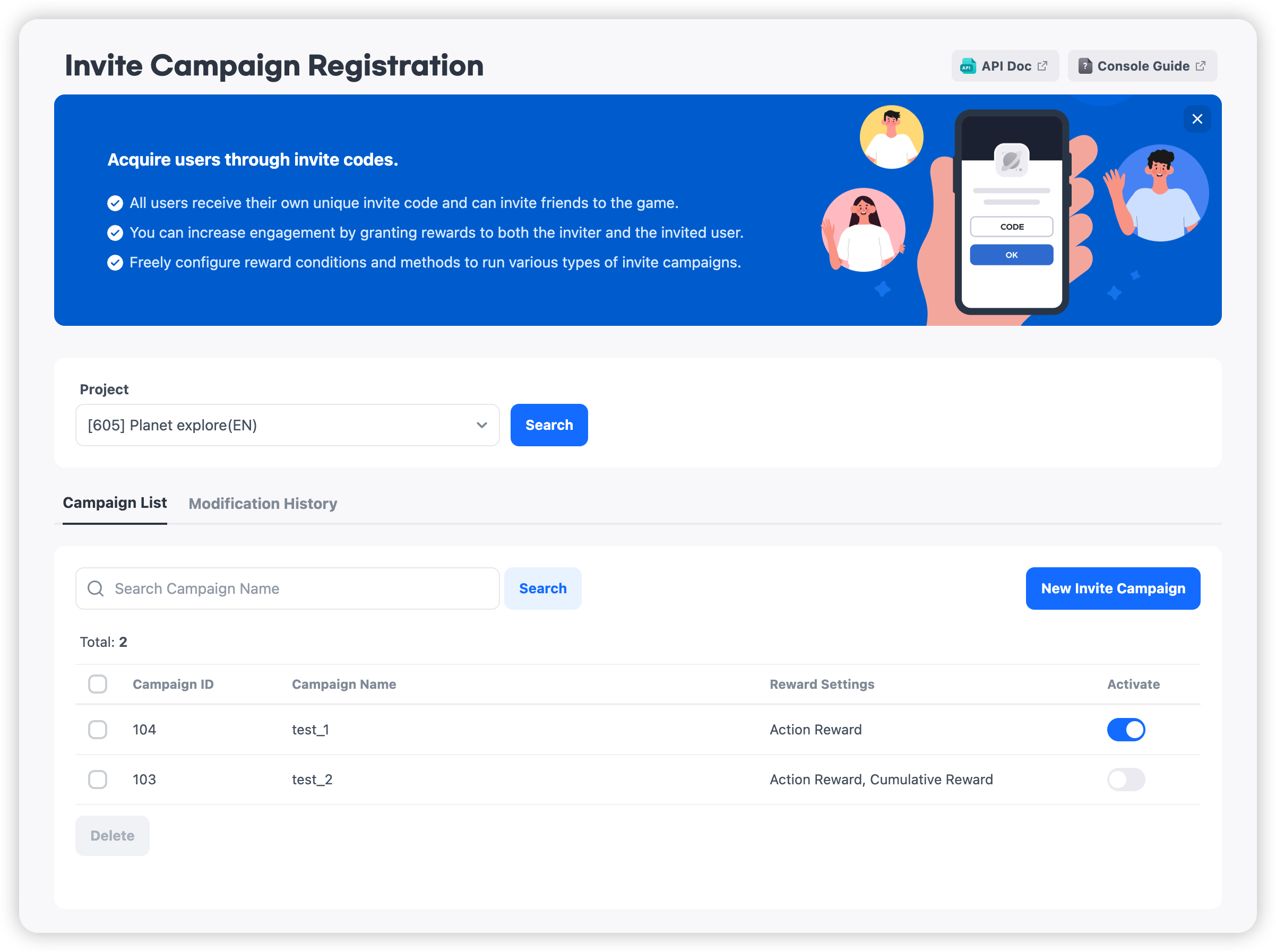
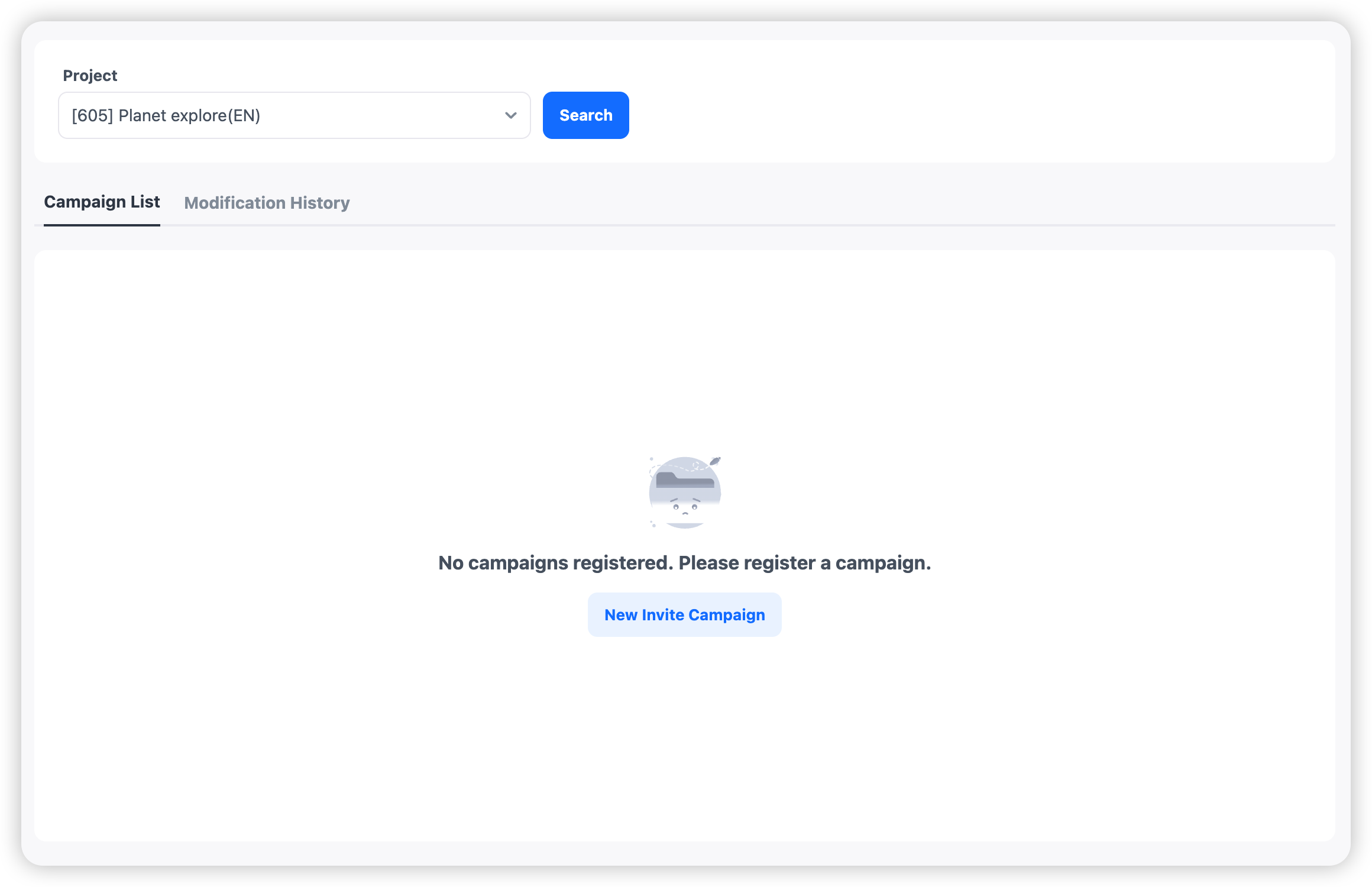
Click 'New Invite Campaign' to create a campaign. You can edit an existing campaign by selecting it.
2. Basic Information Settings
Enter the basic information for the campaign.
Campaign Name: Name used for operation and identification Campaign ID: Issued after saving
3. Reward Settings
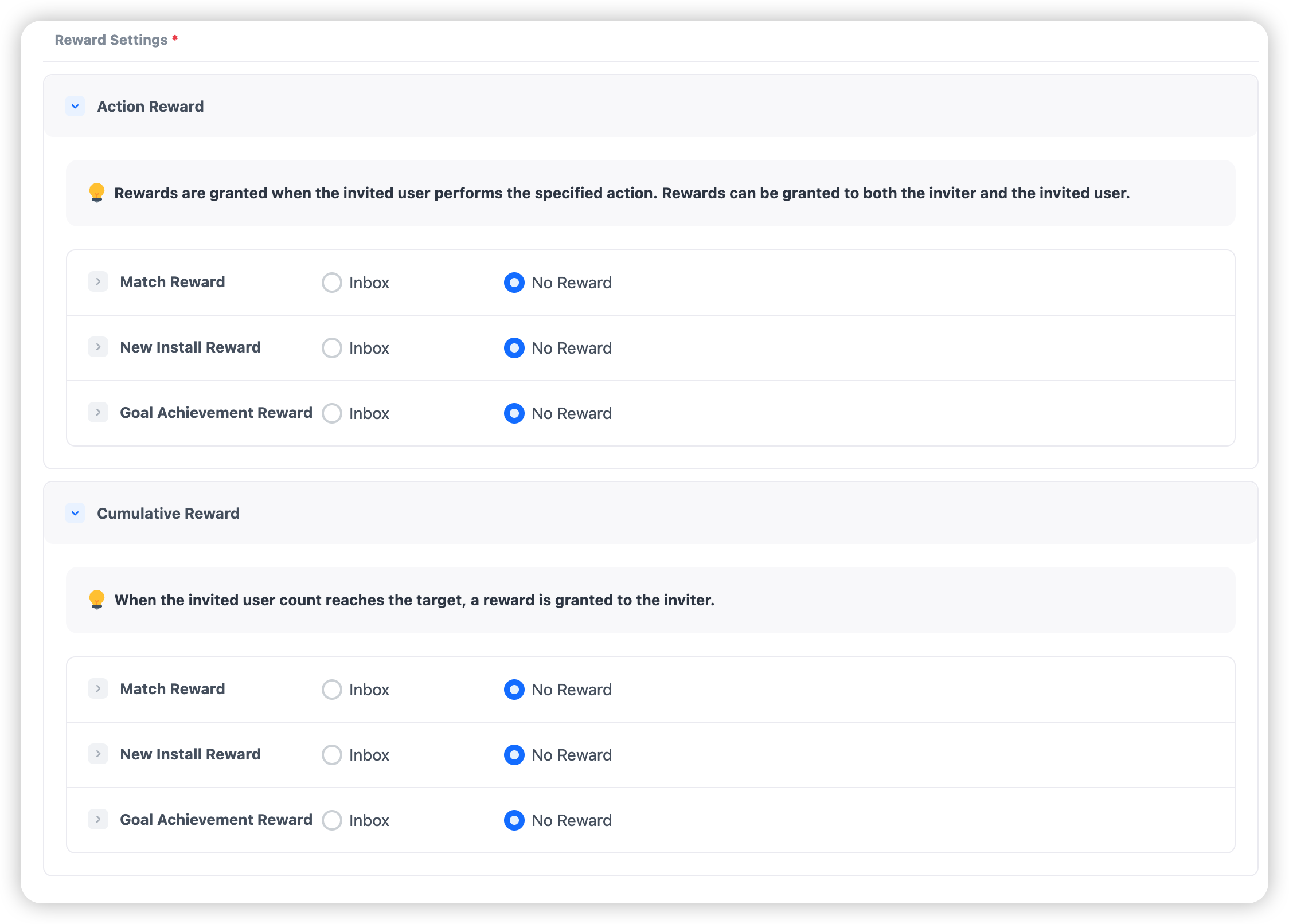
(1) Choose how the reward will be granted
- Action Reward: Rewards are granted immediately when conditions are met
- Cumulative Reward: Rewards are granted when the number of users who meet conditions reaches a target
(2) Choose when the reward will be granted
-
Match Reward
- Rewards are granted when the invited user enters the invite code and is connected with the inviter.
- Suitable for simple participation incentives.
-
New Install Reward
- Rewards are granted when the invited user installs the game within 7 days after entering the invite code.
- Used for rewarding actual acquisition.
-
Goal Achievement Reward
- Rewards are granted when the invited user achieves a specific goal (CPA) in the game.
- Suitable for rewarding meaningful gameplay or performance. (The goal must be registered in advance in ‘Promotion Settings > CPA Settings’ to be selectable.)
4. Reward Detail Settings
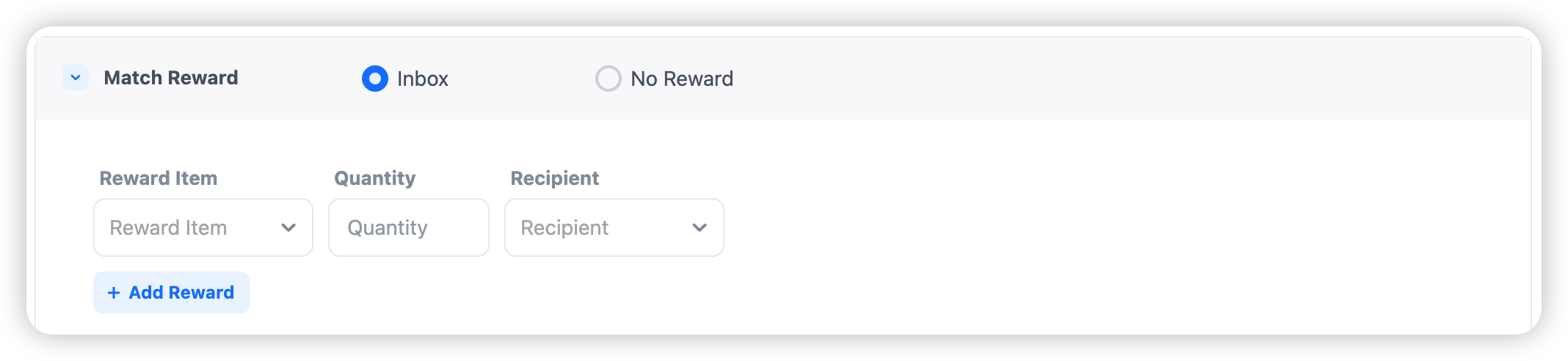
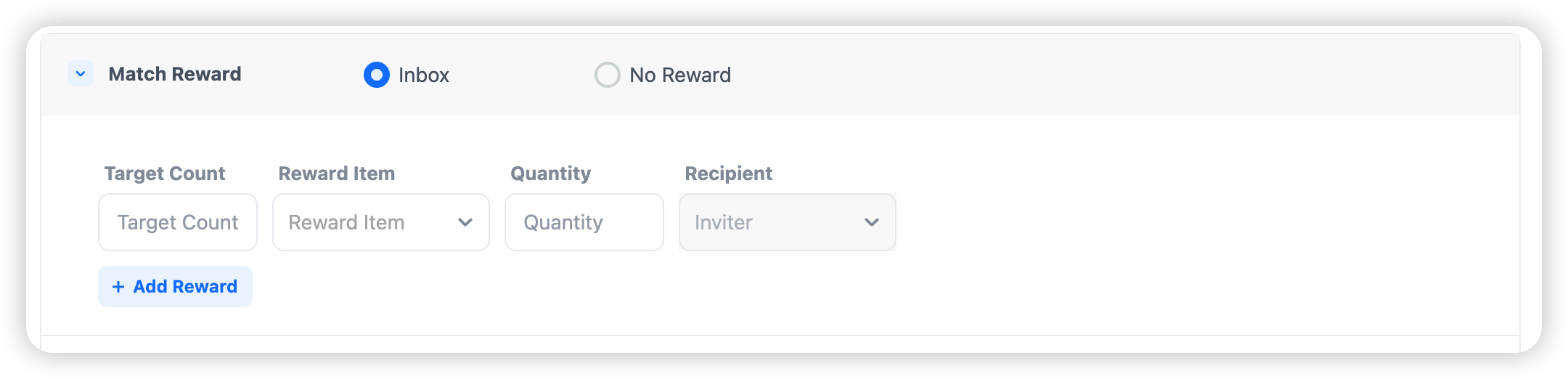
Select 'Inbox' for each reward item to configure detailed settings.
- Reward Item: Select the item to be granted
- Quantity: Enter the amount to be granted
- Recipient: Select Inviter / Invited User
- Goal: Select the goal (CPA) as the reward condition (Only available when selecting Goal Achievement Reward, and options come from registered CPA settings)
You can add multiple rewards under a single condition.
5. (For Cumulative Rewards) Target Count Setting
If using cumulative rewards, configure the required condition for reward distribution.
- Target Count: Number of invited users required to meet the condition
Example: Target Count = 5 → Reward is granted when 5 users meet the condition
6. Reward Distribution Settings
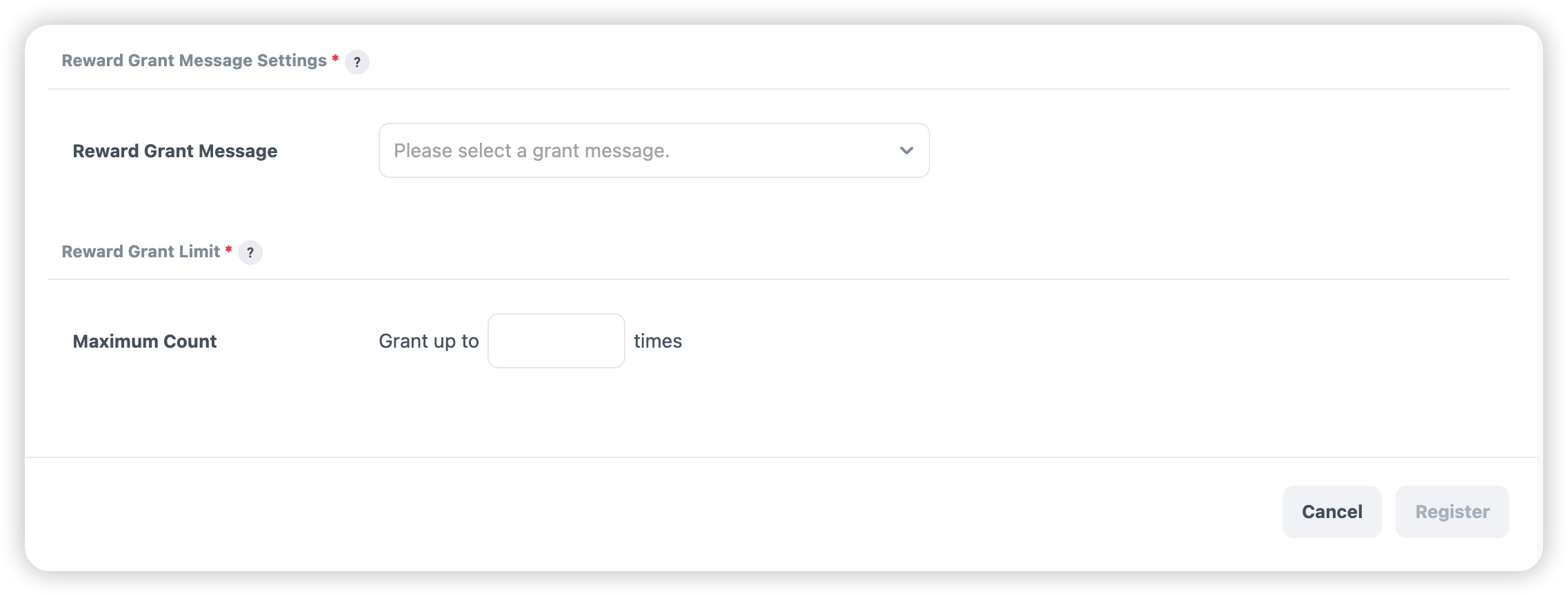
- Reward Grant Message Settings
- Set the message displayed when items are delivered to the mailbox.
- Messages can be registered in 'Hive Console > Billing > Items > Item Grant Message'
- Reward Grant Limit
- Limits the maximum number of times the inviter can receive rewards.
Note
Tips
For fast acquisition → Match Reward
For quality user acquisition → New Install Reward
For long-term engagement → Goal Achievement + Cumulative Reward
CPA Settings
Go to 'Console > Promotion > Promotion Settings > CPA Settings' to issue a CPA code. The issued CPA code must be shared with the game team for implementation.
Invite Code Issuance & Entry
Once the invite campaign is registered in the console, you need a page where users can issue and enter invite codes.
You can connect the invite code page to a banner or custom view and expose it to users.
Register Banner/Custom View for Invite Code Page
- Go to 'Console > Promotion > Event Campaign > Register Campaign'
- Click 'Register Campaign'
- Select 'Invite Code' in the navigation path
- To expose the invite code issuance page: Select 'Invite Code Issuance' and choose the campaign
- To expose the invite code entry page: Select 'Invite Code Entry'
[Invite Code Issuance Screen] 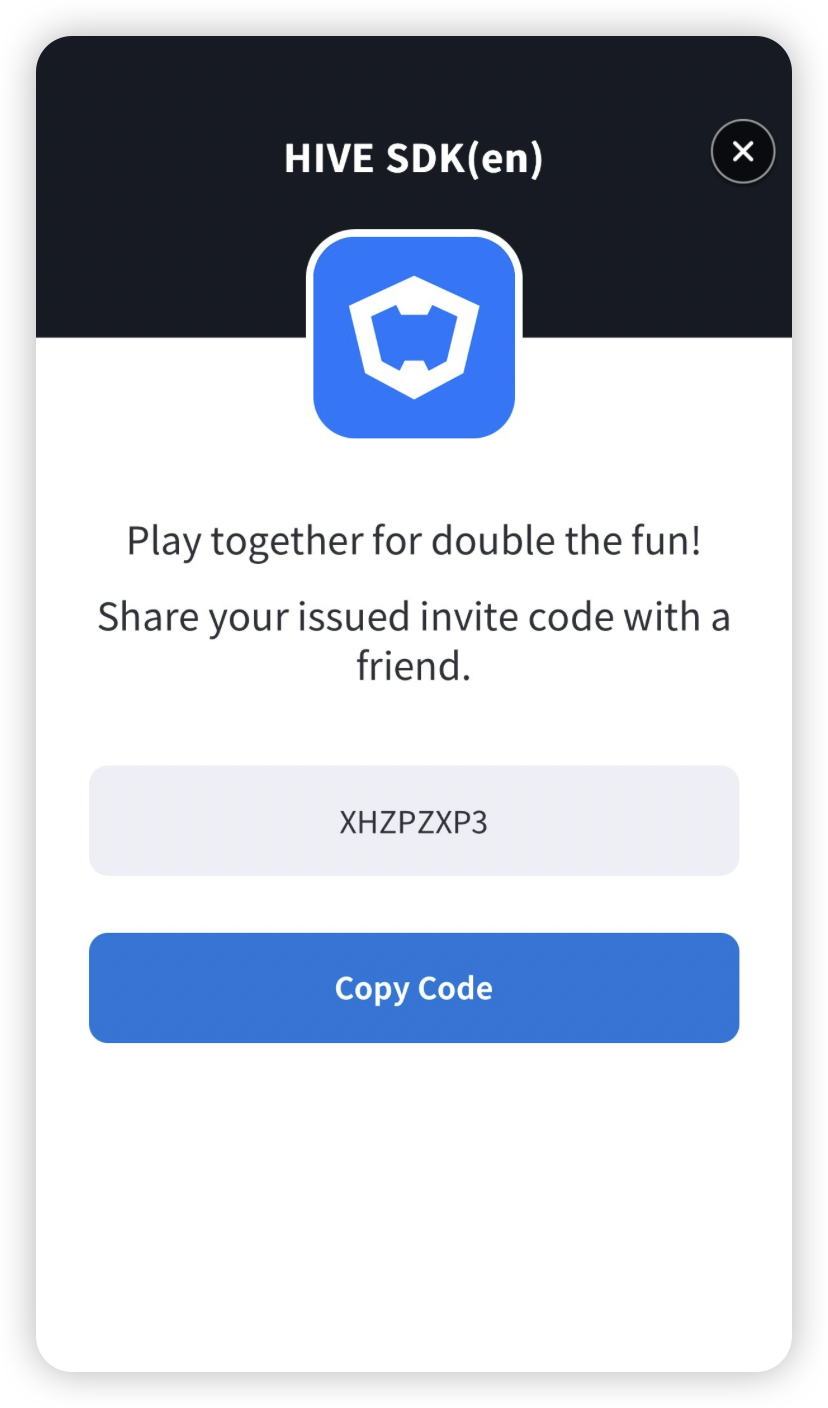
[Invite Code Entry Screen] 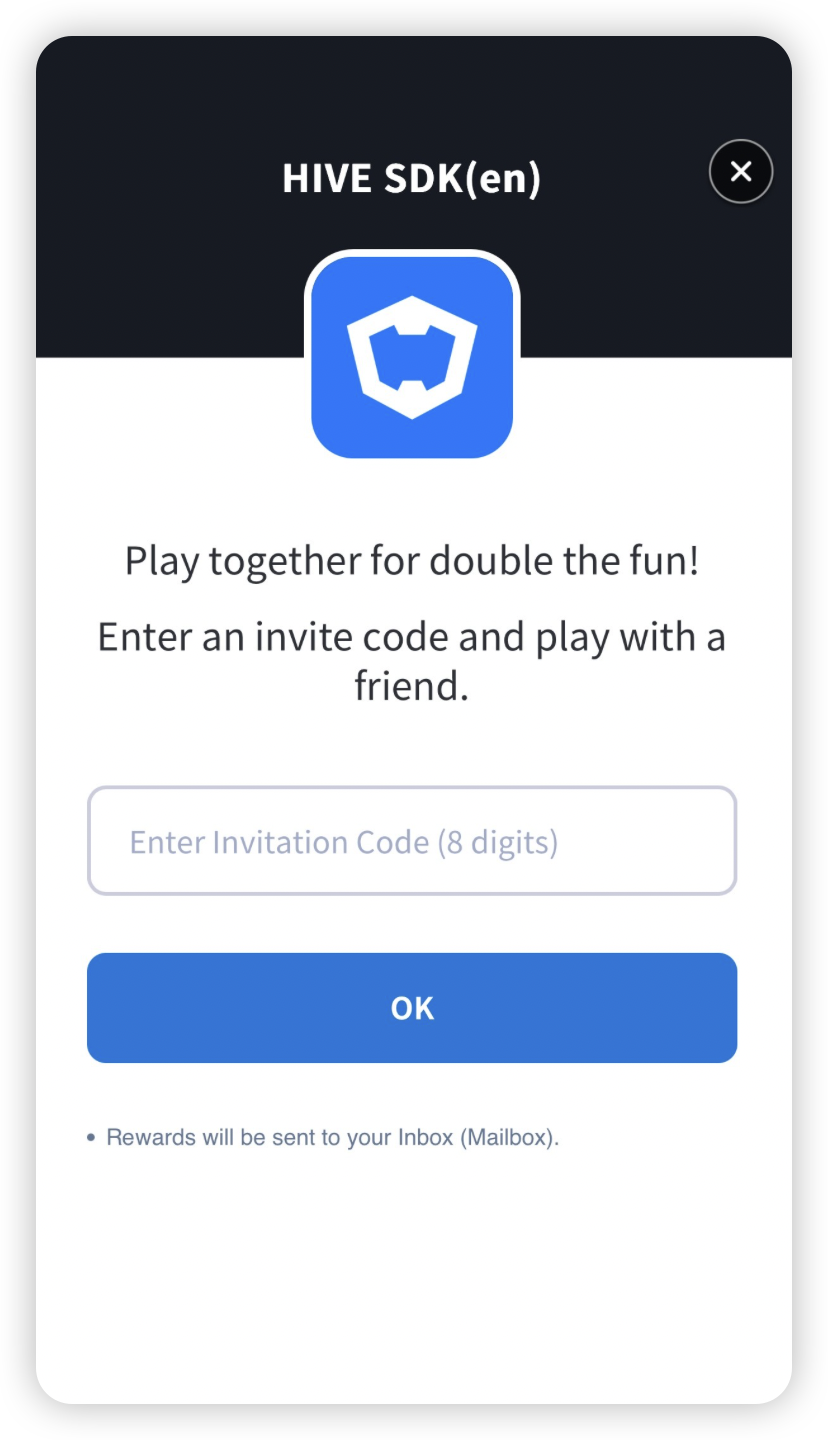
Note
Refer to [API Guide > Hive Server API > Promotion > Invite Code Matching] to directly develop the invite code issuance and entry pages.
Important Notes When Using Invite Codes
- Perform account verification to prevent abuse before granting rewards.
- For matching rewards, set minimal rewards or grant rewards only to the invitee.
- Matching rewards are granted simply when an invite code is entered.There is a risk of abuse (e.g., switching accounts on the same device).It is recommended to minimize rewards or grant rewards only to invitees.
- If you modify reward settings during an active campaign, previously granted rewards and achieved goals will be maintained.
- Reward grant limits apply only to inviters.
- Without limits, rewards could be granted indefinitely as more users are invited.
- Invitees can still receive rewards once regardless of this setting.