BigQuery Setup
Overview
Google BigQuery is Google's data warehouse service that lets you quickly query and analyze large amounts of data with SQL. Once you request BigQuery access and complete the Google Cloud project setup, you can query the data stored in Analytics directly in BigQuery.
You can use BigQuery in the following order.
- Create a Google account
- Request BigQuery access
- Use BigQuery
For the tables you can query after access is granted, see BigQuery Tables.
Create a Google Account
You need a Google account to access BigQuery. You can create a Google account on the Google website.
Request BigQuery Access
Users with the Analytics administrator permission can register a Google account to access BigQuery and request access.
Note
Access is granted only to the datasets of the Analytics console environment where you requested it. To query data from multiple environments, request access in each environment.
| Environment | Datasets you can query |
|---|---|
| Production | analytics_N_live |
| Sandbox | analytics_N_sandbox |
-
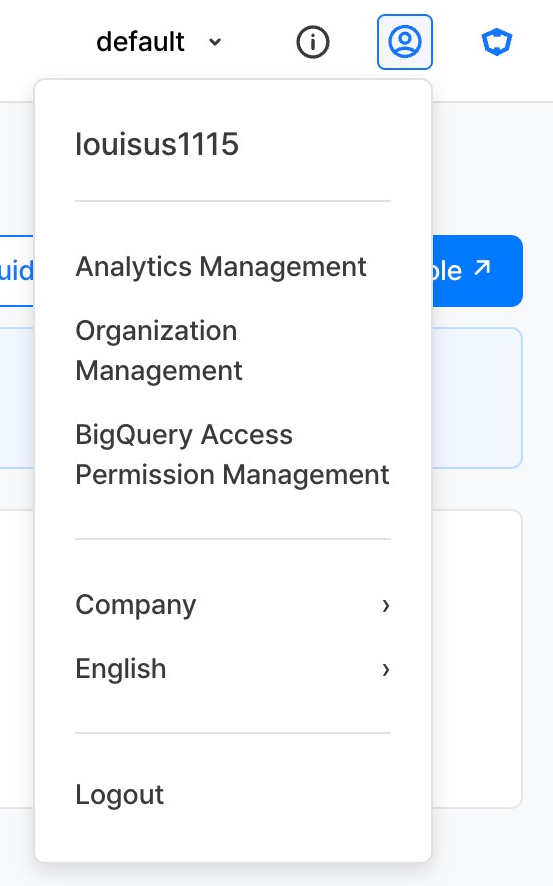
Click the account icon at the top right of the console and select BigQuery Access Permission Management.
-
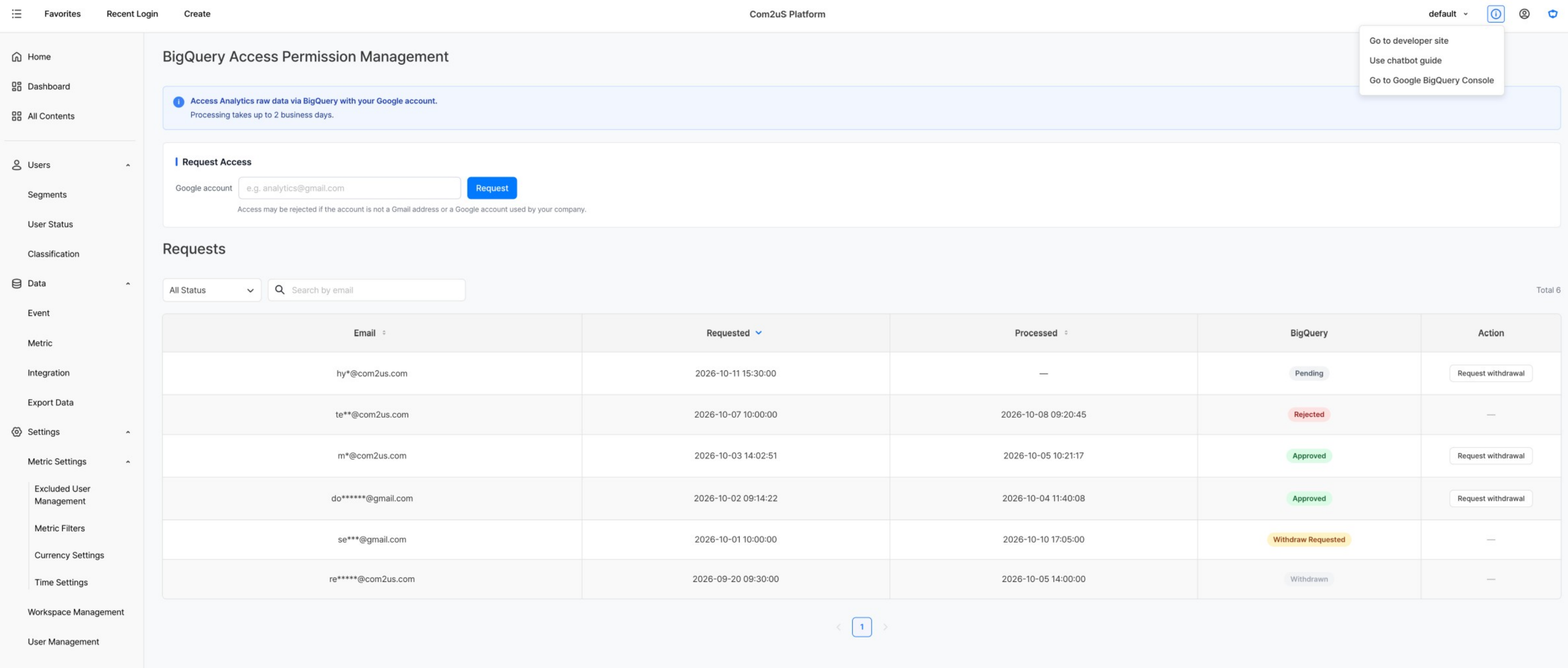
In the Request Access area of the BigQuery Access Permission Management screen, enter the Google account address in Google account and click the Request button.
-
Check the processing status in Requests below. Processing takes up to 2 business days.
- You can check the request status in the BigQuery column.
| Status | Description |
|---|---|
| Pending | Waiting to be processed after the request |
| Approved | Access has been granted |
| Rejected | Access has been rejected |
| Withdraw Requested | Withdrawal has been requested and is being processed |
| Withdrawn | Access has been withdrawn |
Note
If the account is not a Gmail account or a Google account used by your company, the request may be rejected.
Tip
Click the ⓘ icon at the top of the Analytics console and select Go to Google BigQuery Console to go directly to the BigQuery console.
Use BigQuery
Check Before Your First Access
To access BigQuery, you need at least one Google Cloud project.
If you are using BigQuery for the first time, see the Use the BigQuery sandbox guide to create a Google Cloud project and access BigQuery in the sandbox environment. In the sandbox environment, you can query data within the free usage limits. To use more than the limits, you need to upgrade from the sandbox.
Access BigQuery
Once you have a Google Cloud project and BigQuery access has been granted, go to the BigQuery console and complete the settings below to query data with SQL.
Star the Project
Star the habq-storage project, where Analytics data is stored, to access the datasets easily.
-
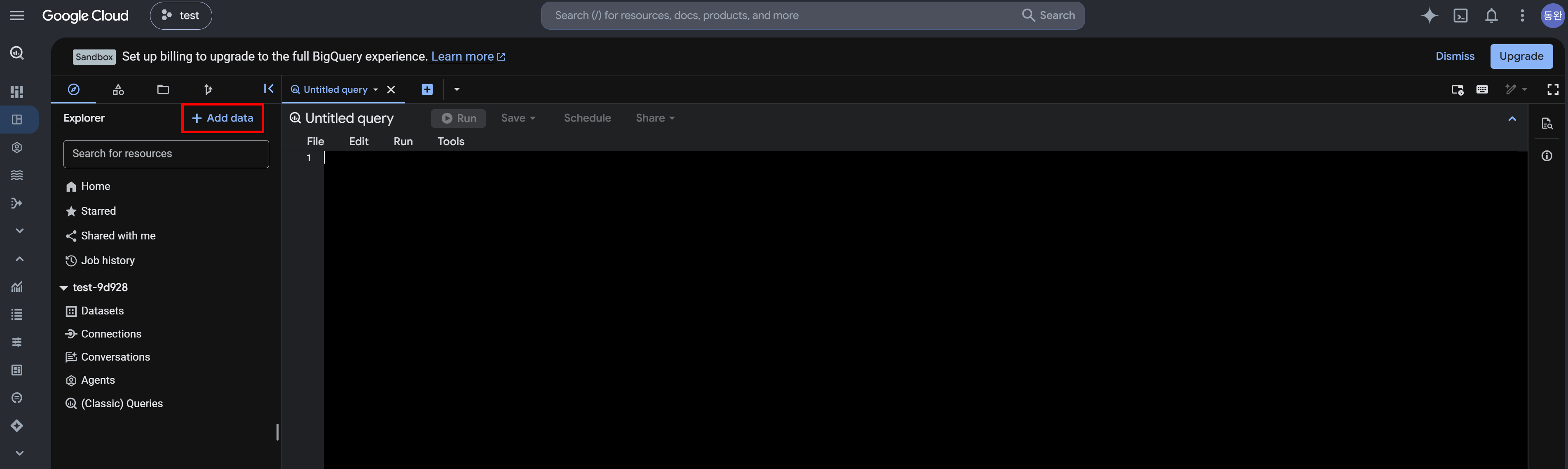
Click the + Add data button in the Explorer panel on the left of the BigQuery console.
-
Click Star a project by name at the bottom left.
-
In the Star a project popup, enter
habq-storagein Project name and click the Star button.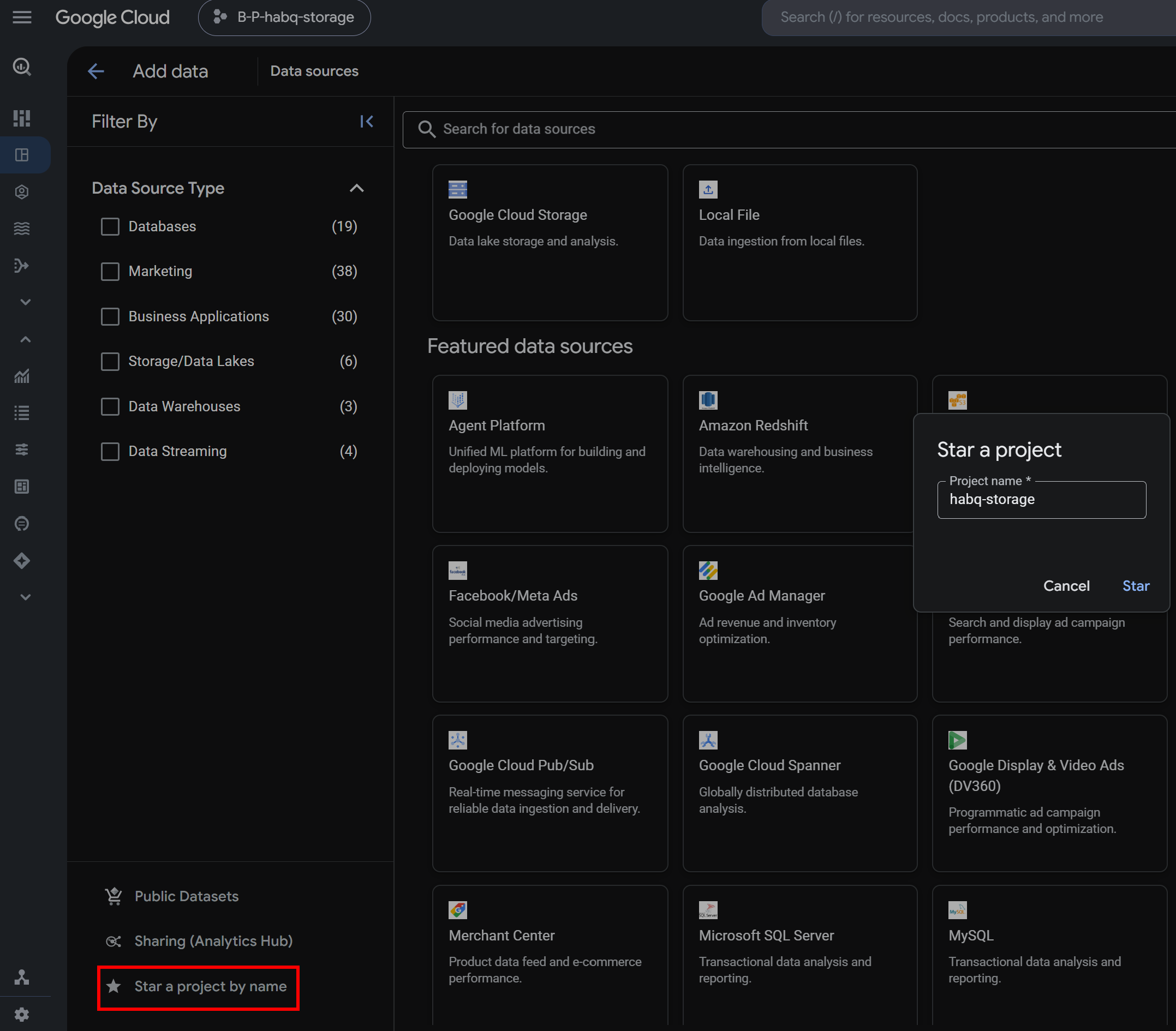
-
Click the arrow next to the
habq-storageproject added to the Explorer on the left to check the datasets and tables you can access.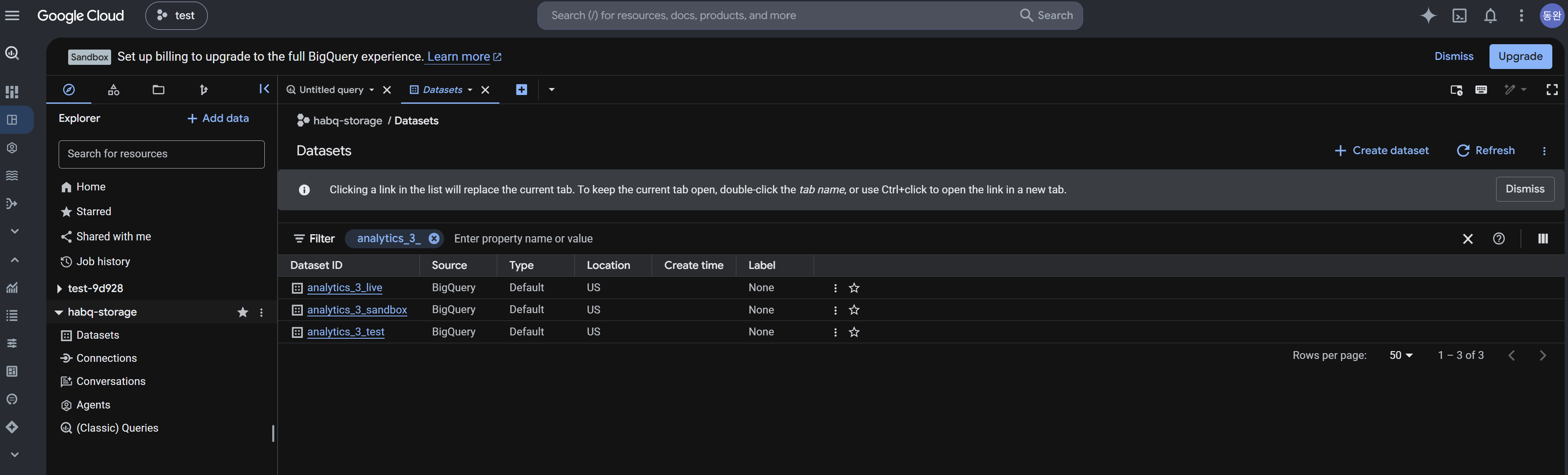
For the structure of datasets and tables, see BigQuery Tables.
Run SQL
To run SQL, you need the BigQuery Job User role in the Google Cloud project that runs the query. A project created in the sandbox environment can query data up to the free usage limits without additional permission settings.
-
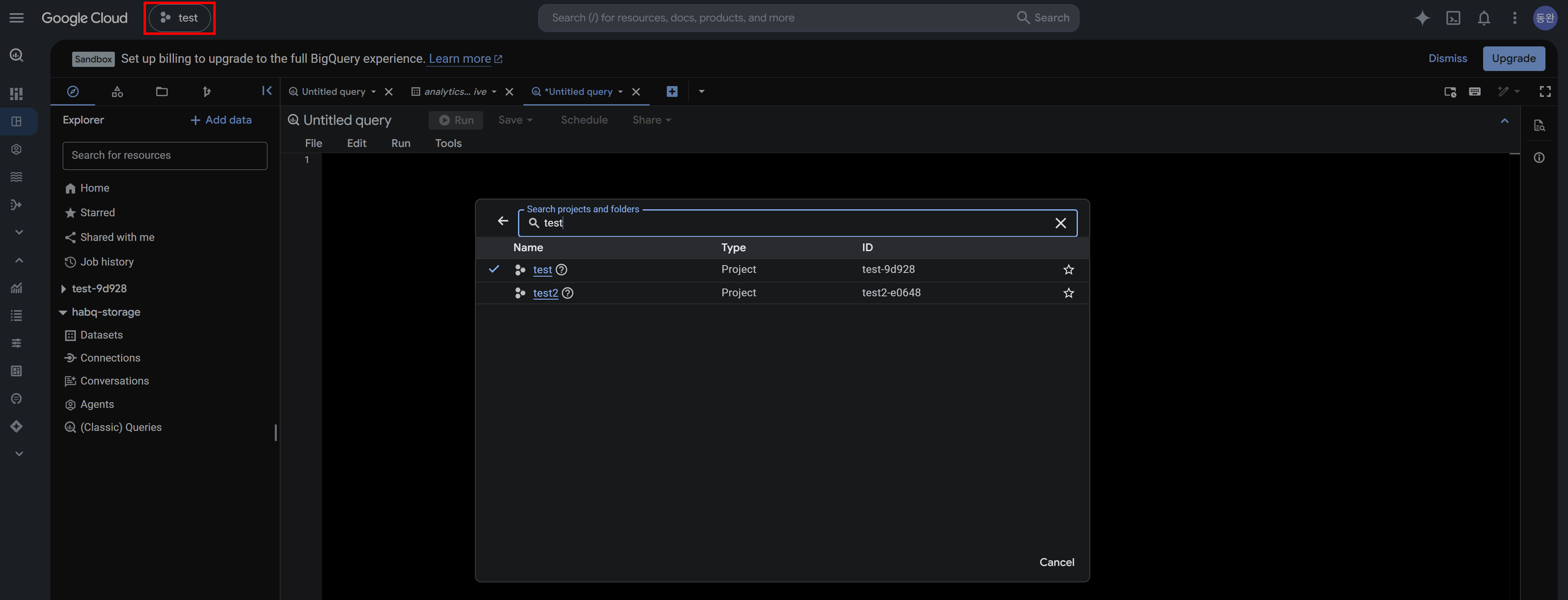
In the project selector next to Google Cloud at the top left of the BigQuery console, check that the Google Cloud project to run SQL is selected. If it is not, click the project selector and select a project with the BigQuery Job User role.
-
Click the
+button to open the SQL editor and write a query. -
Click the Run button above the query to query the data.
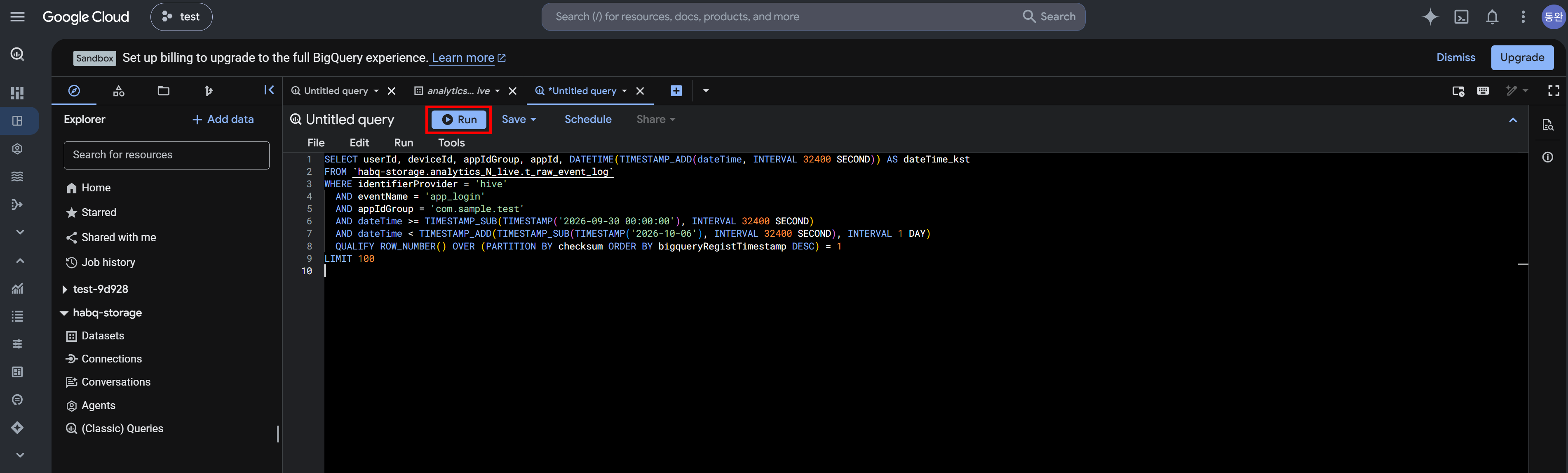
In the FROM clause, specify the table in the habq-storage.dataset.table_name format.
-- Query login events
SELECT userId, deviceId, appIdGroup, appId,
    DATETIME(TIMESTAMP_ADD(dateTime, INTERVAL 32400 SECOND)) AS dateTime_kst  -- Convert dateTime stored in UTC to KST
FROM `habq-storage.analytics_N_live.t_raw_event_log`
WHERE identifierProvider = 'hive'  -- User identifier issuing system (always hive)
  AND eventName = 'app_login'
  AND appIdGroup = 'com.sample.test'  -- The actual appIdGroup you use
  -- When querying in KST
  AND dateTime >= TIMESTAMP_SUB(TIMESTAMP('2026-09-30 00:00:00'), INTERVAL 32400 SECOND)
  AND dateTime <  TIMESTAMP_SUB(TIMESTAMP('2026-10-07 00:00:00'), INTERVAL 32400 SECOND)
  -- When removing duplicates based on checksum
  QUALIFY ROW_NUMBER() OVER (PARTITION BY checksum ORDER BY bigqueryRegistTimestamp DESC) = 1
LIMIT 100
Withdraw BigQuery Access
You can request to withdraw access for a Google account that you requested access for.
- Click the account icon at the top right of the console and select BigQuery Access Permission Management.
- In Requests, click the Request withdrawal button in the Action column of the account to withdraw.
Processing takes up to 2 business days, and when the withdrawal is complete, the status changes to Withdrawn.
Notes & Tips
- Only users with the Analytics administrator permission can request and withdraw BigQuery access.
- Withdraw access for accounts that no longer need BigQuery access, for example due to resignation or a change of role.
- A sandbox project has free usage limits. If you need to query large amounts of data, consider upgrading BigQuery.
t_raw_event_logis partitioned by day based ondateTime. To reduce query costs, specify a date condition as well.
Related Menu
- BigQuery Tables - Tables you can query after access is granted
- Analytics Management - Register Analytics administrators
- Send Test Logs - Query test logs with BigQuery