Organization Management
Overview
Organization Management is a feature for controlling project (game) permissions by organization and setting member access permissions.
When you complete the initial setup to use Analytics, you register an organization; after that, you can add organizations or modify/disable existing organization information.
Note
The menu and organization list are only available to Analytics Administrators.
What Can You Do?
Business/Marketing Users & Data Analysts
- When your assigned game changes, you can quickly receive permissions for the new organization and start work right away without any gap.
- By organizing by assigned game, you can include only the people in charge of that game as members and manage access permissions separately. Example: register a Game 1 marketer as a member of an organization configured with the Game 1 project.
- If you oversee multiple games or need to analyze them at once, you can register as a member of an organization that includes all games to view the range you need.
Quick Start
To register a new organization, follow the steps below.
- Click the account icon in the top right, then select the Organization Management menu.
- Click the Register button at the top right of the list.
- Enter the organization information (name, project, members, etc.) and click the Save button.
Note
For details on initial organization registration, modifying/disabling an organization, and more, refer to All Features.
All Features
Key Concepts
| Concept | Description |
|---|---|
| Organization | A unit for managing project (game) and member access permissions as a group |
| Project | A game included in an organization |
| Member | A user granted access permission within an organization |
Initial Organization Registration
The first user to ever access Analytics can carry out the initial setup. At this time, they register an organization by entering a name, project, and members.
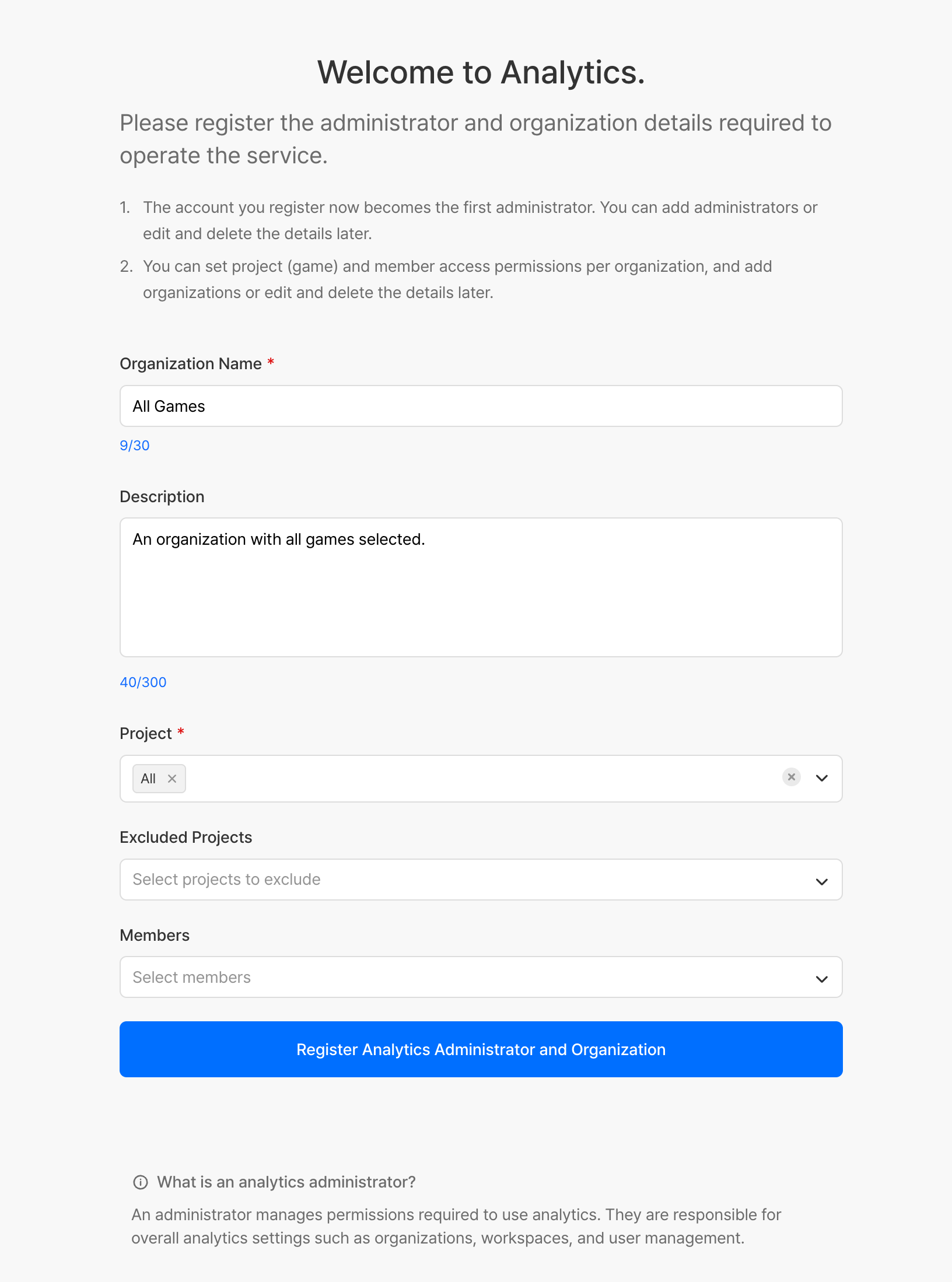
| Item | Required | Description |
|---|---|---|
| Organization Name | Required | Name of the organization to register |
| Description | Optional | Description of the organization |
| Project | Required | Project(s) (games) to include in the organization |
| Exclude Project | Optional | Project(s) to exclude from the organization |
| Member | Optional | Members to include in the organization |
Adding an Organization
When the group of assigned projects or members differs from an existing organization, register an additional organization to manage access permissions separately.
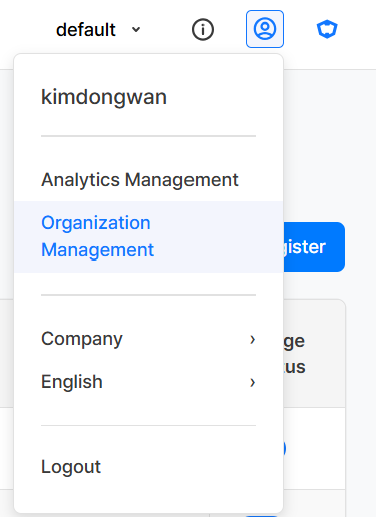
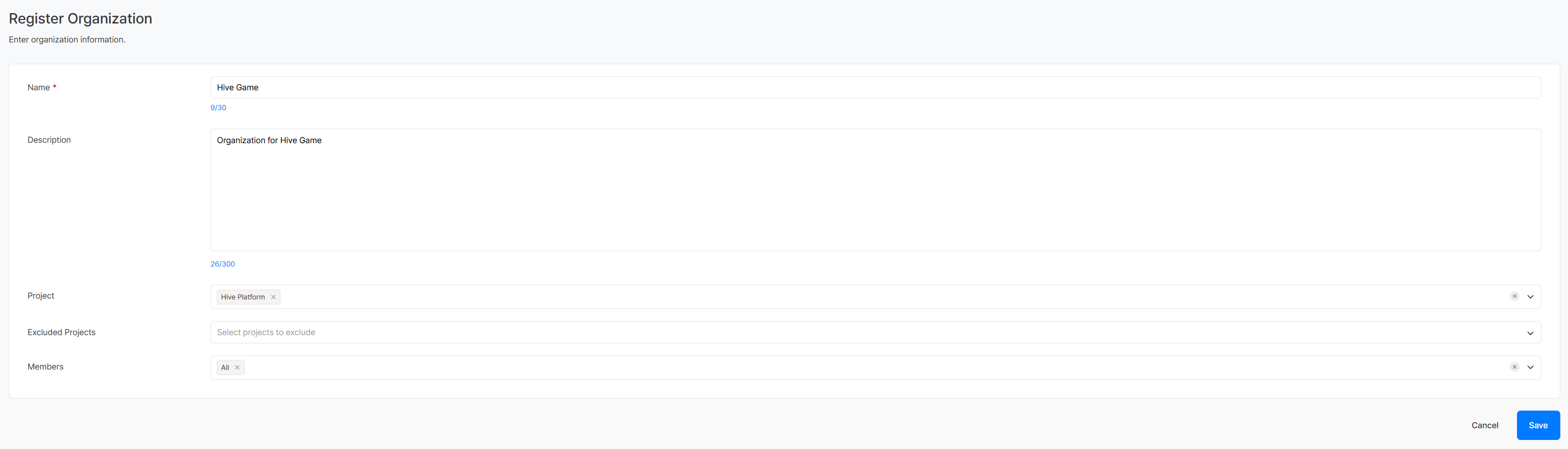
- Click the account icon in the top right, then select the Organization Management menu.
- Click the Register button at the top right of the list.
- Enter the organization information (name, project, members, etc.) and click the Save button.
| Item | Required | Description |
|---|---|---|
| Name | Required | Name of the organization to register |
| Description | Optional | Description of the organization |
| Project | Required | Project(s) (games) to include in the organization |
| Exclude Project | Optional | Project(s) to exclude from the organization |
| Member | Optional | Members to include in the organization |
Editing an Organization
Change the name, description, project, and member composition of a registered organization.
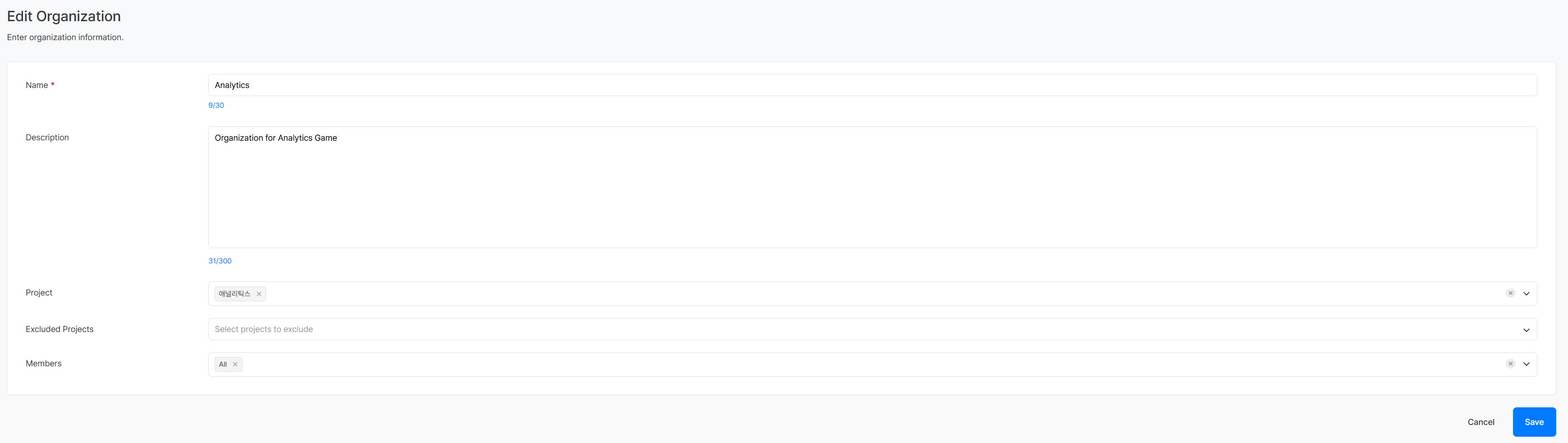
- In the organization list, click the name of the organization you want to edit.
- Edit the information and click the Save button.
Switching Organizations
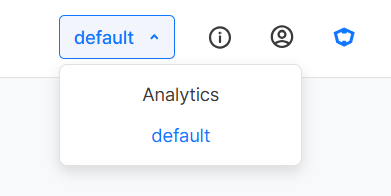
If a user belongs to two or more organizations, they can switch organizations from the top right of the screen.
Disabling an Organization
Disable an organization that is no longer in use.

- Turn off the Usage Status toggle for the organization you want to disable in the organization list, and that organization will be disabled.
| Display Item | Description |
|---|---|
| Name | The name of the registered organization |
| Description | Description of the organization |
| Registered By | The account that registered this organization |
| Registered At | The date and time the organization was registered |
| Modified By | The account that last modified the organization's information |
| Modified At | The date and time the organization's information was last modified |
| Usage Status | The organization's active status |
Example Use Cases
Configuring an Organization by Game
Situation: Set up an organization for the business team in charge of Game A, and limit viewable data to Game A
Process:
1. Configure the organization with the Game A project
2. Register business team members as members of that organization
Configuring an Organization to Oversee All Games
Situation: Set up an organization for a data analyst who needs to analyze data across all games
Process:
1. Configure the organization with all games
2. Register the data analyst as a member of that organization
Notes & Tips
- The range of data you can view depends on the projects and members included in an organization, so configure organizations according to the assigned scope.
- Keep an organization's member and project composition up to date when there is a change of person in charge or a new project is added.
- If you select 'All' for a project, all games are included. Select 'All' only when necessary.
Related Menu
- Analytics Management - Register and manage Analytics Administrators
- Workspace Management - Create and manage workspaces
- User Management - Manage workspace permissions by user