Additional Service Settings
Add-on service settings let you configure whether to use device management and China real-name verification for each project.
➡️ Console path: Authentication > Authentication Settings > Add-on Service Settings
Device Management
Device management allows logins only from devices registered through mobile phone OTP verification. You can also limit the number of accounts that can be registered with the same mobile phone number.
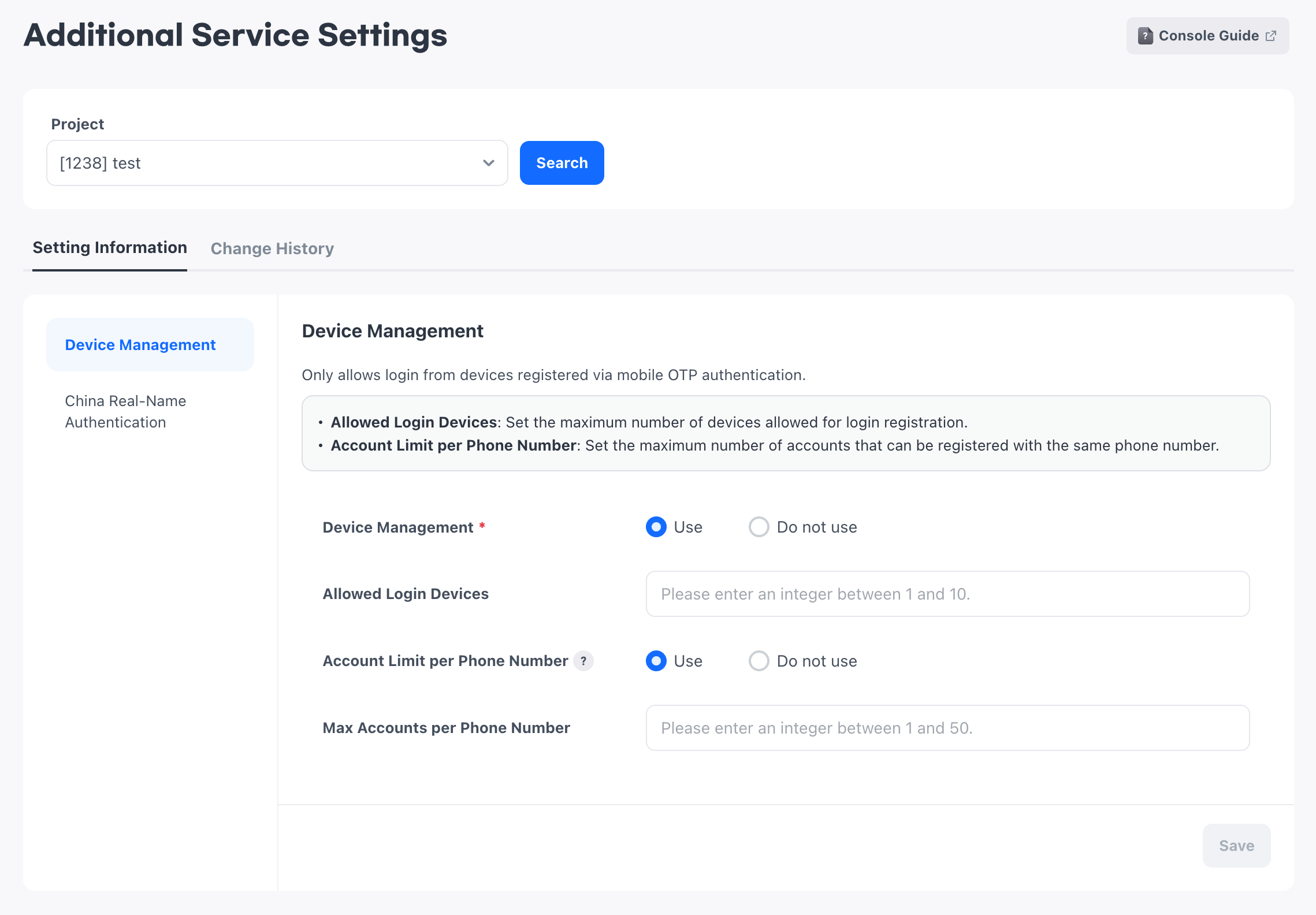
Settings
- Device Management: Select
Useto allow logins only from registered devices. The default isDo not use. If you change this setting toDo not use,Limit the Number of Accounts per Phone Numberis also disabled and its value is reset. - Number of Devices Allowed to Log In: If
Device Managementis set toUse, enter an integer from 1 to 10. - Limit the Number of Accounts per Phone Number: Select
Useto limit the number ofPlayer IDsthat can be registered with the same mobile phone number. If you selectDo not use, accounts are not limited and the value forMaximum Number of Accounts per Phone Numberis reset. - Maximum Number of Accounts per Phone Number: If both
Device ManagementandLimit the Number of Accounts per Phone Numberare set toUse, enter an integer from 1 to 50.
How to configure:
- Go to
Authentication > Authentication Settings > Add-on Service Settings. - Select a project you have permission to access, then select
Search. - Under
Settings Information, selectDevice Management. - Choose whether to use device management and enter the required limits. Enter each limit only when its corresponding setting is set to
Use. - Select
Save. This saves only the device management settings. If saving fails, the values you entered remain on the screen.
China Real-Name Verification
China real-name verification checks the real names and ID card numbers of users in China for games that have obtained a China publishing license.
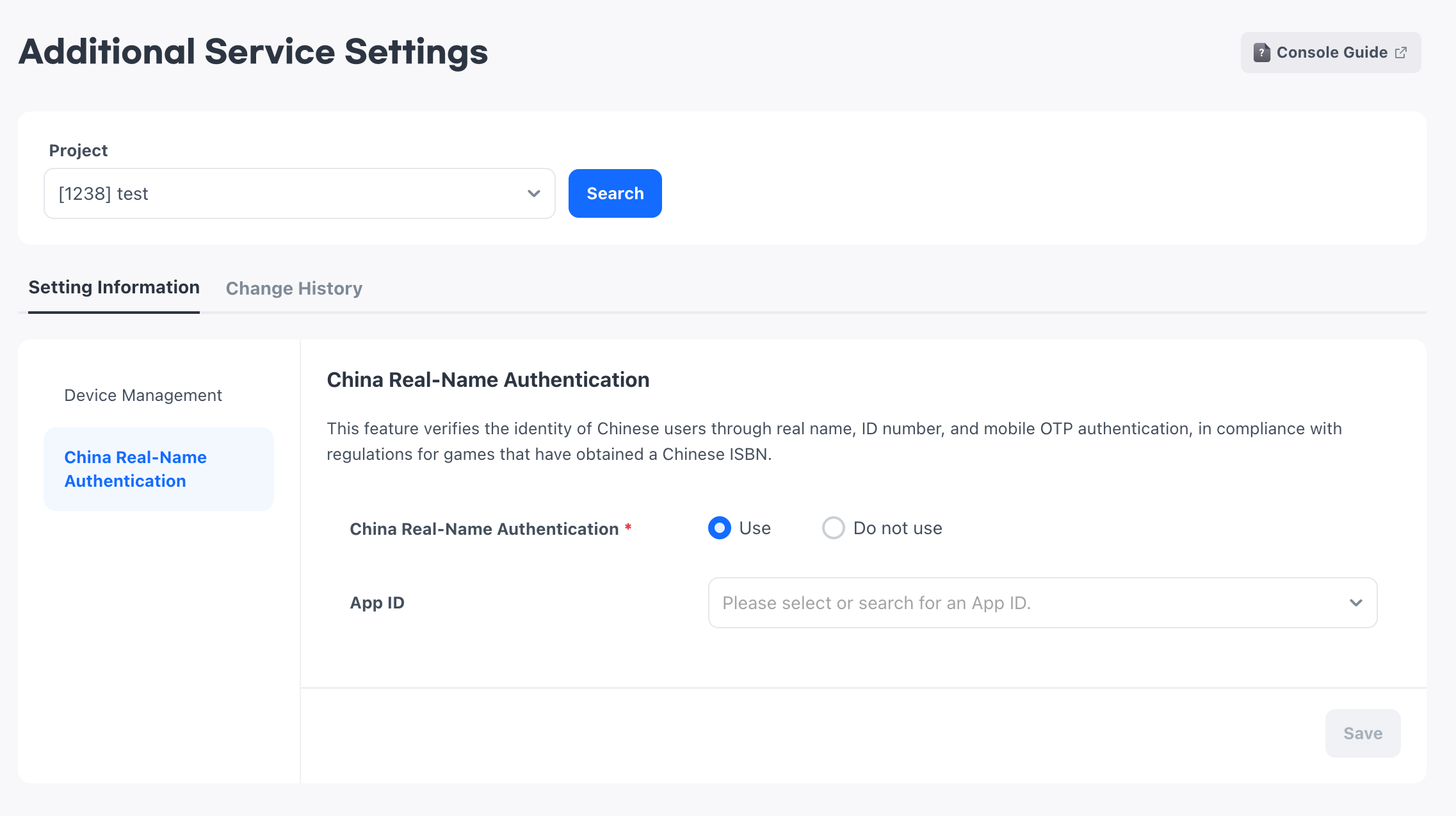
Settings
- China Real-Name Verification: The default is
Do not use. If you selectUse, select at least one App ID to apply the setting to. - App ID: Search for and select multiple App IDs. Selected items are shown with an OS icon, a status tag, and the App ID name. The list of App IDs available for new selections includes only those with the
In DevelopmentorLivestatus.
How to configure:
- Select a project you have permission to access, then select
Search. - Under
Settings Information, selectChina Real-Name Verification. - To use China real-name verification, select
Use, then search for and select at least one App ID to apply it to. - Select
Save. This saves only the China real-name verification settings. If saving fails, the values you entered remain on the screen.