新註冊郵件帳號
本文說明如何為客服中心註冊新的郵件帳號。
本文以 Gmail 帳號為例,說明如何在 Google 帳號中建立應用程式密碼,並在 Console 中註冊 Gmail 帳號。
使用應用程式密碼
註冊 Gmail 帳號時,請使用應用程式密碼,而不是 Google 帳號的一般密碼。
如需建立應用程式密碼,Google 帳號必須已啟用兩步驟驗證。但依帳號設定或組織政策不同,部分帳號可能無法使用應用程式密碼。
在 Google 帳號中建立應用程式密碼
開啟 Google 帳號設定
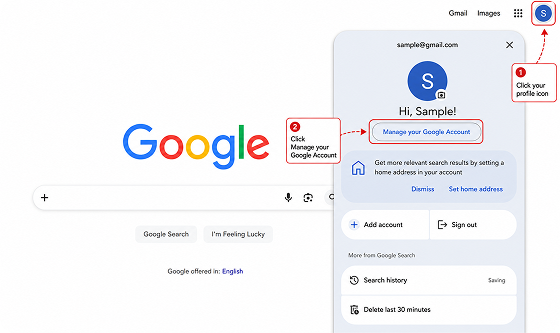
點擊 Google 右上角的個人資料圖示,然後點擊 Manage your Google Account。
設定兩步驟驗證
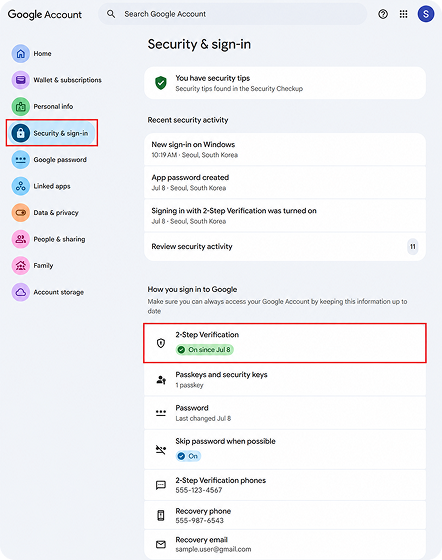
在 Google 帳號設定頁面中,前往 Security & sign-in。
在 How you sign in to Google 區域中,點擊 2-Step Verification。
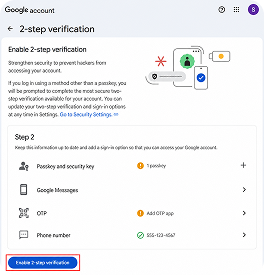
如果尚未啟用兩步驟驗證,請點擊 Enable 2-step verification,並依照畫面指示完成設定。
建立應用程式密碼
完成兩步驟驗證設定後,前往應用程式密碼頁面。
在應用程式密碼頁面中輸入應用程式名稱,然後建立應用程式密碼。
應用程式密碼頁面: https://myaccount.google.com/apppasswords
複製產生的 16 位數應用程式密碼。
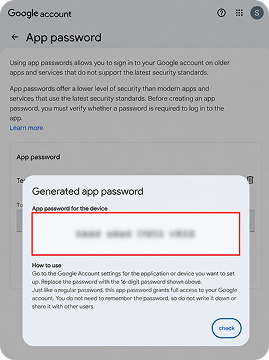
建立應用程式密碼時,請確認以下事項。
- 應用程式密碼建立後無法再次查看。如果遺失密碼,請重新建立新的應用程式密碼。
- 如果應用程式密碼頁面顯示 “The setting you are looking for is not available for your account” 訊息,請確認是否已啟用兩步驟驗證。
- 如果兩步驟驗證僅使用安全金鑰設定,或帳號由組織管理,或帳號已啟用進階保護功能,則可能無法使用應用程式密碼。
註冊 Gmail 帳號
使用在 Google 帳號中建立的應用程式密碼註冊 Gmail 帳號。
- 前往
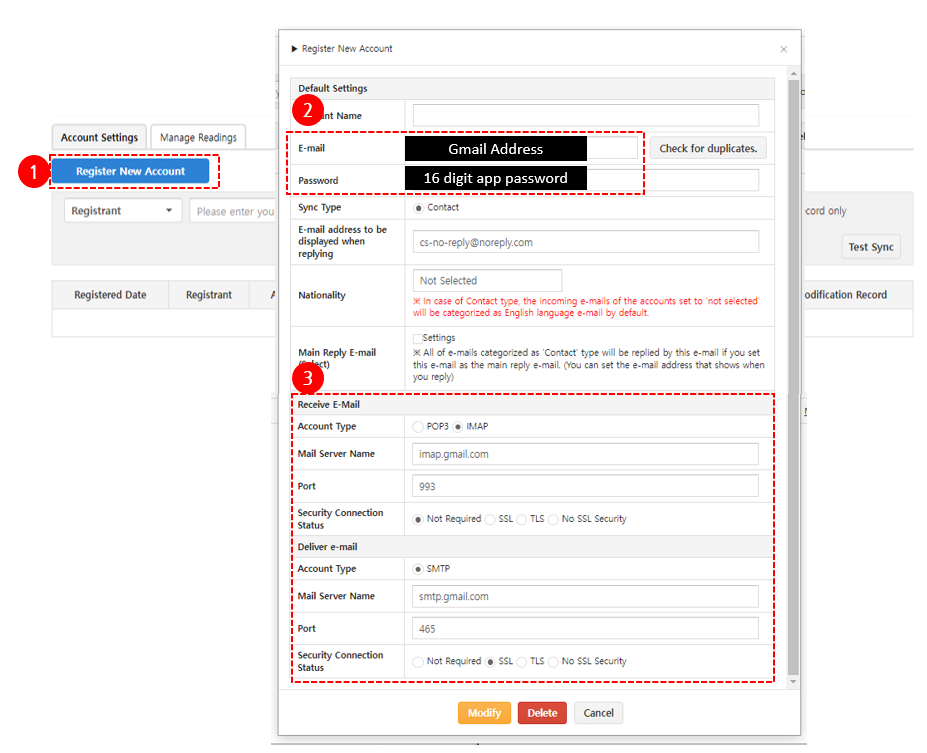
Mail > Mail Account Management,然後點擊 Register New Account。 - 輸入要連動的電子郵件地址與應用程式密碼。
- 輸入郵件伺服器資訊。
請依照以下值輸入郵件伺服器資訊。
在 Receive E-Mail 中,Account Type 選擇 IMAP,Security Connection Status 選擇 Not Required。
在 Deliver e-mail 中,Security Connection Status 選擇 SSL。
| 項目 | 輸入值 |
|---|---|
| Receive E-Mail > Account Type | IMAP |
| Receive E-Mail > Mail Server Name | imap.gmail.com |
| Receive E-Mail > Port | 993 |
| Receive E-Mail > Security Connection Status | Not Required |
| Deliver e-mail > Account Type | SMTP |
| Deliver e-mail > Mail Server Name | smtp.gmail.com |
| Deliver e-mail > Port | 465 |
| Deliver e-mail > Security Connection Status | SSL |
設定主要回覆信箱
註冊第一個郵件帳號後,請至少將 1 個郵件帳號設定為主要回覆信箱。
由於諮詢回覆會透過電子郵件傳送,如果未設定主要回覆信箱帳號,則無法登錄回覆。
測試 Gmail 同步
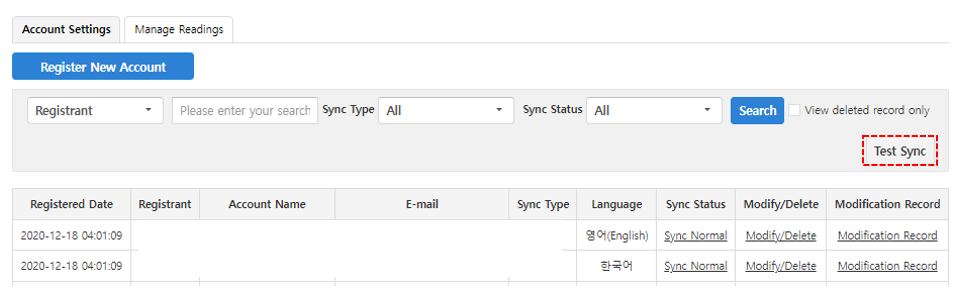
註冊 Gmail 帳號後,執行同步測試。
同步測試成功後,已註冊的 Gmail 帳號即可傳送與接收郵件。
- 選擇已註冊的 Gmail 帳號。
- 點擊 Test Sync。
- 確認測試結果。
個人 Google 帳號的 Gmail 預設啟用 IMAP 存取。
如果在 Gmail 設定頁面中未顯示 IMAP 設定項目,或無法變更該設定,可無需額外設定,繼續註冊 Gmail 帳號。註冊 Gmail 以外的郵件帳號時,註冊流程可能會因所使用郵件服務的安全設定或應用程式密碼核發方式而有所不同。
如果 Gmail 同步測試失敗,請重新確認應用程式密碼與郵件伺服器資訊。
確認 Gmail 收件郵件
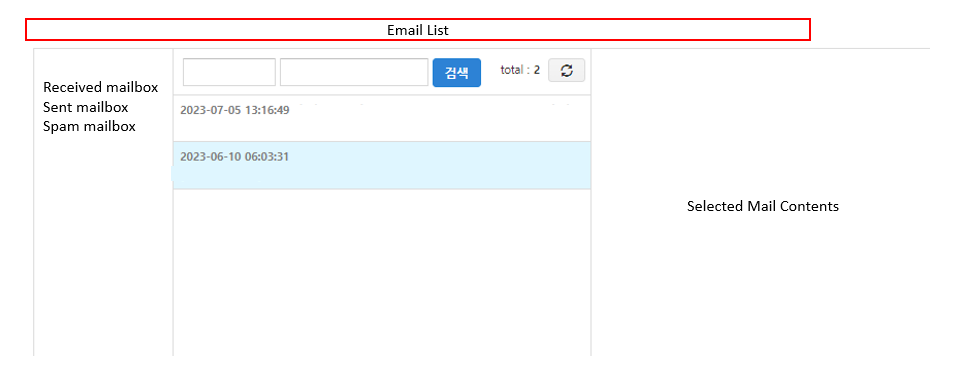
透過已註冊 Gmail 帳號收到的郵件可在 Mail > Mail List 中確認。
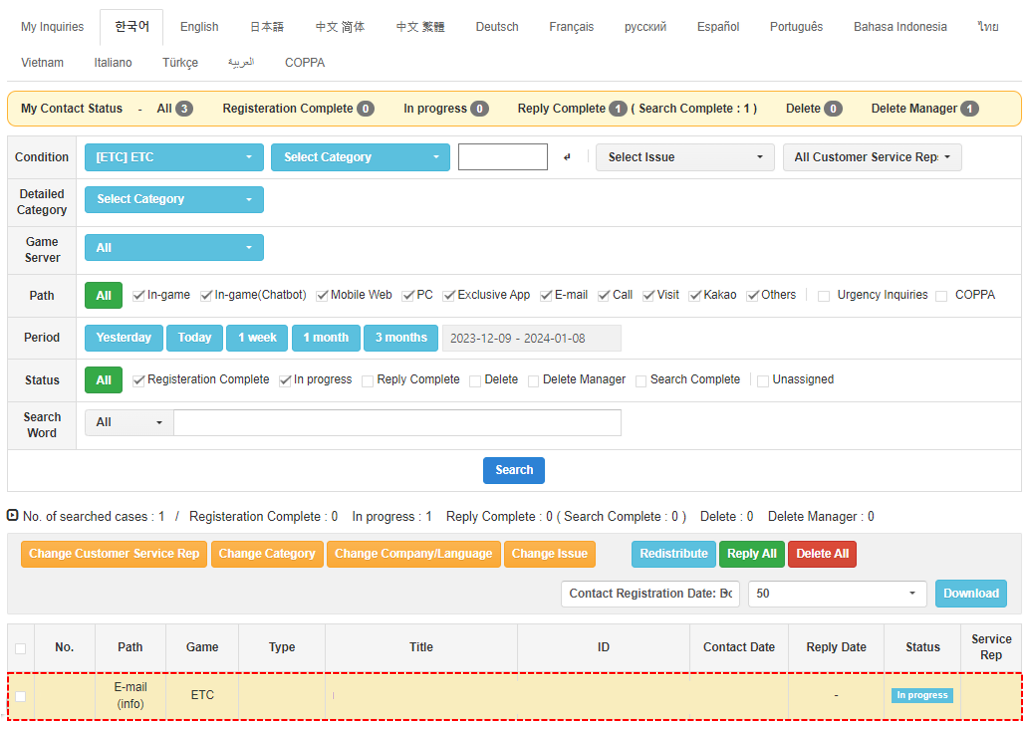
收到的郵件也會作為郵件諮詢登錄到 Inquiry > Inquiry List 中。