Login
'Login' is a feature that lets users log in to your app with accounts from external authentication providers such as Google, Apple, and Steam. The Hive Axyl authentication server verifies the authentication result and returns the Player ID linked to the account. Because it uses the authentication systems and member information that the external authentication providers operate, you do not need to build a separate sign-up process or account database for your app.
Common preparation
Before you implement 'Login', complete the 'Get started' process from Step 1. Create app information through Step 6. Log in. It covers the preparation that every login method needs, such as issuing an App ID, installing the Hive Axyl SDK, initializing the SDK, issuing tokens, and activating the session.
Features
The external authentication providers that 'Login' supports are as follows.
Each login method is described in two parts: 'Step 1. Set up the integration', which connects the external authentication provider to the Hive Console, and 'Step 2. Log in', which implements login in your app. Each item in the list above links to Step 1 of that login method.
Google Play Games login for mobile apps applies only to apps that run on Android and are distributed through Google Play. The other login methods all work on Android, iOS, macOS, and Windows.
Custom account login is a method that creates a Hive Axyl account from an account in an authentication system that the app operates itself and logs the user in with it. Choose it when you need an authentication method other than the external authentication providers that Hive Axyl officially supports.
Note
Guest login and username login are handled by the Hive Axyl authentication server itself, without going through an external authentication provider. For how to implement them, see Step 6. Log in.
Login implementation order
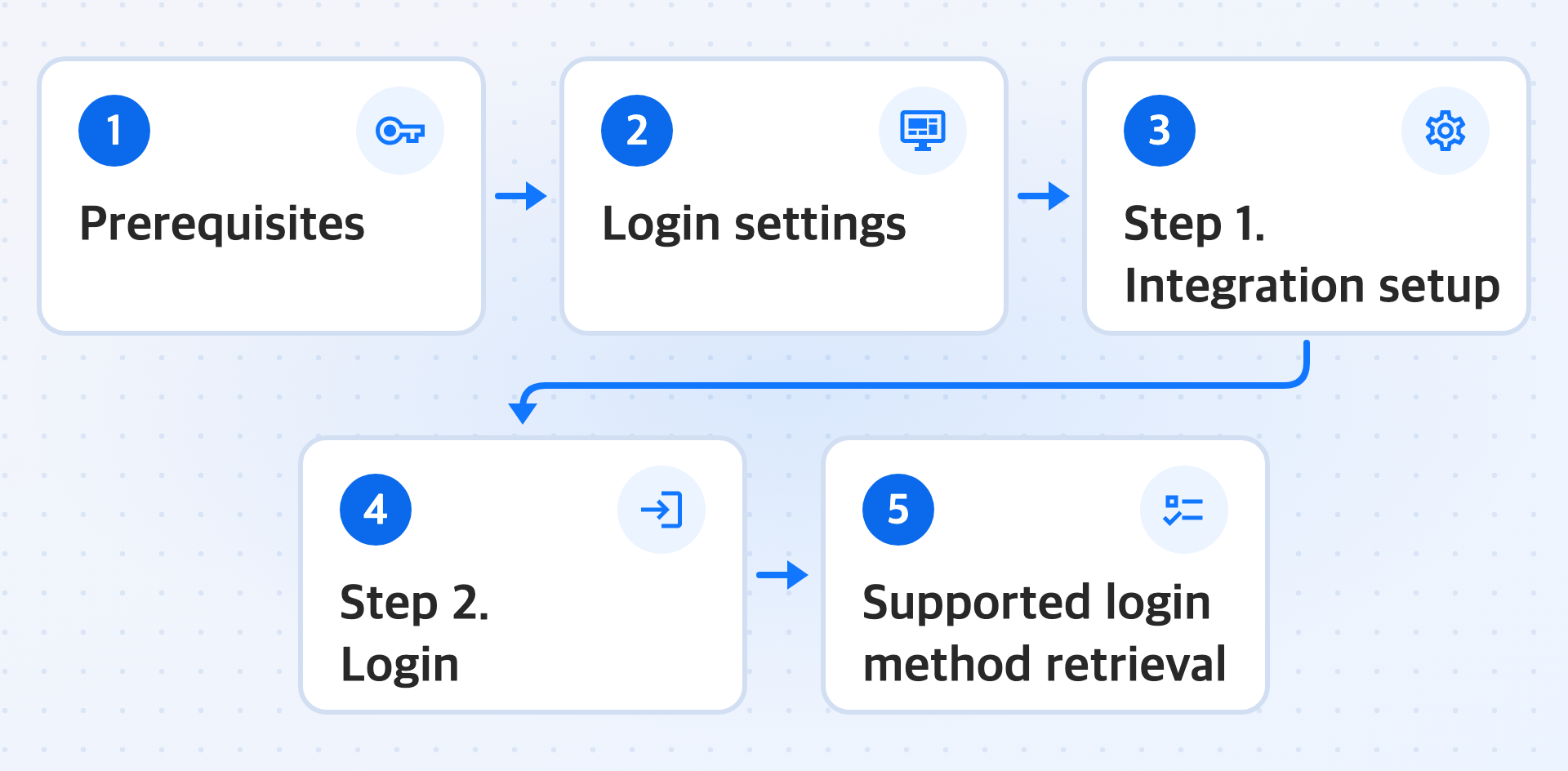
Set up external authentication provider login in the following order. The prerequisites cover preparing values in the external authentication provider's console, the console guide covers registering those values in the Hive Console, and this developer guide covers implementing the app code and the login screen.
- In Prerequisites, prepare the credentials and required settings of the external authentication provider you will use.
- In Login settings, enable the login method and register the credentials you prepared.
- Go to Step 1. Set up the integration of the login method you select below, and prepare the Add-on, build settings, and per-app environment.
- In Step 2. Log in for that method, implement the app code from getting credentials to activating the session.
- When you open the login screen, call Get supported login methods and display buttons only for the returned login methods.
Note
For Google Play Games, you must decide on the app server redirect URI before you prepare the external console. Then proceed in the order of the Google Play Games row.
| Login method | External authentication provider preparation | Hive Console registration |
|---|---|---|
| Google account | Check Google login credentials | Google login credentials |
| Apple | Apple login integration | Apple login credentials |
| Google Play Games | Check Google Play Games login credentials | Google Play Games login credentials |
| Steam | Register the Steam App ID and login integration | Register the Store App ID and Steam login credentials |
| X (Twitter) | X login integration | X (Twitter) login credentials |
Custom account login does not require an external authentication provider or registering credentials in the Hive Console. Implement the app server and the app client in Log in with a custom account.