Organization management
Overview
Organization management is a feature that controls project (app) permissions for each organization and sets member access permissions.
You register an organization during the initial setup for using Analytics. After that, you can add organizations or edit or disable existing organization information.
Note
Only Analytics administrators can see the menu and view organizations.
What can you do?
Business/marketing users & data analysts
- When the app you are in charge of changes, you can quickly receive permissions for the new organization and start working right away without a gap.
- If you set up organizations by the apps people are in charge of, you can include only the people in charge of each app as members and manage access permissions separately. Example: Register the App 1 marketer as a member of the organization set up with the App 1 project
- If you oversee multiple apps or need to analyze them at the same time, you can be registered as a member of an organization that includes all apps and view the scope you need.
Quick start
To register a new organization, follow the steps below.
- Click the account icon in the upper-right corner and select the Organization Management menu.
- Click the Register button in the upper-right corner of the list.
- Enter the organization information, such as the name, projects, and members, and click the Save button.
Note
For details such as registering the first organization and editing or disabling organizations, see Full features.
Full features
Key concepts
| Concept | Description |
|---|---|
| Organization | A unit that manages projects (apps) and member access permissions as a group |
| Project | An app included in an organization |
| Member | A user granted access permission to an organization |
Register the first organization
The first user who accesses Analytics can perform the initial setup. At this time, the user enters a name, projects, and members to register an organization.
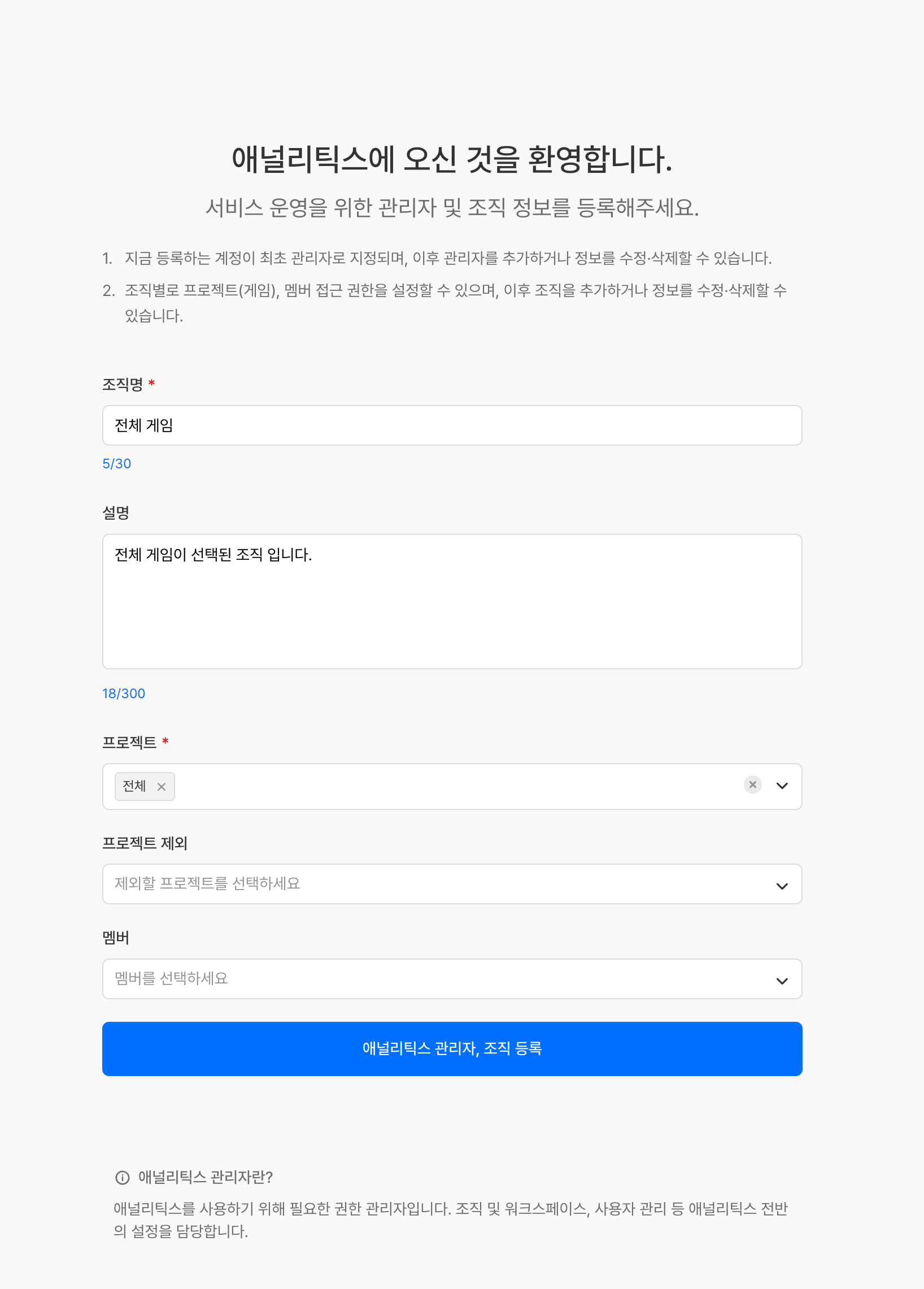
| Item | Required | Description |
|---|---|---|
| Organization Name | Required | The name of the organization to register |
| Description | Optional | A description of the organization |
| Project | Required | The projects (apps) to include in the organization |
| Exclude Project | Optional | The projects to exclude from the organization |
| Member | Optional | The members to include in the organization |
Add an organization
When the number of groups with different projects in charge or different member compositions grows, register additional organizations to manage access permissions separately.
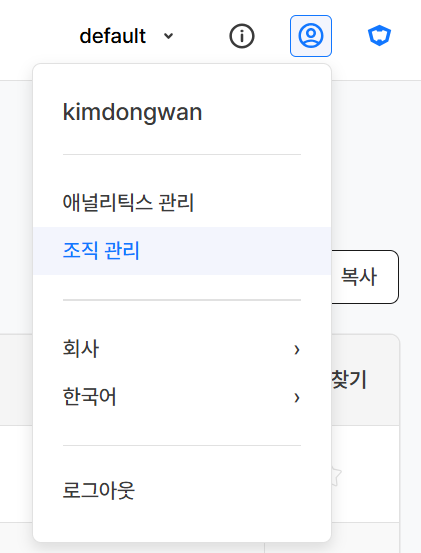
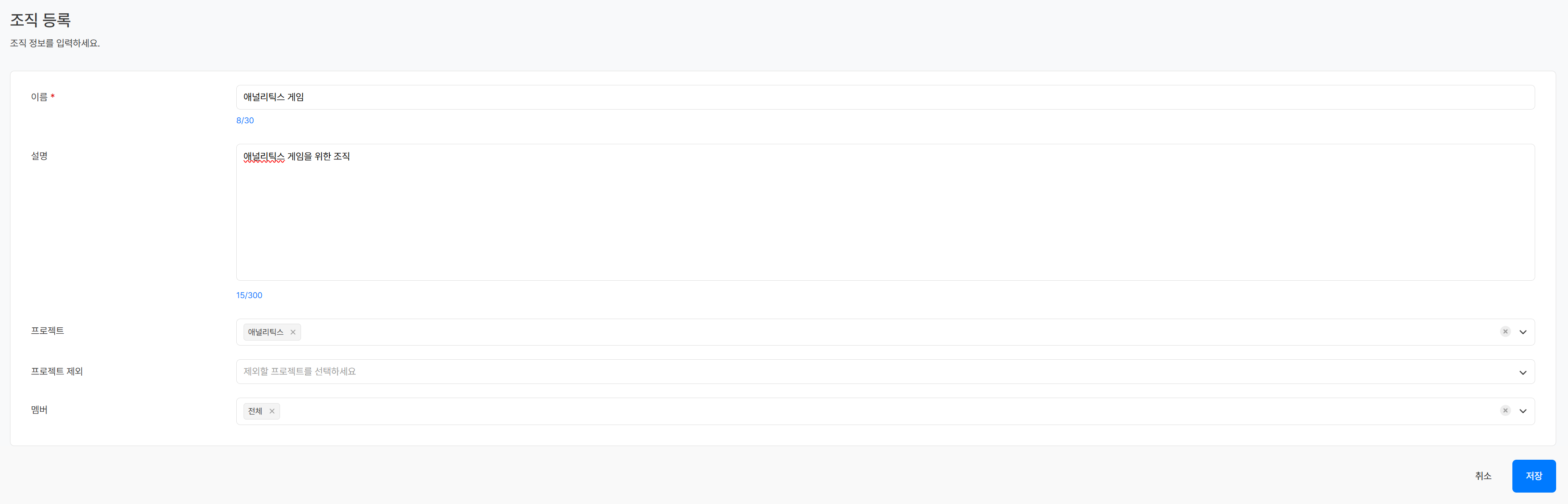
- Click the account icon in the upper-right corner and select the Organization Management menu.
- Click the Register button in the upper-right corner of the list.
- Enter the organization information, such as the name, projects, and members, and click the Save button.
| Item | Required | Description |
|---|---|---|
| Name | Required | The name of the organization to register |
| Description | Optional | A description of the organization |
| Project | Required | The projects (apps) to include in the organization |
| Exclude Project | Optional | The projects to exclude from the organization |
| Member | Optional | The members to include in the organization |
Edit an organization
Change the name, description, projects, and member composition of a registered organization.
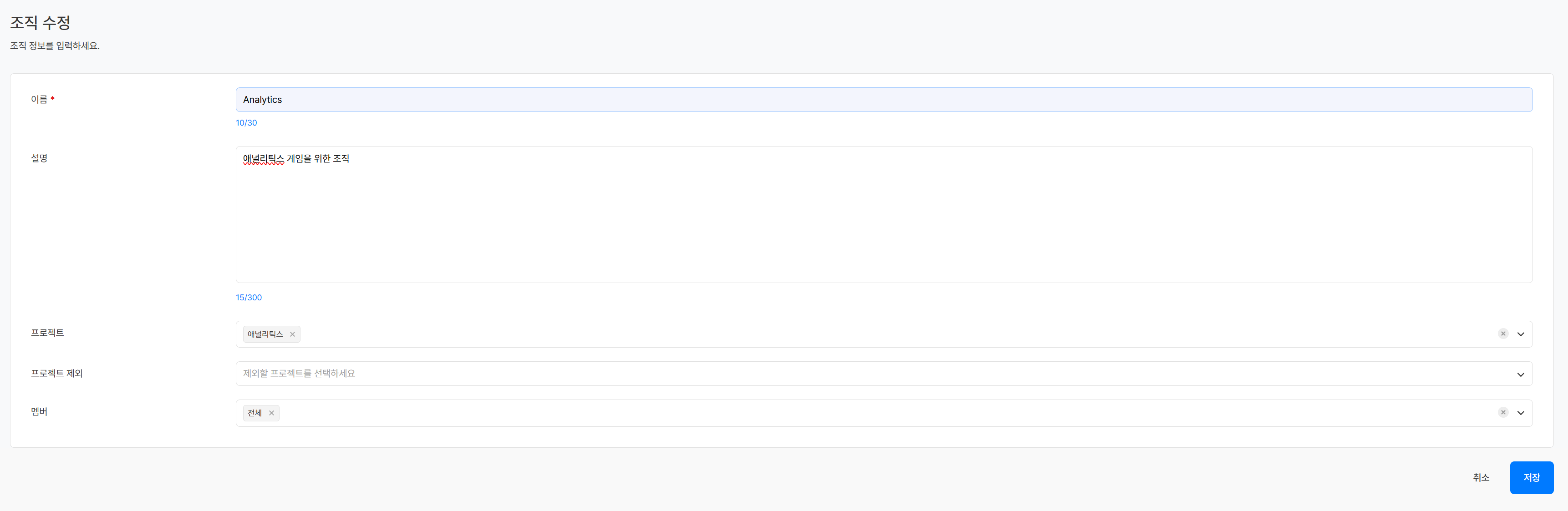
- In the organization list, click the Name of the organization to edit.
- Edit the information and click the Save button.
Switch organizations
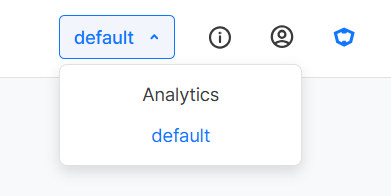
If a user belongs to two or more organizations, the user can change the organization in the upper-right corner.
Disable an organization
Disable an organization that is no longer used.

- In the organization list, turn off the Usage Status toggle of the organization to disable, and the organization is disabled.
| Displayed item | Description |
|---|---|
| Name | The name of the registered organization |
| Description | A description of the organization |
| Registered By | The account that registered the organization |
| Registered At | The date and time the organization was registered |
| Modified By | The account that last modified the organization information |
| Modified At | The date and time the organization information was last modified |
| Usage Status | The activation status of the organization |
Use cases
Set up an organization for each app
Situation: Set up an organization for the business team in charge of App A, and limit viewable data to App A
Process:
1. Configure the organization with the App A project
2. Register business team members as members of that organization
Set up an organization that oversees all apps
Situation: Set up an organization for a data analyst who needs to analyze data across all apps
Process:
1. Configure the organization with all apps
2. Register the data analyst as a member of that organization
Notes & tips
- The scope of data you can view depends on the projects and members included in the organization, so set up organizations to match each scope of responsibility.
- When the person in charge changes or a new project is added, keep the member and project composition of the organization up to date.
- If you select 'All' for projects, all apps are included. Select 'All' only when necessary.
Learn more
- Admin settings — Register and manage Analytics administrators
- Workspace management — Create and manage workspaces
- User management — Manage workspace permissions for each user