Item registration
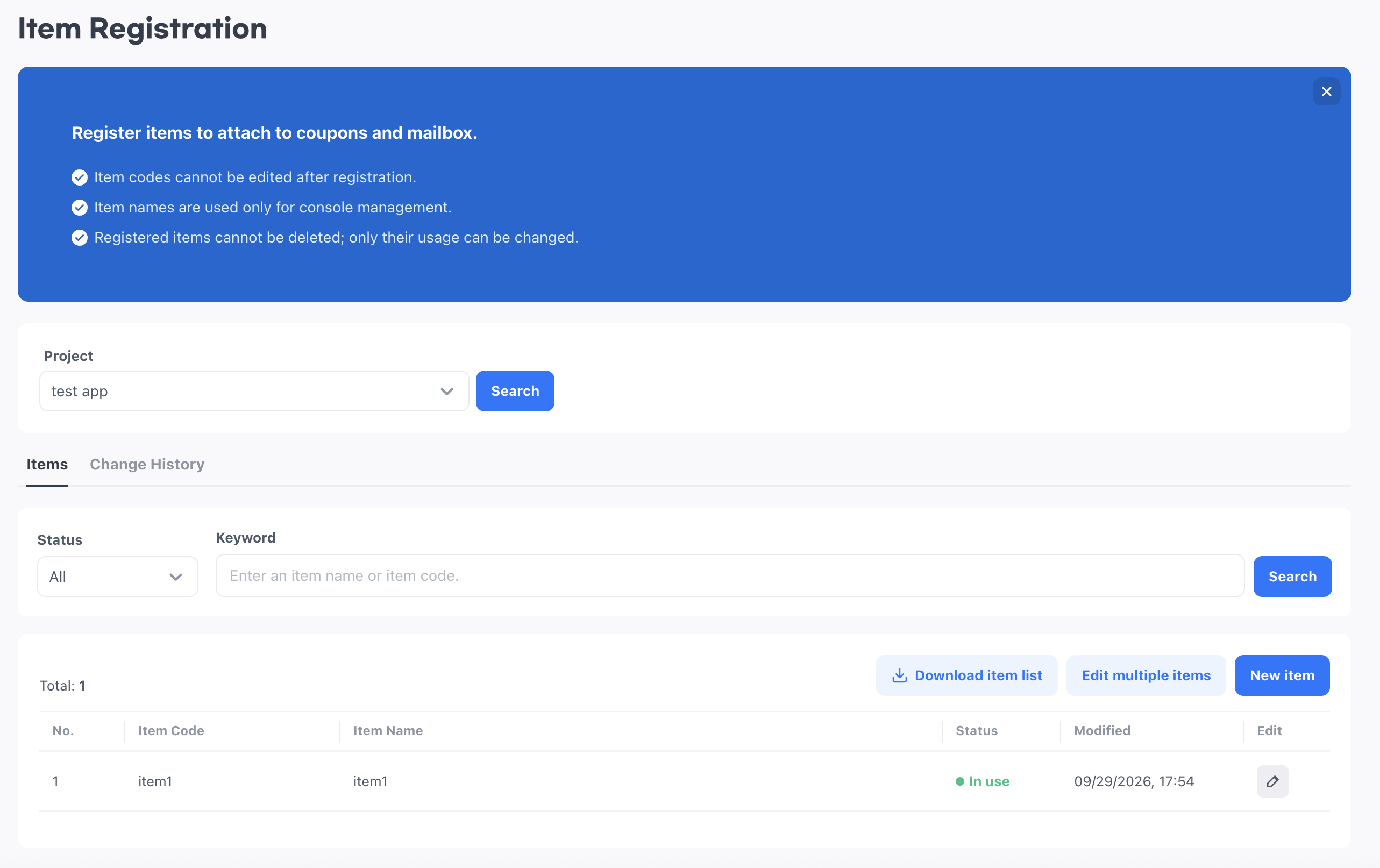
Register the items to attach to coupons and mail, and manage the name and usage status of registered items.
➡️ Console path: Item > Item Registration
Register new items
Register items by entering an item code and an item name. You can add rows and enter items one by one, or register multiple items at once with a CSV file.
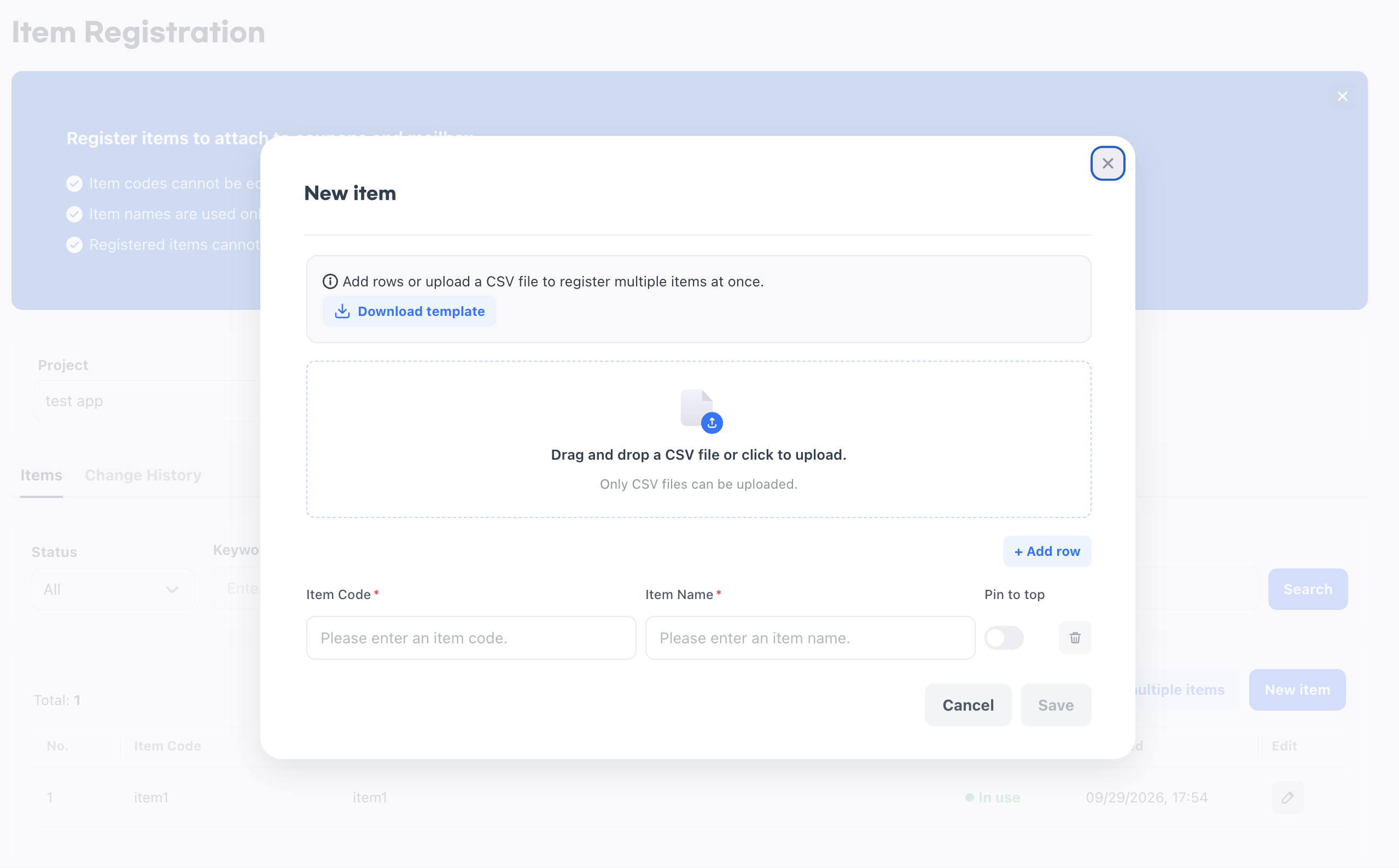
Registration fields
- [Download template]: Download the template used for CSV registration. The template has columns for the item code, the item name, and whether to pin the item to the top.
- CSV upload area: Drag and drop a CSV file onto the area or click it to upload. Only CSV files can be uploaded. The uploaded content fills in the input fields such as item code and item name.
- Item code: Required. You cannot edit it after registration, so check it before you save.
- Enter up to 50 characters.
- Do not enter whitespace such as spaces, line breaks, or tabs, or commas (
,), double quotation marks ("), or semicolons (;). Other special characters are allowed. - If you enter a code that is already in use, a message appears below the item code.
- Item name: Required. Enter up to 100 characters. It is used only for management within the console.
- Pin to top: When you turn on the toggle, the item appears at the top of the item list.
- [Add row]: Select it to add an input row.
- Trash icon: Select the trash icon on the right of a row to delete that row. If there is only one row, the trash icon is disabled. Rows with nothing entered are not saved.
How to set up:
- Select a
Project, then select [Search] to retrieve the item list. - Select [New item].
- Add rows and enter the item code and item name, or fill in the template you downloaded with [Download template] and upload it as a CSV file. If you uploaded a CSV file, check the content filled into the input fields.
- Turn on the
Pin to toptoggle for items you want to show at the top of the list. - Select [Save]. The registered items are added to the list as
In use.
Edit an item
Change an item's name, whether it is shown at the top of the list, and its usage status. Items cannot be deleted, so change items you no longer use to Not in use.
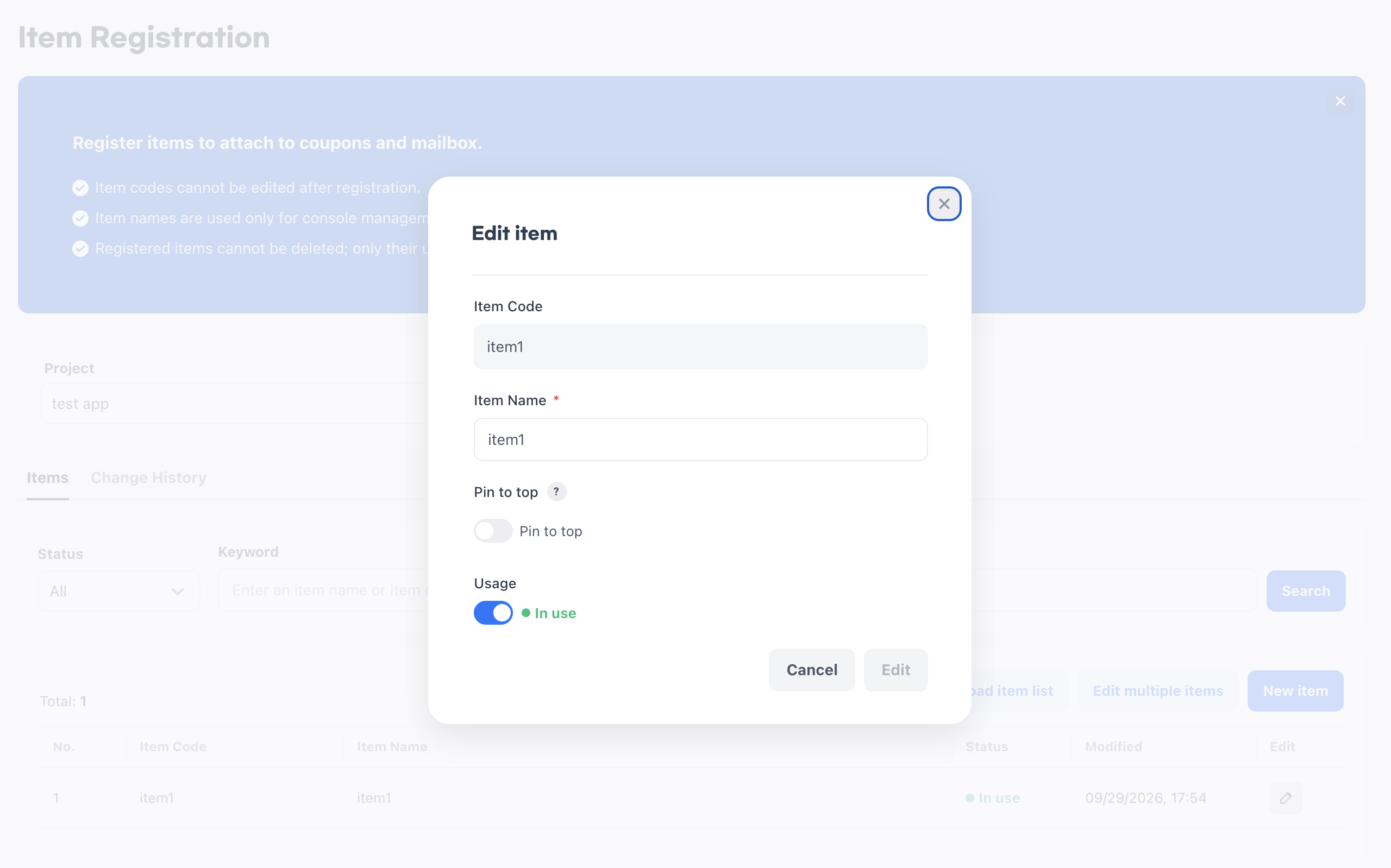
Edit fields
- Item code: Cannot be edited.
- Item name: Required.
- Pin to top: When you turn on the toggle, the item appears at the top of the item list. When you turn it off, the pin is removed.
- Usage: When you turn on the toggle, the status becomes
In use; when you turn it off, it becomesNot in use. Items changed toNot in useare not displayed when other products retrieve the item list.
How to set up:
- Select a
Project, then select [Search] to retrieve the item list. - Select the pencil icon on the row of the item you want to edit.
- In the
Edit itempopup, edit the item name and turn thePin to topandUsagetoggles on or off. - Select [Edit] to apply the changes.
Edit multiple items in bulk
Edit the name and usage status of items that are already registered at once with a CSV file. Only existing registered content is edited, and registering new items is not supported. To edit items in bulk, download the currently registered list, edit it, and upload the file again to apply the changes.
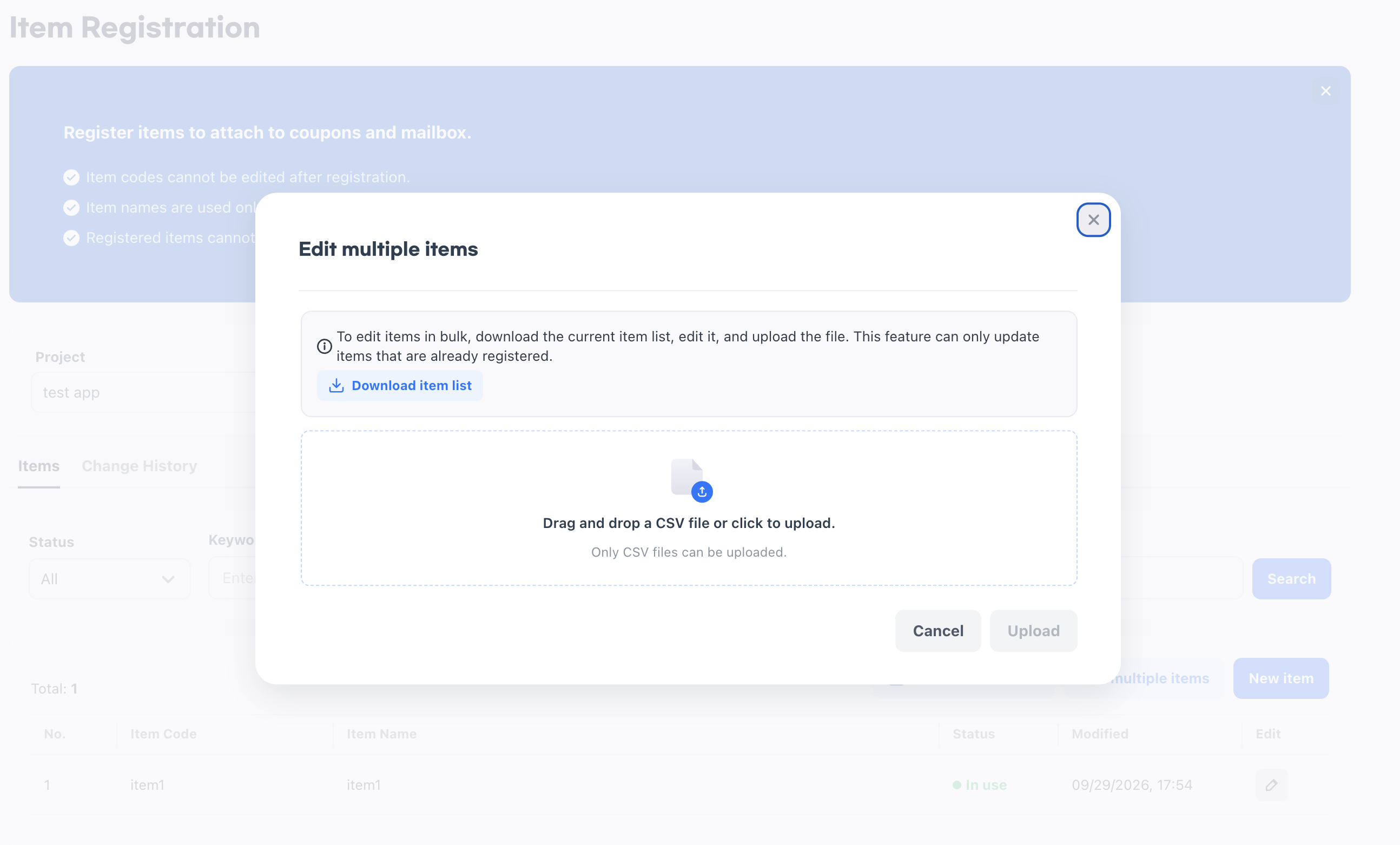
How to set up:
- Select a
Project, then select [Search] to retrieve the item list. - Select [Edit multiple items].
- In the
Edit multiple itemspopup, select [Download item list] to download the CSV file. - Edit the item name and usage status in the file, then save it.
- In the
Edit multiple itemspopup, drag and drop the edited CSV file or upload it, then select [Upload] to apply the changes. - Check the number of edited items and the number of excluded items shown in the message.