segment
Overview
Segment is a function that classifies users by setting conditions. You can classify users through the segment function and conduct targeting campaigns using the created segment snapshots.
Through game SDK integration, you can set more than 40 basic attribute conditions, and by using the client log transmission function, directly transmitted attributes can be used to create segments.
What can you do?
Business/Marketing Manager
- By combining conditions such as payment amount and number of days of access, you can define target groups such as whale users and dormant users and use them in campaigns.
- You can set a snapshot schedule to automatically extract the latest user list every day and connect it to a targeting campaign.
- You can easily manage regional promotion targets by creating segments based on specific countries and markets.
Data Analyst
- By using segments as chart, funnel, and retention filters, you can isolate only specific user cohorts for in-depth analysis.
- By fixing the snapshot creation time, you can form a static cohort based on the campaign start date and compare before and after indicators.
- The simulation function allows you to optimize conditions by checking the expected number and proportion of users before creating a snapshot.
Get started quickly
If this is your first time creating a segment, follow the steps below to create your first segment.
- Enter the Segment menu and click the Create button.
- Select project to analyze.
- Click the Add Attribute Group button to set the attributes and conditions to classify users.
- Click the Calculate button in the Simulation area on the right to check the expected number of users.
- Click the Save button at the bottom and enter segment title and segment description to save it as a segment.
Note
For detailed settings such as snapshot schedule and attribute group connection conditions, refer to All features.
All Features
Key concepts
| concept | Description |
|---|---|
| Segment | Definition of a set of users corresponding to the set attribute conditions |
| Segment Snapshot | List of actual users extracted at a specific point in time based on segment conditions |
| Attribute Group | A unit that groups one or more attribute conditions. Up to 5 groups, up to 5 attributes per group |
| Simulation | Ability to check the expected number of users and their percentage of the total before creating a snapshot |
| Targeting Campaign | Campaign carried out to specific users using created segments and snapshots |
Segment list
- Deleting a segment is only possible through the account that created the segment. If you delete a segment, any targeting campaigns running through the deleted segment will remain, but you will not be able to create new snapshots or targeting campaigns.
- If you select a segment through the checkbox on the left of the list and click the copy button, you can create a new segment by adding new attributes to the attribute conditions set for that segment.
- Click on each segment name to go to the segment detail page.
Segment Details
Through the segment detail page, you can check the conditions set when creating a segment, create segment snapshots, and use them for targeting campaigns. 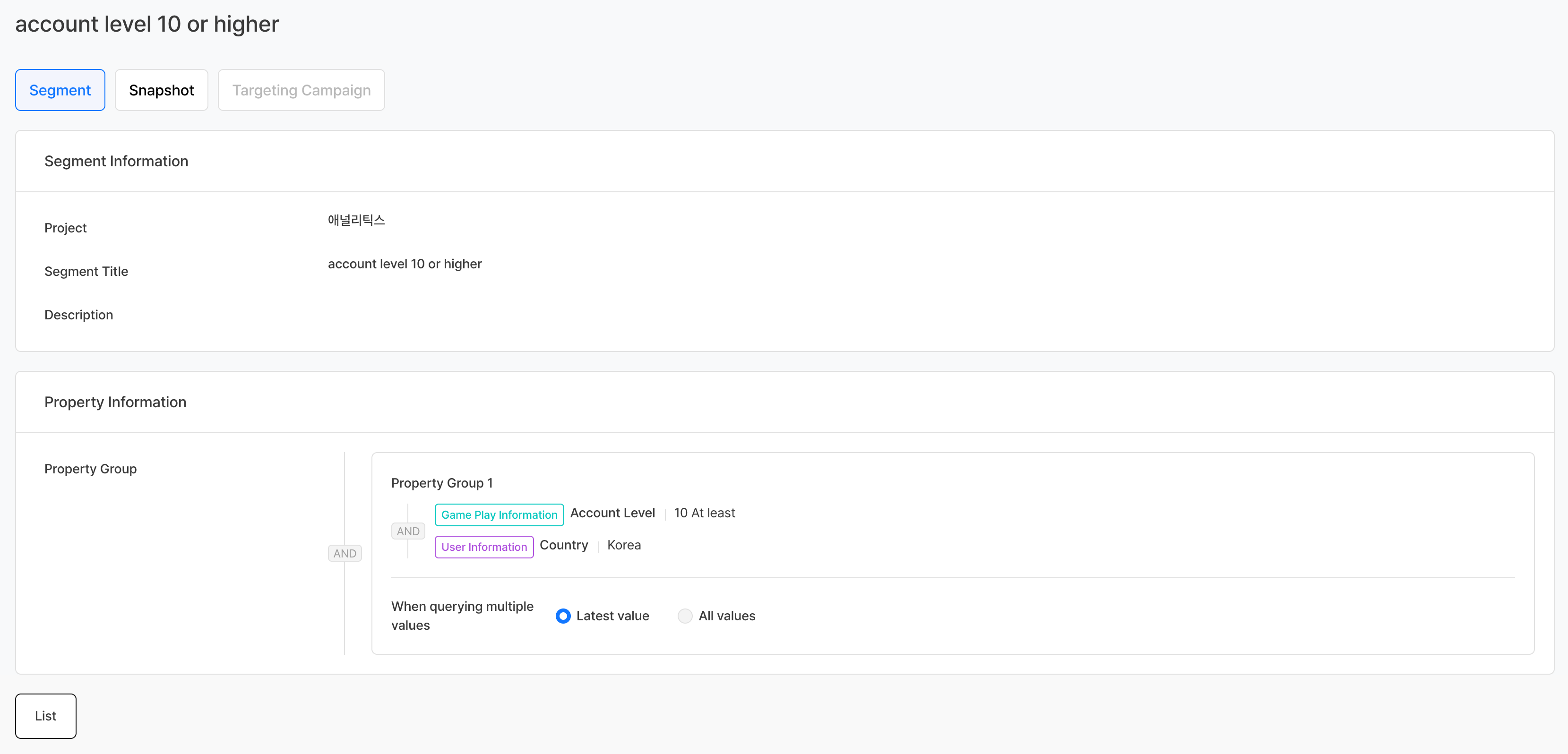
Segment Snapshot
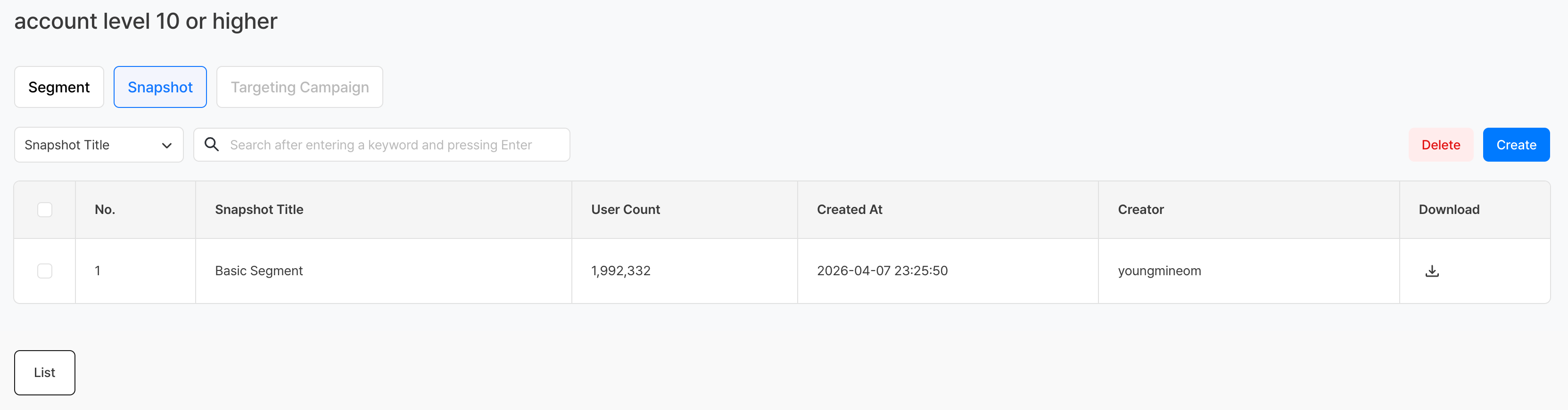
- A segment snapshot refers to a list of users extracted according to the attribute conditions set in the segment. You can check the number of users extracted from the segment you created through the Segment Snapshot tab.
- For games with 'authentication v4' or 'Login Center' applied, the default identifier is user, so you can check the results of matching all uid and did based on the extracted user.
- For games that do not support Hive membership linking, uid is displayed as 0.
- Games with 'authentication v1' applied have a default identifier of uid, so you can check the results of matching all did based on the extracted uid.
- For games with 'authentication v4' or 'Login Center' applied, the default identifier is user, so you can check the results of matching all uid and did based on the extracted user.
- Segment snapshot data is synchronized every hour, so the number of extracted users may change each time a snapshot is created.
- Segment snapshot data is aggregated with data received up to 10 minutes past the hour and synchronized at 35 minutes past the hour.
- When creating a snapshot after 35 minutes past the hour: Based on data received up to 10 minutes after the creation time
- Example: When a snapshot is created at 2026-03-30 19:50 → Data received until 2026-03-30 19:10
- When creating a snapshot 35 minutes before the hour: Based on data received up to 10 minutes before 1 hour of creation time
- Example: When a snapshot is created at 2026-03-30 19:25 → Data received until 2026-03-30 18:10
- When creating a snapshot after 35 minutes past the hour: Based on data received up to 10 minutes after the creation time
- Segment snapshot data is aggregated with data received up to 10 minutes past the hour and synchronized at 35 minutes past the hour.
- If you want to create an additional snapshot, click the Add Snapshot button, enter a title, and click the Save button.
- Download options
- Default option: Download the user list consisting of the fields User, uid, did, and appId.
- Option with additional information: Downloads the user list of the default options along with the attribute values set when creating the segment.
- The order of attribute fields exposed when downloading with the option to include additional information is the same as the order of attributes exposed on the segment detail page.
- If the attribute name of a custom attribute transmitted using the client log transmission function contains characters other than English and numbers (e.g. Korean, Japanese, Chinese), it will be exposed as a field name in the format
customInfoProperty1,customInfoProperty2.
Targeting Campaigns
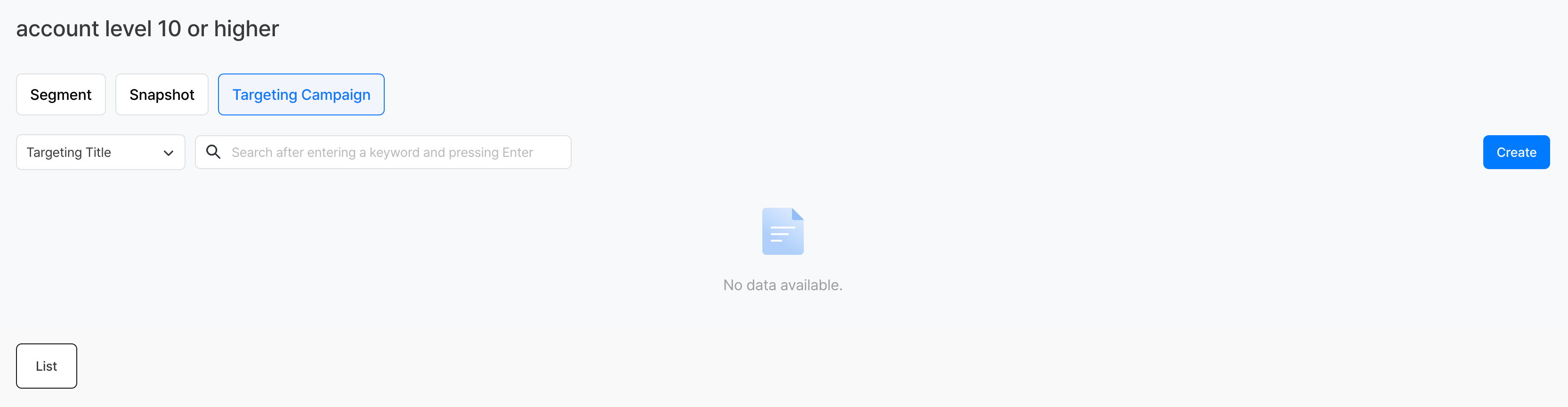
You can use the created segments and snapshots to conduct targeting campaigns for those users. More information can be found in Targeting.
Create segment
Click the Create button on the segment list page to go to the creation page.
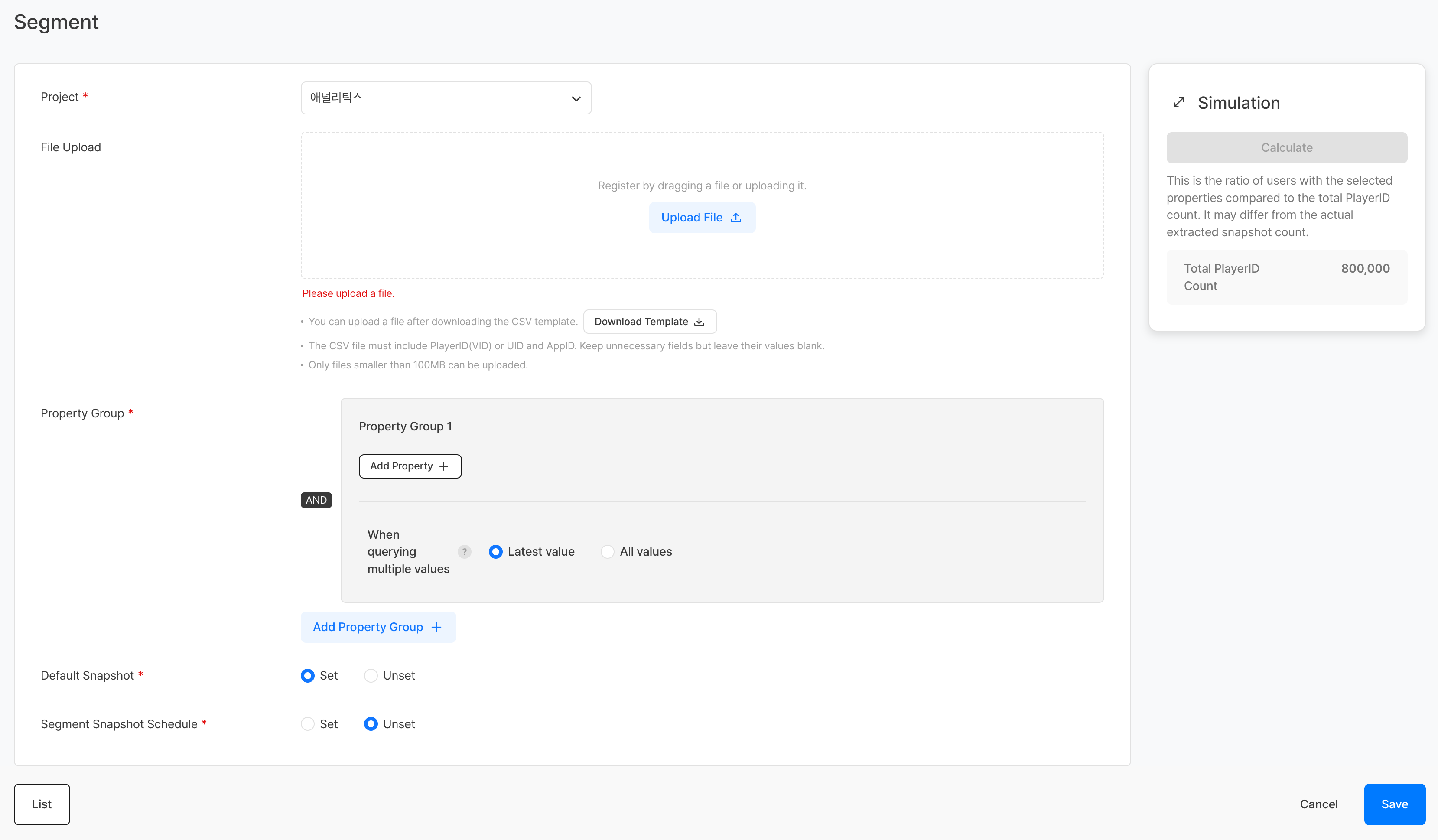
Select project
| Item | Required or not | Description |
|---|---|---|
| Target Project | Required | Project to create segment for (single selection) |
Select user attributes
User attributes refer to characteristics that a user has. By selecting attributes and setting detailed conditions, you can extract users that meet the set conditions.
When you click the Add Attribute Group button, an attribute selection pop-up will appear. One segment can have up to 5 attribute groups, and one group can have up to 5 attributes.
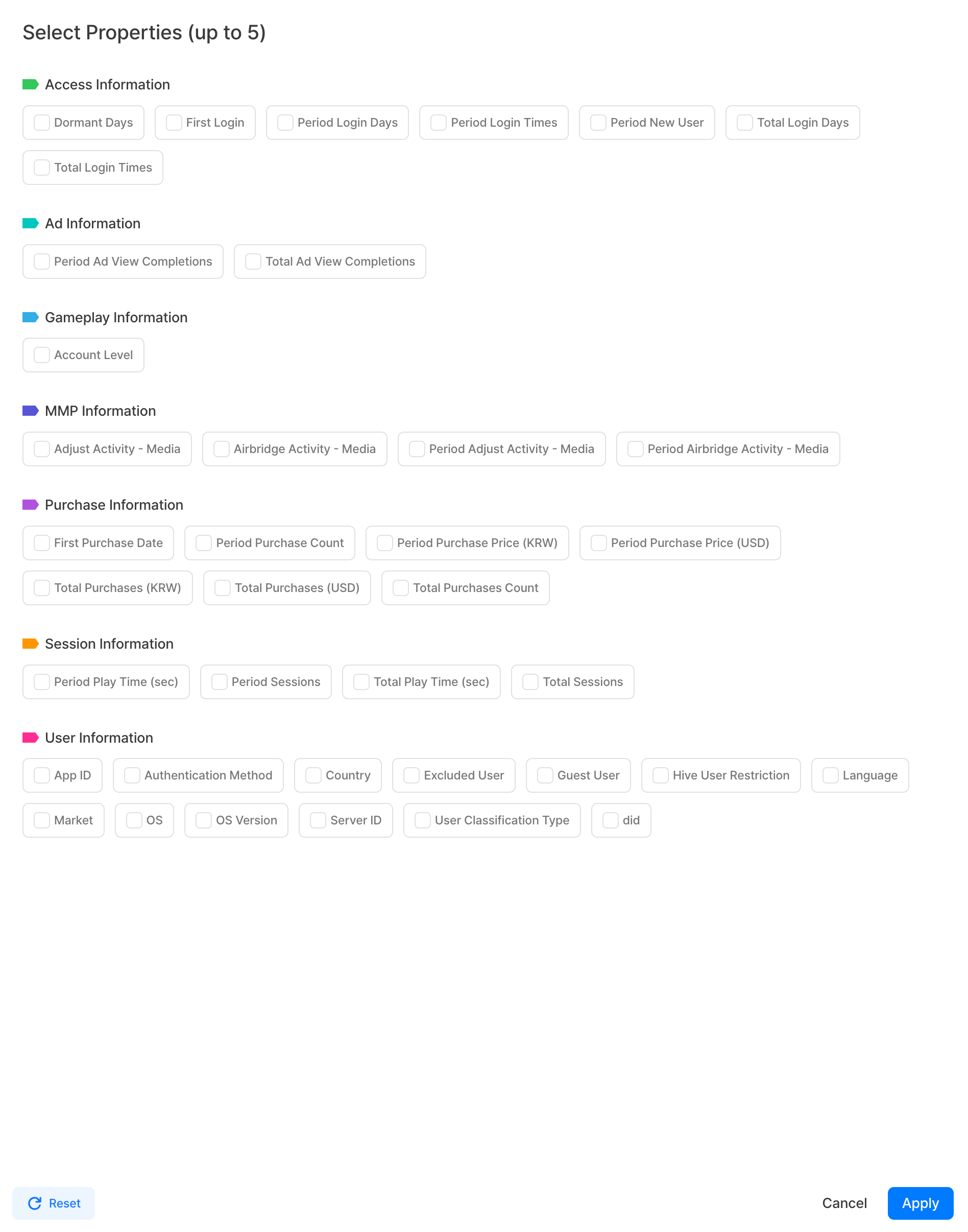
The list of attributes that can be checked by default through game SDK integration is as follows. SDK If no logs are collected due to version differences, etc., some attributes may not be displayed on the selection screen.
Advertising Information
| Attribute Type | attribute name | Description |
|---|---|---|
| numeric | Duration Ad viewing start count | The number of times a user started watching an in-game ad during a specific period of time. |
| numeric | Number of completed ad views during the period | The number of times a user completed watching an in-game ad during a specific period of time. |
| numeric | Total number of ad viewing starts | This is the cumulative value of the number of times the user started watching in-game advertisements after first logging in. |
| numeric | Total number of ad views completed | This is the cumulative value of the number of times a user has completed watching an in-game advertisement since their first connection. |
Purchase Information
| Attribute Type | attribute name | Description |
|---|---|---|
| numeric | Period payment amount (KRW) | This is the amount paid by the user during a specific period (unit: won). |
| numeric | Period payment amount (USD) | The amount the user paid during a specific period, expressed in dollars. |
| numeric | Period Payment Number | The number of payments a user made during a specific period of time. |
| numeric | Total payment amount (KRW) | Cumulative payment amount (unit: won) since the user's first connection. |
| numeric | Total payment amount (USD) | Cumulative payment amount (unit: dollars) since the user's first connection. |
| numeric | Total number of payments | This is the cumulative number of payments since the user's first connection. |
| date type | Date of first purchase | Date of the user's first purchase. |
User Information
| Attribute Type | attribute name | Description |
|---|---|---|
| character type | OS | The user's operating system (e.g. IOS). |
| character type | OS version | The user's operating system version (e.g. 13.0.1). |
| character type | Guest User | Whether the user is a guest user. |
| character type | country | The user's country (e.g. South Korea). |
| character type | Market | The market where the user installed the game (e.g. Google Play). |
| character type | Server ID | The user's server ID (e.g. global). |
| character type | App version | The user's game app version (e.g. 1.6.5). |
| character type | App ID | This is the user's app ID. |
| character type | language | The user's language, such as Korean. |
| character type | User classification type | The user's user classification type (e.g. whale). |
| character type | Authentication method | This is an authentication method (e.g. Facebook) when the user accesses the game. |
| character type | Hive Suspension of use | The user is currently suspended from using Hive. |
| numeric | did | This is an instance value that is created each time the user installs your app. |
| numeric | uid | The user's Hive membership identifier. |
| character type | Excluded registered users | The user's current indicator value is excluded from aggregation. |
- App ID: You can select the appId value issued by App Center.
- User classification type: Detailed descriptions of user classification types can be found in User > User classification.
- Disable Hive: You can select one of the values below.
- Suspension of use
- Lift suspension of use
- No history of suspension
- did: Issuance scope varies for each OS.
- iOS: 100,000,000 or more and 300,000,000 or less or 1,000,000,001 or more but 5,000,000,000 or less
- Android: 300,000,001 or more but 700,000,000 or less or 5,000,000,001 or more but 10,000,000,000 or less
- Windows: 10,000,000,001 or more and 15,000,000,000 or less
- MacOS: 15,000,000,001 or more and 20,000,000,000 or less
- uid: You can select Hive among games that have 'authentication v4' or 'Login Center' applied if they support membership linkage.
- For games with 'authentication v1' applied, uid is set as the default identifier, so you can check it in the segment snapshot without selecting a separate attribute.
- Excluded registered users: You can select one of the values below.
- Indicator exclusion: Users registered in Settings > Indicator Settings > Indicator Exclusion User Management
- Indicators included: All users not registered except
Gameplay Information
| Attribute Type | attribute name | Description |
|---|---|---|
| numeric | Account Level | This is the level based on the user's account. |
- Account Level:
hive_account_level_changeSelectable if event data has been sent.
Session Information
| Attribute Type | attribute name | Description |
|---|---|---|
| numeric | Duration Number of sessions | Number of sessions for a specific period of time for a user. |
| numeric | Duration Playtime (seconds) | The user's playtime (unit: seconds) for a specific period of time. |
| numeric | Total number of sessions | This is the cumulative number of sessions since the user's first connection. |
| numeric | Total play time (seconds) | Cumulative play time (unit: seconds) since the user's first connection. |
Connection Information
| Attribute Type | attribute name | Description |
|---|---|---|
| numeric | Period of access days | The number of days a user was online during a specific period. |
| numeric | Number of accesses during period | The number of times a user connects during a specific period of time. |
| character type | Period New User | Whether the user is a new user during a certain period of time. |
| date type | First access date | The date of the user's first connection. |
| numeric | Total number of online days | Cumulative number of days of connection since the user's first connection. |
| numeric | Total number of connections | This is the cumulative number of connections since the user's first connection. |
| numeric | number of dormant days | Number of days in a row that a user has not logged in. |
- Number of Dormant Days: Calculated based on the time of segment creation. To extract dormant users based on a specific date in the past, you must create a segment directly on that date, and retroactive search is not possible at a later time.
- Example: If the number of inactivity days is 3 or more on April 10th → Extract users whose last access date is before April 8th
Push Information
| Attribute Type | attribute name | Description |
|---|---|---|
| numeric | Period large push open count | The number of bulk push opens by a user over a specific period of time. |
| numeric | Period targeting push open count | The number of targeted push opens by users over a specific time period. |
| numeric | Total number of large push opens | This is the cumulative number of large push opens since the user's first connection. |
| numeric | Total number of targeted push opens | Cumulative number of targeting push opens since the user's first connection. |
MMP Information
| Attribute Type | attribute name | Description |
|---|---|---|
| character type | Duration [MMP] Activity - Medium / [MMP] Activity - Medium | The user's in-game activity and the medium (external channel or advertising source that prompted the activity). |
- When the MMP tool is linked through the game SDK, it is aggregated based on the logs sent, and the attribute value can be selected in the 'Activity - Medium' format.
- Each attribute name is displayed separately according to the MMP linked in the game.
- Example: If Airbridge is linked, it is displayed in the format 'Period Airbridge activity - medium', 'Airbridge activity - medium'.
- You can check the types of MMP tools that can be integrated in Analytics at Data > MMP Integration.
- For games with 'SDK v4' or 'SDK v1 - Login Center' applied, the MMP identifier (customerUserId) is sent as playerId by default, so it can be used in conjunction with other attributes.
- In addition, for games with SDK applied, connection with other attributes is restricted if the MMP identifier (customerUserId) is not set to the Hive user key (UID).
- If Airbridge is linked, games with v4.25.2.0 or later versions of SDK can be selected.
- Each attribute name is displayed separately according to the MMP linked in the game.
- Data will be reflected starting from March 15, 2025.
Custom Attribute
If you send user attribute logs using the client log submission feature, you can utilize the custom attributes to create segments within up to one hour after submission. For more information, refer to Custom User Attribute Definition Log.
Setting attribute conditions
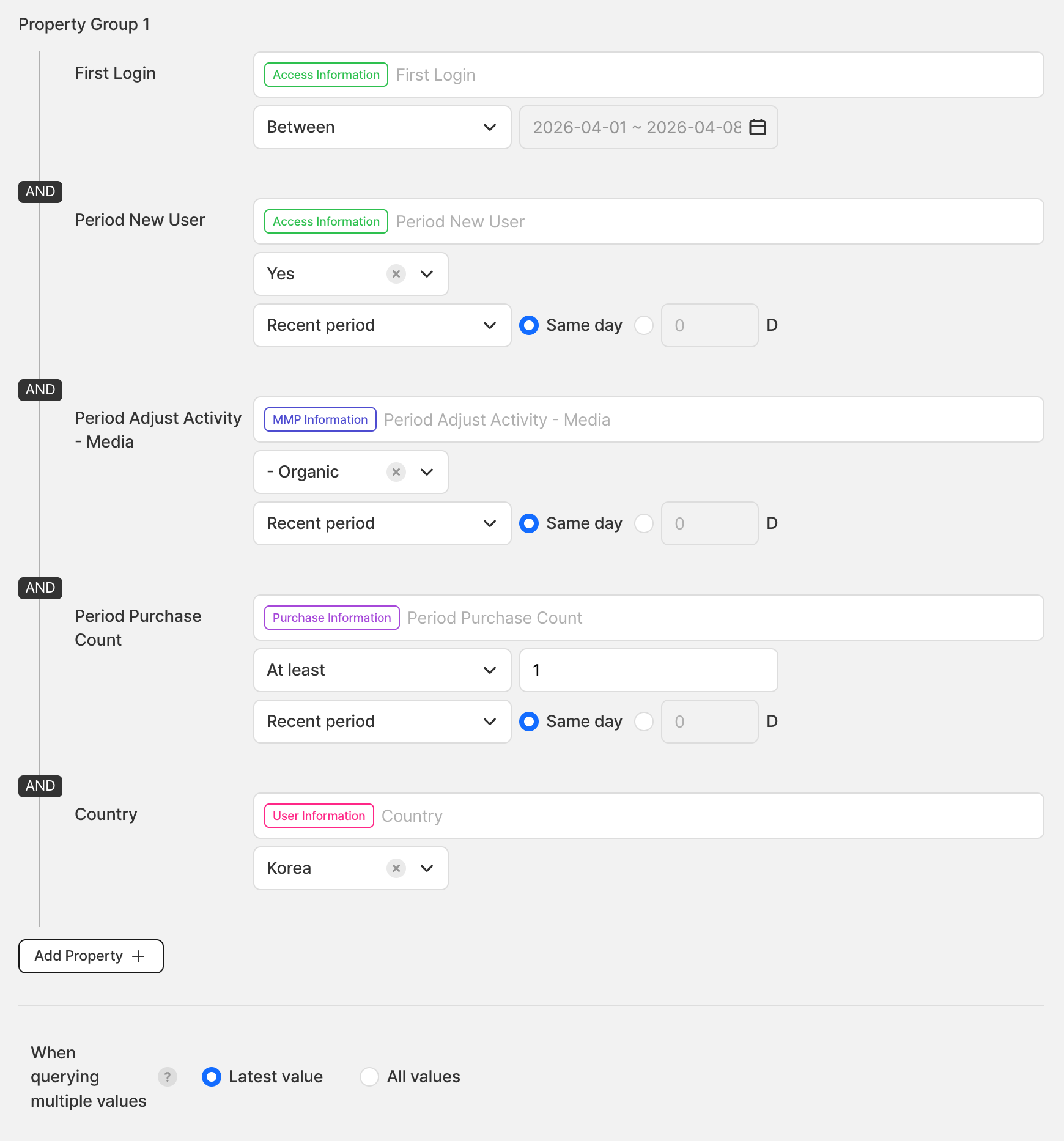
After selecting all the attributes to be used on the attribute selection screen and clicking the OK button, all selected attributes will be exposed as one group. If you want to remove or change the selected attribute, you can do so through the trash can button or the Add attribute button.
Numeric attributes (count, number of days, etc.)
If the data type is integer, enter an integer greater than 1, or if the data type is float, enter a real number greater than 0 and select one of the conditions below.
| Conditions | Description |
|---|---|
| above | Extracts users with attribute values equal to or greater than the entered number. |
| below | Extracts users with attribute values equal to or less than the entered number. |
| between | Extracts users with attribute values between two numbers, including the two numbers entered. |
| Included | Extracts users with attribute values corresponding to the entered numbers. |
| Not Included | Extracts users with attribute values that do not correspond to the entered number. |
Character type attributes (country, language, etc.)
You can search, search, and select selectable values through the attribute value drop-down box. For some attribute values, the original value (e.g. KR) may be exposed.
Date type attributes (first access date, etc.)
Select a date value through the calendar and then select one of the conditions below.
| Conditions | Description |
|---|---|
| Previous | Retrieves attribute values for a period preceding the selected date. |
| After | Searches for attribute values for a period later than the selected date. |
| Same day | Searches for attribute values on the selected date. |
| between | Searches for attribute values between two selected dates. |
Attributes starting with “Period” (period session count, etc.)
By adding a period to the condition, you can set the attribute value during a specific period as the condition. For the time period, select either Recent Period or Date.
- Recent Period: Specify a relative period by entering the same day or a number of days from 1 to 365. The number of snapshot users may vary depending on the time of inquiry.
- Example: Set the most recent period to 1 day → When viewed on April 10th, it is based on data from April 9th to 10th.
- Date: Search for attribute values during the set period. The date range is limited to a maximum of one year.
Connections between attributes
After setting all the desired attributes, select one of AND / OR on the left side of the attribute group box to connect all attributes in the group.
| Connection conditions | Description |
|---|---|
| AND | Extracts users who satisfy all set attribute conditions. |
| OR | Extracts users who satisfy at least one of the set attribute conditions. |
Example
Example: If the total number of connections is 3 or more and the country is Korean,
- AND → Extract users that satisfy both conditions
- OR → Extract users who satisfy at least one of the two conditions
When multiple values are searched
Attributes whose attribute names do not start with “period,” such as country or language, are provided based on all attribute values after the user’s first access. If multiple values are being searched, set the condition by selecting one of the options below.
| Options | Description |
|---|---|
| Last value | It is extracted based on the last value of the attribute values from the first connection to the time of inquiry. |
| All values | It is extracted based on all attribute values from the first connection to the time of inquiry. |
Example
Example: A When a user accesses the US and Korea on April 9th and Korea on April 10th
- Last value → Extracted when “Korea” is selected as the country
- Extract all values → select either “USA” or “Korea”
Attribute group connection conditions
If you add more than one attribute group, you can select either AND or OR to concatenate all attribute groups.
| Connection conditions | Description |
|---|---|
| AND | Extracts common users (intersection) of set groups. |
| OR | Extracts all users (union) of a set group. |
Example
Example: When attribute group 1 is set to a total payment amount (KRW) of 5,000 won or more, and attribute group 2 is set to a total play time (seconds) of 3,600 seconds or more.
- AND → Extract users that satisfy both conditions
- OR → Extract users who satisfy at least one of the two conditions
Simulation
This is a function to check the expected number of users and their ratio (%) to the total number of users before creating a snapshot. If your expectations are not met, you can see under what conditions users are lost.
- The expected number of users refers to the number of users that match the selected attribute conditions are removed from duplicates. Since snapshot data is not deduplicated, it may differ from the actual number of snapshots extracted.
Simulation Procedure
-
Once all segment attribute conditions are set, the Calculate button becomes activated.
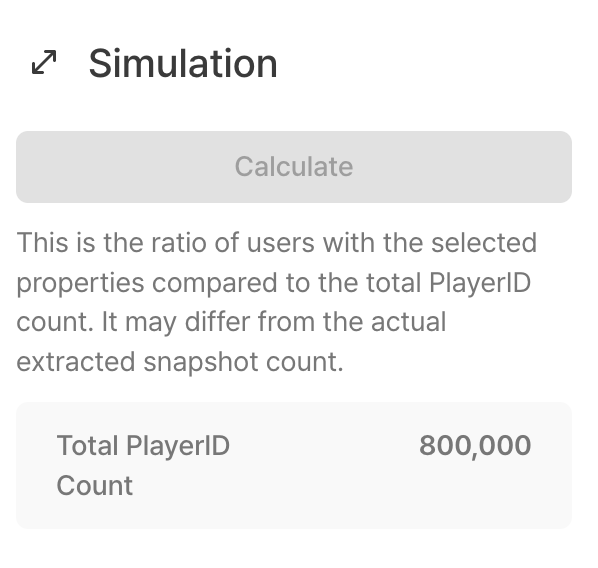
- The total number of users is the number of users who have logged more than once in the selected game.
-
When you click the Calculate button, summary data on user proportion and detailed data on user proportion for each attribute are displayed.
-
Summary
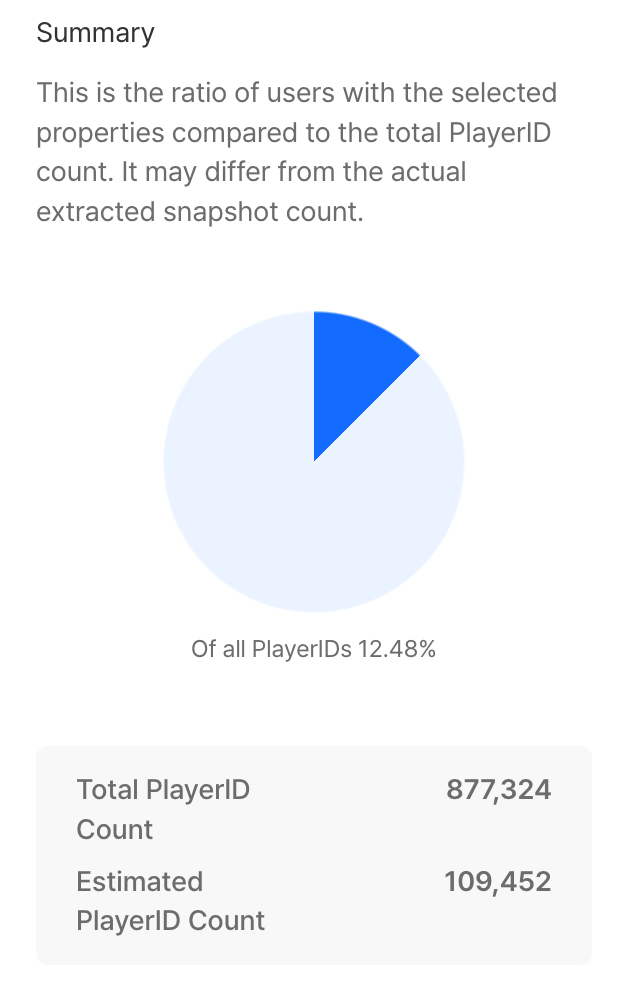
- User proportion (%): Calculated as (expected number of users / total number of users) × 100.
-
Details
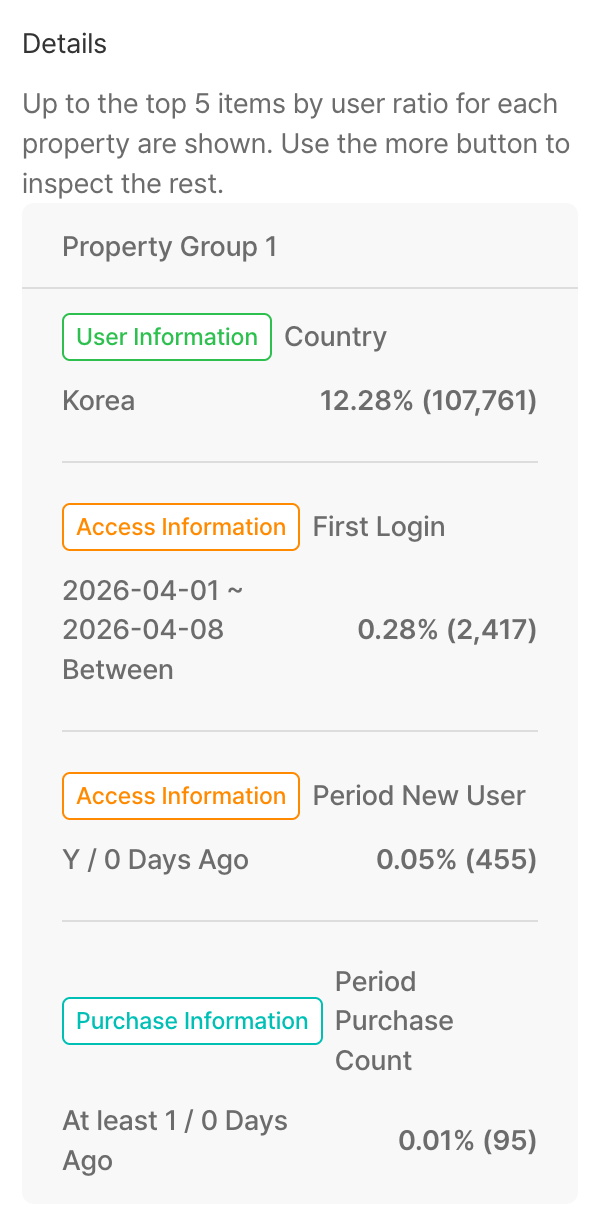
- If more than 5 attribute values are selected in the character attribute, only the top 5 will be displayed, and other attribute values can be checked with the See More button.
- If one user has multiple attribute values, the sum of the user proportion (%) may exceed 100%.
-
-
After resetting the attribute conditions, click the Calculate button again to check the data for the reset conditions.
Default snapshot
- Settings: Upon segment creation, a default information snapshot named "Basic Segment" is created containing the fields playerId, uid, did, appId.
- Unset: Segment snapshots are not created, and can be created manually on the Segment Snapshots page if necessary.
Set segment snapshot schedule
You can automate the creation of segment snapshots. There is no limit to the number of schedule settings, and you can set them freely.
If you select Settings and set the period, cycle, and time (based on KST), a snapshot will be created at the set time and at the set cycle for the set period.
Example
Example: If the period is set to 15:00 on April 8th to 15:00 on April 10th, the cycle is every day, and the time is set to 16:00 → Segment snapshots are created twice, at 16:00 on April 8th and 16:00 on April 9th.
The created snapshot can be checked through the segment detail page - segment snapshot tab.
Recommended Segments
This is an example of a segment commonly used in analytics. Create custom segments by combining various attribute conditions.
All users of the game
- Description: This is a user who has logged in at least once since the game was launched.
- Select Attribute
| attribute name | attribute value | Attribute Conditions | term conditions |
|---|---|---|---|
| App ID | Select all App ID values | - | - |
New users received within the last 7 days
- Description: Newly acquired users within the last 7 days.
- Select Attribute
| attribute name | attribute value | Attribute Conditions | term conditions |
|---|---|---|---|
| App ID | Select all App ID values | - | - |
Users who have logged in more than once from a specific country within the past year
- Description: Users who have logged in from a specific country at least once in the past year.
- Select Attribute
| attribute name | attribute value | Attribute Conditions | term conditions |
|---|---|---|---|
| country | Country value (e.g. South Korea) | - | - |
| Period of access days | 1 | above | Recent period |
- Linkage between attributes: AND
- If multiple values are searched: All values
Among users in a specific market, users are inactive for more than 3 days
- Description: Among users who installed the game at least once through a specific market, these are users who have not logged in for 3 consecutive days at the time of inquiry.
- Select Attribute
| attribute name | attribute value | Attribute Conditions | term conditions |
|---|---|---|---|
| Market | Market value (e.g. Google) | - | - |
| number of dormant days | 3 | above | - |
- Linkage between attributes: AND
- If multiple values are searched: All values
Users who have been inactive for more than 3 days among users who logged in during a certain period of time
- Description: Among active users during a certain period, these are users who have not logged in for 3 consecutive days at the time of inquiry.
- Select Attribute
| attribute name | attribute value | Attribute Conditions | term conditions |
|---|---|---|---|
| Period of access days | 1 | above | date |
| number of dormant days | 3 | above | - |
- Linkage between attributes: AND
Precautions & Tips
- After deleting a segment, you cannot create new snapshots or targeting campaigns with that segment. Be sure to check whether it is in use before deleting it.
- Snapshot data is non-duplicate data, so the estimated number of users in the simulation and the actual number of snapshots may differ.
- For segments set with the “recent period” condition, the number of users varies at each view time. To analyze fixed users, create a snapshot and use it.
- Custom user attribute definitions will be reflected in segment creation within up to 1 hour after sending the log.
- By using segments as filters for charts, funnels, and retention, you can analyze indicators by separating only specific user groups.
Related menu
- Chart — Analyze indicators of a specific user group using segment filters
- Funnel — Analyze the conversion rate of a specific user group using segment filters
- Retention — Analyze the retention rate of a specific cohort using segment filters
- Dashboard — Integrated management by adding segment-based analysis results to the dashboard
- Targeting — Targeting campaign using segment snapshots