template
Overview
Templates are a function that configures frequently used dashboards, charts, funnels, and retention configurations as default in the analytics system.
Without having to set it up from scratch, you can quickly create the content you need simply by selecting a template, and after creation, you can freely modify it as needed.
What can you do?
Business/Marketing Manager
- Instantly create summary dashboards with key metrics such as AU, NU, sales, ARPPU, etc. with one click.
- Even if you are using analytics for the first time, you can refer to the template to find out which indicators should be configured and how.
Data Analyst
- You can quickly start creating repetitive analysis structures (retention, funnel, etc.) with a template and further adjust detailed conditions.
Get started quickly
- Click the Create button at the top and then click Template
- Click the type of content you want to create (chart, funnel, retention, dashboard).
- Once the settings are filled in with the template applied, edit as needed and click the Create button.
Note
Even after selecting a template, you can freely change all settings. Templates fill in initial values.
All Features
Template list
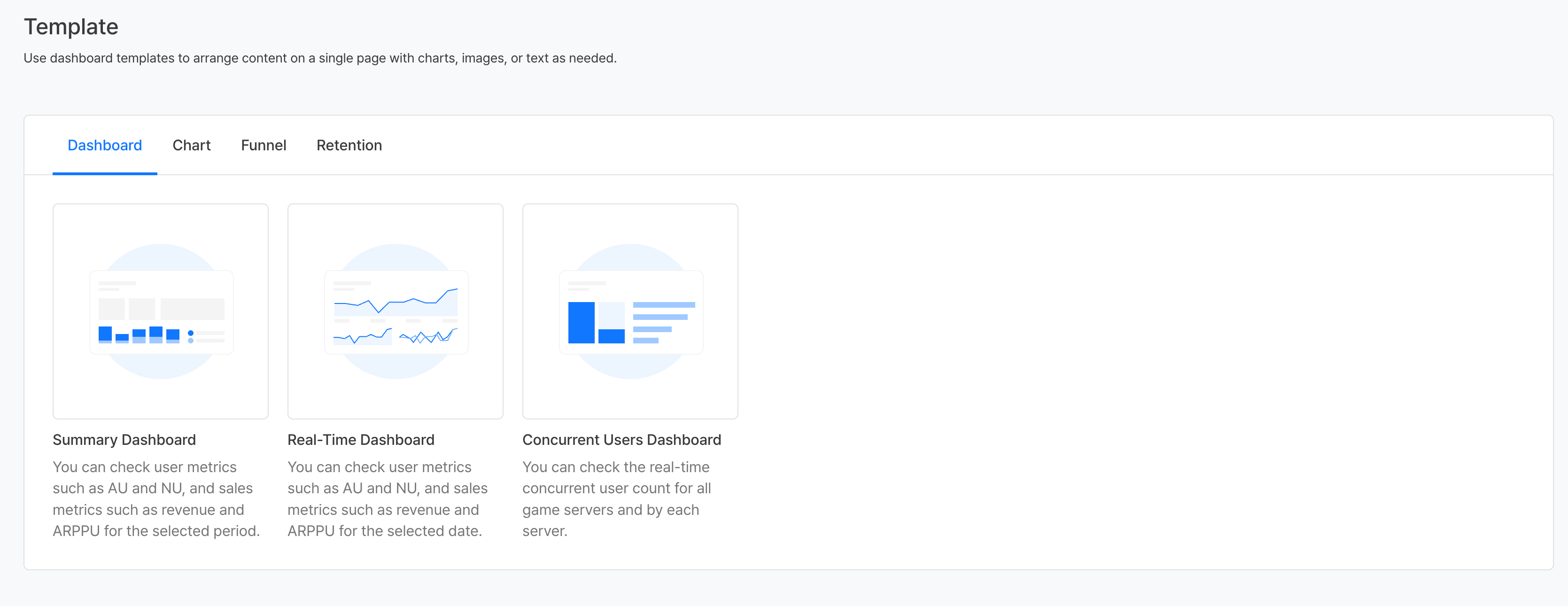
The template is divided into tabs for each content type.
| tab | Description |
|---|---|
| Dashboard | Dashboard template to check key indicator status on one screen |
| Chart | Chart template that visualizes key indicators such as users and sales |
| Funnel | Funnel template for step-by-step conversion and churn analysis |
| Retention | Retention template for user return visit/retention rate analysis |
To use a template, each event and attribute must be transmitted. For events, refer to Event log transmission, and for attributes, refer to Event attribute transmission.
Dashboard
| Template name | Description | Event | Attribute |
|---|---|---|---|
| Summary | You can check user indicators and sales, including AU and NU, and sales indicators, including ARPPU, for the selected period. | app_login | userId, newUser |
| purchase | userId, totalPrice | ||
| terms_agree | deviceId | ||
| Real-time | You can check user indicators and sales, including AU and NU, and sales indicators, including ARPPU, for the selected date. | app_login | userId, deviceId, newUser |
| purchase | userId, totalPrice | ||
| app_session_maintain | userId | ||
| terms_agree | deviceId | ||
| Concurrent users | You can check the number of concurrent users in real time in total and for each game server. | app_session_maintain | serverId, userId |
| Daily Summary | You can check daily sales and user indicators. | app_login | userId, deviceId, newUser |
| purchase | userId, deviceId, totalPrice, quantity | ||
| terms_agree | deviceId | ||
| Daily summary by game | You can check user and sales indicators for each game. | app_login | appIdGroup, userId, deviceId, newUser |
| terms_agree | appIdGroup, deviceId | ||
| purchase | appIdGroup, userId, deviceId, totalPrice | ||
| Summary by market by week | You can check sales and user indicators by market by week. | app_login | market, userId, deviceId, newUser |
| purchase | market, userId, totalPrice, transactionId | ||
| terms_agree | market, deviceId | ||
| Monthly country summary | You can check sales and user status by country by month. | purchase | country, totalPrice |
| Real-time - sales by store | You can check the sales figures for in-game (ingame) and web stores (webstore), PU, ARPPU, number of sales, and purchase quantity on the selected date. | purchase | paymentServiceType, totalPrice, quantity, userId, transactionId |
| User - Daily Downloads | You can check the number of users based on the terminal by distinguishing between first download, update & reinstallation. | app_first_launch | deviceId |
| app_redownload | deviceId | ||
| User - After agreeing to the daily terms and conditions, NU conversion | During the process from app launch to login, you can check the number of terms and conditions agreed to, the number of logged in users, and the number of logged in users based on the terminal. | terms_agree | deviceId |
| app_login | deviceId, userId, newUser | ||
| User - Daily withdrawal | You can check the number of users who have withdrawn from the game. | account_delete_complete | userId |
Chart
| Template name | Description | Event | Attribute |
|---|---|---|---|
| Monthly Summary by Game | You can check user and sales indicators for each game. | app_login | appIdGroup, market, userId, deviceId, newUser |
| purchase | appIdGroup, market, userId, totalPrice, transactionId | ||
| terms_agree | appIdGroup, market, deviceId | ||
| Sales - Daily Refund | You can check the number of refund users and number of refunds. | product_refund | userId, transactionId |
| Real-time - sales by game, market, hourly | You can check the in-app sales for each game, PU, number of sales, and purchase quantity figures until the last time of the selected date. | purchase | appIdGroup, market, userId, totalPrice, quantity, transactionId |
| Sales - Sales by store by country | You can check in-app sales divided into in-game (ingame) and web stores (webstore), PU, ARPPU, number of sales, and purchase quantity. | purchase | country, paymentServiceType, userId, totalPrice, quantity, transactionId |
| Sales - Product sales by country | You can check in-app sales by product, PU, number of purchases, number of purchases per user, and sales per purchase. | purchase | country, productName, userId, totalPrice, transactionId |
| Summary Metrics | You can check user indicators and sales, including AU and NU, and sales indicators, including ARPPU, for the selected period. | app_login | userId, deviceId, newUser |
| purchase | userId, totalPrice | ||
| terms_agree | deviceId | ||
| ARPU, ARPPU | You can check the trends of ARPU and ARPPU in the selected period. | app_login | userId |
| purchase | userId, totalPrice | ||
| AU, NU, PU | You can check the trends of AU, NU, and PU in the selected period. | app_login | userId, newUser |
| purchase | userId | ||
| In-app sales | You can check the trend of in-app sales for the selected period. | purchase | totalPrice |
| AU, NU, Summary of terms and conditions agreed upon | You can check the indicators of the number of terms and conditions agreed to AU, NU, and in the selected period. | app_login | userId, deviceId, newUser |
| terms_agree | deviceId | ||
| PU, In-app sales summary | You can check daily PU and in-app sales indicators for the selected period. | purchase | userId, totalPrice |
| Number of concurrent users | You can check the number of concurrent users on the selected day. | app_session_maintain | userId |
| Summary of number of concurrent users per server | You can check the number of concurrent users for each server in the last time zone of the selected day and the previous time zone. | app_session_maintain | serverId, userId |
| Summary of number of concurrent users | You can check the number of concurrent users in the last time zone of the selected day and the previous time zone. | app_session_maintain | userId |
Retention
| Template name | Description | Event | attributes |
|---|---|---|---|
| User - New user login retention based on terminal | You can check the new user login retention rate based on terminal in the table. | app_login | userId, newUser |
| AU Retention | You can check the change in AU retention (%) for the selected period. | app_login | userId |
Result of applying template
Dashboard Template
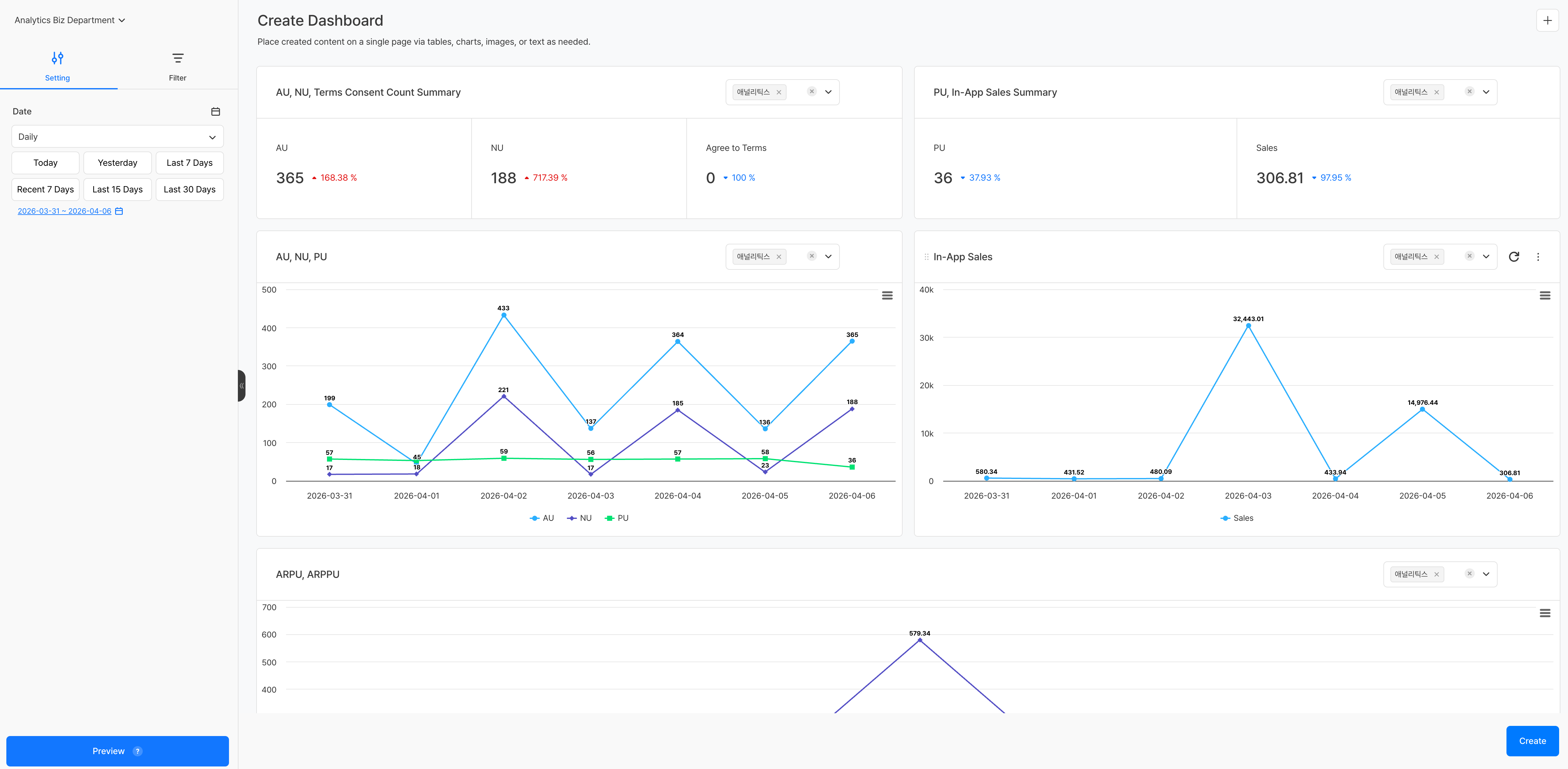
Applying a dashboard template takes you to the creation screen where pre-configured panels are laid out. You can individually select the project to apply to that panel from the dropdown at the top right of each panel.
You can specify different projects for each panel, allowing you to compare metrics from multiple games side by side on one dashboard.
Chart/Funnel/Retention Template
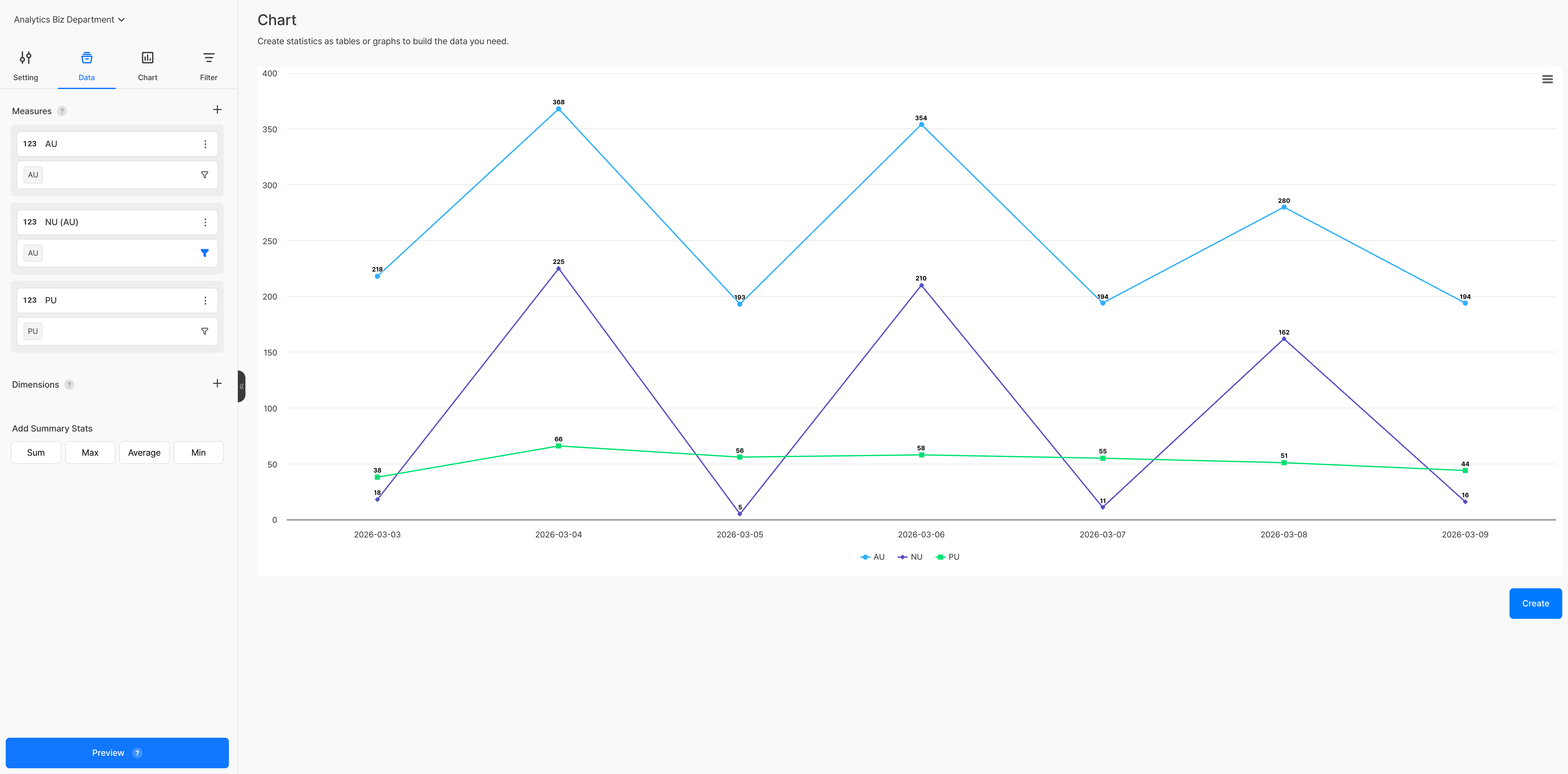
When you select a template, the creation screen is pre-populated with key settings such as measurement and dimension values. After adding or changing settings in the left panel, click the Create button to save the content.
Precautions & Tips
- The template provides initial settings, and all items can be freely modified after application.
- Depending on the event or metric settings, some templates may not display data. In this case, check the Event or Metric settings first.