event
Overview
Event is a function that checks and manages events that are the basis of all analyzes in Analytics and attributes created under the event.
Just by linking SDK, events such as login, purchase, etc. are automatically collected without any additional development. More precise analysis is possible by directly defining and adding the necessary events here.
To send custom events directly, see Event transmission.
What can you do?
Business/Marketing Manager
- If you define the events and attributes required for analysis on this screen, you can immediately use them as a planning document to deliver to the development team.
- By looking at the list of events currently being collected at a glance, you can immediately see what data can be analyzed.
Data Analyst
- By identifying the overall status of events and attributes that can be analyzed in the event list, you can quickly design the scope of analysis.
- You can verify data quality before analysis by directly checking the actual value of the event with data preview.
Developer
- You can check the event name and attribute list directly on this screen to efficiently perform SDK linkage.
- After transmitting the event, you can immediately verify the transmission result by checking the received attribute value in Data Preview.
- By utilizing the ETL simulation function, you can check the event transmission results in advance before actual deployment.
Get started quickly
If this is your first time registering an event, follow the steps below to create your first event.
- Click the Data > Event menu on the left sidebar.
- Click the Register button in the top right.
- Enter the event name and event description.
- Go to the Attributes tab and add the attributes you want to send with the event.
- Set the attribute name, description, and data type.
- Click the Save button.
- Request event data transmission by sending the event name and attribute list to the development department.
Note
For detailed settings such as event attributes, data preview, and ETL simulation, please refer to All features.
All Features
Key concepts
| concept | Description |
|---|---|
| Event | Unit of data recording of specific actions performed by the user in the game (e.g. login, purchase, level up) |
| ㄴ Automatic collection event | Events collected by default from Hive just by linking SDK |
| ㄴ MMP event | Events sent via MMP, such as Airbridge, AppsFlyer, Adjust, etc. |
| ㄴ Custom Events | Custom events that you define and send yourself |
| Attribute | Detailed data items recorded together when an event occurs |
| ㄴ Automatic collection attributes | Attributes collected by default from Hive just by linking SDK (e.g. country, market, server ID, OS, etc.) |
| ㄴ Custom Attributes | Attributes that you send directly with the event (e.g. item ID, amount, currency unit in a purchase event) |
Event list query
Check all events registered in Analytics as a list. 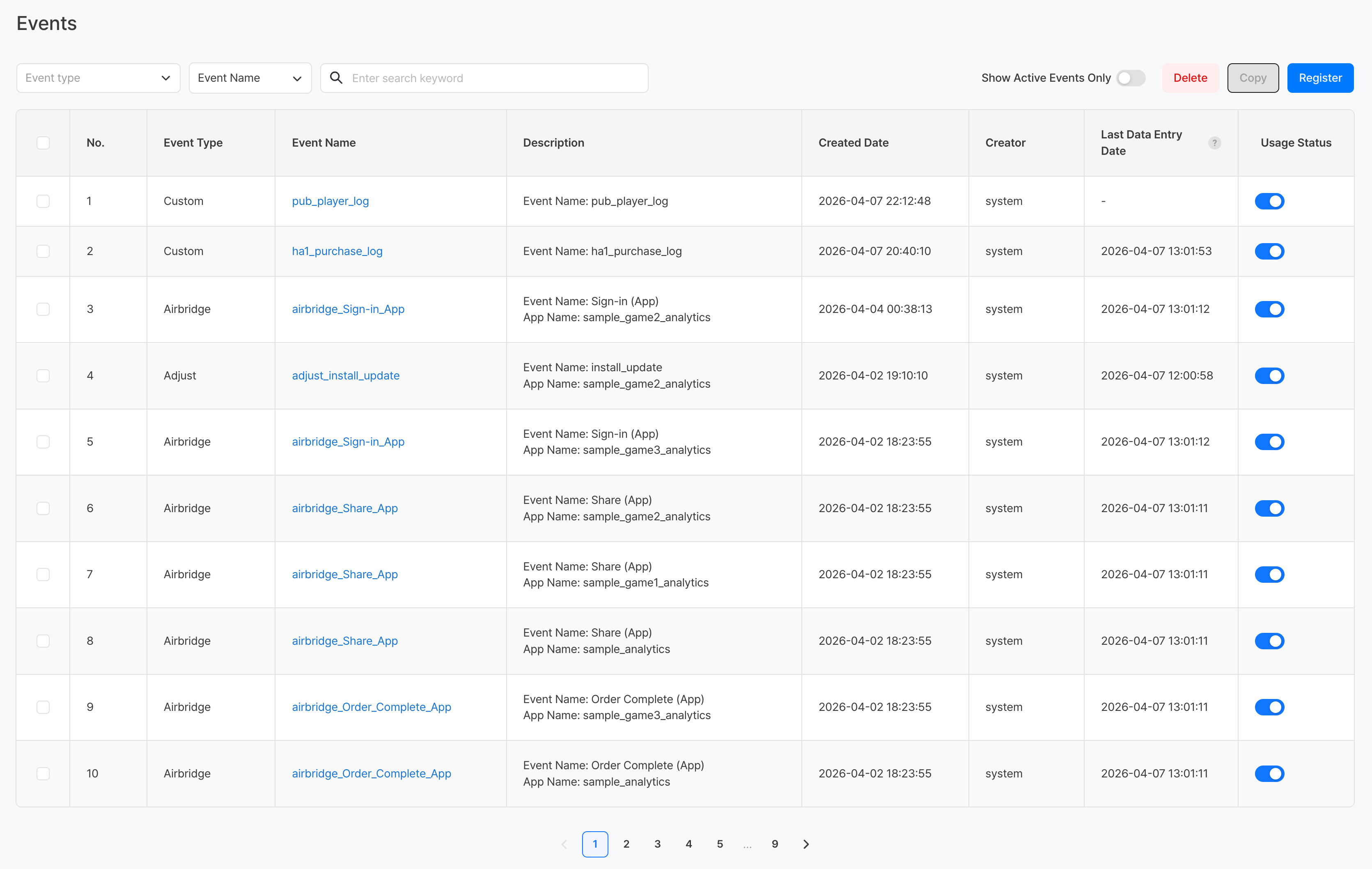
Filters and Search
| Options | Description |
|---|---|
| Event Type | Filter list by event type (custom event, AppsFlyer, Airbridge, etc.) |
| Event name/generator search | Select search criteria (event name or creator) and enter search term to search for events |
| Show only active events | Toggle ON to show only enabled events |
list column
| column | Description |
|---|---|
| Number | Event registration number |
| Event Type | Custom / AppsFlyer / Airbridge etc. Event Source |
| Event Name | Event name. Click to go to detail page |
| Description | Description entered when registering for event |
| Created date | Date and time the event was first registered |
| Generator | Account that registered the event. System automatically generated events are marked with system |
| Last data entry date | Date and time when data for this event was last collected. It is synchronized every 10 minutes, and if there is no collection history, it is displayed as - |
| Use or not | Toggle to control event activation/deactivation. When selecting an event at OFF, it is hidden from the list |
Event registration
Click the Register button at the top right of the event list screen to go to the event registration page. 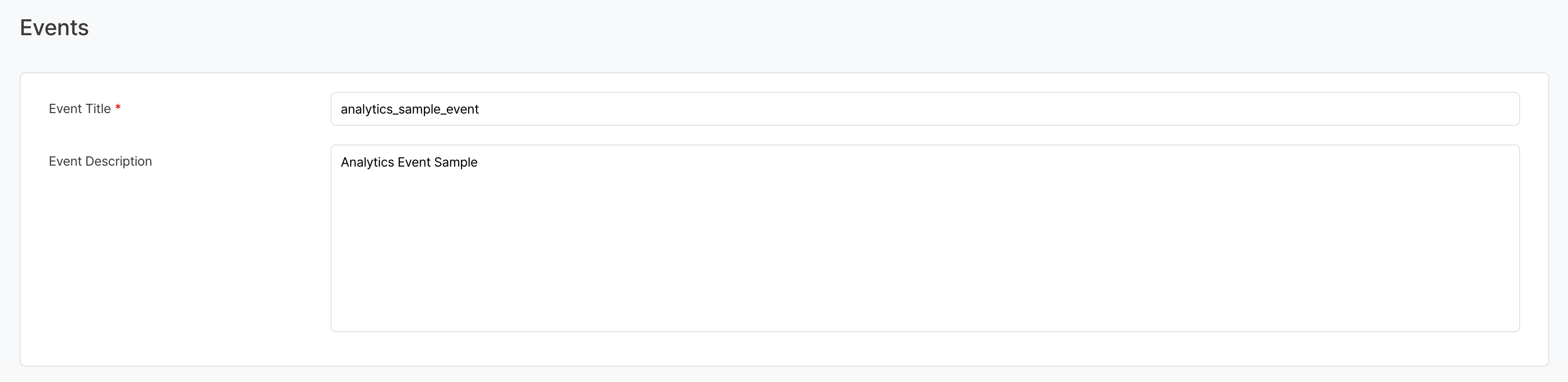
| Item | Required | Description |
|---|---|---|
| Event Name | Required | Unique code used when transmitting actual data |
| Description | Select | Description of event occurrence conditions and purpose |
Note
For the event naming convention recommended by Analytics, see Event transmission.
View event details
[Basic Information] Tab
Check and edit the event name and description of the registered event. 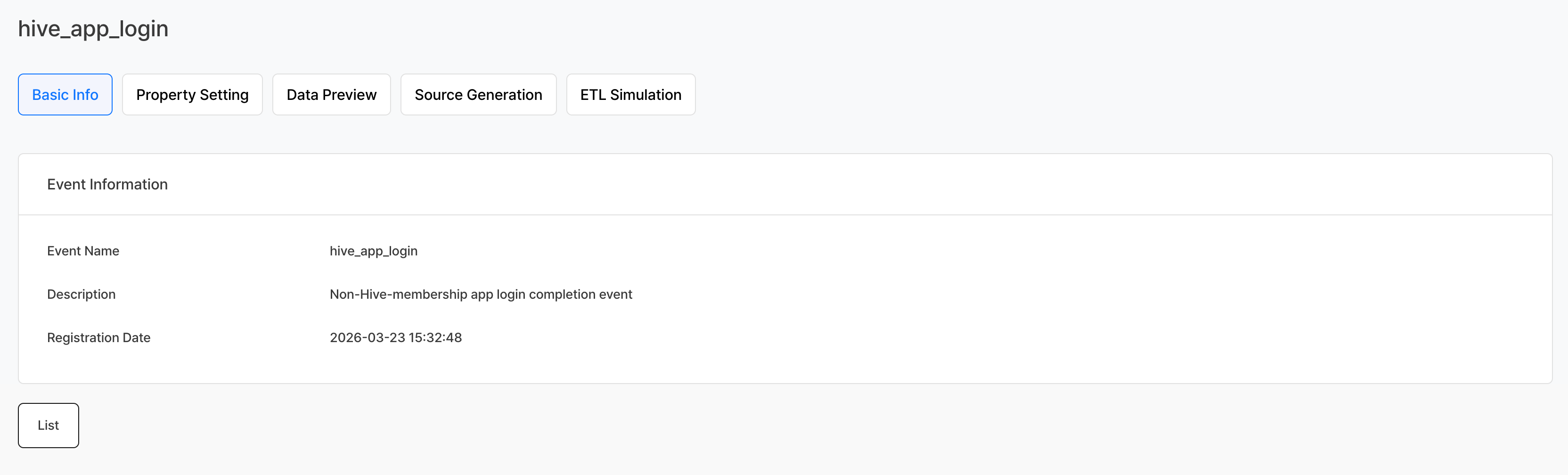
[Attributes] tab
Defines the attributes that are sent with each event. 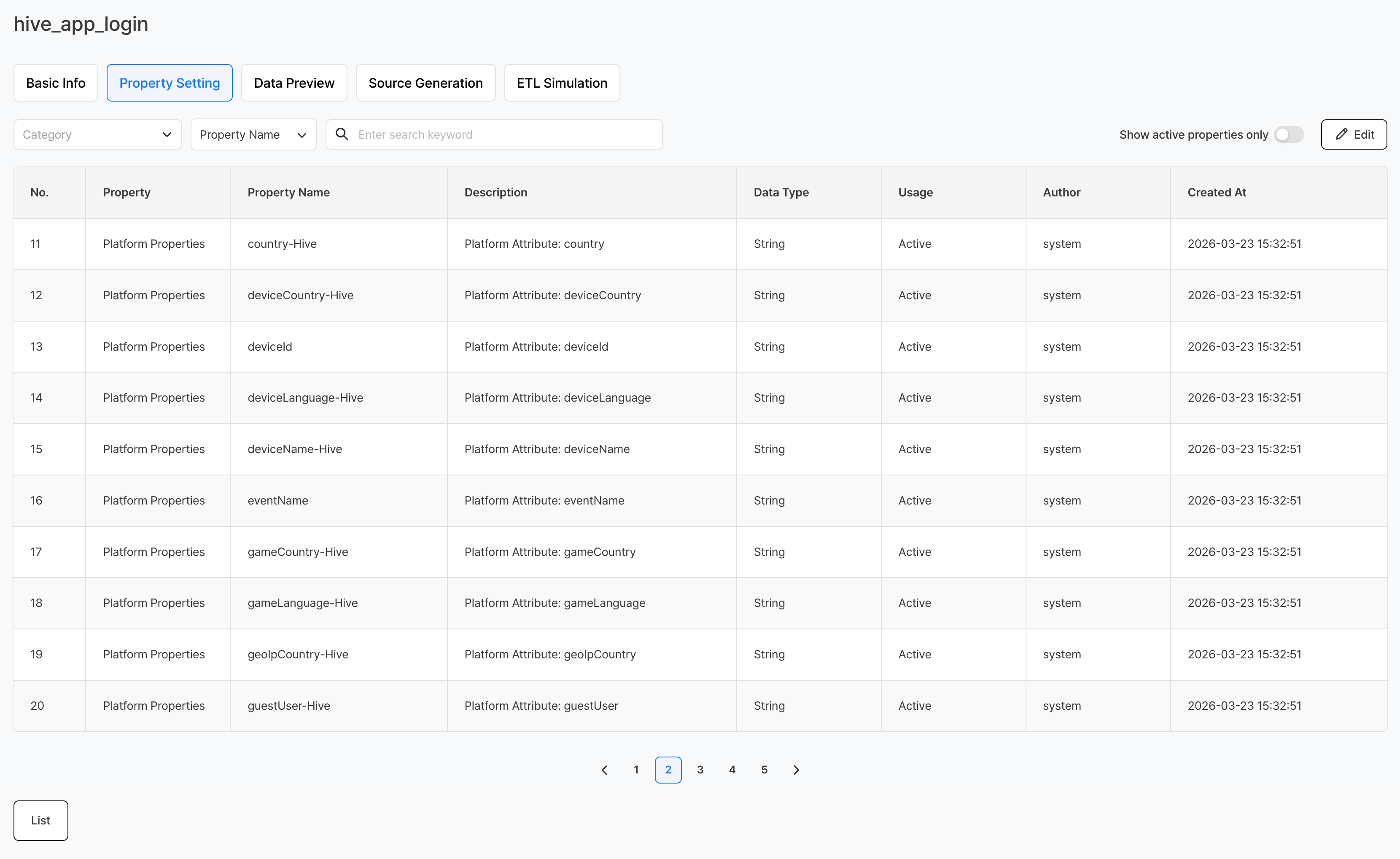
| Item | Description |
|---|---|
| Attribute name | Code used for actual transmission |
| Description | Meaning and examples of attribute values |
| Data Type | Choose 1 among letters/numbers/date type |
Data type description
| Type | Description | Example |
|---|---|---|
| Text | string value | Country code (KR), item name (sword) |
| number | integer or decimal value | Level (50), payment amount (9.99) |
| Date | date/time value | Event occurrence time (2026-03-29T10:00:00) |
Currency Attribute / Amount Attribute
Among the attributes registered in the event, attributes containing currency value and sales amount can be specified in the system. After setting this, you can view sales figures in the desired currency in Charts.
| Item | Description |
|---|---|
| Currency Attributes | Specify attributes containing currency code values (e.g. attributes containing currency units such as KRW, USD, etc.) |
| Amount Attribute | Specify an attribute containing the numbers to be used in sales calculations (e.g. an attribute containing the payment amount) |
Note
Currency attributes and amount attributes can be set in the [Attributes] tab on the event detail page. Select the relevant attribute from the attribute list and then specify each item.
Warning
If the currency attribute or amount attribute is not specified, sales-related metrics cannot be viewed in currency in charts. If you want to use purchase events for analysis, you must specify both attributes.
[Data Preview] tab
Check out a sample of event data collected by Analytics in action. It is used to verify that events are being transmitted correctly and attribute values are collected as intended.
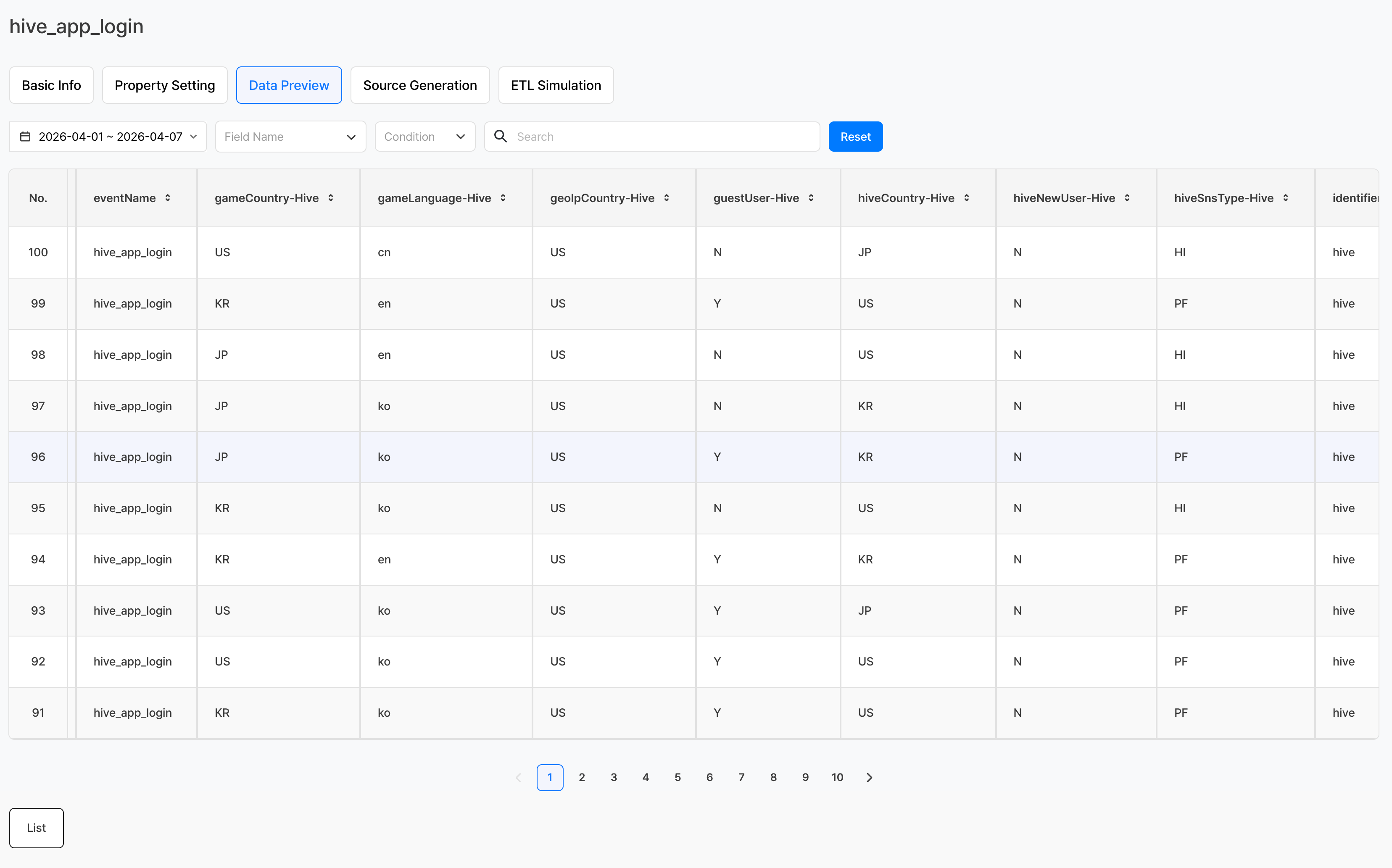
Search conditions
| Item | Description |
|---|---|
| Inquiry Period | Select the date range to view data. The range of start and end dates is limited to a maximum of one month. |
| Field Name | Select the attribute (field) to apply the filter to. |
| Conditions | Select the comparison criteria to apply to the selected fields. |
| Search | Enter the value to use for the condition. |
| Reset | Resets all set filter conditions. |
Warning
If the query period range exceeds 1 month, data cannot be viewed. Please shorten the period and check again.
[Source Creation] tab
It automatically generates source code to send the event to Analytics. Developers can transmit data using the source created in this tab without having to write separate code. 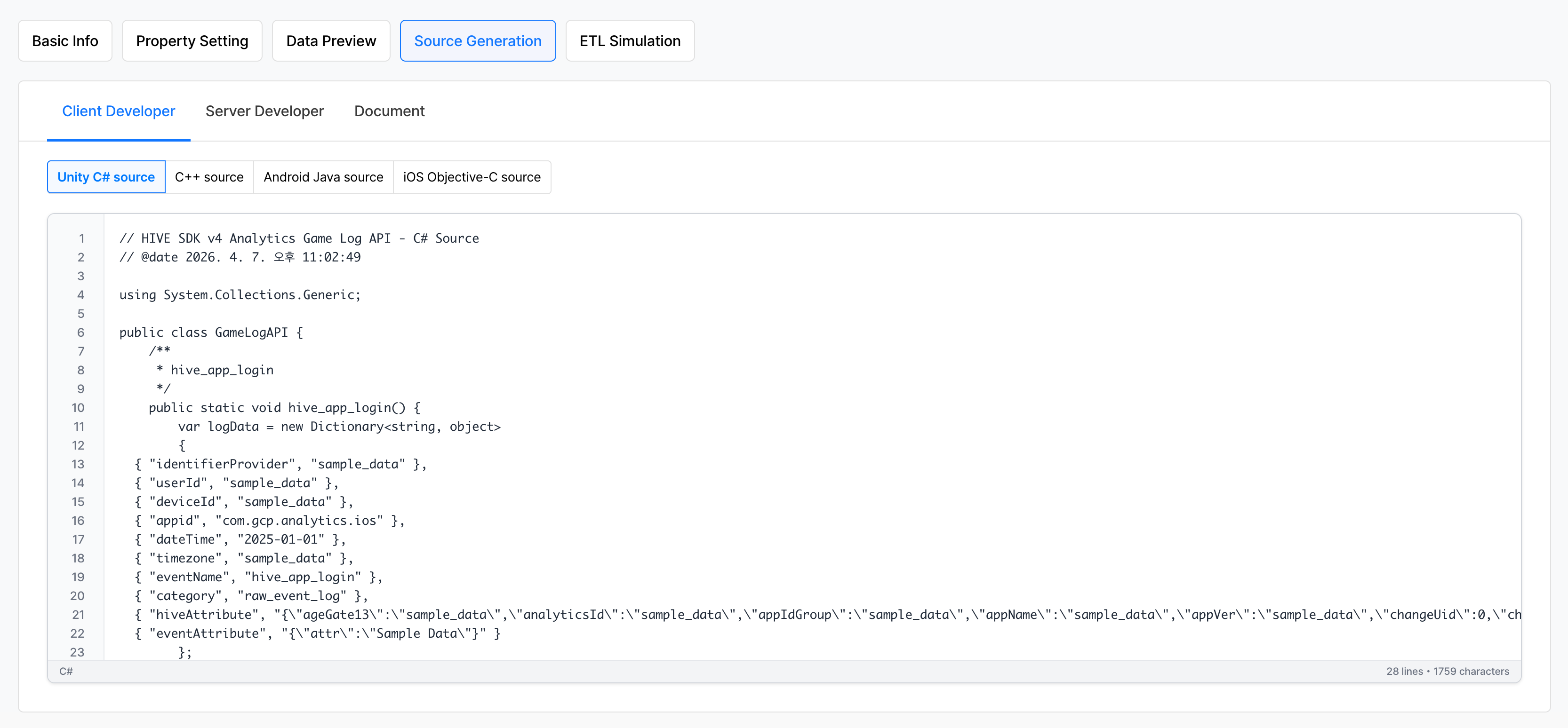
| tab | Description |
|---|---|
| Client Developer | Provides source code for sending events from game client |
| Server Developer | Provides source code for sending events from game server |
| Document | Provides reference documentation for the event collection table schema |
[ETL Simulation] Tab
Simulation function for event transmission testing.
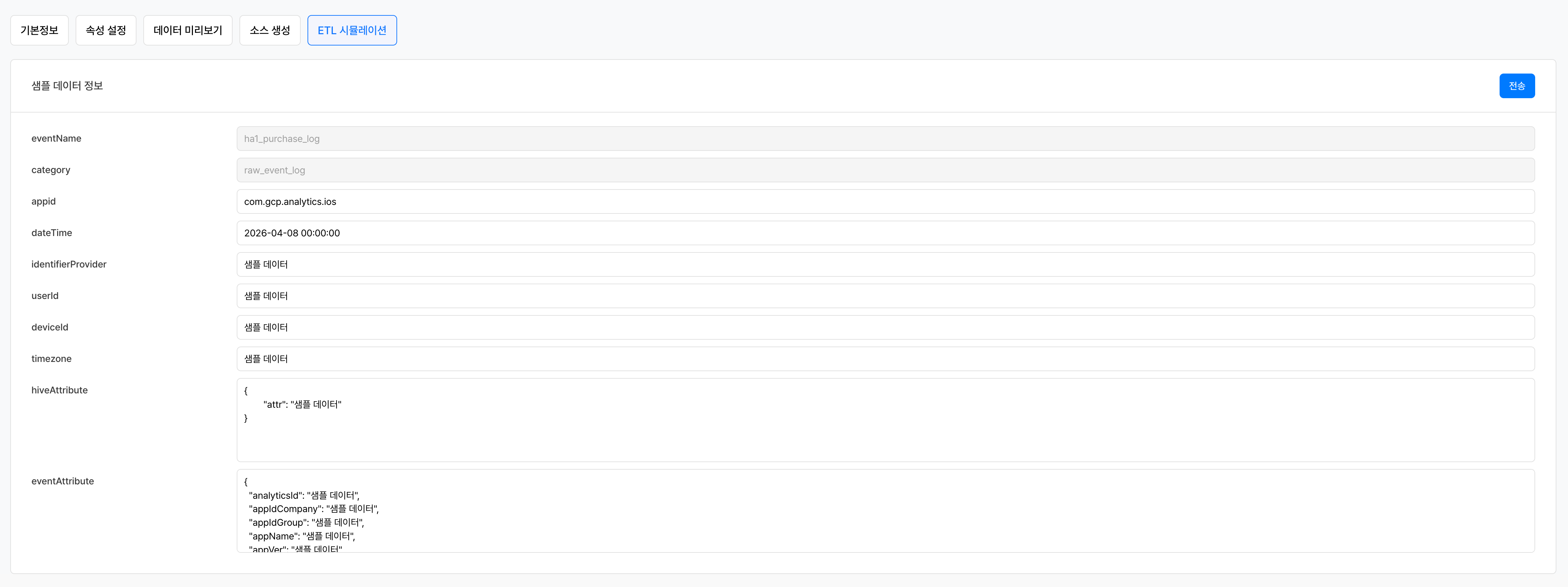
- Enter the appropriate data into each event collection table field.
- Click the Send button.
- In the [Data Preview] tab, check whether events are received and the attribute parsing results.
Warning
In the appId field, you must enter the app ID registered in Hive Console > App Center . Entering incorrect values may result in data not being collected.
Controlling event display
 - Set whether or not to expose each event by toggling Enabled/Disabled in the event list. - If set to OFF, the event will be hidden from the selection list on analysis screens such as charts/funnels/retention. - Data will continue to be collected, but will not be visible in analytics UI.
Copy and delete events
- Copy: Quickly create similar events based on existing events
- Delete: Delete events that are no longer used
Warning
If you have charts/metrics that are using the removed events, their content may be affected.
Precautions & Tips
- If the event name is changed after distribution, inconsistencies may occur with previous data. Choose your event name carefully.
- If the attribute type is set incorrectly, data aggregation errors may occur.
- To utilize the MMP event, you must first set up the MMP linkage in the Data > Linkage menu.
- Handle unused events with display OFF to tidy up analysis UI.
- As the number of events increases, writing names and descriptions clearly increases analysis efficiency for the entire team.
Related menu
- Event transmission — Detailed information on event collection structure and schema
- Metric — Save frequently used event aggregation settings as metrics.
- Chart — Create a chart based on events
- Funnel — Configure funnel steps based on events
- Retention — Set up cohort and retention measurement based on events
- MMP Integration — Third-party integration settings to utilize the MMP event