Price Tier Settings
To provide PG payment services, it is necessary to set price tiers. Price tiers are a system that pre-defines standard sales price lists considering exchange rates by currency. When registering a product, selecting this tier will automatically apply the price corresponding to that currency.
However, if the currency is not supported by the store (such as Steam) where the app is being serviced, or if the setting is missing, payment will only proceed in USD.
➡️ Console Path: Billing > Product Management > Price Tier Settings
Price Grade Setting
The price grade setting supports both individual registration one by one and bulk registration using a CSV file. Set the price grade according to the operational situation.
Individual Registration
-
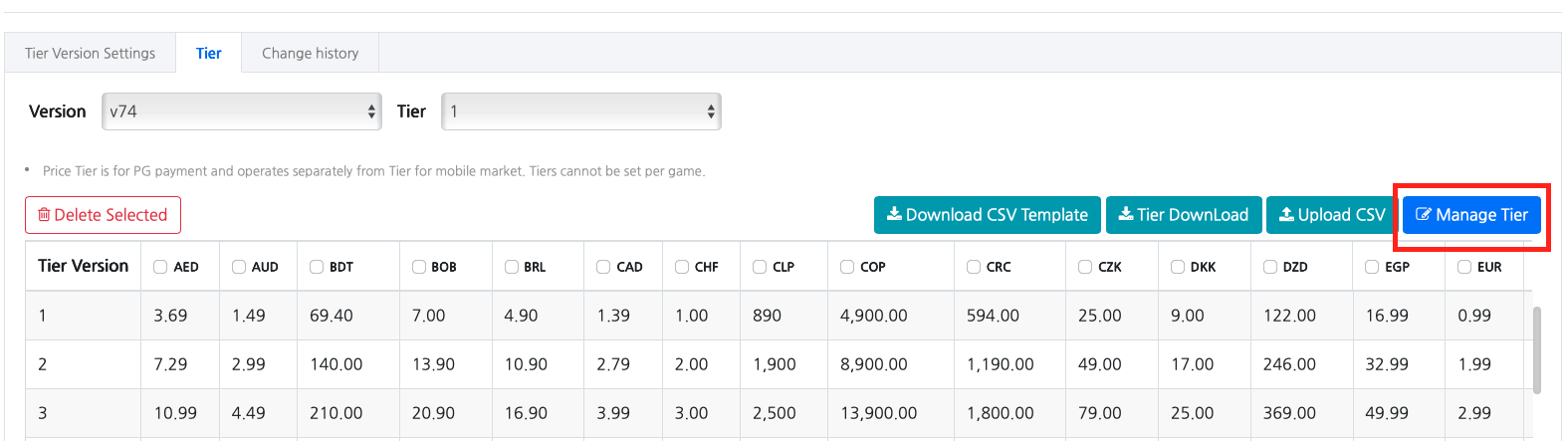
Click the [Grade Management] button on the Grade tab.
-
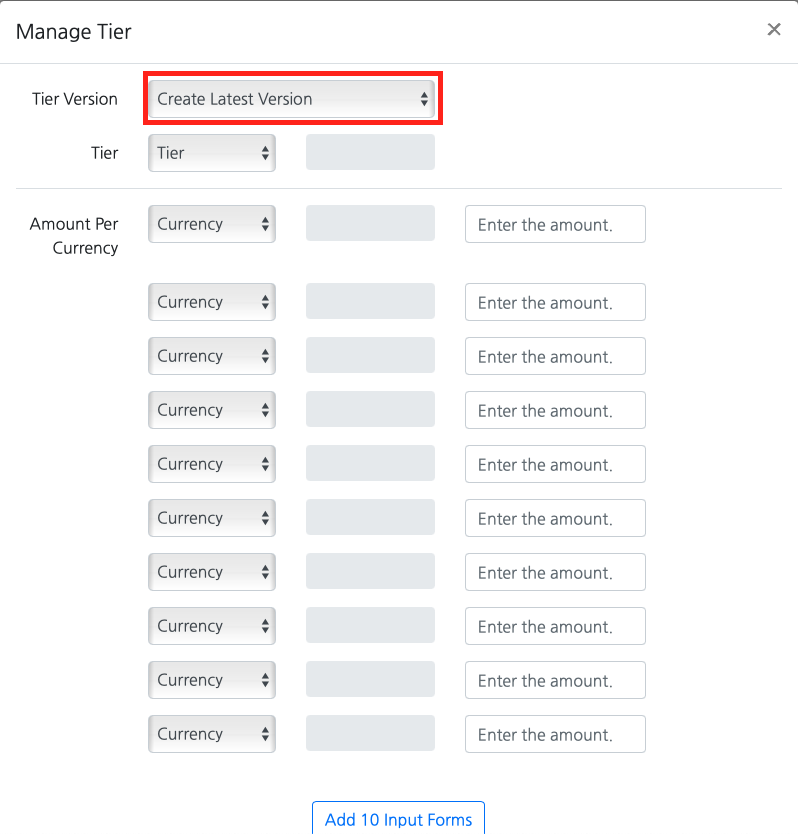
Grade version: If this is your first time, select 'Create Latest Version'. If you are modifying an existing grade version, check the grade version and select it.
-
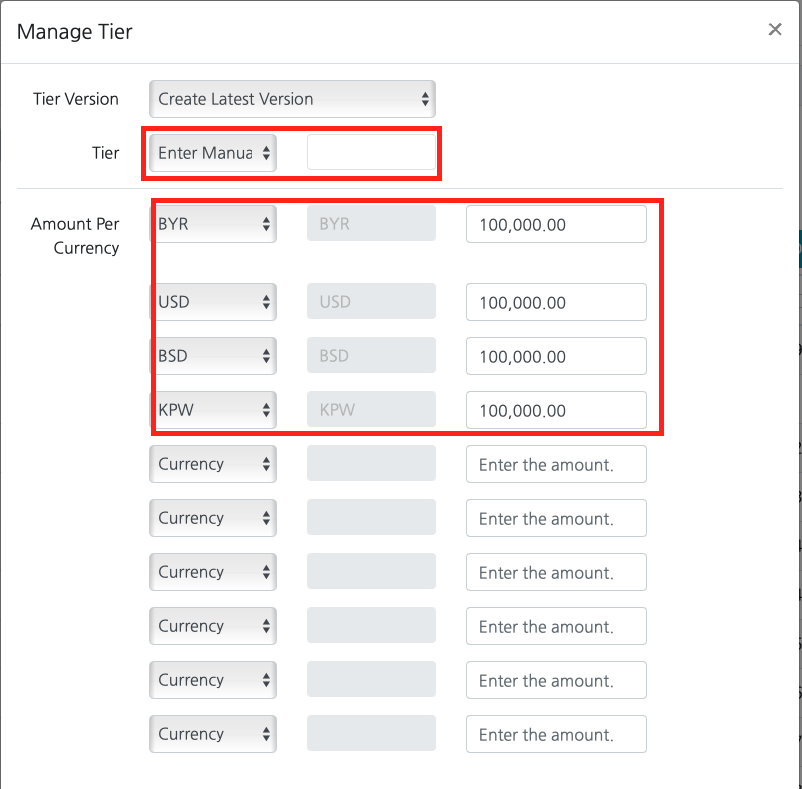
Enter the amount by grade and currency: Enter the 'grade' and 'amount by currency' to be used in the selected version. If there is no currency information, payment will be processed in 'USD' for that country, so be sure to enter the currency amount for the country you wish to serve.
Bulk Registration
You can create a CSV file with a large amount of grade and currency amount information to register or modify all at once.
-
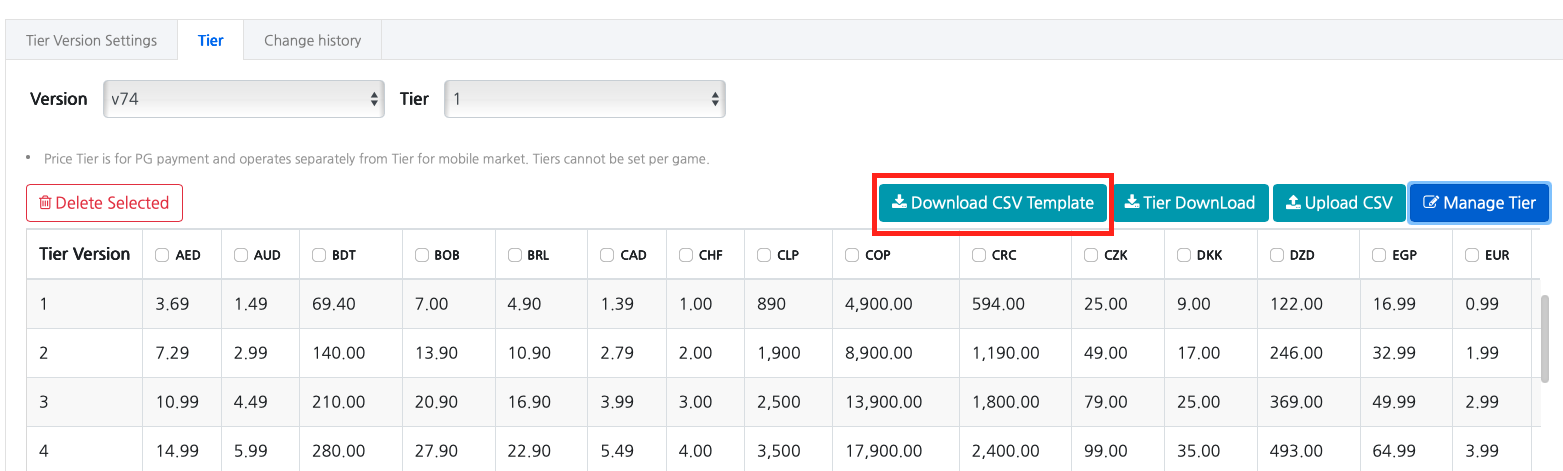
Click the [Download CSV Template] button on the main product registration screen to download the dedicated template.
-
Enter 'grade' in the downloaded CSV template. You must enter integers in order starting from the number '1', and duplicate numbers should not be entered.
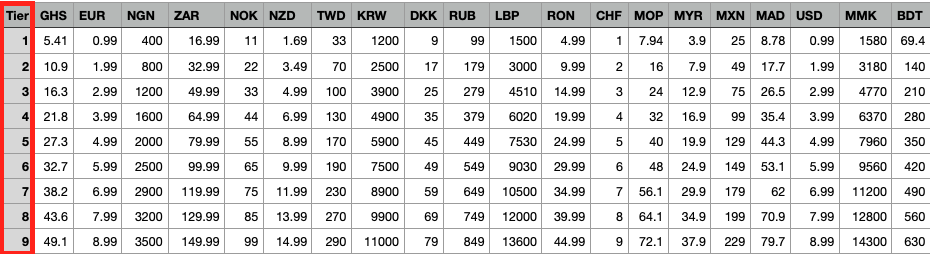
-
Enter the currency code and amount to be used in the country where the service is to be provided.
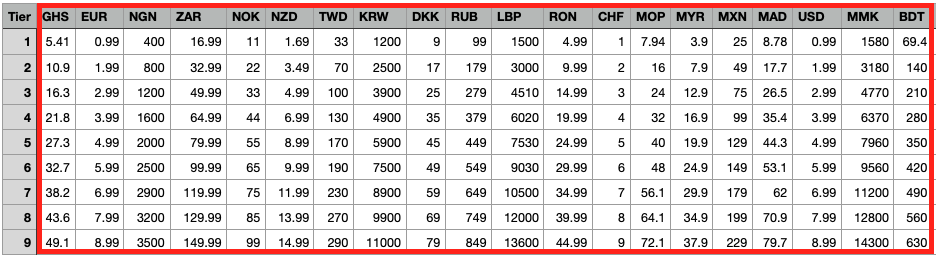
- Please check the currency code guidance and display it correctly. (e.g., KRW, USD, JPY, etc.)
- When entering the amount, please enter only numbers without commas (,).
- Example: 1,200 (X) → 1200 (O)
- If there is no currency information, the payment will be processed in 'USD' for that country, so please make sure to enter the currency amount for the country you wish to service.
-
Once the writing is complete, click the [Upload CSV] button.
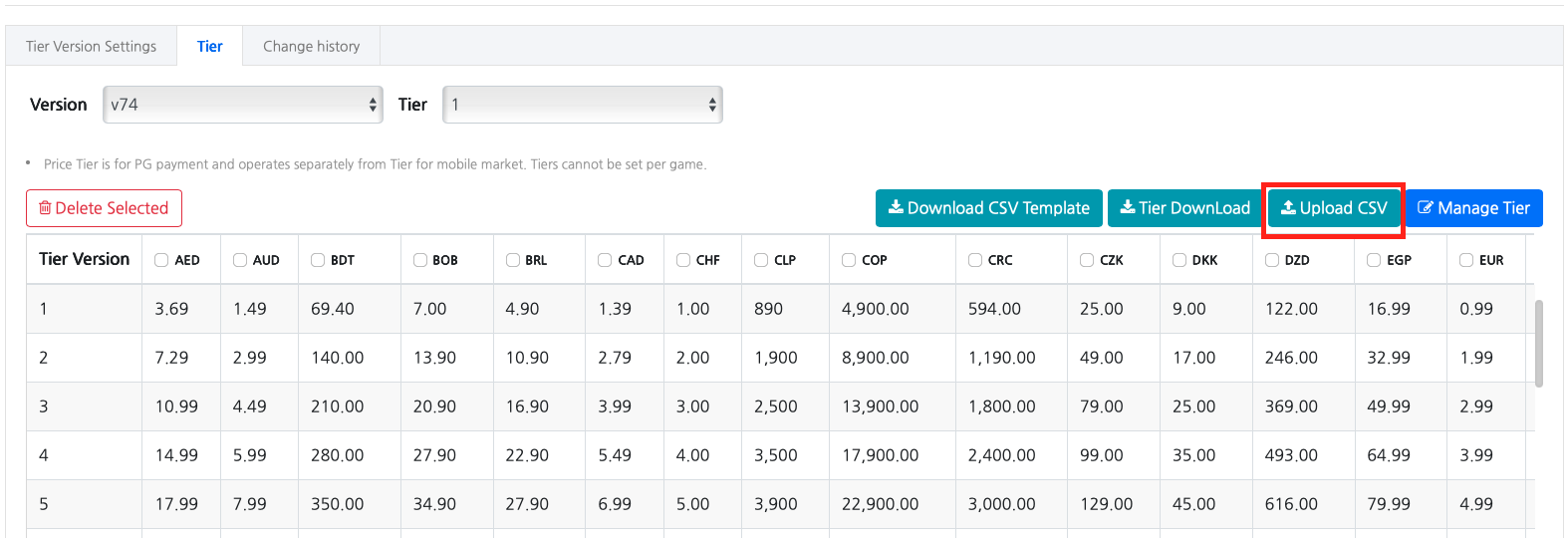
-
Upload the created CSV file.
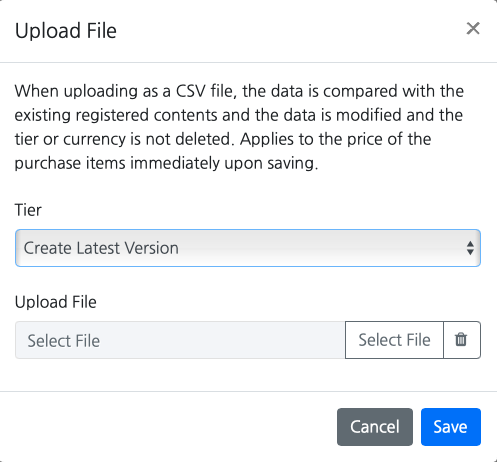
- If this is your first time, select 'Create Latest Version' to upload. If you need to modify existing data, select the grade version and then upload the file.
- Clicking the [Save] button will apply the price grade information you have written.
Connecting Project and Grade Version
Connecting the project and grade version will reflect the product amount according to the connected grade criteria when registering the product.
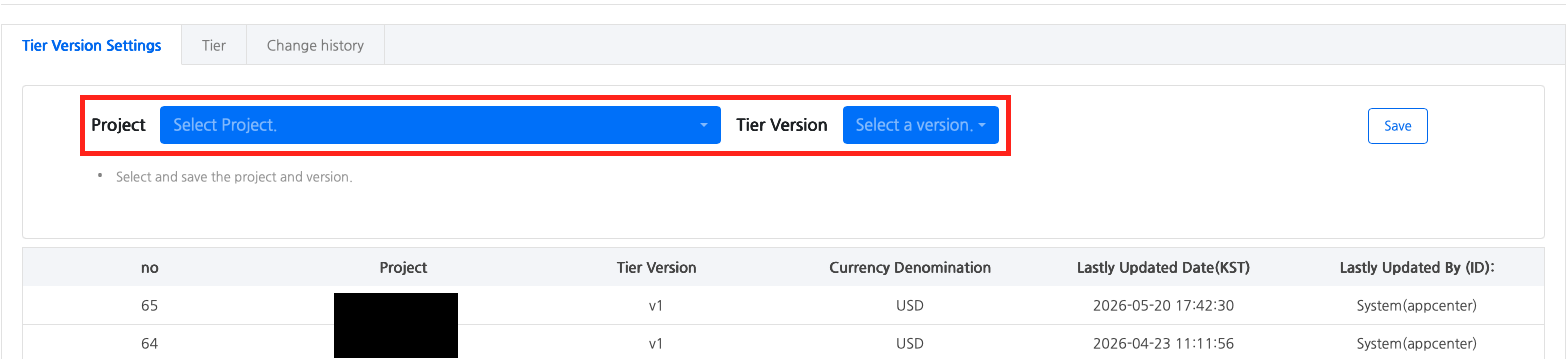
- After selecting the project, choose the grade version to connect to that project.
- Clicking the [Save] button will immediately connect the selected project and grade version.
Next Steps
Register the information of the products to be sold. See more