Store Settings
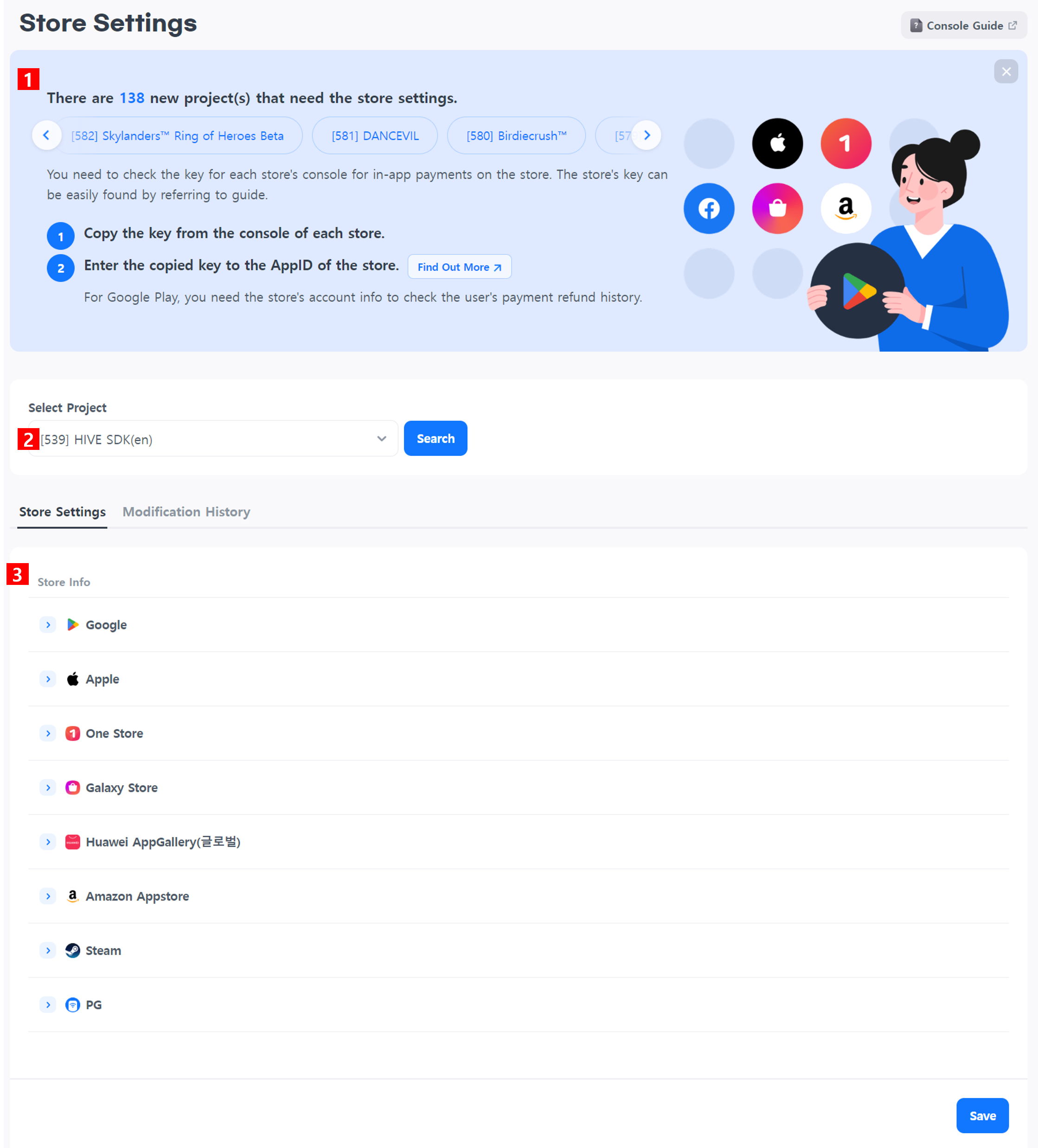
The store settings page is where you register the license keys related to payments. Before making in-app purchases or PG payments, it is essential to set the key values for each store's app ID in the Hive console.
Store Settings Basic Screen
-
Banner
You can check projects with app IDs that have not completed store settings. When selecting a project, the app ID of that project will be loaded into the store settings at the bottom. -
Select a project Select the project to configure and click search.
-
Store Settings
All payment app IDs created for the project are loaded.
Registering License Keys by Store
Google
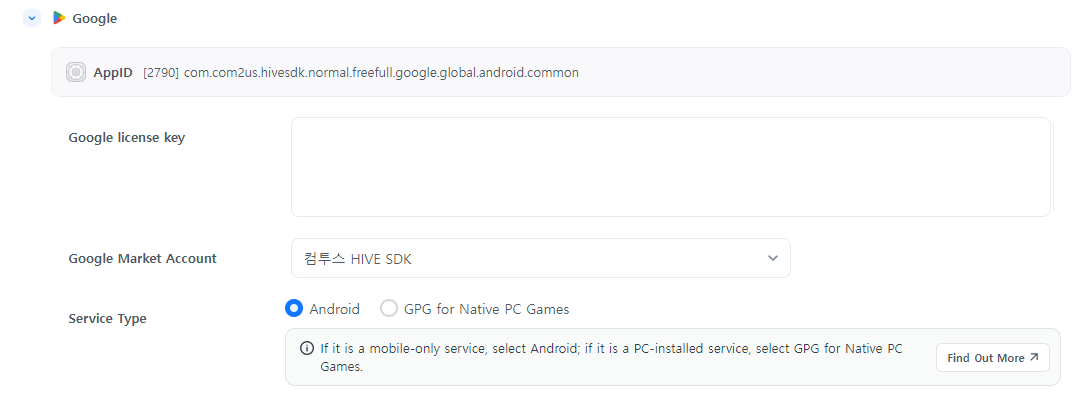 Refer to the content below to check the corresponding values in the Google Play Console, copy the license key, and enter it.
-
Google license key
- Access Google Play Console > Select app > Monetization > Monetization settings > License
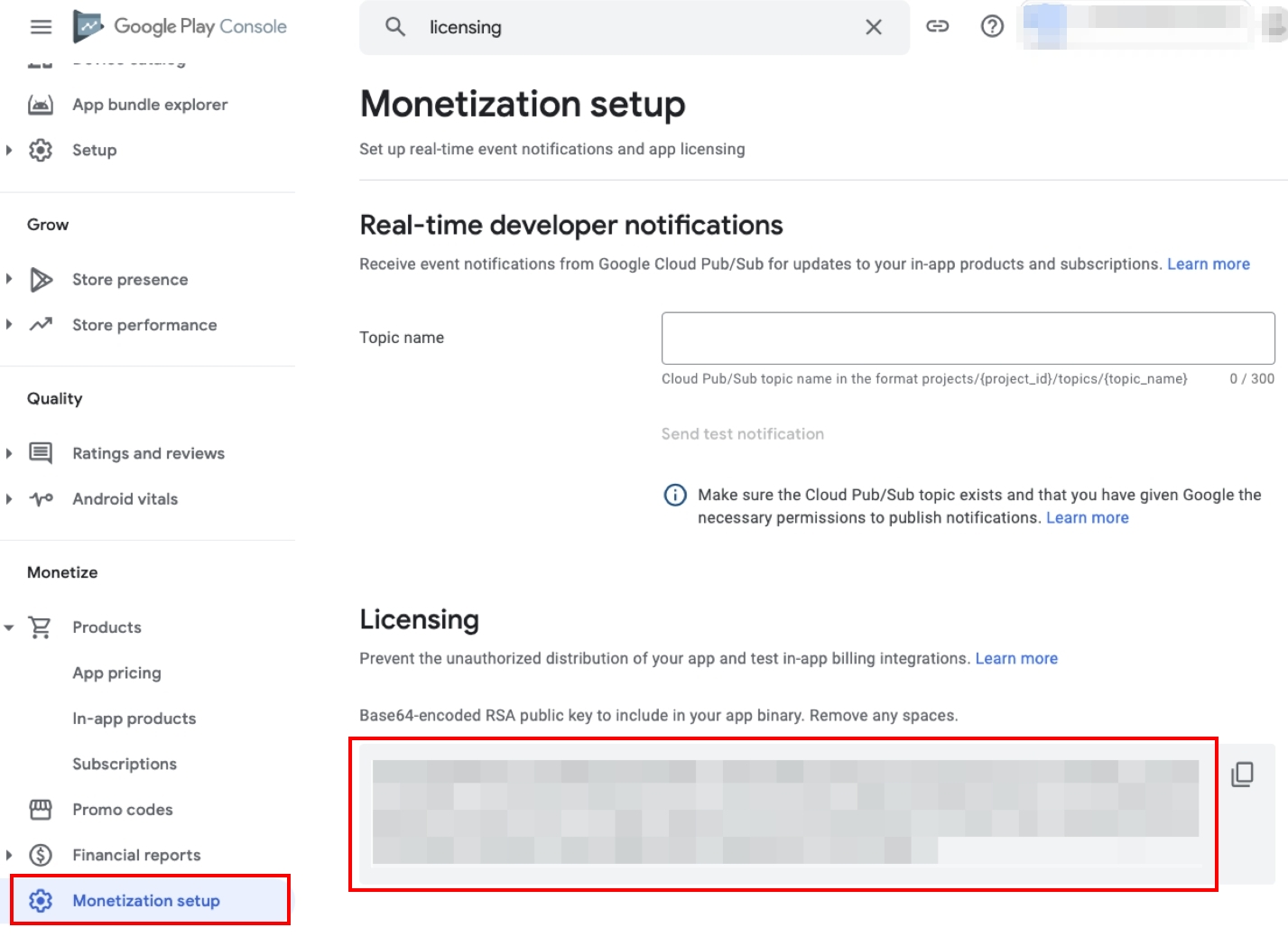
- Access Google Play Console > Select app > Monetization > Monetization settings > License
-
Google Market Account
-
Check the unique ID of your account in Google Play Console and download the key file (.json). If a Google Play Developer project has not been created, proceed by creating a project on the Google Play Console > API Access page. Reference
-
Check ID
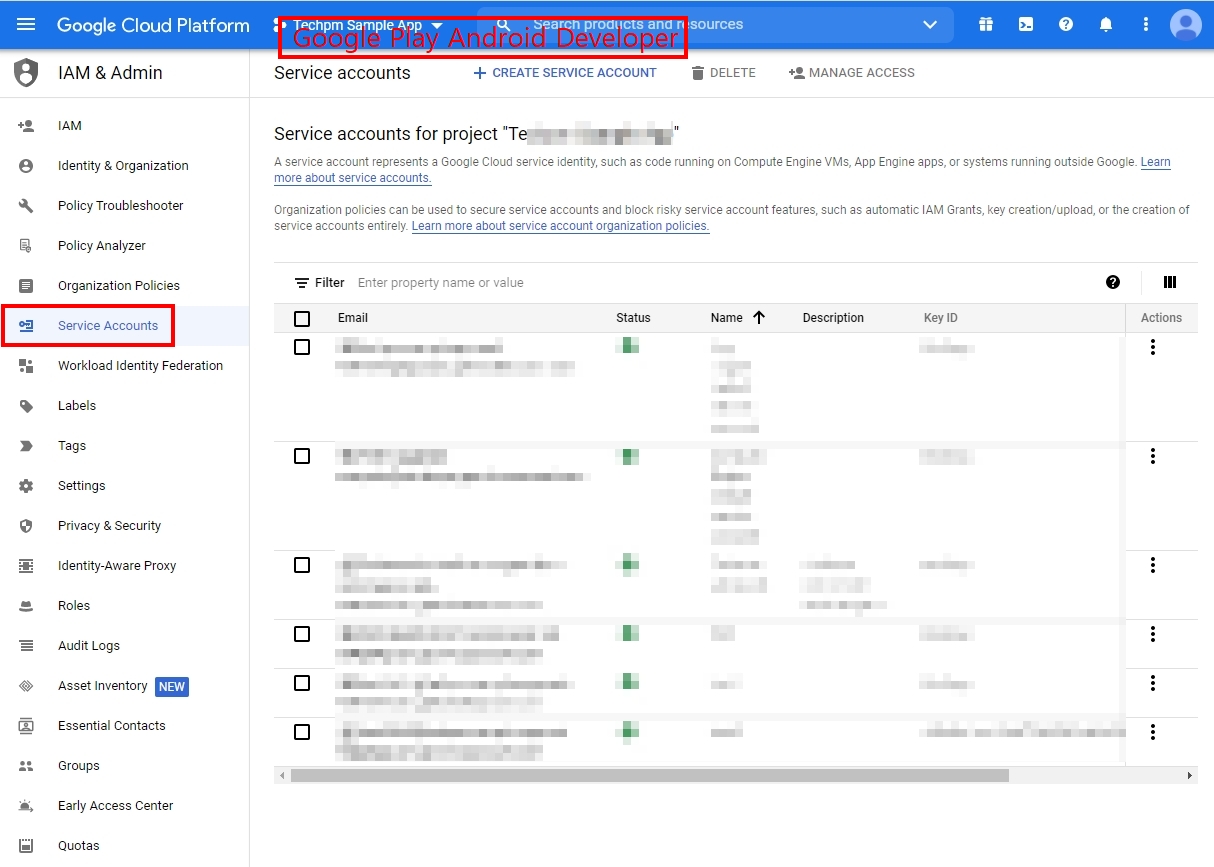
- Access Google API Console > Google Play Android Developer project > IAM & Admin > Service Accounts > Confirm unique ID
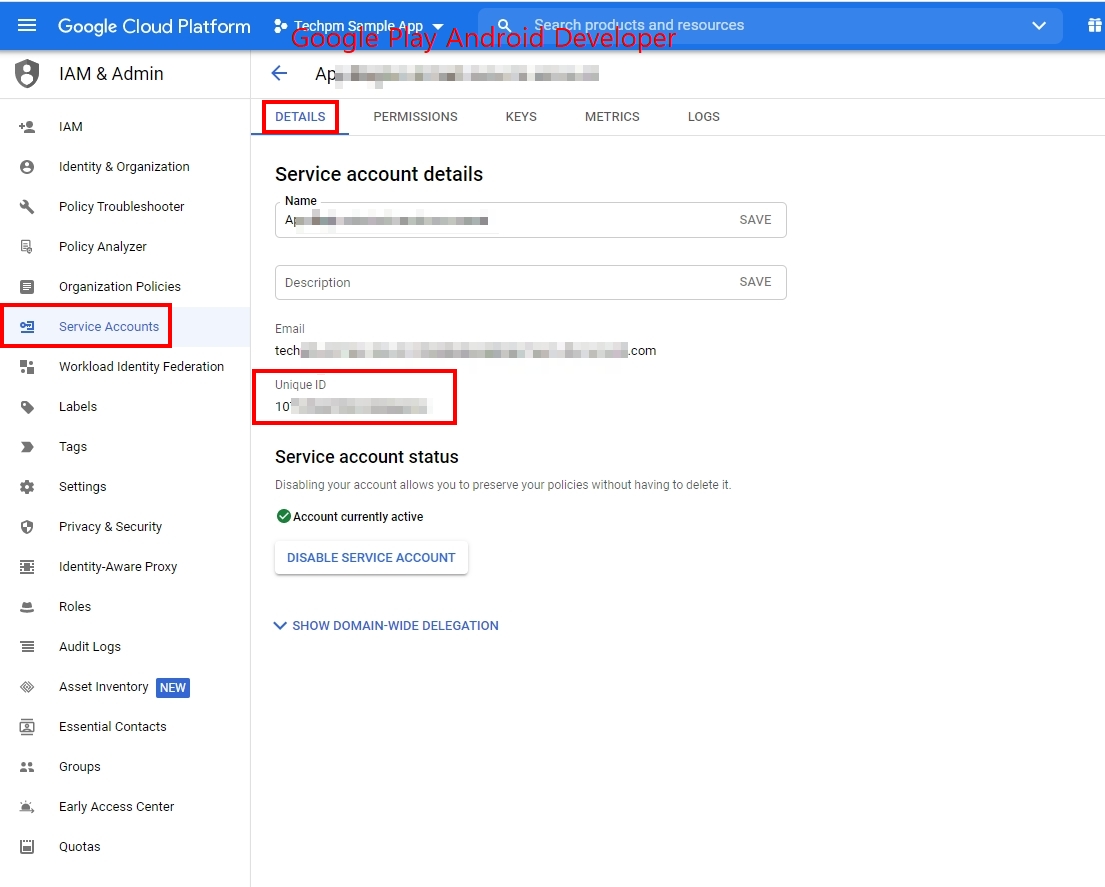
- Access Google API Console > Google Play Android Developer project > IAM & Admin > Service Accounts > Confirm unique ID
-
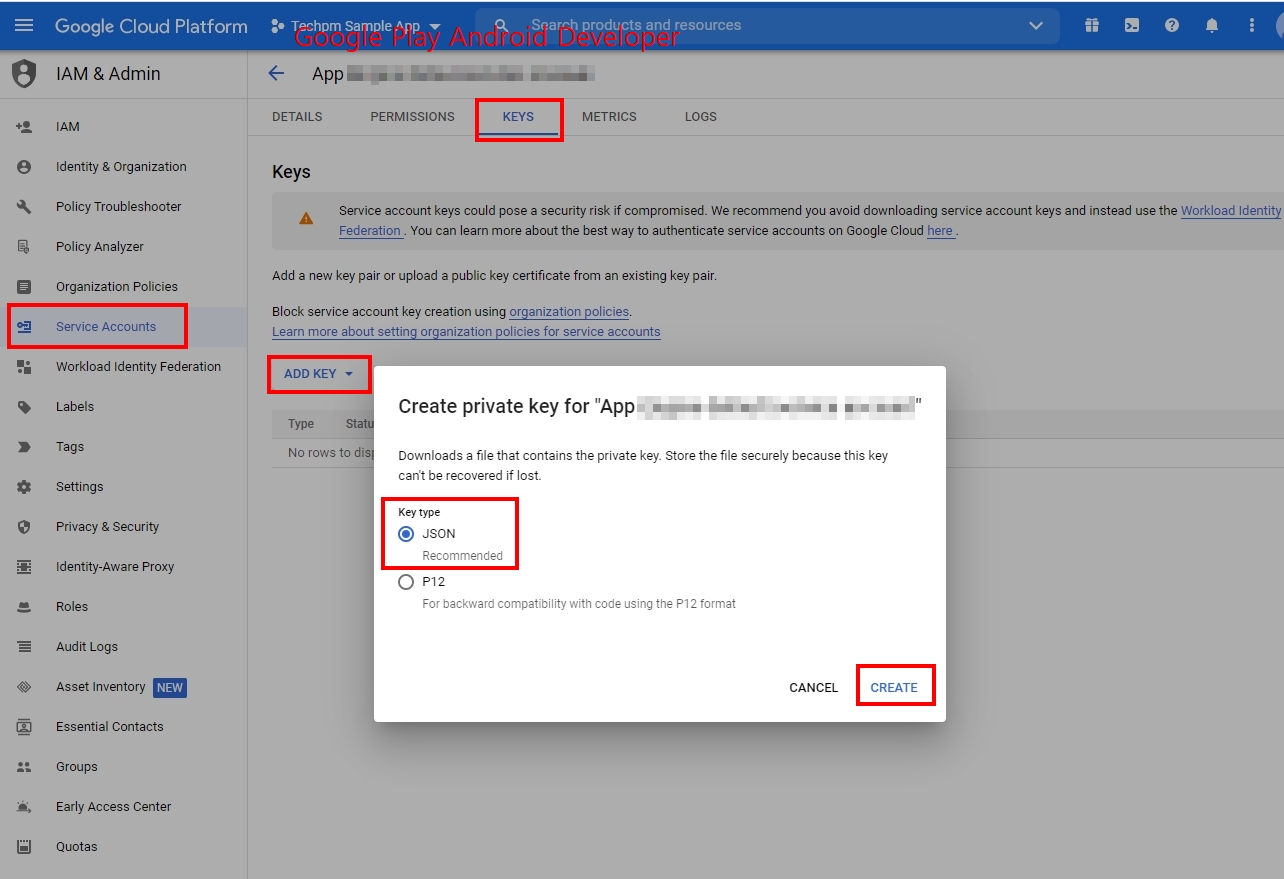
Download json file
- Access Google API Console > Google Play Android Developer project > IAM & Admin > Service Accounts
- Click on the Keys tab > Click Add Key > Select JSON as the key type > Create > Download JSON file
- Access Google API Console > Google Play Android Developer project > IAM & Admin > Service Accounts
-
-
In the App Center > Market Account Management, register the Google Project account information and select the account to use. Reference
-
-
Service Type: Choose whether it is a mobile-only service or a PC game. The selected value will affect monitoring settings and analytics revenue aggregation, so please select the correct type.
- GPG for Native PC Games: Refers to cases where the PC game is installed directly via an installer. You can enjoy the game on a PC, and in-app purchases are made through Google Play.
Apple
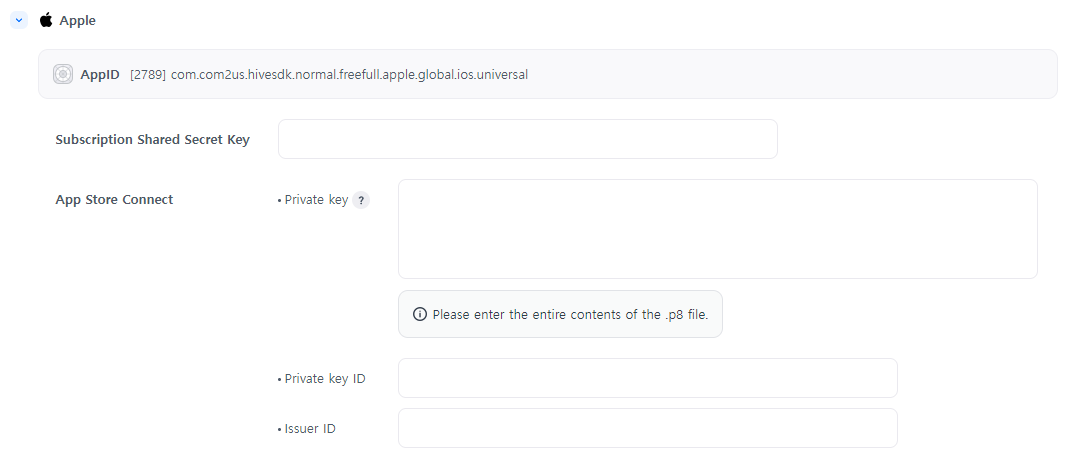 Please refer to the content below to generate a license key in the App Store Console, copy it, and enter it.
-
Subscription Shared Secret Key : Please be sure to enter this when selling subscription products. The shared secret key is a 32-character hexadecimal string. You can generate a basic shared secret key, which is a single code used for all apps, or app-specific shared secret keys for each app. You can use the basic shared secret key for some apps and app-specific shared secret keys for the rest.
-
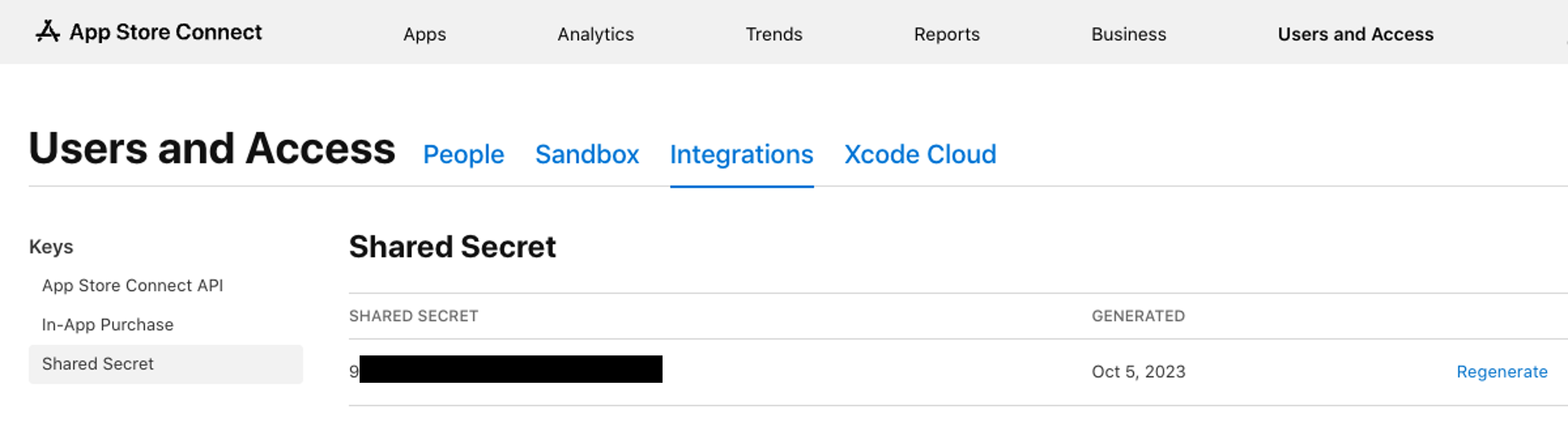
Creating a shared secret (Master Shared Secret) in the App Store
-
Log in to App Store Connect.
-
User and Access > Share Password > Create. When you create a new shared password, you must use the new value when checking the automatic renewal subscriptions of all apps within the organization that uses the shared password.
-
-
Creating an app-specific shared secret in the App Store
-
Log in to App Store Connect.
-
Click on my app to select the app you want to check.
-
General Information > App Information > Generate a password in App Sharing Password.
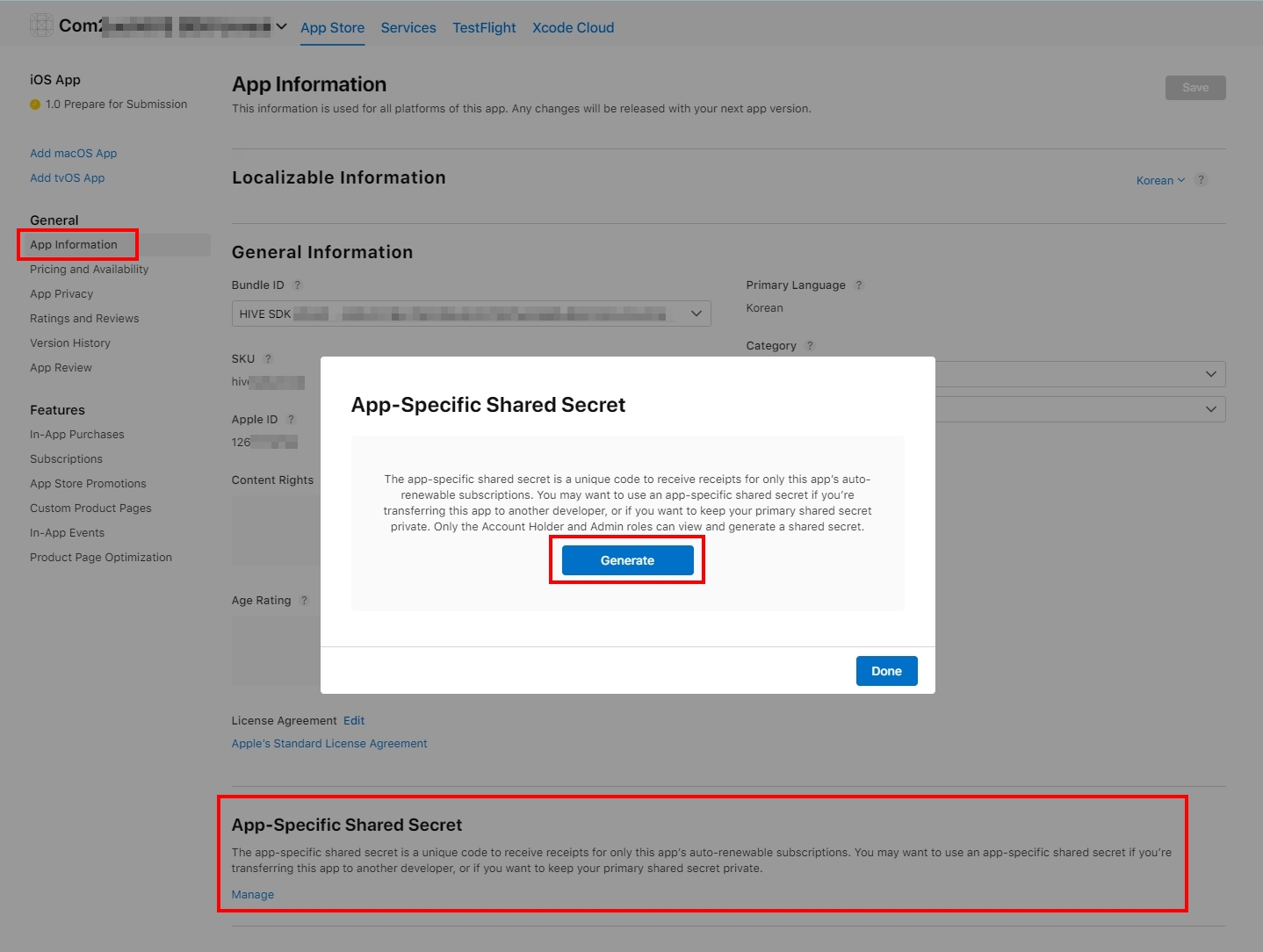
-
If you want to keep the code of the app private or transfer this app to another developer account, you may need to use the app sharing password.
- If the app uses the app sharing password, the default sharing password can no longer be used.
- The app sharing password cannot be deleted and can only be regenerated.
-
-
-
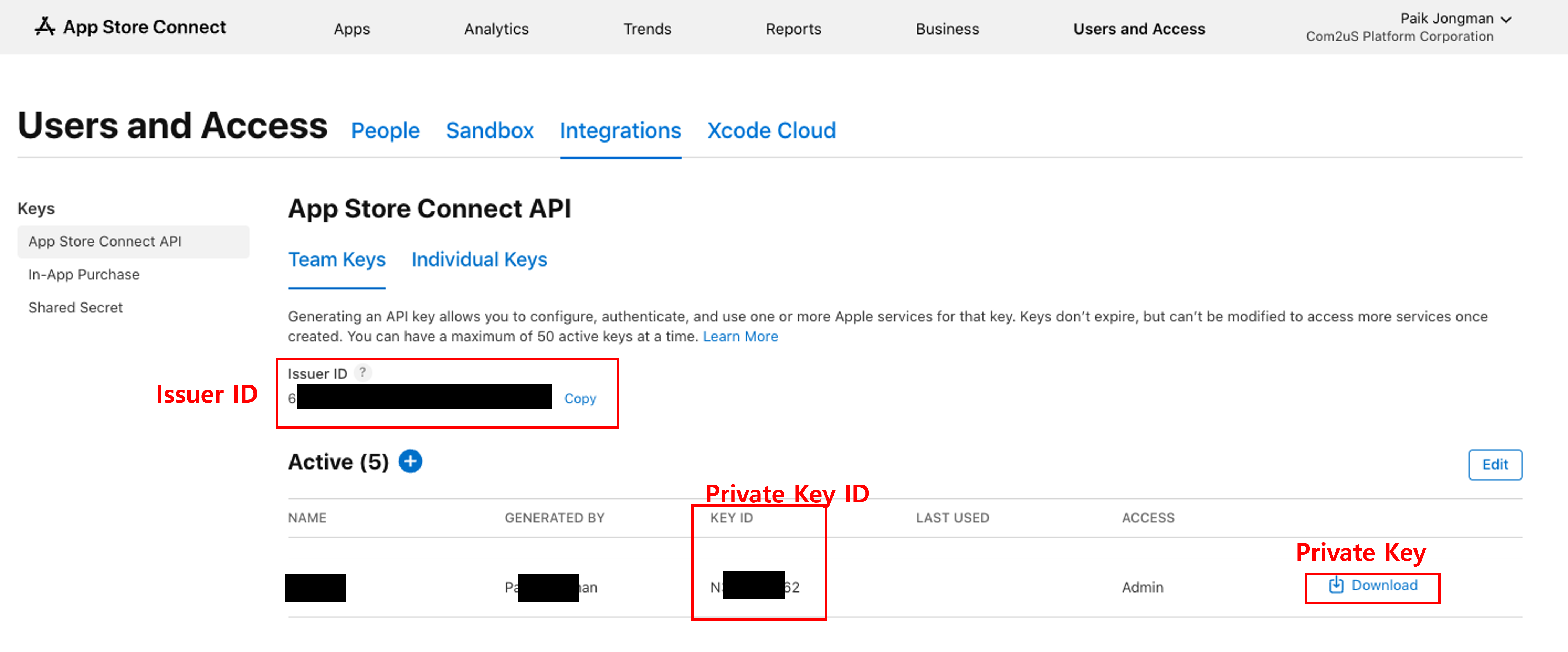
App Store Connect (StoreKit2 setup): Starting from SDK v4.16.0, StoreKit2 is supported on iOS 15 and above, and you need to register the private key, private key ID, and issuer ID. When registering the private key, please register it as the original string.
-
The key values for using Storekit2 can be checked through the following paths.
- Apple Market Console > Users and Access > Keys > App Store Connect API
- Apple Market Console > Users and Access > Keys > In-App Purchases
- For more details, please refer to the Apple Guide.
One Store
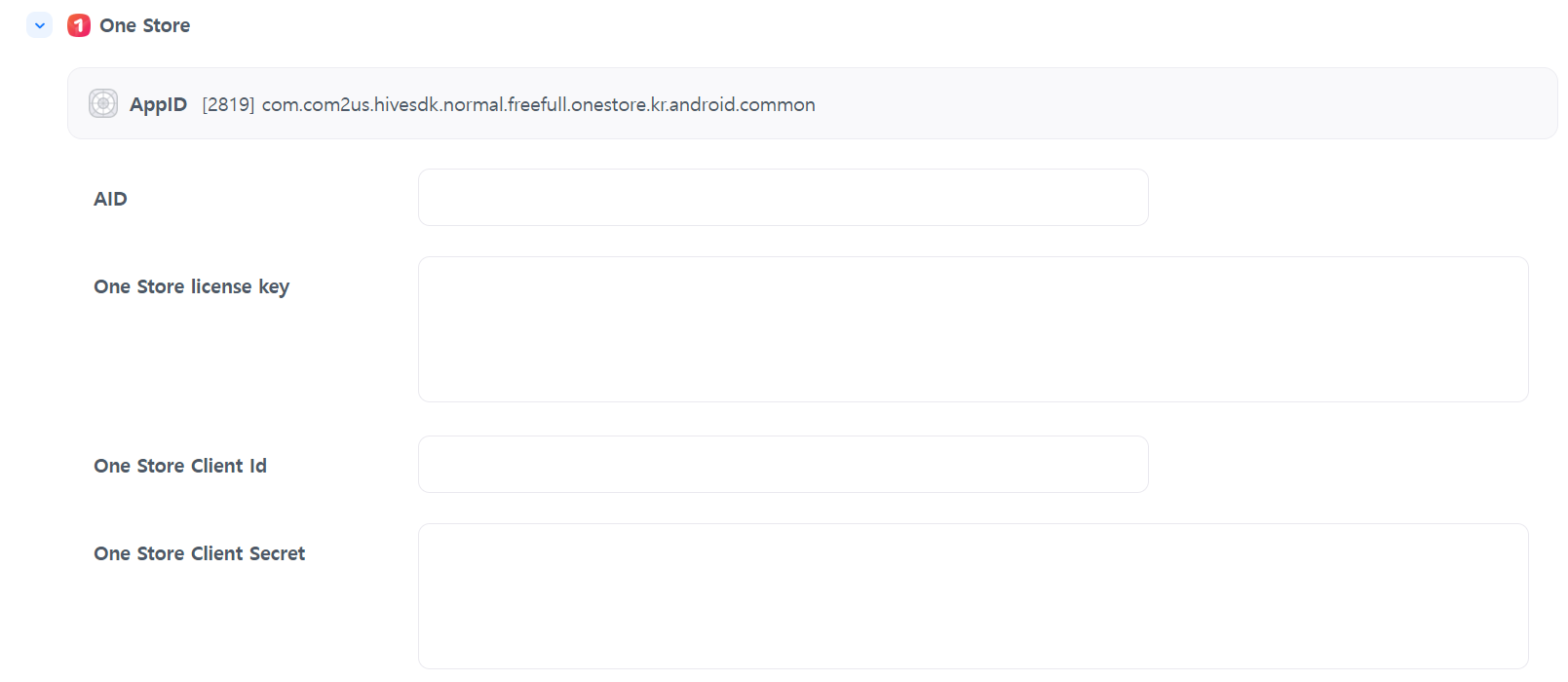 Refer to the content below to check the license key in the One Store Console, copy it, and enter it.
-
ONE store AID
Access the ONE store Developer Center.
- APPS > Product Status > Select App > Check AID (OA00XXXXXX) and Package Name in Sales Information.
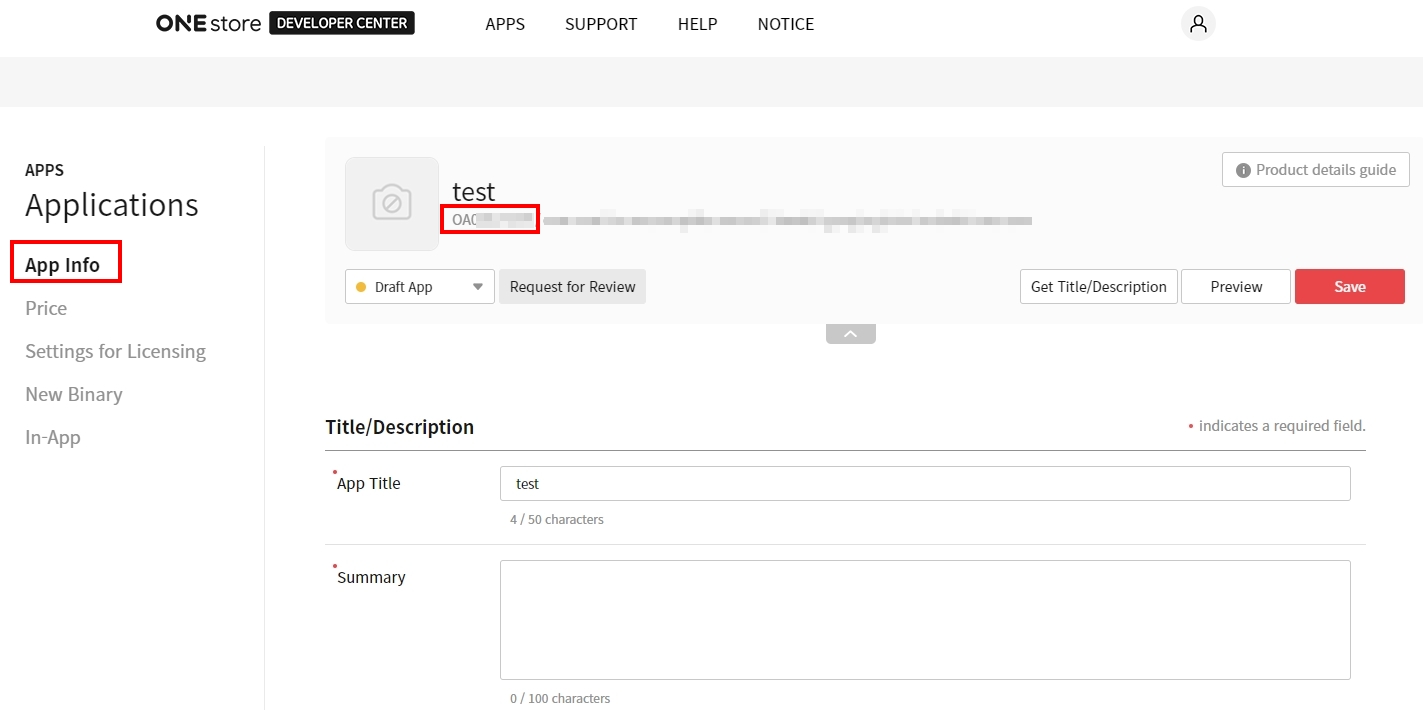
- APPS > Product Status > Select App > Check AID (OA00XXXXXX) and Package Name in Sales Information.
-
ONE Store license key
Access the ONE store Developer Center.
-
APPS > Product Status > Check the ALC (Application License Checker) on the License Management page.
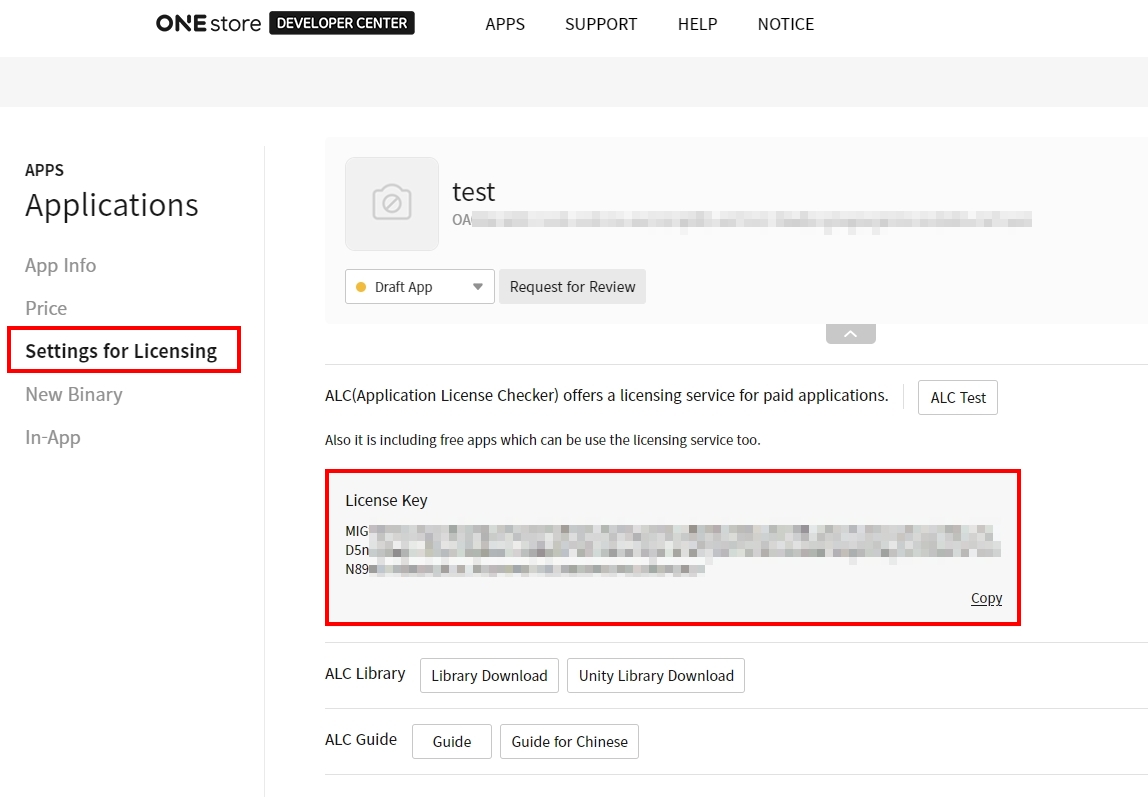
-
APPS > Product Status > In-App Information > Managed Products > Check the Client ID and Client Secret in the Oauth authentication information of the In-App API management window.
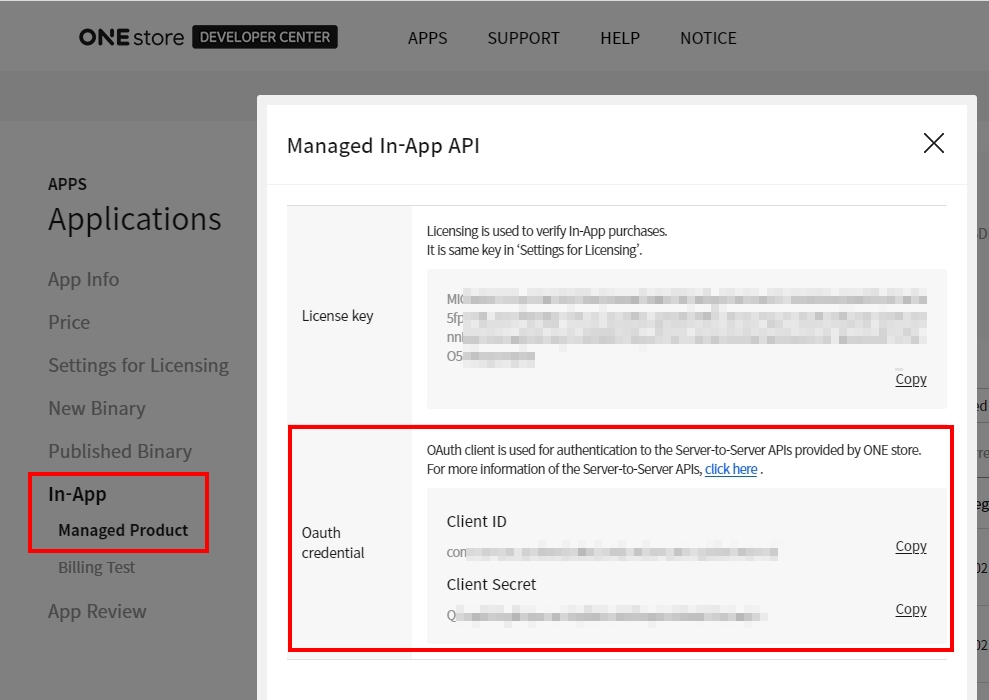
-
-
The One Store license key is the in-app purchase key for One Store supported from Hive SDK v4.11.0 and above.
Galaxy Store
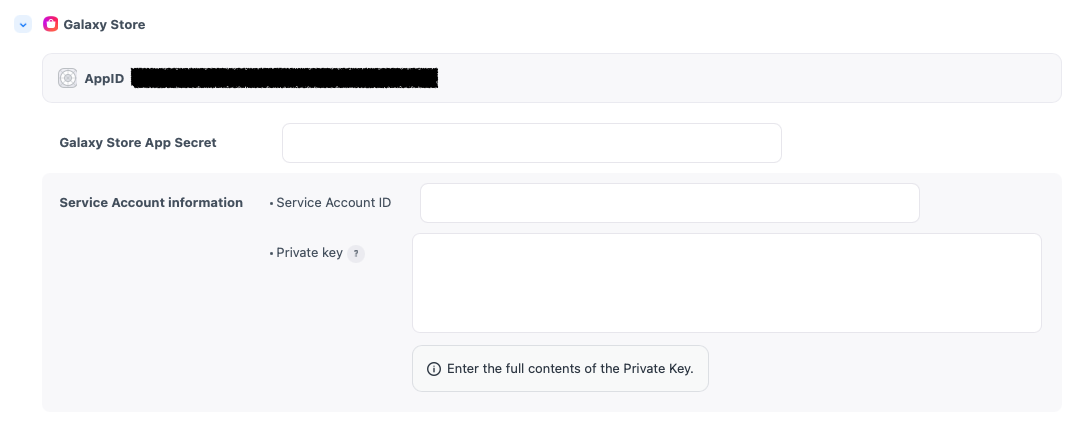
- Galaxy Store App Secret : When selling subscription products, enter the seller DeepLink item in the seller page information within the Galaxy Store console.
- Service Account information : If the applied SDK version is 26.1.0 or higher, it is mandatory to enter the service account information to sell subscription products. You can check the service account information in the Galaxy Store console. Please refer to the Galaxy Store guide to verify and enter the service account information.
- Service Account ID : Enter the service account ID.
- Private Key : Please register the Private Key that includes the strings ‘-BEGIN RSA PRIVATE KEY-’ and ‘-END RSA PRIVATE KEY-’.
Huawei AppGallery(global)
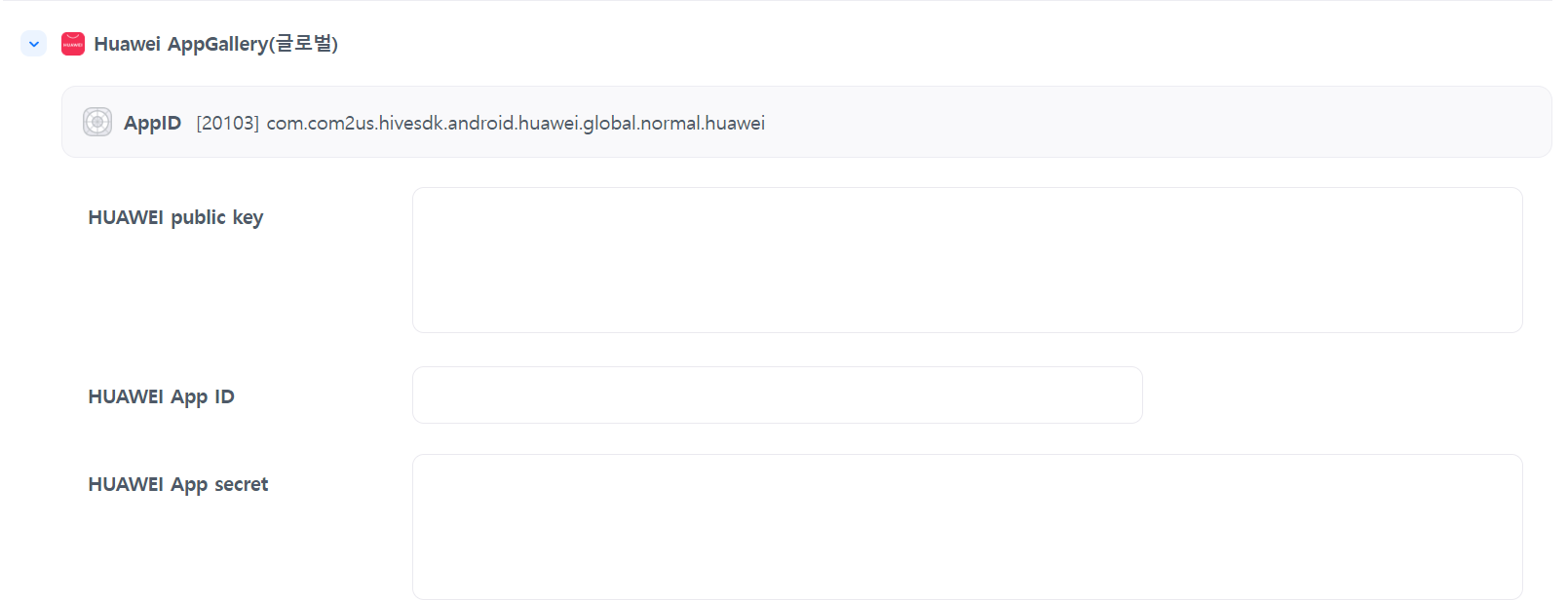 Refer to the content below to check the license key in the Huawei AppGallery Console, copy it, and enter it.
-
Access to AppGallery Connect console
-
Log in to the Huawei Developer Console.
-
After moving to "App Services", click on AppGallery Connect.
Click "My Apps" and select the corresponding app.
-
-
App ID and App Secret
-
Move to the "Project Settings" screen
-
You can find the following information in the "App Information" section.
-
Package name: Store App ID
-
OAuth 2.0 Client ID: Huawei App ID
-
OAuth 2.0 Cliect secret: Huawei App secret
-
-
public key
- Go to the "General information" tab in the "Project Settings" screen.
You can check the "Public Key" value.
Amazon Appstore
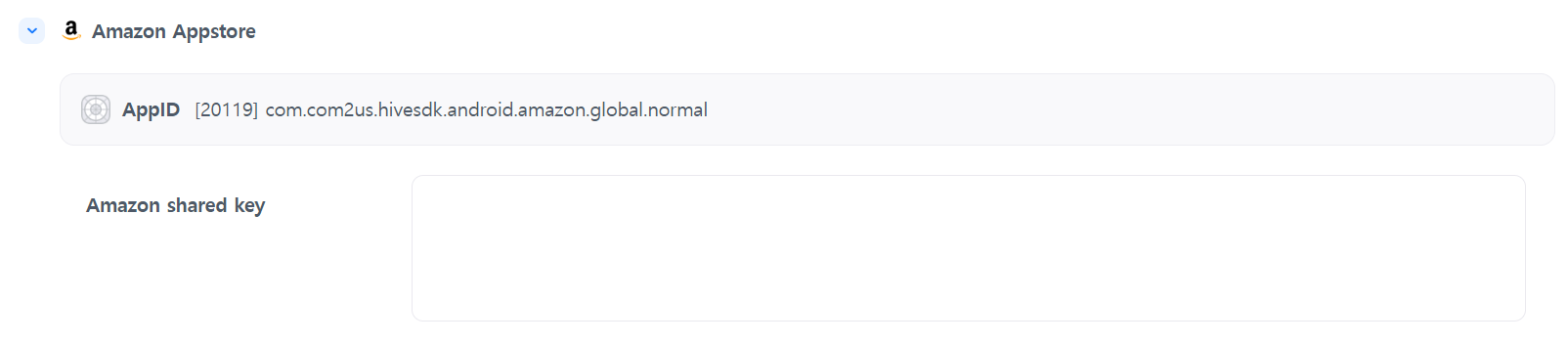 Refer to the information below to check the license key in the Amazon Developer Console, copy it, and enter it.
-
Checking Shared Key in Amazon Developer Console
-
Log in to the Amazon Developer Console (https://developer.amazon.com/).
-
Select the app in the App Store management menu.
-
Go to "Settings" -> "Identity" in the left menu and check the "Shared Key".
-
Steam
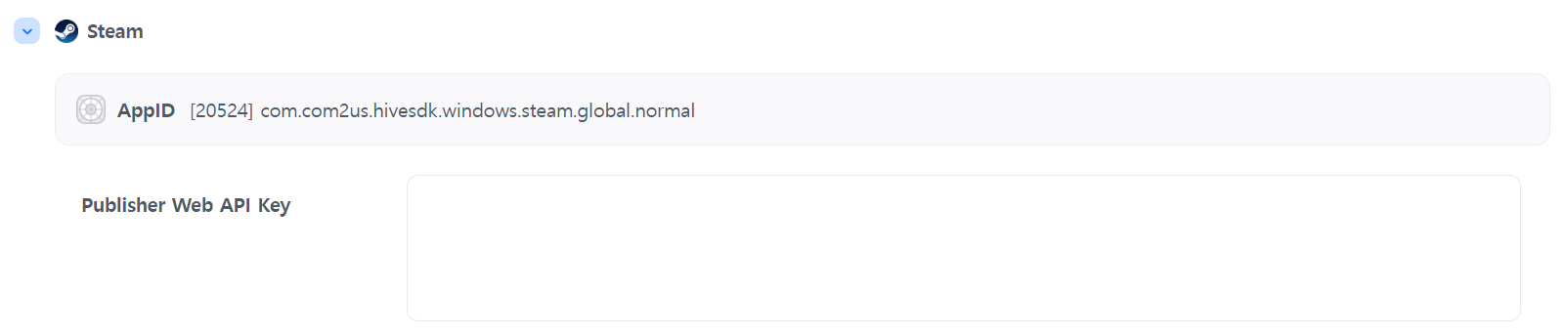
- To use the Steam payment environment, you need a Steam market AppID. Please select Game AppID > OS: Windows > Market: Steam in the Console > App Center > AppID Management menu to create a Steam market AppID.
- For instructions on how to create a Publisher Web API Key for Steam, please refer to the Steam Developer Guide.
PG

- PG can only be paid through direct distribution, so entering the store's license key is not required. However, to check the service type of the app ID in the payment monitoring settings, you must select either in-game or web store. Please select the correct type for smooth service.
If you modify the content, be sure to click save.
animate Games Online
These settings are used to integrate the animate Games Online Store payment features.
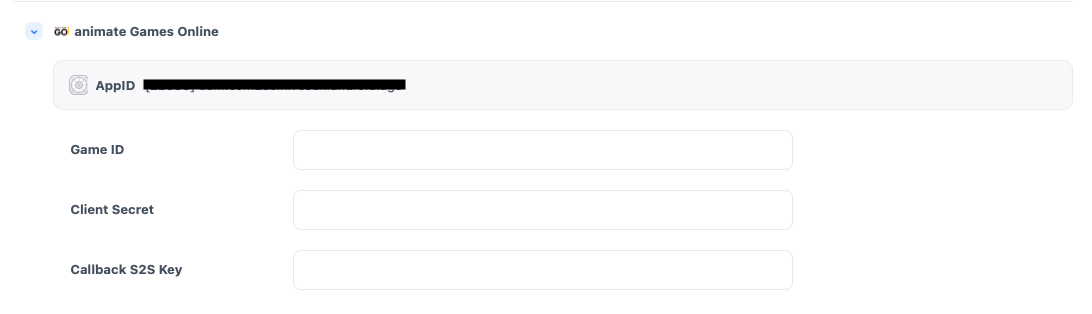
- Game ID, Client Secret, Callback S2S Key: Can be verified through your contract with animate Games Online Store.
DMM GAMES
These settings are used to integrate the DMM GAMES Store payment features.
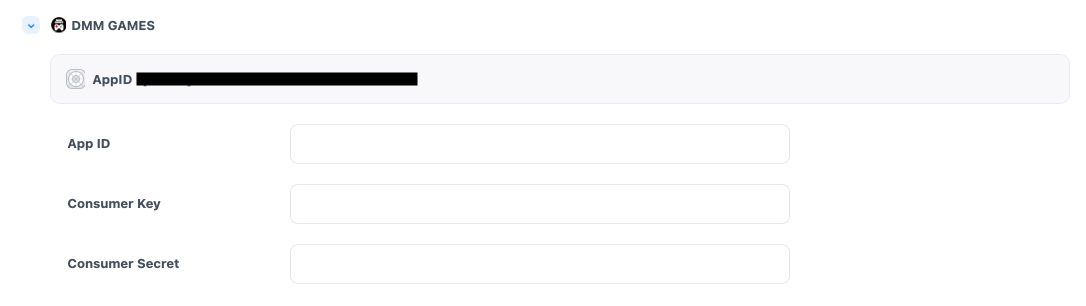
- App ID, Consumer Key, Consumer Secret: Can be verified through your contract with DMM GAMES Store.
Funtap
These settings are used to integrate the Funtap Store payment features.
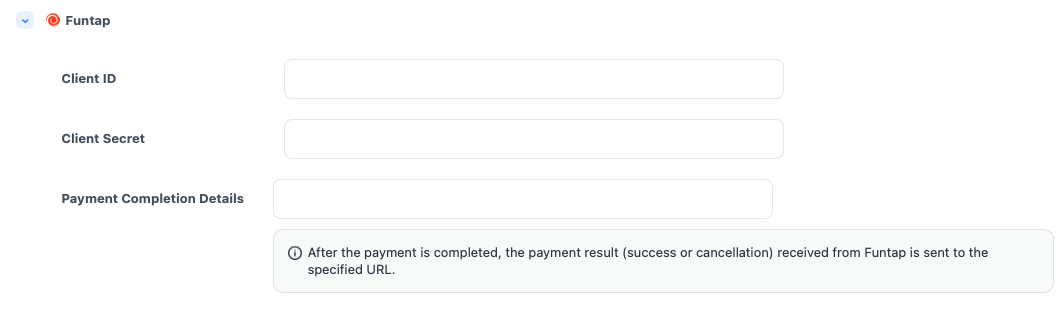
- client_id, client_secret: Can be verified through your contract with Funtap Store.
- Payment Completion Information
- Once a payment is completed in the Funtap Store, the payment details will be sent to the entered URL.
- The app uses the received information to perform receipt verification and provisions items to the user.
Playio
These settings are used to integrate the Playio Store payment features.
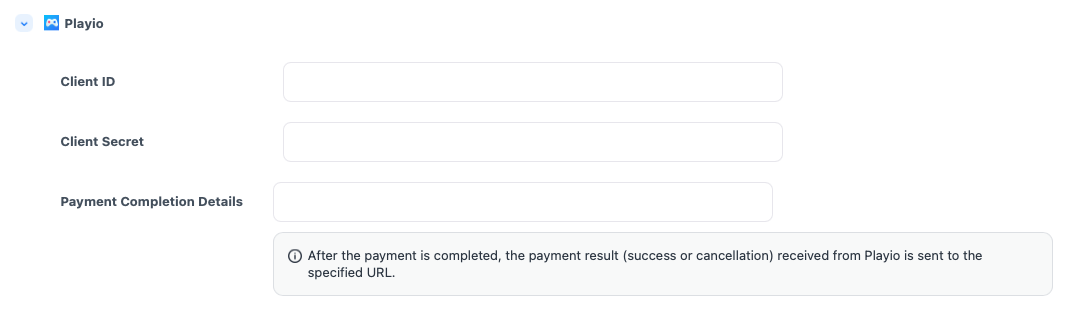
- client_id, client_secret: Can be verified through your contract with Playio Store.
- Payment Completion Information
- Once a payment is completed in the Playio Store, the payment details will be sent to the entered URL.
- The app uses the received information to perform receipt verification and provisions items to the user.
Change History
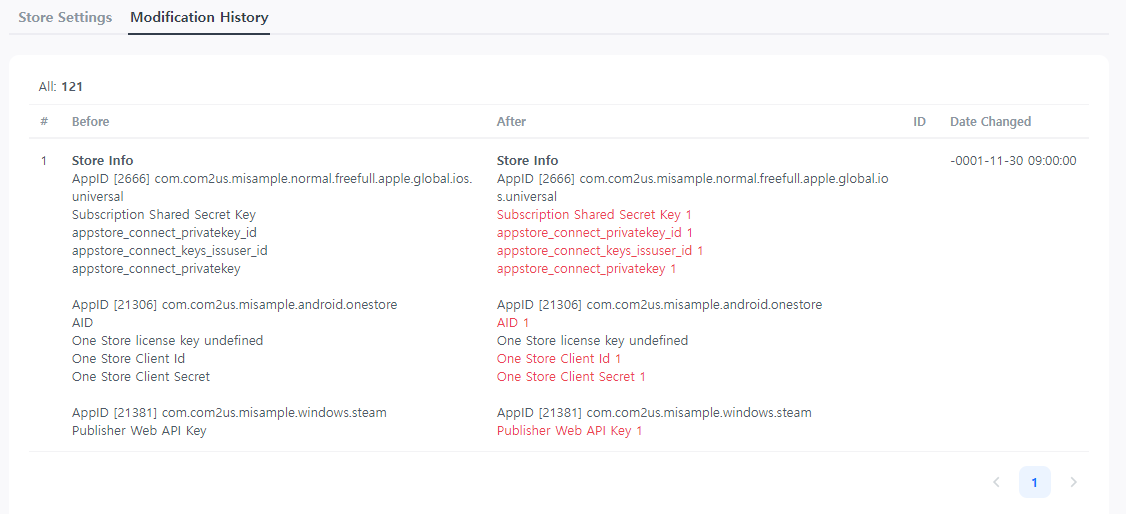
When you modify or register content in the store settings and click save, all content before and after the modification is automatically recorded. You can check the changes to understand the history.
Next Steps
The store payment has been completed after all setup steps are finished.