Invite Statistics
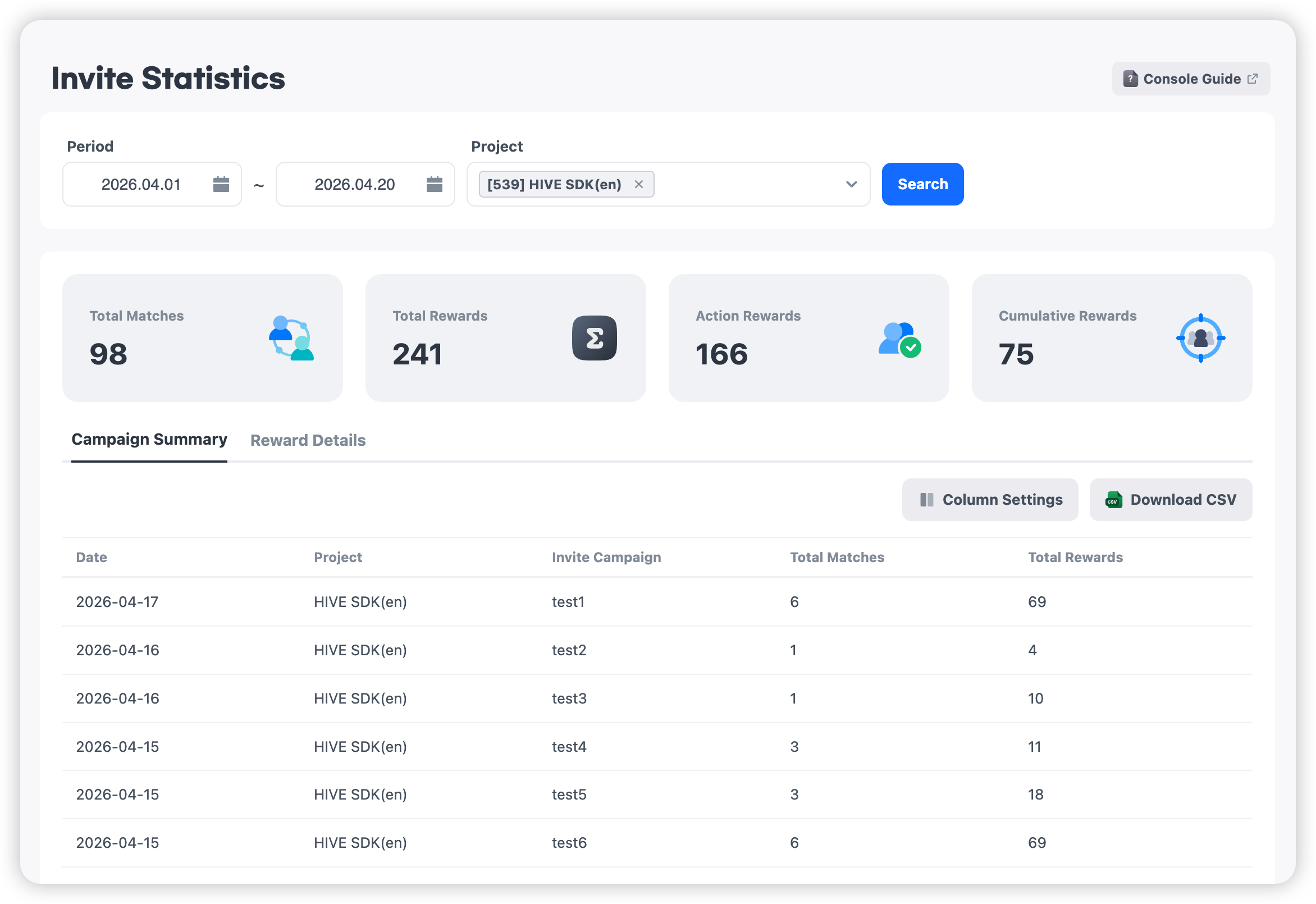
This is a statistics page where you can view the performance of invite code campaigns at a glance. You can analyze campaign performance, including matching and reward status, based on the selected period and project.
Select the desired period and project, then click the [Search] button to view statistics.

Key Metrics
Based on the selected conditions, key performance metrics of the invite campaign are summarized and displayed.
- Total Matches: Total number of connections between inviters and invited users
- Total Rewards: Total number of rewards granted
- Action Rewards: Number of rewards granted as Action Reward (immediate reward)
- Cumulative Rewards: Number of rewards granted as Cumulative Reward (after conditions are met)

Campaign Summary
You can view key performance metrics for each campaign on a daily basis.
- Date: Date 기준 of the statistics
- Project: Project to which the campaign belongs
- Invite Campaign: Campaign name
- Total Matches: Number of matches occurred on that date
-
Total Rewards: Number of rewards granted on that date
-
Column Settings You can select which fields to display in the table and view only the data you need. Click the Column Settings button to choose columns. Only selected items will be displayed in the table.
-
Download CSV You can download the displayed statistics data as a CSV file. Click the Download CSV button to download data based on the current search conditions.
Reward Details
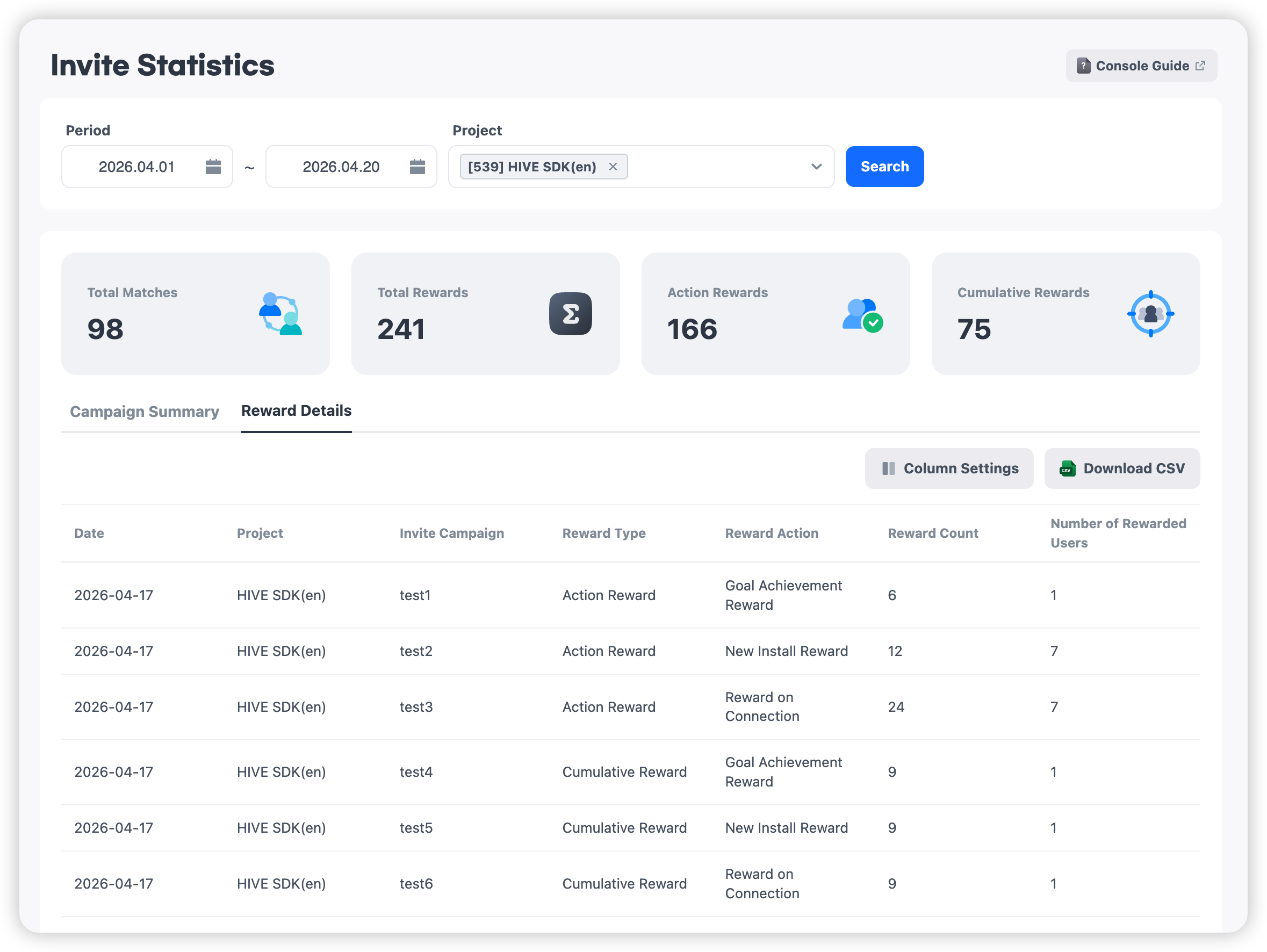
You can view detailed statistics by reward type and reward action.
- Reward Type: Action Reward / Cumulative Reward
- Reward Action: Match Reward / New Install Reward / Goal Achievement Reward
- Reward Count: Number of rewards granted under the condition
-
Number of Rewarded Users: Number of users who actually received rewards
-
Column Settings You can select which fields to display in the table and view only the data you need. Click the Column Settings button to choose columns. Only selected items will be displayed in the table.
-
Download CSV You can download the displayed statistics data as a CSV file. Click the Download CSV button to download data based on the current search conditions.