Coupon issuance
Request issuance of bulk coupons and keyword coupons at the project level, and manage approval, coupon code generation, and usage status. Users enter the coupon code in the in-app coupon exchange to use an issued coupon. When a coupon is used, items are delivered to the mailbox, and the mailbox sender is always displayed as Admin.
➡️ Console path: Coupon > Coupon Issuance
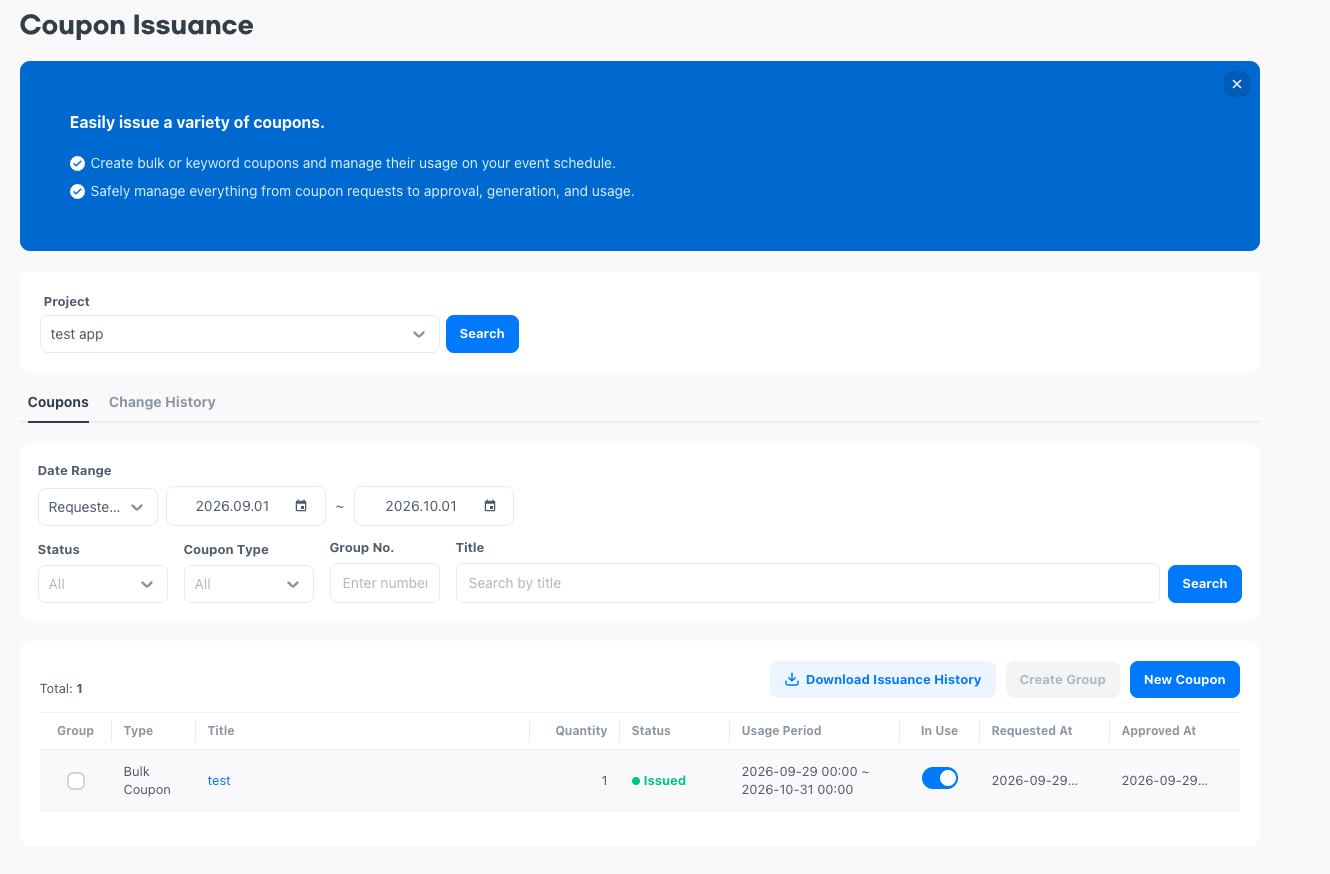
Coupon types and issuance stages
Coupon types
| Coupon type | Code generation method | Usage quantity basis |
|---|---|---|
| Bulk coupon | Automatically generates random codes of letters and numbers. | You set the number of coupon codes each account can use. |
| Keyword coupon | The operator specifies the coupon code directly. | Each account can use it only once. |
Issuance stages
A coupon progresses in the order Pending Approval, Approved, Generating, and Issued. If the approver rejects it, the status becomes Rejected, and if a problem occurs during code generation, it becomes Generation Failed.
| Status | Description |
|---|---|
Pending Approval | The coupon issuance request is saved and waiting to be approved or rejected. |
Approved | The coupon issuance request is approved and waiting for coupon code generation. |
Generating | The coupon codes are being generated. |
Issued | Coupon code generation is complete. |
Rejected | The approver rejected the coupon issuance request. It can be approved again. |
Generation Failed | A problem occurred during coupon code generation. If you retry, the remaining coupon codes are generated from where it stopped. |
After you look up the list, the status can change because another user processed the coupon or code generation progressed. If you run an action on a coupon whose status has already changed, a message appears as a toast, and the latest status is looked up again to refresh the buttons and input fields. Edits you were entering are not saved or resubmitted automatically.
Request coupon issuance
When you select [New Coupon], the New Coupon popup opens, where you enter the coupon type and issuance conditions to request issuance. The popup is divided into the Basic Information, Usage Period, and Issuance Settings sections.
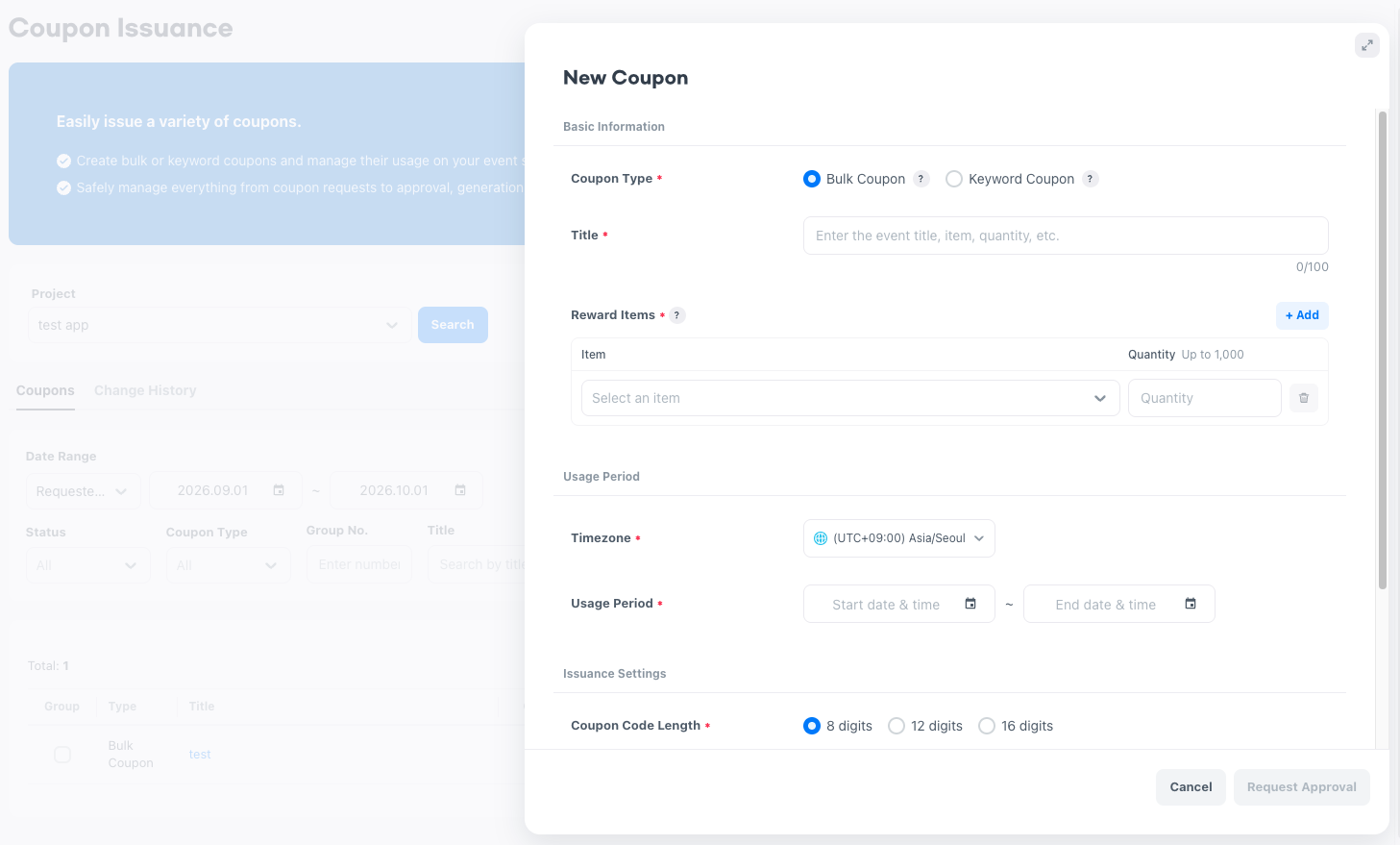
Basic information
- Coupon Type: Select
Bulk CouponorKeyword Coupon. - Title: A management title that distinguishes the coupon in the console. Enter up to 100 characters.
- Reward Items: The items to grant when the coupon is used. Select only items in use among the items registered in
Item, and enter at least one.Quantity: Enter the quantity of the selected item to grant as a number. Enter up to 1,000.- [Add]: Adds an entry for another item and quantity. You can add up to 10, and [Add] is disabled once there are 10.
- Delete: Select the trash icon to delete an added item and quantity entry.
Issuance settings: Bulk coupon
- Coupon Code Length: Select the coupon code length from
8 digits,12 digits, and16 digits. The default is8 digits. The code is generated from random letters and numbers. - Issue Quantity: The number of coupon codes to issue at one time. Enter numbers only, up to 100,000.
- Usage Limit per Account: The number of coupon codes a single account can use. The default is
1. For example, if you enter10, one account can use 10 coupon codes. - Test Coupon Quantity: The number of test coupon codes to verify before the official launch. The default is
0, and you can issue up to 10. Test coupons are issued only for bulk coupons, can be used even before the usage start date, and cannot be used after the end date. Other usage conditions are the same as for official coupons.
Issuance settings: Keyword coupon
- Total Usage Limit: Select
UnlimitedorLimited. If you selectLimited, enter the number as a digit, up to 10,000. - Coupon Code: A code the operator decides directly. Use only letters or numbers, and enter 8 to 20 characters.
- Multi-Issue: Select
Enable Multi-Issuewhen you issue multiple keyword coupons at once. If you selectEnable Multi-Issue, theCoupon Codefield is disabled and the items below are enabled. Each keyword coupon created by multi-issue is generated as an independent coupon.Create Group: Select the checkbox to bundle the created coupons into one group.- Number of coupons to issue: Enter the number of coupons to issue with multi-issue in the input field (up to 300).
- [Upload Coupon Code File]: Upload a CSV or Excel file. Write only coupon codes in the file, and each code must be 8 to 20 letters or numbers. The number of coupon codes in the file must be the same as the number of coupons to issue. Until you upload the file,
Upload the coupon code file.appears below the button.
How to set up:
- In
Coupon > Coupon Issuance, specify a project and then select [Search]. - Select [New Coupon].
- Select the
Coupon Type, then enterBasic Information,Usage Period, and theIssuance Settingsfor the selected coupon type. - Select [Request Approval]. The coupon issuance request is saved and the coupon status becomes
Pending Approval.
If the coupon code you entered already exists in the project, This coupon code is already in use. Enter a different value. appears below Coupon Code. If the same code appears two or more times in the request or in the uploaded file, There are duplicate coupon codes. or There are duplicate coupon codes in the uploaded file. appears as a toast.
Approve and reject coupons
A requested coupon must be approved before coupon code generation starts. Approvers must obtain the coupon approval permission from the console permission administrator. With the approval permission, you can approve and reject coupons. When you select a coupon's Title in the list, the Coupon Details popup shows the title, status, usage period, quantity, test quantity, usage limit per account, items, requested at, approved at, requested by, approved by, and approval/rejection message. The test quantity is displayed only for bulk coupons.
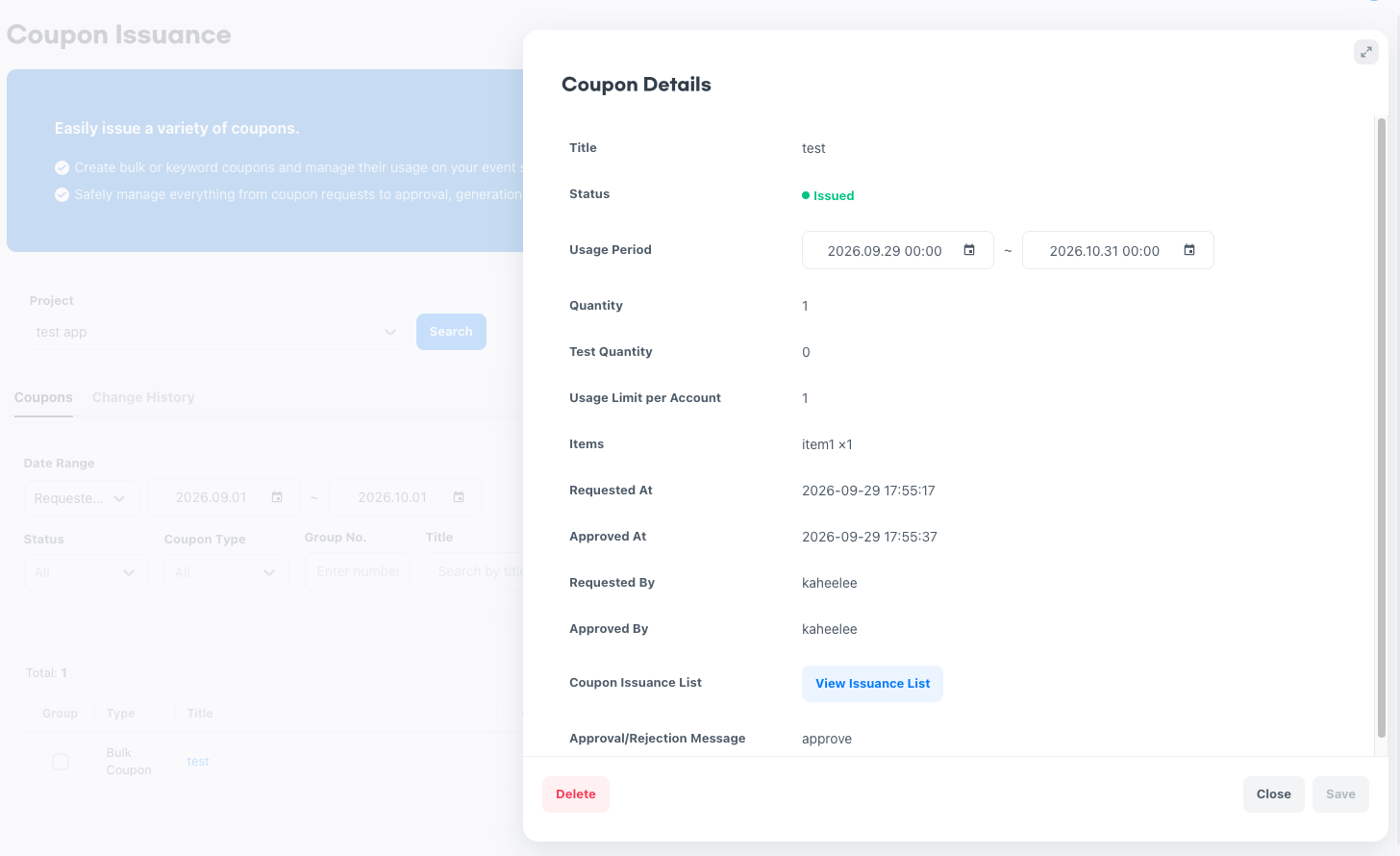
- Approve: Approves a coupon in the
Pending ApprovalorRejectedstatus. When approved, it goes throughApprovedandGeneratingand becomesIssued. If you approve from theRejectedstatus, coupon codes are generated based on the usage period you edited. - Reject: Rejects a coupon in the
Pending Approvalstatus. A rejected coupon becomesRejected, and the rejection date is also displayed. - Approval/Rejection Message: You must enter it when you approve or reject. Enter up to 500 characters, and after processing, what you wrote is displayed in the details popup.
How to set up:
- Go to
Coupon > Coupon Issuance, select a project, and then select [Search]. - In the list, select the
Titleof the coupon to process to open theCoupon Detailspopup. - Check the request and enter the
Approval/Rejection Message. - Select [Approve] or [Reject].
A coupon included in a group cannot be approved individually. In this case, Please proceed with approval of group {group number}. appears in the Approval/Rejection Message, and you approve at the group level.
Check coupon codes and retry
Check coupon codes
When the status becomes Issued, check the generated coupon codes.
- Keyword coupon: Check it in
Coupon codein theCoupon Detailspopup. - Bulk coupon: In
Coupon Issuance Listin theCoupon Detailspopup, select [View Issuance List] to open theCoupon Issuance Listpopup. TheCouponstab and theTest Couponstab show official coupons and test coupons separately.- Test coupons: Check the number, test coupon code, and whether it was used (
Used,Not Used). - Official coupons: Check the number, coupon code, whether it was used, and whether it is active. Enter the full coupon code and select [Search] to find a specific code, and use [Download Issuance History] in this popup to save the list of issued coupon codes as a CSV file. The file includes the coupon code, coupon category, whether it was used, and whether it is active.
- Test coupons: Check the number, test coupon code, and whether it was used (
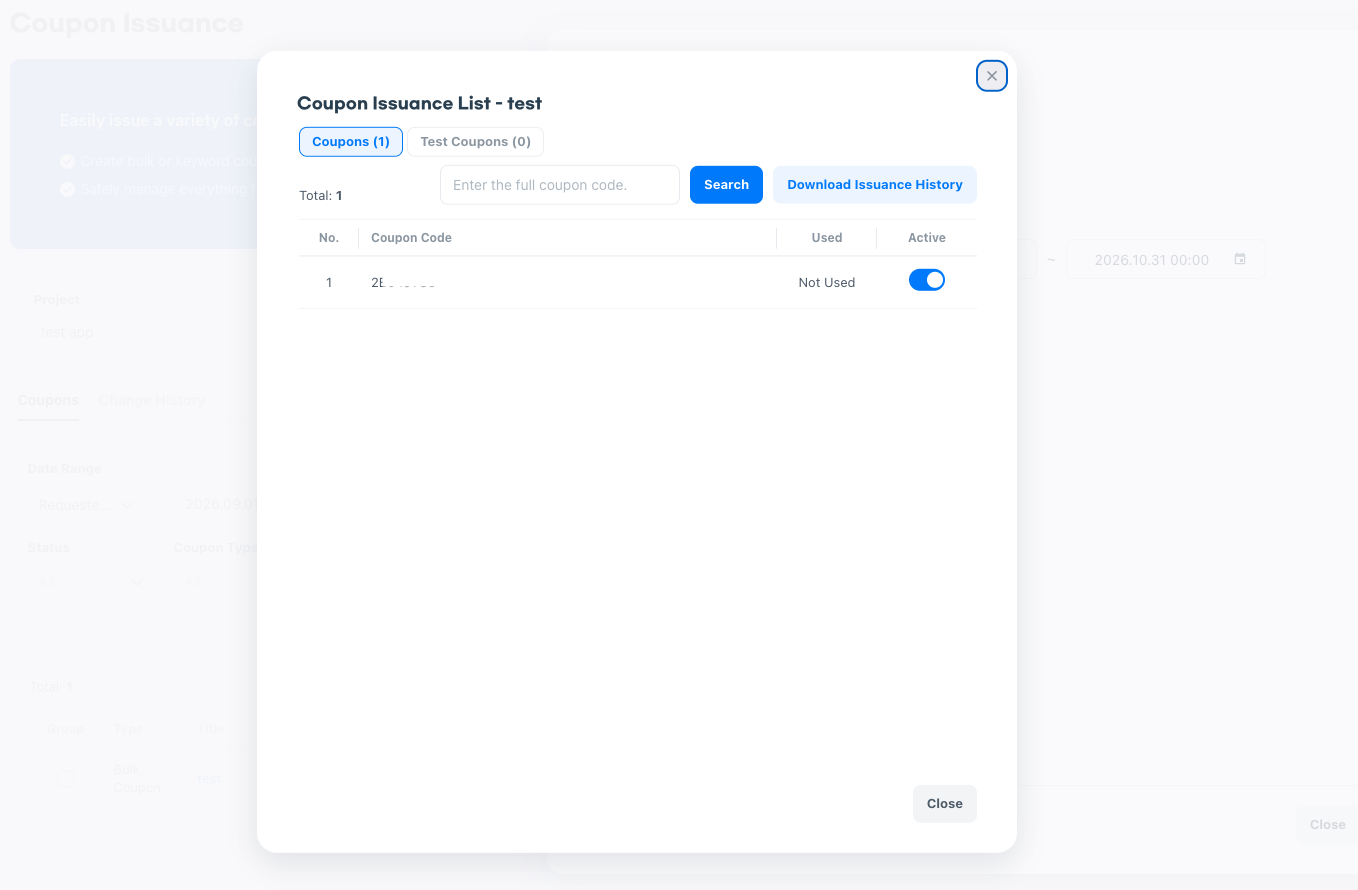
Coupon codes are deleted 3 months after the coupon usage ends. The coupon issuance history is not deleted and is kept.
Activate at the coupon code level
In Active on the Coupons tab, you control whether each coupon code is active, one at a time. A deactivated coupon code cannot be used even if the coupon is On. For a coupon code that has already been used, changing its activation status does not cancel the result of its use.
How to set up:
- In the
Coupon Detailspopup, select [View Issuance List] inCoupon Issuance List. - On the
Couponstab, search for the coupon code or find it in the list. - Select the
Activetoggle of that coupon code to change it to On or Off.
Retry after code generation failure
If a problem occurs during coupon code generation, the coupon status becomes Generation Failed. When you select [Retry], the remaining codes are generated following the coupon codes that were being generated. In this status, you cannot edit the usage period.
How to set up:
- Go to
Coupon > Coupon Issuance, select a project, and then select [Search]. - Select the
Titleof a coupon whose status isGeneration Failedto open theCoupon Detailspopup. - Select [Retry].
Delete a coupon
Deleting a coupon does not delete coupon codes; it deletes one coupon issuance request. You can delete only in the Pending Approval, Rejected, Issued, and Generation Failed statuses, and in the Approved and Generating statuses, [Delete] is not enabled.
A deleted coupon no longer appears in the console list. After you delete it, you can use the same coupon code again.
How to set up:
- Go to
Coupon > Coupon Issuance, select a project, and then select [Search]. - Select the
Titleof the coupon to delete to open theCoupon Detailspopup. - Select [Delete].
Coupon groups
Bundle multiple coupons of the same type into a group to limit the number of uses per account at the group level. Bulk coupons can be grouped only with bulk coupons, and keyword coupons only with keyword coupons. If you select different types together, Only coupons of the same type can be grouped. appears as a toast, and if a coupon that already belongs to a group is included, Some coupons already belong to a group. appears.
When you issue keyword coupons with multi-issue, you can select Create Group to bundle them into a group at the same time as issuance.
Request group creation
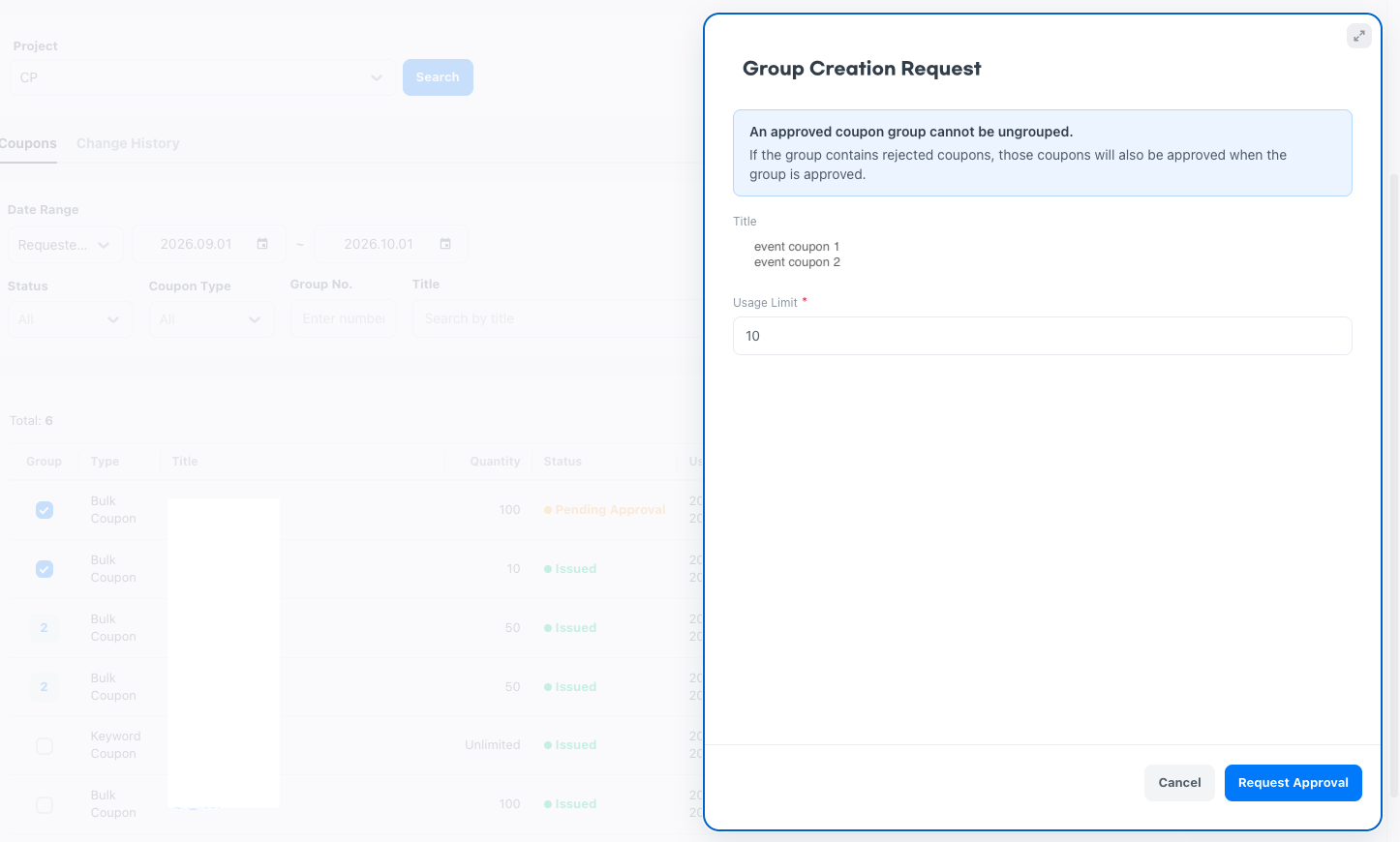
- Usage Limit: The number of uses per account applied to all coupons in the group. Enter it only for a bulk coupon group. Enter at least 1 and no more than the smallest issue quantity among the coupons in the group. The test coupon quantity is not included in the upper limit calculation. If you exceed the upper limit,
You can enter up to {maximum quantity}.appears, and if it is less than 1,Enter at least 1.appears.
How to set up:
- Go to
Coupon > Coupon Issuance, select a project, and then select [Search]. - In the list, select the checkboxes of the coupons to group.
- Select [Create Group].
- In the
Group Creation Requestpopup, check the titles of the selected coupons, and for bulk coupons, enter theUsage Limit. - Select [Request Approval]. The popup closes and
Approval requestedappears inGroupin the list.
Approve and reject a group
After a group is approved, you cannot ungroup it, so if you need to ungroup, do it before approval.
- Approve a group:
Pending Approvalcoupons in the group becomeApprovedalong with the group approval. For coupons that were already approved individually, only the group approval is processed. If the group includes a rejected coupon, that coupon is also approved when the group is approved. - Reject a group: Rejects the group approval request. A rejected group can be approved again.
- Ungroup: You can ungroup only before the group is approved.
- Handle coupons in a group individually: A
Pending Approvalcoupon in a group cannot be approved individually; you can only reject or delete it. Rejecting or deleting does not ungroup the group, and it applies only to that coupon.
You can also group coupons that are already in use or approved. However, the group limit applies only after the group is approved, so for a coupon already in use, behavior can differ between users before and after the group approval.
Group in the list shows the group status.
| Group status | List display |
|---|---|
| Pending Approval | Approval requested |
| Approved | Group number |
| Rejected | Rejected |
How to set up:
- Go to
Coupon > Coupon Issuance, select a project, and then select [Search]. - In
Groupin the list, selectApproval requestedto open theGroup Creation Requestpopup. - Check the included coupons and the
Usage Limit, and enter theApproval/Rejection Message. - Select [Approve] or [Reject]. The popup closes and the group status changes to approved or rejected.
Next steps
To check the records of coupon code usage, see Coupon code usage history.