DMM GAMES Integration Guide
To integrate DMM GAMES with your app, you must first sign a contract. After signing the contract, implement the integration by referring to this guide.
The supported DMM GAMES integration scope differs by app execution environment.
- PC: Supports both authentication and billing for store release.
- Mobile: Supports only IdP login authentication integration.
Prerequisites
1. Issue credentials and check key values in the DMM Developer Site
- PC: Check the three key values issued from the DMM ClientGame Developer Site.
- App ID(アプリID), Consumer Key(コンシューマーキー), Consumer Secret(コンシューマーシークレット) - check ゲーム管理 > ゲーム情報 > 基本情報
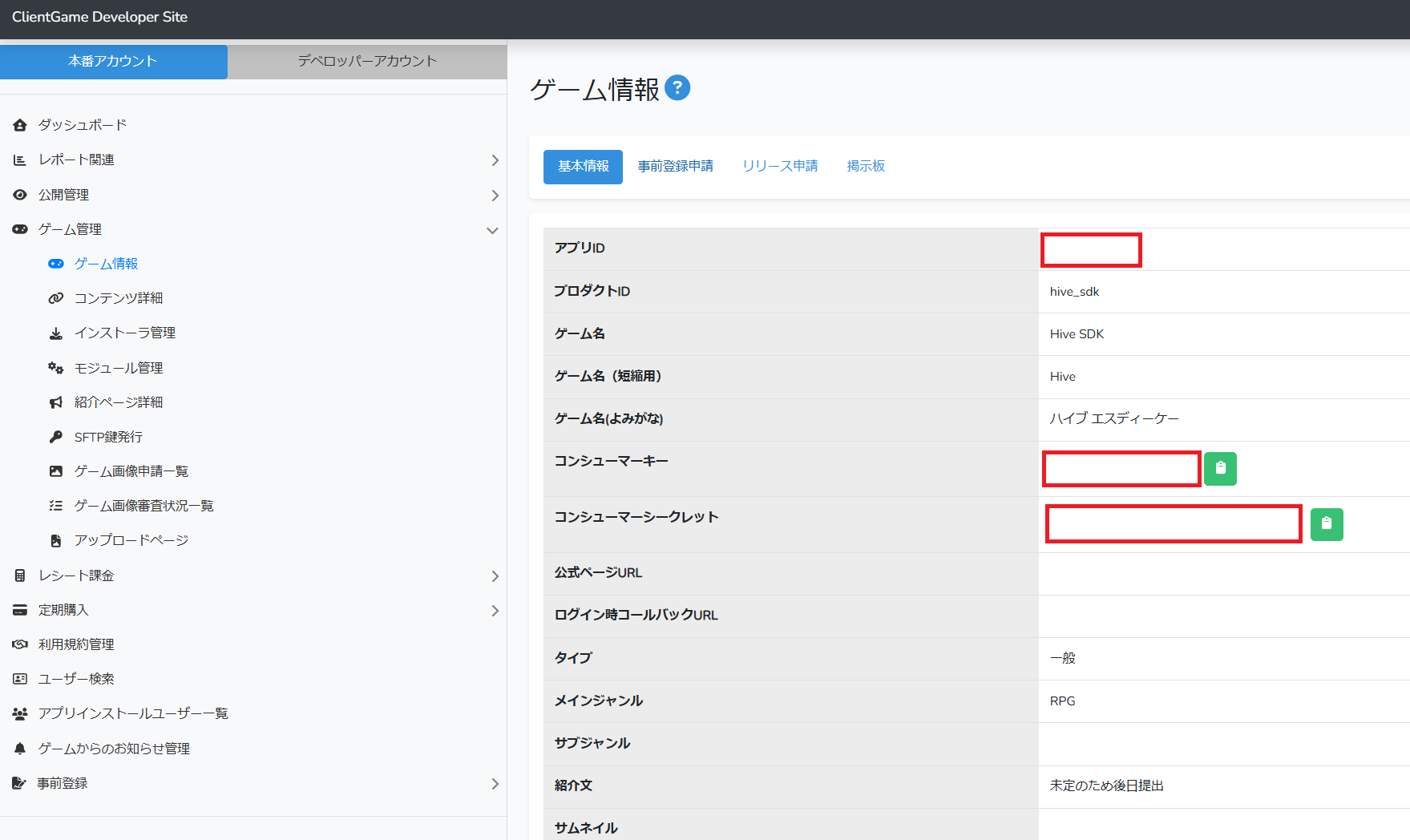
- When registering the app in the DMM console, select the API payment method.
- App ID(アプリID), Consumer Key(コンシューマーキー), Consumer Secret(コンシューマーシークレット) - check ゲーム管理 > ゲーム情報 > 基本情報
-
Mobile: Issue DMM credentials.
- First register mobile app information, such as the package name and app information, in the DMM GAMES developer console, and then issue the credentials below. DMM authentication uses two types of credentials: OpenSocial and AuthSDK.
Category Key Description OpenSocial appIdOpenSocial app ID. This is the makeRequest opensocial_app_idvalue and is used for signature verification.OpenSocial consumerKey,consumerSecretConsumer credentials for signatures. Check these in the DMM console after app registration. AuthSDK clientId,clientSecret,secretKeyOAuth2 login credentials. The DMM AuthSDK on the device consumes these values, and they are not sent to the Hive server. Apply separately to DMM to have them issued. AuthSDK redirectUriOAuth2 callback scheme. DMM binds this value to clientIdand provides it together when you apply.
2. Prepare an App ID
- In App Center > App ID Management > New App ID, create an App ID that matches the OS and store. For the PC environment, select Windows as the OS and DMM GAMES as the store.
- App ID example: com.[company name].[project name].windows.dmm
3. Configure authentication
- To strengthen inter-service authentication security, you must issue a security key in Hive Console > App Center > Security Key Settings.
- For authentication configuration, register store keys and configure IdP exposure in Authentication > Login Settings.
4. Configure billing
- For billing configuration, register store keys in Billing > Payment Settings > Store Settings.
Implementing DMM Login
PC environment integration (DMM GAME PLAYER environment)
Implement by referring to Login/Logout.
Warning
Do not run the app if execution parameters do not exist.
If the app is not launched through DMM GAME PLAYER and the execution parameters viewer_id and onetime_token are not passed, do not run the app and handle it by exiting. For details about how parameters are passed, refer to the DMM GAMES PLAYER service policy in DMM GAMES Developer Support.
When the app execution environment is PC (DMM GAME PLAYER), consider the following for DMM login integration.
- Hive SDK receives the execution parameters
viewer_idandonetime_tokenpassed by the DMM GAME PLAYER launcher and processes DMM account login without a separate login UI. Therefore, the app connects the DMM account login process without separately implementing a login flow for the DMM execution environment. - DMM login proceeds with the implicit login method
AuthV4.Helper.signInorAuthV4.signIn(ProviderType.DMM). When login succeeds, the automatic login session is saved, and you can also log in later withAuthV4.signIn(ProviderType.Auto). Check theproviderUserIdbased on the user identifierviewer_idin the DMM provider information of the login resultPlayerInfo. - If the app is launched through DMM GAME PLAYER and launcher parameters are passed, implicit login always works with the DMM account without a first-time-only restriction, and the explicit login UI
showSignInis not used. For general Windows implicit login behavior, refer to Implicit Login Behavior: PC. - The management token
onetime_tokenis valid for 90 minutes according to DMM policy. Hive SDK refreshes it automatically internally, so you do not need to implement this separately. However, if refresh fails because the network is disconnected for a long time and the token fully expires, the SDK cannot recover on its own. Restart the app to receive a new token. DMM API calls such as billing require a valid management token. - When running through DMM GAME PLAYER, do not use the logout method
signOut. Because DMM works as launcher-based automatic login, do not use the IdP selection UIshowSignIneither.
DMM authentication is the authentication method used when a user runs an app through DMM GAME PLAYER on Windows. It works as launcher-based automatic login and is not exposed in the explicit login UI IdP selection list.
Mobile environment integration
Mobile DMM login is used in the same way as other IdPs, such as Google and Apple, by calling AuthV4.signIn(ProviderType.DMM). The provider internally handles DMM SDK initialization, login, and signature verification integration.
Configure keys in hive_config.xml
Enter values in the providers tag of the hive_config.xml file by referring to the example code below. Apply only one developmentMode of your environment among the Sandbox and production (Service) examples.
<!-- Sandbox configuration -->
    <properties>
    <!-- Hive SDK common settings omitted -->

    <!-- Hive SDK authentication settings: START -->
                <providers>
                        <!-- Log in with DMM (DMM) -->
                        <dmm appId="123456" developmentMode="sandbox" redirectUri="app-redirect-url" consumerKeySandbox="abcdefghijklmnop" consumerSecretSandbox="abcdefghijklmnopabcdefghijklmnop" />
                    </providers>
                    <!-- Hive SDK authentication settings: END -->
        </properties>

    <!-- Production (Service) configuration -->
    <properties>
    <!-- Hive SDK common settings omitted -->

                    <!-- Hive SDK authentication settings: START -->
                <providers>
                                    <!-- Log in with DMM (DMM) -->
                                <dmm appId="123456" developmentMode="service" redirectUri="app-redirect-url" consumerKey="abcdefghijklmnop" consumerSecret="abcdefghijklmnopabcdefghijklmnop" />
                    </providers>
<!-- Hive SDK authentication settings: END -->
</properties>
The hive_config.xml key list (Android, iOS) is as follows.
| Key | Value | Required when |
|---|---|---|
| appId | App identifier | Always |
| developmentMode | sandbox or service | Always |
| consumerKey | consumer key | When service |
| consumerSecret | consumer secret | When service |
| consumerKeySandbox | consumer key | When sandbox |
| consumerSecretSandbox | consumer secret | When sandbox |
| redirectUri | Redirect URL configured in the app | Always |
| adult | true or false | For iOS |
Consider the following for secretKey, clientId, and clientSecret configuration.
- Configure the three values
secretKey,clientId, andclientSecretthrough thesetConfigurations()API. - Information configured through the
setConfigurations()API is retained only in runtime memory, so you must call it every time the app starts. - Even if values are configured in the hive_config.xml file, values configured at runtime through the
setConfigurations()API take priority and overwrite them. -
For configuring confidential key values through the
setConfigurations()API, refer to the example code below.
Android DMM IdP configuration
Add the DMM login library by referring to Add Android IdP. Then configure Android DMM IdP in the following order.
-
Configure redirectUri (scheme).
redirect_uriis a custom scheme such ascomXXX://auth, and you must submit it together when applying forclientIdto receive DMM authentication approval before using it. Because this value is bound toclientId, using an unauthenticated value causes the DMM errorE210019 (error_redirect_uri_unavailable)during login.Inject the redirect scheme in build.gradle.
-
Configure Gradle dependencies and repository.
Add the DMM Maven repository to
3. Implement by referring to Login/Logout.dependencyResolutionManagement { repositories }in the root settings.gradle. Because Gradle repository declarations are not transitive, resolving the DMM SDK (link-id-sdk,AuthSDK) fails if it is not declared in the app build.
iOS DMM IdP configuration
Add the DMM login library by referring to Add iOS IdP. Then implement by referring to Login/Logout.
Implementing DMM Billing
DMM is a payment method that lets users purchase products with charged DMM points. Payment requests and restoration flows follow the general IAP v4 purchase flow, but DMM-specific branches such as DMM point balance checks and point top-up guidance also operate. Therefore, even in the Windows DMM environment, keep the existing IAP v4 flow while also handling DMM point-based payment conditions.
Implementation steps
- Implement by referring to Billing > IAP v4 Initialization.
- Implement by referring to Billing > Product List Query and Purchase.
- Implement by referring to Receipt Verification.
- Consider the following for DMM login development.
- DMM billing is confirmed immediately without a separate payment window UI. If the purchase is in Pending state and no receipt is returned immediately after purchase, call IAPV4.restore to obtain the receipt again, and then proceed with verification and item grant processing. The overall flow for receipt verification and item grant processing after purchase is the same as other stores. For details, refer to Receipt Verification.
- DMM billing API calls require a valid management token
onetime_token. For token lifetime, automatic refresh, and handling expiration, refer to DMM Login. - DMM billing also supports multi-quantity purchases. Call IAPV4.purchase(marketPid, iapPayload, quantity, onIAPV4PurchaseCB) with the quantity parameter to purchase multiple units of the same product at once.
DMM points
Querying DMM point balance
Call IAPV4.getBalanceInfo to query the DMM point balance available to the user. Use it to proactively check the balance before purchase or to display the balance on the shop screen. The callback returns ResultAPI and the integer balance balance. getBalanceInfo can be used only for DMM billing in the PC Windows environment. Calling it in other markets returns the unsupported NOT_SUPPORTED result.
If the call succeeds, balance contains the currently available DMM point balance. If the call fails, check the failure reason with ResultAPI.
Guiding users to top up when DMM points are insufficient
If the point balance is insufficient during purchase, the purchase callback returns the IAPV4DmmInsufficientPointBalance result code. In this case, expose the DMM point top-up page in a browser from the app and guide the user to top up.
The DMM point top-up page URL is https://point.dmm.com/choice/pay?basket_service_type=freegame.
Caution
The top-up page URL above is provided by DMM and may change according to DMM policy. Check the latest URL and parameter values such as basket_service_type with DMM.