VIP management
Customer Center allows you to register and manage VIP users based on cumulative purchase amounts per game. VIP-registered users are marked with urgency in the inquiry list according to their VIP class.
VIP users can be registered in the following ways.
- Extract target users based on cumulative purchase amount and register them immediately
- Register by directly uploading a VIP registration file
VIP User Export
In Customer Center > VIP Management > VIP User Export, you can extract VIP target users based on cumulative purchase amount and view the extraction history.
VIP User Export Request
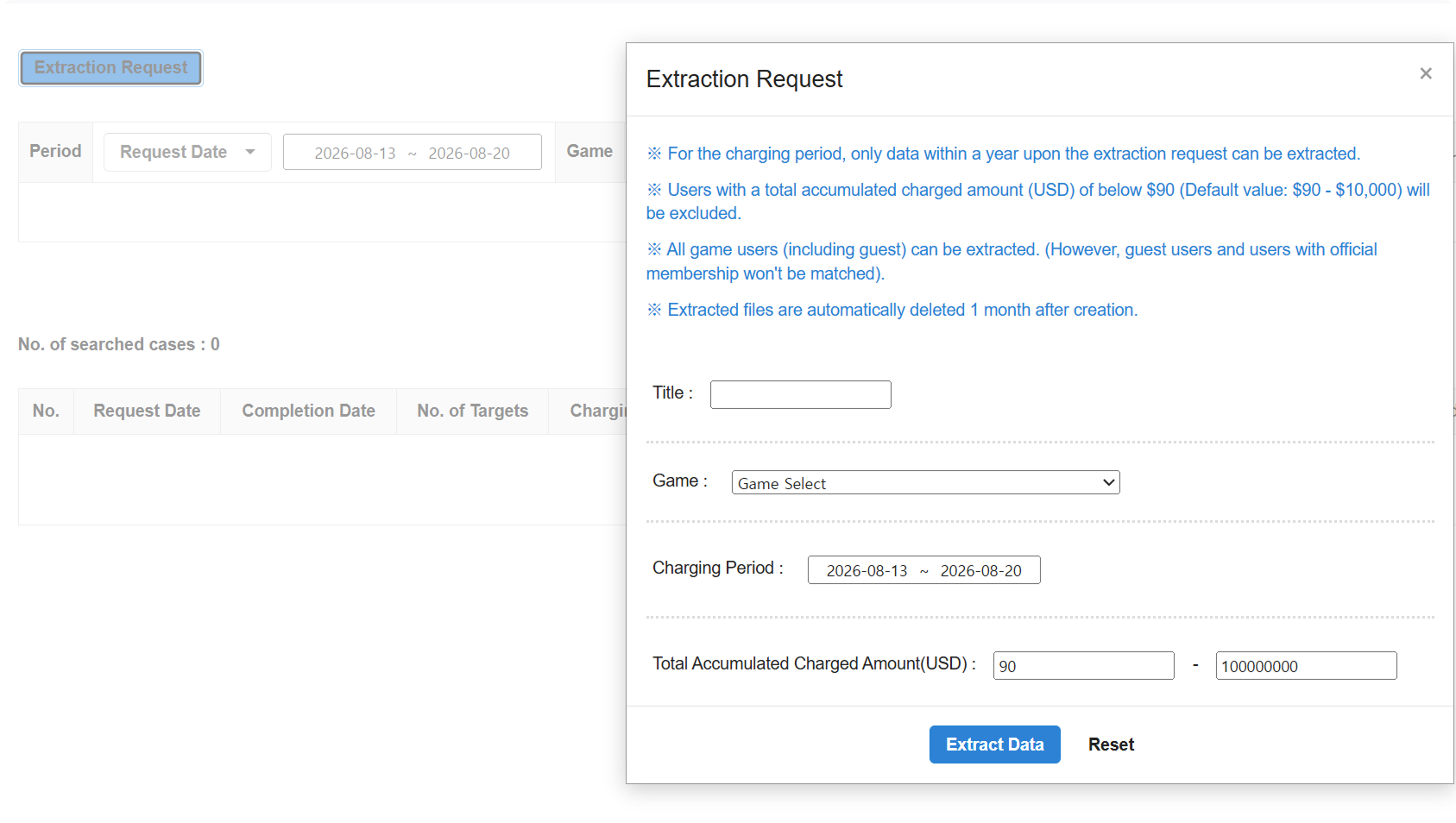
- Click Request Extraction.
- Enter a title and select a game.
- Set the billing period.
- Enter the total cumulative billed amount range in USD.
- Click Extract Data.
Click Reset to restore the entered conditions to their default values.
VIP User Export Conditions
- The billing period can be set within the most recent 1 year from the request date.
- Users with a total cumulative billed amount of 90 USD or less are excluded from extraction.
- You can extract from all game users, including guest accounts.
- Matching between guest accounts and accounts converted to full accounts is not supported.
Extraction File Retention Period
Extraction files are automatically deleted 1 month after their creation date. Download any files you need within the retention period.
View Extraction Request History
Set conditions such as period, game, title, status, and requester, then click Search to view the extraction request history.
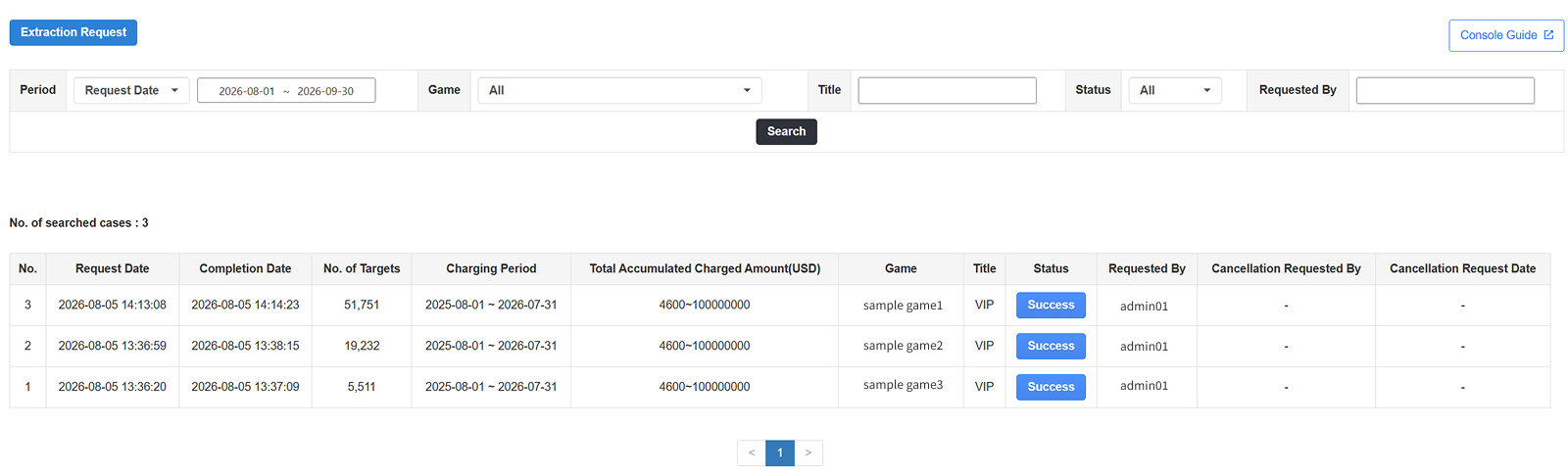
You can perform the following actions depending on the status of the extraction request.
- In Progress: Click the status to cancel the extraction request.
- Success: Click the status to check the extraction result and register VIP users.
- Failed: Click the status to request data extraction again.
Register VIP Users from Extraction Results
Once extraction is complete, you can download the extraction result or immediately register the extracted users as VIP.
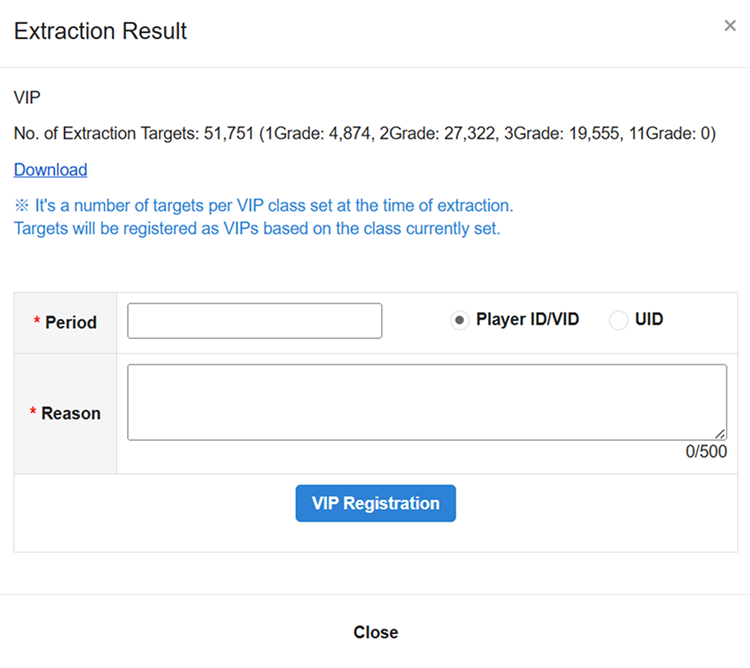
- Click Success in the extraction request history.
- Check the number of extracted users in the
Extraction Resultpopup. For games without a VIP class set, the count is shown asVIP: <number of users>; for games with classes set, the count is shown by class, such asClass 1: n,Class 2: n. - If needed, click Download to save the extraction file.
- Set the VIP application period.
- Select
Player ID/VIDorUID. - Enter the reason for VIP registration.
- Click Register VIP.
Checking IDs in the Extraction File
If the Player ID/VID or UID field in the extraction file contains 0 or an invalid value, the error The contents of the file are incorrect. Please enter them according to the format. is displayed and the file cannot be registered immediately.
Download the extraction file, delete or correct the value, and then register it as a file in VIP Registration Management.
VIP Class Application Criteria
The number of users by class in the extraction result is based on the VIP class at the time of the extraction request. The class settings at the time of registration are applied when actually registering.
VIP Registration Management
In Customer Center > VIP Management > VIP Registration Management, you can set VIP classes and manage the VIP registration and removal history.
VIP Class Settings
Set VIP classes based on the cumulative purchase amount for each game.
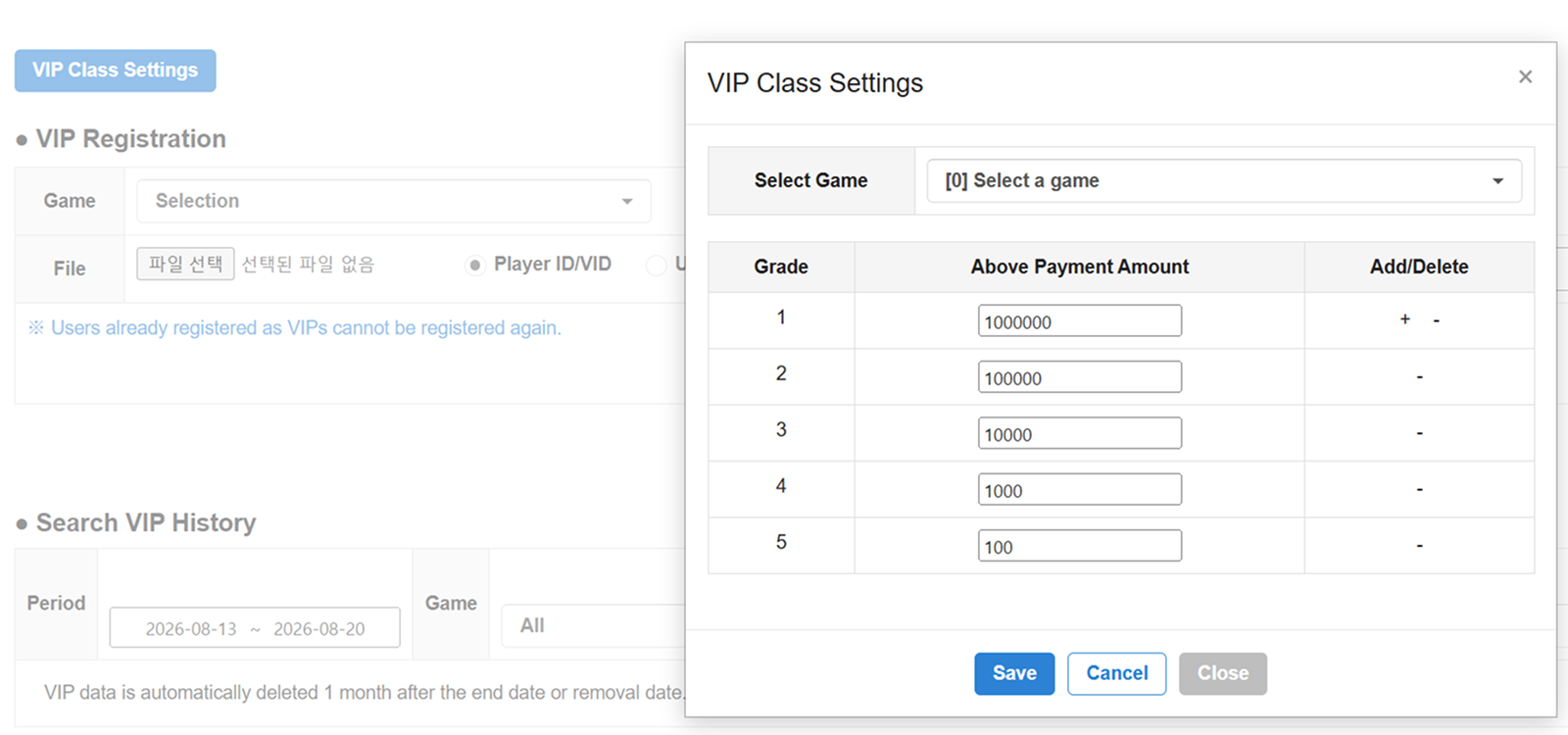
- Click Set VIP Class and select a game.
- Enter the minimum cumulative purchase amount for each class.
- Click
+or-to add or remove classes, then click Save.
Games with VIP classes set are marked with ★. The configured classes apply to VIP users registered afterward.
Register VIP Users by File

- Enter the game and title.
- Set the VIP application period and ID criteria.
- Select the VIP target file.
- Enter the registration reason and click Register VIP.
The registration file must be in CSV format and must contain only the selected ID criteria and the total cumulative purchase amount in USD. Make sure the ID criteria selected on the screen (Player ID/VID or UID) matches the ID included in the file.
If you are creating the file yourself, you can use the sample file.
VIP Re-registration Restriction
Users who are already registered as VIP cannot be registered again.
View VIP History
Set conditions such as period, game, title, status, and search term, then click Search to view the VIP registration and removal history.
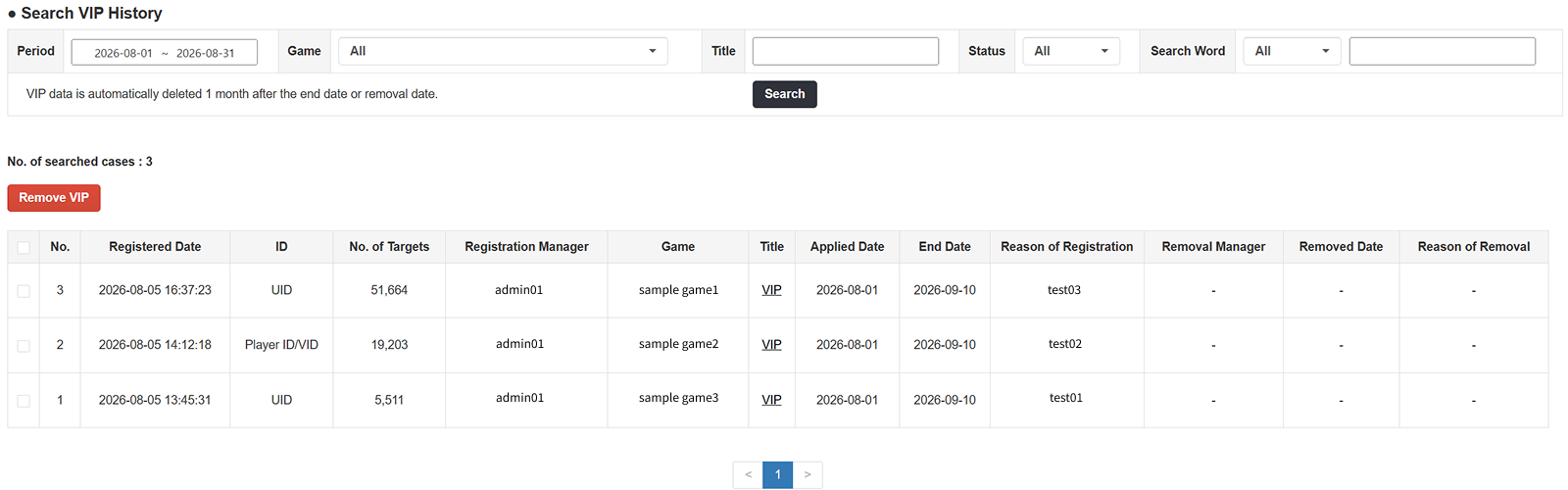
Hover over Users in the search results to check the number of users by VIP class. For games without a VIP class set, the total number of users is shown as VIP.
VIP Data Retention Period
VIP data is automatically deleted 1 month after the end date or removal date.
Check VIP Registration Details
Click a title in the VIP registration history to check the game, application period, number of registered users, and target user information.
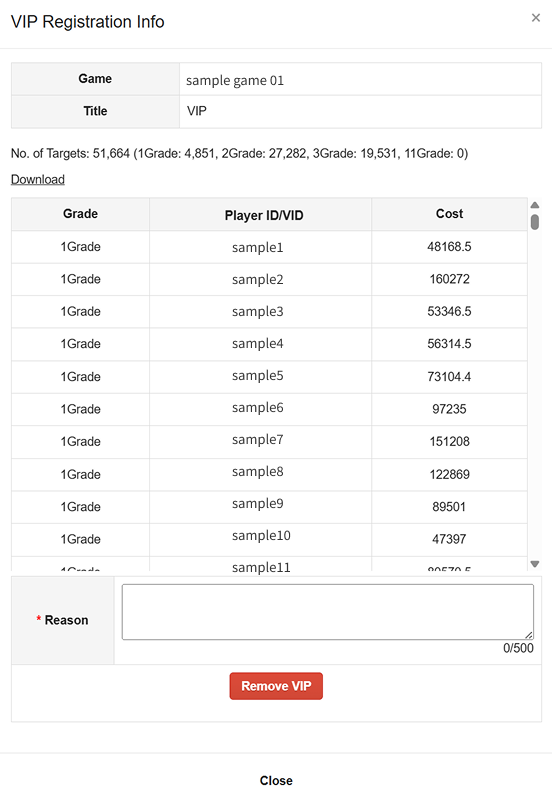
Depending on whether the game's classes were set at the time of VIP registration, target user information is displayed as follows.
- If VIP classes were not set: the class is shown as
VIP, and the cumulative purchase amount is shown as-. - If VIP classes were set: the class is shown as
Class n, and the cumulative purchase amount is shown as the amount at the time of registration.
Registered IDs are shown as Player ID/VID or UID, depending on the criteria selected at the time of VIP registration. Click Download to save the VIP target list as a CSV file (vip_list.csv).
Remove VIP
- Select the registration entry to remove from the VIP registration history.
- Click Remove VIP.
- Check the removal target and registration details.
- Enter the removal reason and click Remove VIP.
Batch VIP Removal
VIP status is removed by registration entry. All users included in the selected registration entry are removed together.