Project
Create a project to use Hive Axyl, and manage the project's name and status. App IDs and security keys are configured per project, so create a project first.
➡️ Console path: Project Settings > Project
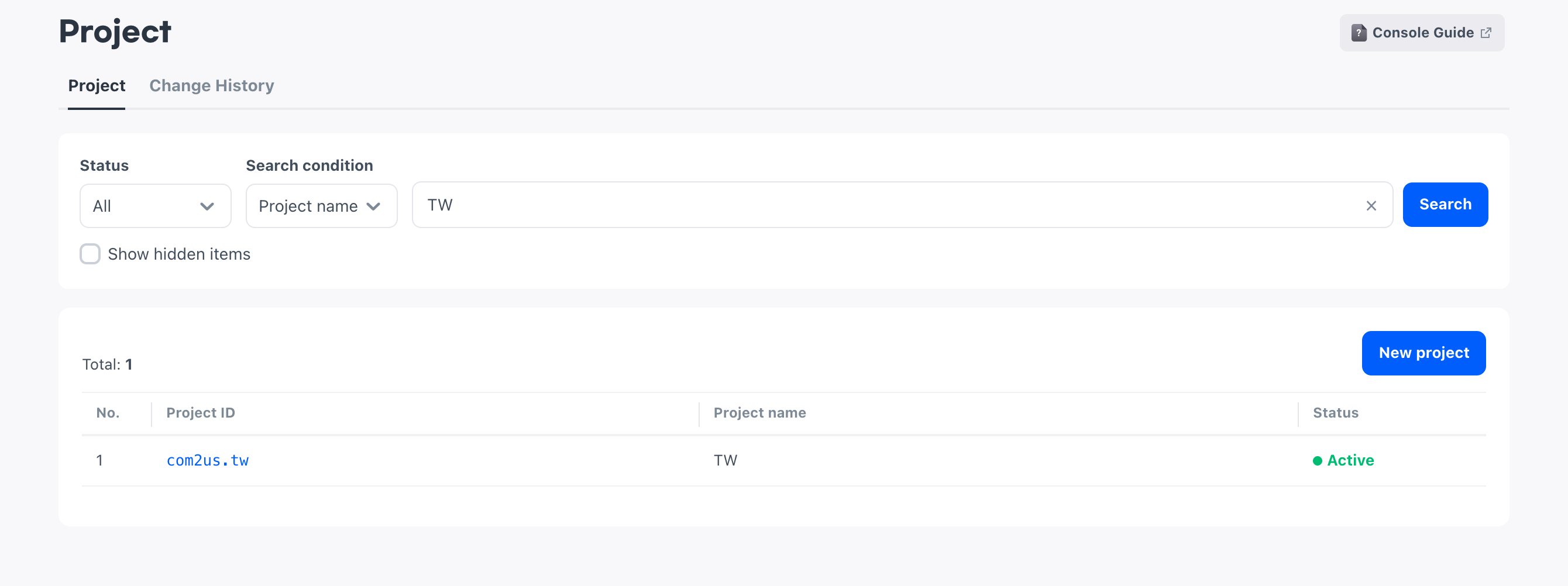
Create a project
When you create a project, enter the Project ID and Project name. The two values serve different purposes.
- Project ID: A project identifier exposed to external systems and users
- Project name: A management name for recognizing the project in the console list
Project ID
The company code and a period are automatically added in front of the Project ID. You cannot enter or edit this part yourself. When you enter the value to use after the company code, the string that combines the two values becomes the project ID.
You can change the Project name even after creation, but you cannot change the project ID. Check the project ID you entered before you create the project.
When you create an App ID, the project ID is included at the front. The longer the project ID, the shorter the value you can enter for the App ID. Keep this in mind when you decide on the value.
Creation procedure
How to set up:
- Select New project.
- Enter the Project ID to use after the company code.
- Enter the Project name.
- Select Create.
The project you create is added to the top of the list with the Active status.
Change project information and status
Select a project ID in the list to open the edit screen. Here you change the Project name, status, and visibility. The Project ID cannot be changed, so it is displayed as read-only.
Status
You cannot delete a project you created. Manage projects you no longer use by changing their status. The meaning of each status is as follows.
- Active: A project in operation. Included in the targets you can choose when you configure features Hive Axyl provides
- Ended: A project whose operation has ended. Excluded from configuration targets
You can change the project status between Active and Ended without restriction. When you resume operation, change it to Active.
Caution
If you change a project to Ended, the status of all App IDs in that project also changes to Ended. So when you change it back to Active, also check the status of each App ID in the App ID list.
Visibility
A project changed to Ended still remains in the list. To hide it from the list, set it as hidden. You can set a project as hidden only in the Ended status, and Active projects are always displayed in the list.
To see projects set as hidden again, select Show hidden items to the right of the search conditions at the top of the list.
How to set up:
- In the list, select a project ID to open the edit screen.
- Change the Project name, or choose Active or Ended as the status.
- If you chose Ended and want to hide it from the list, select Set as hidden.
- Select Save.
Next steps
After you create a project, configure App IDs and the security key in the project.
- App ID: Create App IDs for each runtime environment and store
- Security key: Issue the Client ID and Client Secret shared across the project