Certificate settings
'Certificate Settings' is a feature that sets the Android, iOS, and macOS credentials required to send push notifications for each App ID. When you save, the system connects to FCM or APNs to verify the credentials you entered and saves only the credentials that pass verification.
➡️ Console path: Push Notification > Certificate Settings
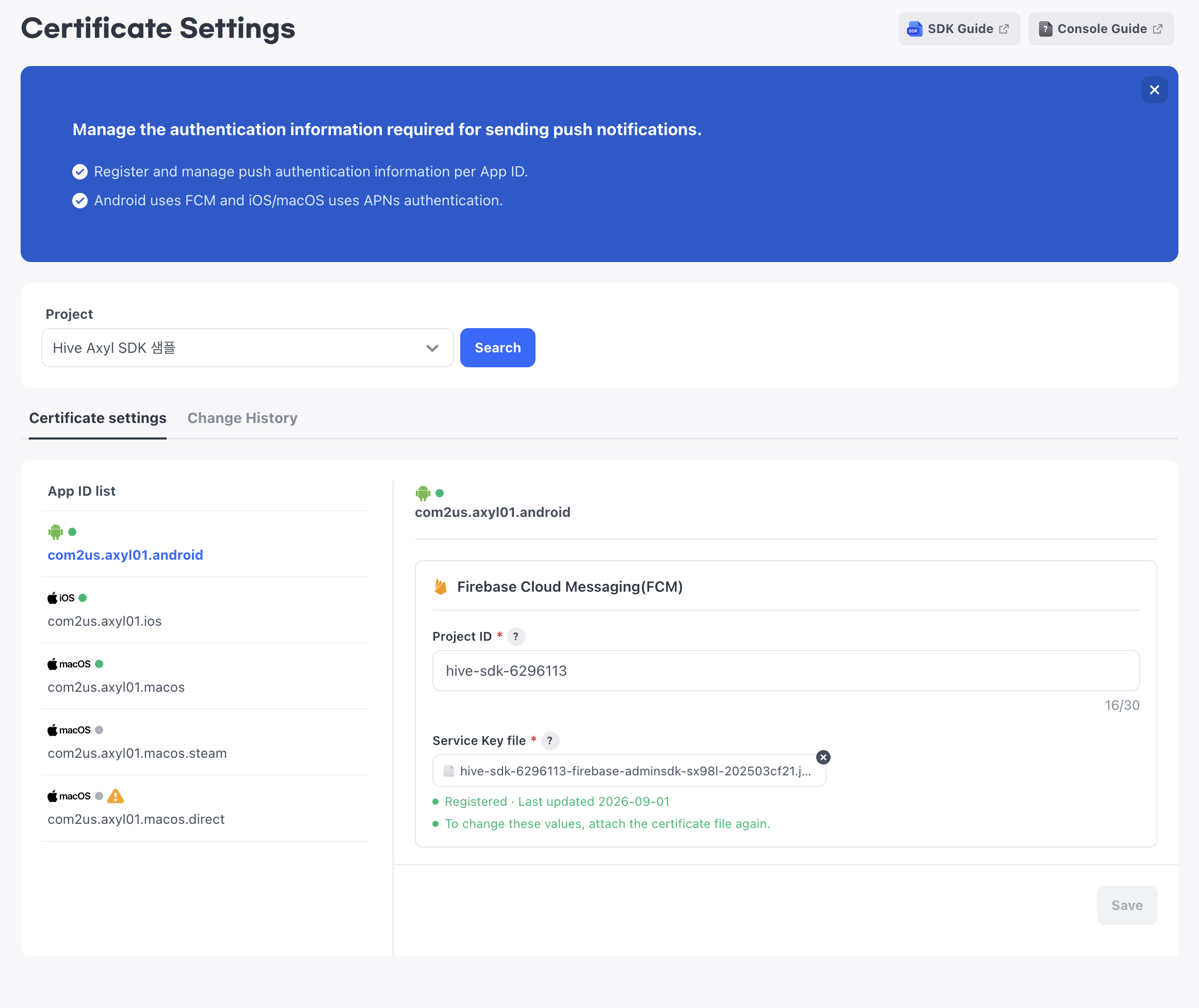
If you have menu permission, you can access the menu and search. To save credentials, you need edit permission.
Set credentials for each App ID
Select a project, and then select the App ID to set in the App ID list. Depending on the OS of the selected App ID, the FCM settings or the APNs settings are shown.
(Image to be added: Certificate Settings screen)
Android App ID
| Item | Description |
|---|---|
| Project ID | Enter the FCM project ID. This field is required, and you can enter up to 128 characters. |
| Service Key file | Upload the FCM service key file. This field is required, and you can upload only a JSON file of 64 KB or less. If the file is larger than 64 KB, the message "You can upload files up to 64 KB." appears. |
How to set up
- Go to Certificate Settings.
- Select a project and click Search.
- Select an Android App ID in the App ID list.
- Enter the Project ID and upload the Service Key file.
- Click Save. If the credentials pass verification, the message "Certificate settings have been completed." appears.
iOS and macOS App IDs
| Item | Description |
|---|---|
| APNs certificate file | Upload the APNs certificate file. This field is required, and you can upload only a .p8 file of 64 KB or less. A single .p8 certificate supports both the Production and Development environments. |
| Key ID | Enter the APNs Key ID. This field is required, and you can enter up to 10 characters. |
| Team ID | Enter the APNs Team ID. This field is required, and you can enter up to 10 characters. |
How to set up
- Go to Certificate Settings.
- Select a project and click Search.
- Select an iOS or macOS App ID in the App ID list.
- Upload the APNs certificate file and enter the Key ID and Team ID.
- Click Save. If the credentials pass verification, the message "Certificate settings have been completed." appears.
Credential verification
When you upload a file, its file format is verified. Android App IDs save only JSON files, and iOS and macOS App IDs save only .p8 files.
You cannot save a file with the wrong format. If you upload a wrong file when a value is already saved, the existing value is kept.
If the FCM project ID you entered differs from the project_id in the service key file, the message "The project ID you entered does not match the project ID in the Service Key file. Check the project ID or the file." appears. For any other verification failure, the message "Certificate settings failed. Check that the certificate information is valid." appears.
Next steps
After you complete 'Certificate Settings', see Push campaign registration.